what tools are needed to upgrade a gaming laptop depends on the model, the part, and how the chassis opens. A one-size list misses the details that actually stop people mid-teardown.
Manufacturer specifications indicate that memory follows JEDEC SO-DIMM standards, while storage usually means an M.2 2280 NVMe drive. Those two facts alone change which screwdrivers, adapters, and thermal supplies you need. Let's walk through the decision points before you buy anything.
Why Generic Tool Lists Fail for Gaming Laptops (The Short Answer)
A generic list usually starts with a Phillips screwdriver and thermal paste. That gets you started, but it skips the real question. Which screws are on your bottom panel?
Is the RAM socketed or soldered? Are there hidden fasteners under rubber feet?
The answer changes fast once you look at the service manual. Some chassis use Torx T5 or T6 screws. Others use Phillips #0 or #00.
Many use a mix. A few models add Pentalobe or hex fasteners. If you only own one driver, you can strip a screw in seconds.
Component access matters just as much. Some gaming laptops open from the bottom with one panel. Others need the keyboard deck removed first.
A few hide screws under rubber feet or warranty seals. That changes whether you need a spudger, opening picks, or a suction cup.
Thermal work adds another layer. Replacing RAM or an SSD may not need new paste. Repasting a CPU or GPU always does.
You also need isopropyl alcohol, lint-free wipes, and the right thermal pad thickness if the heatsink contacts VRAM or VRMs.
Before you plan tools, check which components are serviceable for your model. That single step saves money and frustration.
How Chassis Access Varies by Brand and Model
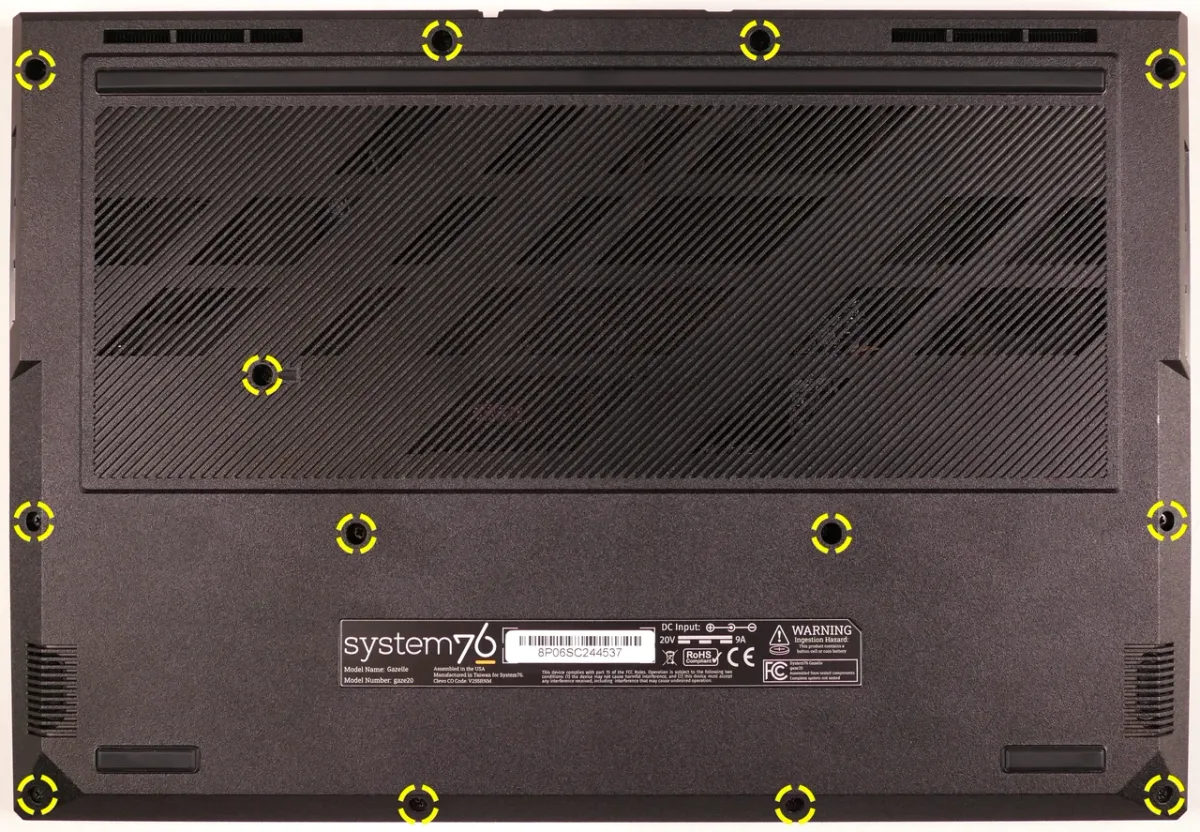
Chassis design is the biggest wildcard. Two laptops with the same processor can open in completely different ways. One may have a removable bottom cover.
Another may require removing the keyboard first.
Brand patterns help, but they are not rules. Many Dell and HP models use bottom panels with Phillips screws. Some Lenovo designs use Torx screws and hidden fasteners.
ASUS and MSI often mix screw types. Acer may use clips that need careful prying. Always verify with the service manual.
Hidden screws are common. They often sit under rubber feet, rubber plugs, or barcode stickers. Removing them takes a plastic pick, not a metal blade.
A metal tool can scratch the finish or cut a ribbon cable.
Clips are the other risk. Plastic tabs hold many panels in place. You should not force them.
A thin plastic spudger or opening pick lets you release tabs one at a time. Work slowly around the edge.
Some models also have adhesive. Battery replacements may need gentle heat to soften adhesive. Display work may need a suction cup.
Do not use a heat gun on high. Low heat and patience are safer.
If the manual says remove the battery first, do it. Many gaming laptops have an internal battery with a connector. Disconnect it before touching other parts.
That reduces short risk and protects components.
The Universal Tool Kit Every Upgrade Needs
Most gaming laptop upgrades need a small precision kit. You do not need a full workshop. You do need the right basics and a clean workspace.
Start with screwdrivers. A quality precision set should include Phillips #000, #00, and #0. Add Torx T5 and T6.
Magnetic tips help, but they should be weak enough for small screws. Strong magnets can pull screws into awkward places.
Next, add ESD protection. An anti-static wrist strap and mat are cheap insurance. ESD Association guidance stresses grounding before handling electronics.
Even a small static discharge can damage memory or storage.
You also need opening tools. A plastic spudger, opening picks, and tweezers handle clips and connectors. A magnetic screw mat keeps screws organized by location.
That matters because chassis screws often vary in length.
For thermal work, keep isopropyl alcohol at 90 percent or higher. Add lint-free wipes and fresh thermal paste. If you are replacing thermal pads, measure thickness first.
Common sizes include 0.5 mm, 1.0 mm, and 1.5 mm.
A small flashlight helps you see screws and connectors. A phone camera can document cable routing before removal. That simple habit prevents reassembly mistakes.
| Tool | Why It Matters | Common Use |
|---|---|---|
| Phillips #00/#0 | Fits most chassis screws | Bottom panel, heatsink |
| Torx T5/T6 | Fits many gaming laptop screws | Bottom panel, fan mounts |
| Plastic spudger | Releases clips safely | Panel removal, connectors |
| ESD wrist strap | Reduces static damage | RAM, SSD, motherboard |
| Magnetic screw mat | Organizes mixed screws | Full teardown |
| Isopropyl alcohol 90%+ | Cleans old paste | CPU/GPU repaste |
Decision Branches: Match Tools to Your Specific Upgrade
If you are adding RAM, check whether the slots are socketed. Some gaming laptops solder memory to the board. If they are socketed, you usually need only screwdrivers, ESD protection, and maybe a spudger.
If soldered, no tool kit helps. You cannot upgrade it.
If you are swapping an SSD, confirm the form factor. Most use M.2 2280. Some compact models use 2230 or 2242.
You may need a standoff or screw kit. A drive swap also needs data planning. Clone the drive first or prepare a clean OS install.
If you are repasting the CPU or GPU, the tool list grows. You need screwdrivers, spudger, alcohol, wipes, paste, and thermal pads. You also need patience.
Heatsink removal can involve many screws in a specific order. Follow the service manual exactly.
If you are replacing a fan, battery, or Wi-Fi card, expect extra steps. Battery swaps may involve adhesive and cable routing. Fan swaps may require removing the heatsink.
Wi-Fi cards often need antenna connectors handled with tweezers.
Here is a simple decision path:
- RAM upgrade: screwdrivers, ESD strap, spudger, new SO-DIMM.
- SSD upgrade: screwdrivers, ESD strap, spudger, M.2 drive, standoff kit.
- Thermal repaste: all above plus alcohol, wipes, paste, thermal pads.
- Battery replacement: screwdrivers, spudger, plastic picks, possible adhesive remover.
- Display or keyboard work: spudger, picks, suction cup, heat source, extra caution.
Before a RAM upgrade, read the step-by-step RAM guide for model-specific details. For storage, check the SSD upgrade walkthrough. If the task involves a GPU, remember graphics modules are usually fixed.
DIY vs. Professional Repair: When to Hand It Off
DIY upgrades make sense for accessible parts. RAM, SSD, and thermal paste are good examples. They are cheaper than a new laptop and often take under an hour.
You also learn how your machine works.
Professional repair makes sense when risk rises. Soldered components, display replacement, liquid metal, and motherboard work are poor DIY candidates. Liquid metal can short nearby components if applied poorly.
Display cables tear easily.
Cost is not the only factor. A pro has torque control, parts sourcing, and warranty knowledge. You may pay more, but you avoid a bricked machine.
That matters if the laptop is new or under warranty.
Time matters too. A simple SSD swap may take 30 minutes. A full teardown and repaste can take two hours.
If you are uncomfortable, hand it off. There is no shame in paying for certainty.
Warranty is another branch. Some brands allow user upgrades without voiding coverage. Others use seals or strict terms.
Check the warranty before opening the chassis. In the US, Magnuson-Moss limits blanket warranty denial, but brands can still deny damage caused by improper work.
Use CPU upgrades are rarely practical as a reality check. If the part is soldered, professional help will not change the outcome. Save your money for a different upgrade.
Mistakes That Strip Screws and Break Clips
Most damage happens before any part comes out. The wrong bit and too much force are the main culprits. A Phillips #0 in a #00 screw can round the head in one turn.
Then extraction becomes harder than the upgrade itself.
Which mistakes are most common?
- Using a driver that almost fits
- Forcing a panel before every screw is removed
- Prying with metal blades or flatheads
- Pulling ribbon cables instead of releasing connectors
- Mixing screws during reassembly
- Applying too much thermal paste
A magnetic screw mat prevents the last problem. A plastic spudger prevents the middle two. Slow, deliberate work prevents the rest.
What the Full Upgrade Kit Actually Costs
Tool costs vary, but they stay modest. A basic precision kit may cost $15 to $35. Full ESD protection and thermal supplies add more.
Most people still spend less than a professional labor fee.
| Item | Typical Cost | Notes |
|---|---|---|
| Precision screwdriver set | $15 to $35 | Phillips and Torx |
| ESD strap and mat | $10 to $25 | Grounding kit |
| Plastic pry tools | $5 to $12 | Spudger and picks |
| Thermal paste | $8 to $15 | 1 to 4 gram tube |
| Thermal pads | $6 to $15 | Mixed thickness pack |
| Isopropyl alcohol and wipes | $5 to $10 | 90 percent or higher |
| Magnetic screw mat | $8 to $15 | Screw organization |
As of 2026, a complete kit often lands between $57 and $127. The upgrade itself may add $50 to $300 depending on RAM, SSD, or thermal supplies. That is still far below replacing the laptop.
Warranty, ESD, and Battery Safety
Opening a laptop can affect warranty coverage. Read the terms before you start. In the US, Magnuson-Moss limits blanket warranty denial, but damage from improper work may not be covered.
EU right to repair rules also vary by product and region.
ESD is a quiet risk. A discharge can damage memory or storage at voltages you cannot feel. Ground yourself before handling parts.
Use a strap and mat. The ESD Association publishes practical grounding guidance.
Battery safety matters too. Swollen lithium ion batteries are hazardous. Do not puncture, bend, or force them.
Disconnect the internal battery before touching other parts. Recycle old batteries through EPA recycling guidance or a local e-waste program.
If the battery is swollen, stop. Do not attempt a DIY replacement. Hand the laptop to a qualified repair shop.
Frequently Asked Questions
Do I need thermal paste for every gaming laptop upgrade?
No. RAM and SSD swaps usually do not need paste. You only need it when removing the heatsink for CPU or GPU work.
Use fresh paste and clean the old residue first.
Can I use a regular screwdriver set?
Maybe, but precision bits matter. Gaming laptops use small Phillips and Torx screws. A standard driver can slip and strip heads.
Use a precision kit with magnetic tips.
Is an anti-static wrist strap really necessary?
It is strongly recommended. Static discharge can damage memory and storage. Ground yourself and the laptop before handling parts.
A strap and mat are inexpensive protection.
What if my laptop has soldered RAM?
Then no tools can upgrade it. Check the service manual before buying parts. Put money toward storage, cooling, or a future replacement instead.
How long does a basic upgrade take?
A RAM or SSD swap often takes 30 to 60 minutes. A full teardown and repaste can take 90 minutes or more. Hidden screws and clips add time.
Should I clone my drive before swapping SSD?
Yes if you want to keep your setup. Cloning reduces setup time. Otherwise, prepare installation media and back up files first.
Final Decision Guide: Build Your Kit in 5 Minutes
Start with the service manual. Find the screw map, hidden fasteners, and battery disconnect steps. Then match the tool list to the upgrade path.
- Identify the exact laptop model.
- Choose the upgrade: RAM, SSD, thermal, battery, or fan.
- Match screw types from the manual.
- Add ESD protection before opening the chassis.
- Add thermal supplies only if removing the heatsink.
- Organize screws and photograph cable routing.
If the part is soldered, skip the tools and rethink the upgrade. If the task involves display work or swollen batteries, use a professional. Otherwise, a small precision kit and careful pacing are usually enough.
1 thought on “Must-Have Tools to Upgrade Your Gaming Laptop”
Comments are closed.