When should gaming laptop thermal paste be replaced? The honest answer is not on a fixed calendar. Replace it when cooling performance drops, the paste ages, or temperatures climb under real load.
Repasting too early wastes time and risk. Waiting too long costs performance and comfort.
Manufacturer specifications often list CPU limits near 100°C and GPU limits around 83-87°C. Baseline load temperatures matter more than idle readings. Let's walk through the decision step by step.
Why Gaming Laptop Thermal Paste Timing Isn't One-Size-Fits-All
Thermal paste, also called thermal interface material, fills microscopic gaps between the CPU or GPU die and the heatsink. It is not a permanent fix. Heat cycling, pressure, and time slowly reduce how well it spreads and conducts heat.
A lightly used laptop may run fine for years. A laptop pushed hard every night may need attention sooner. The right timing depends on load, age, paste type, and cooling design.
If your laptop still hits stable boost clocks and stays under safe limits, waiting is reasonable. If it throttles early or gets loud fast, repasting moves up the list.
Think of paste as one part of the cooling system. Dust, fan wear, and heatsink pressure matter just as much. Repasting cannot fix a clogged vent or a weak fan.
Start with measurements, not guesses. Log idle and gaming temperatures. Compare them with your baseline.
If the trend is clearly worse, investigate further.
The Real Signs Your Thermal Paste Needs Replacing
The clearest sign is sustained heat under load. If CPU or GPU temperatures jump higher than your usual baseline during the same game, something changed. It may be paste, dust, or fan behavior.
Thermal throttling is another strong signal. Clock speeds drop to protect the chip. Frame rates become less stable.
The laptop may feel slower even if the game settings stay the same.
Listen to the fans. If they hit maximum speed quickly during normal gaming, cooling is struggling. A hot keyboard or palm rest can also point to poor heat transfer.
Sudden shutdowns are more serious. They can come from overheating, power issues, or failing hardware. Do not assume paste is the only cause.
Some signs are false alarms. Dust buildup can mimic paste failure. A blocked air intake raises temps fast.
Clean the vents first before opening the chassis.
Old laptops often have dried or pumped-out paste. Pump-out happens when pressure and heat cycling move paste away from the hottest area. The heatsink then contacts dry spots.
You can also inspect during service. Cracked, dry, or uneven paste needs replacement. Greasy or liquid paste may still be working, but age matters.
Condition Variables That Change the Answer
Age is the first variable. Many gaming laptops run stock paste for three to five years without major trouble. Heavy daily gaming can shorten that window.
Light use can extend it.
Paste type matters. Standard non-conductive paste is forgiving and stable. Liquid metal can perform better, but it carries short-circuit risk and may pump out faster on some designs.
Do not switch types casually.
Workload changes the timeline. Competitive gaming, rendering, and long benchmark sessions create more heat cycles. Short casual sessions are easier on the thermal interface.
Climate matters too. Hot rooms raise baseline temperatures. Dusty rooms clog filters and vents.
A laptop on a bed or couch traps heat and shortens paste life.
Cooling design changes the answer. Thin gaming laptops have less thermal headroom. Larger chassis often tolerate aging paste longer.
Shared heat pipes can make one hot chip affect the other.
Warranty status is a practical variable. Some laptops are easier to service under warranty. Others require authorized support.
Check your service manual before opening anything.
Do not ignore past repairs. A previous repaste may have used too much or too little paste. Uneven mounting pressure can also create hot spots.
Sometimes the fix is remounting, not new paste.
Decision Branches: Repaste Now, Wait, or Skip It
If temperatures are normal and performance is stable, wait. Keep monitoring. No need to open a working laptop just because a calendar says so.
If temps rose 5-10°C under the same load and cleaning did not help, plan a repaste. That is a strong sign the thermal interface has degraded.
If the laptop throttles during normal gaming, repaste becomes more urgent. Still check dust, fan function, and power settings first. Software limits can mimic hardware heat problems.
If you are buying a used gaming laptop, repasting is often smart. You do not know its history. A fresh paste job gives a clean baseline and may reveal other cooling issues.
If the laptop is under warranty, consider authorized service. Opening it yourself may void coverage. Check the warranty terms before deciding.
If you are not comfortable opening electronics, skip DIY. A professional repaste costs more but reduces risk. This is especially true for liquid metal.
If temps are high but paste looks fine, skip repasting. Look at thermal pads, heatsink contact, and fan health. The problem may be elsewhere.
If you see liquid metal and do not know how to handle it, stop. Liquid metal is electrically conductive. Spills can damage components.
Seek qualified help.
Step-by-Step: How to Repaste a Gaming Laptop Safely
First, gather the right tools. You need a precision screwdriver set, isopropyl alcohol, lint-free wipes, and new paste. A plastic spudger helps with clips.
Keep screws organized by size.
Before opening, back up important files. Shut down fully. Disconnect the charger.
If the battery is removable, remove it. For internal batteries, follow the service manual and disconnect the battery cable before touching the board.
Find the service manual for your exact model. It shows screw locations, cable routing, and heatsink order. Do not rely on a video for a different chassis.
Clean the workspace. Use an anti-static mat if possible. Ground yourself before handling components.
Avoid carpeted areas.
Remove the bottom cover carefully. Watch for hidden screws under rubber feet. Do not force clips.
If resistance feels wrong, stop and recheck.
Disconnect the battery. This is a key safety step. It reduces shock and short risk while working near the board.
Remove the heatsink in the correct order. Loosen screws gradually and in sequence. Do not lift one side first.
Uneven pressure can damage the die or board.
Clean old paste from both surfaces. Use high-concentration isopropyl alcohol and lint-free wipes. Remove all residue.
Let surfaces dry fully before applying new paste.
Inspect the heatsink and die. Look for cracks, bent fins, or uneven contact. Check thermal pads too.
Replace damaged pads with the correct thickness.
Apply a small amount of new paste. For most gaming laptops, a small dot or thin line works. Too much paste can spread outside the die.
Too little leaves gaps.
Reinstall the heatsink evenly. Tighten screws in the proper sequence and in small steps. Do not overtighten.
The goal is even pressure, not maximum force.
Reconnect the battery and close the chassis. Reinstall screws in their original locations. Do not mix lengths.
Boot and test. Check temperatures at idle first. Then run a sustained load.
Log before-and-after numbers. Give paste time to settle before judging final results.
If temperatures worsen, reopen and check mounting pressure. A slightly off-centered heatsink can raise temps. Do not keep adding more paste.
For related maintenance, you may also want to learn safe laptop opening steps before starting. It helps reduce stripped screws and broken clips. Also review your laptop's service manual so you follow the exact screw order.
If you need proper repair tools, gather them before opening the chassis. For battery safety, disconnect the battery first is a useful companion guide. Before major work, compatibility before you start can prevent mismatched parts.
Manufacturer thermal limits from Intel and AMD show why staying under max temperature matters. Those limits are not comfort targets. They are protection boundaries.
Aim for stable, safe margins instead.
Thermal Paste vs. Thermal Pads and Other Cooling Fixes
Thermal paste fills tiny gaps between the CPU or GPU die and the heatsink. Thermal pads handle larger gaps on parts like VRMs, memory, and voltage regulators. They are not interchangeable.
If CPU or GPU load temps climb, paste or mounting pressure is the likely issue. If VRMs overheat, the pads may be too thin, old, or poorly placed. Cleaning the vents and fans often fixes more than repasting.
A cooling pad can help in thin laptops, but it will not repair dried paste.
Undervolting is another useful option. It lowers heat and power use without opening the chassis. It can delay repasting, but it does not fix degraded thermal interface material.
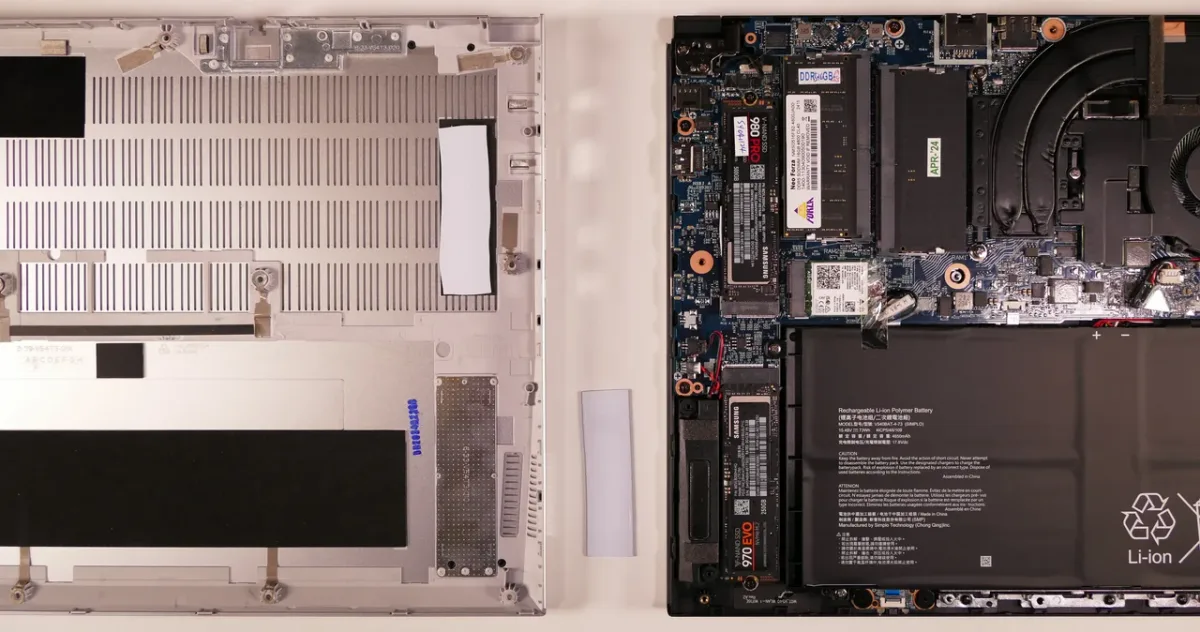
Image source: Wikimedia Commons / System76 (CC BY-SA)
| Fix | Best For | Limit |
|---|---|---|
| Thermal paste | CPU and GPU die contact | Requires disassembly |
| Thermal pads | VRMs, memory, larger gaps | Wrong thickness hurts contact |
| Vent cleaning | Dust buildup | Does not fix old paste |
| Undervolting | Lower heat output | Not all chips support it |
Common Mistakes That Make Repasting Worse
Using too much paste is a common error. Excess paste can squeeze out and create a thicker layer. That often raises temperatures instead of lowering them.
Skipping surface cleaning is another mistake. New paste on old residue creates an uneven layer. Always remove all old material before applying fresh paste.
Uneven screw tightening can lift one side of the heatsink. Tighten in the proper sequence and in small steps. Do not crank one screw fully before the others.
Some users ignore dust and fans. Repasting cannot fix a clogged intake or a failing fan. Clean the cooling system first.
Cheap or unknown paste can dry out quickly. Use a reputable non-conductive formula with stable long-term performance. Avoid gimmicks like toothpaste or household compounds.
Liquid metal needs extra care. It is electrically conductive and can short components if spilled. Do not use it unless you understand the risks and chassis design.
Forgetting to disconnect the battery is dangerous. Always disconnect power before working near the board. Mixing screws by length can also damage internal parts.
Costs, Time, and What to Expect After Repasting
DIY repasting is usually affordable. Quality paste often costs $8 to $20. Cleaning supplies may add $5 to $10.
Professional service often ranges from $60 to $150 plus parts.
A careful DIY job usually takes 30 to 90 minutes. Rushing increases the chance of stripped screws or poor contact. Take photos during disassembly if needed.
Temperature drops vary. A common improvement is 3 to 10°C under sustained load. Some laptops see more, especially if the old paste was dried or pumped out.
Others see little change.
Some pastes need heat cycles to settle. Check the manufacturer guidance before judging final results. Test at idle, then under a sustained gaming load.
If temperatures do not improve, inspect mounting pressure and pad condition. The problem may not be the paste alone. A slightly off-center heatsink can erase the benefit.
| Item | Typical Range |
|---|---|
| Thermal paste | $8 to $20 |
| Cleaning supplies | $5 to $10 |
| Professional service | $60 to $150 |
| DIY time | 30 to 90 minutes |
| Expected load temp drop | 3 to 10°C |
Real Scenarios: When Repasting Actually Helped
A three-year-old gaming laptop may show a clear trend. If the same game once ran at 84°C and now hits 92°C, paste degradation is plausible. After cleaning and repasting, load temps may return closer to the original range.
Used laptop buyers face a different case. The machine may idle fine but throttle under load. A fresh paste job plus pad inspection can establish a reliable baseline.
It may also reveal loose heatsink pressure.
Liquid metal laptops can age differently. Some designs experience pump-out after long heat cycles. A qualified technician may need to clean and reapply the material carefully.
Dust-only cases are common too. In one scenario, a laptop ran hot because vents were clogged. Cleaning alone dropped load temps by about 12°C.
No repaste was needed.
These examples show why diagnosis comes first. Repasting helps when the thermal interface has failed. It does not fix every cooling problem.
Frequently Asked Questions
How often should gaming laptop thermal paste be replaced?
There is no fixed schedule. Many gaming laptops run fine for three to five years. Replace it when load temps rise, throttling appears, or service shows dried paste.
Can bad thermal paste cause overheating?
Yes, degraded or poorly applied paste can reduce heat transfer. Dust, weak fans, and bad pads can also cause overheating. Check the whole cooling path before deciding.
Is liquid metal worth using in a gaming laptop?
It can lower temperatures, but it carries higher risk. It is electrically conductive and can damage parts if spilled. Most users should choose a quality non-conductive paste.
Should I repaste a new gaming laptop?
Usually no. Stock paste is often adequate when new. Wait for real warning signs or a service need before opening the chassis.
Does repasting void the warranty?
It can, depending on the manufacturer and region. Check warranty terms before opening the laptop. Authorized service may be the safer route.
How much temperature drop should I expect?
Many repastes improve load temps by 3 to 10°C. Results depend on chassis design, old paste condition, and mounting pressure. Small changes are normal.