A broken headset mic on a gaming laptop usually comes down to one of four things. It can be the headset, the laptop port, the driver, or an app setting. The fastest fix is to test each one in order.
As of 2026, most gaming laptops still use a single 3.5 mm combo jack or USB audio, so the same checks apply across brands. Start with the physical connection, then move to software only if the hardware passes. This guide walks you through that order without guesswork.
how to fix a headset mic on a gaming laptop
Test the headset on another device first. Check the mute switch and cable. Select the headset mic in Windows Sound.
Update or roll back the audio driver. Grant microphone access in app settings.
Why Headset Mics Fail on Gaming Laptops
Most failures are not broken mics. They are connection, driver, or permission problems. A gaming laptop has limited ports, and audio shares space with power and data.
That makes the chain easy to break. If your headset works on a phone but not the laptop, the laptop side is at fault.
Start with the simplest causes. Inline mute switches are easy to miss. Loose 3.5 mm jacks cause dropouts.
USB ports can lose power or data. Bluetooth can fall back to a low-quality audio profile. Each one looks like a dead mic, but the fix is different.
Drivers matter more on gaming laptops. Realtek, Intel Smart Sound Technology, and vendor audio consoles all sit between the mic and the game. An update can change input levels or hide devices.
That is why a mic can stop working after a normal Windows update.
App permissions are another common trap. Windows can block microphone access per app. Discord, Steam voice, and in-game chat may each have their own input selector.
If one app works and another does not, the hardware is fine.
Step One: Isolate Hardware From Software
Do not reinstall drivers yet. First, prove where the failure starts. Plug the headset into another laptop, phone, or console.
If the mic fails everywhere, the headset or cable is the problem. If it works elsewhere, keep testing the gaming laptop.
Check the physical basics before opening settings. Inspect the connector for bent pins. Push the jack fully into the port.
Listen for a click. Try a different USB port if you use a USB headset. A port that charges a phone may still fail at audio data, so test with a known working device.
Next, look at Windows input selection. Open Sound settings and find the Input section. Speak into the mic and watch the level meter.
If the meter moves, Windows hears the mic. If it does not move, the issue is hardware, driver, or permissions.
Use Device Manager only after these checks. Expand Audio inputs and outputs. Look for the headset mic, not just the headphones.
A missing device points to driver or port trouble. A present device with no level usually points to mute, gain, or app selection.
Branch 1: Wired 3.5mm TRRS Headset Mic Fixes
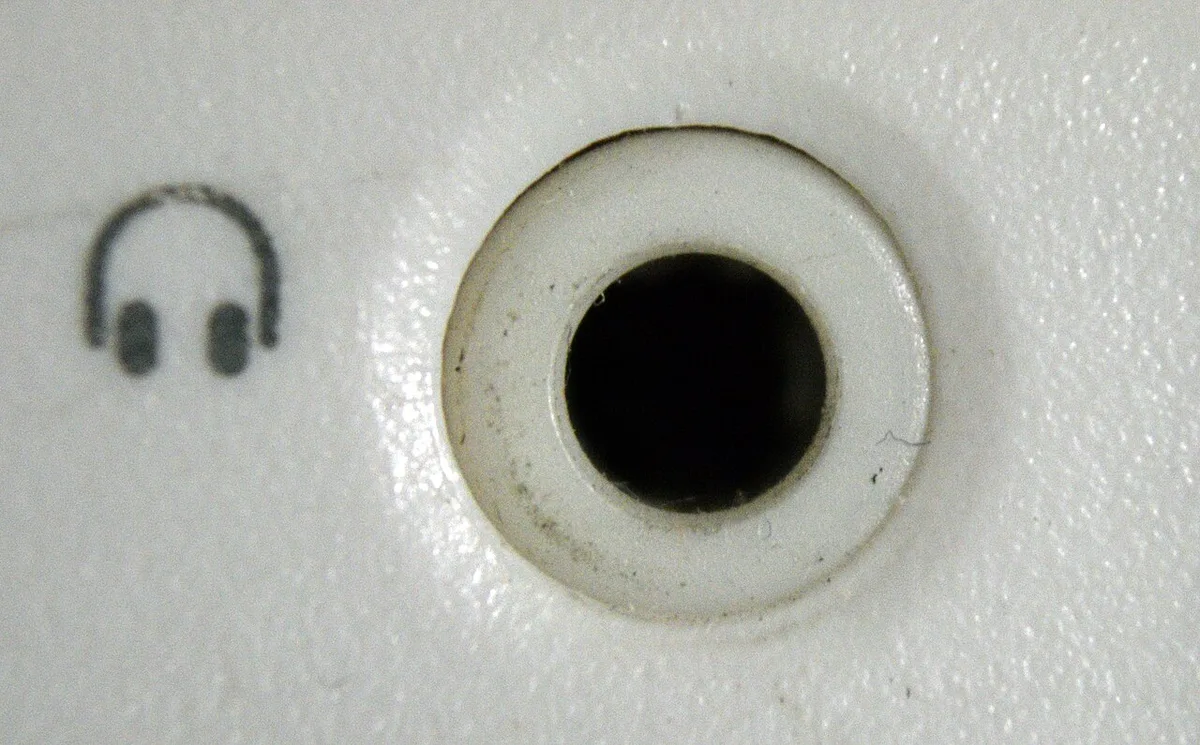
Image source: Wikimedia Commons / Bubba73 (Jud McCranie) (CC BY-SA)
A wired headset usually uses a 3.5 mm TRRS connector. TRRS means tip, ring, ring, sleeve, with four conductors on one plug. It carries left audio, right audio, ground, and microphone.
A standard headphone plug, called TRS, has only three conductors and no mic channel.
If your mic does not work, check the jack type first. Many gaming laptops use one combo jack. Some older models use separate mic and headphone jacks.
Adapters can split a combo plug, but cheap adapters often wire the mic channel wrong. If you need an adapter, use one made for CTIA headsets.
Jack retasking is the next branch. Some audio consoles let you change what a port does. Realtek Audio Console and vendor tools may show a port as headphone only.
Switch it to headset or mic-in if that option exists. This is where your laptop's control software can save time.
Port damage is the last wired cause. A loose jack can make the mic cut in and out. Dust or lint can stop full insertion.
Blow air gently into the port. Do not use metal tools. If the plug wiggles and the mic drops, the port may need repair.
Branch 2: USB Headset Mic Fixes
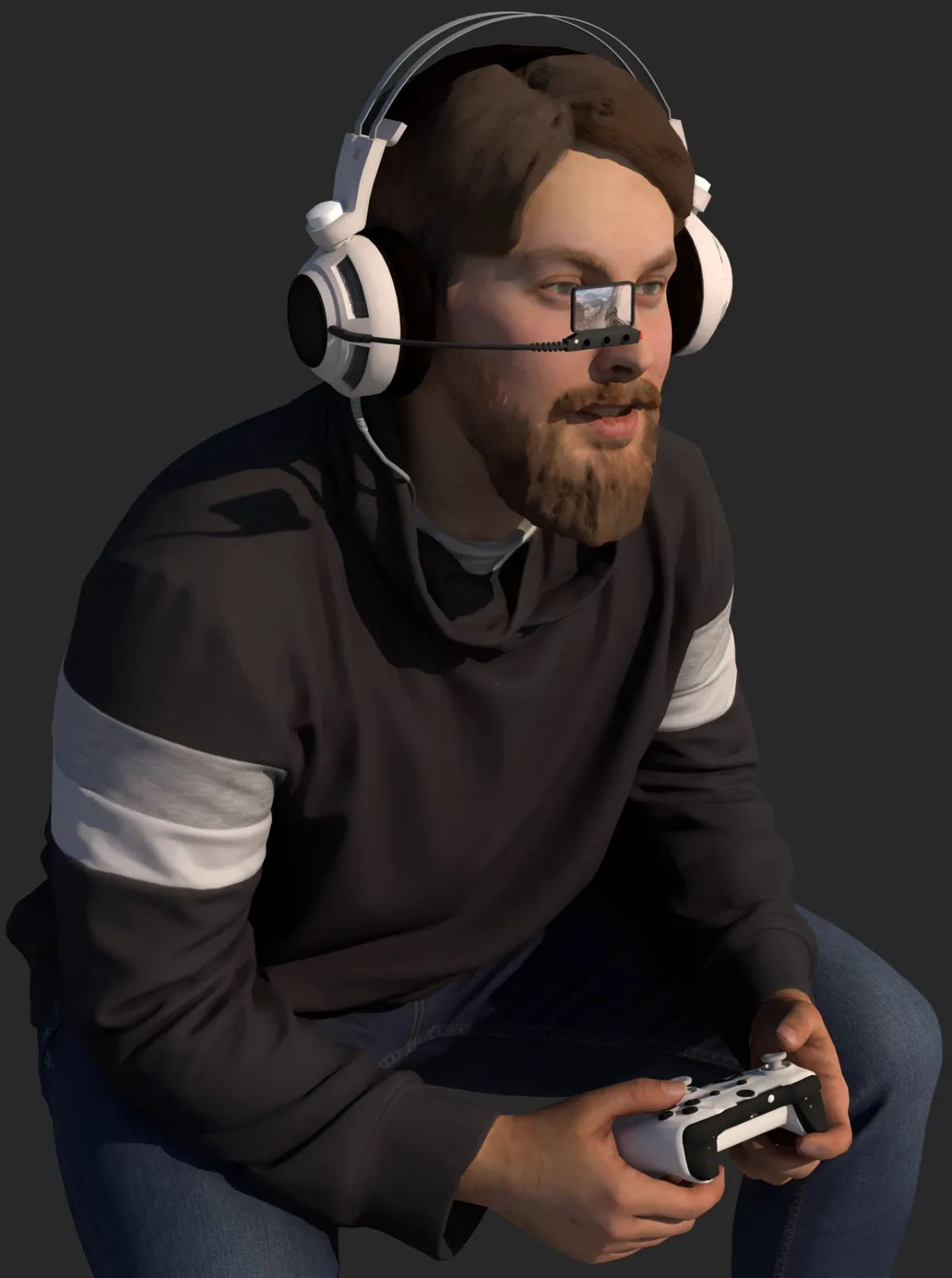
Image source: Wikimedia Commons / Wikideas1
A USB headset has its own audio controller. The laptop does not process the analog mic signal. It receives digital audio from the headset.
That means driver and port issues look different from 3.5 mm problems.
Start by changing ports. Use a port directly on the laptop, not a hub. Some hubs share bandwidth and can cause dropouts.
If your laptop has USB-C and USB-A, test both if an adapter is available. Port choice can affect power and stability.
Then check Windows device recognition. The headset should appear under Audio inputs and outputs. If it appears as headphones only, the mic may be disabled in the headset software.
Many gaming headsets have companion apps with mic mute, sidetone, and gain controls. Reset those settings to default before deeper troubleshooting.
Driver cleanup helps when the device is recognized but silent. Uninstall the headset audio device in Device Manager, then reconnect it. Windows will reinstall a basic driver.
If the vendor driver is needed, download it from the headset maker, not a random driver site.
Branch 3: Bluetooth and Wireless Headset Mic Fixes
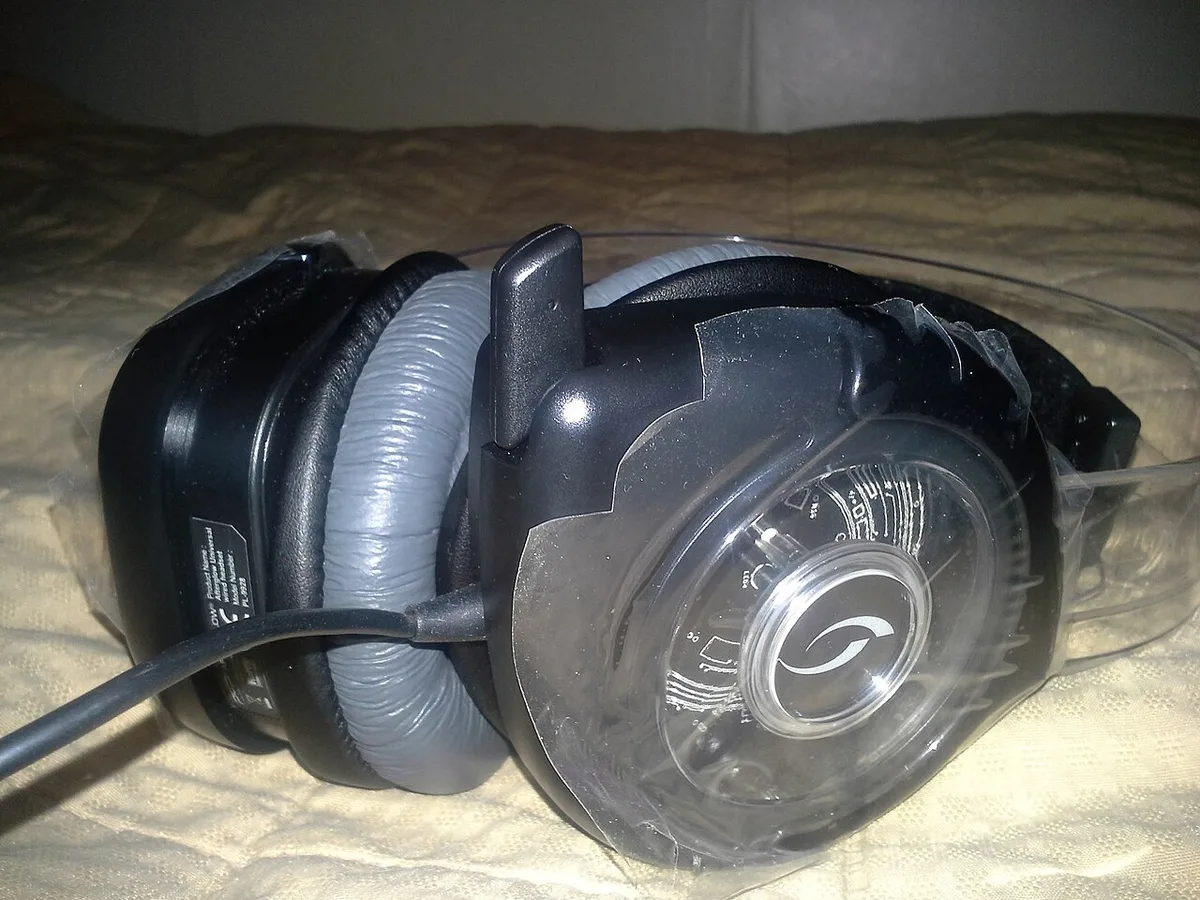
Image source: Wikimedia Commons / Seqqis (CC BY-SA)
Wireless headsets add pairing, codec, and profile problems. Bluetooth can connect for audio but fail for the microphone. That often happens when the headset switches between stereo music mode and hands-free call mode.
If the mic is missing, remove the pairing and pair again. Place the headset in pairing mode and connect fresh. Check that the headset is selected as both input and output in Windows.
A Bluetooth headset can show two devices, one for stereo and one for hands-free. Pick the hands-free device for voice chat.
Volume and gain are common wireless pain points. The mic may be connected but very quiet. Open Sound settings and raise input volume.
Then check the headset app for mic level and noise gate. Some headsets mute the mic when folded or when a boom arm is raised.
A 2.4 GHz dongle is usually more stable for gaming. It avoids Bluetooth profile switching and lowers latency. If your headset includes a dongle, use it for voice chat.
Keep the dongle in a port with clear line of sight. For more on wireless audio lag, see our guide on why Bluetooth audio lags on gaming laptops.
For pairing help, you can also review how to pair Bluetooth headphones with your gaming laptop. If the dongle still fails, test it on another USB port. A weak port or power issue can make wireless audio drop while the connection stays alive.
Fixing Drivers and Windows Audio Settings
Start with Windows, not the driver installer. Open Sound settings and check the Input device list. Speak into the mic and watch the level meter.
If the meter moves but apps stay silent, the problem is app selection, not the driver.
If the meter does not move, open Device Manager. Expand Audio inputs and outputs. Look for the headset mic.
A yellow warning icon means the driver is broken. A missing device means Windows never detected it.
Should you update or roll back first? Roll back first if the mic stopped working right after an update. In Device Manager, open the device properties and choose Roll Back Driver.
If that option is grayed out, try Update driver, then restart.
| Action | When to use | Result |
|---|---|---|
| Roll back driver | Mic failed after an update | Returns prior working driver |
| Update driver | Device shows errors or old version | Installs newer compatible driver |
| Reinstall device | Device missing or corrupted | Forces a clean driver install |
Reinstall is the cleanest fix when the device is present but dead. Uninstall the headset or Realtek device in Device Manager. Disconnect it, restart the laptop, then reconnect.
Windows installs a basic driver. If you need vendor features, install the maker's audio package from the laptop brand's support page.
Check privacy next. Windows can block microphone access per app. Go to Privacy and security, then Microphone.
Turn on microphone access and allow desktop apps. If Discord works but a game does not, the game may be blocked here.
Manufacturer audio consoles can override Windows. Realtek Audio Console, Dolby Access, Nahimic, and vendor tools may set a port to headphone only. Set the port to headset if that option exists.
If you changed settings in a vendor tool, restart the app and test again. For more on these tools, see our guide to using gaming laptop manufacturer control software.
App-Level Fixes for Discord and In-Game Voice Chat
If Windows sees the mic, the next failure point is the app. Each voice app can choose its own input device. Discord, Steam, TeamSpeak, and in-game chat do not always follow Windows defaults.
In Discord, open User Settings, then Voice and Video. Set Input Device to the headset mic, not Default. Raise Input Volume and disable automatic gain control if your voice sounds clipped.
Test with the built-in mic test before joining a match.
In games, open audio settings and check the voice input device. Some games use a separate voice chat volume. Others use push-to-talk.
If push-to-talk is on, a dead keybind looks like a dead mic. Test with voice activation or a known key.
Browser-based games and web chat need browser permission. Chrome, Edge, and Firefox each ask for microphone access. If you blocked it once, the site may stay muted.
Open site settings and allow microphone access. Then refresh the page.
App conflicts can also mute the mic. Only one app can sometimes control exclusive mode. If Zoom or OBS holds the mic, Discord may show input but no level.
Close other voice apps and test again.
Common Mistakes That Waste Your Time
The biggest mistake is reinstalling drivers before testing the headset elsewhere. If the mic is dead on every device, no driver fix helps. Cross-test first.
It takes one minute and saves hours.
Another mistake is buying random drivers from driver sites. Use the laptop maker's support page or the headset maker's site. Random drivers can install wrong audio stacks and create new conflicts.
People also confuse TRS and TRRS plugs. A three-ring plug has no mic channel. If your headset has a four-ring plug but the laptop has separate jacks, you need the right splitter.
Cheap splitters often swap mic and ground.
Bluetooth users often test the wrong profile. The stereo music device does not carry the mic. Select the hands-free device for voice chat.
If you need pairing help, review our guide to pairing Bluetooth headphones with your gaming laptop.
Another time waster is ignoring mute hardware. Inline mute switches, boom-arm mutes, and headset app toggles can all silence the mic. Check every mute point before changing settings.
It sounds obvious, but it is a common fix.
Port choice is another trap. A USB hub may power the headset but fail at data. Plug directly into the laptop.
If you are unsure which port works best, our guide on finding which laptop ports support charging can help you map port behavior.
When the Problem Is Physical Hardware
Physical damage shows up as intermittent audio. The mic works when the cable is held still, then cuts out when you move. That points to a broken wire near the plug or ear cup.
Do not twist the cable to keep it working. Replace the headset or cable if it is detachable.
A loose 3.5 mm jack is another hardware sign. If the plug slides out or wiggles, the port may be worn. Dust can also stop full insertion.
Use short bursts of compressed air. Never use metal tools inside the jack.
Bent connector pins are easy to spot. Look at the plug under bright light. A bent pin can short the mic channel.
Straighten it gently with a plastic tool. If the pin is broken, the headset needs replacement.
USB ports can fail too. If the headset works on one port but not another, the bad port may have power or data issues. Test with a flash drive or phone.
If multiple devices fail in that port, stop using it.
Port repair is usually a warranty job. Opening the laptop can void coverage. If the laptop is under warranty, contact the maker before attempting repair.
If it is out of warranty, a repair shop can replace the audio jack board.
Frequently Asked Questions
Why does my headset mic work on my phone but not my gaming laptop?
The headset is likely fine. The problem is usually the laptop port, driver, or app setting. Test the mic in Windows Sound settings.
If the level meter moves, check app input selection. If it does not move, test another port or reinstall the audio driver.
How do I know if my gaming laptop jack supports a headset mic?
Look for a headset icon or combined headphone and microphone symbol. A single jack with four conductors supports a mic. Separate mic and headphone jacks also work, but need the right plug.
If unsure, check the laptop manual or maker support page.
Why is my Bluetooth headset mic so quiet?
Bluetooth hands-free mode often lowers mic gain. Raise input volume in Windows Sound settings. Then check the headset app for mic level and noise gate.
Move closer to the laptop and avoid walls or metal objects.
Should I update my audio driver to fix a mic issue?
Update only after basic checks fail. First test the headset on another device and check mute switches. If Windows detects the mic but apps do not hear it, updating may help.
If the mic is dead everywhere, updating will not fix it.
Can a USB hub cause headset mic problems?
Yes. Some hubs share bandwidth and power. That can cause dropouts or missing devices.
Plug the headset directly into the laptop. If it must use a hub, use a powered hub and test with no other devices connected.
When should I replace the headset instead of fixing it?
Replace it when the mic fails on multiple devices, the cable is damaged, or pins are broken. If the headset works elsewhere but the laptop port is loose, repair the laptop first. A working cross-test is the deciding factor.