Testing a webcam on a gaming laptop is not always as simple as opening the camera app and staring at a black screen. In our research, the most common failures trace back to BIOS toggles, privacy shutters, and OS permissions rather than the sensor itself. This guide walks you through a practical, step-by-step workflow that separates hardware faults from software blocks.
A gaming laptop webcam is usually a small fixed-focus camera module built into the display bezel, often paired with an infrared sensor for Windows Hello. As of 2026, most models ship with 720p or 1080p sensors and a mechanical privacy shutter. Knowing those basics makes the testing process far less frustrating.
how to test a gaming laptop webcam
Open the physical privacy shutter and check the camera LED. Confirm the camera is enabled in BIOS. Then test in the native OS camera app.
If that passes but apps fail, fix permissions and drivers before assuming hardware damage.
Why Gaming Laptop Webcams Fail Differently Than You Expect
Gaming laptops have more aggressive power management than standard notebooks. The camera module shares bandwidth and firmware resources with other subsystems.
That means a webcam can appear dead when it is actually disabled. The failure is often silent, with no error message.
Common hidden causes include:
- A privacy shutter left closed
- BIOS camera toggle set to off
- Windows camera privacy setting blocking apps
- An outdated or corrupted UVC driver
- Antivirus or endpoint security locking the device
- USB bandwidth conflicts on shared controllers
If the camera works in one app but not another, the sensor is fine. The problem is access, not hardware.
The Variables That Change Your Testing Path
Your testing path depends on four variables. Get these right and you avoid wasted time.
Operating system. Windows, macOS, and Linux handle camera drivers and permissions differently. Windows uses Device Manager and the Camera app. macOS uses FaceTime and System Settings. Linux uses V4L2 tools.
Camera type. Integrated webcams are USB devices internally. External webcams add another layer. IR cameras for Windows Hello behave differently from RGB cameras.
App context. Browsers, Zoom, Discord, and OBS each request camera access separately. A working native app does not guarantee working third-party apps.
Hardware state. BIOS settings, driver version, firmware, and physical shutter position all matter.
Use this quick decision table:
| Variable | If Yes | If No |
|---|---|---|
| Physical shutter open? | Proceed to software | Open shutter first |
| Camera enabled in BIOS? | Test OS app | Enable and reboot |
| Native app shows image? | Test target app | Check drivers and permissions |
| Target app shows image? | Done | Fix app permissions |
Physical and BIOS Checks Before Any Software Test
Always start physical. Software tests are useless if the hardware is blocked.
Check these in order:
- Open the privacy shutter fully. Many gaming laptops have a sliding cover over the lens.
- Clean the lens with a microfiber cloth. Smudges look like focus problems.
- Look for the camera LED. It should light when the camera activates.
- Check for a hardware kill switch. Some models have a function key toggle.
- Reboot the laptop once to clear stuck states.
Then check BIOS:
- Restart and enter BIOS, usually by pressing F2, F10, or Del during boot.
- Find the camera or I/O device settings.
- Confirm the integrated camera is enabled.
- Save and exit, then boot normally.
If the camera is missing from BIOS entirely, that suggests a firmware or hardware issue. At that point, contact the manufacturer before spending hours on driver fixes.
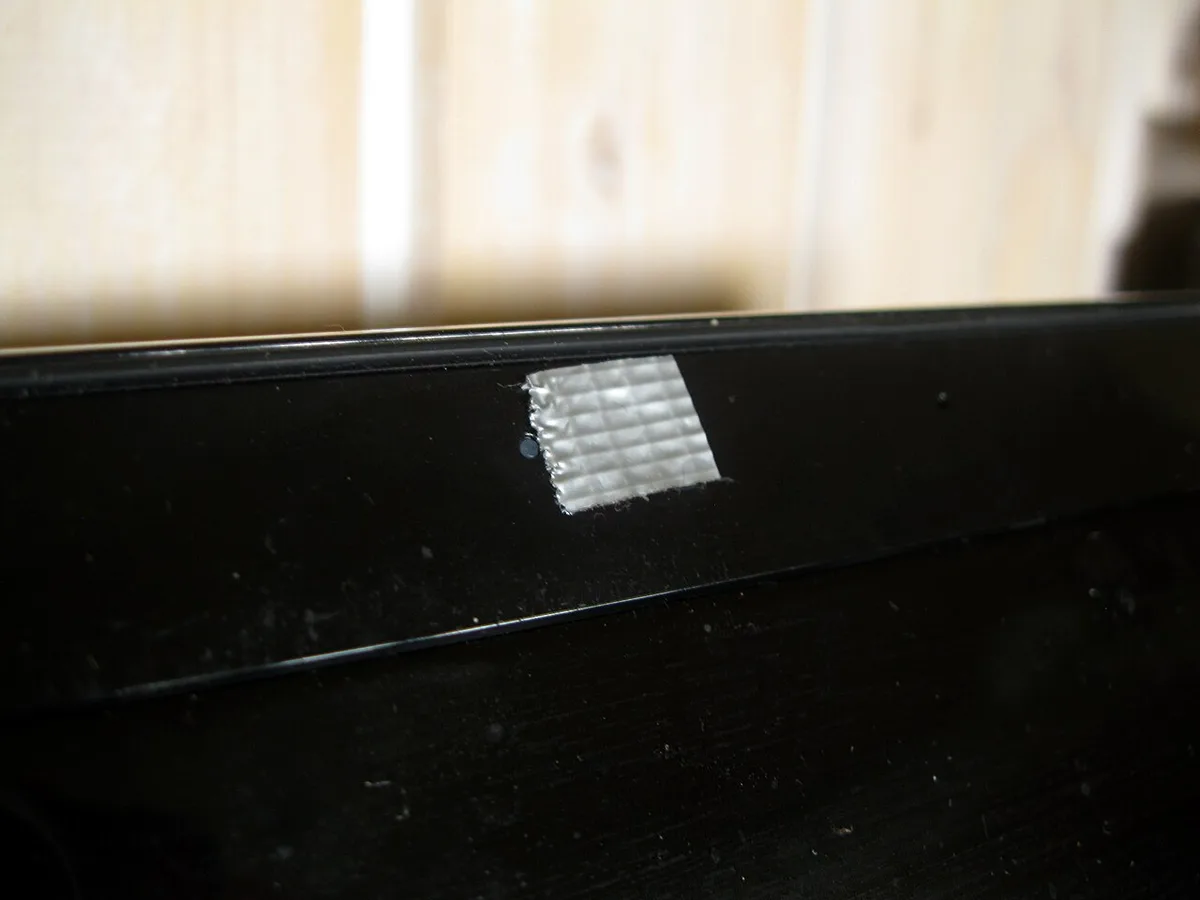
Image source: Wikimedia Commons / Santeri Viinamäki (CC BY-SA)
Native OS Camera Tests for Windows, macOS, and Linux
Once physical and BIOS checks pass, test the camera in the operating system's own tool. This isolates the hardware from app-specific problems.
Windows. Open the Camera app from the Start menu. If it shows a live preview, the sensor works. If you see error 0xA00F4244 or a black screen, the driver or permissions are at fault.
Check Device Manager under Cameras or Imaging devices. Right-click and select Update driver. Also verify Settings, Privacy, Camera, and ensure camera access is on for desktop apps.
macOS. Open FaceTime or Photo Booth. If the camera works there, the hardware is fine. Check System Settings, Privacy and Security, Camera, and confirm the apps you need are allowed.
Linux. Install Cheese or use v4l2-ctl from v4l-utils. Run v4l2-ctl --list-devices to confirm detection. Then open Cheese to preview.
If no device appears, check lsusb for the camera module and review kernel logs.
A working native test means your hardware is good. Move to app-level testing next.
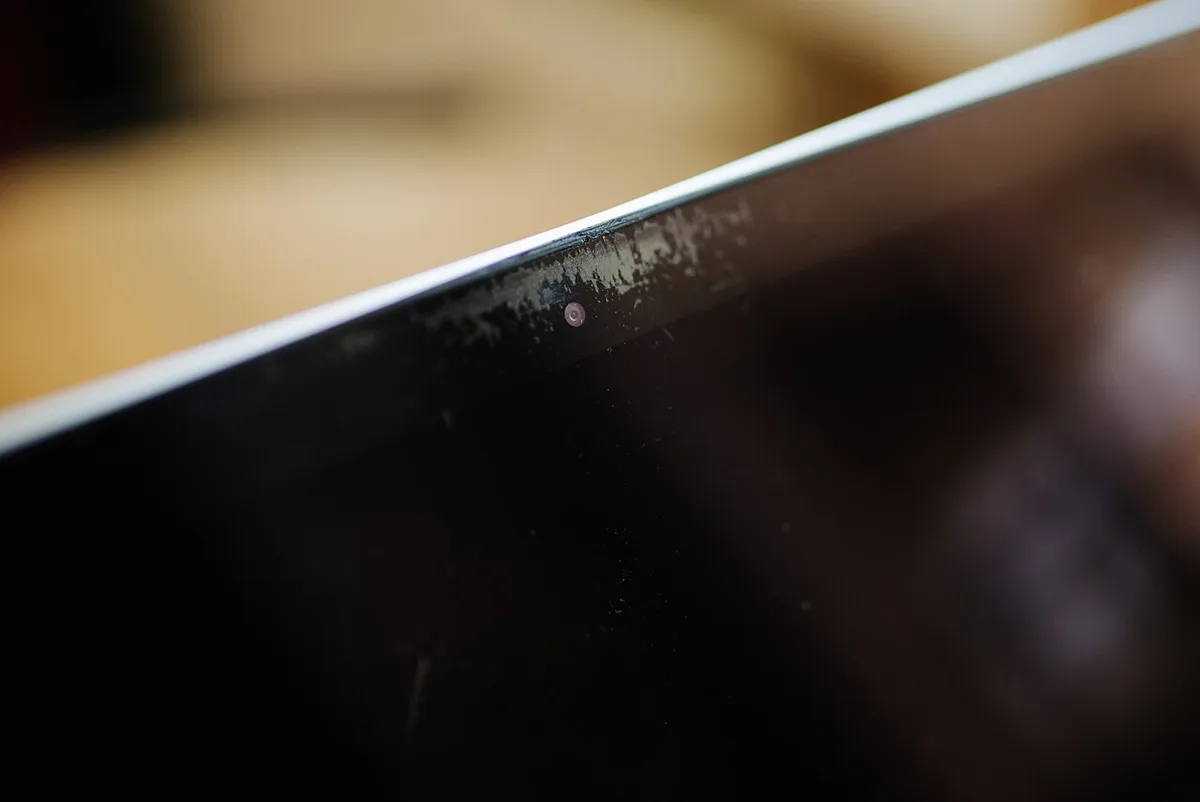
Image source: Wikimedia Commons / Shixart1985 (CC BY)
App-Level Branches: Browser, Discord, Zoom, and OBS
Each app handles camera access independently. Test them one at a time.
Browser. Open a WebRTC test page and grant camera permission. If the browser blocks it, check site permissions in the address bar. Chrome, Edge, and Firefox each have separate camera permission stores.
Discord. Go to User Settings, Voice and Video, and select the correct camera from the dropdown. Disable hardware acceleration temporarily if the preview freezes.
Zoom. Open Settings, Video, and check the preview. If the camera is grayed out, another app may be holding it. Close all other camera apps and retry.
OBS Studio. Add a Video Capture Device source and select the webcam. Set resolution and frame rate manually. OBS is useful for checking true output specs, not just preview quality.
If an app fails but the native test passes, the issue is permissions, conflicting apps, or capture settings. Restart the app after closing others that might hold the camera.
For more on laptop connectivity issues, see our guide on fixing ethernet problems on a gaming laptop.
Driver, Permission, and USB Bandwidth Troubleshooting
If the native camera app fails, work through access layers before blaming hardware.
Start with permissions. On Windows, open Settings, Privacy and security, Camera. Turn on camera access.
Turn on access for desktop apps. Check the specific app list. On macOS, open System Settings, Privacy and Security, Camera, and enable the app.
On Linux, check that the user is in the video group and that no snap confinement blocks access.
Then check drivers. In Windows Device Manager, expand Cameras or Imaging devices. Right-click the webcam, choose Update driver, then Search automatically.
If that fails, choose Uninstall device, reboot, and let Windows reinstall the UVC driver. For OEM cameras, use the laptop maker's support tool or driver package. Roll back the driver if the failure started after a recent update.
USB bandwidth matters on gaming laptops with many peripherals. If the webcam stutters only when external drives, capture cards, or RGB hubs are connected, move devices to different ports. USB 2.0 webcams need 480 Mbps.
USB 3.0 paths can share bandwidth. Avoid unpowered hubs for video devices.
Antivirus and endpoint tools can block camera access silently. Temporarily pause camera protection in the security app and retest. Re-enable it immediately after.
If an external webcam is in use, test it on another port and another computer. That isolates cable, port, and device faults.
If port roles are unclear, check which gaming laptop ports support charging. For manufacturer toggles, use gaming laptop manufacturer control software. For deeper Windows guidance, see Microsoft camera support.
The USB Implementers Forum publishes the UVC specification at usb.org.
Image Quality Branch: Resolution, Frame Rate, Focus, and Lighting
A working camera can still look bad. Test quality in a controlled way.
Use a simple test chart or printed text at arm's length. Check sharpness, color, and exposure. A standard 1080p sensor should resolve fine text without heavy blur.
If the image is soft, clean the lens first. Fixed focus modules cannot refocus, so distance matters.
Frame rate is easy to misjudge. Most laptop webcams output 30 fps at 1080p. Some drop to 15 fps in low light.
Use OBS Studio or a browser frame rate overlay to confirm. If the preview stutters, reduce resolution to 720p and retest. That separates bandwidth limits from sensor limits.
Lighting changes everything. Place a lamp behind the laptop, not behind you. Avoid mixed warm and cool light.
Low light amplifies noise and softens detail. If the image is grainy only at night, the camera is normal, not broken.
Autofocus is rare on gaming laptop webcams. Most are fixed focus. If your model has autofocus, listen for motor noise and check whether it hunts in low contrast scenes.
Use this quality table:
| Test | Good Sign | Warning Sign |
|---|---|---|
| 1080p text | Sharp edges | Smearing or blur |
| 30 fps | Smooth motion | Choppy or stuttering |
| Low light | Visible but noisy | Black or heavily blotchy |
| Color | Natural skin tones | Strong green or magenta cast |
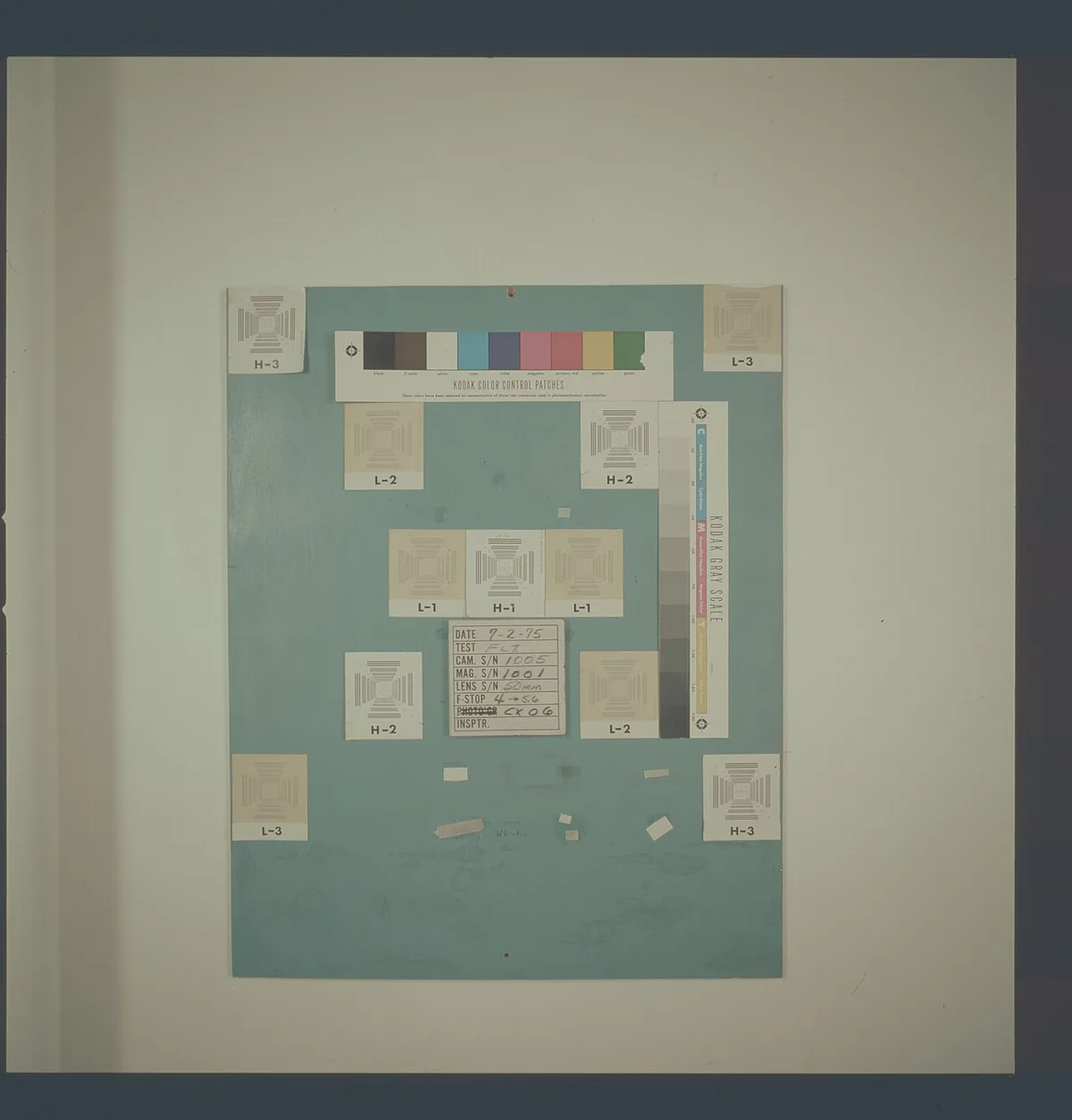
Image source: Wikimedia Commons / Unknown authorUnknown author or not provided
Mistakes That Make a Webcam Look Broken
Small setup errors cause big false failures.
- Testing with the privacy shutter half closed
- Leaving the camera selected in another app
- Using a USB hub with poor power delivery
- Checking image quality in a dark room
- Assuming 4K support on a 720p sensor
- Ignoring browser site permissions
- Reinstalling drivers before checking BIOS
- Blaming the webcam for a slow internet stream
If the native app works, do not reinstall drivers yet. That wastes time and can introduce new issues. Close all camera apps, then test one app at a time.
Also check virtual camera tools. OBS Virtual Camera, NVIDIA Broadcast, and manufacturer camera apps can redirect the feed. Disable them during testing.
For USB layout, our guide on how many USB ports a gaming laptop really needs helps you plan device placement.
Hardware Failure Signs and Support Escalation
Some symptoms point to hardware, not settings.
Red flags include:
- Camera missing from Device Manager after reboot
- Camera absent from BIOS on multiple boots
- No LED response when opening the native app
- Cracked lens or visible damage
- Intermittent detection that changes with lid angle
- IR sensor failure while RGB camera works
If you see these, stop software troubleshooting. Document the issue with screenshots and a short video. Note the laptop model, serial number, driver version, and BIOS version.
That evidence speeds up support.
Contact the manufacturer through the official support portal. Use their diagnostics tool if available. For warranty claims, avoid opening the chassis unless the manual says it is user serviceable.
Camera modules are often glued or routed through the display hinge.
If the laptop is out of warranty, a repair shop can replace the module, but cost may exceed an external webcam. Compare both paths before paying.
Before changing firmware, review safe BIOS update practices.
Frequently Asked Questions
Why does my gaming laptop webcam show a black screen?
A black screen usually means the app cannot access the camera. Check the privacy shutter, BIOS toggle, OS permissions, and whether another app is using it. If the native camera app also shows black, update or reinstall the UVC driver.
How do I know if my webcam is hardware or software faulty?
Test it in the native OS camera app first. If that works, the hardware is fine. If it fails there and in BIOS, the module or firmware is likely faulty.
External webcam tests on another computer help isolate the device.
Can a gaming laptop webcam be disabled in BIOS?
Yes. Many models include a camera toggle in BIOS or UEFI. If it is off, the OS may not detect the camera at all.
Re-enable it, save settings, and reboot before testing again.
Does low light mean my webcam is broken?
No. Most gaming laptop webcams are fixed focus 720p or 1080p sensors with small apertures. They look noisy in dim rooms.
Add front lighting and retest before assuming a defect.
Should I reinstall drivers before checking permissions?
No. Check permissions first because they are faster and safer. Reinstall drivers only after confirming the camera is enabled, detected, and not blocked by apps or security tools.
When should I contact manufacturer support?
Contact support when the camera is missing from BIOS, shows no LED, or fails after a clean driver reinstall. Provide model, serial, screenshots, and firmware details to speed up the case.