how to improve microphone quality on a gaming laptop usually comes down to one question: is the weak link the mic, the settings, or the room? Most gaming laptops use a small built-in microphone array, so even perfect software settings can't fully hide fan noise or echo. Start by testing your current setup, then fix the biggest bottleneck first.
A 48 kHz sample rate is a common target for clear voice chat and streaming audio.
The right path changes by laptop model, microphone type, and where you play. If you treat every laptop the same, you'll waste time tweaking settings that can't fix a hardware or room problem. The sections below walk through the decision branches and the fixes that matter most.
how to improve microphone quality on a gaming laptop
Check your input device first. Raise gain until peaks hit about -10 dB. Turn on noise suppression only if needed.
Move the mic one to three inches from your mouth. Add soft furnishings to reduce echo.
Why Your Gaming Laptop Mic Sounds Bad (and What Actually Fixes It)
Built-in laptop microphones sit close to cooling fans, keyboards, and speakers. That placement makes them pick up mechanical noise before your voice even reaches the capsule. The mic array also sits flat on the chassis, so it rarely points directly at your mouth.
Manufacturer documentation for many gaming laptops lists the internal mic as a convenience feature, not a studio input. That doesn't mean it's useless. It means the realistic goal is clear voice chat, not broadcast-grade audio.
Common symptoms point to different causes:
- Quiet or thin voice usually means low input gain or a blocked mic hole.
- Harsh fan noise usually means the laptop cooling system is louder than the mic's noise handling.
- Echo usually means speakers are feeding back into the mic.
- Muffled audio usually means distance, angle, or a dirty mic port.
If you're adding a USB mic later, check available USB ports before you buy anything. A mic that needs a hub can add cable clutter and power issues.
The Variables That Decide Which Fix You Need
The best fix depends on a few simple variables. Write them down before changing settings, because they decide whether software tweaks will help at all.
Laptop Model, Mic Type, and OS
Laptop design changes the mic hardware. Some models use a single mic near the hinge. Others use a dual-mic array with beamforming, which focuses on your voice and reduces side noise.
Operating systems also handle audio differently:
- Windows gives you device selection, input levels, enhancements, and app permissions.
- macOS gives you input selection, gain, and app-level mic access.
- Manufacturer audio consoles, such as Realtek Audio Console, may add extra controls.
If your laptop has a headset jack, check whether it is a TRRS combo jack. A standard three-ring headset plug may not fit the four-ring port correctly. That mismatch can make the mic sound quiet or intermittent.
Recording Environment and Background Noise
Room noise is often the real problem. Hard desks, bare walls, and tile floors reflect sound back into the mic. Fans, air conditioners, and mechanical keyboards add steady noise.
A quick test helps. Record ten seconds of normal speech, then ten seconds of silence. If the silence track is loud, your room or fan noise is the bottleneck.
Software can reduce it, but it can't fully remove a loud source.
What You're Actually Using It For
Voice chat needs less polish than streaming or podcasting. Team comms only need intelligibility and low latency. Streaming needs consistent level, low noise, and no clipping.
Use this simple guide:
- Casual chat: built-in mic plus light noise suppression is often enough.
- Competitive comms: headset mic usually wins for consistency.
- Streaming: external USB mic or headset with better placement is the safer choice.
If you use wireless audio, read Bluetooth latency fixes before blaming the microphone. A laggy wireless path can feel like a bad mic even when the mic itself is fine.
Decision Branches: Built-In Mic, Headset Mic, or External USB Mic
Pick the branch that matches your bottleneck. Don't buy gear to solve a settings problem, and don't tweak settings to solve a hardware problem.
When to Stick With the Built-In Mic
Stay with the built-in mic if these are true:
- Your voice is clear in a test recording.
- Background noise is low.
- You only need casual voice chat.
- You don't want extra cables or desk gear.
Improve it with gain adjustment, noise suppression, and better laptop placement. Moving the laptop a few inches can change how much fan noise reaches the mic.
When a Headset Mic Is the Better Move
A headset mic is usually the best middle ground. It sits closer to your mouth, so your voice is louder than room and fan noise. It also avoids the laptop's cooling noise path.
Choose a wired headset if latency matters. Choose wireless only if you need movement, and test it in your actual games. If you're pairing wireless gear, follow Bluetooth headphone pairing steps before judging mic quality.
When You Should Buy an External USB Mic
Buy an external USB mic when you stream, record, or need better voice presence. A USB condenser mic gives more detail than most laptop mics. A dynamic mic handles loud rooms better.
Before buying, check three things:
- You have a stable USB port.
- You have space for a stand or arm.
- You can keep the mic close to your mouth.
A USB mic won't fix a bad room. If your room is echoey, the mic will capture that echo clearly.
| Option | Best For | Main Strength | Main Weakness |
|---|---|---|---|
| Built-in mic | Casual chat | No extra gear | Fan and keyboard noise |
| Headset mic | Team comms | Consistent mouth distance | Can sound thin or boomy |
| External USB mic | Streaming and recording | Better detail and control | Needs placement and room control |
Step-by-Step: Fixing the Built-In Microphone
Start with the simplest checks. These take five minutes and often solve the problem without new gear.
Check Permissions and Default Input Device
- Open your sound settings.
- Select the correct input device.
- Make sure the built-in mic is not muted.
- Check app permissions for Discord, browsers, and games.
- Run a test recording.
If the wrong device is selected, every later tweak is wasted. This is the most common beginner mistake.
Adjust Gain, Boost, and Input Levels
Set input level so normal speech peaks around -10 dB to -6 dB. Avoid clipping, which sounds harsh and distorted. If your voice is too quiet, use mic boost carefully.
Too much boost also raises fan and room noise.
Use this target table:
| Setting | Practical Target |
|---|---|
| Normal speech peaks | -10 to -6 dB |
| Mic boost | 0 to +10 dB |
| Noise gate | Around -40 dB |
| Sample rate | 48 kHz |
Speak at your normal gaming volume while testing. Don't whisper or shout, or the settings won't match real play.
Update Drivers and Firmware
Outdated audio drivers can cause low volume, crackling, or missing enhancements. Update from the laptop maker's support page when possible. Microsoft documentation also explains Windows audio troubleshooting and privacy settings.
Manufacturer control software can help with fan curves and audio profiles. If your laptop has it, review manufacturer control software before changing random driver settings.
After updates, reboot and test again. Some audio changes don't apply until the system restarts.
AI Noise Suppression and Software Processing
Software processing can make a weak mic much more usable. It can also make voices sound robotic if pushed too far. The goal is to reduce noise, not erase your voice.
NVIDIA Broadcast, Krisp, and Discord Suppression
NVIDIA Broadcast offers noise removal and room echo removal on supported systems. Krisp provides similar AI noise cancellation. Discord has built-in noise suppression and echo cancellation.
Use one primary noise tool at a time. Stacking several suppression tools can create artifacts, delay, and an unnatural voice. If your voice sounds underwater, turn one tool off.
Windows and macOS Built-In Enhancements
Windows may offer audio enhancements depending on hardware and drivers. macOS includes input level and app permission controls. These are safe first steps because they don't require extra software.
Check these settings:
- Input level
- Device selection
- App mic permissions
- Exclusive mode if an app needs direct control
OBS Studio Filters for Streaming
OBS Studio lets you add a noise gate, compressor, and limiter. A noise gate mutes quiet background noise between words. A compressor keeps volume consistent.
A limiter prevents sudden loud peaks from clipping.
Start light:
- Noise gate threshold around -40 dB
- Gentle compression ratio
- Limiter at the top of your target range
Record a short test and listen on headphones. If your voice sounds pumped or robotic, reduce the processing.
If you run many background programs while gaming, review background app impact. Audio processing and voice chat both compete for system resources, especially on busy laptops.
Room, Placement, and Hardware Tweaks
Room and placement often beat software settings. A well-placed average mic usually sounds better than a great mic in a bad position. Start here before buying new gear.
Mic Distance and Positioning
Keep the mic one to three inches from your mouth. Closer placement increases voice level and reduces room noise. Off-axis placement, meaning slightly to the side, reduces plosives.
For a headset mic, adjust the boom so it sits near the corner of your mouth. For a USB mic, use a stand or arm. Don't let it sit flat on the desk, because desk vibrations travel into the capsule.
Acoustic Treatment on a Budget
Soft surfaces absorb reflections. A rug, blanket, or curtain behind your monitor helps more than people expect. Even a pillow behind the laptop can reduce echo.
You don't need a studio. Try these low-cost fixes:
- Put a rug under your desk.
- Hang a blanket behind your monitor.
- Close doors and windows while recording.
- Avoid sitting in corners where sound bounces.
If your laptop runs hot, remember that cooling fans are part of the noise problem. Managing thermals with silent mode settings can reduce fan speed during voice calls.
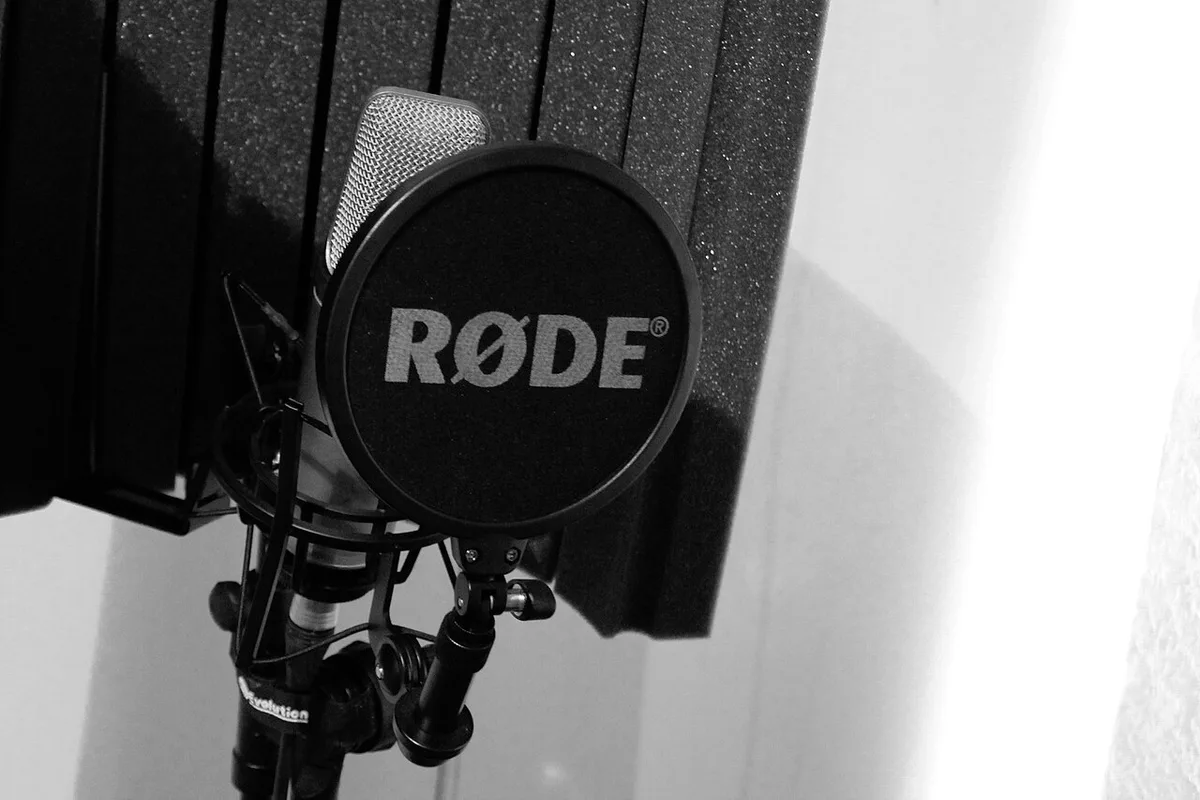
Image source: Wikimedia Commons / Tim Sheerman-Chase (CC BY)
Pop Filters, Shock Mounts, and Dust
A pop filter reduces plosive bursts from p and b sounds. A shock mount isolates the mic from desk vibrations. Neither is required, but both help for streaming and recording.
Dust is a quiet killer. A clogged mic port muffles high frequencies and lowers sensitivity. Use a soft brush or compressed air carefully.
Never poke the mic hole with a pin.
Common Mistakes That Make It Worse
Most mic problems come from overcorrecting. People add layers of processing without fixing the root cause. The result is worse audio and more frustration.
Chasing Software Fixes for Hardware Problems
If the mic is dirty, broken, or too far away, no plugin will save it. Software noise suppression can't reconstruct a clipped or muffled signal. Fix placement and gain first, then add processing.
A quick test proves the point. Record with all processing off. If that base recording is bad, software won't fix it.
Overusing Noise Suppression
Aggressive suppression removes background noise and voice detail. Your voice can sound robotic, gated, or underwater. Listeners get tired faster.
Use the minimum amount that solves the problem. As of 2026, AI suppression tools are much better, but they still trade detail for cleanliness. For gaming comms, a light setting is usually enough.
Ignoring Gain Staging and Clipping
Clipping happens when input level is too high. It sounds harsh and can't be fixed later. Low gain is easier to fix than clipping, so err on the quiet side.
Follow these rules:
- Aim for peaks around -10 to -6 dB.
- Avoid mic boost above +10 dB unless needed.
- Watch levels while gaming, not just while testing.
- Recheck after changing fan profiles or room setup.
If you use a controller while playing, keep cables organized. A tangled setup can pull on the mic cable or headset. For wired controller tips, see wired controller setup.
Choosing the Right Setup for Your Use Case
The right setup depends on what you actually do. Don't buy a studio mic for casual Discord chat. Don't rely on a built-in mic for a streaming channel.
Casual Voice Chat and Team Comms
For casual play, the built-in mic is often fine. Add light noise suppression and set gain correctly. Keep the laptop on a stable surface away from your keyboard.
If teammates complain about background noise, switch to a headset. The consistency is worth it for competitive games. For controller players, controller connection steps can help keep your setup clean.
Streaming and Content Creation
Streaming needs consistency and polish. A USB condenser mic or a quality headset mic is the better choice. Add a pop filter and basic OBS filters.
Record test clips and listen back on different devices. Phone speakers reveal problems that good headphones hide. Check for clipping, echo, and inconsistent volume.
Remote Work and Meetings
Meetings need intelligibility more than tone. A headset mic is ideal because it stays in position. Mute when not speaking to avoid keyboard and fan noise.
If you use a TV as a second screen, audio routing can get confusing. Review TV connection basics before blaming the mic for routing issues.
Frequently Asked Questions
Why does my gaming laptop mic sound muffled?
A muffled mic usually points to distance, angle, or a dirty port. Move the mic closer to your mouth and check the mic hole for dust. Also check input level, because low gain can sound thin.
Test with all processing off first.
Is a USB mic better than a built-in laptop mic?
A USB mic is usually better for streaming and recording. It sits closer to your mouth and captures more detail. A built-in mic is fine for casual chat.
The gap matters most when background noise is high.
How close should the mic be to my mouth?
Keep it one to three inches away. Closer is better for voice clarity and noise rejection. Too close can cause plosives and distortion.
Use a pop filter if you speak directly into the capsule.
Should I use mic boost on a gaming laptop?
Use mic boost only if your voice is too quiet at normal gain. Start at +0 dB and raise in small steps. Too much boost raises fan and room noise.
Stop before clipping appears on the level meter.
Does noise suppression reduce mic quality?
It can if set too high. Light suppression removes background noise while keeping voice natural. Heavy suppression can sound robotic or gated.
Use the minimum setting that solves your noise problem.
Can a headset mic fix fan noise?
A headset mic usually helps because it sits closer to your mouth. That increases your voice relative to fan noise. It won't remove loud fans completely.
Lowering fan speed during calls also helps.
Should I update audio drivers for mic issues?
Yes, especially if the mic is quiet or enhancements are missing. Install drivers from the laptop maker's support page. Reboot after updating.
Test again before changing other settings.
1 thought on “How to Improve Gaming Laptop Mic Quality Fast”
Comments are closed.