Choosing the wrong cable or port can leave your expensive monitor stuck at 60 Hz or force chroma subsampling that muddies text. This guide answers what is displayport versus hdmi for pc gaming by mapping each standard to real resolution and refresh rate targets. We break down bandwidth, certification, and the decision logic so you can match hardware to goals without guesswork.
DisplayPort 1.4a delivers 32.4 Gbps raw bandwidth while HDMI 2.1 pushes 48 Gbps. Both rely on DSC compression above 4K 120 Hz 10 bit 4:4:4. The practical difference comes down to port availability on your GPU, monitor input selection, and cable certification.
Let's walk through the decision tree.
What Is Displayport Versus Hdmi for Pc Gaming
DisplayPort excels on high refresh PC monitors with locking connectors and MST daisy chaining. HDMI 2.1 is mandatory for 4K 120 Hz VRR on TVs and consoles. DisplayPort 1.4a handles 1440p 360 Hz or 4K 240 Hz with DSC.
HDMI 2.1 handles 4K 240 Hz with DSC. Choose based on your display and GPU ports.
DisplayPort 1.4a remains the default on most RTX 30 and 40 series cards alongside HDMI 2.1. AMD RX 7000 series adds DisplayPort 2.1 UHBR13.5 on select models. Monitors above 1440p 240 Hz typically require DisplayPort 1.4a with DSC or HDMI 2.1.
TVs only offer HDMI 2.1 for high refresh gaming. Cable certification matters more than version numbers alone.
DisplayPort 1.4 vs DisplayPort 2.1
DisplayPort 1.4a uses HBR3 signaling at 32.4 Gbps raw. DisplayPort 2.1 introduces UHBR tiers up to 80 Gbps raw. UHBR10 matches HDMI 2.1 bandwidth.
UHBR13.5 and UHBR20 exceed it. No consumer GPU shipped full UHBR20 as of 2026. Most DisplayPort 2.1 monitors run UHBR10 or UHBR13.5.
Check the monitor spec sheet for the exact UHBR tier.
HDMI 2.0 vs HDMI 2.1
HDMI 2.0 caps at 18 Gbps raw. That limits 4K to 60 Hz 8 bit 4:4:4. HDMI 2.1 jumps to 48 Gbps raw with FRL signaling.
It enables 4K 120 Hz 10 bit 4:4:4 with DSC. It also adds VRR, eARC, and QMS. Any monitor or TV marketed for 4K 120 Hz gaming must have HDMI 2.1 ports.
Verify the port label not just the box art.
1080p 1440p and 4K Refresh Rate Targets
1080p 500 Hz fits inside DisplayPort 1.4a HBR3 without compression. 1440p 360 Hz 10 bit 4:4:4 needs DSC on DisplayPort 1.4a. 4K 144 Hz 10 bit 4:4:4 needs DSC on DisplayPort 1.4a or native HDMI 2.1. 4K 240 Hz requires DSC on both standards. 8K 60 Hz needs DisplayPort 2.1 UHBR20 or HDMI 2.1 with heavy compression.
When DisplayPort Is the Better Pick
Pick DisplayPort when your monitor only supports high refresh over DP. Pick it for MST multi monitor chains on Windows or Linux. Pick it for the locking connector on LAN setups.
Pick it if your GPU has more DP ports than HDMI. Most G-Sync Ultimate and high refresh FreeSync panels prioritize DisplayPort bandwidth.
When HDMI 2.1 Is the Better Pick
Pick HDMI 2.1 for living room TVs. Pick it for consoles alongside PC. Pick it if your monitor only has HDMI 2.1 for high refresh.
Pick it for eARC audio to a receiver. Pick it if your laptop only outputs HDMI 2.1. Many ultrawides and some 4K 144 Hz panels route full bandwidth through HDMI 2.1 only.
DisplayPort vs HDMI: Ports Cables Bandwidth and Real World Limits
Your GPU port version sets the ceiling. NVIDIA RTX 30 and 40 series expose three DisplayPort 1.4a and one HDMI 2.1. AMD RX 6000 series matches that layout.
RX 7900 XTX adds one DisplayPort 2.1 UHBR13.5. Integrated graphics on Intel Core Ultra and AMD Ryzen 8000 series typically max at DisplayPort 1.4a HBR2 or HDMI 2.0. Check the manufacturer spec page not the retail box.
Monitor inputs vary by panel tier. Budget 1440p 144 Hz panels often include one DisplayPort 1.2 and two HDMI 2.0. Mid range 1440p 240 Hz panels upgrade to DisplayPort 1.4a and HDMI 2.0.
High end 4K 144 Hz panels add HDMI 2.1. Flagship 4K 240 Hz OLEDs include DisplayPort 1.4a DSC and two HDMI 2.1. G-Sync Compatible and FreeSync Premium Pro work over both interfaces when the monitor scaler supports it.
Image source: Wikimedia Commons / Brian Wong (CC BY-SA)
Cable Tiers RBR HBR HBR2 HBR3 UHBR10 UHBR13.5 UHBR20
VESA certifies cables by speed tier. RBR and HBR are obsolete for gaming. HBR2 handles 1080p 240 Hz or 1440p 144 Hz.
HBR3 handles 4K 144 Hz with DSC. UHBR10 matches HDMI 2.1 at 40 Gbps effective. UHBR13.5 reaches 54 Gbps effective.
UHBR20 hits 77 Gbps effective. The logo on the cable jacket must match your target bandwidth. A DisplayPort 1.4a cable labeled HBR3 will not run UHBR10 speeds.
Premium High Speed vs Ultra High Speed HDMI
HDMI Licensing Administrator certifies two active tiers. Premium High Speed guarantees 18 Gbps for HDMI 2.0. Ultra High Speed guarantees 48 Gbps for HDMI 2.1.
The holographic label on the package includes a QR code for verification. Cables without the label may work at short lengths but fail at three meters or above. Always buy Ultra High Speed for any 4K 120 Hz or VRR gaming setup.
DSC VRR HDR 4:4:4 and 4:2:2 Considerations
DSC compresses 10 bit 4:4:4 to roughly 8 bit equivalent bandwidth with visually lossless quality. Both DisplayPort 1.4a and HDMI 2.1 require DSC above their native bandwidth limits. VRR operates over both interfaces via VESA Adaptive-Sync on DisplayPort and HDMI VRR on HDMI 2.1.
HDR10 metadata passes over both. Dolby Vision gaming currently requires HDMI 2.1 on supported TVs. 4:2:2 chroma subsampling cuts bandwidth 33 percent but degrades text clarity. Avoid it for desktop use.
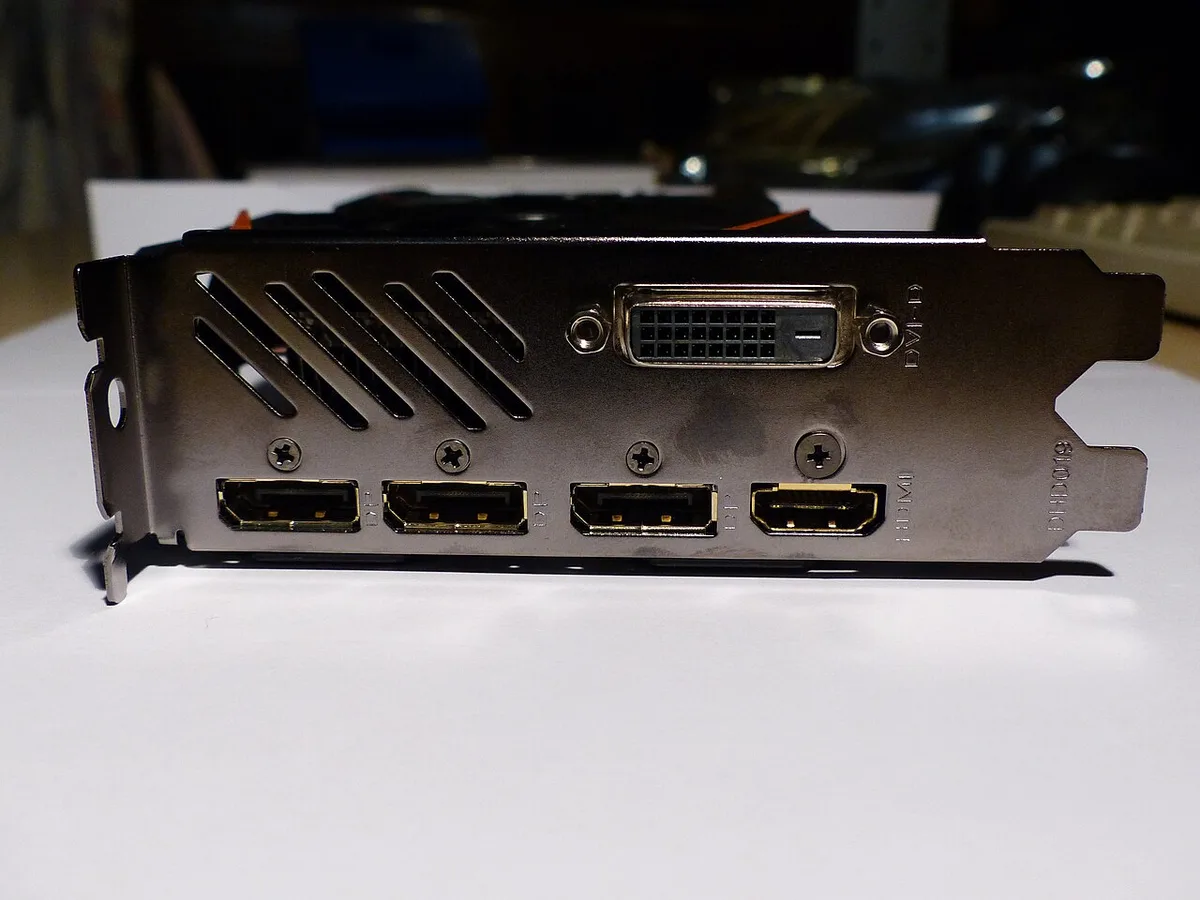
Image source: Wikimedia Commons / Marc Mongenet (CC BY-SA)
High Refresh Rate Gaming What DisplayPort and HDMI 2.1 Need to Deliver
Competitive shooters benefit from 1440p 360 Hz or 1080p 500 Hz. DisplayPort 1.4a HBR3 drives these natively without compression. HDMI 2.0 cannot.
HDMI 2.1 can but few 1080p or 1440p panels include HDMI 2.1. For 4K 120 Hz to 240 Hz both standards rely on DSC. DisplayPort 1.4a DSC reaches 4K 240 Hz.
HDMI 2.1 DSC reaches 4K 240 Hz. The monitor scaler implementation determines actual stability.
1080p Gaming at High Refresh Rates
1080p 240 Hz to 360 Hz fits comfortably in DisplayPort 1.2 HBR2 bandwidth. 1080p 500 Hz needs HBR3. HDMI 2.0 handles 1080p 240 Hz 8 bit 4:4:4. HDMI 2.1 handles 1080p 500 Hz with headroom.
Most 1080p high refresh monitors only include DisplayPort 1.2 and HDMI 2.0. Check the OSD for the active bandwidth indicator.
1440p Gaming at 240Hz to 360Hz
1440p 240 Hz 10 bit 4:4:4 needs approximately 21 Gbps effective. DisplayPort 1.4a HBR3 delivers this with DSC. HDMI 2.0 cannot.
HDMI 2.1 delivers it natively. Many 1440p 240 Hz panels only support full speed over DisplayPort. Verify the monitor manual for HDMI 2.1 port capability.
Some panels limit HDMI to 1440p 144 Hz.
4K Gaming at 120Hz to 240Hz
4K 120 Hz 10 bit 4:4:4 needs approximately 39 Gbps effective. DisplayPort 1.4a requires DSC. HDMI 2.1 requires DSC. 4K 240 Hz needs approximately 67 Gbps effective.
DisplayPort 1.4a requires aggressive DSC. HDMI 2.1 requires aggressive DSC. DisplayPort 2.1 UHBR13.5 can run 4K 240 Hz 10 bit 4:4:4 without DSC.
No consumer GPU supports UHBR13.5 output as of 2026.
VRR and HDR Performance Targets
VRR range typically spans 48 Hz to max refresh on both interfaces. Low framerate compensation extends the floor below 48 Hz. HDR adds static metadata overhead of roughly 0.5 Gbps.
Dolby Vision adds dynamic metadata overhead. Enable VRR in the GPU control panel and the monitor OSD. Test with a variable refresh rate pattern to confirm smooth operation across the range.

Image source: Wikimedia Commons / Deni Williams from São Paulo, Brasil / Brazil (CC BY)
Step by Step Choose DisplayPort or HDMI for Your PC Gaming Setup
Start with the GPU. Open the manufacturer spec page for your exact model. Note the DisplayPort version and HDMI version.
Count the physical ports. Move to the monitor. Open its spec page.
Note each input version and maximum supported resolution refresh rate per input. Some monitors limit HDMI bandwidth below the port version.
Check GPU Port Version and Generation
NVIDIA RTX 30 series: three DP 1.4a one HDMI 2.1. RTX 40 series: same. AMD RX 6000 series: same.
RX 7900 XTX: two DP 2.1 UHBR13.5 one DP 1.4a one HDMI 2.1. RX 7800 XT: two DP 2.1 UHBR10 one DP 1.4a one HDMI 2.1. Intel Arc: DP 1.4a HDMI 2.0.
Integrated graphics vary by generation. Write down your exact port mix.
Check Monitor Input Version and Compatibility
Read the monitor manual PDF not the marketing page. Look for a table listing each input with max resolution refresh rate color depth. Example: DP 1.4a 4K 240 Hz DSC, HDMI 2.1 4K 144 Hz DSC, HDMI 2.0 4K 60 Hz.
Note any footnotes about MST or DSC requirements. Confirm VRR support per input. Some monitors only enable FreeSync over DisplayPort.
Pick Target Resolution Refresh Rate and Color Depth
Decide your primary gaming resolution. Competitive players often choose 1440p 240 Hz or 360 Hz. Immersion players choose 4K 120 Hz or 144 Hz.
HDR gamers need 10 bit color. SDR gamers can use 8 bit. Write the target as a tuple: 1440p 360 Hz 10 bit 4:4:4.
Calculate the required bandwidth using the formula or an online calculator.
Choose Certified Cable and Length
Match the cable certification to the required bandwidth. For DisplayPort: HBR3 cable for up to 4K 144 Hz DSC. UHBR10 cable for 4K 240 Hz DSC.
For HDMI: Ultra High Speed cable for any 4K 120 Hz or VRR. Keep passive cables under one meter for HBR3 or UHBR. Use active optical cables for runs over two meters.
Avoid unbranded cables with no certification logo.
Connect Enable VRR and Test HDR
Plug the cable into the highest version port on both devices. Power on. Open Windows Display Settings.
Confirm the target refresh rate appears. Open the GPU control panel. Enable G-Sync Compatible or FreeSync.
Open the monitor OSD. Enable VRR and HDR if supported. Launch a game with an FPS counter.
Verify VRR engages by watching the refresh rate counter track frame rate.
Common DisplayPort and HDMI Mistakes for PC Gamers
Buying a cable labeled DisplayPort 1.4 without checking the speed tier. Many cheap cables only certify to HBR2. They will fail at 4K 144 Hz.
Using an HDMI 2.0 cable on an HDMI 2.1 port. The cable will negotiate down to 18 Gbps. You lose 4K 120 Hz and VRR.
Running a passive DisplayPort cable longer than one meter at HBR3 speeds. Signal integrity drops causing link training failures or blank screens.
Wrong Cable Certification for High Bandwidth
The version number on the package means little. The certification tier logo means everything. Look for the VESA hologram with HBR3 or UHBR text.
Look for the HDMI Ultra High Speed hologram. A cable claiming 8K 60 Hz without the logo is not certified. Certified cables cost more but prevent hours of troubleshooting.
HDMI 2.0 Limiting 4K 120Hz
Many 4K 120 Hz monitors include two HDMI 2.1 ports and one HDMI 2.0 port. Plugging into the wrong port caps you at 4K 60 Hz. Label your cables.
Check the port label on the monitor bezel. Some TVs label ports as HDMI 2.1 but only one supports 48 Gbps. Read the manual.
DisplayPort 1.4 and DSC Limits
DSC is mandatory above HBR3 native bandwidth. Some older GPUs or monitors implement DSC poorly. Artifacts appear as blocky gradients in dark scenes.
Updating GPU drivers and monitor firmware often fixes this. If artifacts persist try lowering to 8 bit color or 4:2:2 as a test. That isolates whether DSC is the culprit.
Pin 20 MST and No Signal Issues
Pin 20 carries 3.3 V power on the source side. The spec forbids connecting pin 20 source to sink. Non compliant cables tie pin 20 through.
This can cause detection loops or damage the GPU port. Use only VESA certified cables. MST hubs require Windows or Linux. macOS does not support MST.
A no signal error on a daisy chain often means the hub or cable exceeds the MST bandwidth budget.
VRR Not Engaging Correctly
VRR requires support on GPU monitor cable and game. Enable in GPU control panel. Enable in monitor OSD.
Run the game in borderless or exclusive fullscreen. Some DX12 titles need the Windows Graphics Settings override. Check the monitor OSD refresh rate indicator.
It should move with the frame rate. If stuck at max refresh VRR is not active.
Costs, Cable Types, and Compatibility for DisplayPort vs HDMI
DisplayPort 1.4a cables cost between $10 and $25 for certified HBR3 versions. DisplayPort 2.1 UHBR10 cables start around $40 and climb past $100 for UHBR20. The price jump reflects tighter manufacturing tolerances and more expensive shielding.
HDMI 2.0 Premium High Speed cables cost $8 to $20. HDMI 2.1 Ultra High Speed cables cost $15 to $40 for passive versions under three meters.
Passive copper cables work fine up to one meter for HBR3 or UHBR10 speeds. Beyond two meters, signal attenuation forces you to active copper or optical fiber. Active DisplayPort cables cost $30 to $80.
Optical HDMI cables cost $50 to $150. Optical cables weigh less and reject electromagnetic interference, which matters in LAN setups or long in-wall runs.
Retail pricing varies by region and brand. In North America and Europe, certified cables carry a small premium over uncertified ones. In Asia-Pacific markets, uncertified cables dominate the low end.
The certification hologram remains the best guarantee of performance regardless of region.
| Cable Type | Max Bandwidth | Max Passive Length | Price Range |
|---|---|---|---|
| DisplayPort HBR3 | 32.4 Gbps | 1 m | $10–$25 |
| DisplayPort UHBR10 | 40 Gbps | 1 m | $40–$70 |
| DisplayPort UHBR20 | 80 Gbps | 1 m | $80–$120 |
| HDMI Premium High Speed | 18 Gbps | 3 m | $8–$20 |
| HDMI Ultra High Speed | 48 Gbps | 3 m | $15–$40 |
| Active Optical DP | 32.4 Gbps | 100 m | $50–$150 |
| Active Optical HDMI | 48 Gbps | 100 m | $80–$200 |
Compatibility between brands is generally solid. VESA and HDMI Forum certification ensures interoperability. The exceptions involve MST, Dolby Vision, and proprietary G-Sync modules.
MST works on Windows and Linux but not macOS. Dolby Vision gaming requires HDMI 2.1 on most TVs. G-Sync Ultimate needs a dedicated NVIDIA G-Sync module in the monitor, which only accepts DisplayPort input.
If you run a KVM switch, verify that the switch supports your target bandwidth. Many switches cap at HDMI 2.0 or DisplayPort 1.2. A switch labeled 4K 60 Hz will bottleneck a 4K 144 Hz monitor.
Passive vs Active vs Optical Cables
Passive copper cables use standard copper traces. They work at short lengths with no external power. Active copper cables include a signal booster chip powered by the DisplayPort pin 20 rail or an external USB cable.
They reach 5 to 10 meters at HBR3 speeds. Optical cables convert the electrical signal to light, transmit it over fiber, and convert it back. They reach 100 meters with zero bandwidth loss.
The tradeoff is cost and the need for power at the optical ends.
Market Context and Retail Pricing
As of 2026, DisplayPort 2.1 cables remain a niche product. Most retail stock is still DisplayPort 1.4a HBR3. HDMI 2.1 Ultra High Speed cables are widely available because the certification program launched in 2020 and TV sales drove adoption.
Monitor manufacturers ship DisplayPort 1.4a with every high refresh panel. HDMI 2.1 ports appear on 4K panels and premium ultrawides. Budget 1080p and 1440p panels often ship with DisplayPort 1.2 and HDMI 2.0 only.
The DisplayPort vs HDMI Decision Guide for PC Gaming
Your decision starts with the display. If you own a TV, HDMI 2.1 is mandatory for 4K 120 Hz VRR. If you own a monitor, check the input list in the manual.
Most high refresh monitors prioritize DisplayPort for bandwidth. Some 4K 144 Hz panels route full speed through HDMI 2.1 only.
If you game on a TV, use HDMI 2.1. TVs lack DisplayPort inputs. HDMI 2.1 gives you 4K 120 Hz, VRR, and eARC audio.
If you game on a monitor, use DisplayPort 1.4a or 2.1 when available. It gives you the highest refresh rate and MST support. Fall back to HDMI 2.1 only when the monitor lacks a DisplayPort port or when you need eARC.
If you use multiple monitors, DisplayPort MST lets you daisy chain two displays from one port. This works on Windows and Linux. macOS does not support MST. Use separate GPU outputs instead.
If you also game on a console, HDMI 2.1 is the only interface that carries 4K 120 Hz VRR on PS5 and Xbox Series X. Run the same cable from the console to the TV or monitor.
If you game on a laptop with USB-C, use the USB-C to DisplayPort cable when available. DisplayPort Alt Mode over USB-C carries higher bandwidth than HDMI Alt Mode. Thunderbolt 3 and 4 guarantee DisplayPort 1.4 HBR3 bandwidth.
If you are a competitive esports player, DisplayPort 1.4a drives 1440p 360 Hz and 1080p 500 Hz without DSC. HDMI 2.0 cannot. HDMI 2.1 can but few esports panels include HDMI 2.1.
If you are a sim racer or flight sim enthusiast, DisplayPort MST lets you run three monitors from one GPU port. HDMI requires separate ports per monitor.
If you are on a budget, buy certified cables. Do not buy the cheapest cable. A $10 DisplayPort HBR3 cable works.
A $5 uncertified cable will fail at 4K 144 Hz.
Decision Tree
- Do you game on a TV? , Yes -> Use HDMI 2.1 Ultra High Speed cable.
, No -> Continue.
- Does your monitor have DisplayPort 1.4a or 2.1? , Yes -> Use DisplayPort.
, No -> Use HDMI 2.1 if available, otherwise HDMI 2.0 at reduced settings.
- Do you need multiple monitors from one cable? , Yes -> Use DisplayPort MST on Windows or Linux.
, No -> Either interface works.
- Do you need eARC audio to a soundbar or receiver? , Yes -> Use HDMI 2.1.
, No -> Either interface works.
- Is your target 4K 240 Hz or 8K 60 Hz? , Yes -> Use DisplayPort 2.1 UHBR20 or HDMI 2.1 with DSC.
, No -> DisplayPort 1.4a or HDMI 2.1 with DSC suffices.
Frequently Asked Questions
Is DisplayPort Better Than HDMI for Gaming
DisplayPort offers higher bandwidth on current GPUs, a locking connector, and MST daisy chaining. HDMI 2.1 matches that bandwidth and adds TV compatibility, eARC, and console integration. For PC monitor gaming, DisplayPort is usually the better default.
For TV gaming, HDMI 2.1 is the only option.
Does HDMI 2.1 Matter for PC Gaming
HDMI 2.1 matters if you game on a 4K TV, use a PS5 or Xbox Series X alongside your PC, or own a 4K 144 Hz monitor that routes full bandwidth through HDMI only. It also matters for eARC audio. If you game on a 1440p monitor with DisplayPort 1.4a, HDMI 2.1 adds no benefit.
Can HDMI 2.0 Run 1440p 240Hz
HDMI 2.0 cannot run 1440p 240 Hz at 10 bit 4:4:4. It caps at 18 Gbps effective. 1440p 240 Hz 8 bit 4:4:4 needs roughly 21 Gbps. You can run 1440p 240 Hz at 4:2:2 or 8 bit with chroma subsampling, but text clarity suffers.
Use DisplayPort 1.4a or HDMI 2.1 for 1440p 240 Hz.
Is DisplayPort 2.1 Necessary
DisplayPort 2.1 is not necessary for most gamers as of 2026. No consumer GPU outputs full UHBR20 bandwidth. Most DisplayPort 2.1 monitors run UHBR10 or UHBR13.5.
DisplayPort 1.4a with DSC covers 4K 240 Hz and 1440p 360 Hz. Wait for GPU and monitor support to mature before spending on UHBR20 cables.
What Cable Do I Need for 4K 144Hz
For 4K 144 Hz 10 bit 4:4:4, you need a DisplayPort HBR3 cable with DSC or an HDMI 2.1 Ultra High Speed cable with DSC. A DisplayPort cable labeled HBR3 or an HDMI cable with the Ultra High Speed hologram will work. Avoid cables without certification logos.
Keep passive cables under one meter for DisplayPort and three meters for HDMI.
Can I Use an HDMI to DisplayPort Adapter
Passive HDMI to DisplayPort adapters do not work. HDMI and DisplayPort use different signaling protocols. You need an active converter.
Active converters cost $20 to $40 and introduce a small amount of input lag. They are a last resort. Use the native cable interface whenever possible.
1 thought on “DisplayPort vs HDMI: The Best Choice for PC Gaming”
Comments are closed.