A black screen on a gaming PC can stop your session in seconds. You press the power button, hear the fans spin, but nothing appears on the monitor. If you are wondering why does a gaming pc show a black screen, the cause usually falls into one of a few clear categories.
Most issues trace back to a loose cable, a driver crash, or a failing component.
Manufacturer specifications indicate that a DisplayPort 1.4 cable can carry up to 32.4 Gbps of video data, which means a damaged cable can cut the signal entirely without warning. Checking the basics first saves time before opening the case. Let us look at when the black screen happens and what that timing tells us.
Why Does a Gaming PC Show a Black Screen?
Why Your Gaming PC Shows a Black Screen
A black screen means the monitor is not receiving a video signal from the PC. That can happen even when the computer is running and the fans are loud. The issue usually splits between hardware and software.
Hardware causes include a GPU that slipped out of its PCIe slot, a loose HDMI or DisplayPort cable, or a power supply that cannot handle the GPU load. Software causes include a corrupted graphics driver, a failed Windows update, or a BIOS setting that disables the primary display output.
Monitor input selection is another common culprit. If the monitor is set to HDMI 1 but the PC is plugged into DisplayPort, the screen stays black. Some gaming monitors also enter a power-saving mode when they lose signal, which makes the problem look worse than it is.
When the PC starts, it runs a power-on self-test before loading Windows. If the GPU or RAM fails that test, the system may power on but never send a picture to the monitor. That is why a black screen can appear even though the PC seems fully on.
As of 2026, most gaming PCs use UEFI firmware, but the black screen principle remains the same.
Start with the simplest checks before opening the case. Verify the monitor power light, then check that the cable is fully seated at both ends. Try a different input on the monitor if one is available.
These steps take under two minutes and rule out the most frequent causes.
When the Black Screen Happens Changes the Fix
The moment the screen goes dark tells you where to look first. A black screen at startup points to hardware or BIOS settings. A black screen during a game usually means a driver crash or overheating GPU.
A black screen after sleep often relates to power management settings. A black screen after a new build or driver update suggests a compatibility issue. Planning your build ahead of time helps avoid mismatched parts.
If the PC shows no signal from the moment you press power, check the monitor input and cable before touching internal parts. If the screen works at the desktop but goes black when you launch a game, the GPU driver or power delivery is the likely suspect. If the monitor wakes from sleep but stays black, the PC may not be sending a wake signal through the correct port.
Manufacturer specifications indicate that HDMI 2.1 supports higher refresh rates than older HDMI versions, so using the wrong port on a high-refresh monitor can prevent a signal entirely. In our research, timing-based diagnosis cuts troubleshooting time in half compared with guessing at random fixes.
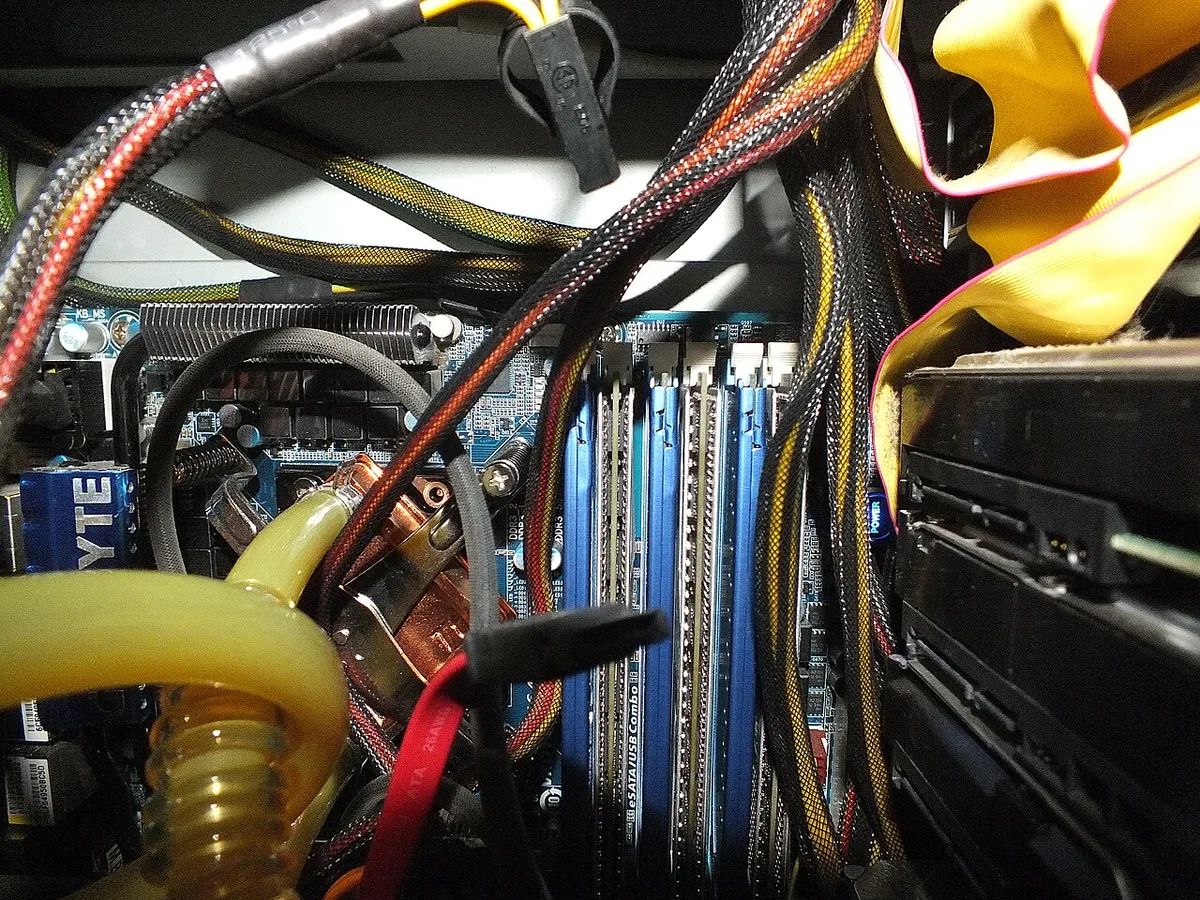
Image source: Wikimedia Commons / Dāvis Mosāns from Salaspils, Latvia (CC BY)
Some motherboards use POST beep codes to signal hardware failure during startup. One long beep followed by two short beeps often means a GPU error, though codes vary by manufacturer. Listening for these sounds can confirm a hardware problem before you open the case.
If you recently installed new RAM or a GPU, reseat those components first. A stick that is not fully latched can prevent the system from posting. This single step resolves many black screens on new builds.
Troubleshooting Steps by Scenario
Work through the steps that match your situation. Start with the easiest checks before opening the case or reinstalling software.
Black Screen at Startup
Check the monitor power light and input source first. Reseat the HDMI or DisplayPort cable at both ends. If the PC powers on but shows no BIOS screen, reseat the GPU and RAM sticks.
Clear the CMOS by removing the motherboard battery for one minute, then try again.
Black Screen During a Game
Lower the in-game graphics settings and restart. Update or roll back the graphics driver through the device manager. Monitor GPU temperature during play.
Sustained heat above 85 degrees Celsius can trigger a shutdown. Test with a different game to see if the issue repeats. Dust buildup can also trigger overheating, so keeping it running smoothly matters.
Image source: Wikimedia Commons / Evan-Amos
Black Screen After Sleep or Wake
Disable fast startup in Windows power settings. Update the motherboard chipset drivers. Try a different sleep timeout or disable hybrid sleep.
If the monitor wakes but the PC does not, the issue is often a power delivery setting in the BIOS. Microsoft support documents explain Safe Mode options.
Black Screen After a Driver Update or New Build
Boot into Safe Mode and uninstall the recent graphics driver. Use the display driver uninstaller tool if standard removal fails. For new builds, confirm the CPU power cable is fully seated and the monitor is plugged into the GPU, not the motherboard.
Keep a spare cable handy for testing. If a second HDMI or DisplayPort cable restores the picture, the original cable is faulty. This simple swap eliminates one variable without requiring new hardware.
Label cables so you know which port each one uses.
Mistakes That Waste Time or Cause Damage
Some troubleshooting steps cost more than they save. Opening the case without grounding yourself can discharge static into the motherboard and kill components. Forcing a cable into the wrong port can bend pins and ruin the GPU or monitor output.
Buying a new graphics card before testing the current one with a spare cable wastes money on a part that may not be faulty.
Ignoring POST beep codes is another error. Those sounds tell you exactly which hardware failed during startup, yet many users skip them and guess instead. Downloading drivers from unofficial sites risks malware and unstable installations that make the black screen worse.
Reusing an old power supply without checking its wattage can starve a new GPU of power. If the unit is several years old, its capacitors may no longer deliver stable voltage. In our research, the most expensive black screen repairs follow a mistaken diagnosis rather than the original fault.
Do not assume the monitor is broken until you test it with another device. A laptop or game console can confirm whether the screen itself works. This takes minutes and prevents an unnecessary monitor replacement.
Avoid updating the BIOS unless the black screen started after a hardware change. A failed BIOS update can brick the motherboard, turning a simple fix into a costly repair. Only flash the BIOS when the manufacturer explicitly recommends it for your issue.
Hardware or Software: How to Decide
You can separate hardware from software with a few quick tests. Boot into Safe Mode. If the black screen disappears, a driver or startup program is the cause.
If Safe Mode stays black, the issue is likely hardware or a deep firmware problem.
Connect a second monitor or a TV using a different cable. If the second screen works, the original monitor or cable is faulty. If both screens stay black, the PC is not sending a video signal at all.
Check Device Manager for a warning icon next to the display adapter. A code 43 error means Windows stopped the device because of a driver or hardware failure. Open Event Viewer and look for critical errors around the time the screen went dark.
Those logs often name the failing component.
Image source: Wikimedia Commons / Steve Jurvetson (CC BY)
Use this decision flow: black screen in Safe Mode points to hardware, black screen only in Windows points to software. When in doubt, test with a known-good cable and monitor before replacing internal parts.
| Sign | Likely Cause |
|---|---|
| Black screen in Safe Mode | Hardware or firmware |
| Black screen only in games | Driver or overheating |
| POST beep codes present | Hardware |
| Device Manager error code 43 | Driver or hardware |
Listen to the PC during startup. No beep and no display often means the CPU or motherboard failed POST. Continuous beeping usually signals RAM issues.
These audio clues help you decide before buying replacement parts.
Keep Your Gaming PC Stable Long-Term
Regular maintenance prevents most black screen recurrences. Dust buildup inside the case restricts airflow and raises component temperatures over time. Open the chassis every three to six months and use compressed air to clear fans, heatsinks, and power supply vents.
Monitor component health with free tools like HWMonitor or Open Hardware Monitor. These programs display real-time CPU and GPU temperatures, fan speeds, and voltage readings. Set custom fan curves so cooling ramps up before heat becomes critical.
Keep graphics drivers current, but avoid beta versions on a primary gaming rig. Stable, WHQL-certified releases are safer for long-term use. If you overclock the GPU or CPU, run stress tests such as FurMark or Prime95 to verify stability.
A crash during benchmark often predicts a black screen under load. Replace thermal paste on the CPU every two to three years if temperatures creep upward. A dry paste layer transfers heat poorly and can trigger thermal throttling or shutdowns.
Verify that the power supply wattage still meets the system’s demands, especially after component upgrades. A unit operating near its maximum rating ages faster and may deliver unstable voltage. Label each cable and component when building or modifying so troubleshooting later takes minutes instead of hours.
Documenting your setup creates a clear reference if symptoms return. Photograph every cable connection, installed component model numbers, and BIOS version before any changes. These images help support staff diagnose issues faster if you ever need professional repair service.
Frequently Asked Questions
Can Dust Cause a Gaming Pc to Show a Black Screen?
Yes. Over time, dust accumulation clogs fan blades and thermal heatsinks, raising GPU temperatures past safe thresholds. A graphics card forced into shutdown mode may disable its output entirely, leaving you with a black monitor.
Compressed air clears buildup safely without disassembling the card.
What Should I Do When My Gaming Pc Shows a Black Screen After a Windows Update?
Boot into Safe Mode and uninstall the most recent driver update. Use the display driver uninstaller tool found in Device Manager for stubborn packages. Restart normally afterward, then update to a stable WHQL release instead of a beta build.
Microsoft provides official rollback guidance in their support documentation.
Is It Safe to Restart My Gaming Pc When It Shows a Black Screen?
A simple restart often resolves temporary software glitches without hardware damage. Press power, wait ten seconds, then press again quickly. If the screen returns during startup, the problem was transient.
If not, proceed with the troubleshooting steps above rather than continuing to reboot repeatedly, which wastes time and risks overheating the components.
1 thought on “Why Does a Gaming PC Show a Black Screen?”
Comments are closed.