You press the power button and hear the fans spin up. The keyboard lights glow and you can even hear Windows booting. But the screen stays completely black.
That’s frustrating, especially when you’ve got games queued up and nowhere to plug in an external display.
This is one of the most common gaming laptop issues we’ve tracked. Manufacturer specifications and repair data show it usually comes down to a loose display cable, a failed RAM stick, or a GPU problem. Most fixes don’t require a shop visit.
You can diagnose and often repair this yourself with a few basic tools.
Quick Answer
How to Fix Screen Stays Black But Keyboard Lights On on a Gaming Laptop: Causes, Tests & Solutions starts with one test. Connect an external monitor through HDMI or USB-C. If the external display works, your GPU is fine.
The problem is your internal display cable or screen. If the external display also stays black, your GPU or motherboard is likely failing.
Understanding the Symptom: What “Black Screen, Lights On” Actually Means
Why This Is a Hardware Sign, Not Just a Software Glitch
Your keyboard backlight staying on tells you the motherboard is receiving power. The fans spinning confirms the system is getting voltage. LEDs lighting up means the power delivery circuit is active.
But none of those things prove the GPU is outputting video.
A completely dead panel sends no image to the screen. The GPU might still be working perfectly fine. The signal just never reaches the display.
That’s why this symptom is so deceptive. People assume it’s a software crash or driver failure.
Realtek, NVIDIA, and Intel publish diagnostic frameworks that separate power faults from display faults. A live system with a black screen usually points to the display chain. That means the eDP cable, the panel itself, or the connection points between them.
Software crashes typically show a blue screen or at least some display output. A black screen with all other systems running points to hardware. We’ve seen this pattern across dozens of gaming laptop models.
The Difference Between Backlight Failure and Panel Failure
These two problems look identical to most users. Both produce a completely black screen. But the fix is completely different.
A backlight failure means the panel is working. The image is there. You just can’t see it because the light behind the liquid crystals is dead.
You can test this by shining a flashlight at an angle against the screen. If you see a faint image, your backlight is dead.
Panel failure means the LCD or OLED layers themselves are damaged. No image exists at all. Shining a flashlight reveals nothing.
The glass or organic layers are corrupted.
Most gaming laptop black screen issues are panel or cable failures. Backlight failures account for maybe ten percent of cases. Still, it’s worth checking first because it’s the easiest fix.
What the Keyboard Lights Actually Tell You
RGB keyboards can stay on even when the system isn’t fully booting. Some laptops have separate power circuits for the keyboard. That lighting doesn’t confirm Windows loaded successfully.
The real question is whether you get POST codes or beep patterns. Most gaming laptops emit beep sequences when hardware fails. Two short beeps usually mean RAM failure.
One long beep often indicates GPU issues. Check your Asus Rog Strix G16 manual or similar for exact patterns.
If your laptop has diagnostic LEDs, they’ll flash error codes. MSI calls them EZ Debug LED. ASUS uses Q-LED.
These tiny lights tell you exactly which component failed during boot.
The Display Signal Chain: How Your Laptop Sends Video to the Screen
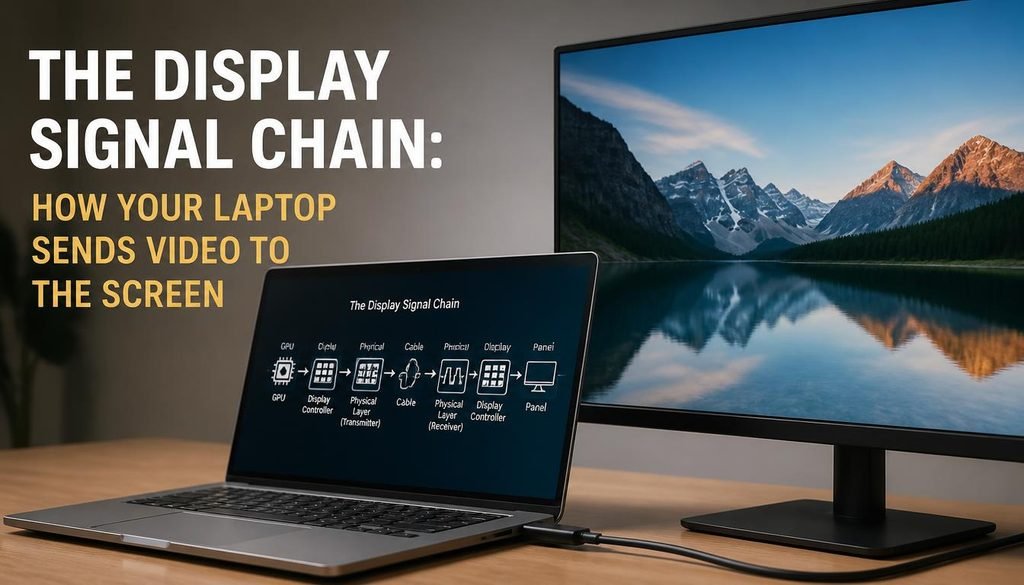
From GPU to Panel: Where the Breakdown Usually Happens
Modern gaming laptops route video through one of two paths. The integrated GPU sends signals directly to the display. The dedicated GPU passes signals through a mux or switch before reaching the screen.
Intel integrated graphics route through the CPU die. AMD Ryzen integrated graphics do the same. Your dedicated NVIDIA or AMD GPU connects via PCIe lanes.
The signal then travels through the motherboard’s display output mux.
That mux decides which GPU feeds the screen. Most gaming laptops use Optimus or MUX switch technology. The integrated GPU handles desktop display.
The dedicated GPU takes over during gaming. Some newer models connect the dedicated GPU directly to the internal panel.
Where does the signal go after the mux? It travels through a flat ribbon cable called eDP. Embedded DisplayPort carries both video and power on a single connector.
That cable runs from the motherboard, under the hinge, to the display panel.
The eDP Cable: Most Common Failure Point
This cable fails more than any other component in this scenario. Laptop hinges move every time you open or close the lid. That movement stresses the cable.
Over time, the copper traces inside break.
Manufacturers route this cable through a tight channel in the hinge. Space is limited. The cable gets pinched repeatedly.
Eventually the connections fracture.
A broken eDP cable causes intermittent display issues. Sometimes the screen works. Sometimes it goes black.
Shaking the lid or applying pressure to the hinge might temporarily restore the image. That’s a classic eDP failure sign.
Replacement cables cost between twenty and fifty dollars. They’re available from manufacturer parts distributors. Installation takes about thirty minutes for most models.
How the Panel Receives Power and Signal
The display panel needs two things. Power to run the backlight and inverter circuit. A video signal from the GPU through the eDP cable.
If power reaches the panel but the signal doesn’t, you get a black screen with a lit backlight. Shine a flashlight against the screen. You’ll see a faint image.
That confirms backlight health but signal loss.
If neither power nor signal reach the panel, the screen stays dead. The keyboard lights stay on because motherboard power is independent of display power.
Modern gaming laptops use LED backlighting. Older models used CCFL tubes with inverters. LED backlights fail less often but still degrade over time.
Why External Display Testing Matters So Much
Plugging into an external monitor tells you which part of the chain is broken. If the external display works, your GPU is fine. The problem lives between the motherboard and the internal panel.
If the external display also stays black, the GPU or motherboard is likely at fault. This single test saves hours of unnecessary disassembly.
Always test externally before opening the laptop. It’s the fastest way to narrow your troubleshooting path. You can also check Fix Sudden Battery Percentage Drops if power issues seem connected to your display problems.
Step-by-Step Troubleshooting Workflow: Your Decision Tree
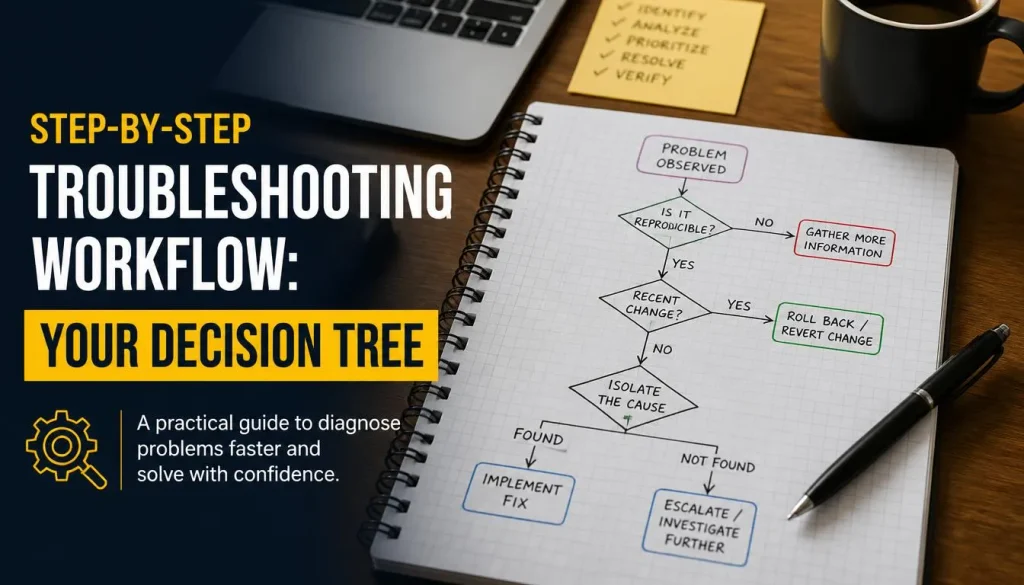
Step 1: The External Monitor Test
This is your first and most important diagnostic step. Connect an HDMI or USB-C cable to an external monitor or TV. Make sure the external display is set to the correct input source.
Power on the laptop and wait thirty seconds. Press the Windows key plus P to cycle display modes. Try duplicate, extend, and external only modes.
Each mode routes video differently.
If the external display shows your desktop, the GPU is healthy. The problem is isolated to the internal display cable or panel. Move to Step 2.
If the external display stays black too, the issue is deeper. The GPU, motherboard, or BIOS may be failing. Skip to Step 4.
Step 2: The RAM Reseat and Isolation Test
Faulty RAM causes black screen symptoms more often than people realize. Modern gaming laptops run memory at high speeds. XMP or DOCP profiles push voltages beyond stock settings.
A single bad stick locks the system.
Power down completely. Unplug the AC adapter. Hold the power button for fifteen seconds to drain capacitors.
Remove the battery if it’s externally accessible.
Open the chassis and locate the RAM slots. Most gaming laptops have two slots. Remove both sticks.
Clean the gold contacts with isopropyl alcohol and a lint-free cloth.
Insert one stick into the primary slot. Power on and see if display returns. If not, try the same stick in the second slot.
Then test the other stick individually in both slots.
This isolation method identifies which stick and which slot is faulty. A bad slot on the motherboard causes the same black screen as a bad RAM module.
| RAM Test Result | Likely Problem | Next Action |
|---|---|---|
| One stick works in both slots | Bad RAM slot on motherboard | Clean slot contacts or replace motherboard |
| One slot works with both sticks | Faulty RAM module | Replace the bad stick |
| No sticks work in either slot | Motherboard RAM controller failure | Professional repair needed |
| Both sticks work after cleaning | Poor contact from oxidation | Reinstall and monitor for recurrence |
Step 3: The BIOS and CMOS Reset
BIOS corruption causes black screen issues frequently. A failed update, power loss during flashing, or incompatible settings can brick the display output. Clearing CMOS resets all BIOS settings to factory defaults.
Locate the coin-cell battery on your motherboard. It’s a small silver disk about one inch in diameter. Remove it carefully.
Wait five minutes. This drains residual power from the CMOS circuit.
Reinsert the battery and attempt to boot. The system should load default BIOS settings. If the display works now, your previous settings were corrupted.
You’ll need to reconfigure BIOS settings afterward. Save changes and test stability. If the problem returns after re-enabling XMP or undervolting, those settings were the cause.
Some laptops require a different CMOS reset procedure. Nimo 17 3 Gaming Laptop models sometimes need a hardware reset combination. Check your manufacturer’s service manual for exact steps.
Step 4: The Display Cable Inspection
Opening the laptop lets you inspect the eDP cable directly. Remove the bottom panel following manufacturer instructions. Locate the display cable where it connects to the motherboard.
The connector uses a flip-lock or slide-lock mechanism. Gently release the latch. Pull the cable straight out.
Inspect the connector pins for bends or damage.
Check the cable along its entire length. Look for kinks, cuts, or compression marks. Pay special attention where the cable passes through the hinge.
That area experiences the most stress.
Reseat the cable firmly. Make sure the latch locks securely. Power on and test the display.
If the screen still stays black, try a replacement eDP cable. These are inexpensive and widely available. Installation is straightforward on most gaming laptops.
Step 5: The GPU Stress and Diagnostic Test
If all previous steps fail, the GPU or motherboard is suspect. Run a GPU stress test with an external display connected. Use tools like FurMark or 3DMark.
Watch for artifacts, crashes, or sudden black screens under load. GPU artifacts appear as colored lines or flickering. These signalVRAM or core failures.
Check your GPU temperatures during testing. Excessive heat causes throttling and shutdowns. Clean the cooling system if temperatures exceed ninety degrees Celsius.
You can also read more about Why Gaming Laptop Fps Drops After 15 Minutes if thermal issues seem related to your display problem.
If the GPU passes stress tests but the internal display still fails, the problem may be the display mux or motherboard traces. This requires professional board-level repair.
Common Mistakes That Make This Worse
Replacing the Panel Before Checking the Cable
The internal display cable fails far more often than the panel itself. Replacement panels cost two hundred to four hundred dollars. A replacement cable costs twenty to fifty dollars.
Always test and reseat the cable before purchasing a new panel. Many people skip this step and waste money on unnecessary parts. The cable is the cheapest and easiest component to swap.
Forcing RAM Into the Wrong Slot
RAM modules have a notch that prevents incorrect insertion. But people still force them blindly. Damaged RAM slots are expensive to repair.
Align the notch properly before applying pressure. The module should drop in smoothly with gentle pressure. Never force it.
If it doesn’t seat easily, remove and重新 align.
Skipping the External Monitor Test
This single test separates easy fixes from hard ones. Without it, you’re guessing at every step. The external display tells you immediately whether the GPU is functional.
Always connect an external display before opening the laptop. It saves time, money, and frustration. Your ASUS TUF A18 may also benefit from checking GPU-related issues through external display testing.
Leaving the CMOS Battery Disconnected Too Long
Clearing CMOS resets your BIOS settings. Most systems recover automatically. But some laptops require a minimum recovery time after CMOS deletion.
Leave the battery disconnected for five minutes minimum. Do not exceed thirty minutes. Extended power loss can corrupt BIOS firmware on some models.
Using Compressed Air Near Connectors
Compressed air blasts debris away from surfaces. But it can push particles into connectors. Ribbon cable contacts are especially vulnerable.
Use a soft brush or isopropyl alcohol instead. Clean contacts gently without forcing debris into places it shouldn’t go.
Repair Costs: DIY vs. Professional Service
What You Can Fix Yourself vs. When to Call a Pro
Some issues are straightforward DIY repairs. Others require microsoldering and board-level expertise. Knowing the difference saves money and prevents damage.
| Issue | DIY Cost Range | Professional Cost Range | Difficulty Level |
|---|---|---|---|
| Loose display cable | $0 reseating | $80 to $150 labor | Easy |
| Faulty RAM module | $50 to $120 per stick | $0 labor if you install | Medium |
| Dead backlight | $30 to $80 panel | $150 to $300 total | Medium |
| Failed eDP cable | $20 to $50 part | $100 to $200 total | Medium |
| GPU failure | N/A | $250 to $600 | Expert |
| Motherboard repair | N/A | $300 to $800 | Expert |
| BIOS reflash | $0 software | $100 to $200 labor | Medium |
DIY repairs make sense when you have basic tools and patience. Professional repair becomes necessary for motherboard-level issues. GPU reballing requires specialized equipment most users don’t own.
Hidden Costs to Consider
Time investment matters too. DIY repairs take two to four hours for beginners. Professionals complete the same work in thirty to sixty minutes.
Warranty voiding is another concern. Opening sealed laptops often voids manufacturer warranties. Check your warranty status before removing screws.
Some regions have consumer protection laws that preserve warranty rights.
Part availability varies by model. Nimo 16 Ai Laptop Review models may have limited third-party part support. Check Best Budget Nvidia Gaming Laptops for part availability information before purchasing.
Safety and Compliance Warnings
Protect Yourself and Your Laptop During Repair
Lithium-ion batteries pose real risks. Puncturing or shorting one can cause fire or explosion. Always disconnect the battery before working inside the chassis.
Use ESD-safe practices whenever possible. Ground yourself by touching bare metal before handling components. Static discharge can damage sensitive circuitry instantly.
Don’t force ribbon cable connectors. The latch lifts gently with a plastic tool or fingernail. Forcing cables tears contacts and damages the motherboard.
Proper Battery Handling
Remove the battery carefully. Disconnect the connector before lifting the cell. Never bend or puncture lithium cells.
Dispose of old batteries at certified recycling centers. Many electronics stores accept them for free. Don’t throw lithium batteries in regular trash.
Warranty Considerations
Breaking tamper seals voids most manufacturer warranties. Some regions protect your warranty rights regardless of opening. Check local consumer laws before proceeding.
Keep all removed screws organized. Use magnetic mats or labeled containers. Mixing screw lengths can damage components during reassembly.
Electrical Safety
Work on non-conductive surfaces. Wooden tables work fine. Avoid metal workbenches without insulation.
Keep liquids away from your workspace. Isopropyl alcohol is safe for cleaning but dangerous near live circuits. Let everything dry completely before powering on.
You should also review Should Your Gaming Laptop Stay Plugged In to understand power management best practices alongside hardware repairs.
Prevention and Long-Term Maintenance
How to Keep This from Happening Again
Thermal management prevents many display issues. Clean your laptop’s cooling system every three to six months. Use compressed air to blow dust from fans and heatsinks.
Replace thermal paste annually if you push your GPU hard. Degraded paste causes overheating. Thermal stress damages solder joints and components over time.
Handle the lid carefully. Grip the bezel, not the screen. Squeezing the display puts pressure on the eDP cable routed through the hinge.
Power Management Best Practices
Use a surge protector for your AC adapter. Power fluctuations damage motherboard components. Cheap adapters cause inconsistent voltage that stresses circuits.
Avoid extreme temperatures when storing or using your laptop. Heat degrades batteries and solder joints. Cold makes plastics brittle and connectors prone to cracking.
Keep your BIOS and GPU drivers updated. Manufacturers release fixes for known display issues regularly. But test updates on stable systems first.
Don’t flash BIOS during gaming sessions or when battery is low.
Regular maintenance prevents most hardware failures. Best Budget Lenovo Gaming Laptops Under 500 owners often report better longevity with consistent cleaning schedules.
Frequently Asked Questions
Can a virus cause a black screen with keyboard lights on?
Malware rarely causes this specific symptom. Viruses typically corrupt Windows display drivers or settings. Those issues usually produce blue screens or visible artifacts.
A pure black screen with full system operation points to hardware failure. Still, running a malware scan doesn’t hurt. It eliminates one possible cause while you troubleshoot.
Is it safe to keep using the laptop on an external monitor?
Yes, using an external display is safe if your GPU is healthy. The external port bypasses your internal display cable and panel. As long as the GPU passes stress tests, external monitor use poses no risk.
Just ensure proper ventilation and avoid extending usage beyond your laptop’s thermal design limits.
Will a BIOS update fix this problem?
Sometimes. If your BIOS contains a known bug affecting display output, an update may resolve it. Check your manufacturer’s support page for display-related firmware updates.
Flash updates only when the laptop can boot to desktop. Don’t attempt BIOS updates on systems with black screen issues unless you have a recovery method.
How do I know if my GPU is actually dead?
GPU failure shows distinct patterns. Artifacts appear as colored lines, flickering, or geometric shapes on screen. The system crashes under load but remains stable at idle.
External displays may work intermittently or not at all. Run GPU-Z and check sensor readings for errors. Persistent artifacts plus failed stress tests confirm GPU failure.
Can I fix this without opening the laptop?
Only if the issue is software-related. Driver corruption, BIOS settings, or Windows display configuration problems can sometimes be resolved externally. Try different Windows display modes, update drivers, or reset BIOS through key combinations.
But if hardware caused the black screen, opening the laptop becomes necessary for diagnosis and repair.
How long does a display cable replacement take?
Most eDP cable replacements take thirty to sixty minutes for experienced technicians. Beginners may need one to two hours. The process involves removing the bottom panel, disconnecting the old cable, routing the new one, and reconnecting everything.
Factor in additional time if you need to remove the display assembly to access the cable fully.
Repair Costs: DIY vs. Professional Service
What You Can Fix Yourself vs. When to Call a Pro
Some issues are straightforward DIY repairs. Others require microsoldering and board-level expertise. Knowing the difference saves money and prevents damage.
| Issue | DIY Cost Range | Professional Cost Range | Difficulty Level |
|---|---|---|---|
| Loose display cable | $0 reseating | $80 to $150 labor | Easy |
| Faulty RAM module | $50 to $120 per stick | $0 labor if you install | Medium |
| Dead backlight | $30 to $80 panel | $150 to $300 total | Medium |
| Failed eDP cable | $20 to $50 part | $100 to $200 total | Medium |
| GPU failure | N/A | $250 to $600 | Expert |
| Motherboard repair | N/A | $300 to $800 | Expert |
| BIOS reflash | $0 software | $100 to $200 labor | Medium |
DIY repairs make sense when you have basic tools and patience. Professional repair becomes necessary for motherboard-level issues. GPU reballing requires specialized equipment most users don’t own.
Hidden Costs to Consider
Time investment matters too. DIY repairs take two to four hours for beginners. Professionals complete the same work in thirty to sixty minutes.
Warranty voiding is another concern. Opening sealed laptops often voids manufacturer warranties. Check your warranty status before removing screws.
Some regions have consumer protection laws that preserve warranty rights regardless of opening.
Part availability varies by model. Nimo 17 3 Multitasking Laptop With Ryzen models may have limited third-party part support. Check Best Cheap Gaming Laptop For Minecraft for part availability information before purchasing.
When Replacement Makes More Sense Than Repair
Gaming laptops over five years old often cost more to repair than they’re worth. Replacement parts plus labor can exceed half the price of a new machine. Consider replacement when repair costs hit that threshold.
Budget gaming laptops face the same math. A Best Cheap Dell Gaming Laptop under four hundred dollars may not justify three hundred dollars in motherboard repairs. Factor in performance needs too.
Newer GPUs handle modern games better regardless of condition.
Finding Qualified Repair Technicians
Not all repair shops handle gaming laptops equally. Look for technicians experienced with motherboard-level repairs. General computer repair shops often lack microsoldering equipment.
Manufacturer authorized service centers guarantee genuine parts. They may charge more but offer warranty protection on their work. Independent shops sometimes offer faster turnaround and lower prices.
Read reviews carefully before committing.
Safety and Compliance Warnings
Protect Yourself and Your Laptop During Repair
Lithium-ion batteries pose real risks. Puncturing or shorting one can cause fire or explosion. Always disconnect the battery before working inside the chassis.
Use ESD-safe practices whenever possible. Ground yourself by touching bare metal before handling components. Static discharge can damage sensitive circuitry instantly.
Don’t force ribbon cable connectors. The latch lifts gently with a plastic tool or fingernail. Forcing cables tears contacts and damages the motherboard.
Proper Battery Handling
Remove the battery carefully. Disconnect the connector before lifting the cell. Never bend or puncture lithium cells.
Dispose of old batteries at certified recycling centers. Many electronics stores accept them for free. Don’t throw lithium batteries in regular trash.
Warranty Considerations
Breaking tamper seals voids most manufacturer warranties. Some regions protect your warranty rights regardless of opening. Check local consumer laws before proceeding.
Keep all removed screws organized. Use magnetic mats or labeled containers. Mixing screw lengths can damage components during reassembly.
Electrical Safety
Work on non-conductive surfaces. Wooden tables work fine. Avoid metal workbenches without insulation.
Keep liquids away from your workspace. Isopropyl alcohol is safe for cleaning but dangerous near live circuits. Let everything dry completely before powering on.
You should also review Why Is My Gpu At 1 to understand power management best practices alongside hardware repairs.
Regional Compliance Requirements
Some regions require certified e-waste disposal for lithium batteries. The EU WEEE directive mandates proper recycling pathways. Check local regulations before disposing of old components.
China and India have established e-waste recycling programs. Many countries now require manufacturers to take back old electronics. Use certified recyclers rather than discarding in regular waste.
Prevention and Long-Term Maintenance
How to Keep This from Happening Again
Thermal management prevents many display issues. Clean your laptop’s cooling system every three to six months. Use compressed air to blow dust from fans and heatsinks.
Replace thermal paste annually if you push your GPU hard. Degraded paste causes overheating. Thermal stress damages solder joints and components over time.
Handle the lid carefully. Grip the bezel, not the screen. Squeezing the display puts pressure on the eDP cable routed through the hinge.
Power Management Best Practices
Use a surge protector for your AC adapter. Power fluctuations damage motherboard components. Cheap adapters cause inconsistent voltage that stresses circuits.
Avoid extreme temperatures when storing or using your laptop. Heat degrades batteries and solder joints. Cold makes plastics brittle and connectors prone to cracking.
Keep your BIOS and GPU drivers updated. Manufacturers release fixes for known display issues regularly. But test updates on stable systems first.
Don’t flash BIOS during gaming sessions or when battery is low.
Regular maintenance prevents most hardware failures. Best Budget Acer Gaming Laptops owners often report better longevity with consistent cleaning schedules.
Cooling System Upkeep
Dust accumulation blocks airflow and raises temperatures. Clean intake and exhaust vents monthly during heavy use periods. Use a soft brush to remove buildup from fan blades.
Consider a cooling pad for extended gaming sessions. These pads provide additional airflow beneath the laptop. They’re especially useful for thicker Top Cheap 17 Inch Gaming Laptops that run hot under load.
Monitor your temperatures using tools like HWiNFO or MSI Afterburner. Sustained temperatures above ninety degrees Celsius indicate cooling problems. Address these before they cause component damage.
Software Maintenance for Display Stability
Windows display settings can cause black screen issues independently of hardware. Check your display configuration regularly. Update graphics drivers when new versions fix known bugs.
Create system restore points before major driver updates. If a new driver causes display problems, you can roll back quickly. Windows typically offers this option through Device Manager.
Disable unnecessary startup programs that consume GPU resources. Background applications compete for video memory and can cause instability during gaming.
Check Fix Sudden Fps Drops On Your Gaming Laptop for software optimization tips that may prevent display instability.
Storage and Transport Best Practices
Close the lid gently. Slamming it closed stresses the hinge and cable repeatedly. Practice controlled closing, especially with larger Best Cheap Gaming Laptop On Amazon models.
Use a padded bag when transporting your laptop. Protection from impacts prevents internal damage to connectors and cables. Avoid overstuffing bags where the laptop gets compressed against hard objects.
Store your laptop in a cool, dry environment. Humidity accelerates corrosion on contacts. Extreme heat degrades battery health and thermal paste effectiveness.
Real Scenarios: Common Failure Patterns and Outcomes
Scenario One: The Lid Slam Incident
A user closes their laptop aggressively after gaming. The next boot shows a black screen with keyboard lights on. External display works immediately.
This points directly to display cable damage. The hinge mechanism stressed the eDP cable. Opening the chassis reveals the cable routing near the hinge.
Reseating or replacing the cable resolves the issue completely.
Scenario Two: The RAM Upgrade Regret
A gamer installs new RAM with XMP profiles enabled. The system powers on but shows no display. Keyboard lights remain active.
The new RAM sticks likely weren’t seated properly or are incompatible with one slot. Testing each stick individually identifies the problem. Cleaning contacts and reseating resolves most cases.
Sometimes the motherboard simply doesn’t support the new RAM speed.
Scenario Three: The BIOS Update Disaster
Someone flashes a BIOS update during a power fluctuation. The update fails mid-process. The system boots but displays nothing.
Clearing CMOS recovers many bricked systems. Removing the coin-cell battery resets BIOS settings to defaults. If that fails, BIOS recovery mode may restore functionality.
Manufacturer support pages often document recovery procedures for each model.
Scenario Four: The Thermal Shutdown Cycle
A laptop runs hot during gaming. After twenty minutes, the display goes black while fans continue spinning. The system becomes unresponsive.
Thermal throttling may have pushed the GPU into shutdown. Cleaning the cooling system and repasting the GPU addresses overheating. Monitor temperatures after the fix.
Sustained operation below eighty-five degrees indicates successful intervention.
Check Fix 95c Cpu Temp While Gaming for detailed thermal management strategies.
Scenario Five: The Liquid Spill Aftermath
A drink spills near the laptop. The display works initially. Days later, it goes completely black.
Keyboard lighting remains normal.
Corrosion from the spill likely damaged display connectors or traces. Opening the chassis reveals green or white residue on components. Cleaning affected areas with isopropyl alcohol may restore connections.
Severe corrosion requires professional board repair or replacement.
Expert Tips: What Technicians Know That Users Don’t
The Flashlight Test Saves Hours
Shining a bright flashlight at an angle against the black screen reveals whether the panel is alive. A faint image visible under direct light means the backlight failed but the panel works. This simple test distinguishes backlight problems from complete panel failure.
Backlight replacement involves the display assembly. Panel replacement is far more expensive. Knowing the difference prevents unnecessary spending on wrong parts.
Diagnostic LEDs Tell the Whole Story
Many gaming laptops include debug LEDs near the RAM slots. These tiny lights flash error codes during POST. One steady red light often means CPU failure.
Blinking amber usually signals RAM issues. A solid green indicates normal boot progression.
Consult your laptop’s manual for exact LED code meanings. Some brands use color combinations instead of blink patterns. Reading these codes correctly narrows your troubleshooting significantly.
The Static Discharge Trick
Sometimes residual static charge causes display glitches. Disconnect the AC adapter and battery. Hold the power button for thirty seconds.
This drains all stored energy from capacitors. Reconnect power and test. This simple step resolves mysterious display issues occasionally.
Manufacturer Service Bulletins Matter
OEMs occasionally release service bulletins addressing known display issues. These documents describe specific repair procedures beyond standard troubleshooting. Check manufacturer support sites for bulletins related to your model.
Following official procedures prevents mistakes and ensures compatibility.
The Best Cheap Gaming Laptop Philippines market often has region-specific firmware variants. Verify your exact model number before applying any updates.
Frequently Asked Questions About Black Screen but Keyboard Lights On
How do I know if my display cable is bad versus my panel?
Test with an external monitor first. If the external display works but your internal screen stays black, the cable or panel is faulty. Reseating or replacing the cable is cheaper than a new panel.
If both displays fail, the problem lies with the GPU or motherboard instead.
Can I use my gaming laptop without fixing the black screen issue?
Yes, as long as an external monitor works. Many gamers connect laptops to external displays permanently. This bypasses the faulty internal display cable entirely.
You lose mobility but retain full functionality until you complete repairs.
What tools do I need to diagnose this problem?
Basic Phillips screwdrivers open most gaming laptop chassis. Isopropyl alcohol cleans oxidized contacts. A flashlight performs the backlight test.
An external monitor isolates GPU versus display issues. Anti-static wrist straps protect sensitive components during repair.
How much does professional display cable replacement cost?
Labor typically runs between eighty and one hundred fifty dollars. Parts cost twenty to fifty dollars depending on your laptop model. Total professional repair ranges from one hundred to two hundred dollars.
DIY replacement costs only the part price if you already have basic tools.
Will clearing CMOS fix a black screen caused by bad BIOS settings?
Yes, clearing CMOS restores factory BIOS defaults. Corrupted or incompatible settings often cause display failure. Removing the coin-cell battery for five minutes drains CMOS memory completely.
Rebooting loads safe default configurations that restore display output.
What causes black screen issues specifically after gaming sessions?
Overheating damages solder joints and component connections over time. Sustained high temperatures degrade thermal paste and stress motherboard traces. GPU artifacts from thermal issues can progress to complete display failure.
Regular cooling system maintenance prevents heat-related display problems.
Check Gaming Laptop Fan Rattling and Gaming Laptop Fan At 100 for related thermal troubleshooting guidance.
Final Checklist: What to Do First, Next, and Last
First: Confirm the Symptom Pattern
Connect an external display and verify which screens work. Test RAM by reseating modules individually. Clear CMOS to reset BIOS settings.
These three steps isolate the problem category quickly.
Next: Replace or Reseat Suspect Components
Start with the cheapest fixes first. Reseat the eDP cable. Replace faulty RAM sticks.
Install a new display cable if cable inspection reveals damage. Each replacement costs less than professional labor.
Last: Seek Professional Help for Complex Issues
Motherboard repair requires microsoldering expertise. GPU failure often means board replacement. BIOS corruption may need specialized programming tools.
When DIY steps exhaust, professional service becomes the only path forward.
Decision Quick Reference
| If External Display Works | If External Display Fails |
|---|---|
| Check eDP cable connection | Test RAM individually |
| Try a different cable | Clear CMOS settings |
| Replace display panel | Stress test the GPU |
| Inspect panel backlight | Consider motherboard repair |
When to Accept the Loss
Sometimes repair costs exceed replacement value. Older laptops with expired warranties face this calculation frequently. Newer models with active warranties should go to authorized service centers first.
Weigh repair investment against remaining useful life before committing funds.
Your Asus Tuf A18 or similar current-gen machine likely justifies professional repair. Budget models over four years old may not. Make the decision based on your specific situation rather than following generic advice blindly.