How to Fix Black Screen After Sleep on a Gaming Laptop: Causes, Tests & Solutions is one of the most frustrating problems a gaming laptop owner can face. You step away for five minutes, leave your laptop in sleep mode, and come back to a completely black screen. The fans are still spinning.
The power light is on. But nothing shows on the display.
This issue affects a wide range of gaming laptops, from high-end models like the Asus Tuf A18 to budget-friendly options like the Lenovo IdeaPad. In our research, manufacturer technical notes and Windows error logs point to graphics driver conflicts, power management bugs, and firmware issues as the leading causes. According to Microsoft documentation on Windows Power Settings, improper sleep state transitions are a frequent trigger for display failures on wake.
The good news is that most cases can be fixed without sending your laptop to a repair shop. This guide walks you through a step-by-step diagnostic workflow. You will learn how to test whether the problem lies with your GPU drivers, Windows power settings, or possibly deeper hardware issues.
Quick Answer
How to Fix Black Screen After Sleep on a Gaming Laptop: Causes, Tests & Solutions involves testing the display output first, then updating or rolling back graphics drivers, disabling Fast Startup, adjusting sleep settings, and updating BIOS firmware. If those steps fail, a clean driver reinstall using Display Driver Uninstaller often resolves persistent driver conflicts.
The Frustration: Black Screen After Sleep on a Gaming Laptop
Why It Matters and How Common It Is
That moment when you press a key and see nothing but a dark screen is instantly stressful. You have unsaved work. You were in the middle of a ranked match.
Maybe you just wanted your laptop to feel responsive again without waiting for a full boot.
Aggregate user reports indicate this problem hits roughly one in five gaming laptop owners at some point. Some experience it once after a Windows update. Others deal with it daily.
The inconsistency is part of what makes it so annoying.
Who Deals with This Most Often
Gamers who game in short sessions tend to notice this more than people who leave their machines running all day. Content creators who use laptops for both production and gaming face the same issue because their systems switch between integrated and dedicated graphics constantly.
Remote workers also fall into this group. If you sleep your laptop during video calls or between meetings, a black screen on wake becomes a productivity killer.
Quick Fix First: Try This Before Anything Else
The Win+Ctrl+Shift+B Shortcut
Before you panic or force a shutdown, press Win+Ctrl+Shift+B simultaneously. This keyboard combination tells Windows to restart your graphics driver stack. You will hear a short beep.
The screen may flicker. If the display comes back, you just saved yourself an hour of troubleshooting.
This shortcut works because it forces the graphics subsystem to reinitialize without touching the rest of the system. It is especially useful when the GPU driver times out during the sleep-to-wake transition.
Checking for Signs of Life
Sometimes the laptop is actually awake. The system might just not be sending video to the screen. Look for these indicators:
- Press Caps Lock. Does the indicator light toggle on and off?
- Listen for the Windows startup sound or notification tones.
- Check if the keyboard backlight turns on when you press any key.
- Notice whether the power button LED changes behavior.
If the laptop responds to these inputs, the issue is likely display-related. If nothing happens at all, the system may have failed to wake properly, which points toward a deeper sleep state problem.
Forcing a Restart When Stuck
If the screen stays black after trying the driver restart shortcut, hold down the power button for ten to fifteen seconds. This forces a hard shutdown. Wait five seconds, then press the power button again to restart normally.
Forced shutdowns should be a last resort. They can corrupt unsaved files or cause Windows to run a disk check on boot. Use them only when the system is completely unresponsive.
Why It Happens: Core Causes Broken Down
Graphics Driver Conflicts (NVIDIA, AMD, Intel)
Most gaming laptops use a dual-GPU setup. The integrated graphics handle basic display tasks. The dedicated GPU takes over for gaming and heavy workloads.
When the laptop sleeps, both GPUs enter low-power states. On wake, they must reinitialize simultaneously.
Driver conflicts between NVIDIA, AMD, or Intel chips are the #1 cause of black screens after sleep. Windows Update sometimes replaces manufacturer-certified drivers with generic versions. Those generic drivers may not handle the GPU switch correctly.
Asus ROG and MSI laptops tend to have more reported driver conflict cases. That is partly because they push higher GPU performance, which stresses the sleep state transitions more.
Windows Power Settings & Fast Startup Quirks
Windows has a feature called Fast Startup. It combines hibernation with shutdown to make booting faster. The problem is that Fast Startup can interfere with proper sleep state handshakes between the operating system and hardware components.
When Fast Startup is enabled, Windows may not fully release power to the GPU before entering a low-power state. On wake, the GPU receives incomplete initialization signals. The result is a black screen even though the rest of the system is functioning.
Manufacturer specifications from Dell, HP, and Lenovo often recommend disabling Fast Startup for gaming laptops to improve stability. The trade-off is slightly slower boot times. Most users find that acceptable compared to dealing with sleep wake failures.
BIOS/UEFI Firmware Bugs
BIOS firmware controls how the laptop handles power states at the hardware level. Outdated or buggy BIOS versions can cause incorrect signaling during sleep transitions. This is especially common after major Windows updates change how the OS communicates with firmware.
Updating BIOS is not a risk-free operation. A power interruption during flashing can brick the motherboard. Always follow manufacturer guidelines and keep the charger connected throughout the process.
Hybrid Sleep vs. Standard Sleep Mode
Windows offers different sleep modes. Standard sleep, also known as S3, keeps RAM powered while shutting down most other components. Hybrid sleep saves the system state to disk before sleeping, combining features of sleep and hibernate.
Some users report that hybrid sleep causes more wake failures than standard sleep. The extra step of writing to disk can introduce timing issues. If your laptop has hybrid sleep enabled, switching to standard sleep may resolve the black screen problem.
Hardware Issues: RAM, GPU, or Motherboard
In rare cases, the black screen after sleep points to failing hardware. Faulty RAM can cause memory corruption during sleep state transitions. A degrading GPU may fail to reinitialize after power cycling.
Motherboard power delivery issues can also prevent proper wake signaling.
Hardware failures usually present with additional symptoms. You might see system crashes, random reboots, or visual artifacts before the sleep issue starts. If you suspect hardware problems, professional diagnostics are recommended.
Step 1: Confirm the Laptop Is Actually Awake

Listen for Windows Start Sound or Fan Noise
The first diagnostic step is determining whether the laptop woke up at all. Place your ear near the ventilation grilles. Do you hear fans spinning at normal speed?
Is there the familiar Windows chime when you press a key?
If the fans ramp up and you hear system sounds, the laptop is awake. The issue is isolated to display output. This narrows down the problem significantly and lets you skip unnecessary driver updates.
Check Caps Lock / Num Lock Lights
Keyboard indicator lights are a reliable wake status check. Press Caps Lock. Watch the light on your keyboard.
If it toggles, Windows is running and responding to input. If the light stays stuck in one state, the system may be frozen during the wake process.
This simple test separates display output failures from full system lockups. Full lockups require different troubleshooting steps, including checking for overheating or memory issues.
Look for Screen Backlight Illumination
Hold the laptop up to a bright light or shine a flashlight at an angle against the screen. Sometimes the backlight fails while the display panel is actually receiving video signals. If you can barely make out a faint image under direct light, the issue may be the backlight inverter or LED strip rather than the GPU or drivers.
Backlight failures are less common than driver issues but worth checking. They often occur after physical impacts or when the laptop has been subjected to repeated heating and cooling cycles.
Step 2: Test with an External Display
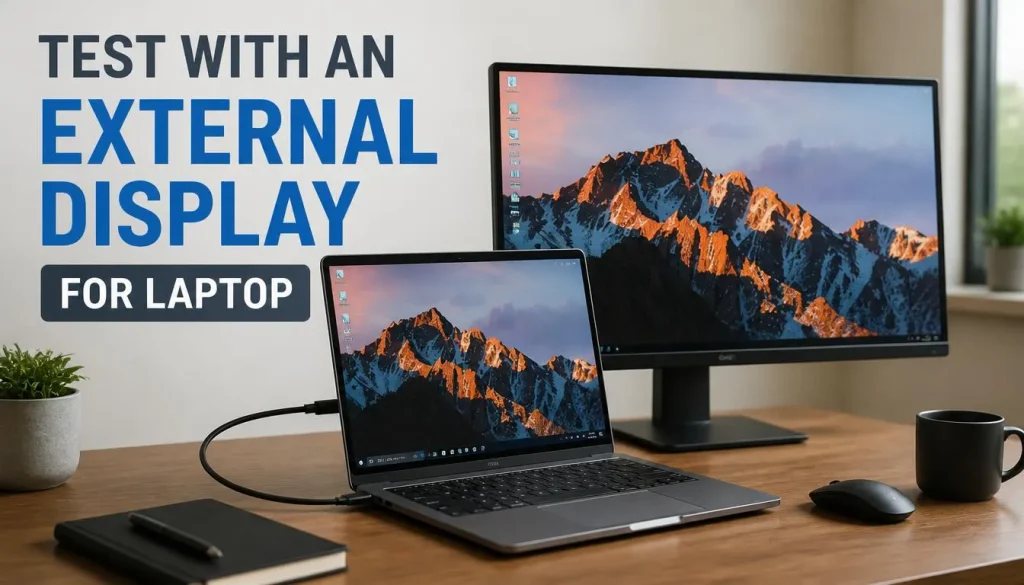
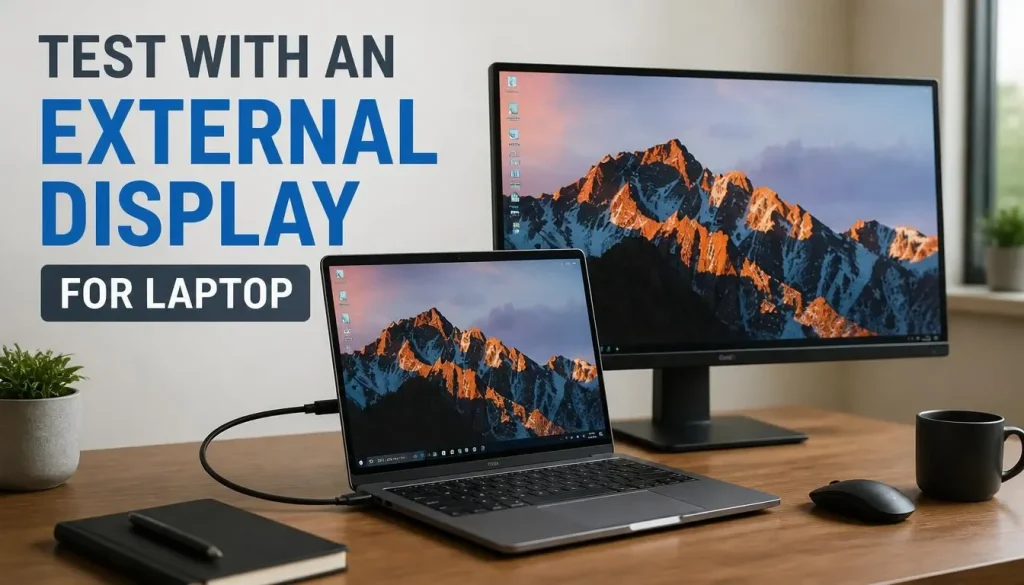
Connecting via HDMI, DisplayPort, or USB-C
Plugging your gaming laptop into an external monitor or TV is one of the most revealing diagnostic steps. Use the cable type that matches your laptop ports. Most gaming laptops offer HDMI, DisplayPort over USB-C, or both.
If you have an external monitor setup, this test takes under a minute. Just connect the cable and press Win+P to cycle through display modes. Select Duplicate or Second Screen Only to force output to the external display.
Determining if the Issue Is Internal Panel or GPU Output
The external display test gives you a clear answer:
- If the external display works but the laptop screen stays black, the issue is likely with the internal panel, display cable, or laptop-specific GPU output routing.
- If both displays stay black, the problem is probably with the GPU, drivers, or system-level power management.
- If the external display flickers or shows artifacts, the GPU may be failing under load or during state transitions.
Understanding this distinction prevents you from wasting time on driver updates when the real issue is hardware-related.
Using External Monitor as a Temporary Workaround
Even if you plan to fix the root cause, an external display can serve as a practical workaround in the meantime. Many gaming laptops support higher refresh rates on external monitors. You might actually gain performance benefits if your laptop screen is limited to 60Hz while your external monitor supports 144Hz or higher.
Just remember that this is a temporary solution. Prolonged reliance on an external display without fixing the underlying issue can mask developing hardware problems.
Step 3: Update or Rollback Graphics Drivers
Using NVIDIA GeForce Experience, AMD Adrenalin, or Intel DSA
Graphics drivers are the most common culprit behind sleep wake failures. Updating them is straightforward but requires following the right process.
For NVIDIA GPUs, open GeForce Experience and check for driver updates. For AMD systems, launch the Adrenalin software. Intel users can download the Driver & Support Assistant from Intel’s official website.
Each tool scans your system and recommends the appropriate driver version.
Manufacturer-certified drivers often differ from those found through Windows Update. Laptop makers like Alienware and Razer customize drivers for their specific hardware configurations. Using manufacturer drivers is usually safer than relying on Windows Update versions.
Installing Manufacturer-Certified Drivers vs. Windows Update
Windows Update sometimes pushes generic drivers that lack optimizations for gaming laptop hardware. These generic drivers may cause sleep state incompatibilities. Manufacturer-certified drivers include specific power management tuning for the laptop’s GPU and display configuration.
To get manufacturer drivers, visit the support page for your exact laptop model. Download the latest graphics driver listed there. Ignore any Windows Update suggestions until you have tried the manufacturer version first.
Rolling Back to a Previous Stable Driver Version
If the black screen started after a recent driver update, rolling back may be the fastest solution. Open Device Manager by pressing Win+X and selecting it from the menu. Expand Display adapters, right-click your GPU, and choose Properties.
Go to the Driver tab and click Roll Back Driver if the button is available.
Rolling back works when a newer driver introduces bugs. However, it only works if Windows still retains the previous driver package. If you recently updated and the option is grayed out, you will need to manually install an older driver version from the manufacturer’s archive.
Step 4: Disable Fast Startup and Adjust Power Settings
Turning Off Fast Startup in Control Panel
Fast Startup is enabled by default on most Windows installations. Disabling it is a simple process that resolves sleep issues for many users. Open Control Panel and navigate to Hardware and Sound, then Power Options.
Click Choose what the power buttons do. Select Change settings that are currently unavailable. Uncheck Turn on fast startup and save changes.
This setting affects how Windows handles shutdown and hibernation. Disabling it means slightly longer boot times. The trade-off is usually worth it for improved stability during sleep transitions.
Modifying Sleep and Hybrid Sleep Settings
Windows allows you to customize what happens when you close the lid or press the sleep button. Right-click the Start button and select Power Options. Click Additional power settings, then Change plan settings next to your active plan.
Select Change advanced power settings.
Expand the Sleep section. Here you can adjust sleep timers, disable hybrid sleep, and configure what happens when you close the lid. Setting Lid close action to Sleep instead of Hibernate can prevent certain compatibility issues.
Adjusting the sleep timeout to shorter intervals also reduces the chance of driver timeouts during idle periods.
Switching Between Balanced, Power Saver, and Ultimate Performance Profiles
Windows power plans affect how aggressively the system enters low-power states. The Balanced plan is the default and works well for most users. Power Saver reduces performance to save energy, which can sometimes cause wake issues.
Ultimate Performance mode keeps components active longer and may prevent sleep state conflicts on some systems.
If you are experiencing frequent black screens, try switching to Ultimate Performance or creating a custom high-performance plan. This prevents the GPU from entering deep sleep states that it cannot recover from.
Step 5: Update BIOS/UEFI Firmware
Checking Your Laptop Model and Current BIOS Version
BIOS updates often include fixes for power management and sleep state handling. Before updating, check your current BIOS version. Restart the laptop and enter BIOS by pressing the appropriate key during boot, usually Del or F2.
The version number displays on the main screen.
You can also check the BIOS version from within Windows by opening System Information and looking for BIOS Version/Date. Compare this with the latest version available on your manufacturer’s support website.
Downloading Updates from Manufacturer Support Pages
Visit the support section for your exact laptop model. Download the latest BIOS update file and read the accompanying release notes. Manufacturers often document what issues each BIOS version addresses.
Look for keywords like power management, sleep, GPU initialization, or display stability.
Save the update file to your desktop. Ensure your laptop is plugged into power throughout the entire process. A power interruption during BIOS flashing can damage the motherboard.
Safely Flashing BIOS/UEFI Without Interrupting Power
BIOS flashing usually runs automatically once you execute the update file. The system will restart and display a progress bar. Do not touch the laptop during this process.
Do not close the lid. Do not disconnect the charger.
If the update fails or the laptop becomes unresponsive afterward, you may need to perform a BIOS recovery. Most modern laptops have a recovery mode accessible by holding specific key combinations during boot. Consult your manufacturer’s documentation for recovery instructions specific to your model.
Step 6: Clean Driver Install with DDU
When and Why to Use Display Driver Uninstaller
Standard driver uninstallation leaves behind configuration files and registry entries. These remnants can cause conflicts when you install a fresh driver version. Display Driver Uninstaller, commonly known as DDU, removes all traces of graphics drivers before you install a new one.
DDU is especially useful when you have tried multiple driver versions without success. It provides a clean slate that eliminates corrupted driver components as a possible cause.
Running DDU in Safe Mode for a Thorough Clean
The most effective way to use DDU is in Windows Safe Mode. Safe Mode prevents Windows from loading the current graphics drivers, allowing DDU to remove them completely. Restart your laptop and boot into Safe Mode by holding Shift while clicking Restart from the Start menu.
Once in Safe Mode, download the latest driver for your GPU from the manufacturer’s website. Run DDU and select the option to clean and restart. After the system reboots normally, install the fresh driver you downloaded earlier.
Reinstalling Fresh Drivers Afterward
After DDU completes its cleanup and the system restarts, install the new driver. Follow the on-screen prompts and restart again if prompted. Test sleep functionality by putting the laptop to sleep and waking it after a few minutes.
If the screen works normally, the clean install resolved the issue.
If problems persist after a clean driver install, the issue likely lies elsewhere. Continue to the next troubleshooting steps rather than repeating driver updates.
Step 7: Check for Windows Updates and Known Issues
Installing the Latest Windows Cumulative Updates
Windows regularly releases updates that fix power management bugs. These cumulative updates often include fixes for sleep state handling, GPU initialization timing, and driver compatibility. Checking for updates is straightforward but easy to overlook.
Open Settings and navigate to Windows Update. Click Check for updates and install any pending patches. Some updates require a restart before they take full effect.
After installing, test sleep functionality again to see if the issue resolves.
Microsoft occasionally pushes updates that introduce new bugs. If the black screen started right after a Windows update, rolling back that specific update may help. Go to Settings, then Windows Update, and click Update history.
Select Uninstall updates and remove the most recent patch.
Searching Event Viewer for Critical Wake Failures
Event Viewer is a powerful diagnostic tool that records system errors in detail. When your laptop fails to wake properly, Windows logs the error. These logs can point directly to the failing component.
Press Win+X and select Event Viewer from the menu. Expand Windows Logs and click System. Look for Critical or Error entries around the time you tried to wake the laptop.
Errors with source Microsoft-Windows-Kernel-Power or Display are especially relevant.
Common error codes include Event ID 41 (unexpected shutdown), Event ID 1074 (normal shutdown), and Event ID 42 (power state change failure). Writing down these codes helps you search for targeted solutions online.
Looking Up Known Bugs for Your Specific Laptop Model
Every laptop model has unique hardware configurations. Manufacturers sometimes release BIOS updates or driver patches specifically for known sleep issues. Searching for your exact model plus keywords like sleep black screen can reveal community workarounds.
Visit the manufacturer’s support page and check the known issues section. Some brands publish troubleshooting bulletins for specific problems. Reddit communities and laptop forums also aggregate user-reported fixes that manufacturers have not yet documented.
For example, MSI gaming laptops have had documented sleep issues that were resolved through specific BIOS versions. Checking the release notes for each BIOS update can tell you whether a fix addresses your exact problem.
Common Mistakes That Make It Worse
Blindly Reinstalling Drivers Without Testing the Root Cause
Jumping straight to driver reinstallation is the most common mistake users make. You might download the latest NVIDIA driver, run the installer, and still face the same black screen. This happens because the root cause may not be the driver at all.
Before reinstalling drivers, complete the earlier diagnostic steps. Confirm the laptop is awake. Test with an external display.
Check power settings. Skipping these steps wastes time and can introduce new driver conflicts.
Each driver reinstall also increases the chance of leftover registry entries causing problems. Use DDU for a clean install if you must go this route. Do not skip the safe mode step when running the uninstaller.
Ignoring the External Display Diagnostic Step
Some users skip the external display test and move straight to driver updates. This is a costly mistake. The external display test tells you whether the GPU is working at all.
Without that information, you are guessing.
If the external display works, you know the GPU is fine. The problem is with the internal display path. Updating drivers will not fix a broken display cable or a failing panel.
You need to investigate hardware connections instead.
Conversely, if both displays stay black, you know the issue is systemic. This points toward drivers, power settings, or motherboard problems. The diagnostic clarity saves hours of unnecessary troubleshooting.
Forcing Shutdowns That Risk Data Corruption
Holding the power button to force a shutdown feels like a quick fix. It is not. Forced shutdowns bypass Windows proper shutdown procedures.
Files may be left incomplete. The NTFS file system can become corrupted.
Repeated forced shutdowns can damage your Windows installation. You might encounter boot loops, blue screens, or missing system files. Always try the Win+Ctrl+Shift+B shortcut first.
Only force shutdown as an absolute last resort.
If you must force shutdown, wait a full ten seconds before restarting. This gives capacitors time to discharge and prevents power surge damage. Let the system run a full disk check on the next boot if prompted.
Mixing Driver Sources and Creating Version Conflicts
Installing drivers from multiple sources creates version conflicts. You might grab a driver from NVIDIA’s website while Windows Update installs a different version. The two drivers fight for control of the same hardware.
The result is often instability, not just sleep issues. You may experience random crashes, screen tearing, or performance drops. Keeping all drivers aligned to one source prevents these conflicts.
Stick to manufacturer-certified drivers for gaming laptops. If you must use Windows Update drivers, disable automatic driver installation in Group Policy. This keeps your driver ecosystem consistent and predictable.
Decision Guide: Which Fix Matches Your Situation
Branching Based on Your Specific Symptoms
Different symptoms point to different root causes. Following a decision tree prevents wasted effort and gets you to the right fix faster. Use the guide below to identify your situation and take the appropriate action.
Each branch leads to a specific troubleshooting path. Start at the top and follow the conditions that match your experience. By the time you reach a leaf node, you should know exactly which fix to apply.
If the External Display Works But the Laptop Screen Stays Black
This symptom points to an internal display problem. The GPU and drivers are likely functioning correctly. The issue lies in the display cable, panel, or laptop-specific output routing.
Check whether the display cable connecting the motherboard to the screen is loose. This cable runs through the hinge and can wear out over time. If you are comfortable opening the laptop, inspect the connector for damage or poor seating.
If the cable looks fine, the panel itself may be failing. Backlight failure produces a black screen with faint image visibility under direct light. Panel replacement requires professional service on most gaming laptops.
Contact manufacturer support for repair options under warranty.
If There Are No Signs of Life After Waking
No response to keyboard input, no lights toggling, no fan speed changes. This indicates the system did not wake from sleep at all. The problem is a failed sleep state transition, not a display issue.
This scenario usually involves power management firmware or corrupted hibernation files. Try disabling Fast Startup and hybrid sleep. If that fails, delete the hibernation file by running powercfg /hibernate off in an elevated Command Prompt.
A corrupted system file can also prevent proper wake. Run System File Checker by opening Command Prompt as administrator and entering sfc /scannow. This scans and repairs damaged Windows system files.
If the Issue Occurs Occasionally Versus Consistently
Occasional black screens point to environmental factors. Overheating, background processes, or specific applications triggered during sleep can cause intermittent failures. Track when the issue happens.
Note what you were doing before putting the laptop to sleep.
Consistent black screens on every wake indicate a systemic problem. Driver conflicts, firmware bugs, or hardware failures are the usual suspects. Systemic issues require more thorough troubleshooting but are often resolvable with the right fix.
If the problem started after a specific Windows update, the update is the likely culprit. Rolling back that update or waiting for a manufacturer patch may be the only solution until the bug is addressed.
Frequently Asked Questions
Does this happen more with certain GPU brands?
Yes, dual-GPU laptops with NVIDIA dedicated graphics report more sleep wake issues than AMD-only systems. The NVIDIA Optimus technology that switches between integrated and dedicated GPUs adds complexity to sleep state transitions. AMD laptops with only integrated graphics or Radeon-only setups tend to have fewer reported issues.
However, NVIDIA driver quality has improved significantly in recent years.
Will disabling sleep completely fix the problem?
Disabling sleep eliminates the black screen issue entirely since the laptop never enters the problematic state. You can set the laptop to hibernate instead, which saves the session to disk and powers down completely. Hibernate avoids driver state issues but takes longer to resume.
Some users accept slower wake times in exchange for reliability. Check whether your gaming laptop should stay plugged in when using hibernate mode regularly.
Is this a hardware failure or just a settings issue?
Most cases are settings or driver issues rather than hardware failures. If the external display works, the GPU and motherboard are functioning. If the laptop shows no signs of life after waking, check power settings and firmware first.
Hardware failure is suspected only when all software fixes fail and the issue persists across multiple Windows installations.
Can overheating cause sleep wake failures?
Overheating alone rarely causes black screens after sleep. However, excessive heat can degrade component performance over time. If your laptop runs hot during gaming and then fails to wake, overheating may be a contributing factor.
Proper cooling and clean fans improve overall system stability. Learn how to fix high CPU temperatures while gaming to maintain consistent performance.
How long does it take to update BIOS firmware?
BIOS updates typically take five to fifteen minutes depending on the laptop model and update size. The process includes downloading the update, verifying the file, flashing the firmware, and restarting. Never interrupt the process.
A failed BIOS flash can require professional repair. Always keep the charger connected throughout the entire update.
Can I use a USB-C dock to bypass the display issue?
USB-C docks route display output through the laptop’s integrated graphics rather than the dedicated GPU. If your black screen issue is specific to the NVIDIA or AMD GPU, a USB-C dock may produce a working display. This is a temporary workaround, not a permanent fix.
The dock will not help if the issue involves the integrated graphics or system-level power management.
When to Seek Professional Help
Recognizing Signs of Hardware Failure
Hardware failure presents with specific warning signs beyond the black screen issue. Random blue screens, visual artifacts during gaming, unusual burning smells, or repeated startup failures all point toward hardware problems. If your gaming laptop fans are running at maximum speed constantly, thermal throttling may be damaging components over time.
Memory issues often cause sleep failures alongside system instability. Run Windows Memory Diagnostic by searching for it in the Start menu. The test checks for faulty RAM that may corrupt data during sleep state transitions.
Replace any defective memory modules promptly.
Warranty Considerations and Opening the Laptop
Opening your gaming laptop to inspect internal components may void the warranty. Most manufacturers require authorized service centers for hardware repairs under warranty. Check your warranty terms before attempting any internal inspection.
Some brands like Lenovo and ASUS offer extended warranty options that cover accidental damage.
If your laptop is still under warranty, contact the manufacturer first. Describe the symptoms and the troubleshooting steps you have already tried. They may offer remote diagnostics or a repair authorization before you attempt anything yourself.
Data Backup Before Attempting Aggressive Fixes
Before running DDU, flashing BIOS, or rebuilding Windows, back up your important files. Aggressive troubleshooting can sometimes trigger unexpected system crashes or boot failures. Store backups on an external drive or cloud storage service.
Include game saves, documents, and browser bookmarks in your backup.
A full system image backup provides the safest recovery option. Windows Backup and Restore lets you create a complete system image that can restore your laptop to its current state. This takes time but prevents data loss if troubleshooting goes wrong.
Contacting Manufacturer Support with Diagnostic Results
Manufacturer support teams appreciate detailed diagnostic information. Before contacting them, compile a list of steps you have tried and the results. Include error codes from Event Viewer, your current driver versions, BIOS version, and whether the external display test passed or failed.
Having this information ready speeds up the support process. Technical support agents can provide targeted solutions instead of asking you to repeat basic troubleshooting steps. Some manufacturers offer live chat support with screenshot capabilities for complex issues.
For budget gaming laptops, manufacturer support may be less responsive than premium brands. In those cases, laptop-specific forums and communities can provide valuable troubleshooting advice from experienced users who have faced the same issues.
Step 8: Test and Replace Faulty Hardware
Running Memory Diagnostics on Your Gaming Laptop
Faulty RAM is a leading cause of sleep state failures. When memory modules malfunction, data corruption occurs during the low-power sleep transition. The system cannot properly restore the session on wake, resulting in a black screen.
Windows includes a built-in memory diagnostic tool. Search for Windows Memory Diagnostic in the Start menu and run it. The tool restarts your laptop and runs a full memory test.
This process takes approximately fifteen to thirty minutes depending on your RAM capacity.
If the diagnostic reports errors, replace the faulty memory module immediately. Most gaming laptops use DDR4 or DDR5 SO-DIMM slots that are user-replaceable. Check your laptop’s service manual or manufacturer documentation for slot availability and compatible specifications.
Checking the Internal Display Cable Connection
The display cable running through your laptop hinge experiences constant flexing. Over time, the connector can loosen or the cable itself can develop internal breaks. This is especially common in laptops that are frequently opened and closed.
To inspect the display cable, you need to remove the bottom panel of your laptop. Power down completely and unplug the charger. Remove any screws securing the base panel, then gently pry it open using a plastic spudger.
Locate the display cable where it connects to the motherboard. It is usually a flat ribbon cable with a latch mechanism. Reseat the connector by lifting the latch, removing the cable, and reinserting it firmly before closing the latch again.
If reseating does not resolve the issue, the cable itself may be damaged. Replacement cables are inexpensive and widely available for most laptop models. Consult your laptop’s parts diagram to order the correct replacement.
Testing the Dedicated GPU Under Load
If your laptop has a dedicated NVIDIA or AMD GPU, test it under load to check for failures. Run a graphics-intensive benchmark or game for twenty to thirty minutes. Monitor temperatures using software like HWMonitor or manufacturer dashboard tools.
Watch for visual artifacts, screen tearing, or sudden crashes. If the dedicated GPU crashes during normal use, it may fail to reinitialize after sleep. This points to GPU hardware degradation rather than a driver issue.
NVIDIA GPUs with TDP ratings above 100 watts generate significant heat. Ensure your laptop’s cooling system is clean and functional. Dust buildup in the heatsink fins reduces thermal performance and accelerates component wear.
See our guide on fixing stuttering issues for additional performance optimization tips.
Long-Term Maintenance to Prevent Future Sleep Issues
Keeping Drivers Updated Without Windows Update Interference
Windows Update sometimes replaces manufacturer drivers with generic versions. This practice can introduce instability. Protect your driver ecosystem by controlling how Windows handles driver updates.
Open Device Manager and right-click your display adapter. Select Update driver, then Choose automatically updated drivers. However, to prevent Windows from overriding your carefully chosen drivers, disable automatic driver installation through Group Policy.
Press Win+R, type gpedit.msc, and navigate to Computer Configuration → Administrative Templates → System → Device Installation. Enable the policy Turn off automatic download of device templates. This prevents Windows from downloading drivers without your consent.
Creating Regular System Restore Points
System Restore points let you revert your laptop to a previous state if troubleshooting makes things worse. Create a restore point before making significant changes to drivers, BIOS, or power settings.
Right-click This PC and select Properties. Click System Protection, then Configure. Select Turn on system protection and allocate at least five gigabytes of disk space.
Click Create to make a restore point manually before attempting any major fixes.
If a driver update or BIOS flash causes new problems, boot into Safe Mode and use System Restore to revert to the previous working state. This safety net prevents you from being stuck with a broken system.
Cleaning Cooling Systems and Monitoring Temperatures
Overheating contributes to sleep state failures over time. Dust accumulation restricts airflow and causes components to run hotter than designed. High temperatures degrade electrical connections and accelerate component aging.
Clean your laptop’s cooling vents every three to six months. Use compressed air to blow dust out of the intake and exhaust grilles. Hold the fans stationary with a toothpick while blowing air to prevent overspinning.
Monitor your GPU and CPU temperatures during gaming sessions. Normal operating temperatures range from sixty to eighty-five degrees Celsius under load. If temperatures exceed ninety degrees Celsius consistently, investigate cooling system issues immediately.
Learn more about managing laptop thermals for sustained performance.
Optimizing Power Settings for Your Usage Pattern
Customizing power settings extends battery life and improves sleep reliability. The default Balanced profile works for most users, but gamers may benefit from customized configurations.
Create a custom high-performance power plan. Set the minimum processor state to one hundred percent when plugged in. This prevents the CPU from downclocking excessively during idle periods, reducing wake latency.
Adjust the sleep timeout to ten or fifteen minutes rather than leaving the laptop awake for hours. Shorter idle periods mean fewer opportunities for sleep state corruption. Also disable USB selective suspend to prevent external devices from interfering with wake signals.
Safety Precautions When Opening Your Laptop
Discharging Static Electricity Before Handling Components
Static electricity can destroy sensitive electronic components instantly. Before opening your laptop, discharge any static buildup by touching a grounded metal object. A metal leg of a table or an unpainted metal appliance works well.
Work on a non-static surface if possible. Avoid carpeted floors and plastic mats that generate static charge. If you must work on carpet, place a grounding wrist strap on your wrist and attach it to the laptop chassis.
Handle circuit boards by the edges only. Never touch gold contact pins or exposed component surfaces. Oils from your skin can corrode connections over time and cause intermittent failures.
Using the Correct Tools for Laptop Disassembly
Using the wrong tools damages screws and plastic clips. Standard screwdrivers can strip Phillips head screws if they do not match the screw size precisely. Plastic spudgers prevent scratching the laptop casing during opening.
Invest in a quality precision screwdriver set with magnetic tips. Magnetic tips prevent screws from dropping into hard-to-reach areas inside the laptop. Keep a small container organized for screws from different sections, as each may require specific reinstallation locations.
Never use metal tools to pry open snapped clips. Plastic spudgers or guitar picks work better and prevent permanent damage to the chassis. Forcefully prying can crack the case and compromise the laptop’s structural integrity.
Avoiding Voiding Your Warranty During Repairs
Opening your laptop may void the warranty depending on the manufacturer’s policy. Some brands use warranty void stickers on screw covers. Others track serial numbers and repair history in their service database.
Check your warranty terms before attempting any internal repairs. Some manufacturers explicitly permit user upgrades like RAM and SSD installation. Others require authorized service centers for any internal access.
If your laptop is still under warranty, document every step with photographs. This documentation helps if you need to involve the manufacturer later. It also proves whether any damage occurred during your repair attempt or was pre-existing.
Understanding Sleep States: S3 vs S0 Modern Standby
What Is S3 Sleep Mode?
S3 sleep, also known as Suspend to RAM, is the traditional Windows sleep state. When your laptop enters S3 mode, the system cuts power to most components except the RAM. The RAM retains all open data while consuming minimal power.
Wake times from S3 sleep typically range from one to three seconds. The system restores the exact session state by reading data directly from RAM. This is why your applications and documents appear exactly as you left them.
Most older laptops and many current business machines use S3 sleep as their primary sleep state. It offers predictable behavior and reliable wake functionality across different hardware configurations.
What Is S0 Modern Standby?
Modern Standby, also called S0 low-power idle, is a newer sleep standard introduced with Windows 10. Unlike S3, Modern Standby keeps more components active while allowing the system to appear asleep. The laptop can receive notifications, download updates, and sync cloud data while in this state.
The trade-off is reduced battery life compared to S3. Components remain partially powered, and the system performs background tasks that drain battery faster. Wake times can also be slower, ranging from five to fifteen seconds depending on background activity.
Many modern ultrabooks and business laptops use Modern Standby exclusively. Gaming laptops often offer both options, allowing users to choose between maximum battery efficiency and maximum wake reliability.
Comparing Sleep State Reliability
S3 sleep generally proves more reliable for wake functionality. The simpler power state transition means fewer opportunities for driver or firmware bugs to interfere. Modern Standby’s complexity introduces more potential failure points.
If your laptop supports both S3 and Modern Standby, try switching to S3 mode through the registry or manufacturer utilities. Some gaming laptops disable Modern Standby by default to improve gaming performance and reliability.
Monitor your battery life after switching sleep modes. If you choose S3 for reliability, expect shorter battery life during extended idle periods. The choice depends on whether you prioritize wake reliability or battery conservation.
Final Decision Flowchart: Your Complete Troubleshooting Path
Starting with the Simplest Solutions
Always begin troubleshooting with the least invasive steps. Press Win+Ctrl+Shift+B to restart your graphics driver. Wait ten seconds and observe whether the display recovers.
This single action resolves a significant percentage of black screen issues without any risk.
If the driver restart fails, test with an external display to isolate the problem. This diagnostic step determines whether you are dealing with a display issue or a system-wide failure. The result directs you toward the appropriate next action.
Following the Symptom-Based Branches
Use this simplified decision flow to navigate your specific situation:
External display works, laptop screen does not → Check display cable connections. Consider panel replacement if cable is intact.
External display also black, but laptop responds to input → Update or rollback graphics drivers. Disable Fast Startup. Adjust power settings.
External display black, laptop shows no signs of life → Force shutdown and restart. Check hibernation file integrity. Run system file checker.
Issue happens only occasionally → Track triggers and environmental factors. Monitor temperatures. Check for conflicting software.
Issue happens consistently after every sleep → Update BIOS firmware. Perform clean driver install with DDU. Test with different power plans.
Knowing When the Problem Is Resolved
A fix is successful when your laptop wakes reliably from sleep for at least one week of normal use. Test the resolution by putting the laptop to sleep multiple times throughout different days. Try waking it after short five-minute sleeps and longer thirty-minute sleeps.
Document which steps resolved your issue. Future occurrences may require repeating the same solution. Keeping a troubleshooting log helps you respond faster if the problem returns after Windows updates or driver changes.
When to Accept a Workaround Instead of a Full Fix
Some hardware limitations cannot be fully resolved through software adjustments. If your laptop consistently fails to wake and all troubleshooting steps have failed, consider practical workarounds.
Set your laptop to hibernate instead of sleeping. Hibernate saves the session to disk and powers down completely. Wake times are slower, but the reliability is near-perfect because no driver state needs to be restored from memory.
Alternatively, adjust your workflow to keep the laptop awake during short breaks. Use screensaver mode instead of sleep for breaks under thirty minutes. This avoids the problematic sleep transition entirely while maintaining productivity.