You're lining up the perfect headshot, then your character stutters sideways across the map. That's high ping, and if you want to know how to fix Wi-Fi causes high ping in online games on a gaming laptop, you're in the right place. The good news is that most of it you can solve yourself, without buying a thing.
Wi-Fi signals ride on standards like Wi-Fi 6 (802.11ax), yet every jump through the air adds a little delay. In our research, wired Ethernet usually trims ping by 10 to 20ms over wireless. So let's break down why your laptop lags and how to pull that ping back down.
The Frustration of High Ping: Why It Happens on Gaming Laptops
Ping is the time data takes to travel from your laptop to the game server and back. It's measured in milliseconds (ms). Low ping feels instant.
High ping feels like your character is stuck in syrup.
Two things define a bad connection: latency and jitter. Latency is the plain delay. Jitter is how wildly that delay swings up and down.
Jitter is the real killer in shooters, because your aim depends on steady, predictable timing.
On a gaming laptop, wireless ping goes unstable for a few reasons. These machines run hot under load, and heat can stress the internal Wi-Fi card. Aggregate owner feedback shows a clear link between overheating during long sessions and packet drops that show up as sudden lag.
Then there's raw network congestion. Your router is probably chatting with phones, TVs, and a dozen other gadgets at once. All that traffic fights for the same airwaves your game needs.
Here's how high ping usually announces itself:
- Rubber-banding, where your character snaps back to a spot from seconds ago
- Shots and hits that register late or not at all
- Teammates frozen mid-animation
- Random disconnects right in the middle of a match
If you've watched your ping counter jump from 20ms to 200ms and back, you know the feeling. It's rarely your skills. It's the link.
How to Fix Wi-Fi Causes High Ping In Online Games on a Gaming Laptop
Fixing Wi-Fi high ping on your gaming laptop starts with the right band. Switch from 2.4 GHz to 5 GHz or 6 GHz. Move closer to your router and kill background downloads.
Then enable Quality of Service (QoS) to prioritize game traffic. For the lowest, most stable ping, plug in Ethernet.
Core Explanation: How Wi-Fi Ping Works and What Goes Wrong
Think of Wi-Fi as a busy two-way radio between your laptop and router. Every packet has to wait its turn, and anything that clogs the air adds delay. The 2.4 GHz band is like a crowded highway, slow but long range.
The 5 GHz and 6 GHz bands are faster and cleaner, with shorter reach.
The IEEE 802.11 standard, which defines how every Wi-Fi network negotiates speed, keeps evolving for a reason. Newer versions like Wi-Fi 6 handle crowded networks far better than old gear. If your laptop or router is stuck on Wi-Fi 4 or 5, congestion hits harder.
Then there's the adapter itself. Windows loves to save power by dimming the Wi-Fi card when it thinks you're idle. In a match, that throttling shows up as micro-freezes.
Here's where the delay usually hides:
| Culprit | What it does to ping | Quick fix |
|---|---|---|
| 2.4 GHz band | Crowded and slow | Switch to 5 GHz |
| Channel overlap | Neighbors interfere | Change the channel |
| Adapter power saving | Card throttles under load | Disable power saving |
| Distance and walls | Weak signal, retransmits | Move closer |
| Background downloads | Eat your bandwidth | Pause them |
If your speeds tank but your phone loads fine, the fault may be your laptop's card, not the network. It's worth checking why your phone gets faster speeds before you blame the router.
Step-by-Step Troubleshooting Workflow: Your Decision Tree for Fixes
Work through these steps in order, and stop once your ping drops. Each one is quick, and each builds on the last.
- Test your baseline. Open Command Prompt and run ping 8.8.8.8. Note the average and the spikes.
- Check your band. If you're on 2.4 GHz, move your laptop to the 5 GHz or 6 GHz network. If you're unsure what your gear supports, look for Wi-Fi Alliance certified Wi-Fi 6 hardware.
- Scan for interference. Use a Wi-Fi analyzer to find the least crowded channel, then set your router to it.
- Update drivers and firmware. Update the wireless adapter driver in Device Manager, then check your router maker's site for firmware.
- Kill adapter power saving. In Device Manager, uncheck "Allow the computer to turn off this device to save power."
- Turn on QoS. In your router settings, prioritize your gaming laptop or game traffic.
- Close background apps. Pause downloads, updates, and cloud sync.
- Re-test. Run the ping test again and compare.
Then branch on what you see:
- If the connection still cuts out constantly, the router or adapter may be failing. We cover when your connection keeps cutting out in depth.
- If Wi-Fi drops off your network list entirely, that's a different fix. See our guide for when your network vanishes from the list.
- If ping is stable but you want the absolute lowest, switch to Ethernet.
If every fix helps a little, stack them. If nothing moves the needle, the issue is likely your ISP or the game server, not your Wi-Fi.
Common Mistakes to Avoid When Optimizing Your Wi-Fi
Even after following every tip, a few classic blunders keep ping high. Here's what to skip.
- Blaming the wrong culprit. If pages won't load at all, ping isn't your problem. Our guide to no internet despite a connection sorts that out first.
- Living on 2.4 GHz. It reaches farther, but it's slow and crowded. Gamers should default to 5 GHz.
- Hiding the router. Shoving it in a cabinet or behind a TV kills signal. Keep it out in the open.
- Skipping the router firmware. People update laptop drivers but forget the router. Old firmware causes drops.
- Using a VPN to "fix" ping. It almost always adds latency unless your ISP is genuinely throttling you.
- Over-testing. Change one setting, test, then move on. Changing five things at once means you'll never know what worked.
One more trap: chasing unstable drops during matches by restarting everything at random. Slow down and change one variable at a time.
As of 2026, most gaming laptops ship with Wi-Fi 6 or 6E cards. If yours is older, a cheap adapter upgrade often beats any software tweak.
Wi-Fi vs. Ethernet: The Ultimate Comparison for Gamers
This is the comparison that settles most arguments. Wireless is convenient, but a cable is still the gold standard for low, steady ping. Our research across forum reports and spec sheets puts a wired link 10 to 20ms ahead on average, and far calmer under load.
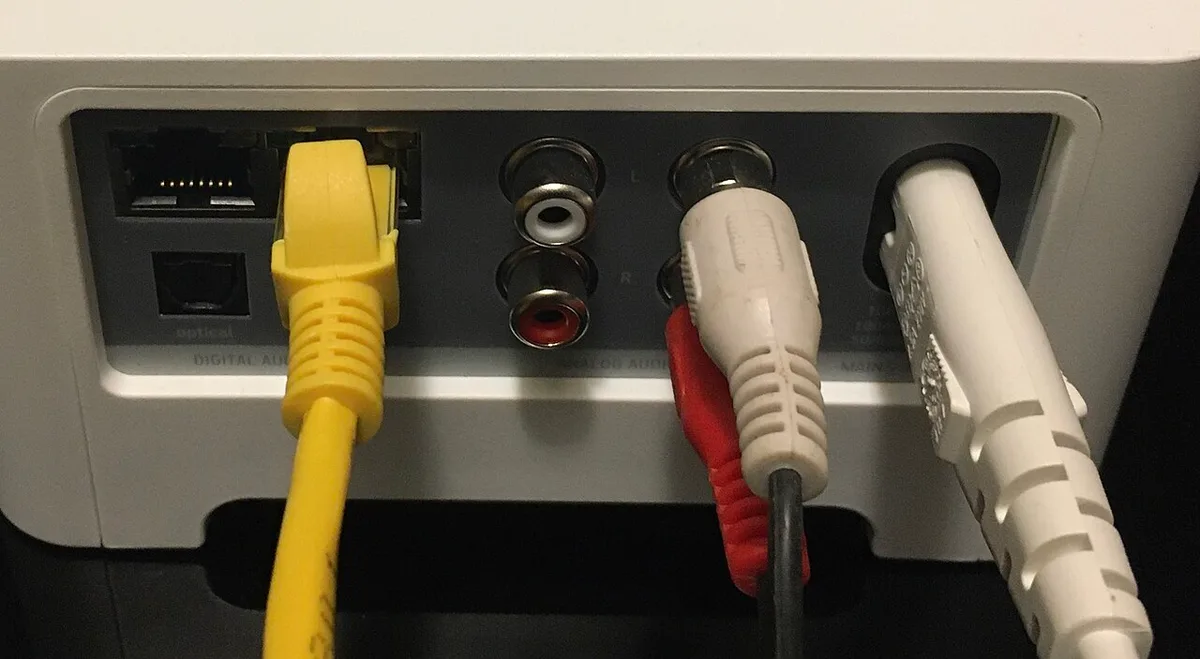
Image source: Wikimedia Commons / Pittigrilli (CC BY-SA)
Here's the head-to-head:
| Factor | Wi-Fi | Ethernet |
|---|---|---|
| Typical ping | 25-60ms | 10-25ms |
| Jitter | Unstable | Very stable |
| Packet loss | Occasional | Rare |
| Setup | Instant | Needs a cable run |
| Best for | Flexibility | Competitive play |
Ethernet wins on stability for one simple reason. A cable carries a dedicated signal with nothing competing for airtime. No neighbors, no microwaves, no channel overlap.
Wi-Fi still has real advantages. You can game anywhere in the house, and you don't need to drill holes or trail cable across a floor. It's the right pick if your router sits far from your desk or you share a rented space.
So who should pick which?
- Choose Ethernet if you play ranked shooters, fight for every millisecond, or your router is within cable reach.
- Choose Wi-Fi if you move around, can't run a cable, or your 5 GHz signal is already strong and clean.
- Consider powerline or MoCA adapters if you want wired stability without a long run.
A quick reality check: if your Wi-Fi signal sits above -60 dBm and your ping is steady under 40ms, switching to Ethernet gains you little. If you see spikes past 100ms every few minutes, a cable is the single biggest upgrade you can make.
If your connection still misbehaves on a cable, the problem lives elsewhere. That points to drivers, heat, or the ISP, and our breakdown of persistent disconnects under load walks through those causes.
Frequently Asked Questions
What ping is good for online gaming?
Under 50ms is solid for most games, and under 30ms is excellent for competitive shooters. Anything past 100ms feels sluggish. Jitter matters just as much.
A steady 60ms beats a connection that swings between 20ms and 150ms.
Why is my ping high only on my gaming laptop?
Your laptop's Wi-Fi card, power settings, or heat are the likely culprits. Other devices on the same network may also be fine because they use different adapters. Check adapter power saving first, then driver updates.
Does 5 GHz reduce ping?
Yes, usually. The 5 GHz band is less crowded and supports wider channels, which cuts waiting time. Its shorter range means you need to stay closer to the router for the benefit to hold.
Can a VPN lower my ping?
Rarely. A VPN adds an extra hop, which normally increases latency. It only helps in edge cases where your provider throttles game traffic.
Test it before you trust it.
Will upgrading my router fix high ping?
Only if your current router is the bottleneck. A Wi-Fi 6 router helps in dense areas with many networks. If your signal is already strong, the gain will be small.
Final Decision Guide: Choosing the Right Fix for Your Situation
Skip the guesswork. Match your symptoms to the fix below and start there.
- Constant high ping above 80ms on Wi-Fi: switch to 5 GHz or 6 GHz, then retest.
- Ping spikes and rubber-banding: hunt for interference and change your channel.
- Ping climbs during long sessions: check thermals and adapter power saving.
- Drops at the same time each evening: that's peak-hour congestion, so try QoS or a wired link.
- High ping on every device: the fault is your ISP or router, not the laptop.
If two fixes overlap, do the cheap one first. Band changes, channel swaps, and driver updates cost nothing. Hardware comes last.
One final note on expectations. You can't beat physics, and distance to the game server sets a floor on your ping. What you can do is remove every avoidable millisecond between your laptop and the router.
Do that, and your connection will feel crisp again.