You launch a lightweight app on your gaming laptop and watch the dedicated GPU spike for no reason. How to Fix Background Apps Use Dedicated GPU on a Gaming Laptop starts with understanding why Chromium browsers, chat clients, and RGB tools claim the dGPU at idle. These background tasks drain battery, raise chassis temperatures, and keep fans spinning when they should stop.
The fix depends on your GPU stack and switching method.
Aggregate reviews report that mobile NVIDIA GeForce RTX and AMD Radeon chips can draw 12 to 18 watts at idle when misassigned. Per manufacturer specifications, the integrated GPU should handle light desktop work at under 5 watts. You need to map your hardware, flip the right BIOS or OEM mode, then lock per-app preferences.
Let's start by identifying your GPU stack and switching method.
How to Fix Background Apps Use Dedicated GPU on a Gaming Laptop
Check your laptop GPU stack and switch mode in BIOS. Set the integrated GPU as the global default in your control panel. Add browsers and chat apps to the power saving list.
Verify idle draw with GPU-Z or HWiNFO. Lock settings before the next driver update.
Identify Your GPU Stack & Switching Method
Check Which GPUs Your Laptop Actually Has
Open Task Manager or run dxdiag. If you see two video adapters, such as an Intel Iris Xe or UHD plus an NVIDIA GeForce RTX or AMD Radeon RX, you have switchable graphics. Run GPU-Z and click the Bus Interface tab.
The dGPU shows its PCIe slot and link speed. The iGPU often appears as Intel HD Graphics or UHD. Aggregate reviews indicate most gaming laptops from 2021 onward pair an iGPU with a discrete chip.
Find Your MUX or Advanced Optimus Status
Reboot into BIOS or UEFI. Look for GPU Mode, Graphic Device, or Display Mode. Some BIOS menus call it Discrete Graphics Mode or Hybrid Graphics.
The labels vary by brand but the logic is the same. If you see MSHybrid, Hybrid, Switchable, or Advanced Optimus, your laptop can route the internal panel through the iGPU. If you only see Discrete or D-GPU Only, you lack a usable MUX switch for this fix.
Many budget models skip MUX entirely.
Identify Your OEM Control Center
ASUS uses Armoury Crate. Lenovo uses Vantage. MSI uses Center.
Razer uses Synapse. Alienware uses Command Center. OEM apps sometimes call the toggle GPU Mode, Graphics Mode, or Performance Mode.
Check the System or Device tab first. Some hide the GPU switch behind a Silent or Eco profile. When BIOS offers no toggle, the OEM app may expose it.
If your BIOS lists Advanced Optimus, enable it. If it lists only Discrete, skip to driver settings. This is an either-or path that determines every step after.
Diagnose Why Background Apps Are Forced to Use the Dedicated GPU
Spot the Offenders in Task Manager
Open Task Manager, go to Details, and add the GPU Engine column. Chrome, Edge, Discord, Steam, SignalRGB, OpenRGB, Wallpaper Engine, and antivirus tools often sit on the dGPU at idle. If you see GPU 1 under GPU Engine for a browser, that app is pinned.
Close or reassign each one.
Read dGPU Idle Power with Tools
GPU-Z Sensors shows GPU Load, Video Engine, and Memory Clock. HWiNFO shows GPU Power. At true idle, dGPU load should sit under 0.5 percent and power under 1 watt.
Memory Clock should hover near its minimum, often 405 megahertz on GDDR6 memory. If Video Engine reads 3 to 8 percent, a background app is forcing the chip awake.
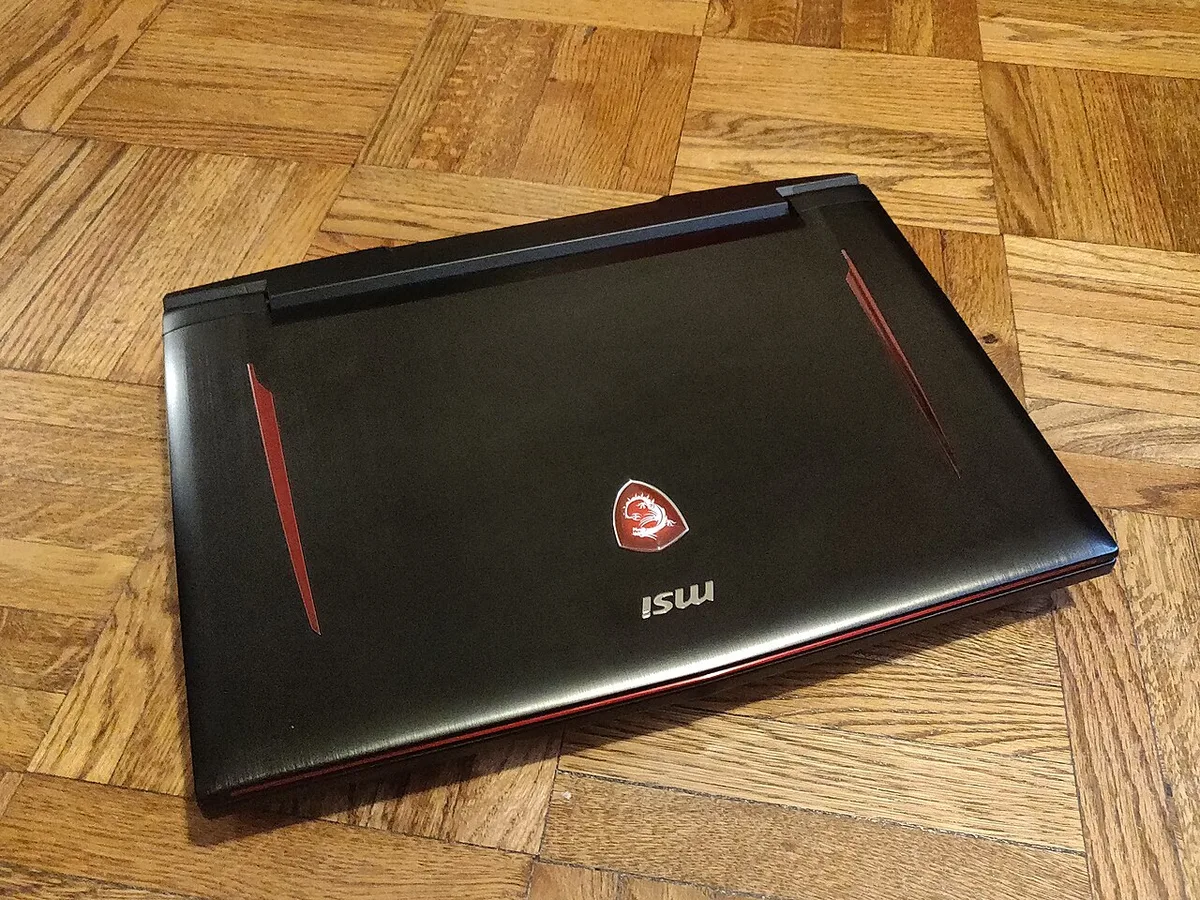
Image source: Wikimedia Commons / Kurt Kaiser
Check Hardware Accelerated GPU Scheduling
Windows Graphics Settings includes a toggle for hardware accelerated GPU scheduling. When enabled, it can reassign apps after driver or feature updates. Turning off GPU scheduling often stops the reassignment loop.
Windows Widgets, weather panels, and third-party RGB controllers also request GPU wake events. Quit them and watch the dGPU clock drop to its minimum frequency. The goal is a silent dGPU at desktop.
Set the Correct GPU Mode (MUX Switch, Advanced Optimus, and Standard Optimus)
BIOS or UEFI GPU Mode
Reboot and enter BIOS. Set GPU Mode to MSHybrid, Hybrid, Switchable, or Advanced Optimus. Avoid Discrete or D-GPU Only.
This step matters more than any control panel setting because it controls how the display is wired. Save and exit. On reboot, Windows sees the iGPU as the primary display adapter unless an app requests otherwise.
Advanced Optimus versus Standard Optimus
Advanced Optimus auto-switches per frame and needs a G-Sync or FreeSync panel. Standard Optimus wires the internal panel to the iGPU only, while the dGPU renders offscreen. If your laptop lacks Advanced Optimus, you must choose manually per app.
Aggregate reviews show Advanced Optimus delivers smoother transitions but only on higher-tier models.
| GPU Mode | How It Works | Best For |
|---|---|---|
| Advanced Optimus | Auto-switches per frame via display | Higher-tier laptops with G-Sync/FreeSync |
| Standard Optimus | Internal panel wired to iGPU only | Budget laptops without MUX |
| Discrete / D-GPU Only | dGPU always drives display | Maximum performance, plugged in |
OEM App Toggle
Armoury Crate GPU Mode, Lenovo Vantage Hybrid Mode, and MSI Center graphics profiles can override BIOS. If BIOS lacks the option, check the OEM app first. Decision flow: if MUX exists, set BIOS first.
If not, move to Windows and driver settings. If updates keep resetting your choice, look at fixing FPS drops after updates for a deeper reset.
Configure Global & Per-App GPU Preferences (NVIDIA CP, AMD Adrenalin, Intel Arc/Intel Graphics Control Center)
NVIDIA Control Panel Global Default
Open Manage 3D Settings. Set Preferred graphics processor to Integrated graphics. This forces the dGPU to sleep unless an app asks for it.
Click Program Settings if you want to fine-tune individual titles later. NVIDIA Optimus overview
AMD Adrenalin Power Saving Profile
Open Graphics, then Switchable Graphics. Set the global profile to Power Saving. Individual apps can still override this.
The setting lives under the Graphics tab in Adrenalin Edition. Restart the app after changing its profile so the new rule takes effect.
Intel Arc and UHD Graphics Control Center
Set Power to Balanced or Power Saver. The iGPU handles desktop composition and video decode. Intel Arc discrete graphics follow the same logic in Arc Control.
Intel UHD shares system memory, so it draws far less wattage than a mobile RTX or Radeon chip.
Add Per-App Exceptions
Games and creative software get High Performance. Browsers, Discord, Steam webview, and widget apps get Power Saving. Windows Graphics Settings lets you browse to any exe and assign a preference.
turning off Game Mode can also stop background services from claiming resources. Microsoft Learn documents the Graphics Performance Preference API that Windows uses to route apps. Apply the same rule to antivirus, wallpaper tools, and RGB controllers.
Verify & Lock Down Settings (GPU-Z, HWiNFO, Task Manager, Real-World Tests)
Confirm Idle Draw with Sensors
Run GPU-Z Sensors and HWiNFO. dGPU GPU Load should read under 0.5 percent. Memory Clock should sit at its minimum. HWiNFO GPU Power should stay under 1 watt.
Task Manager GPU Engine should show iGPU only for desktop apps. GPU-Z Sensors tab shows the live clock and load. HWiNFO adds GPU Power and temperature readings.
Together they prove the dGPU is actually sleeping.
Real-World Battery and Thermal Check
Unplug the charger. Run a typical mix of browser tabs, chat, and streaming for an hour. Watch chassis temperature and fan noise.
Run the check on battery, not plugged in, because AC power changes GPU behavior. Note the starting battery percentage and compare after sixty minutes. If fans stop and temperatures drop, the fix worked.
Background apps that once caused low memory stutter no longer wake the dGPU.
Lock It Before the Next Update
Export your NVIDIA or AMD profile. Create a System Restore point. Disable Fast Startup in Control Panel so boot does not cache the wrong GPU state.
Store the exported profile in a Documents folder so you can reimport it in seconds. Do not skip Fast Startup; hybrid boot is a common culprit for cached GPU states. This prevents driver updates from resetting your global preference.
It also helps avoid the stopping game stutter that returns when the dGPU stays awake.
Common Mistakes & How They Surface After Updates
Driver Updates Reset Global Preferences
NVIDIA Game Ready and Studio drivers reset the Preferred graphics processor dropdown to Auto. AMD Adrenalin updates can flip the Switchable Graphics global profile back to Balanced. Intel Arc Control occasionally reverts to Maximum Performance after a package install.
Check the control panel after every GPU driver update. Reapply your global and per-app rules before you launch anything.
Windows Feature Updates Re-enable HAGS
Major Windows releases such as 23H2 to 24H2 turn on hardware accelerated GPU scheduling by default. The toggle lives in Settings, Display, Graphics, Change default graphics settings. Turn it off again after each feature update.
If you miss it, background apps may reclaim the dGPU within a day.
BIOS or UEFI Changes Revert to Discrete Mode
A BIOS flash or CMOS clear often resets GPU Mode to Discrete. Some OEM BIOS updates change the menu label or default without notice. Verify the GPU mode in BIOS after any firmware update.
If the option is missing, check the OEM app for a hidden override.
Fast Startup Caches the Wrong GPU State
Hybrid boot saves the kernel session to disk. When the dGPU was active at shutdown, the cached state wakes it on next boot. Disable Fast Startup in Control Panel, Power Options, Choose what power buttons do.
The boot penalty is three to eight seconds. The GPU state stays clean.
Frequently Asked Questions
Do I Need a MUX Switch for This Fix?
No. Standard Optimus laptops can force the iGPU via Windows Graphics Settings and driver control panels. The dGPU still renders offscreen for assigned apps.
Battery life improves but the internal panel remains wired to the iGPU. MUX or Advanced Optimus gives cleaner switching.
What If My Laptop Does Not Support Advanced Optimus?
Use the Windows Graphics Settings per-app assignment. Set browsers and chat apps to Power saving. Set games to High performance.
The dGPU will still wake for assigned tasks but stays asleep for desktop work. This works on every switchable graphics laptop.
How Can I Prevent Future Driver Updates From Undoing My Settings?
Export your NVIDIA profile as a .nip file or AMD profile as XML. Store the file in Documents. After a driver update, import the profile in the control panel.
Create a System Restore point before each update. Disable Fast Startup to avoid cached GPU states.
Why Does My External Monitor Force the dGPU?
On Standard Optimus, the external port is often wired to the dGPU. Connecting a monitor wakes it permanently. Advanced Optimus can route external displays to the iGPU on supported panels.
Check your OEM spec sheet for port wiring.
Does This Fix Work on Linux?
Yes. Tools like envycontrol, supergfxctl, and optimus-manager expose the same GPU mode toggles. The kernel parameters amdgpu.runpm and nvidia.NVreg_DynamicPowerManagement control runtime power management.
Follow your distribution wiki for the exact steps.
Final Decision Guide & Quick-Start Checklist
Step-by-Step Flow
- Identify GPU stack in Task Manager or GPU-Z.
- Enter BIOS and set GPU Mode to Hybrid, MSHybrid, or Advanced Optimus.
- Disable hardware accelerated GPU scheduling in Windows Graphics Settings.
- Set global preference to Integrated or Power Saving in NVIDIA CP, AMD Adrenalin, or Intel Control Center.
- Assign browsers, Discord, Steam, and RGB tools to Power Saving per app.
- Turn off hardware acceleration inside Chrome, Edge, Discord, and Steam.
- Verify idle dGPU load under 0.5 percent and power under 1 watt in GPU-Z and HWiNFO.
- Export driver profile and create a System Restore point.
- Disable Fast Startup.
Decision Matrix by Brand and GPU Family
| Brand | GPU Family | MUX Common | Advanced Optimus | Best First Step |
|---|---|---|---|---|
| ASUS ROG / TUF | RTX 30/40/50 | Yes | High-end only | Armoury Crate GPU Mode |
| Lenovo Legion / LOQ | RTX 30/40/50 | Most | Select models | Vantage Hybrid Mode |
| MSI Raider / Stealth | RTX 30/40/50 | Yes | High-end only | MSI Center graphics profile |
| Razer Blade | RTX 30/40/50 | Yes | No | Synapse GPU selector |
| Dell G / Alienware | RTX 30/40/50 | Alienware only | Alienware only | BIOS GPU Mode |
| HP Omen / Victus | RTX 30/40/50 | Omen only | Omen only | OMEN Gaming Hub |
Safety Warnings and Long-Term Maintenance
BIOS GPU mode changes do not void warranty. DDU clean installs are safe but cause temporary display loss. Keep an external monitor or SSH session ready.
OEM app removal may delete fan curves and RGB profiles. Back up profiles before uninstalling. Linux kernel parameter changes require a reboot and may break sleep.
Document original values before editing. Windows Update can push GPU drivers. Use the Show or hide updates troubleshooter to block unwanted versions.
fixing slow SSD after updates shares a similar update hygiene routine.
2 thoughts on “How to Stop Background Apps Using Your Gaming GPU”
Comments are closed.