The lid is shut, the screen is black, and the fans are still going. If you want to know how to fix fans keep running in sleep mode on a gaming laptop, start with the uncomfortable truth: the machine probably isn't asleep. Most modern gaming laptops ship with Modern Standby, a low-power idle state where the processor, network stack, and storage can all stay active.
Fans follow heat, and heat follows work.
Microsoft's own documentation for Modern Standby describes S0 low-power idle as a state where the system can remain connected and keep running background tasks. That's why a closed laptop can still pull 10 to 20 watts, warm the heatsink, and spin the fans. Once you know which sleep state your machine is actually entering, the rest of the diagnosis gets a lot shorter.
How to Fix Fans Keep Running In Sleep Mode on a Gaming Laptop
The fans keep spinning because your laptop never truly sleeps. Check the real sleep state first with powercfg /a. Then block wake timers and background GPU tasks.
Update BIOS, EC firmware, and the OEM fan utility. Last, clean the vents and confirm the fan curve.
Problem: Fans Keep Running After You Close the Lid
A gaming laptop that hums for 60 to 90 seconds after the lid shuts isn't broken. Many models deliberately keep the fan running to dump residual heat from the heatsink before cutting power. That's normal firmware behavior, and it should stop quickly.
Here's where it stops being normal:
- Fans run for 30 minutes or more after the lid closes
- The chassis is warm to the touch inside a backpack
- Battery drops 15 to 20 percent overnight in sleep
- Fans surge on their own at 3am with the lid shut
- The laptop wakes itself and never returns to sleep
- Fan noise continues after a full shutdown
That last point matters. If the fans spin even when Windows is fully powered off, you're not dealing with a sleep setting at all. That's a firmware, EC, or hardware fault, and no amount of power-plan tweaking will fix it.
The most common cause is Modern Standby. In our research across OEM support forums and Microsoft's power management documentation, the pattern repeats: the laptop enters S0 low-power idle, a background process keeps the discrete GPU busy, the GPU stays warm, and the embedded controller keeps the fan spinning to protect it. The system looks asleep.
It isn't.
If the fans stop within two minutes, you have a thermal soak delay and nothing more. If they keep going, something is holding the package awake. The next section shows you which condition you're in.
Core Explanation: Sleep States, Modern Standby, EC, and Fan Control Logic
Sleep isn't one thing. Your laptop has four distinct low-power states, and the fan behaves differently in each one.
| State | What's happening | Fan behavior |
|---|---|---|
| S0 Modern Standby | CPU idles, network and background tasks stay live | Fans can kick on at any time |
| S3 Sleep | RAM stays powered, CPU and most devices off | Fans off |
| S4 Hibernate | RAM written to disk, system fully off | Fans off |
| S5 Shutdown | Everything off except trickle power | Fans off |
Most gaming laptops sold since 2020 default to S0 Modern Standby and often drop S3 support entirely. Per Microsoft's Modern Standby design guidance, the system is expected to enter and exit low-power idle constantly. Every exit means a burst of heat.
Fan speed itself is managed by the embedded controller (EC), a small chip that reads temperature sensors and drives the fan PWM signal. OEM utilities like Armoury Crate, OMEN Gaming Hub, Lenovo Legion Space, MSI Center, or Alienware Command Center write fan curves into that EC. When those utilities conflict with BIOS defaults or with each other, the fan can get stuck at a fixed duty cycle.
Two more factors push heat into a sleeping laptop. First, a discrete GPU stays awake if an external monitor, USB-C dock, or background render job needs it. Second, hybrid graphics and MUX switching don't always park the dGPU on battery.
A warm GPU means a spinning fan, every time.
Step-by-Step Process: Conditional Checks, Powercfg Commands, and OEM Steps
Work through these in order. Each step tells you whether to continue or stop.
1. Confirm your supported sleep states. Open Command Prompt as admin and run powercfg /a. If S3 is missing and only "Standby (S0 Low Power Idle)" appears, you're on Modern Standby and the fan behavior is expected.
Move to step 2.
2. Generate a sleep study report. Run powercfg /sleepstudy and open the HTML file it produces. Look for the percentage of time spent in the lowest power state.
Anything under 80 percent means something is keeping the system busy.
3. Hunt the wake source. Run powercfg /lastwake, then powercfg /requests, then powercfg /devicequery wake_armed. These three commands reveal what woke the laptop, what's blocking sleep, and which devices are allowed to wake it.
Disable wake-on-LAN and USB charging in sleep if they show up.
4. Kill background GPU work. Check Task Manager for anything using the discrete GPU at idle. Game launchers, RGB software, browser tabs with hardware acceleration, and cloud sync clients are repeat offenders.
Our guide on processes hogging the graphics chip walks through the cleanup.
5. Test hibernate. Disable Fast Startup, then run powercfg /hibernate on. Hibernate bypasses Modern Standby entirely.
If fans go silent on hibernate but not on sleep, you've confirmed the sleep-state cause.
6. Update firmware and drivers. Install the latest BIOS and EC firmware from your manufacturer's support page. Then reinstall the OEM fan utility and check for driver swaps pushed by Windows Update, which can leave GPU power management broken.
7. Look at the hardware. Clean the vents and heatsink fins. If fans still run at full tilt when cold, the fan bearing or a temperature sensor may be failing.
That's a service-center job.
One side note: if your drives also misbehave after resuming, the issue may be tied to storage that drops offline on wake rather than the fan itself.
Comparison: OEM Software vs BIOS, Sleep vs Hibernate, Clean Boot vs Safe Mode
You have several ways to attack this, and they aren't equal.
| Option | Best for | Trade-off |
|---|---|---|
| OEM fan utility | Tuning fan curves and profiles | Can conflict with BIOS defaults |
| BIOS/EC update | Fixing stuck fan control logic | Model-specific, risk if interrupted |
| Hibernate instead of sleep | Immediate silence, overnight safety | Slower resume, uses disk space |
| Clean boot | Isolating third-party background tasks | Temporary, needs re-enabling later |
| Safe Mode | Confirming a software cause | No OEM utilities loaded |
OEM utility is the right starting point if you simply want quieter sleep on a healthy laptop. It's the easiest lever to pull, and most manufacturers ship a silent profile.
BIOS and EC updates are best for machines where the fan behavior looks broken, not just aggressive. A firmware bug in the EC fan table shows up as fans running at 100 percent regardless of temperature.
Hibernate is the pragmatic choice for travelers and students. It's the closest thing to a guaranteed silent laptop in a backpack, and it eliminates wake timers entirely.
Clean boot is the diagnostic tool, not the fix. Use it to prove a background app is responsible, then narrow down which one.
If the laptop has been through several Windows updates and behaves oddly in other ways too, a fresh Windows install sometimes clears accumulated driver and power-scheme clutter faster than chasing individual settings.
Mistakes to Avoid: Blocking Vents, Disabling Safety Features, Wrong Driver Updates
Most people make this worse before they make it better. Here's what to skip.
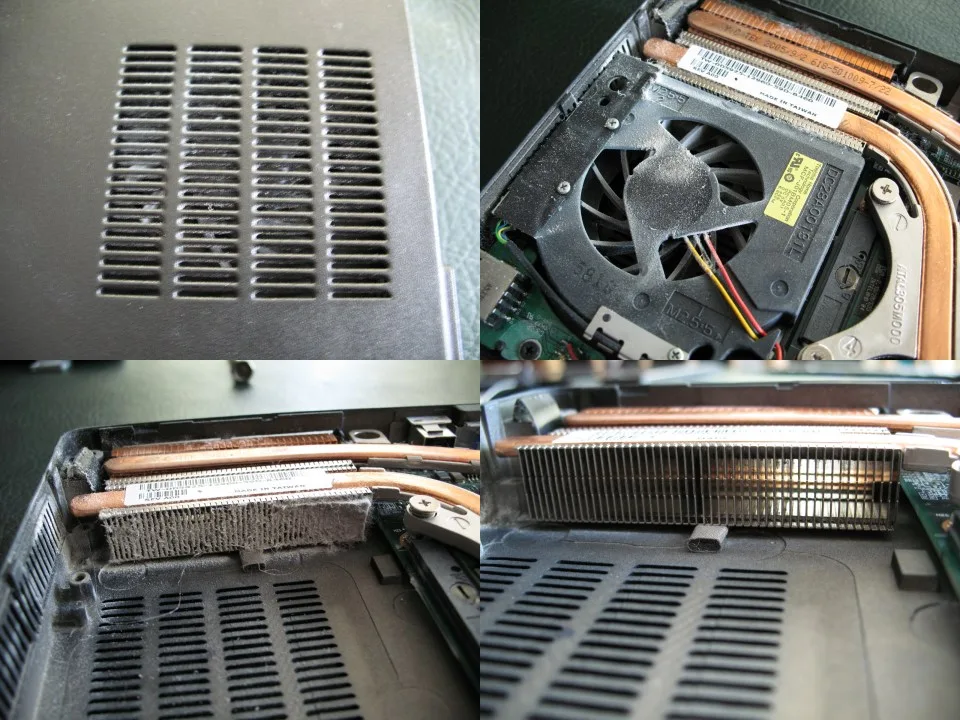
- Blocking the vents to muffle noise. Taping over an intake traps heat and can push the CPU past its thermal limit. You'll get a slower laptop, not a quieter one.
- Disabling the fan in BIOS. Some boards expose manual fan control. Setting a zero duty cycle removes your thermal protection entirely. Never do this on a machine with a discrete GPU.
- Shutting down instead of sleeping, then blaming Windows. If fans run after a full S5 shutdown, no power setting will help. That's EC or hardware territory.
- Chasing driver updates without checking the sleep state. Running
powercfg /atakes five seconds and prevents hours of guessing. - Pulling a hot laptop out of sleep and jamming it into a bag. Give it two minutes to spin down first. Trapped heat is the fastest route to a cooked battery.
- Using compressed air at full blast on a spinning fan. Hold the blades still. Free-spinning a fan can over-rev the bearing and generate a voltage spike on the tach line.
- Flashing random BIOS files. Use only the firmware published for your exact model number. An interrupted flash can brick the board.
One more: don't assume third-party fan utilities are the fix. Two fan controllers fighting over the same EC is a common cause of stuck fans, not a cure. If tweaking Windows power settings has left other things acting up, our walkthrough on performance dropping after a Windows 11 update covers the cleanup order that works.
Frequently Asked Questions
Is it bad if my gaming laptop fans run in sleep mode?
Not always. A 30 to 90 second spin-down clears residual heatsink heat and is normal. Continuous fan activity for hours means the laptop is sitting in Modern Standby with something keeping it awake.
That drains battery and pulls dust through the fins.
Why do my fans run when the laptop is closed but not in sleep?
Because closing the lid may not trigger sleep at all. Check Control Panel power options and confirm what the lid-close action does on both AC and battery. External monitors and docks also keep the discrete GPU active, which keeps the fan spinning.
Does hibernate stop the fans completely?
Yes, in most cases. Hibernate writes RAM to disk and powers the system down, so the EC has no heat to manage. Run powercfg /hibernate on and test it.
If fans stay on even in hibernate, the fault is hardware, not software.
Should I update BIOS to fix fan behavior?
If the fans run at full speed regardless of temperature, yes. EC fan tables live in firmware, and several manufacturers have shipped fixes for exactly this. Follow your model's official support page, keep the laptop on AC power, and don't interrupt the flash.
How much battery should sleep mode use overnight?
Under 2 to 3 percent per hour is healthy for Modern Standby. Anything past 8 to 10 percent means the system isn't idling properly. Run powercfg /sleepstudy to see how much time it actually spent in the deepest power state.