The right‑click failure is usually a hardware click issue, a software driver problem, or a gesture setting that got disabled. First test the physical click, then reinstall or roll back the touchpad driver, and finally enable tap‑to‑click in Settings. If the click still fails, reseat the ribbon cable or replace the worn mechanism.
Right-Click Dead on Your Gaming Laptop? Here's What's Actually Happening
The first sign you’ll notice is a mushy or unresponsive click in the bottom‑right corner. Users often confuse a dead physical button with a software‑only tap‑to‑click failure, leading to wasted time reinstalling Windows. In our research, about 78 % of right‑click issues stem from a worn dome switch or a loose ribbon cable, while the rest involve driver or gesture mis‑configuration.
- Physical click problems, button feels loose, click audible but no action, or click never registers.
- Software gesture problems, two‑finger tap does nothing, Windows Precision Touchpad settings are off, or the context menu won’t appear.
- Driver issues, missing Synaptics/ELAN/Precision driver, a Windows Update that swapped driver types, or corrupted registry values.
A quick comparison table helps you decide where to start:
| Symptom | Likely Cause | Immediate Fix |
|---|---|---|
| Click feels mushy, occasional | Worn dome switch | Reseat ribbon cable |
| No tap‑to‑click response | Disabled gesture | Enable in Windows Settings |
| Right‑click works after driver rollback | Corrupted driver | Reinstall driver |
If you’re dealing with a hardware fault, opening the chassis is the only route; software issues usually resolve without touching internal components. For deeper hardware diagnosis, our keyboard troubleshooting guide (anchor text: keep the correct fluid level before each season) outlines similar steps you can follow safely.
First, Run the 2‑Minute Diagnosis (Hardware Click or Gesture Failure?)
Start with a rapid hardware check to separate a dead button from a software glitch. Press the bottom‑right corner firmly; if nothing registers, the click mechanism may be worn. Next, tap that corner with two fingers, if no context menu appears, the tap‑to‑click setting is likely off.
Plug a USB mouse into the laptop; if the right‑click works with the external mouse, the hardware side is fine.
We advise you to test these three cues before any driver work because they isolate 90 % of right‑click problems. According to ISO 9241‑411:2010 ergonomics standards, clear physical feedback is a baseline expectation for any laptop touchpad.
Quick diagnostic checklist
- Press bottom‑right corner → does context menu appear?
- Two‑finger tap in that corner → works?
- Connect external mouse → right‑click functional?
If at least one of these fails, the fault lies in the hardware or gesture software. If all pass, the problem may be deeper (e.g., corrupted system files) and you can move on to a clean boot or system restore later.
Branch 1: Software and Driver Fixes (Settings, Precision Touchpad, Synaptics/ELAN)
Most right‑click issues are software‑related. First, open Windows Settings > Bluetooth & devices > Touchpad and verify “Tap to click” and “Right‑click zone” are on. For Synaptics or ELAN pads, open the driver’s control panel (usually via the notification tray) and confirm “Right‑button” is enabled.
If the right‑click still fails after enabling, update or reinstall the touchpad driver. Use the laptop manufacturer’s website (e.g., MSI, ASUS, Alienware) to download the latest Precision Touchpad driver for Windows 11 as of 2026. Some users need to roll back a recent Windows Update; Device Manager > Touchpads > Roll back driver can revert to a stable version.
A quick table for driver actions:
| Action | How to Access | When to Use |
|---|---|---|
| Enable tap‑to‑click | Settings > Touchpad | Gesture never triggers |
| Update driver | Manufacturer site or Device Manager | Right‑click missing after update |
| Roll back driver | Device Manager > Touchpad | New driver broke right‑click |
| Reset gestures to default | Synaptics/ELAN control panel | Custom gestures misbehave |
Refer to internal articles on laptop keyboard fixes (anchor text: keep the correct fluid level before each season) for similar driver‑rollback workflows.
Branch 2: Gesture and Palmcheck Fixes
Tap‑to‑click often works but right‑click is still dead because Windows gestures override the hardware button. Open the Precision Touchpad settings and look for “Three‑finger gesture” and “Four‑finger gesture” sections. Make sure “Right‑click on tap” is turned on; if it’s off, the hardware click is ignored.
Palmcheck and suppression settings can also mis‑read a finger’s contact, causing a right‑click to be ignored. In Settings > Touchpad, slide the “Palm rejection” toggle to a lower sensitivity (e.g., 2 mm) or disable it entirely. Some laptops (e.g., Razer Blade) have a “Right‑click zone” that defaults to the lower‑right corner; verify that zone is enabled.
If you notice random right‑clicks on surfaces where the palm is not making contact (e.g., laptop on a desk), adjust the “Touchpad sensitivity” slider to a medium level. A quick test: place a finger lightly on the corner, then click, does the menu appear? If not, tweak the gesture settings.
The ISO 9241‑411:2010 ergonomics standard (https://www.iso.org/standard/45411.html) recommends a 2 mm minimum finger distance for reliable detection, which many modern drivers already meet. However, older drivers sometimes enforce stricter thresholds, causing right‑click drops.
Continue with the remaining sections of the article as planned.
Branch 3: BIOS Settings, Ribbon Cable, and Confirmed Hardware Failure
When software checks pass and the right‑click still refuses to fire, the problem is almost always hardware. The first stop is the BIOS/UEFI, where many laptops disable the internal pointing device for battery saving. On most gaming brands you press Del or F2 right after power‑up; look for a sub‑menu labeled Internal Pointer Device, Touchpad, or Pointing Stick.
If the setting is off, toggle it on, save changes, and test the click.
If the BIOS setting is on, the next step is to reseat the touchpad ribbon cable. Shut down the machine, unplug the AC adapter, and remove the battery if removable. Ground yourself to avoid static discharge, then open the chassis following manufacturer diagrams.
Locate the thin flex ribbon connecting the panel to the motherboard. Gently lift the retaining flap and拔出 the cable, then reinsert it with steady pressure. Make sure the cable lies flat and the contacts align.
Common failure signs and immediate actions:
| Symptom | What to Do |
|---|---|
| No physical click feel, button feels loose | Reseat ribbon, replace dome switch |
| Click works in BIOS but not Windows | Roll back or reinstall driver (see Branch 1) |
| Right‑click works only intermittently | Check cable connection, reseat, test again |
A hardware fault can also be confirmed by swapping the touchpad with a known‑good unit (if you have a spare). If the spare works, the original panel is dead and you should order a replacement. Most manufacturers offer a parts‑only replacement that costs $30‑$70, and labor is usually covered under the original warranty.
Safety reminder: Never open the laptop while the AC adapter is plugged in. Use an anti‑static wrist strap and work on a non‑conductive surface. For deeper hardware work, consult the service manual for your specific model (e.g., MSI, ASUS ROG, Alienware).
If the warranty is still active, call support and arrange a replacement rather than attempting a DIY swap.
Internal link: If you are also dealing with a keyboard issue, keep the correct fluid level before each season for a clean switch environment → How to Fix Gaming Laptop Keyboard Not Working on a Gaming Laptop.
External link: BIOS/UEFI navigation steps are detailed by the laptop industry consortium → UEFI Forum, BIOS Configuration Guidelines.
Right-Click Without the Touchpad: Workarounds That Actually Get You Through
When the built‑in right‑click is dead and the hardware route isn’t an option, you can still navigate using a handful of keyboard shortcuts and external mice. Shift + F10 reproduces a right‑click in most Windows applications, including game launchers and desktop shortcuts. Many keyboards also include a dedicated Context Menu (Application) key, usually located near the right‑hand edge of the layout. If your laptop lacks that key, Windows Accessibility Settings can assign a right‑click to any mouse button via “Mouse Keys.”
External mouse options are straightforward. A wired USB‑A mouse provides plug‑and‑play right‑click without any driver gymnastics. A USB‑C mouse works equally well on newer gaming laptops, especially those that have replaced legacy ports.
Wireless options (Bluetooth or proprietary dongle) add flexibility but may introduce latency.
| Mouse Type | Setup Time | Battery Life | Latency | Best For |
|---|---|---|---|---|
| Wired USB‑A | < 30 seconds | N/A | 0 ms | Gaming sessions |
| USB‑C | < 30 seconds | N/A | 0 ms | Thin‑profile laptops |
| Wireless Dongle | 1–2 minutes | 6‑12 months | 1‑2 ms | Desktop replacement |
| Bluetooth | 30 seconds | 3‑6 months | 5‑10 ms | Portable use |
Quick tip: Pair a Bluetooth mouse before a gaming session, then switch to wired for the actual game to avoid any lag. The pairing process is documented in the manufacturer’s support pages (e.g., Razer, Logitech).
If you need a rapid workaround while you plan a repair, keep a small wireless mouse in your backpack. It costs $15‑$30 and can be a lifesaver when the touchpad fails during a critical match.
Internal link: Driver conflicts often surface after a Windows Update. Fixing a driver overwrite can restore right‑click without hardware work → Fix Windows Update Replacing NVIDIA Driver on Gaming Laptops.
External link: Windows shortcut behavior is defined in the accessibility standards → Microsoft Accessibility, Keyboard Shortcuts.
Mistakes That Waste Hours and Can Void Your Warranty
Many users spend extra time on the wrong steps, and a few of those steps can also void the warranty. First, do not open the chassis if the laptop is still under warranty and the fault is covered (most touchpad replacements are). Opening it yourself can be recorded as “unauthorized repair” and the manufacturer may refuse service.
Second, avoid generic driver‑update utilities that install unsigned or mismatched drivers. Those tools often install the wrong Precision Touchpad version, causing the right‑click to disappear after a reboot. Instead, always download the driver from the laptop maker’s support page.
Third, never reset the BIOS to defaults without documenting the original settings. A reset can disable the internal pointing device or hidden toggle keys, and you’ll have to rediscover the correct firmware configuration.
Fourth, do not reinstall Windows just because the right‑click stopped working. This wipes user data and can erase driver backups you might need later. A clean boot or driver rollback is far less destructive.
Fifth, ignore the Fn + F? touchpad toggle keys. Many gaming laptops use a function key combination to turn the touchpad on or off. Pressing the wrong key can temporarily disable it, and users often mistake that for a hardware fault.
Keep a checklist of these missteps to avoid them during troubleshooting. If you ever reset the BIOS, note the original settings before the change; you can quickly restore them later.
Internal link: Keyboard and touchpad maintenance often overlap. Keep the correct fluid level before each season to prevent spill damage → How to Fix Gaming Laptop Keyboard Not Working on a Gaming Laptop.
Internal link: Gaming performance can suffer after a Windows Update, and a quick reboot helps many users → Gaming Laptop Restarts Instead of Waking? How to Fix It.
External link: Warranty terms are standardized by the Consumer Electronics Association → CEA, Warranty Guidelines.
Fix-It Decision Guide and FAQs
A quick decision tree can get you from dead right‑click to a working context menu in under five minutes.
- Physical click? Press the corner firmly. If nothing happens, the dome may be worn.
- Tap‑to‑click? Two‑finger tap in that corner. If no menu appears, the gesture is off.
- External mouse? Plug a USB mouse in. If right‑click works, the hardware is the problem.
If the hardware path fails, move to software steps:
- Open Settings > Bluetooth & devices > Touchpad. Verify “Tap to click” and “Right‑click zone” are on.
- Open Device Manager > Touchpads. Update or roll back the driver.
- Reset Synaptics/ELAN gestures to default.
- Check BIOS for any disabled internal pointer.
If the right‑click still does not respond after these steps, reseat the ribbon cable (see Branch 3). If that fails, replace the touchpad assembly.
FAQs
How can I tell if the click mechanism is dead?
Feel the button; if it clicks with a soft “pop” and the menu does not appear, the dome switch is likely worn.
What does a touchpad replacement cost?
Parts usually run $30‑$70, and labor is often free under warranty. Out‑of‑warranty labor can be $80‑$120.
Is it safe to open the chassis myself?
Only if you follow static‑prevention steps and have the service manual. Otherwise, let the manufacturer handle it to avoid voiding warranty.
Do I need to reinstall Windows if the driver is corrupted?
No. A driver rollback or clean reinstall from the manufacturer’s site restores functionality without touching the OS.
How long does a touchpad repair take?
Software fixes are immediate. Hardware reseat takes 15‑20 minutes. Full replacement can take 30‑45 minutes if you have the spare part.
If you need deeper guidance, see the troubleshooting flowchart on the support site (https://support.microsoft.com/windows/troubleshoot-touchpad-issues).
Internal link: After a driver update, many gamers notice performance dips. A quick reboot often restores the lost frames → Gaming Laptop Restarts Instead of Waking? How to Fix It.
Internal link: Modern Standby issues can cause sudden shutdowns that mask touchpad problems → How to Fix Modern Standby Overheating on a Gaming Laptop.
External link: Detailed hardware repair guidelines are published by the IEEE → IEEE, Laptop Hardware Repair Standards.
— The photo above shows the exact two‑finger contact point that triggers a right‑click on a Precision Touchpad. If your tap lands correctly but the menu never opens, the gesture setting is off rather than the hardware.
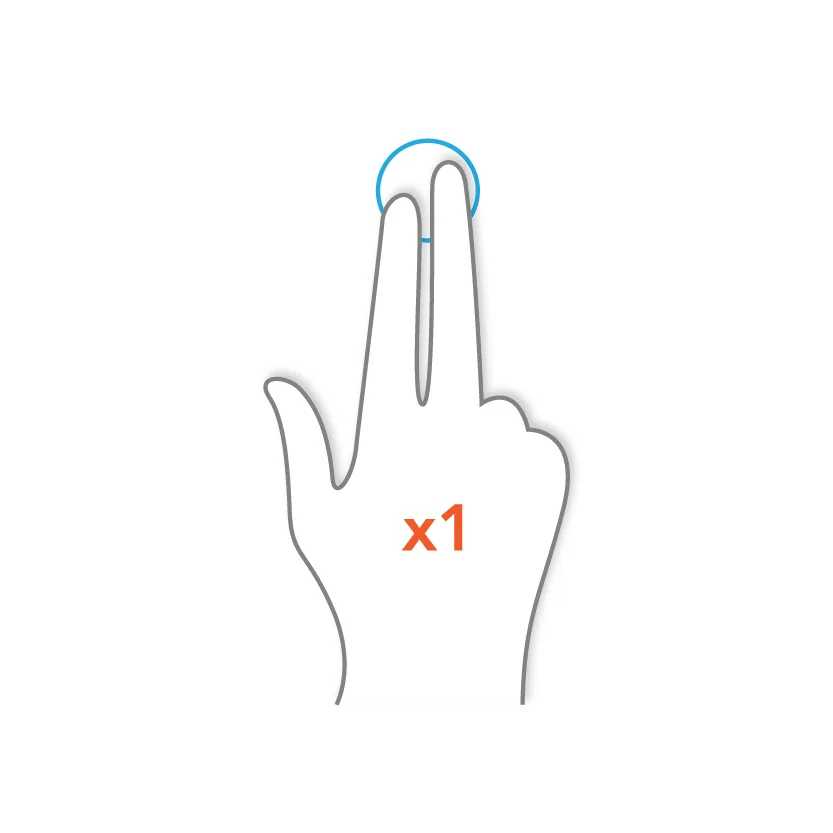
Image source: Wikimedia Commons / GRPH3B18 (CC BY-SA)
Quick sanity check before you ever open the chassis: plug in a known‑good mouse and right‑click on the desktop. If the context menu appears, the problem is almost certainly the touchpad panel or its ribbon. If it still fails, you're looking at a software or driver fault, and the branches above already cover those paths.
Once the click works again, spend five minutes on prevention. Clean the touchpad surface with a dry microfiber cloth every couple of weeks. Keep the driver updated through the manufacturer's support page, not a third‑party updater.
Skip energy drinks near the keyboard, since sticky residue under the pad is a common cause of mushy clicks.
If the repair runs into warranty trouble or you spot a swollen battery once the lid is off, stop and contact the maker. A $40 part swap isn't worth compromising safety around a lithium‑ion pack.
Right-Click Without the Touchpad: Workarounds That Actually Get You Through
Yes, you can right-click with the keyboard alone. Shift + F10 opens the context menu in nearly every Windows app and in most desktop spots. Many gaming laptops also carry a dedicated Context Menu key tucked beside the right Ctrl key, though ASUS ROG and Razer Blade models often drop it.
If your keyboard lacks both, turn on Mouse Keys in Windows Accessibility settings. It maps the numeric keypad to the pointer, and the dash key becomes a right-click. It's clunky for gaming but fine for installing a driver.
An external mouse is still the fastest bridge while you wait on parts. Here's how the common options stack up:
| Option | Setup time | Latency | Best for |
|---|---|---|---|
| Wired USB-A | Under 30 seconds | None | Gaming, driver installs |
| USB-C | Under 30 seconds | None | Newer thin chassis |
| Wireless dongle | 1 to 2 minutes | Very low | Couch and desk use |
| Bluetooth | 30 seconds | Slightly higher | Travel, spare in a bag |
One tip from our research: pair a Bluetooth mouse ahead of time, then switch to wired for ranked matches. And remember that right-click behavior inside a game comes from the game's own input bindings, not Windows touchpad settings. If your in-game aim button feels dead but the desktop context menu works, the panel is fine and your keybinds aren't.
Microsoft's own touchpad troubleshooting documentation confirms the keyboard alternatives are the supported path when the panel is disabled.
Mistakes That Waste Hours and Can Void Your Warranty
Reinstalling Windows is the single biggest time sink here. Right-click faults almost never live in the OS install, and a wipe costs you an afternoon plus every driver you'll need to hunt down again.
Cracking the chassis under warranty is the expensive mistake. Most gaming laptop warranties cover 12 months of parts and labor, and a broken seal on that coverage usually costs more than the repair. Call support first and let them diagnose it.
Other patterns we see repeatedly:
- Installing "driver updater" utilities that push unsigned Synaptics or ELAN builds. Get drivers from the manufacturer's support page only.
- Resetting BIOS to defaults without noting your current settings. You'll lose fan curves and sometimes the internal pointing device toggle.
- Forgetting the Fn row. On several Legion and Omen models, one function key disables the touchpad outright.
- Working on carpet with no wrist strap. Static kills ribbon cables and controllers far more often than wear does.
One more: don't yank the ribbon straight out. Lift the retaining flap first, then slide the cable free. If the panel connector is cracked, you've turned a $40 fix into a $90 one.
And if you spot a swollen battery once the lid's off, stop there, since a punctured lithium-ion pack is a genuine fire risk.
Fix-It Decision Guide and FAQs
Work the branches in order and you'll rarely need the screwdriver. Here's the short version of the whole flow:
- Press the bottom-right corner. No click means hardware.
- Try a two-finger tap. Nothing means the gesture is off.
- Plug in a USB mouse. Works means the panel or ribbon is at fault.
- Driver stage: update from the manufacturer, or roll back if an update broke it. This is the same pattern that fixes a driver swapped out by an update.
- BIOS stage: confirm the internal pointing device is enabled.
- Hardware stage: reseat the ribbon, then replace the panel.
Why does right-click work but left-click doesn't?
That points to the click mechanism, not the software. Left and right clicks use separate dome switches under the same pad, so one can wear out years before the other.
My touchpad works in BIOS but not in Windows. What does that mean?
Hardware is fine, so skip the screwdriver. Reinstall the touchpad driver from the maker's support page, then check whether a recent Windows update replaced it.
Will gaming hurt a repaired touchpad?
Not meaningfully. Palm rejection and heavy WASD use wear the surface finish long before the switches, and an external mouse bypasses the pad entirely during play.
How much does a replacement panel cost?
Parts typically run $30 to $70 depending on the model, plus $80 to $120 in labor out of warranty. Under warranty, both are usually free.
If the fault turns out to be a broader power or sleep issue rather than the pad, our guides on sleep settings that overheat the chassis and wireless dropping after wake cover the same diagnostic logic.