Your webcam died right after a Windows update, and now every meeting or stream starts with a black square. Learning how to Fix Camera Stopped Working After Windows Update on a Gaming Laptop usually comes down to one of four things: a broken driver, a privacy block, a disabled device, or a BIOS setting that flipped. The update itself rarely kills the hardware.
It just shuffles the software stack underneath it.
In our research, the most common failure is a driver mismatch after a feature update, especially on Windows 11 builds like 22621. Microsoft's camera privacy controls can also block access without any obvious error. Per Microsoft support guidance, the first checkpoint is always Device Manager.
That's where the fix usually starts.
How to Fix Camera Stopped Working After Windows Update on a Gaming Laptop
Start with Device Manager and check the camera's driver status. Roll back the driver if the update changed it. Next, confirm camera access in Windows privacy settings.
Reboot, then test the camera in the Windows Camera app. If it still fails, check BIOS and run System Restore.
Why Your Camera Stopped Working After a Windows Update
A Windows update can break your camera in a few predictable ways. The most common is a driver mismatch. Microsoft pushes a new build, and the camera driver your laptop shipped with no longer matches the new kernel or power rules.
In our research, that pattern shows up most often on Windows 11 feature updates.
Here's the quick breakdown:
| What changed | What you'll see |
|---|---|
| Camera driver replaced | Black preview or "camera not found" |
| Privacy permission reset | App says camera is off |
| Device disabled | Camera missing from Device Manager |
| BIOS setting flipped | Camera gone before Windows loads |
If the camera works in the BIOS but not in Windows, that's a software layer problem. If it's missing everywhere, treat it as hardware or firmware first. The update itself rarely damages the sensor.
It just changes the conditions the sensor runs under.
As of 2026, many gaming laptop vendors still ship camera drivers that lag behind Windows feature builds. That gap is why a clean rollback often beats a fresh update. You can see the same pattern with another update-related device fault after a major build.
Some apps use their own camera stack. OBS, Zoom, and Teams can fail even when the Windows Camera app works. Test the built-in app first.
If that works, the hardware is fine and the fight is app-level.
Check Device Manager and Driver Status First
Device Manager is the first checkpoint because it shows whether Windows sees the camera at all. Open it with Win + X, then choose Device Manager. Expand Cameras or Imaging devices.
If your webcam is listed with a yellow warning icon, the driver is the problem. If it's missing entirely, Windows isn't detecting the hardware.
Image source: Wikimedia Commons / Benjamin8844 (CC BY-SA)
Right-click the camera and choose Properties. Check the Device status box for an error code. Code 0xA00F4244N usually points to a driver or privacy issue, not a dead sensor.
Then try Update driver, but don't accept the first generic package Windows offers. Gaming laptops often need the vendor's camera driver, not Microsoft's fallback.
If the camera appears and disappears on reboot, that's a power-management symptom. Open the camera's Properties, go to Power Management, and clear "Allow the computer to turn off this device to save power." That setting can cause black video after sleep or a cold boot.
If Device Manager shows nothing at all, check for hardware missing from Device Manager. You may need to scan for hardware changes or reinstall the chipset driver. Microsoft's driver support pages explain the rollback and reinstall options in plain terms.
Roll Back or Reinstall the Camera Driver
Driver rollback is the fastest fix when the camera worked before the update. Open Device Manager, right-click the camera, and choose Properties. Go to the Driver tab and look for Roll Back Driver.
If it's clickable, use it. Windows will restore the previous package and ask you to restart.
If rollback is greyed out, uninstall the camera driver instead. Right-click the camera, choose Uninstall device, and tick "Attempt to remove the driver for this device" only if you have the vendor package ready. Then restart.
Windows will reinstall a clean driver on boot. For gaming laptops, download the camera driver from your manufacturer's support page first. Lenovo Legion, ASUS ROG, MSI, and Acer Predator models often use different camera modules under the same chassis family.
Here's the safe order:
- Try Roll Back Driver.
- Restart and test the Windows Camera app.
- If it fails, uninstall the camera and restart.
- Install the vendor driver if Windows still uses a generic one.
Don't run three driver utilities at once. That's how you get a corrupted stack and a camera that flickers in OBS. Pick one method and finish it.
If the camera still fails after a clean reinstall, move to permissions and BIOS before you replace hardware. You can compare this with another input device that drops out after updates.
Fix Privacy Permissions and App Access
Windows privacy settings can block the camera even when the driver is perfect. Go to Settings > Privacy & security > Camera. Turn on Camera access and "Let apps access your camera." Then check the list below and enable the specific app you use, such as Zoom, Teams, Discord, or OBS.
Image source: Wikimedia Commons / National Aeronautics and Space Administration. Lyndon B. Johnson Space Center. 2/17/1973
If the Windows Camera app works but Zoom doesn't, the problem is app-level. Open the app's own video settings and confirm the correct camera is selected. Some apps keep a stale device name after an update.
Remove the old entry and pick the camera again.
Laptop privacy shutter and Fn key matter too. Many gaming laptops have a physical shutter or a function key that disables the webcam. Check the bezel and the Fn row before you dig deeper.
A shut shutter looks exactly like a dead camera. If another laptop port stopped responding around the same time, the update likely touched more than one component.
Restore System or Check BIOS Camera Setting
System Restore is the undo button for a bad update. Search "Create a restore point" in Start, open System Protection, and choose System Restore. Pick a date before the camera stopped working.
This works best when the restore point exists. Many gaming laptops have System Protection off by default, so check that first.
If System Restore isn't available, check the BIOS or UEFI camera setting. Restart and tap the BIOS key for your brand, usually F2, Del, or F10. Look for Integrated Camera, Webcam, or Onboard Devices.
Make sure it's enabled.
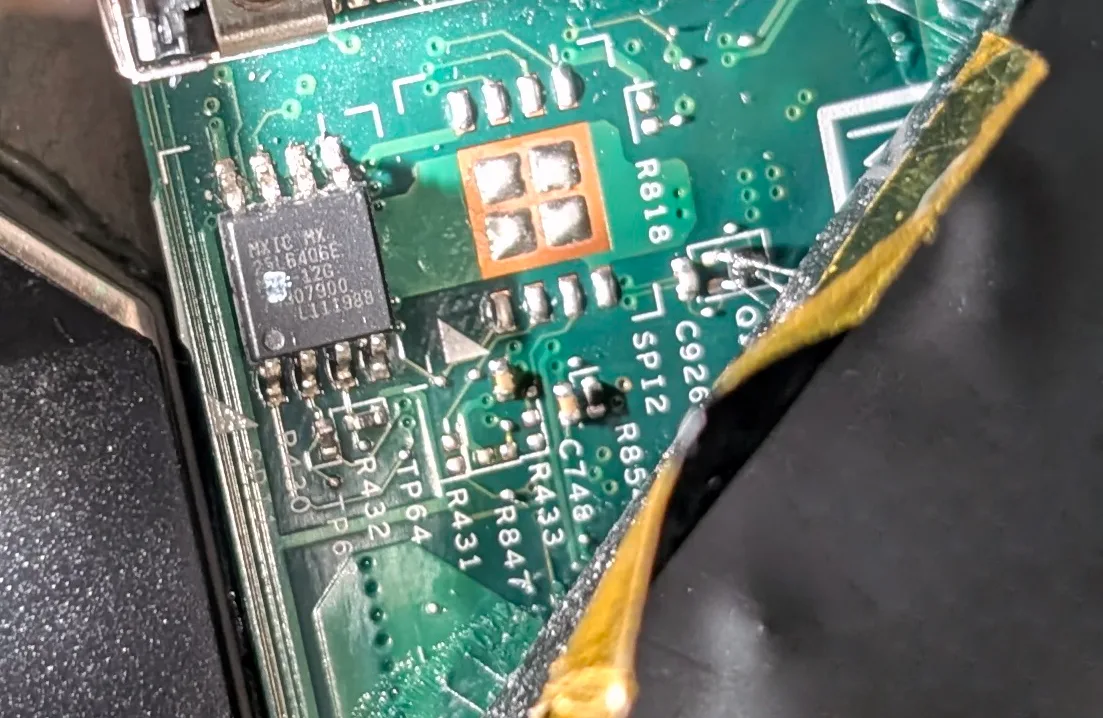
Image source: Wikimedia Commons / Siarhei Besarab (CC BY-SA)
Save and exit, then boot into Windows and test again. If the camera is disabled in BIOS, no driver or privacy setting will bring it back. That's also why a BIOS-level device check is useful before you reinstall Windows.
One warning: don't flash your BIOS just to fix a camera. A firmware flash carries real risk, and camera toggles are usually a simple enable or disable. Use System Restore first, BIOS second, and hardware service last.
If the camera is still missing after both, the ribbon cable or module may be the issue.
Mistakes That Make the Problem Worse
Running multiple driver tools at once tops the list. One utility installs a generic driver while another tries to load the vendor package. The result is a conflict that shows up as a flickering preview or a camera that vanishes after sleep.
Pick one method and finish it before you try another.
Disabling the camera in Device Manager instead of uninstalling it is another common error. Disabled devices stay disabled across reboots. You have to re-enable them manually.
If you uninstall, Windows reinstalls a clean driver on the next boot. That difference saves hours of confusion.
Flashing the BIOS to fix a camera is risky and rarely needed. A firmware flash can brick the motherboard if power fails or the file is wrong. Camera toggles in BIOS are usually a simple enable or disable.
Use System Restore and the BIOS toggle first. Only update firmware if the vendor specifically lists a camera fix in the release notes.
Ignoring the physical privacy shutter or Fn key wastes time. Many gaming laptops have a sliding cover or a function-key combo that cuts power to the sensor. Check those before you open Device Manager.
A shut shutter looks exactly like a dead camera in every app.
Skipping the Windows Camera app test leads to false conclusions. If the built-in app works but Zoom doesn't, the hardware and driver are fine. The fight is in the app settings or the meeting platform's permissions.
Test the native app first every time. You can see this same pattern with audio devices that work in one app but not another.
FAQ: Camera Stopped Working After Windows Update
Why does my camera show a black screen after a Windows update?
A black screen usually means the driver loaded but the video stream is blocked. Check the privacy settings first. Then roll back the driver if the problem started right after the update.
How do I know if my camera hardware is actually broken?
Open Device Manager and look for the camera under Cameras or Imaging devices. If it's missing entirely and doesn't appear after a hardware scan, the module or ribbon cable may have failed. Test in BIOS to confirm.
Can I use an external webcam instead of fixing the built-in one?
Yes. A USB webcam bypasses the internal driver stack entirely. Plug it in, let Windows install the generic UVC driver, and select it in your app.
It's a reliable workaround while you troubleshoot.
Will System Restore delete my games or files?
No. System Restore rolls back system files, drivers, and registry settings. Personal files like games, documents, and media stay untouched.
Only changes made after the restore point are lost.
How long does a driver rollback take?
Usually under five minutes. The rollback itself is instant. The restart and driver reload take the rest.
If Windows can't find the old package, it downloads a generic one, which adds a minute or two.
Should I reinstall Windows to fix the camera?
Only as a last resort. A clean install fixes deep corruption, but it takes hours to restore apps and settings. Exhaust driver rollback, privacy settings, BIOS toggle, and System Restore first.
1 thought on “How to Fix Camera After Windows Update on Gaming Laptop”
Comments are closed.