Your laptop ran cool for a year. Then a BIOS update landed, and now the fans scream while you're just watching YouTube. If that's your situation, you're hunting for how to fix BIOS update increased temperatures on a gaming laptop.
Good news first: it's almost always a settings problem, not a dying chip.
Intel documents a Tj max of 100 °C on its 13th and 14th gen HX mobile chips, so load temps in the high 80s are still in spec. Anything pinned near 99 °C with fans at full tilt means the firmware changed the rules. Here's how to find out what it changed, and how to get your temps back.
Why Your Gaming Laptop CPU Temperature Spiked After the BIOS Update
A BIOS flash doesn't just patch microcode. It rewrites the entire firmware block, and that block holds your fan table, your CPU power limits, and your saved profiles.
That last part is what bites people. Any custom fan curve or undervolt offset you had dialed in gets wiped back to factory defaults. Your chip isn't suddenly hotter.
It's running with different rails.
Here's what usually changes:
- Fan table reset to a quieter factory curve
- PL1 and PL2 raised, so the chip boosts harder for longer
- Undervolt offsets cleared, since many BIOS packages ship the Plundervolt mitigation and lock voltage control in ThrottleStop or XTU
- Resizable BAR or PCIe power state changes that raise idle draw
Some updates raise heat on purpose. Vendors tune power limits to win benchmarks, and as of 2026 several 14th gen HX machines got exactly that treatment. Owners reported 8 to 12 °C jumps with nothing else touched.
So don't repaste your laptop because of a fan table. Diagnose first, then pick the fix.
Quick Answer: Check the BIOS Version and Release Notes First
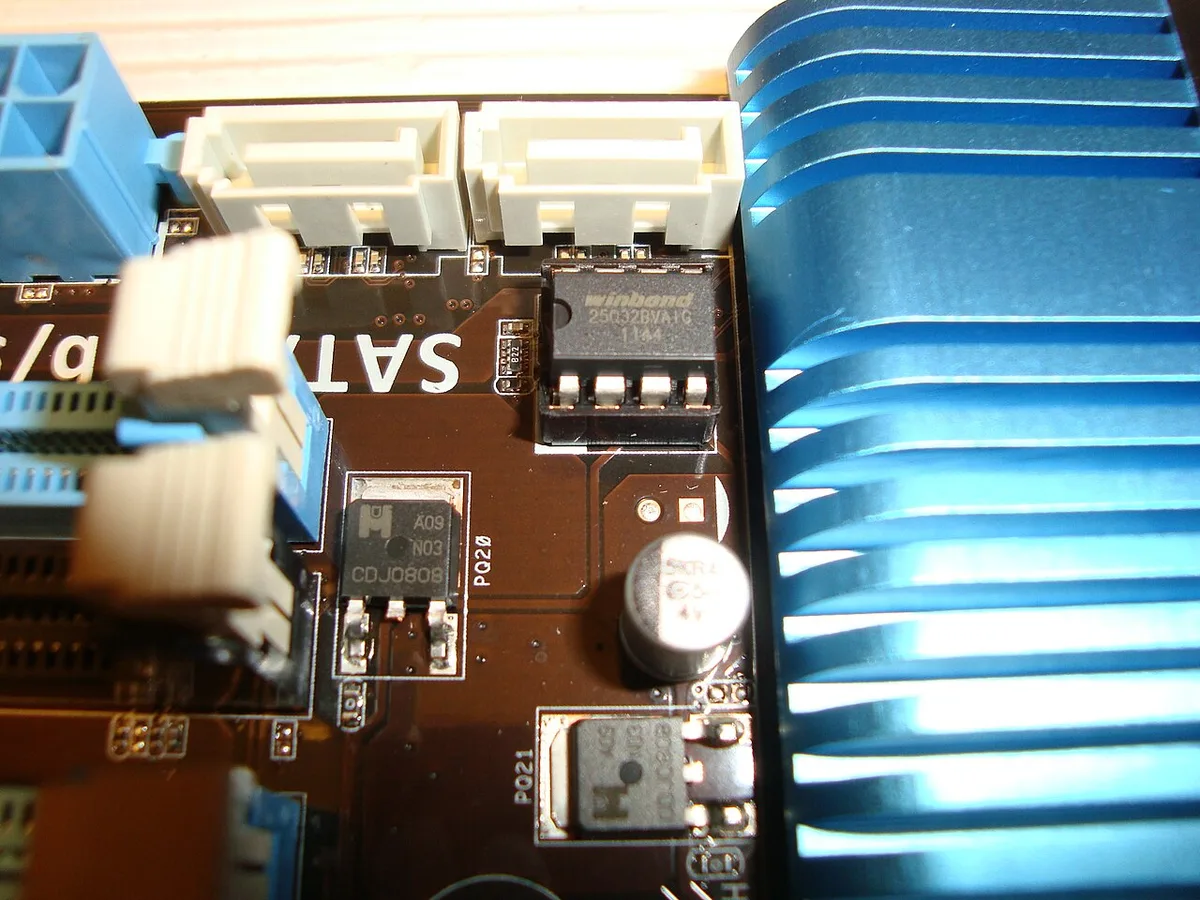
Image source: Wikimedia Commons / Mixabest (CC BY-SA)
Start by confirming exactly which BIOS version you're running, then read what the vendor actually changed.
Tap F2 or Del during boot and note the version string and date. Then open your vendor's support page for your exact model number, not the series name. Two laptops with identical chassis often ship different firmware.
| What to check | What it tells you |
|---|---|
| BIOS version and date | Whether the update applied at all |
| Release notes and known issues | If the heat is a confirmed bug |
| Newer or beta BIOS listed | If a fix already shipped |
| EC and chipset driver dates | If the fan control stack is stale |
| Vendor advisory page | If the update was pulled |
You can cross-check your current revision against Intel's support and driver pages to rule out a stale chipset driver masquerading as a firmware fault.
If the release notes mention a thermal fix in a later revision, flash forward instead of chasing settings. If your model has a documented heat regression with no fix yet, you've got your answer. The workarounds below apply.
Image source: Wikimedia Commons / Nrbelex (CC BY-SA)
How to Diagnose Whether the BIOS Update Caused the Overheating
Not every hot laptop after an update is the update's fault. You need a clean before and after.
Run these four checks in order:
- Idle test. Sit at the desktop for 10 minutes and log CPU temp plus fan RPM in HWiNFO64.
- Load test. Run 15 minutes of Cinebench or an actual game. Log temperature and package power.
- Undervolt check. Open ThrottleStop. If the offset field is greyed out or reads zero, the update locked it.
- Hardware check. Look for dust caked in the exhaust and ask when the paste was last replaced.
Then branch on what you saw:
- Idle hot and fans quiet means the fan curve reset. That's an EC issue, not cooling hardware.
- Idle fine but load hot means power limits moved up. The chip is simply allowed to burn more watts.
- Hot at idle and under load on a two-year-old machine means the paste is also part of the story.
One more tell. If temps were already creeping up before the update, firmware isn't your only problem.
Step-by-Step Fixes for a Gaming Laptop BIOS Temperature Spike
Image source: Wikimedia Commons / Steve Jurvetson from Los Altos, USA (CC BY)
Work down this list and stop when your temps look normal again.
- Load optimized defaults in the BIOS. This restores the stock fan table in one move.
- Update chipset drivers and the vendor's control app. Fan control lives partly in Windows, not just firmware.
- Reapply your undervolt. Start at -50 mV in ThrottleStop or Intel XTU, then step down 10 mV at a time until something crashes, and back off 10 mV.
- Build a smarter fan curve. Ramp to 70 percent by 80 °C instead of waiting for 95 °C.
- Cap PL1 if the new BIOS raised it. Dropping 10 watts costs you very little frame rate.
- Fix airflow. Elevate the rear, add a cooling pad, clean the exhaust fins.
| Fix | Time needed | Typical temperature drop |
|---|---|---|
| Load BIOS defaults | 5 minutes | 3 to 8 °C |
| Custom fan curve | 10 minutes | 5 to 12 °C |
| Undervolt -80 to -120 mV | 15 minutes | 4 to 10 °C |
| Lower PL1 by 10 to 15 W | 15 minutes | 5 to 12 °C |
| Repaste | 45 minutes | 5 to 15 °C |
Verify with a 20-minute stress test and a game session. Watch for clock speed holding steady, not just lower numbers.
BIOS Rollback vs. Undervolt vs. Fan Curve Reset vs. Repaste
These four fixes solve different problems. Pick by symptom, not by how dramatic the fix sounds.
| Method | Best for | Main risk | Reversible |
|---|---|---|---|
| BIOS rollback | A confirmed firmware regression, or a newer BIOS that made things worse | Many modern laptops block downgrades with signed firmware and anti-rollback protection. An interrupted flash can brick the board | No |
| Undervolt | Power limits raised, sustained load too hot | Random crashes under light loads if you push too far | Yes |
| Fan curve reset | Loud fans, or heat at idle with fans staying quiet | More dust pulled through the fins over time | Yes |
| Repaste | Heat that crept up over months, paste over two years old | Warranty claim refused, or an uneven mount that makes things worse | Not applicable |
Rollback deserves extra caution. If your laptop shipped in the last few years, the downgrade probably won't take at all, and forcing it with a modded BIOS image is how people end up with a paperweight.
Work in this order: defaults, undervolt, fan curve, repaste last. Only roll back when the vendor confirms the bug and gives you a supported path down.
Mistakes to Avoid After a Gaming Laptop BIOS Update
Flashing the wrong file is the classic way to brick a board, but subtler errors cost more time. Never flash from a USB drive formatted as NTFS. The UEFI shell reads FAT32 only, and a silent fail leaves you staring at a black screen.
Never interrupt power during the write cycle. Even a brief AC loss on a soldered-battery machine can corrupt the firmware region.
Skipping the EC reset after a BIOS flash is another common miss. The embedded controller holds the fan table and thermal policy. On most MSI and ASUS models you reset it by holding the power button for 30 seconds with the AC unplugged.
Dell and Alienware often need a specific key combo listed in the service manual.
Reapplying an aggressive undervolt before confirming stability at stock settings is a recipe for random reboots. Validate the baseline first, then step the offset down in 10 mV increments. Finally, don't chase a single benchmark score.
A 200 MHz boost that adds 8 °C and drops frames when the chip throttles is a net loss.
Final Decision Guide: Choosing the Right Post-BIOS Fix
Match the symptom to the fix and you avoid wasted effort. Use this quick lookup.
| Symptom | First action | If that fails |
|---|---|---|
| Fans quiet, idle hot | Load BIOS defaults, reset EC | Custom fan curve in vendor app |
| Load temps up, idle fine | Check PL1/PL2 in ThrottleStop, lower 10 W | Undervolt -50 mV, test stability |
| Undervolt option gone | Update chipset driver, vendor control app | Accept stock voltage, tune fan curve |
| Heat crept up over months | Clean exhaust, repaste with quality compound | Consider cooling pad for sustained loads |
| New BIOS version available with thermal fix | Flash forward, then reapply settings | Roll back only if vendor supports it |
If two symptoms overlap, fix the fan curve first. It costs nothing and helps every other lever work better. Only repaste after software levers are exhausted and the machine is out of warranty.
FAQ: How to Fix Increased Temperatures on a Gaming Laptop
Why did my laptop get hotter after a BIOS update?
The update reset your fan curve, raised power limits, or locked out undervolting. The hardware didn't change.
Can I roll back the BIOS myself?
Only if your vendor provides a signed downgrade tool and explicitly supports it. Most 2022 and newer laptops block rollbacks with anti-rollback fuses.
Is undervolting safe after a BIOS update?
Yes, if the option is still exposed. Start conservative at -50 mV and test with Cinebench and a game session before going deeper.
How much thermal paste should I use?
A rice-grain dot in the center of the die. Too much squeezes onto the PCB and can short components.
Will a cooling pad fix BIOS-caused heat?
It helps move air but does not fix a bad fan table or raised power limits. Treat it as a supplement, not a cure.
Should I repaste a brand new laptop after a BIOS update?
No. Factory paste on a new unit is fine. The heat spike is almost certainly a firmware setting, not a mount issue.