Learning how to update gaming laptop BIOS safely matters because a bad flash can turn a $2,000 machine into a paperweight. Most people only think about it when something breaks or a game won't run. The truth is, most BIOS updates are optional, and skipping one is often safer than rushing it.
Manufacturer specifications indicate that a typical flash takes 3 to 10 minutes and requires at least 20 to 50 percent battery charge plus AC power. As of 2026, firmware updates from major brands like ASUS, MSI, and Lenovo still ship as region-specific files, so downloading the wrong one is a real risk. This guide walks you through the full process, from deciding whether to update at all to recovering if something goes wrong.
how to update gaming laptop BIOS safely
To update a gaming laptop BIOS safely, confirm your exact model first. Then check your current BIOS version. Download firmware only from the manufacturer's support page.
Verify its checksum before flashing. Back up your data and charge the battery above the threshold. Connect AC power and run the updater.
Wait without interruption until it finishes and reboots. Never flash with low battery or over Wi-Fi.
Why a BIOS Flash Is a One-Way Door on a Gaming Laptop
A BIOS update rewrites the firmware that boots your laptop. If the write fails partway through, the system may not POST at all. That means no screen, no keyboard, and no recovery through normal means.
Gaming laptops are especially vulnerable because their firmware is tuned for high-performance parts. A bad flash can disable the GPU, break sleep states, or kill fan control. Unlike a driver update, you cannot just roll back by clicking undo.
The risk is real but manageable. Most failures come from three causes: power loss during the flash, flashing the wrong file, and interrupting the process. All three are preventable with preparation.
Here is the key mindset shift. A BIOS update is not a routine patch like a Windows update. It is a low-level rewrite of the code that wakes up your hardware.
Treat it with respect, and it is safe. Treat it casually, and you may end up searching for a technician.
One more thing. Not every update is worth the risk. If your laptop runs well and you are not adding new hardware, the safest BIOS is often the one already installed.
We will cover that decision in the next section. If a flash does go wrong, you may end up with a machine that won't turn on at all, so caution is not optional.
The Firmware Stack: BIOS, UEFI, and the Embedded Controller
BIOS stands for Basic Input/Output System. It is the first code that runs when you press the power button. On modern gaming laptops, BIOS usually means UEFI, which stands for Unified Extensible Firmware Interface.
UEFI is the modern replacement with a graphical interface and support for larger drives. The UEFI Forum publishes the specification that manufacturers follow.
The Embedded Controller, or EC, is a separate microcontroller on the motherboard. It handles power delivery, fan speeds, keyboard input, and battery charging. EC firmware updates often ship alongside BIOS updates, and sometimes they flash together.
Here is why this matters. A BIOS update and an EC update are different things. Some manufacturer utilities flash both at once.
Others require separate steps. If you interrupt an EC flash, you can lose fan control or charging even if the BIOS itself is fine.
Most gaming laptops use firmware from one of three vendors: AMI, Insyde, or Phoenix. You do not need to know which one your laptop uses, but it helps when reading recovery guides. The vendor name often appears in the BIOS version string.
The key takeaway is simple. When we say "update your BIOS," we usually mean update the whole firmware package. Check the release notes to see whether the EC is included.
If it is, the flash takes longer and the risk is slightly higher.
Should You Even Update? The Real Risk-Benefit Test
Here is the honest truth. Most gaming laptop owners do not need to update their BIOS. If your system is stable, runs games well, and has no hardware issues, leave it alone.
Update when you have a specific reason. Common valid reasons include adding support for a new CPU or GPU generation, fixing a known bug like sleep-wake failures, applying a security patch, or resolving thermal issues. Check the manufacturer's release notes for each version.
Skip the update if the release notes only mention minor stability improvements and your laptop works fine. Every flash carries a small risk. No risk is justified by "just in case."
There is also the rollback problem. Some manufacturers do not provide older BIOS versions for download. Once you flash, you may not be able to go back.
Check the support page before you start. If only the latest version is listed, assume the update is one-way.
As of 2026, security patches are the strongest reason to update. Firmware vulnerabilities like those in the Intel Management Engine or AMD AGESA can affect system security. If a security update exists for your model, it is usually worth applying.
NIST firmware security guidance supports keeping firmware current for systems that handle sensitive data.
The decision rule is simple. Update for security, hardware compatibility, or a documented bug you are experiencing. Skip it for vague stability improvements when everything works.
When in doubt, contact the manufacturer before flashing. If you are diagnosing hardware problems on your laptop, a BIOS update might help, but only if the release notes mention your specific issue.
| Update When | Skip When |
|---|---|
| Security patch available | Laptop runs well, no issues |
| New hardware support needed | Only vague stability improvements |
| Documented bug you experience | No release notes match your problem |
| Thermal or fan issues listed | You cannot roll back |
Pre-Flash Safety Checklist Before You Touch Anything
Preparation is where most people fail. A good checklist prevents 90 percent of bricking incidents. Run through every item before you click update.
- Back up your data. A failed flash can leave the system unbootable. Save important files to an external drive or cloud storage. If you need a full guide, our article on backing up before repair covers the process step by step.
- Note your current BIOS version. Write it down or take a photo. You need this if something goes wrong and you need to troubleshoot.
- Check your battery level. Most manufacturers require 30 to 50 percent minimum charge. Some require more. Check the release notes for your specific model.
- Plug in AC power. Never flash on battery alone. Even with a full battery, a sudden power drop can kill the flash.
- Disable sleep and hibernation. A sleeping laptop mid-flash is a disaster. Set power settings to never sleep while plugged in.
- Temporarily disable antivirus. Some security software blocks firmware updaters. Re-enable it after the flash completes.
- Save your BitLocker recovery key. A BIOS update can trigger BitLocker recovery on Windows. Have the key ready before you start.
- Download the correct file. Match your exact model number and region. Double-check the file name against the support page.
Regular laptop maintenance habits like keeping firmware current can extend your machine's lifespan, but only when done carefully.
How to Update Gaming Laptop BIOS Safely, Step by Step
Step 1: Find your exact model. Look at the sticker on the bottom of the laptop or check system info in Windows. Do not guess.
One letter difference can mean a different firmware file.
Step 2: Check your current version. Press the Windows key plus R, type msinfo32, and press Enter. Look for BIOS Version/Date.
Write it down.
Step 3: Visit the manufacturer's support page. Enter your model number. Download the latest BIOS file.
Verify the checksum if one is provided. SHA-256 and MD5 are common.
Step 4: Prepare the system. Charge the battery, plug in AC, disable sleep, and back up data. If BitLocker is enabled, suspend it temporarily through the Windows control panel.
Step 5: Run the updater. Most brands include a Windows-based tool. Open it, select the downloaded file, and start the flash.
Some laptops require a BIOS-level flasher accessed by pressing F7 or F12 during boot.
Step 6: Wait. Do not touch the keyboard, do not close the lid, and do not unplug power. The screen may go black.
This is normal. The process takes 3 to 10 minutes depending on the file size.
Step 7: Let it reboot. The laptop will restart on its own. Do not force a shutdown if it seems stuck.
Wait at least 15 minutes before assuming failure.
Step 8: Verify. Enter the BIOS setup by pressing F2 or Delete during boot. Check the version number matches what you installed.
Reset your custom settings if needed.
If your laptop starts restarting repeatedly after the flash, stop and seek professional help rather than forcing more updates.
When the Flash Fails: Recovery Paths That Actually Work
A failed flash is scary, but not always fatal. The first move is simple. Wait.
The screen may stay black for several minutes while the Embedded Controller finishes its own update. Do not press power repeatedly.
If nothing happens after 15 minutes, try crisis recovery. Most brands support a USB recovery mode. The laptop reads a specific BIOS file from a USB stick during early boot.
The file name and key combo vary by brand.
Here is a general guide. Always check your manufacturer's support page first.
| Brand | Recovery Method | Trigger |
|---|---|---|
| ASUS | EZ Flash crisis recovery | Hold Ctrl+Home while powering on |
| MSI | M-Flash recovery | Insert USB, press power button |
| Lenovo | Novo button recovery | Press small Novo button near power |
| Dell | BIOS recovery | Hold Ctrl+Esc while powering on |
| HP | Crisis recovery | Hold Windows+B while powering on |
Prepare the USB stick with the exact BIOS file the manual names. Format it FAT32. Use a small stick, 8GB or less.
Plug it in before triggering recovery.
If recovery works, the laptop boots and re-flashes automatically. If it does not, you likely have a hard brick. That means the boot block is damaged.
At that point, home recovery ends.
A hard brick usually needs an SPI programmer and a SOIC clip to rewrite the BIOS chip directly. That is advanced repair work. Many shops can do it for less than a motherboard replacement.
If the laptop is under warranty, contact the manufacturer first. Do not open the chassis if warranty matters.
If you see a black screen after a failed flash, do not assume the worst. Some units recover after a CMOS clear or a full power drain. Unplug AC, remove the battery if possible, and hold the power button for 30 seconds.
Then try again.
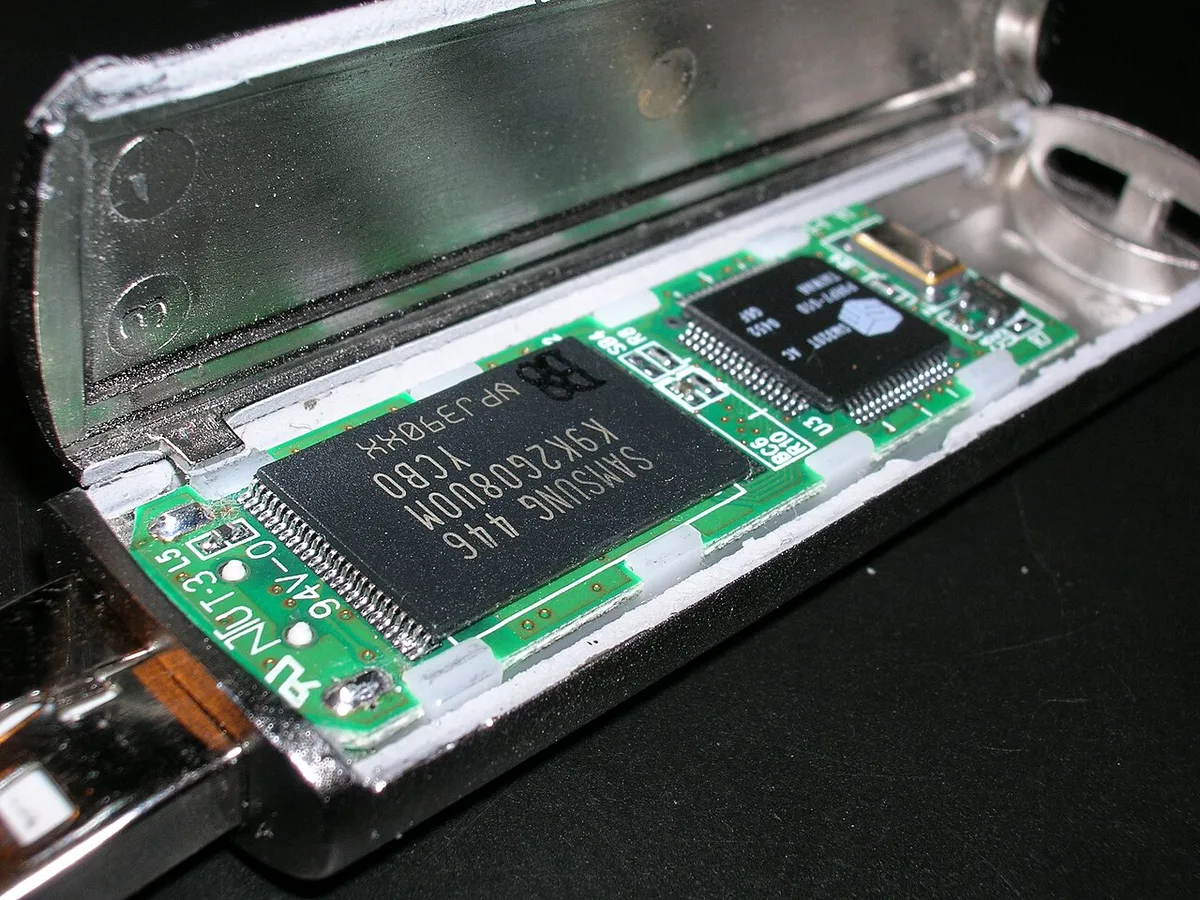
Image source: Wikimedia Commons / Nrbelex (CC BY-SA)
Mistakes That Brick Laptops (and How to Avoid Them)
Most bricking stories share the same mistakes. Avoid these and your odds improve dramatically.
- Flashing the wrong file. Match model, region, and revision. One digit off is enough to fail.
- Updating on low battery. A 20 percent charge is not safe if the flash takes 10 minutes.
- Running on battery only. Always use AC power during the flash.
- Interrupting the process. Closing the lid or pressing keys can corrupt the write.
- Forgetting BitLocker. The recovery screen after a flash confuses many users.
- Skipping the checksum. A corrupted download can brick the laptop even if the model is right.
- Updating for no reason. Every flash is a risk. Skip it unless you need it.
Here is a quick comparison of risk levels.
| Action | Risk Level | Why |
|---|---|---|
| Flashing correct file on AC | Low | Normal process |
| Flashing on battery only | High | Power loss possible |
| Flashing wrong region | Very high | Firmware mismatch |
| Interrupting mid-flash | Critical | Partial write |
If you are unsure about your model, check the sticker on the bottom. Do not rely on Windows system info alone, since retail models sometimes share names. If the laptop won't turn on after a failed attempt, stop troubleshooting and escalate.
After the Update: Verifying, Reconfiguring, and Rolling Back
A successful flash is not the end. You need to verify and reconfigure. Enter BIOS setup during boot.
Check the version number matches the file you installed. If it does not, something went wrong.
Next, load default settings. Many updaters reset the BIOS automatically, but not all do. Load defaults, then reapply your custom settings.
This prevents conflicts from old configurations.
Check these items after the update:
- Secure Boot state
- TPM status
- Fan curves and thermal profiles
- Overclocking settings
- Boot order
- XMP or EXPO memory profiles
BitLocker may ask for a recovery key on first boot. This is normal. Enter the key you saved earlier.
Windows should then reseal BitLocker automatically. If it does not, suspend and resume BitLocker from the control panel.
Test the laptop under load. Play a game or run a stress test. Watch temperatures and fan behavior.
If something feels off, you may need to adjust settings or contact support.
Rollback is not always possible. Some manufacturers block downgrading for security reasons. Check the support page before you update.
If rollback is allowed, download the older version and repeat the process. Treat it like a new flash, with the same safety steps.
If the update caused overheating, reset to defaults first. Many thermal issues come from lost fan curve settings, not the firmware itself.
When to Stop and Call the Manufacturer or a Technician
Know when to stop. If the laptop shows no signs of life after recovery attempts, do not keep trying. Repeated flashing can make things worse.
Call the manufacturer if the laptop is under warranty. They may offer a free repair or a motherboard replacement. Be honest about what happened.
Warranty terms vary, but many cover firmware failures if you used official tools.
Seek a technician if the laptop is out of warranty and recovery failed. Ask whether they can do an SPI flash before replacing the motherboard. A chip-level repair often costs far less.
Here are clear stop signs:
- No power LED at all
- No fan spin on power button
- Recovery mode does not trigger
- Repeated beeps with no display
- Burning smell or unusual heat
Do not open the laptop if it is under warranty. Do not attempt SPI programming unless you have the right equipment. A wrong voltage or bad connection can destroy the chip permanently.
If the issue started after a repair or upgrade, mention that to the technician. Context helps them diagnose faster.
Frequently Asked Questions
How long does a BIOS update take on a gaming laptop?
Most flashes take 3 to 10 minutes. The time depends on file size and whether the EC updates too. Wait at least 15 minutes before assuming failure.
Can a BIOS update fix gaming performance?
Sometimes. Updates can improve CPU boost behavior or thermal limits. They rarely increase frame rates directly.
Check the release notes for your model.
Is it safe to update BIOS over Wi-Fi?
The download can happen over Wi-Fi, but the flash itself does not need a connection. Download first, verify the checksum, then disconnect if you prefer. Never let the laptop sleep during the update.
Will updating BIOS erase my files?
No. A BIOS update does not touch your storage drive. Still, back up your data first.
A failed flash can make the system unbootable.
Can I roll back to an older BIOS version?
Sometimes. It depends on the manufacturer. Some brands block downgrades for security.
Check the support page before you update.
What if my laptop freezes during the update?
Wait. Do not force a shutdown for at least 15 minutes. If it stays frozen, try crisis recovery.
If that fails, contact the manufacturer or a technician.