If your gaming laptop fans suddenly roar to life mid-match, that's them doing their job. The question "how do gaming laptop fans work" comes down to one thing: moving heat away from your CPU and GPU fast enough to keep performance steady. When they can't, your laptop throttles and frame rates drop.
Manufacturer specifications indicate that modern gaming laptops can push 100 watts or more through their cooling systems. As of 2026, most use a mix of heat pipes, vapor chambers, and variable-speed fans. Let's walk through exactly how that loop works.
how do gaming laptop fans work
Gaming laptop fans pull cool air in and push hot air out. Sensors track CPU and GPU temperatures in real time. The fan controller adjusts speed using a fan curve.
Heat pipes or vapor chambers move heat from chips to the fins. This keeps temperatures below throttling limits.
Why Your Gaming Laptop Fans Matter More Than You Think
Your CPU and GPU generate serious heat under load. Without enough cooling, they slow themselves down to avoid damage. That slowdown is called thermal throttling, and it shows up as stuttering frame rates and choppy gameplay.
Cooling isn't just about noise. It's about sustaining the boost clocks your laptop advertises. A well-designed fan system keeps temperatures in a safe range for hours, not minutes.
Here's the catch: thin chassis leave little room for airflow. Manufacturers compensate with aggressive fan curves and clever heat pipe layouts. As of 2026, many gaming laptops also use vapor chambers to spread heat across a larger area.
Even the best display and storage can't save a machine that overheats. Display quality and drive speed matter, but thermals decide whether you actually get the performance you paid for.
When Fans Fall Behind
Fans fall behind when intake vents get blocked. Soft surfaces like beds and couches seal off the bottom vents. Dust buildup narrows the exhaust path over time.
Either way, heat stays trapped and components run hotter.
VRMs and VRAM generate heat too, not just the main chips. If those areas lack thermal pads or airflow, they throttle separately. That's why a laptop can feel fast in benchmarks but stutter during long sessions.
The Short Answer: What Fans Actually Do
Fans do three jobs at once. They pull cooler outside air across hot components. They push heated air out through exhaust vents.
And they maintain a pressure balance inside the chassis.
The key point: fans don't cool chips directly. They cool the heatsink that touches the chips. Heat travels from silicon to thermal paste, then to heat pipes, then to fins, then to air.
Think of the fan as the engine of a conveyor belt. Without it, heat piles up at the fins and can't escape. With it, heat moves steadily out of the chassis.
Intake vs. Exhaust
Intake vents usually sit on the bottom or sides. Exhaust vents sit on the rear or sides, angled away from your hands. Air follows the path of least resistance, so vent placement shapes airflow efficiency.
Some laptops use positive pressure, meaning more intake than exhaust. Others use negative pressure. Either way, the goal is the same: continuous airflow across the heatsink fins.
The Full Cooling Loop: From CPU Heat to Exhaust Air
Heat starts at the CPU and GPU dies. From there it moves through thermal paste into a metal plate called the heatsink base. Heat pipes carry that energy to a fin stack near the exhaust.
The fan pulls air through the fin stack. As air passes the hot fins, it absorbs heat and exits as warm exhaust. Meanwhile, fresh cool air enters through intake vents to replace it.
This loop runs continuously while you game. The faster heat is removed, the longer your CPU and GPU can hold their boost clocks. Manufacturer specifications indicate that sustained TDP ratings assume this loop works at peak efficiency.
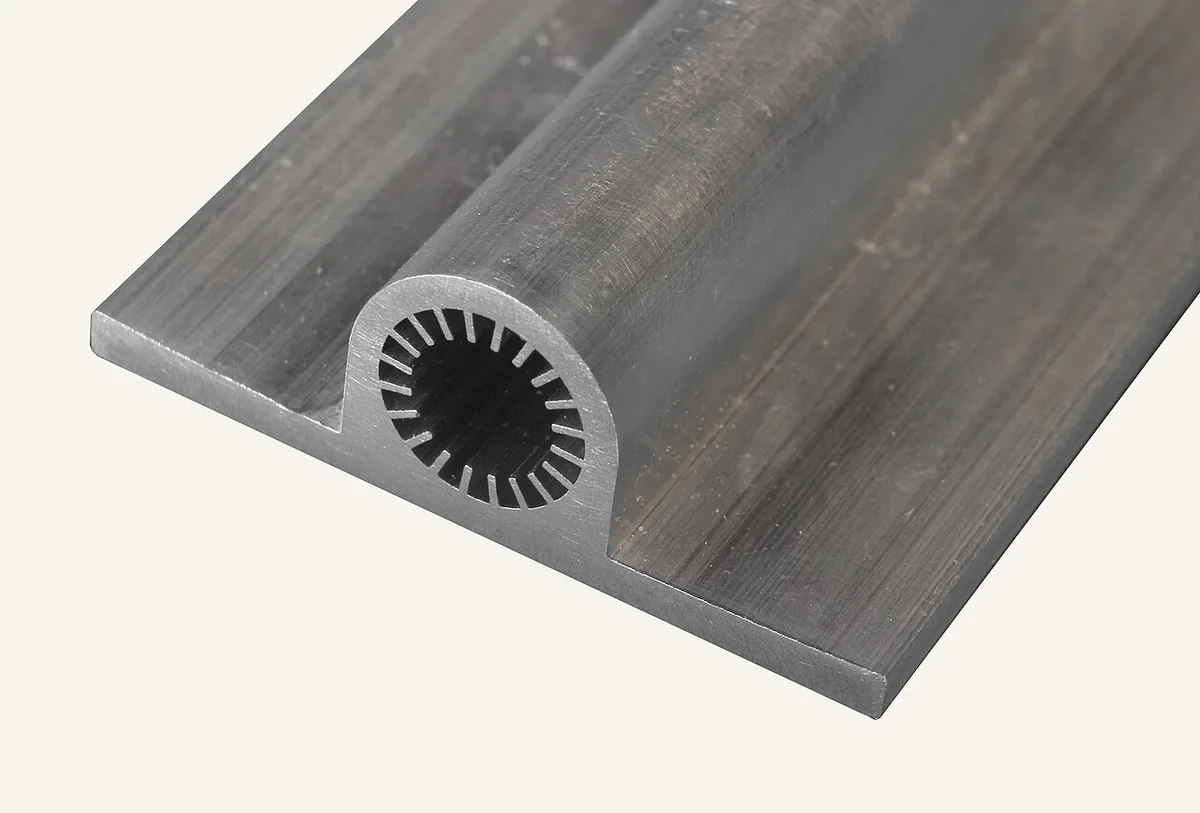
Image source: Wikimedia Commons / BillAnderson71 (CC BY-SA)
The Role of Thermal Paste and Pads
Thermal paste fills microscopic gaps between the chip and heatsink. Without it, air pockets insulate and trap heat. Thermal pads serve the same role on VRAM and VRMs, which sit slightly lower.
Over time, paste can dry out or pump out from repeated heat cycles. That's why repasting sometimes restores lost performance. Thermal pads can also compress or degrade after years of use.
Inside the Cooling System: Heat Pipes, Vapor Chambers, and Fan Design
Heat pipes are copper tubes filled with a small amount of liquid. When one end heats up, the liquid vaporizes and travels to the cooler end. There it condenses back to liquid and returns through a wick.
Vapor chambers work the same way but spread heat across a flat plate. They're better at distributing heat from a large die across a wide fin area. Many 2026 gaming laptops combine both in one cooling assembly.
Fan design matters too. Axial fans push air straight through the fins. Blower fans force air sideways and out a single exhaust.
Each suits different chassis shapes and vent layouts.
Axial vs. Blower Fans
Axial fans move more air at lower resistance. They're common in laptops with wide rear exhausts. Blower fans handle tighter spaces but create more noise per unit of airflow.
Some laptops use dual fans, one for CPU and one for GPU. Others use a shared heatsink with one or two fans. More fans usually mean better cooling but also more potential noise.
What the Fins Actually Do
Fins multiply surface area so heat can transfer to air efficiently. Denser fins cool better but clog faster with dust. Fin material is usually aluminum or copper, chosen for conductivity and weight.
The fan and fin stack are tuned as a pair. A powerful fan with weak fins wastes energy. Strong fins with a weak fan choke airflow.
Balance is what separates good cooling from average cooling.
Intel's thermal design specifications outline how sustained power and temperature limits interact in modern processors. You can review official guidance at intel.com.
How Fan Speed Gets Decided: Sensors, Fan Curves, and Modes
Your laptop reads temperatures from multiple sensors across the CPU, GPU, VRMs, and sometimes the chassis. The embedded controller, often called the EC, uses those readings to set fan speed. It follows a fan curve, which maps temperature to RPM.
Fan curves aren't flat. They ramp up gradually at lower temperatures and spike aggressively near the throttle limit. That's why fans stay quiet during light tasks and scream during heavy gaming.
Most manufacturers ship preset modes. Quiet mode caps fan speed and lowers power limits. Performance mode raises both.
A custom mode lets you set your own curve in software or BIOS.
Reading Fan Curves in Practice
A steep curve near 85 degrees Celsius means the fan reacts late but hard. A gradual curve starts earlier and stays quieter. Neither is wrong, but they feel very different during use.
Tools like HWiNFO report real-time temperatures and fan speeds. MSI Afterburner can overlay them during gameplay. Watching both together shows whether your fan curve actually matches your workload.
AMD's thermal guidelines explain how Ryzen processors manage boost behavior under heat. Official documentation is available at amd.com.
When to Override the Defaults
Override defaults only if you understand the trade-offs. Raising the power limit without better cooling just hits throttling sooner. Lowering fan speed to reduce noise can shorten component lifespan.
Undervolting the CPU or GPU reduces heat at the source. It's often safer than cranking fans harder. Many users combine a mild undervolt with a slightly raised fan curve for the best balance.
What Changes the Answer: Dust, Placement, and Ambient Heat
Dust is the silent enemy of laptop cooling. It accumulates on fan blades and fin stacks over months. Even a thin layer reduces airflow and insulates hot surfaces.
Aggregate reviews report that laptops in dusty homes often run 5 to 10 degrees Celsius hotter than clean ones.
Placement matters just as much. Gaming on a bed or couch blocks bottom intake vents. The laptop sits in a pocket of its own warm exhaust air.
That recirculation raises internal temperatures fast.
Ambient room temperature sets the floor for everything else. If your room sits at 30 degrees Celsius, your laptop can't cool below that. High-altitude environments add another wrinkle: thinner air carries less heat per volume.
Humidity plays a smaller but real role. Moist air is slightly less dense and less effective at heat transfer. It also accelerates corrosion on exposed metal fins over time.
How to Tell If Your Environment Is the Problem
Check temperatures at idle first. If your CPU sits above 50 degrees Celsius at idle, something is wrong. Clean the vents and retest before assuming a hardware fault.
Try elevating the laptop on a hard surface. A simple stand or cooling pad can drop temperatures by several degrees. If that fixes it, placement was your issue all along.
Common Fan Mistakes That Hurt Performance
Blocking vents is the most common mistake. People game on beds, pillows, and blankets without thinking. The laptop sinks into soft surfaces and seals its own intake.
Temperatures spike within minutes.
Ignoring dust until it's severe is another big one. By the time fans sound loud and hot, buildup is already heavy. Regular light cleaning prevents the problem entirely.
Running on high power mode without cooling headroom is a third mistake. Performance mode raises TDP and fan speed together. But if the chassis can't handle the extra heat, you just get louder fans and the same throttling.
Some users disable fan curves entirely and run fans at fixed speeds. That sounds smart but wastes battery and creates unnecessary noise. Smart curves exist for a reason.
Overlooking VRM and VRAM Cooling
VRMs and VRAM run hot under sustained load. They often lack dedicated fans or heat pipes. Thermal pads connect them to the chassis or a secondary heatsink.
If those pads dry out or compress, VRMs overheat and throttle the CPU. This shows up as sudden performance drops during long sessions. Repasting the CPU won't fix it if the pads are the real problem.
Skipping Thermal Paste Maintenance
Factory thermal paste degrades over two to four years of regular use. It can pump out from repeated thermal cycling. Performance slowly declines and users blame the game or the OS.
Repasting restores the thermal interface. But opening the chassis may void warranty depending on the manufacturer. Check your warranty terms before disassembling anything.
Keeping Fans Healthy: Cleaning, Repasting, and Monitoring
Cleaning starts with the vents. Use compressed air in short bursts. Blow through intake and exhaust vents at an angle.
Don't spin the fan blades with compressed air, since that can damage bearings.
For deep cleaning, remove the bottom panel. Brush dust from fan blades and fin stacks gently. A soft brush and isopropyl alcohol work well on stubborn buildup.
Monitoring means watching temperatures and fan speeds during real gameplay. Tools like HWiNFO log both in real time. Compare your numbers against the manufacturer's published thermal limits.
Repasting is a deeper step. Remove the heatsink, clean old paste with isopropyl alcohol, and apply a small amount of new paste. Reassemble carefully and check for even pressure.
Building a Maintenance Routine
Monthly: blow out vents with compressed air. Check idle temperatures. Wipe exterior surfaces.
Every six months: inspect for dust buildup inside if the panel is easy to remove. Check fan noise for new rattles or grinding.
Every two to three years: consider repasting if temperatures have crept up. Check thermal pad condition on VRMs and VRAM at the same time.
When to Stop DIY and Seek Help
Stop if you smell burning or see smoke. Stop if the fan makes grinding or clicking sounds. Stop if temperatures exceed manufacturer limits even after cleaning.
Warranty status matters here. Some manufacturers seal the chassis with screws under stickers. Removing them voids coverage.
Authorized service centers can handle repasting under warranty in some cases.
UL safety standards govern electrical and thermal safety in consumer electronics. You can review general guidance at ul.com.
Frequently Asked Questions
How do I know if my gaming laptop fan is failing?
Listen for new sounds. Grinding, clicking, or rattling usually means bearing wear. If one fan stops spinning entirely, temperatures spike fast.
Monitoring software will show zero RPM for that fan.
Can I run a gaming laptop without fans?
No. Without fans, heat builds at the heatsink fins and can't escape. The CPU and GPU will throttle within seconds and shut down within minutes.
Running fanless risks permanent damage.
Do cooling pads actually help?
Yes, but modestly. They add external airflow and lift the laptop off soft surfaces. Expect a few degrees of improvement, not a miracle.
They work best when the laptop's own vents are partially blocked.
How often should I clean my gaming laptop fans?
Light cleaning every month with compressed air is ideal. Deep cleaning every six to twelve months depends on your environment. Dusty homes or pet owners should clean more often.
Is it safe to use compressed air on laptop fans?
Yes, with care. Use short bursts and hold the fan blade still with a toothpick or finger. Spinning the fan with air pressure can damage bearings or generate voltage in the motor.
Should I replace stock thermal paste?
Only if temperatures have risen over time. Stock paste is fine for the first two to three years. After that, repasting with quality paste often restores original thermal performance.
Your Decision Guide: What to Do Next
Start by checking your current temperatures during a gaming session. If they stay below 85 degrees Celsius on CPU and 80 on GPU, your cooling is working. Focus on maintenance, not upgrades.
If temperatures run hot, work through this order. First, clean the vents and move to a hard surface. Second, check fan speeds and fan curves in software.
Third, consider undervolting before repasting.
If you're shopping for a new laptop, look at cooling reviews, not just specs. A laptop with a vapor chamber and dual fans will outperform one with a single fan and heat pipes. Check sustained TDP ratings, not just peak numbers.
Remember that cooling is a system, not a single part. The fan, heatsink, heat pipes, paste, and chassis all work together. Fixing one weak link often solves the whole problem.
1 thought on “How Do Gaming Laptop Fans Work? Cooling Explained”
Comments are closed.