A slow gaming laptop is not always a hot gaming laptop. How to tell if a gaming laptop is thermal throttling comes down to clock behavior under sustained load, not a single temperature spike.
In our research, many laptops briefly hit high temperatures and still perform well. The real issue is whether the CPU or GPU drops below its expected sustained clock speed for minutes at a time. Manufacturer specifications often list a thermal junction temperature, called TjMax, around 100°C for many mobile CPUs and roughly 83°C to 93°C for many mobile GPUs.
That number is a limit, not a diagnosis. If your frame rate drops while clocks fall and temperatures stay near that ceiling, you are likely looking at throttling.
Why a Gaming Laptop Can Feel Slow Even When Temperatures Look Fine
A game can stutter for reasons that have nothing to do with heat. Background updates, antivirus scans, browser tabs, and cloud sync tools can steal CPU time. A nearly full SSD can also cause uneven frame delivery, especially during level loads.
Display settings, refresh rate mismatches, and response time issues can make motion feel worse than the frame rate suggests.
Before you blame cooling, check the simple stuff first.
- Close heavy background apps and repeat the same game scene.
- Test on the original charger, not battery power.
- Make sure vents are not blocked by bedding, carpet, or a lap desk.
- Check whether the laptop is in a quiet or battery-saving profile.
- Compare results in the same room and at the same fan setting.
If the slowdown only happens after 10 to 20 minutes, heat becomes a stronger suspect. That pattern points to sustained load, not a one-second boost drop.
The Short Answer: Throttling Is About Clock Behavior, Not Just Heat
Thermal throttling happens when a component reduces its clock speed to stay within a safe temperature limit. It is a protection behavior, not a failure. The laptop is choosing stability over peak speed.
The key test is simple. Watch clock speed while the game runs. If the CPU or GPU repeatedly drops far below its normal sustained range while temperatures stay near the limit, throttling is likely.
Use this quick if/then check:
- If clocks stay stable and FPS drops, look at software, drivers, or settings.
- If clocks drop and temperatures stay high, suspect thermal throttling.
- If clocks drop but temperatures stay low, suspect power limit throttling.
- If clocks stay stable but frame times spike, look at storage, RAM, or background load.
A short boost drop is normal. Modern chips boost high for a few seconds, then settle. That is not the same as sustained throttling.
How Thermal Throttling Actually Works in Gaming Laptops
Gaming laptop cooling is a chain. Heat leaves the CPU or GPU die, moves through thermal paste or a thermal pad, enters a heat pipe or vapor chamber, and exits through fins and fans. If one part of that chain is weak, the whole system suffers.
Boost behavior makes this more confusing. A mobile CPU may spike above its base clock when load starts. Then it settles to a sustained level based on temperature, power, and cooling capacity.
A mobile GPU does something similar. The laptop is not broken when that happens. It is following its thermal and power rules.
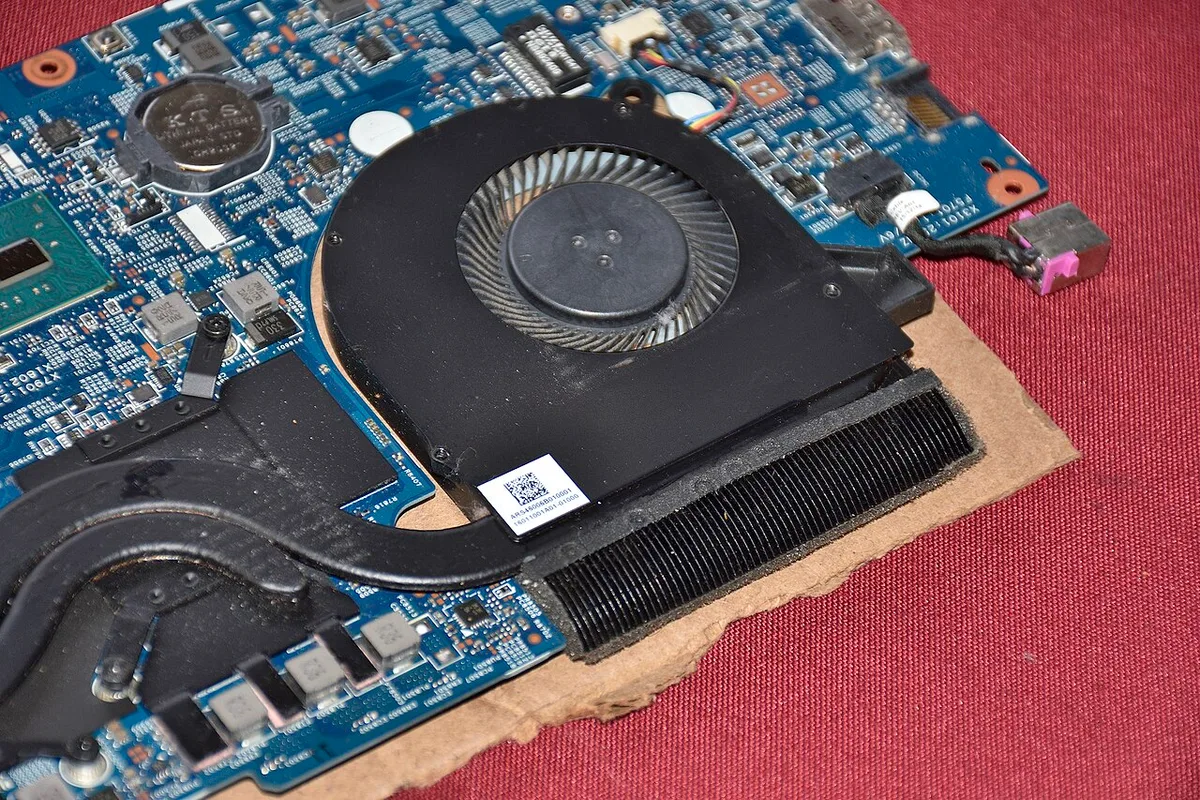
Image source: Wikimedia Commons / Saud (CC BY-SA)
Here is what commonly limits sustained performance:
- Thermal paste drying or pumping out over time
- Thermal pads losing contact or compressing unevenly
- Dust blocking heatsink fins
- Fan curves that prioritize quiet operation
- High ambient room temperature
- Poor intake airflow under the chassis
- VRM heat affecting overall power delivery
| Cooling part | What it does | Common failure sign |
|---|---|---|
| Thermal paste | Transfers heat from chip to cooler | High die temperature, uneven spread |
| Heat pipe | Moves heat to fins | Hot spot near chip, cool fins |
| Fans | Push air through fins | Low RPM, high noise, weak airflow |
| Intake vents | Feed cool air to fans | Hot bottom panel, blocked vents |
| Exhaust vents | Release hot air | Warm rear or side air, trapped heat |
Manufacturer thermal documentation and OEM service manuals are the best sources for model-specific limits. Intel, AMD, and NVIDIA publish product specifications, but laptop makers control fan curves, power limits, and chassis design. That is why two laptops with the same chip can behave very differently.
How to Tell If Your Gaming Laptop Is Thermal Throttling: Step-by-Step
This is the practical part. You do not need to guess. You need a repeatable test.
- Pick one game or benchmark. Use the same settings every time.
- Let the laptop idle for five minutes. Record idle CPU and GPU temperatures.
- Start the game and play the same scene for 15 to 20 minutes.
- Log CPU clock speed, GPU clock speed, temperatures, fan speed, and power draw.
- Watch for sustained drops, not one-second dips.
- Repeat with the laptop elevated and vents clear.
- Compare the two runs.
Use a monitoring tool that shows real-time sensor data. HWiNFO64 is widely used for CPU and system sensors. MSI Afterburner is commonly used for GPU clocks, temperatures, and fan speed.
CPU-Z and GPU-Z can help confirm base and boost ranges.
During the test, look for these patterns:
- CPU temperature stays near TjMax while clock speed falls.
- GPU temperature stays near its rated limit while clock speed falls.
- Fan speed maxes out but temperatures do not drop.
- Performance is stable for the first few minutes, then slowly declines.
- Frame times become uneven even when average FPS looks okay.
If you want a cleaner comparison, run the same test twice. First, use the laptop flat on a desk. Second, raise the rear edge and keep the intake clear.
If the elevated run holds higher clocks, airflow was part of the problem.
Thermal Throttling vs. Power Limit Throttling vs. Other FPS Killers
Not every clock drop is thermal. This distinction saves time and money.
Thermal throttling is driven by temperature. Power limit throttling is driven by wattage. A laptop can run cool but still drop clocks because the CPU or GPU has used its power budget.
| Issue | Main trigger | What you see | Best next step |
|---|---|---|---|
| Thermal throttling | High temperature | Clocks fall as temps near limit | Clean cooling, improve airflow |
| Power limit throttling | Wattage cap | Clocks fall while temps stay lower | Check power profile and charger |
| CPU bottleneck | CPU load | Low GPU usage, CPU near 100% | Lower CPU-heavy settings |
| GPU bottleneck | GPU load | High GPU usage, CPU has headroom | Lower resolution or effects |
| Frame pacing issue | Timing problem | Uneven frame times | Update drivers, check VSync |
| Storage stutter | Slow or busy SSD | Hitches during loading | Free space, check SSD health |
Power limit behavior is common in thin gaming laptops. The charger and battery may not supply enough sustained power for both CPU and GPU at full boost. That is not always a defect.
It can be a design limit.
Also check your power plan. A quiet profile may cap power before temperatures become an issue. Some OEM utilities offer performance, balanced, and quiet modes.
Test the same game in performance mode and compare clocks. If clocks improve without a big temperature change, the limit was likely power or fan policy.
For storage-related stutter, our guide on whether SSD speed affects gaming performance can help you separate storage hitches from thermal drops. For memory-related bottlenecks, our guide on how to check RAM speed on a gaming laptop can help you verify whether memory is holding the system back. Those links are useful because they cover the non-thermal causes that often mimic throttling.
A good diagnosis is boring. You change one variable at a time, log the result, and repeat. That is how you avoid buying a cooling pad, repasting the CPU, or replacing a fan when the real issue was a background update.
Real Scenarios That Trigger Thermal Throttling
Throttling usually shows up under sustained load, not during a quick match. If you play for ten minutes and stop, the cooling system may never reach its limit. The pattern changes when the laptop runs hot for half an hour or more.
Common triggers include long gaming sessions, streaming while playing, a hot room, blocked intake vents, dust buildup, and quiet fan profiles. Each one reduces the cooling margin in a different way.
- Long sessions: heat builds in the chassis and cooling system over time.
- Streaming: the CPU and GPU both stay busy, increasing total heat.
- Hot rooms: ambient temperature above about 26°C leaves less cooling headroom.
- Soft surfaces: beds and couches can block intake vents.
- Dust: clogged fins reduce airflow even when fans spin fast.
- Quiet mode: fan curves may limit airflow to reduce noise.
| Scenario | Likely trigger | What to watch |
|---|---|---|
| Long ranked session | Heat saturation | Clock trend after 20 minutes |
| Streaming plus gaming | Dual load | CPU and GPU power draw |
| Laptop on a bed | Blocked intake | Fan RPM and bottom panel heat |
| Hot summer room | High ambient temperature | Temperature delta over ambient |
If the laptop performs well for the first few minutes and then slowly declines, heat saturation is a strong suspect. Log the same scene twice and compare the clock trend.
Common Mistakes That Lead to False Conclusions
Many false throttling diagnoses come from testing too briefly or changing too many variables. A three-minute test rarely shows sustained thermal behavior. It mostly shows boost behavior.
Avoid these common mistakes:
- Judging from one temperature spike instead of sustained clocks
- Testing for only two or three minutes
- Changing graphics settings between runs
- Testing while on battery power
- Ignoring room temperature
- Repasting before checking fan policy and airflow
- Confusing power limit throttling with thermal throttling
If you change settings, fan mode, and laptop position at the same time, you will not know which change mattered. Keep one variable per test and write down the result.
What the Numbers Actually Look Like
There is no single universal throttling temperature. Different chips have different limits, and laptop makers set their own power and thermal policies. As of 2026, many mobile CPUs still use a thermal junction temperature near 100°C, while many mobile GPUs use limits roughly between 83°C and 93°C.
Those are upper boundaries, not proof of throttling.
The better comparison is between temperature, clock speed, and power draw over time.
| Metric | Usually healthy | Possible throttling |
|---|---|---|
| Sustained CPU clock | Stays near expected range | Repeated large drops |
| Sustained GPU clock | Stays near expected range | Falls while temperature stays high |
| CPU temperature | Below limit with margin | Stays near TjMax |
| GPU temperature | Below rated limit | Stays near rated limit |
| Fan speed | Rises with load | Maxed with little temperature relief |
| Power draw | Stable under load | Drops before temperature limit |
Frame time matters too. A laptop can hold a decent average FPS while 1% lows get worse. That often feels like stutter even when the headline number looks fine.
If clocks stay stable but hitches remain, our guide on whether SSD speed affects gaming performance can help you separate storage issues from cooling issues. If memory may be involved, our guide on how to check RAM speed on a gaming laptop can help you verify that. For capacity concerns, our guide on how much SSD space modern games actually need is also useful.
If you are considering storage upgrades, our guide on how to upgrade SSD in a gaming laptop and our guide on whether gaming laptop RAM can be upgraded may help you plan the right fix.
Pro Tips for Accurate Diagnosis
A clean test is more valuable than an expensive fix. Start with the simplest checks before opening the laptop.
- Log one game scene for 15 to 20 minutes.
- Keep the same graphics settings for every run.
- Raise the rear edge to improve intake airflow.
- Test in performance mode, then balanced mode.
- Note the room temperature before each run.
- Clean intake and exhaust vents before blaming paste.
- Compare results after cleaning, not before.
Manufacturer documentation is the best source for model-specific limits and service guidance. Intel product specifications and NVIDIA laptop GPU documentation are useful starting points, but your laptop maker controls the final cooling design.
Frequently Asked Questions
What temperature causes thermal throttling in a gaming laptop?
There is no single temperature that causes throttling for every laptop. Many mobile CPUs approach limits near 100°C, and many mobile GPUs approach limits roughly between 83°C and 93°C. The real sign is clock speed dropping while temperature stays near that limit for a sustained period.
Is 90°C too hot for a gaming laptop CPU?
A CPU near 90°C is high but not automatically dangerous. Many mobile CPUs are designed to operate close to 100°C under load. The important question is whether clock speed stays stable or repeatedly drops while the temperature stays near the limit.
Can dust cause thermal throttling?
Yes, dust can reduce airflow through heatsink fins and vents. That can raise temperatures and reduce sustained clock speed. Cleaning vents and checking fan behavior is a sensible first step before replacing thermal paste or hardware.
Does a cooling pad fix thermal throttling?
A cooling pad can help if it improves intake airflow, especially on laptops with bottom vents. It will not fix dried thermal paste, blocked fins, or a failed fan. Test with the laptop elevated first to see whether airflow is the main limit.
How long should I test before deciding it is throttling?
Run the same game scene for at least 15 to 20 minutes. Short tests often show boost behavior instead of sustained performance. Log clock speed, temperature, fan speed, and power draw during that period.
4 thoughts on “How to Tell If Your Gaming Laptop Is Thermal Throttling”
Comments are closed.