Figuring out how to choose a gaming laptop for the games i play starts with admitting that "gaming" isn't one single requirement. You don't need the same machine for Valorant as you do for Cyberpunk 2077. One demands speed and low latency, while the other craves raw graphical horsepower and memory.
Most buyers get stuck because they look at price tags instead of performance bottlenecks. As of 2026, the gap between entry-level and high-end hardware has widened significantly in VRAM capacity. We've mapped out the specific branches you need to follow to match your library to your budget without wasting money on unused power.
Stop Guessing: Why Your Game Library Dictates Your Laptop Specs
The biggest mistake shoppers make is treating all PC games as equal. They aren't. Your game library determines which component becomes your bottleneck.
If you ignore this, you'll either overspend on features you never use or underspec a critical part that ruins your experience.
Think about the difference between a competitive shooter and an open-world RPG. The former relies on frame consistency. The latter relies on texture streaming and lighting calculations.
These are two different engineering problems. A laptop optimized for one will often struggle with the other.
We categorize gamers into three distinct profiles based on their primary titles. Identifying yours saves thousands of dollars. It also prevents buyer's remorse when your new rig chokes on its first AAA launch.
Let's break down why generic advice fails here.
The Myth of the Universal Gaming Rig
No single laptop excels at everything within a reasonable budget. High-refresh-rate panels often sacrifice color accuracy. Powerful GPUs generate heat that thin chassis can't handle efficiently.
Manufacturers compromise somewhere.
Your job is to decide which compromise you can live with. Do you care more about seeing every particle effect in a storm? Or do you care more about reacting instantly to an enemy peek?
These goals pull specs in opposite directions.
Aggregate reviews show that mismatched expectations lead to returns. Buyers purchase a 4K-ready beast only to realize it weighs six pounds. Or they buy a lightweight ultrabook and find it throttles during extended sessions.
Understanding your priority stops this cycle before it begins.
Branch 1: The Competitive Esports Player (High Refresh, Low Latency)
If your library consists mostly of Counter-Strike 2, Valorant, League of Legends, or Overwatch 2, your priorities shift entirely. You don't need massive VRAM. You need instantaneous response times and stable frame delivery.
This branch focuses on input lag and screen technology over graphical fidelity.
For these titles, the GPU is rarely the bottleneck. Even mid-range cards push hundreds of frames per second at 1080p. The limiting factor becomes the display and the CPU's ability to process physics and network packets quickly.
Here is what matters most.
Prioritize Refresh Rate Over Resolution
Competitive players benefit from higher refresh rates far more than higher resolutions. A 144Hz panel is the baseline. Serious contenders aim for 240Hz or even 360Hz.
This smoothness helps track fast-moving targets across the screen.
Resolution should stay at 1080p (Full HD). Pushing to 1440p or 4K reduces frame rates unnecessarily. Lower resolution allows the GPU to render frames faster, reducing system latency.
You want the freshest possible image data hitting your eyes.
Look for panels with low pixel response times. IPS panels offer better viewing angles but can suffer from ghosting. TN panels have poor colors but incredibly fast transitions.
Many modern esports laptops now use "Fast IPS" tech to bridge this gap. Verify the specific panel model if possible.
CPU Single-Core Speed Matters Most
Esports engines rely heavily on single-threaded performance. Multi-core counts matter less here. An Intel Core i7 or AMD Ryzen 7 with high boost clocks will outperform a slower-clocked i9 in many shooters.
Check benchmark scores specifically for 1% lows, not just averages.
Stable frame times prevent stuttering during chaotic team fights. A sudden drop from 300 FPS to 150 FPS feels worse than a consistent 180 FPS. Ensure the cooling solution can sustain high CPU clocks without thermal throttling during long matches.
You might encounter issues where the dedicated GPU doesn't engage properly. If you notice unexpected performance dips, check your power settings immediately. Sometimes Windows defaults to integrated graphics to save battery, killing your frame rates.
Portability and Battery Life Are Secondary
Esports players often plug in anyway. Battery life is irrelevant during ranked matches. Weight matters slightly more if you travel to tournaments.
However, heavy coolers usually mean heavier laptops. Accept the trade-off for sustained performance.
Don't obsess over RGB lighting or premium chassis materials. Spend that money on the screen and processor. A plastic body that cools well beats a aluminum slab that overheats.
Function dictates form in this category.
Branch 2: The AAA Storyteller (Raw Power, VRAM, and Ray Tracing)
This branch covers players who dive into Cyberpunk 2077, Alan Wake 2, Starfield, or Hogwarts Legacy. These titles demand maximum graphical fidelity. They utilize complex lighting, dense geometry, and high-resolution textures.
Your goal here is visual immersion, not reaction speed.
The GPU is king. Specifically, video memory (VRAM) capacity and ray-tracing core count determine whether you can turn up settings without crashing. At 1440p or 4K, 8GB of VRAM is becoming insufficient for future-proofing.
Aim for 12GB minimum, preferably 16GB.
VRAM Capacity Is Non-Negotiable
Modern engines stream large texture assets directly to video memory. When VRAM fills up, the system swaps data to system RAM. This causes severe stuttering and frame drops.
It’s not just slow; it’s unplayable.
As of 2026, 12GB is the sweet spot for 1440p gaming. 8GB limits you to medium-high settings in newer titles. For 4K, you really need 16GB or more. Don't let marketing blurbs fool you into thinking 8GB is enough for "next-gen" experiences.
Check the memory bus width too. Wider buses move data faster. A 192-bit bus on a 12GB card performs better than a narrower bus on a similarly specced chip.
Manufacturer specifications indicate that bandwidth affects texture loading speeds significantly.
Ray Tracing Requires Specific Hardware Cores
Ray tracing simulates realistic light behavior. It looks incredible but costs huge amounts of performance. Only NVIDIA RTX series and select AMD RX series chips handle this efficiently via dedicated hardware units.
Older generation cards lack these cores or have fewer of them. They struggle with path tracing or full global illumination effects. If you want reflections and shadows to look real, ensure your GPU supports DLSS 3.5 or FSR 3 with frame generation.
Upscaling technologies are essential here. Native rendering at 4K with ray tracing is impossible for most mobile chips. DLSS (Deep Learning Super Sampling) reconstructs images using AI.
This boosts FPS dramatically while maintaining visual quality. Look for laptops that explicitly advertise support for the latest version.
Display Quality Enhances Immersion
Unlike esports, story-driven games benefit from rich colors and deep blacks. OLED panels are ideal here. They offer infinite contrast ratios, making dark scenes truly dark.
Mini-LED is a strong alternative if OLED burn-in worries you.
Stick to 1440p (QHD) resolution for the best balance. 4K strains the GPU too much for consistent 60+ FPS in demanding titles. 1080p loses too much detail in vast open worlds. QHD hits the sweet spot of clarity and performance.
Color gamut coverage matters. Look for 100% DCI-P3 or sRGB coverage. Washed-out colors ruin the atmosphere of cinematic games.
Verify panel specs before buying. Cheap screens often exaggerate saturation to hide poor calibration.
Branch 3: The Hybrid Creator & Sim Enthusiast (CPU Heavy, Color Accuracy)
Some users play Microsoft Flight Simulator, Assetto Corsa Competizione, or edit video alongside gaming. These workloads stress the CPU and RAM more than typical shooters. They require stability, multi-core throughput, and accurate displays for creative work.
Simulators calculate physics for thousands of objects simultaneously. Video encoding utilizes multiple CPU threads. Both scenarios punish weak processors.
A balanced approach is necessary here, leaning towards workstation-class reliability.
Multi-Core CPU Performance Is Critical
Flight Simulator loves extra cores. Rendering complex weather systems and terrain meshes requires parallel processing. An 8-core or higher CPU is recommended.
More cores help maintain smooth framerates in crowded airports or cities.
AMD Ryzen HX-series and Intel Core Ultra/HX-series chips excel here. They offer high thread counts without excessive power draw. Check Cinebench scores for multi-core performance indicators.
Single-core speed still matters for game logic, but multi-core handles the background simulation load.
RAM capacity is equally important. 16GB is the absolute floor. 32GB is the standard for comfort. Simulators eat memory aggressively. Running Chrome tabs, Discord, and recording software alongside a flight sim will choke 16GB systems quickly.
Ensure the laptop has upgradeable SO-DIMM slots. Soldered RAM locks you into your initial choice. Being able to add another stick later extends the device's lifespan.
This flexibility is vital for creators whose needs evolve.
Thermal Stability Over Peak Burst
Creators run heavy loads for hours, not minutes. Sustained performance matters more than short bursts. A laptop that throttles after ten minutes of rendering is useless.
Look for robust vapor chamber cooling solutions.
Thicker chassis designs generally dissipate heat better. Ultrathin "gaming" laptops often sacrifice thermal headroom for aesthetics. For sims and creation, prioritize airflow and fan noise curves.
Quiet operation is preferred during voice comms or editing sessions.
Verify the TGP (Total Graphics Power) rating. Higher wattage means more consistent GPU clock speeds. A 100W GPU will throttle sooner than a 150W counterpart under prolonged load.
This difference impacts long simulation flights significantly.
If you ever face GPU usage anomalies, it might indicate driver conflicts rather than hardware failure. Hybrid setups sometimes switch between integrated and discrete graphics unpredictably. Force the dedicated GPU in Windows settings to ensure stability during intensive tasks.
Display Calibration for Creative Work
Gamers want vibrancy. Creators want accuracy. Delta E < 2 is the gold standard for professional color grading.
Factory-calibrated panels reduce post-purchase tweaking efforts.
Matte screens are preferable for editors working in lit rooms. Glare distracts from subtle color shifts. Touchscreens are optional but handy for timeline scrubbing.
Ensure the hinge allows flat laying if you use external drawing tablets.
Port selection becomes crucial. Thunderbolt 4 or USB4 ports allow fast external drive connections. Large project files need quick transfer speeds.
HDMI 2.1 supports high-refresh external monitors for dual-screen workflows. Don't settle for limited I/O on creator-focused machines.
The Critical Spec Filters That Break or Make Your Choice
Once you know your branch, apply these filters to narrow down models. These specs act as hard gates. If a laptop misses one, walk away.
Marketing fluff won't fix fundamental architectural mismatches.
| Component | Esports Priority | AAA Story Priority | Hybrid/Sim Priority |
|---|---|---|---|
| GPU VRAM | 6-8GB sufficient | 12-16GB required | 8-12GB recommended |
| Refresh Rate | 240Hz+ ideal | 120-144Hz adequate | 120Hz+ helpful |
| Resolution | 1080p optimal | 1440p/4K target | 1440p balanced |
| CPU Cores | High single-core speed | Balanced multi/single | 8+ cores essential |
| RAM | 16GB standard | 16-32GB recommended | 32GB+ mandatory |
| Cooling | Moderate acceptable | Aggressive required | Sustained load focus |
Screen Technology Determines Experience
Panel type changes how you perceive motion and color. IPS offers wide viewing angles and decent response. OLED provides perfect blacks but risks burn-in.
TN is fast but ugly. VA has good contrast but slow response.
For esports, avoid OLED unless you're careful with static HUD elements. Burn-in from crosshairs is a real risk. Fast IPS is safer.
For AAA, OLED transforms night scenes. The contrast ratio makes explosions pop against darkness.
Check for G-Sync or FreeSync certification. Variable Refresh Rate (VRR) eliminates tearing without the input lag of V-Sync. This is non-negotiable for smooth gameplay.
Ensure the laptop's GPU supports the monitor's sync protocol natively.
Storage Speed Impacts Load Times
NVMe Gen 4 SSDs are standard now. But capacity matters more than sequential read speeds for gaming. Modern games install 100GB+ files.
A 512GB drive fills up instantly with OS and apps.
Aim for 1TB minimum. 2TB is better if you hoard libraries. Slow HDDs cause texture popping in open worlds. Always choose solid-state storage.
M.2 slot availability allows adding a secondary drive later for bulk storage.
Verify if the SSD is PCIe 4.0 or 5.0. The difference is marginal for loading screens but noticeable in asset streaming. Random read/write speeds affect snappiness more than large file transfers.
Look for drives with DRAM cache for longevity.
Connectivity Defines Peripheral Freedom
Wi-Fi 6E or Wi-Fi 7 ensures low-latency online play. Older standards suffer from interference in crowded apartment buildings. Wired Ethernet is always superior but requires a dongle on thin laptops.
Bluetooth version affects controller connectivity. BT 5.3 or higher offers lower latency and better battery efficiency for wireless headsets. Check for multipoint support if you switch between phone and laptop audio frequently.
USB-C ports must support DisplayPort Alt Mode. This lets you connect external monitors easily. Proprietary charging bricks limit desk flexibility.
USB Power Delivery (PD) charging is convenient for travel, though it may cap performance compared to barrel plugs.
Thermal Reality Check: Why Thin Chassis Often Fail Hard
Heat is the enemy of performance. Laptops convert electrical energy into computing power and waste heat. If that heat isn't expelled, components slow down to protect themselves.
This is thermal throttling. It ruins frame rates and causes stutter.
Thin-and-light gaming laptops look sleek. They pack powerful silicon into tight spaces. Physics says they can't dissipate heat as effectively as thicker models.
Fan noise increases, temperatures spike, and clocks drop.
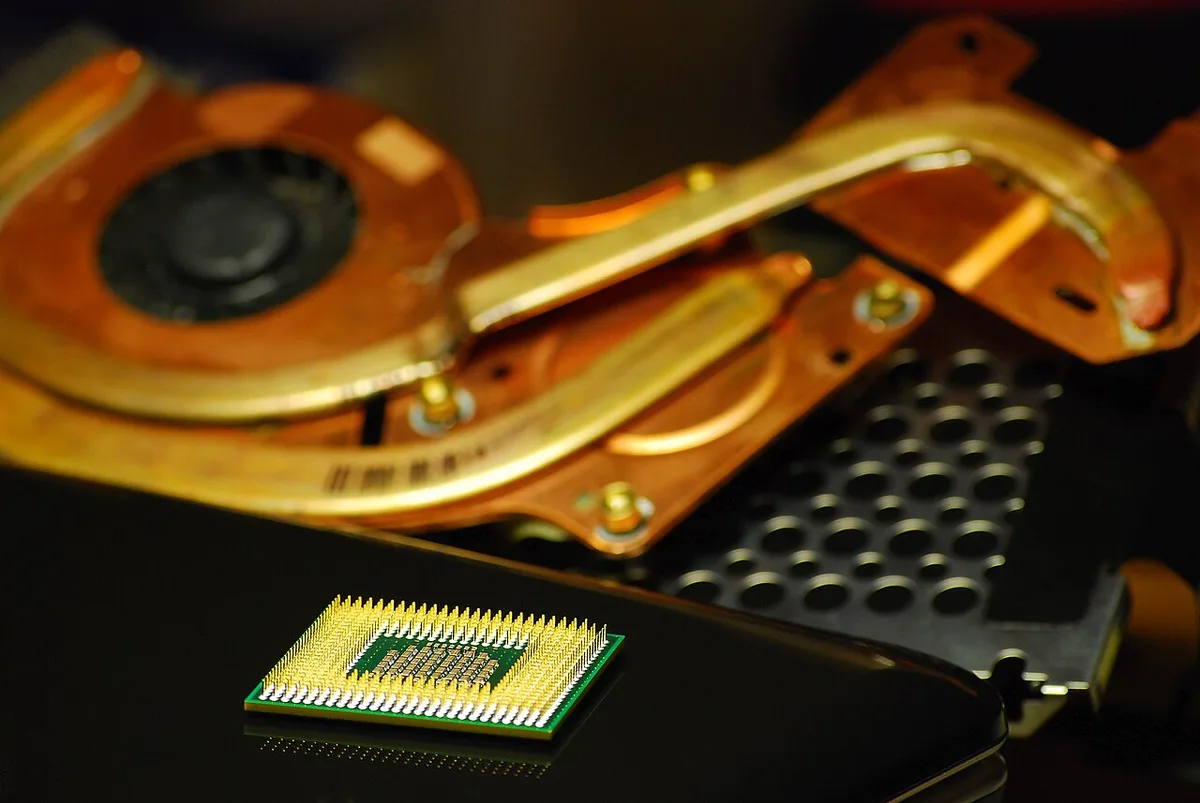
Image source: Wikimedia Commons / Diacritica (CC BY-SA)
Understand TGP vs. Rated GPU Power
NVIDIA and AMD rate desktop GPUs at specific wattages. Mobile versions are cut down. A "RTX 4070" in a laptop might run at 80W or 140W.
The performance difference is massive.
Always check the Total Graphics Power (TGP) listed in spec sheets. Higher TGP means more electricity fed to the GPU. This translates to higher clock speeds and better rasterization performance.
Don't assume all chips of the same name perform identically.
Manufacturers optimize for different balances. Some prioritize quiet operation by lowering TGP. Others max out power for benchmark wins, accepting loud fans.
Read reviews that measure surface temperatures and noise levels under load.
Aggregated user feedback reports that power limit configurations vary wildly between brands. ASUS ROG models often differ from Lenovo Legion despite identical internal specs. BIOS updates can unlock hidden power headers.
Research community mods before committing.
Vapor Chambers Beat Heat Pipes
Traditional copper heat pipes move liquid coolant passively. Vapor chambers spread heat across a wider area horizontally. They handle concentrated hotspots from CPUs and GPUs better.
Laptops with vapor chambers maintain cooler keyboard decks. This improves comfort during long sessions. They also allow fans to spin slower for the same cooling output.
Noise reduction is a key benefit of advanced thermal designs.
Thick fins and multiple exhaust vents are essential. Airflow paths must be unobstructed. Dust accumulation blocks these paths over time.
Regular cleaning extends thermal performance. Consider models with easy-access bottom panels for maintenance.
Ambient Temperature Plays a Role
Room temperature affects laptop cooling. In summer, ambient heat reduces the delta between component temp and air temp. Fans work harder.
Throttling happens sooner.
Using a cooling pad helps marginally. It lifts the laptop for better intake airflow. It doesn't replace internal cooling efficiency.
Don't expect miracles from external accessories alone. Proper ventilation clearance underneath the chassis is critical.
Soft surfaces like beds block vents. Always use hard, flat desks. Elevating the rear inches off the table improves intake significantly.
Simple ergonomic adjustments yield measurable FPS gains in thermally constrained environments.
Budget Allocation: Where to Splurge and Where to Save
Money disappears fast when you chase every spec. The smarter move is to spend where your games actually feel it. Everything else can wait.
If you mostly play esports titles, splurge on the display and CPU. Save on the GPU. A 240Hz panel and a fast processor change how the game feels.
A top-tier GPU barely matters when the game runs at low settings anyway.
If you play AAA games, flip that priority. Splurge on the GPU and VRAM. Save on ultra-fast refresh rates.
A 120Hz panel is plenty for story-driven games. Put the money into a stronger graphics chip instead.
Here is a simple way to think about it.
- Spend first on the part that matches your branch.
- Spend second on cooling and storage.
- Spend last on RGB, premium materials, and bundled software.
Storage is a quiet trap. A 512GB drive fills up after a few large installs. Aim for 1TB minimum.
Add a second NVMe drive later if the chassis allows it.
Cooling deserves real money too. A laptop with a better thermal design holds its performance longer. That matters more than a slightly faster chip in a hot chassis.
If you want to stretch performance later, read up on power limit tweaks before buying. Some brands cap GPUs aggressively. Knowing that ahead of time helps you avoid a bad deal.
Common Pitfalls That Trap First-Time Buyers
The spec sheet is not the whole story. Many buyers learn this the hard way. These are the traps we see most often.
- Buying by GPU name alone. A mobile RTX 4060 at 75W performs far below one at 115W. Always check TGP.
- Ignoring upgrade paths. Soldered RAM and a single M.2 slot limit your future options.
- Overpaying for resolution. 4K on a 15-inch screen is hard to notice. It also crushes frame rates.
- Forgetting about noise. A laptop that hits 55 dB under load gets annoying fast in a quiet room.
- Assuming battery life matters for gaming. Most gaming laptops last one to two hours unplugged. Plan around the wall.
Another common mistake is trusting peak benchmark scores. Sustained performance matters more for real gaming sessions. A laptop that peaks high then throttles will feel worse than a slower but stable machine.
Watch out for hidden software too. Some manufacturers install aggressive power profiles. These can cap performance without warning.
If you see sudden slowdowns, check the manufacturer utility before blaming the hardware.
Also verify which GPU is actually active. Windows sometimes defaults to integrated graphics. That mistake alone can cut frame rates in half.
Force the dedicated GPU in graphics settings when in doubt.
Quick Reference Decision Matrix
Use this table as a final filter. Find your game type. Match the specs.
Then check the budget column.
| Game Type | Target Resolution | Refresh Rate | GPU VRAM | CPU Focus | RAM | Budget Priority |
|---|---|---|---|---|---|---|
| Esports shooters | 1080p | 240Hz+ | 6-8GB | Single-core speed | 16GB | Display and CPU |
| AAA story games | 1440p | 120-144Hz | 12-16GB | Balanced | 16-32GB | GPU and VRAM |
| Simulators and creators | 1440p | 120Hz+ | 8-12GB | Multi-core power | 32GB+ | CPU and cooling |
| Mixed library | 1080p-1440p | 144Hz | 8-12GB | Balanced | 16-32GB | GPU first, then CPU |
Think of this matrix as a starting point. It narrows the field quickly. After that, compare cooling, weight, and port selection.
For official GPU specifications, check the NVIDIA laptop GPU page or the AMD mobile processor page. These sources list TGP ranges and architecture details.
Frequently Asked Questions
How much VRAM do I need for gaming in 2026?
For 1080p esports, 6GB to 8GB is enough. For 1440p AAA games, aim for 12GB or more. For 4K, 16GB is safer.
More VRAM prevents texture stutter and future-proofs your purchase.
Is a 144Hz or 240Hz display better for gaming?
It depends on your games. Competitive players benefit from 240Hz or higher. Story-driven gamers are fine at 120Hz to 144Hz.
Higher refresh rates matter most in fast shooters.
Can I upgrade a gaming laptop later?
Sometimes. Storage and RAM are often upgradeable if the slots are accessible. CPUs and GPUs are usually soldered.
Check the teardown videos or spec sheets before buying.
Do I need ray tracing support?
Only if you play modern AAA titles and care about lighting effects. Ray tracing looks great but costs performance. Upscaling tech like DLSS or FSR helps offset the hit.
How important is cooling in a gaming laptop?
Very important. Poor cooling causes thermal throttling and lower frame rates. Look for vapor chambers, multiple heat pipes, and unobstructed intake vents.
Sustained performance beats peak benchmarks.
Should I buy a gaming laptop or a desktop?
Choose a laptop if portability matters. Choose a desktop if you want easier upgrades and lower cost per performance. Laptops trade upgradeability for convenience.