If you're asking what gaming laptop specs can be upgraded later, the short answer is: usually memory, storage, and sometimes Wi-Fi, but rarely the CPU or GPU. The real answer depends on your exact chassis and motherboard. As of 2026, many gaming laptops use DDR5 SODIMM memory and M.2 NVMe SSD slots, yet JEDEC standards do not require those parts to be user replaceable.
Check the service manual before you buy anything. That one document saves money and avoids warranty surprises. We'll use it as the decision point throughout this guide.
Why Gaming Laptop Upgradeability Is Not One-Size-Fits-All
Two laptops with the same CPU can have very different upgrade paths. One may have two SODIMM slots. The other may solder 16 GB to the board and leave no slot at all.
SODIMM means small outline dual in-line memory module, the laptop-sized RAM stick. Ball grid array means the CPU or GPU is soldered to the motherboard. That is why most gaming laptops cannot get a new processor or graphics chip later.
Your answer changes based on four variables:
- Memory type: SODIMM slots versus soldered LPDDR5
- Storage layout: one versus two M.2 slots, and 2230 versus 2280 length
- Wireless: an M.2 E-key module or a fixed soldered module
- Power and cooling: whether upgraded parts fit and stay cool
MXM GPUs do exist, but they are rare in modern consumer gaming laptops. Most buyers should treat the GPU as fixed. If you want a broader refresher on the key internal components, our gaming laptop anatomy guide helps.
JEDEC memory standards define RAM behavior, but they do not require user-replaceable designs. Always read the manual for your exact model.
What You Can Usually Upgrade: RAM, Storage, Wi-Fi, and Battery
This is where most realistic upgrades happen. If your laptop has slots, RAM and storage are the best value upgrades.
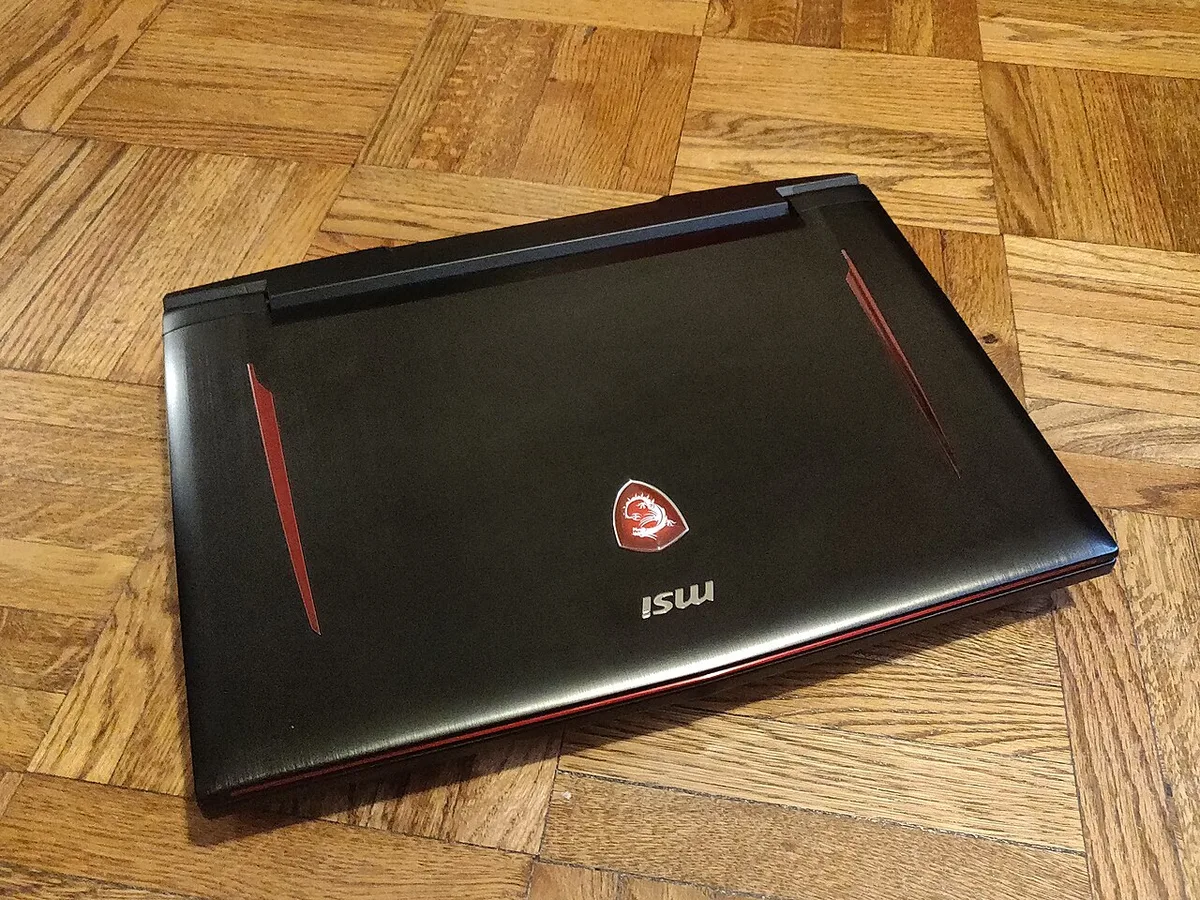
Image source: Wikimedia Commons / Kurt Kaiser
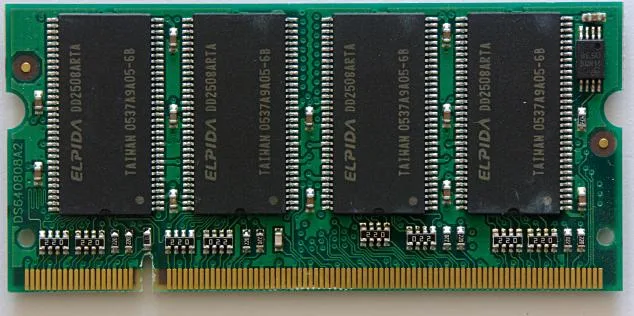
Image source: Wikimedia Commons / Mark Tranchant, Talk, contrib
Check these items before ordering parts:
- RAM: SODIMM slots, DDR4 or DDR5, speed, and maximum supported capacity
- Storage: M.2 NVMe slot count, PCIe generation, and physical length
- Wi-Fi: M.2 E-key module, antenna connectors, and driver support
- Battery: Wh rating, connector type, and whether adhesive holds it in place
| Part | What to verify | Common values |
|---|---|---|
| RAM | Slots, DDR type, speed, max capacity | 8 GB, 16 GB, 32 GB, 64 GB |
| Storage | M.2 slot, length, PCIe generation | 2230, 2242, 2280; Gen 3, Gen 4, Gen 5 |
| Wi-Fi | M.2 E-key, antennas, OS support | Wi-Fi 6, 6E, 7 |
| Battery | Wh, connector, mounting | 50 Wh to 99 Wh |
If you are unsure how much memory your games need, see our guide on memory capacity needs. If your game library is large, our storage capacity guide is also useful. PCIe generations are defined by PCI-SIG, so match the SSD to the slot, not just the label.
What Is Almost Always Soldered or Locked In
Some parts are technically replaceable, but not in a practical way. Treat these as fixed unless a repair shop says otherwise.
- CPU: usually soldered with BGA
- GPU: usually soldered with BGA
- Display panel: replacement is possible, but not a spec upgrade in most cases
- Motherboard: replacing it is a major repair
- Keyboard: often riveted or glued, so replacement is labor-heavy
- Cooling system: heat pipes and fans are model-specific
The realistic exception is an external GPU. An eGPU connects through Thunderbolt 4 or USB4. It can help, but bandwidth is lower than an internal PCIe slot.
If you want a refresher on dedicated graphics, our GPU explainer covers the basics. Also, processor and graphics balance matters before you spend money on parts.
If your main goal is smoother gameplay, compare the laptop against game requirements first. Sometimes a storage or RAM upgrade is enough. Other times, the fixed GPU is the real limit.
How to Check Your Exact Model Before Buying Parts
Do not guess from the product name on the box. Many laptops share a family name but use different motherboards.
Follow this order:
- Find the exact model number on the bottom sticker or BIOS screen.
- Download the official service manual for that exact model.
- Check the parts list for memory, storage, and wireless modules.
- Confirm the maximum RAM and supported SSD lengths.
- Check warranty status and whether opening the chassis breaks coverage.
- Search for verified buyer feedback about that upgrade.
If the manual says memory is soldered, stop there. If it lists two SODIMM slots, check whether both are empty or one is filled. If only one slot is occupied, buy one matching stick for dual-channel performance.
Use the service manual as the final authority. Our guide on good baseline specs can help you decide whether an upgrade is worth it. Also, our spec priorities guide explains which numbers matter most for gaming.
Upgrade Paths by Situation: What to Choose
If you only play esports titles, 16 GB of dual-channel RAM and a fast 1 TB NVMe SSD are often the best first upgrades. If you run large game libraries, add storage before chasing RAM. If your laptop already has 32 GB and a Gen 4 SSD, an upgrade may not change real gameplay much.
Use this if/then logic:
- If RAM is soldered at 8 GB, consider an eGPU or a new laptop before spending heavily
- If you have one free SODIMM slot, add a matching stick for dual-channel memory
- If the SSD is full, add a second M.2 drive if the slot exists
- If the laptop runs hot, repaste or replace thermal pads before upgrading storage
- If you need Wi-Fi 6E or 7, replace the M.2 wireless module only if antennas support it
Budget matters too. If you are comparing price tiers, our budget planning guide can frame the decision. If your current machine is close to your needs, upgrade it.
If the CPU or GPU is the bottleneck, replacement is usually smarter than parts.
Step-by-Step: Safely Opening and Upgrading Your Laptop
Work on a clean, static-free surface. Power down fully and disconnect the charger. Hold the power button for 10 seconds to discharge residual power.
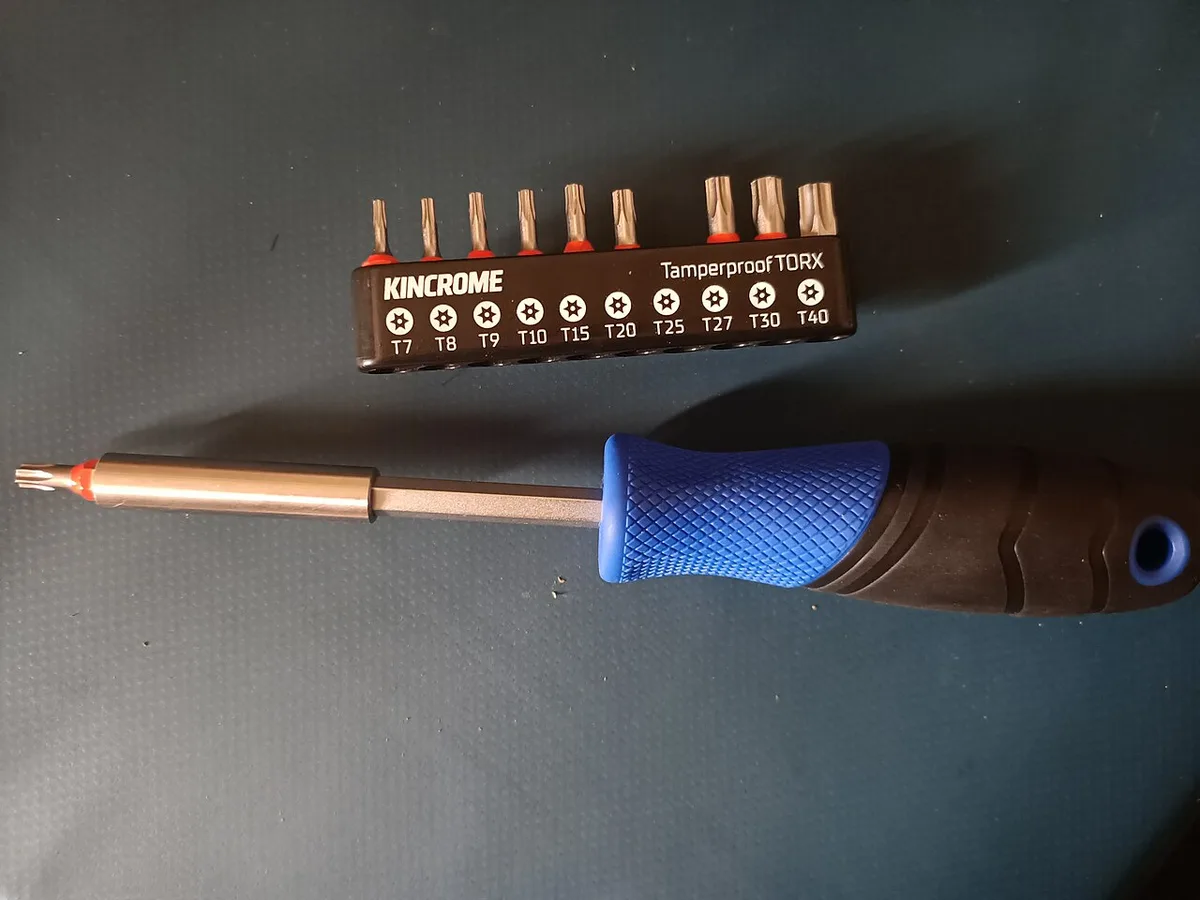
Image source: Wikimedia Commons / JaredMcKenzie
Follow these steps in order:
- Back up your data and create a recovery drive.
- Remove the bottom panel screws. Note their lengths and positions.
- Disconnect the battery cable before touching any components.
- Locate the RAM slots, M.2 slots, and Wi-Fi module.
- Install the new part. Seat it firmly until it clicks.
- Reconnect the battery and close the panel.
- Power on and enter BIOS to confirm recognition.
- Boot into Windows and run a stress test.
If you need a refresher on internal layout, our gaming laptop anatomy guide helps. If you are unsure which numbers matter most, our spec priorities guide explains the hierarchy.
For RAM, align the notch and push down at 30 degrees. For M.2 SSDs, insert at a slight angle, then secure with the mounting screw. Do not overtighten.
A stripped screw can end the project.
After installation, check temperatures under load. If the laptop runs hotter, reseat the thermal pads. Also, verify the BIOS sees the full capacity.
Common Mistakes That Ruin Upgrades or Void Warranties
Buying the wrong RAM speed wastes money. Buying the wrong SSD length ends the project before it starts.
Avoid these errors:
- Ignoring the service manual and guessing slot locations
- Forgetting to disconnect the battery before working
- Mixing DDR4 and DDR5 modules
- Buying a 2280 SSD for a 2230-only slot
- Reusing old thermal paste without cleaning
- Losing screws or stripping screw heads
- Skipping BIOS updates that enable new hardware
- Assuming a Wi-Fi module upgrade will work without antenna support
If your laptop only has one RAM slot, do not buy a second stick. Check our memory planning guide before ordering. If your game library is huge, our storage planning guide helps you pick the right size.
Also, do not force connectors. M.2 slots and Wi-Fi antenna clips are fragile. If something does not seat smoothly, stop and recheck alignment.
Costs, Specs, and Realistic Performance Gains
Upgrades cost less than a new laptop, but gains vary. RAM and storage upgrades are cheap. GPU upgrades are usually impossible.
Typical price ranges as of 2026:
- 16 GB DDR5 SODIMM kit: $40 to $80
- 1 TB Gen 4 NVMe SSD: $60 to $120
- Wi-Fi 6E module: $20 to $40
- Battery replacement: $50 to $150
- Professional labor: $50 to $150
Realistic gains:
- Dual-channel RAM can improve frame rates in CPU-bound games by 5 to 15 percent
- A faster NVMe SSD cuts load times, not raw frame rates
- Extra storage solves capacity issues, not performance bottlenecks
- Wi-Fi 6E improves latency only if your router supports it
If your CPU or GPU is the limit, parts will not fix it. Our guide on processor versus graphics balance helps you decide. Also, check game compatibility before spending.
Sometimes a settings tweak beats a hardware upgrade.
Safety, Warranty, and Right-to-Repair Notes
Lithium-ion batteries can swell, leak, or ignite if damaged. Handle them carefully. If a battery is swollen, stop and contact the manufacturer.
Key safety points:
- Use an ESD wrist strap or ground yourself before working
- Disconnect the battery before touching any component
- Do not puncture or bend a battery
- Keep screws organized to avoid shorts
- Dispose of old batteries at an e-waste facility
Warranty terms vary by brand and region. Some manufacturers allow user upgrades without voiding coverage. Others do not.
Read the warranty before opening the chassis.
Right-to-repair laws are expanding in the US and EU. They aim to make parts and manuals more available. Still, coverage differs by product and location.
FTC right-to-repair guidance is a good starting point for US consumers.
If you are unsure, use an authorized service center. It costs more but protects your warranty.
Frequently Asked Questions
Can I upgrade the GPU in a gaming laptop?
No, not in most cases. Modern gaming laptop GPUs are soldered to the motherboard using ball grid array. A few older models used MXM modules, but those are rare now.
An external GPU through Thunderbolt 4 is the only realistic option for most users.
How much RAM can I add to my gaming laptop?
It depends on your exact model. Some support up to 64 GB across two SODIMM slots. Others have soldered memory with no slots at all.
Check the service manual for your specific model before buying.
Will upgrading RAM void my warranty?
It depends on the manufacturer and region. Some brands allow user upgrades without voiding coverage. Others may restrict it.
Read your warranty terms or contact the manufacturer before opening the chassis.
Can I add a second SSD to my gaming laptop?
Only if your model has a free M.2 slot. Many gaming laptops include two slots, but some have only one. Check the service manual for slot count, supported length, and PCIe generation.
Is an external GPU worth it for a gaming laptop?
It can be, but bandwidth is limited compared to an internal GPU. Thunderbolt 4 offers up to 40 Gbps, which is less than a full PCIe slot. It works best for lighter games or non-gaming workloads.
Should I upgrade or buy a new gaming laptop?
Upgrade if your CPU and GPU still meet your game requirements. Replace if they do not. RAM and storage upgrades are cheap.
A new CPU or GPU usually means a new laptop.
3 thoughts on “What Gaming Laptop Specs Can You Upgrade Later?”
Comments are closed.