The hardest part of pairing a gamepad isn't the pairing itself. It's figuring out which connection method actually works for your specific controller and laptop. Plug the wrong cable into the wrong port, or pair over Bluetooth when your game expects a different protocol, and you get a controller that lights up but does nothing in-game.
Manufacturer specifications indicate that most modern gaming laptops ship with Bluetooth 5.x and at least one USB 3.x port, but that doesn't guarantee every controller will behave the same way. The right path depends on your controller model, your laptop's ports, and whether you're going wired, Bluetooth, or a proprietary 2.4 GHz adapter. Let's walk through the decision step by step.
how to connect a controller to a gaming laptop
Plug a wired controller into a USB port and Windows installs drivers automatically. For wireless, enable pairing mode on the controller, open Windows Bluetooth settings, and select the device. Xbox controllers pair natively, PlayStation controllers need Steam Input or DS4Windows, and Switch Pro controllers work over Bluetooth or USB.
The Real Problem: Why Controller Connections Fail on Gaming Laptops
Most connection failures come from mismatched expectations, not broken hardware. You assume the controller will just work because it worked on a console. But a gaming laptop runs Windows, and Windows talks to controllers through specific APIs like XInput and DirectInput.
A game that only supports XInput ignores a DirectInput-only pad entirely.
The second common culprit is a charge-only USB cable. These cables carry power but no data, so the controller charges while Windows never detects it. Aggregate reviews report this as the single most common "my controller won't connect" complaint.
It looks identical to a data cable, which is why so many people get stuck.
Driver conflicts create a third failure point. Installing DS4Windows while Steam Input is also enabled can produce double input, where every button press registers twice. Per Microsoft Support documentation, Windows 10 and Windows 11 both ship with built-in Xbox controller drivers, but third-party tools can override or conflict with them.
Bluetooth interference rounds out the list. A 2.4 GHz wireless mouse, a Wi-Fi router, or even a microwave can disrupt the signal between your laptop and controller. The result is stutter, dropped inputs, or random disconnects mid-match.
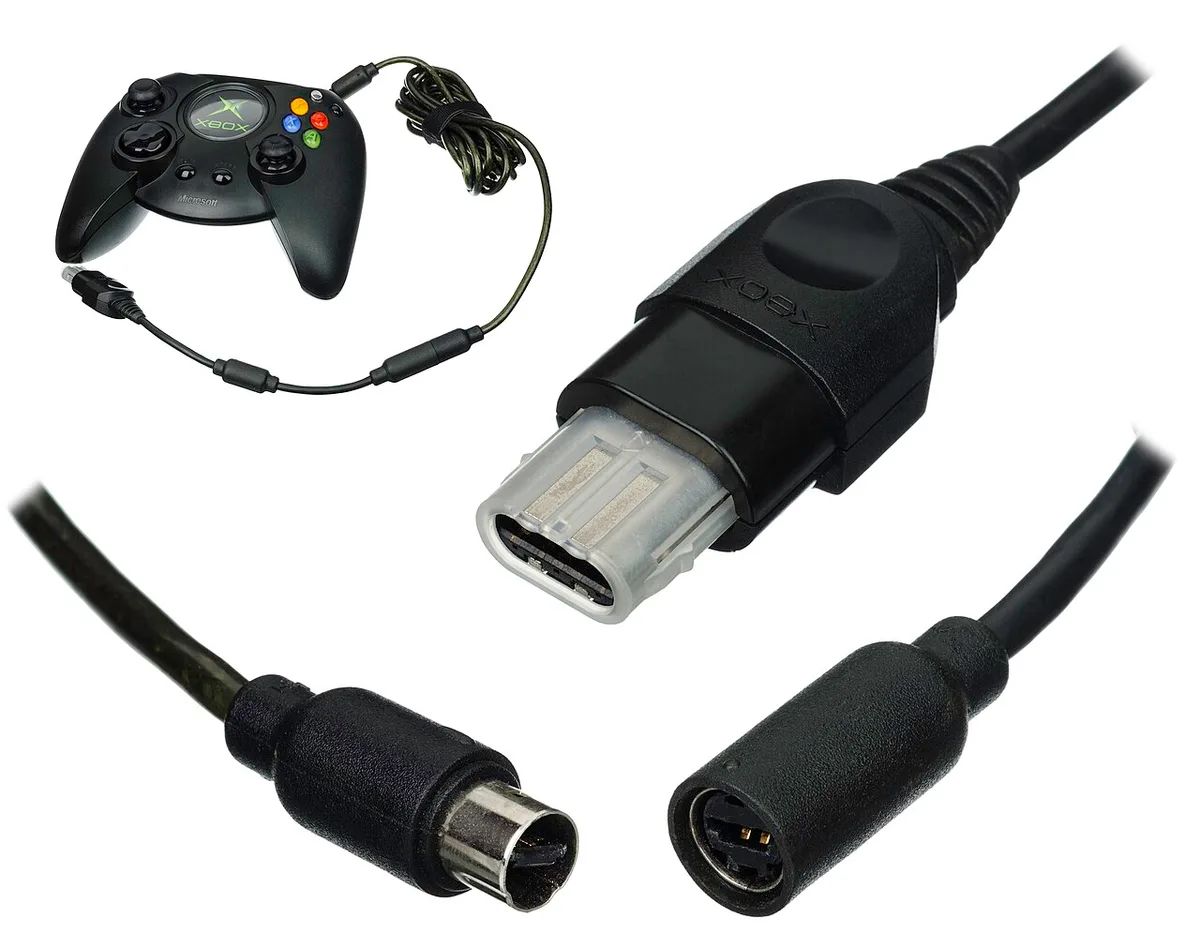
Image source: Wikimedia Commons / Evan-Amos
Core Variables That Decide Your Setup Path
Four variables determine which connection method you should use. Get these right first and the rest is easy.
Controller type is the biggest factor. An Xbox Wireless Controller speaks XInput natively, so Windows recognizes it instantly over USB or Bluetooth. A PlayStation DualSense or DualShock 4 uses DirectInput by default and needs Steam Input or DS4Windows for full compatibility.
Nintendo Switch Pro controllers work over Bluetooth but map buttons differently.
Your laptop's ports come next. USB-A ports accept most wired controllers directly. USB-C ports need a cable or adapter.
Some gaming laptops include only USB-C, which means a USB-C to USB-C cable or a USB-A adapter is required. Check the port labels before buying anything.
Operating system version matters too. Windows 11 handles Bluetooth pairing and driver installation more smoothly than Windows 10 in many cases. Older Windows 10 builds may lack drivers for newer controllers like the DualSense.
Keeping Windows updated resolves most of these gaps.
Finally, your intended use case shapes the choice. Competitive players often prefer wired connections for the lowest latency. Casual couch gaming favors Bluetooth.
Local multiplayer may need a proprietary adapter for reliable multi-controller support. Match the method to how you actually play.
Decision Tree: Wired, Bluetooth, or Wireless Adapter
Start with one question: does your controller have a USB port and do you have a data-capable cable? If yes, plug it in. Wired is the simplest path, lowest latency, and requires zero setup.
It's the right first test for any connection problem.
If wired isn't practical, ask whether your controller supports Bluetooth. Xbox Series controllers, DualSense, DualShock 4, and Switch Pro all do. Check your laptop's Bluetooth is on, then put the controller in pairing mode and connect through Windows Settings.
If Bluetooth proves unreliable, or you need multiple controllers at once, use a proprietary 2.4 GHz adapter. The Xbox Wireless Adapter for Windows supports up to eight controllers with lower latency than Bluetooth. 8BitDo makes adapters for Switch Pro controllers. These plug into USB-A and pair directly.
If you're on a PlayStation controller, add one more branch. Enable Steam Input in Steam settings for native game support, or install DS4Windows for non-Steam games. Don't run both at the same time.
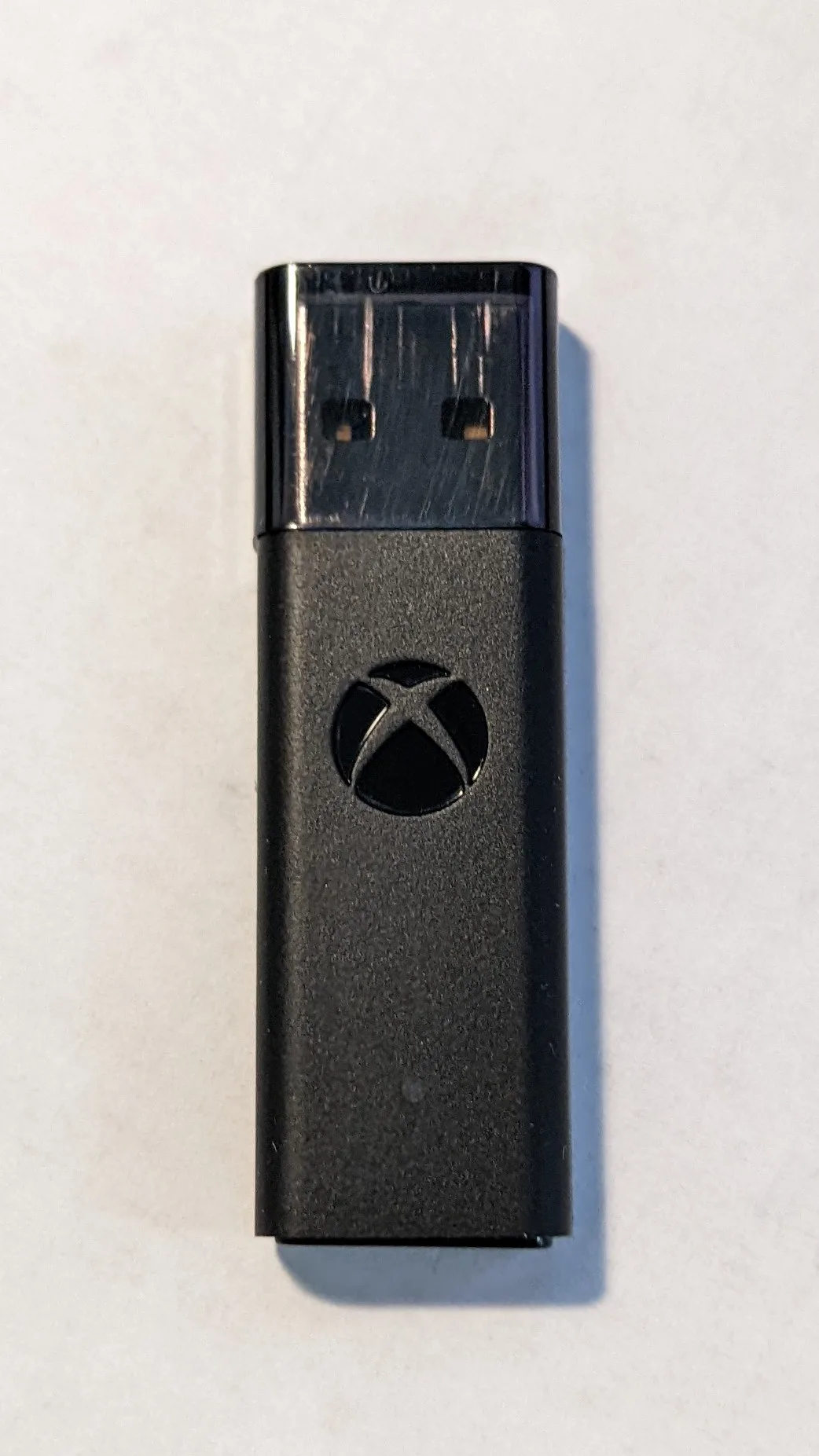
Image source: Wikimedia Commons / Mliu92 (CC BY-SA)
Step-by-Step: How to Connect Each Controller Type
For an Xbox Wireless Controller over USB, plug a USB-C cable into the controller and a USB-A or USB-C port on the laptop. Windows installs the driver automatically. Test it in Windows Game Controllers settings or Steam's controller test.
For Bluetooth, hold the Xbox button until it flashes, then press and hold the small pairing button on top until the Xbox button flashes faster. On the laptop, open Settings, go to Bluetooth and devices, click Add device, and select the controller.
For a DualSense or DualShock 4, use a USB-C cable for wired play. Windows recognizes it as a generic gamepad. For wireless, hold the Create button and PlayStation button until the light bar flashes.
Then pair through Windows Bluetooth settings. Enable Steam Input for full button mapping and haptic feedback.
For a Switch Pro Controller, plug in via USB-C for wired play. For wireless, hold the Sync button on the top until the lights flash, then pair through Windows Bluetooth. Note that the button layout differs from Xbox, so remapping may be needed.
For 8BitDo controllers, check the mode switch on the back. Set it to XInput for PC gaming, then pair via Bluetooth or USB. 8BitDo controllers are versatile but require the correct mode to work with most PC games.
Common Mistakes That Cause Lag, Double Input, or No Detection
Using a charge-only USB cable is the most common mistake. These cables power the controller but carry no data. The fix is simple: swap in a data-capable cable, usually marked with a USB data symbol or sold as a sync cable.
Running Steam Input and DS4Windows together creates double input. Both programs translate PlayStation controller signals, so every press registers twice. Pick one: Steam Input for Steam games, DS4Windows for everything else.
Outdated controller firmware causes intermittent disconnects. Xbox controllers update through the Xbox Accessories app. DualSense updates through Sony's official firmware updater.
Check for updates before troubleshooting anything else.
Bluetooth interference is easy to overlook. If your controller stutters, move closer to the laptop, remove other 2.4 GHz devices from the area, or switch to a wired connection. A USB extension cable for the receiver can also help reduce interference.
Ignoring battery level leads to mid-game disconnects. Low battery on a wireless controller often causes input lag before it dies completely. Charge or swap batteries before long sessions.
Image source: Wikimedia Commons / TealComet (CC BY-SA)
Driver, Steam Input, and Software Conflicts to Check
Windows handles controller drivers differently depending on the pad. Xbox controllers use XInput, so they usually appear instantly in Games Controllers settings. PlayStation pads lean on DirectInput unless Steam Input or DS4Windows translates them.
Start with the built-in Windows tool. Open the Run dialog, type joy.cpl, and press Enter. If your controller appears and responds, the hardware connection is fine.
If it doesn't appear, the issue is usually driver, cable, or pairing related.
Steam Input can help or hurt. It remaps buttons, enables gyro, and fixes PlayStation support in Steam games. But it can also create double input if DS4Windows runs at the same time.
Pick one tool and disable the other.
For non-Steam games, DS4Windows is often the better choice. It creates a virtual Xbox controller that most PC games recognize. Keep it updated and avoid installing multiple controller utilities side by side.
Driver cleanup matters too. Uninstall old controller drivers from Device Manager if a pad connects but behaves strangely. Then reconnect and let Windows reinstall a fresh driver.
| Controller type | Native Windows support | Best software help |
|---|---|---|
| Xbox Wireless Controller | XInput, built in | Xbox Accessories app |
| DualSense / DualShock 4 | Basic HID | Steam Input or DS4Windows |
| Switch Pro Controller | Bluetooth HID | Steam Input remapping |
| 8BitDo controllers | Depends on mode | Manufacturer firmware tool |
Keeping graphics drivers current also helps avoid weird input stutter in demanding games. A clean GPU driver install removes one more variable from troubleshooting.
Common Mistakes That Cause Lag, Double Input, or No Detection
Beyond charge-only cables, pairing mode mistakes are common. A controller can be on and connected to another device, like a console or phone, and refuse to pair with the laptop. Disconnect it elsewhere first.
Bluetooth range is another trap. Walls, metal desks, and other 2.4 GHz devices reduce signal quality. If inputs stutter, move closer or switch to wired play.
USB hubs can cause detection problems. Some hubs don't deliver enough power or data bandwidth for controllers. Plug directly into the laptop when possible.
Background software can steal focus or create conflicts. Close controller utilities you aren't using. Also check background apps lowering FPS if games feel sluggish while a controller is connected.
Game support matters too. Not every PC game supports controllers. Some support only Xbox-style layouts.
Check the game's settings before assuming the controller is broken.
Costs, Specs, and Performance Tradeoffs
Wired play is usually cheapest and lowest latency. A data-capable USB cable often costs between $5 and $15. Latency is typically around 4 to 8 ms, and there's no battery to manage.
Bluetooth costs nothing extra if your laptop already has it. Latency is usually higher, often around 8 to 20 ms. Battery life varies widely, from roughly 8 hours to 40 hours depending on the controller.
A proprietary adapter adds cost but improves reliability. The Xbox Wireless Adapter for Windows often sells around $25. It supports multiple controllers and usually delivers lower latency than Bluetooth.
Port type affects convenience. USB-A is still common, but many newer laptops lean on USB-C. A short USB-C cable or adapter keeps the setup tidy.
If your laptop has USB4 port capabilities, you can also use it for docks, storage, and displays alongside controller accessories.
As of 2026, most mainstream gaming laptops include Bluetooth 5.x and at least one USB 3.x port. That means most users can choose between wired and wireless without buying extra hardware.
Best Setups by Scenario and Controller
For competitive shooters or fighting games, use a wired connection. It removes battery anxiety and keeps latency consistent. An Xbox controller over USB is the simplest reliable setup.
For couch gaming, Bluetooth is usually fine. A DualSense or Switch Pro controller gives you wireless freedom and comfortable ergonomics. Use Steam Input for button mapping if needed.
For local multiplayer, a proprietary adapter is worth it. The Xbox adapter handles up to eight controllers and avoids Bluetooth pairing chaos. For Switch Pro pads, an 8BitDo adapter is a practical alternative.
For cloud gaming, prioritize stability over raw latency. A strong Wi-Fi connection matters more than the controller link. If your laptop struggles with wireless stability, routing games to the right GPU can help smooth the experience.
For emulation, expect remapping. Retro games often expect different button layouts. Steam Input or a tool like JoyToKey makes this manageable.
Frequently Asked Questions
Why won't my controller connect to my gaming laptop?
Check the cable first. Many charging cables carry power but no data. Then confirm Bluetooth is on, the controller is in pairing mode, and Windows is updated.
If it still fails, test another USB port.
Do PlayStation controllers work on Windows laptops?
Yes. DualSense and DualShock 4 connect over USB or Bluetooth. Windows sees them as basic gamepads, but Steam Input or DS4Windows unlocks full button mapping and features.
Is Bluetooth or wired better for gaming?
Wired is better for lowest latency and consistent input. Bluetooth is better for comfort and convenience. Competitive players usually prefer wired.
Casual players usually prefer wireless.
Why does my controller press buttons twice?
Double input usually means two programs are translating the same controller. Steam Input and DS4Windows are the common conflict. Disable one and test again.
Can I connect multiple controllers at once?
Yes. Bluetooth supports several pads, but reliability varies. A proprietary adapter is usually better for local multiplayer.
Test all controllers before a group session.
Does Windows version matter for controller support?
Yes. Windows 11 handles newer controllers and Bluetooth pairing more smoothly in many cases. Keep Windows updated, especially if you're using a newer pad like the DualSense.