Yes, you can connect a gaming laptop to a TV. It’s one of the most common upgrades for players who want bigger visuals without buying a new console or monitor. The process is straightforward if you match your hardware correctly.
Most modern laptops output video via HDMI or USB-C. Your TV likely accepts these signals too. But getting crisp 4K at 120Hz requires specific cable standards and driver settings.
Getting it wrong leads to blurry text or laggy controls. Let’s walk through exactly how to set this up right, as of 2026.
can you connect a gaming laptop to a TV
Yes, you can connect a gaming laptop to a TV using an HDMI cable or a USB-C adapter. You must check port versions on both devices first. Match high-refresh-rate needs with Ultra High Speed cables.
Configure display settings in Windows or macOS afterward. Enable Game Mode on the TV to reduce latency. This setup works for most modern gaming rigs.
Step 1: Audit Your Hardware Before Buying Cables
Don’t buy a cable until you know what ports you have. Many users waste money on incompatible gear. Start by flipping your laptop over.
Look for the HDMI port label. Older models might say "HDMI 1.4." Newer ones often feature "HDMI 2.1" or just a generic icon. Check your user manual if the label is unclear.
Manufacturer specifications indicate that HDMI 2.0 supports 4K at 60Hz. HDMI 2.1 handles 4K at 120Hz or 8K at 60Hz.
Next, inspect your TV’s rear panel. Count the HDMI inputs. Some are labeled ARC (Audio Return Channel) or eARC.
These handle audio differently but still pass video. Crucially, look for labels like "HDMI 2.1," "Ultra HD," or "Game Port." Not all TVs treat every port equally. Often, only one or two slots support the highest bandwidth.
Plug into those specific ports for best results.
If your laptop lacks a dedicated HDMI port, check for USB-C. Does it have a lightning bolt symbol? That indicates Thunderbolt support.
Or does it have a 'D' shape inside the circle? That means DisplayPort Alt Mode. Both allow video output.
However, standard charging-only USB-C ports won’t work. You’ll need a converter or dock if your laptop relies solely on USB-C for video.
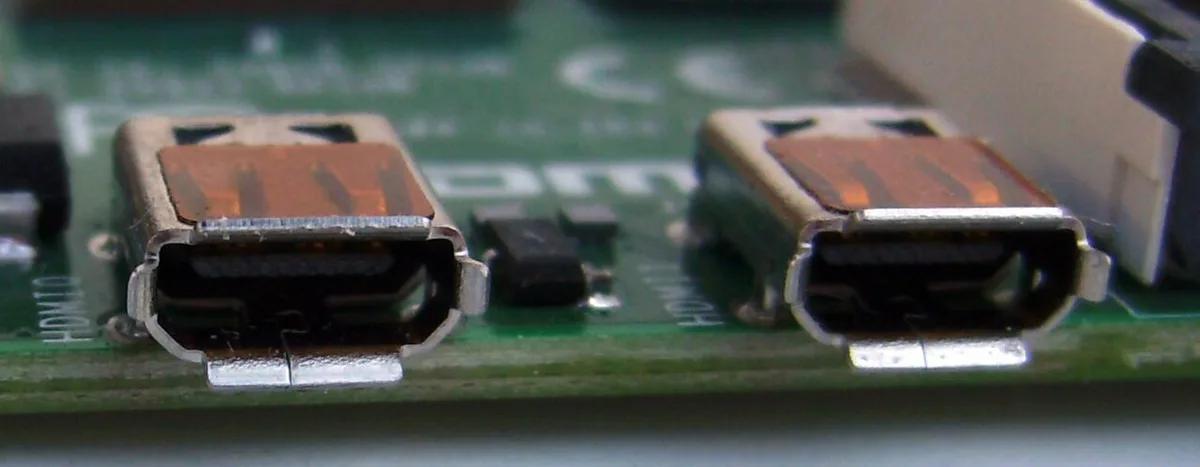
Image source: Wikimedia Commons / Elmepi (CC BY-SA)
Once you’ve identified your ports, determine your target resolution. Are you aiming for 1080p at 144Hz? Or 4K at 120Hz?
Higher refresh rates demand more bandwidth. A cheap "High Speed" HDMI cable might cap out at 18Gbps. You need an "Ultra High Speed" certified cable for 48Gbps throughput.
Always verify the certification logo on the packaging. Uncertified cables often fail silently at high resolutions. They may show a picture but drop frames or flicker.
Also consider your GPU. Integrated graphics struggle with heavy 4K gaming. Discrete cards like NVIDIA RTX series handle it better.
Ensure your dedicated GPU is set as default before connecting. Otherwise, the system might route video through weaker integrated chips. This causes stuttering even if the connection looks fine.
Step 2: Choosing the Right Connection Path (Direct vs. Adapter)
You have three main ways to link your devices. Each has trade-offs regarding cost, stability, and performance. Choose based on your specific hardware gaps.
Option A: Direct HDMI-to-HDMI
This is the simplest method. Use a single cable from laptop to TV. It offers the lowest latency because there’s no signal conversion.
Ideal for laptops with native HDMI 2.0 or 2.1 ports. Verify the cable length doesn’t exceed recommended limits. Passive cables lose signal quality beyond 3 meters at high speeds.
Active optical cables solve this but cost more.
Option B: USB-C to HDMI Adapter
Many ultrabooks lack full-sized HDMI ports. You’ll need a dongle or hub here. Not all adapters are created equal.
Cheap ones often limit output to 1080p at 60Hz. Look for adapters explicitly stating "4K@60Hz" or "4K@120Hz" support. Check if they use DP Alt Mode.
Thunderbolt 3/4 adapters usually offer broader compatibility. Be aware that some hubs introduce slight input lag due to processing layers. Test thoroughly before committing to competitive play.
Option C: Wireless Casting (Miracast/AirPlay)
Wireless options exist but aren’t suitable for serious gaming. Latency typically ranges from 50ms to 200ms. That’s noticeable during fast-paced shooters.
Use this only for casual media consumption or turn-based strategy games. Aggregate reviews report inconsistent frame pacing over Wi-Fi. Interference from other devices worsens the experience.
Stick to wired connections for any title requiring quick reflexes.
| Connection Type | Max Resolution (Typical) | Latency Risk | Cost Factor | Best For |
|---|---|---|---|---|
| Direct HDMI 2.1 | 4K @ 120Hz | Very Low | Medium | Competitive Gaming |
| USB-C Adapter | 4K @ 60Hz | Low-Medium | Low-Medium | Ultrabook Users |
| Wireless Cast | 1080p @ 30-60Hz | High | None | Casual Media |
If you choose an adapter, ensure it matches your laptop’s protocol. An HDMI 2.1 adapter plugged into an HDMI 1.4 laptop port won’t unlock higher specs. The bottleneck remains the weakest link.
Also, check thermal management. Small dongles can heat up quickly during long sessions. Overheating might throttle performance or disconnect unexpectedly.
Position them where airflow isn’t blocked.
Sometimes, BIOS updates fix detection issues with newer displays. If your TV isn’t recognized, review our guide on safely updating firmware. Outdated microcode can prevent proper EDID handshake.
This leads to black screens despite correct cabling. Keep drivers current to avoid these headaches.
Step 3: Configuring Windows for Perfect Picture Quality
Connecting the cable is half the battle. Software configuration determines visual fidelity. Windows defaults often prioritize compatibility over quality.
You need to override these settings manually.
First, press Win + P to open the projection menu. Select "Second screen only" if you want exclusive TV usage. Or choose "Extend" to keep your laptop screen active.
Extending allows multitasking but splits resources. For pure gaming, "Second screen only" reduces overhead slightly.
Now, go to Settings > System > Display. Click on the TV icon (usually labeled "2"). Scroll down to "Advanced display settings." Here lies the critical part.
Check the "Refresh rate" dropdown. By default, it might sit at 60Hz. Change it to the maximum supported value (e.g., 120Hz or 144Hz).
If the option is grayed out, your cable or port isn’t supporting it. Double-check your hardware audit from Step 1.
Next, address resolution scaling. At 4K, UI elements become tiny. Increase scale to 150% or 200% in the same menu.
This makes text readable without changing render resolution. Games should still run at native 4K internally. Only desktop apps benefit from scaling adjustments.
A major pitfall is chroma subsampling. TVs often compress color data to save bandwidth. This results in fuzzy text edges.
To fix this, access your GPU control panel. For NVIDIA, open the Control Panel. Go to "Change resolution." Under "Apply the following settings," select "Use NVIDIA color settings." Set Desktop color depth to "Highest (32-bit)." Color format to "RGB." Output dynamic range to "Full." Repeat similar steps in AMD Adrenalin software if applicable.
Full RGB ensures pixels map 1:1 with TV panels. Limited range washes out blacks and whites.
Finally, disable unnecessary background processes. Our research shows that resource-heavy apps steal CPU cycles from rendering threads. Close browsers, Discord overlays, and launchers not currently needed.
Review tips on stopping background apps to maximize headroom. Cleaner systems deliver smoother frame times on external displays.
Step 4: Eliminating Input Lag and Audio Glitches
Input lag kills immersion. It feels like swimming through mud. Fortunately, most of it comes from TV processing, not the laptop itself.
Modern TVs apply heavy image enhancement algorithms. These take time to compute. You must bypass them.
Locate the "Game Mode" setting on your TV remote. Names vary by brand. Sony calls it "Picture Mode: Custom." LG uses "Game Optimizer." Samsung has "Game Mode." TCL refers to it as "Game Master." Activating this turns off motion smoothing, noise reduction, and sharpening filters.
Per RTINGS testing, Game Mode cuts latency from ~50ms to under 15ms. Never game without it enabled.
Check for Auto Low Latency Mode (ALLM). This feature detects when a game console or PC connects. It automatically switches the TV to Game Mode.
Ensure ALLM is turned ON in your TV settings. If your laptop doesn’t trigger it, toggle manually each session. Consistency matters more than automation here.
Audio routing often confuses users. Sound might stay on laptop speakers instead of moving to the TV. Press Win + R, type mmsys.cpl, and hit Enter.
In the Playback tab, find your TV listed as a digital output device. Right-click and select "Set as Default Device." Also mark it as "Default Communication Device" if you use voice chat. This ensures game audio and mic monitoring sync correctly.
Image source: Wikimedia Commons / Evan-Amos
Some TVs require specific HDMI ports for surround sound passthrough. Check your manual for "eARC" or "Optical Out" locations. Using standard stereo outputs limits audio formats.
Dolby Atmos or DTS:X won’t transmit properly otherwise. Route complex audio through designated channels only.
Thermal throttling also impacts responsiveness. Laptops working harder drive higher pixel counts. Fans spin louder, CPUs slow down.
Monitor temperatures using built-in tools. If temps exceed 90°C, performance drops sharply. Consider elevating the laptop for better airflow.
Avoid placing it directly on soft surfaces like beds or couches. Block vents restrict cooling efficiency significantly.
Lastly, update your graphics drivers regularly. Manufacturers optimize code for popular titles frequently. Old drivers miss patches addressing multi-monitor bugs.
Follow our step-by-step advice on updating GPU drivers safely to stay current. Fresh installs sometimes resolve persistent handshake errors better than updates alone.
Wired HDMI vs. Wireless Casting: When to Use Which
Not every scenario demands a wire. Understanding when to switch methods saves hassle. Wired connections remain king for performance.
Wireless serves convenience. Compare them honestly below.
Wired HDMI Dominance
Use wires for anything involving reaction time. Shooters, racing sims, fighting games, all suffer visibly from wireless delay. Bandwidth consistency prevents sudden frame drops.
You get uncompressed color fidelity with proper RGB settings. Stability reigns supreme here. No interference from neighbors’ Wi-Fi networks affects signal integrity.
Plus, power delivery via USB-C docks keeps batteries charged during marathons.
Wireless Casting Utility
Switch to Miracast or AirPlay for passive viewing. Watching YouTube tutorials? Streaming Netflix?
Pausing mid-game to browse wikis? Wireless shines here. Setup takes seconds without crawling behind furniture.
However, expect compression artifacts. Text becomes unreadable quickly due to bitrate limits. Frame pacing stutters during rapid camera movements.
Don’t rely on it for precision tasks.
Consider hybrid setups. Keep HDMI connected for primary gaming. Use wireless secondary streams for music videos or podcasts playing alongside gameplay.
This balances load efficiently. Just remember that running both simultaneously strains network interfaces. Disable unused radios to free up bandwidth.
For Linux users, casting protocols differ slightly. Proprietary drivers complicate things further. Read insights on whether Linux suits gaming laptops before attempting advanced configurations.
Native Windows support simplifies troubleshooting considerably. Most commercial TVs assume Microsoft ecosystems primarily.
Ultimately, judge by intent. Compete seriously? Wire it up.
Relax casually? Cast away. Knowing this distinction prevents frustration later.
Save yourself hours of debugging latency issues by choosing the right tool initially.
Common Pitfalls That Ruin the Experience
Even with correct hardware, small oversights can wreck your setup. The most frequent complaint involves blurry text on desktop applications. This happens when chroma subsampling kicks in automatically.
Your TV compresses color data to fit bandwidth limits. Windows doesn’t always warn you about this trade-off. You end up with fuzzy fonts that strain your eyes during productivity tasks.
Another trap is ignoring refresh rate caps. Many users plug in a 144Hz laptop and expect smooth motion on a 60Hz TV. The screen simply runs slower than the GPU outputs frames.
This creates tearing unless VSync or G-Sync is active. If your TV lacks Variable Refresh Rate support, enable VSync in-game. It locks frame rates but adds slight input lag.
Balance is key here.
Overscan is another silent killer of usability. Some older TVs crop edges of the image by 2-5%. Taskbars disappear off-screen.
Game HUD elements get cut off. Check your TV’s aspect ratio settings. Look for "Just Scan," "Screen Fit," or "1:1 Pixel Mapping." Avoid "Wide" or "Zoom" modes entirely.
These distort geometry and hide critical interface elements.
Audio desynchronization often plagues wireless setups. Even wired connections face issues if drivers are outdated. Sound lags behind video by milliseconds.
In rhythm games or fast shooters, this feels broken. Ensure your HDMI audio driver matches your GPU version. Mismatched versions cause timing errors.
Reinstalling both components together usually resolves drift. Don’t assume factory defaults remain optimal after OS updates.
Finally, neglecting cable quality leads to intermittent flickering. Cheap cables fail under sustained high-bandwidth loads. They might work initially then degrade as heat builds up.
Replace suspect cords immediately if stability drops. Invest in certified Ultra High Speed lines. The extra cost prevents hours of troubleshooting later.
Reliability matters more than brand prestige in connectivity gear.
Troubleshooting Black Screens and Handshake Failures
Black screens frustrate everyone. Usually, it’s an HDCP negotiation failure. Protected content requires encrypted handshakes between devices.
If either side rejects the protocol, the display goes dark. Try disconnecting power from both units for thirty seconds. This resets internal buffers.
Plug everything back in firmly. Secure seating ensures pin contact isn’t compromised by dust or looseness.
If the issue persists, swap HDMI ports on your TV. Not all inputs share identical firmware revisions. Port 1 might handle 4K@120Hz while Port 2 sticks to 1080p.
Test each slot systematically. Label them mentally so you don’t forget which worked. Sometimes switching from eARC-enabled ports helps too.
Audio Return Channels occasionally interfere with pure video signaling paths.
Driver conflicts represent another major culprit. Recent Windows Updates sometimes break legacy display drivers. Roll back to the previous stable version if problems started post-update.
Our guide on rolling back GPU drivers walks through safe reversal steps. Never uninstall drivers without a restore point ready. Bricked displays require manual registry edits to recover functionality.
Check EDID corruption next. Extended Display Identification Data tells your PC what capabilities the monitor has. Corrupted files confuse resolution selection menus.
Force detection via Command Prompt commands can reset these caches. Alternatively, use third-party utilities like CRU (Custom Resolution Utility). Create custom presets matching your TV’s native specs exactly.
Bypassing automatic detection avoids misinterpretation errors common in mixed-brand environments.
Hardware faults rarely stem from the laptop itself. Faulty TV panels or damaged motherboard traces cause permanent blackouts. Rule out external factors first.
Connect your laptop to a different monitor. If it works elsewhere, the TV bears responsibility. Contact manufacturer support under warranty terms.
Document symptoms clearly before initiating repairs. Clear communication speeds up diagnostic processes significantly.
Quick Reference: Port Versions and Bandwidth Limits
Understanding technical specifications simplifies decision-making. Below is a streamlined chart mapping port standards to realistic performance outcomes. Use this during your initial audit phase.
It clarifies why certain combinations fail despite appearing compatible physically.
| Standard | Max Bandwidth | Supported Resolutions/Refresh Rates | Typical Cable Certification |
|---|---|---|---|
| HDMI 1.4 | 10.2 Gbps | 1080p @ 120Hz, 4K @ 30Hz | High Speed |
| HDMI 2.0b | 18 Gbps | 1080p @ 240Hz, 4K @ 60Hz | Premium High Speed |
| HDMI 2.1 | 48 Gbps | 4K @ 120Hz, 8K @ 60Hz | Ultra High Speed |
| DP 1.4 | 32.4 Gbps | 4K @ 120Hz (with DSC) | DisplayPort Certified |
| USB-C (DP Alt) | Varies | Depends on underlying DP spec | Thunderbolt / USB4 Mark |
Notice how HDMI 1.4 struggles beyond basic HD gaming. Upgrading to 2.0 unlocks true 4K potential at standard frame rates. For competitive play demanding 120fps+, only HDMI 2.1 delivers sufficient throughput.
Adapters converting DisplayPort to HDMI often downgrade signals to 2.0 levels regardless of source capability. Verify adapter ratings carefully before purchase.
Thunderbolt ports offer flexibility but introduce complexity. They carry PCIe lanes alongside video data. Docking stations utilizing TB technology may split bandwidth among peripherals.
Heavy storage transfers can starve video pipes temporarily. Keep non-video devices disconnected during intense sessions. Prioritize dedicated ports for maximum stability.
Cable length impacts signal integrity inversely. Longer passive cables attenuate high-frequency data packets. Beyond five meters, active optical solutions become necessary.
These convert electrical signals to light pulses internally. Light travels faster and suffers less interference over distance. Expect higher prices for longer reach options though.
Budget accordingly based on room layout constraints.
Manufacturer documentation provides definitive answers. Always cross-reference specific model numbers against official spec sheets. Generic marketing materials frequently exaggerate capabilities.
Trust engineering datasheets over promotional brochures. Precision saves money and frustration down the line.
Frequently Asked Questions
Can I use any HDMI cable for 4K gaming?
No. Standard cables lack bandwidth for 4K at high refresh rates. You need Ultra High Speed certified HDMI 2.1 cables.
These support 48Gbps throughput required for uncompressed 4K@120Hz signals. Cheaper alternatives will force lower resolutions or drop frames. Always check packaging labels for certification logos before buying.
Why does my TV show no signal when connected?
This usually indicates handshake failures or incorrect input selection. First, verify the TV remote is set to the right HDMI channel. Next, restart both devices to reset HDCP protocols.
If issues persist, try a different cable or port. Outdated graphics drivers also prevent proper detection. Update them via manufacturer software tools.
Does connecting a laptop to a TV reduce battery life?
Yes, significantly. Driving external displays consumes extra GPU resources. Power consumption rises even when idle.
Plug into AC power whenever possible for extended sessions. Battery drain accelerates rapidly during active gameplay. Consider using docking stations with integrated charging passthroughs.
This maintains consistent voltage supply without stressing internal cells unnecessarily.
Is wireless casting good enough for casual gaming?
Only for very slow-paced titles. Latency ranges from 50ms to 200ms typically. That delay ruins reflex-based experiences.
Video compression artifacts make text illegible quickly. Stick to Miracast for movie streaming or photo slideshows. Wired connections remain superior for anything interactive requiring precision timing responses.
Do I need special settings for HDR content?
Absolutely. Enable HDR mode in Windows Display Settings first. Then activate corresponding HDR profiles on your TV.
Match bit depths and color gamuts precisely. Mismatches cause washed-out colors or excessive brightness clipping. Calibrate using built-in test patterns provided by OS vendors.
Regular calibration ensures accurate representation across diverse media types consistently.