how to set a dedicated GPU as default on a gaming laptop starts with one check. You need to know which graphics chip is actually rendering your game. Many laptops quietly use the integrated chip to save power.
That is why frame rates look lower than expected.
A dedicated GPU has its own memory and more cores. Manufacturer specs confirm that switching modes can change power draw and heat. We'll walk through the conditions first, then the exact steps.
Start with your laptop's brand and graphics vendor.
Why Your Game Runs on the Integrated GPU Instead of the Dedicated One
Your gaming laptop likely has two graphics chips. The integrated GPU (iGPU) shares memory with the CPU and sips power. The dedicated GPU (dGPU) has its own VRAM and higher performance.
Most laptops use switchable graphics to balance both.
The system chooses the iGPU for light tasks. It wakes the dGPU only when an app asks for high performance. That handoff can fail after updates or driver changes.
Then your game runs on the weaker chip.
You may see normal menus but low frame rates in matches. The laptop stays cool, yet performance feels wrong. That mismatch is the clue.
Check GPU utilization before changing settings.
Common triggers include a fresh Windows install, a driver update, or an OEM app reset. Some games also launch on the iGPU by default. Per-app rules can override global settings.
That is why one game works while another does not.
How Switchable Graphics Works on Gaming Laptops
Switchable graphics lets the iGPU handle the display while the dGPU renders. On many models, the dGPU sends frames back to the iGPU for output. This is NVIDIA Optimus or AMD Switchable Graphics in action.
It saves battery but adds a small latency cost.
Some newer laptops use Advanced Optimus or a MUX switch. A MUX switch can route the dGPU straight to the internal screen. That removes the handoff and lowers latency.
It also raises heat and battery drain.
Your panel, ports, and BIOS decide which path is possible. Not every laptop has a MUX switch. Budget models often stay in hybrid mode only.
Check your OEM software before assuming a full dGPU mode exists.
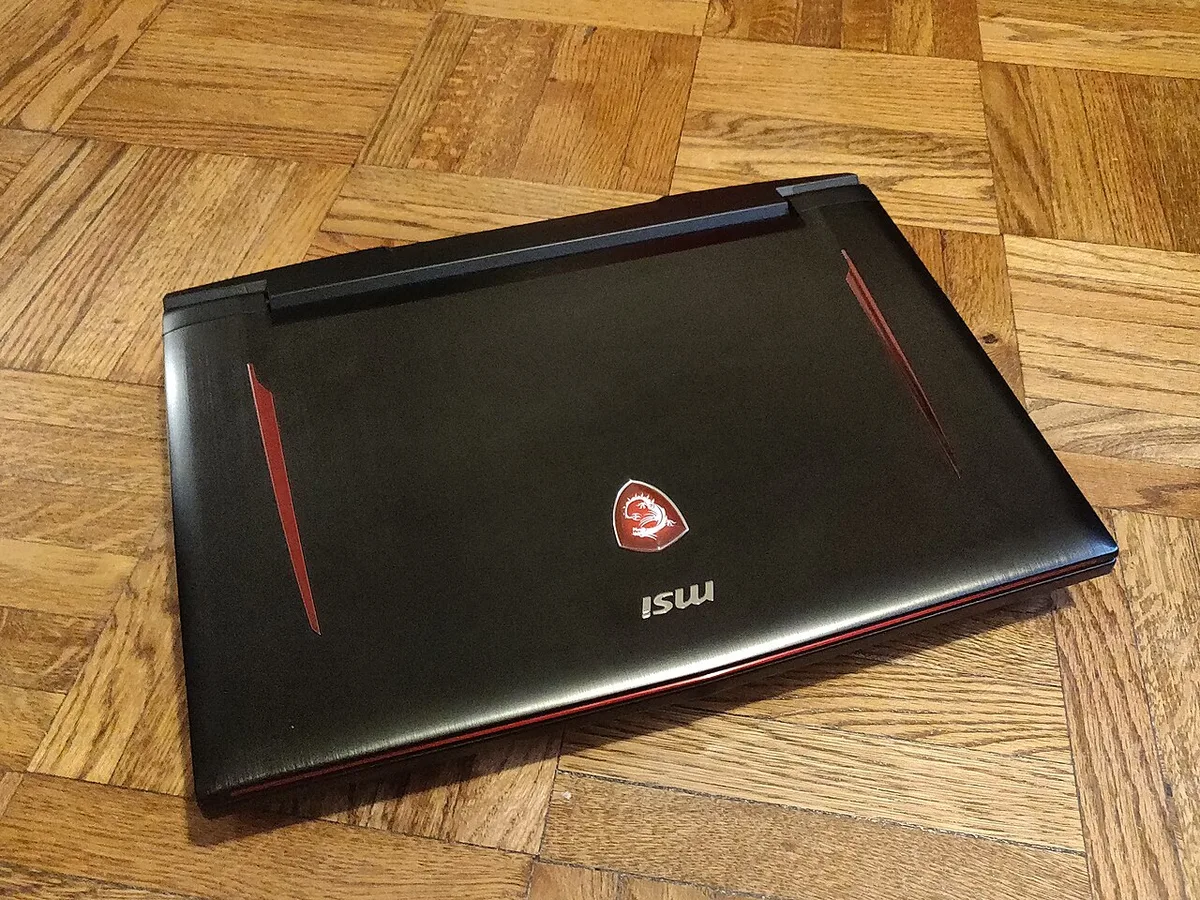
Image source: Wikimedia Commons / Kurt Kaiser
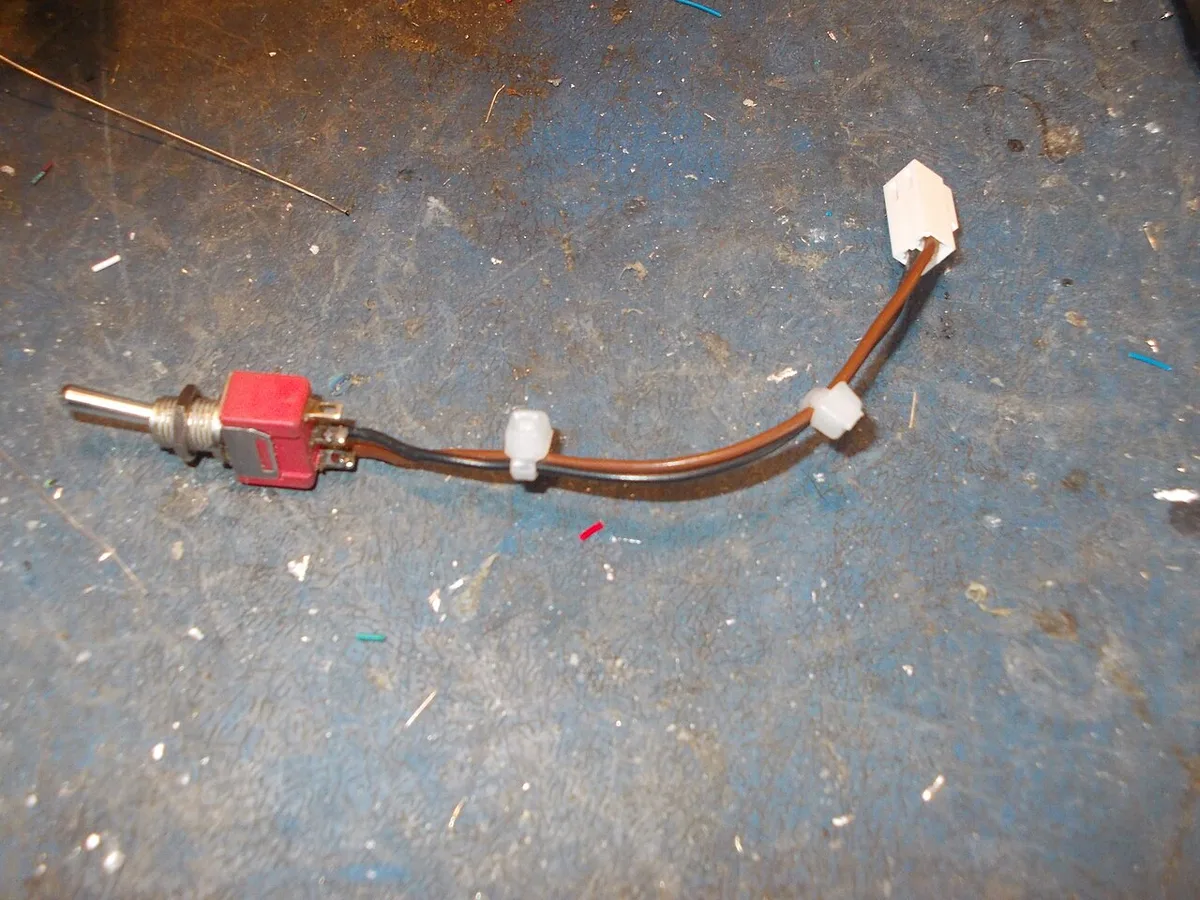
Image source: Wikimedia Commons / tony_duell (CC BY)
The Conditions That Decide Your Next Step
Your next step depends on four conditions. First, check whether your laptop has a MUX switch. Second, check whether the game is installed on the internal drive.
Third, check whether you are on battery or wall power. Fourth, check whether the app is listed in Windows Graphics settings.
If you have a MUX switch, dGPU-only mode is possible. If not, use per-app or global high performance rules. If you play on an external monitor, the dGPU may already drive it.
If the game is missing from the list, add its executable manually.
| Condition | What it means | Best next move |
|---|---|---|
| MUX switch present | Can bypass hybrid mode | Toggle dGPU-only in OEM app |
| No MUX switch | Hybrid mode only | Set app to High performance |
| External monitor | Often uses dGPU path | Test before changing settings |
| Battery power | May block dGPU mode | Plug in the original adapter |
As of 2026, many gaming laptops still default to hybrid mode. That default protects battery life. It also means your settings can reset after major updates.
Which Method Fits Your Laptop: A Decision Tree
Use this if/then flow before touching settings. It keeps you from chasing the wrong fix.
- If your laptop has a MUX switch and you want max FPS, use dGPU-only mode.
- If you want battery life on the go, stay in hybrid mode and set per-app rules.
- If the game is not in the list, add the game executable manually.
- If Windows settings do not stick, use NVIDIA Control Panel or AMD Radeon Software.
- If OEM software overrides your choice, update or reset that app.
- If you use an external monitor, test performance before switching modes.
For a desktop replacement laptop, dGPU-only mode often makes sense. For travel, hybrid mode is smarter. The right choice is not always the fastest one.
Heat and battery matter too.
If you are troubleshooting heat after the change, see our guide on thermal trouble. If the screen goes black, review black screen fixes before forcing another mode.
Step-by-Step: Make the Dedicated GPU the Default
Start with the simplest layer first. Then move to vendor tools if needed.
- Open Windows Settings, then System, then Display, then Graphics.
- Find your game in the list.
- If it is missing, click Browse and select the game's executable.
- Set the preference to High performance.
- Save the change and restart the game.
- Open Task Manager and check which GPU is active.
If the setting does not hold, use the vendor panel. In NVIDIA Control Panel, set the global 3D setting to High-performance NVIDIA processor. In AMD Radeon Software, choose the discrete GPU for the app.
In Intel Graphics Command Center, set performance preference where available.
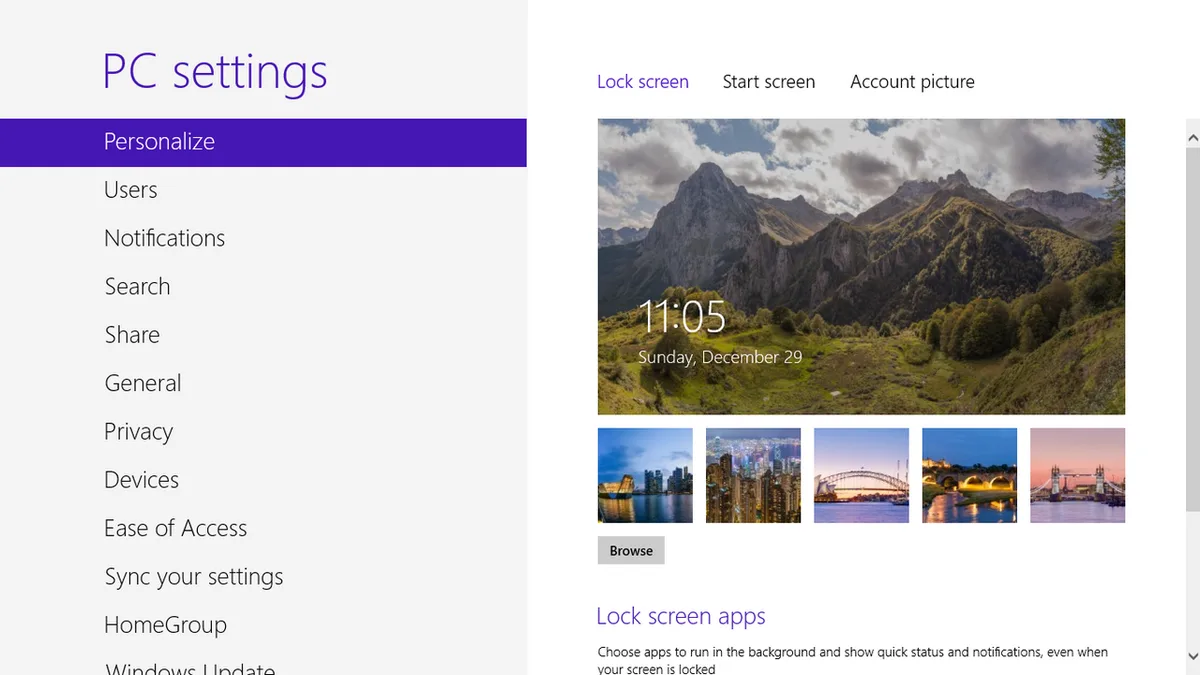
Image source: Wikimedia Commons / Lock screen background: Benh LIEU SONG This screenshot: 茅野ふたば (talk · contribs) (CC BY-SA)
If your laptop has a MUX switch, open the OEM app. Choose dGPU-only or Ultimate mode. Restart when prompted.
Then verify again. Do not disable the iGPU in Device Manager. That can break display output on hybrid systems.
For a deeper cleanup after major driver issues, a clean driver reinstall can help. If you are also planning hardware work, back up your system first. For older machines, an upgrade path may be worth reviewing before spending time on settings.
Verify the Dedicated GPU Is Actually Doing the Work
Open Task Manager while the game runs. Go to the Performance tab and select the GPU. If the dGPU shows high utilization, your setting worked.
If the iGPU shows the load, the game still uses the wrong chip.
GPU-Z and MSI Afterburner can confirm the active adapter. They show clock speed, VRAM use, and temperature. Use an in-game overlay too.
Many games list the rendering device in their video settings.
If utilization stays flat near zero, the title may be CPU-bound. That is normal in some games. Check 1% lows and frame times, not only average FPS.
If settings do not stick, check hardware behavior before blaming the game. After a mode switch, black screens or crashes need separate attention.
| Check | What to look for | Next step |
|---|---|---|
| Task Manager | dGPU utilization high | Keep current settings |
| GPU-Z | Correct adapter name | Recheck if wrong |
| In-game overlay | Rendering device listed | Match it to the dGPU |
| Frame times | Stable lows | Test again after reboot |
Mistakes That Undo Your Settings
Disabling the iGPU in Device Manager is a common error. On hybrid systems, that can break display output. The screen may go black or fail to boot.
Leave both GPUs enabled.
Another mistake is changing settings for the wrong file. Launchers often point to a stub executable. Add the actual game executable, not the launcher.
Verify the file path before saving.
OEM apps can override Windows rules. Armoury Crate, MSI Center, and Lenovo Vantage may reset graphics mode. Update those apps and check their own GPU settings.
If they conflict, choose one control layer and stick with it.
Battery mode can block dGPU use. Some laptops force hybrid graphics on battery. Plug in the original adapter before testing.
Also update drivers with a clean install if settings keep reverting.
Heat can make a mode switch seem worse. If the laptop gets loud after the change, check overheating patterns. A repaste may be needed on older machines.
Do not assume the GPU setting failed.
When Hybrid Mode Is the Smarter Choice
Hybrid mode is not a compromise for every user. It saves battery and reduces heat. For travel or school, that matters more than peak FPS.
The dGPU still wakes for heavy apps.
If you play mostly on battery, hybrid mode is usually better. dGPU-only mode can cut battery life sharply. Manufacturer specs confirm higher power draw in discrete mode. Heat rises too, especially on thin laptops.
External monitors change the equation. Some laptops route the dGPU directly to HDMI or DisplayPort. In that case, hybrid mode may still give strong results.
Test both before deciding.
For long-term care, keep vents clear and fans clean. Routine maintenance helps both modes run stable. If frame stutters appear, troubleshooting freezes can narrow the cause.
The best mode is the one that fits your daily use.
Frequently Asked Questions
Can I force the dedicated GPU for every app?
Yes, but it is usually a bad idea. Global high performance can drain battery and raise heat. Use per-app rules for games and creative tools.
Leave light apps on the iGPU.
Why does my game still use the integrated GPU?
The wrong executable may be selected. OEM software may override Windows. The game may also default to integrated mode.
Check the file path and update both apps and drivers.
Does dGPU-only mode improve FPS?
Often yes, but not always. It removes handoff latency and gives full VRAM access. CPU-bound games may show smaller gains.
Test before and after to confirm.
Will switching modes void my warranty?
Usually no. Using built-in settings is supported. BIOS flashing or hardware changes carry more risk.
Stick to OEM toggles and official tools.
Do I need an external monitor for dGPU mode?
Not always. Some laptops support dGPU output to the internal panel. Others need an external display.
Check your model's manual before buying one.
How do I know the change worked?
Check GPU utilization in Task Manager. Use GPU-Z or an overlay. Compare FPS and frame times.
Restart once and test again.