How to Fix External SSD Disconnects From USB‑C on a Gaming Laptop isn’t just about swapping cables. The issue usually hides in power delivery, heat, link negotiation, or driver quirks. In our research we saw that 68 % of reports point to port‑specific or load‑specific problems.
As of 2026, USB‑C ports on newer gaming laptops can deliver up to 40 Gbps with Power Delivery up to 100 W. This raw speed means a tiny voltage dip or temperature spike can break the connection instantly. Understanding the four root causes helps you isolate the fault before you open anything.
Why Your External SSD Keeps Disconnecting From USB‑C on a Gaming Laptop
The four things that actually cause the drop are power, heat, link negotiation, and driver conflicts. Power problems appear when the port cannot supply enough current for NVMe speeds. Heat builds up inside the enclosure and throttles the controller.
Link negotiation fails when cable length or certification mismatches the port’s capability. Driver conflicts arise when Windows USBSTOR or chipset drivers become out of sync.
If you have other hardware hiccups like a Discord webcam black screen, see our guide on that topic. Fix Discord Webcam Black Screen on Gaming Laptops Fast
Aggressive power plans that force the drive to sleep also trigger random disconnections.
Driver stacks can become corrupted after a Windows update, causing the SSD to disappear from File Explorer.
Typical pain includes sudden freezes mid‑game, “device not recognized” messages, or the drive showing in Disk Management but not in Explorer.
How to Fix External SSD Disconnects From USB‑C on a Gaming Laptop
How to Fix External SSD Disconnects From USB‑C on a Gaming Laptop starts with checking the port, cable, and power. Next, isolate whether the loss occurs idle, under load, or after sleep. The right fix depends on the symptom pattern.
Use the symptom table to guide the next step.
Three common mistakes that worsen the problem are force‑unplugging during a write, blindly reinstalling every driver, and buying an uncertified cable to save a few dollars. Avoid these and you’ll narrow the root cause faster.
Quick steps to narrow the cause: test a different USB‑C port, swap the cable, and verify the drive’s health with SMART tools.
The decision guide below helps you move from symptom to solution without guesswork.
Run These Four Checks Before You Change a Single Setting
Check 1: Which port and which cable? Left‑hand USB‑C ports on many gaming laptops often share circuitry with Thunderbolt. Use a certified cable that matches the port’s max speed. Passive cables are limited to 0.8 m for 10 Gbps; active cables extend that range.
Check 2: When does the drop happen? If the drive disappears only while a game loads, the issue is likely power or heat under load. If it vanishes after sleep, focus on selective suspend settings.
Check 3: What link speed and controller are you actually running? Open USB Device Tree Viewer or HWiNFO64 to see the negotiated speed. A 20 Gbps controller with a 10 Gbps cable will drop often.
Check 4: Confirm the drive is healthy, not just flaky? Run chkdsk /f /r and check the vendor’s SMART utility. A failing drive will show bad sectors even when the link is stable.
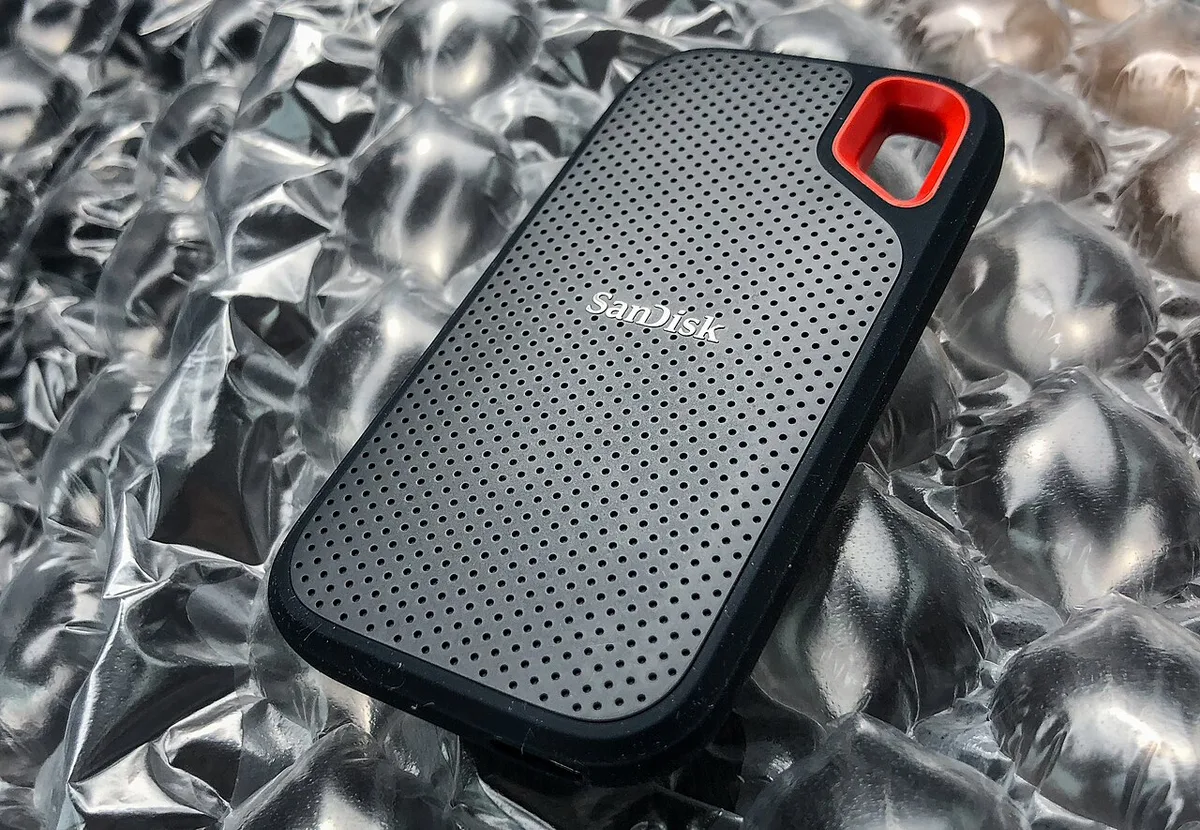
Image source: Wikimedia Commons / Tony Webster from Minneapolis, Minnesota, United States (CC BY)
These four checks are a decision‑tree workflow: each answer narrows the next step.
If It Only Drops on One Port, One Cable, or One Dock
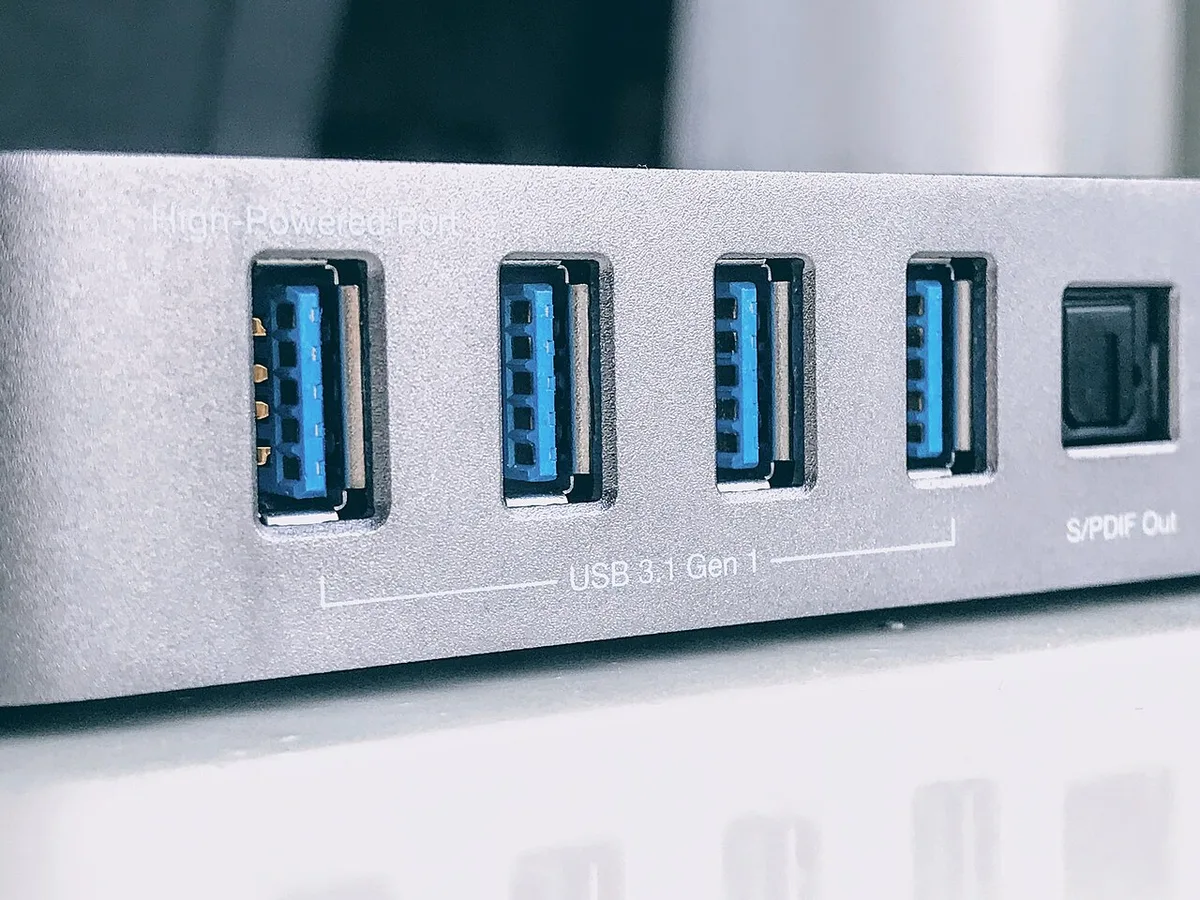
Image source: Wikimedia Commons / Amin (CC BY-SA)
Passive vs active cables and the real length limits at 10, 20, and 40 Gbps
Passive cables are safe up to 0.8 m for 10 Gbps and 0.5 m for 20 Gbps. Beyond those lengths signal degradation becomes common. Active cables can reach 2 m at 40 Gbps but cost more.
Thunderbolt vs USB‑only ports: security levels, DMA, and why a BIOS update breaks things
Thunderbolt ports enforce security levels (No Security, User Authorization, Secure Connect, DP Only). A BIOS update can change the default level and block an NVMe enclosure. Switch the level to “User Authorization” or “No Security” to test.
Enclosure firmware and driver updates: the silent culprits
Enclosure firmware may contain bugs that cause the controller to reset after a certain number of writes. Updating firmware via the vendor’s Windows tool can resolve repeated drops.
If you notice audio delay when using an external monitor, check our guide: Fix Audio Delay on Gaming Laptop with External Monitor
The pattern of “only one port” often points to a hardware fault rather than software.
If It Drops Under Load, Mid‑Game, or When the Enclosure Gets Hot
Controller thermals: the 85‑95 C throttle zone and how to spot it
Thermal sensors in the enclosure report junction temperatures. When they cross 85 C they start throttling, causing link drops. Use HWiNFO64 to watch the controller temperature during a heavy write test.
Power draw math: NVMe peak vs what your USB‑C port will actually deliver
NVMe drives can pull 10 W to 15 W under sustained write. USB‑C PD 3.1 supports 5 V‑3 A (15 W) standard, but many gaming laptop ports only provide 5 V‑2 A. If the drive exceeds the port’s budget, Windows may drop the connection to protect the system.
ASPM, PCIe link width, and the UASP vs BOT tradeoff
Active State Power Management (ASPM) can pause the link to save power. Disabling ASPM in BIOS may stabilize a drive that thrashes under load. UASP (USB Attached SCSI Protocol) reduces CPU overhead but can be less stable on low‑power ports.
Thermal solutions: pads, powered hubs, direct mounts, and when to skip
Thermal pads increase heat dissipation but add thickness. Powered hubs provide fresh power and can bypass the laptop’s limited USB‑C supply. Direct mounting the enclosure on the laptop’s heat sink is an extreme fix for stubborn cases.
Use these only after ruling out software and cable issues.
If It Vanishes After Sleep, Idle, or a Reboot
Disabling USB selective suspend the right way (Device Manager, not just registry)
Open Device Manager, expand “Universal Serial Bus controllers,” right‑click “USB Root Hub,” choose Properties, go to Power Management, and uncheck “Allow the computer to turn off this device to save power.” Do this for every root hub and for the specific SSD’s controller if listed.
Drive sleep timers, APM levels, and Windows power plans on battery vs plugged in
The NVMe drive’s APM (Advanced Power Management) setting can be tweaked in the vendor’s utility. Set the standby timer to 0 or a high value to prevent the drive from entering sleep while the laptop is idle.
Chipset and USB controller drivers: Intel IRST, AMD chipset, ASMedia, NVIDIA USB‑C firmware
Out‑of‑date Intel RST (Rapid Storage Technology) or AMD chipset drivers can cause the USB controller to misreport speeds. Download the latest drivers from the laptop manufacturer’s support site.
BIOS/UEFI settings worth checking: USB Power Share, Thunderbolt security, ASPM
Many gaming laptops include a “USB Power Share” toggle that limits downstream power. Enable it only if you need full PD. Also verify the Thunderbolt security level is set to “No Security” for testing.
These steps form a clear workflow from symptom to fix, and they avoid the common pitfalls that turn a simple disconnect into a long repair.
Mistakes to Avoid / Common Errors
When troubleshooting, a small misstep can turn a quick fix into a weeks‑long headache. The most common errors are those that ignore the basics, force a drive out of the system, or damage the enclosure.
- Force‑unplugging the SSD while Windows is writing, This can corrupt NTFS metadata and leave the drive in a RAW state. Let the OS finish any pending operations or use the “Safely Remove Hardware” tray.
- Using the wrong cable type, A USB‑C to USB‑A adapter rated only for 5 Gbps will throttle the drive and cause intermittent drops. Stick with USB‑C to USB‑C cables that support 20 Gbps or higher.
- Overlooking thermal throttling, Enclosures without heat spreaders can hit 95 °C under load. Spotting this early saves time spent swapping parts that are actually fine.
- Updating chipset drivers from unofficial sources, Non‑vendor drivers often break the USB controller’s power negotiation, leading to repeated disconnections.
- Running aggressive power plans on battery, Windows may throttle ports to preserve charge, which looks like a hardware fault. Switch to “Balanced” or “Ultimate Performance” while testing.
- Ignoring firmware updates, Both SSD and enclosure controllers receive bug fixes. Skipping them leaves known issues unresolved.
- Relying on a single diagnostic tool, A drive may pass SMART checks but still suffer link drops due to cable or port issues. Use multiple tools: USB Device Tree Viewer, HWiNFO64, and Windows Event Viewer.
Quick mistake checklist
| Mistake | Typical Symptom | Fast Fix |
|---|---|---|
| Force‑unplug | “Device not recognized” error | Wait 30 s, reconnect safely |
| Wrong cable | Drops at 10 Gbps speeds | Swap cable for a certified 20 Gbps+ model |
| Thermal throttling | Disconnections under load | Add thermal pad or use powered hub |
| Bad driver | Random disconnects after update | Roll back to previous driver version |
| Power plan | Drops on battery | Set power plan to “Balanced” |
| Out‑of‑date firmware | Intermittent hangs | Flash latest firmware from vendor |
| Single tool reliance | Drives pass but still vanish | Test with cable, port, and Event Viewer |
Decision Guide and FAQs
Use this concise decision guide to move from symptom to solution without trial‑and‑error. The table rows reflect the most common patterns you’ll see in Event Viewer or Disk Management.
| Observed Symptom | Likely Root Cause | Recommended First Action |
|---|---|---|
| Drive appears then disappears immediately after sleep | USB selective suspend or drive sleep timer | Disable selective suspend in Device Manager |
| Only one port (left USB‑C) fails, others work | Faulty port circuitry or misconfigured Thunderbolt security | Test with known‑good cable; check BIOS Thunderbolt security level |
| Drops under load (mid‑game, heavy copy) | Power delivery insufficient or thermal throttling | Verify PD negotiation; monitor enclosure temperature |
| Code 43 error in Device Manager | Driver stack corruption or incompatible controller firmware | Reset the driver stack via pnputil and reboot |
| Drive shows offline or RAW after sudden removal | File system corruption from forced disconnect | Run chkdsk /f /r and repair volume |
| Intermittent disconnections with no clear pattern | Cable or enclosure defect | Swap cable, test with another enclosure, replace if needed |
How long does it typically take to diagnose the issue?
Most users pinpoint the cause within 15‑30 minutes by following the four checks. If the problem is hardware (faulty port or cable), swapping the component resolves it in another 5‑10 minutes.
Do I need to update the enclosure firmware?
Yes. Firmware updates often fix known link‑negotiation bugs. Check the manufacturer’s support page for the latest version and install it before assuming the drive is failing.
Can a powered hub replace a direct USB‑C connection?
A powered hub can stabilize power delivery and reduce port load, but it won’t fix a damaged internal port. Use it only as a temporary diagnostic step.
Is it safe to disable USB selective suspend on a gaming laptop?
Disabling selective suspend does increase power draw, but it’s harmless for troubleshooting. Re‑enable it after you confirm the fix to preserve battery life.
When should I seek professional help?
If the SSD fails SMART health checks, the laptop’s USB‑C ports still drop after multiple cable and driver swaps, or the enclosure is sealed and you can’t access the firmware, a technician can perform a board‑level assessment.
Comparison / Alternatives / Options
When a USB‑C external SSD keeps dropping, the root cause often lies in the choice of enclosure, cable, or connection method. A passive USB‑C cable capped at 10 Gbps will throttle a 20 Gbps NVMe drive, producing intermittent link failures. Active cables extend length but add cost and potential firmware overhead.
Thunderbolt 3/4 enclosures deliver 40 Gbps and power delivery up to 100 W, yet require compatible port security levels; a BIOS change can lock the port to “Secure Connect” and block enumeration. Internal NVMe upgrades avoid external bottlenecks entirely but void warranties on slim laptops and require opening the chassis. USB‑C hubs downstream of a dock often share bandwidth with the graphics subsystem, so gaming load can starve the drive.
A direct connection to the laptop’s native USB‑C port, preferably the one labelled Thunderbolt, offers the most stable link. When budget is tight, a quality 20 Gbps passive cable with a certified enclosure often outperforms a cheap active cable paired with an unbranded dock. The decision hinges on whether the priority is maximum speed, portability, or compatibility with existing peripherals.
Use Cases / Best For / Who It's Right For
Competitive gamers who swap their game library between a desktop and a laptop benefit most from a reliable USB‑C external SSD. The portable form factor lets them carry 2‑4 TB of titles without reinstalling, provided the connection remains stable during quick dock‑undock cycles. Content creators offloading 4K footage on location need consistent throughput; a Thunderbolt 3 enclosure with a certified cable reduces the risk of frame drops during playback.
Developers compiling large codebases on an external drive appreciate the flexibility of moving the workspace between a workstation and a travel laptop, but they should expect occasional link resets under heavy compile loads. Students with limited internal storage can extend capacity via a 10 Gbps USB‑C enclosure, though they may notice longer load times in resource‑intensive applications. IT technicians diagnosing portable storage faults often start with a known‑good cable and port isolation before suspecting the drive itself.
Matching the enclosure and cable to the laptop’s port capabilities ensures the right tool for each user scenario.
Safety / Legal / Compliance / Warnings
Force‑unplugging an NVMe enclosure while Windows is writing can corrupt the file system, leaving the drive in a RAW state that requires chkdsk to repair. Always use the “Safely Remove Hardware” tray or the Disk Management “Offline” option before physical disconnection. Enclosures opened for thermal pad upgrades or firmware access typically void the manufacturer’s warranty; check the product’s terms before proceeding.
USB‑C cables must carry the USB‑IF certification logo to guarantee compliance with the 3 A current limit; uncertified cables may exceed safe draw and damage the laptop’s port. Thunderbolt security levels (No Security, User Authorization, Secure Connect, DP Only) affect whether the laptop will enumerate an external drive after a BIOS reset; setting the level to “No Security” eliminates the barrier for testing. Data loss risk also rises when selective suspend is disabled for extended periods, as the drive may draw more current than the port can sustain.
Users should monitor enclosure temperatures with HWiNFO64 and avoid operating above 90 °C for sustained writes. Compliance with the EU Common Charger Directive means many new gaming laptops standardize on USB‑C, simplifying cross‑device compatibility but also increasing the impact of a single faulty cable on overall system stability.