Your Xbox controller quits mid-match and your laptop never warns you. How to Fix Xbox Controller Disconnects From Laptop on a Gaming Laptop is rarely one broken setting. It's a short checklist, and it starts with power, then interference, then drivers.
Microsoft rates the Xbox Rechargeable Battery Pack at up to 40 hours, while disposable AA cells land in a similar 30 to 40 hour range before trouble starts. Aggregate user reports show dropouts clustering in one place: crowded 2.4 GHz airspace on Windows 10 and 11. Here's what's actually going on behind those dropouts.
How to Fix Xbox Controller Disconnects From Laptop on a Gaming Laptop
How to fix Xbox controller disconnects from laptop on a gaming laptop: start with the battery. Swap in fresh AA cells or fully charge the pack. Then run a USB-C cable and see if the drops stop.
If wired holds steady, turn off USB selective suspend in Windows power settings. Finish by updating controller firmware in the Xbox Accessories app.
Why Your Gaming Laptop Drops the Xbox Controller
Is the controller broken, or is it the laptop?
Usually the laptop. The Xbox Wireless Controller is a solid piece of hardware, and genuine failures are rare. What actually fails is the radio link between the controller and your machine.
Two radios, one crowded airspace
Your controller talks over either Xbox Wireless or Bluetooth. Both live in the 2.4 GHz band, the same band as most Wi-Fi traffic, wireless mice, and headsets. Crowd that band and packets start colliding.
Gaming laptops make it worse. Antennas sit behind a metal lid, right beside the Wi-Fi card and the exhaust vents. Intel published a white paper years back showing that USB 3.0 ports and cables radiate measurable noise directly into the 2.4 GHz range, which is why port placement matters so much here.
If your router is also parked on 2.4 GHz, you're fighting uphill. Shifting your router to the 5 GHz band frees up room for the controller.
The protocol itself isn't the culprit. The Bluetooth Special Interest Group has shipped adaptive frequency hopping in its core spec for two decades. Physics and Windows are the problem.
Windows is allowed to switch your controller off
That's the part nobody mentions. Windows ships with power saving enabled for USB and Bluetooth hardware by default. Every Bluetooth adapter and USB hub in Device Manager carries a checkbox that lets the operating system cut power whenever it feels like it.
So your controller doesn't always drop. Sometimes Windows disconnects it on purpose.
Start Here: Battery, Cables, and Ports (The 2-Minute Check)
Work through these three tests before you touch a single setting. In our research of user reports, most random dropouts trace back to one of them, and each test takes seconds.
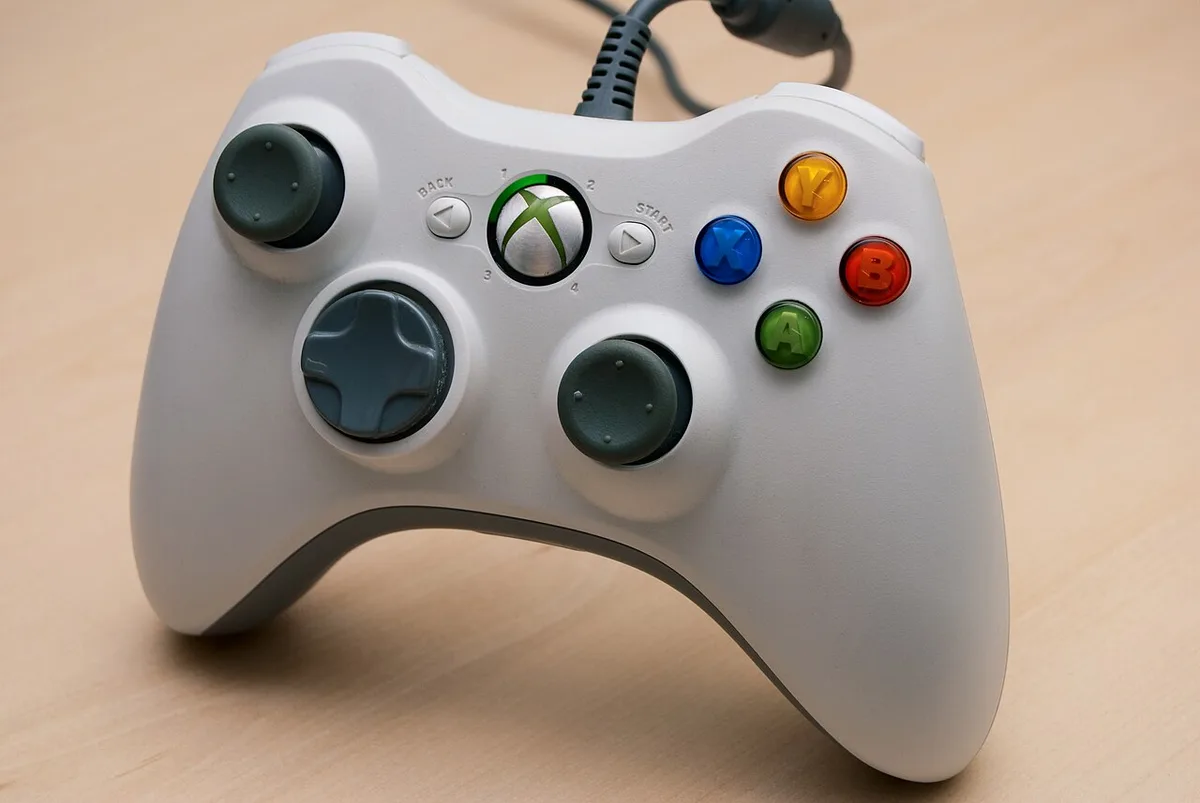
Image source: Wikimedia Commons / Asim18 (CC BY)
Does a fresh battery fix it?
Low voltage is the classic cause. When a cell sags under load, the controller browns out and Windows sees a device vanish.
Drop in two fresh alkaline AA cells, or charge the rechargeable pack fully. Then play 15 minutes. If the drops stop, you've got your answer.
Skip half-charged NiMH packs. They sag harder than alkalines during rumble-heavy games.
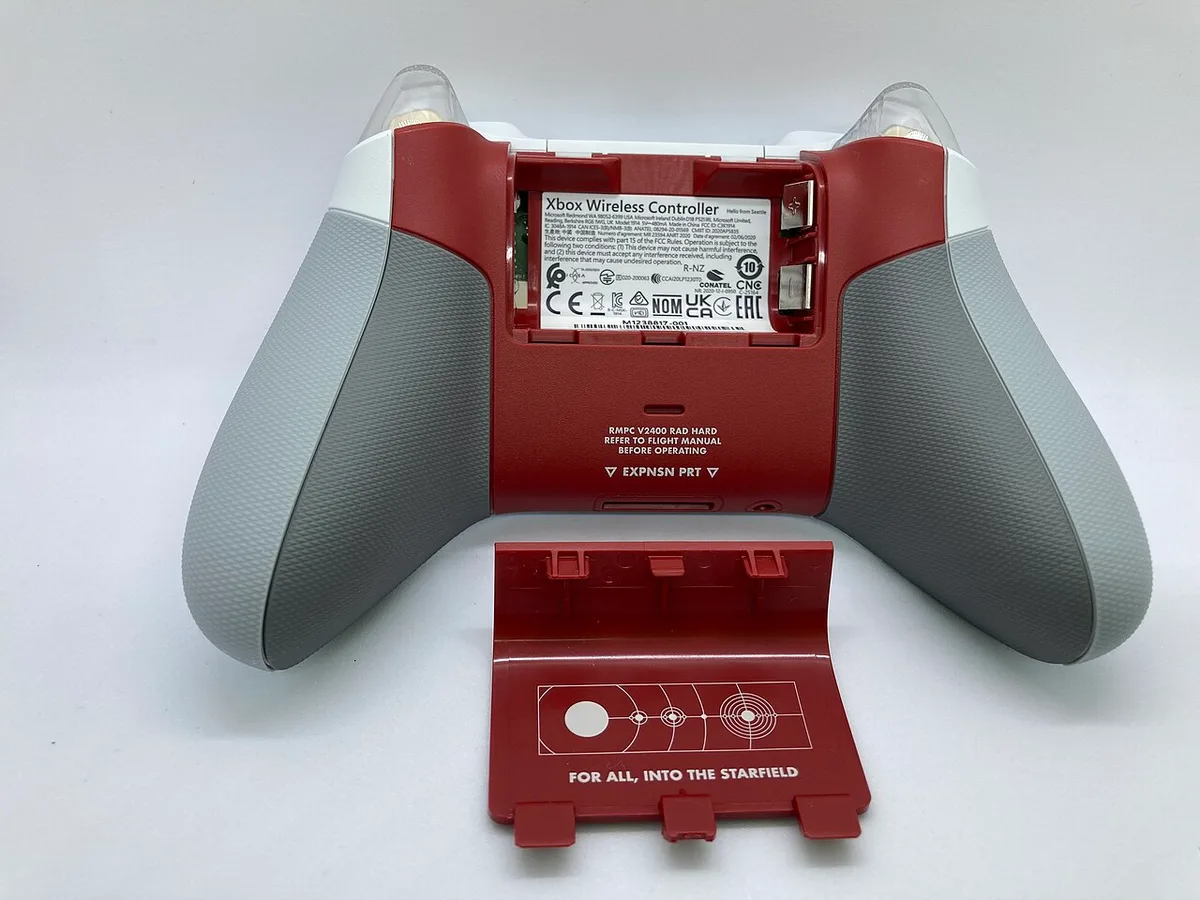
Image source: Wikimedia Commons / Oleg Kuznetsov (CC BY-SA)
Does a cable fix it?
Plug the controller in with a USB-C cable and play a full match. Wired mode bypasses the radio entirely. If drops stop on cable and return on wireless, your battery and firmware are fine, and the problem is RF.
Is the port itself the problem?
Not every USB port on a gaming laptop behaves the same. Because USB 3.0 and 3.1 ports bleed noise into 2.4 GHz, a dongle jammed beside a busy SSD port suffers for it.
Move the adapter to a port on the opposite side of the chassis. Better yet, use a short USB 2.0 extension cable so the adapter sits away from the metal and the heat.
| Symptom | Most likely cause | 2-minute test |
|---|---|---|
| Drops every few minutes | Low battery voltage | Fresh AAs, then replay |
| Drops on wireless only | 2.4 GHz interference | Run a USB-C cable |
| Drops once laptop heats up | Antenna noise plus throttling | Elevate the laptop, retest |
| Drops after sleep or idle | Windows power management | Wake it, check Device Manager |
Which Connection Are You Using? Pick Your Branch
Three ways exist to attach an Xbox controller to a laptop, and they don't fail the same way. Identify yours first, because the fix changes with it.

Image source: Wikimedia Commons / mliu92 (CC BY-SA)
| Connection | Latency | Stability | Best for |
|---|---|---|---|
| Wired USB-C | Lowest | Highest | Competitive and tournament play |
| Xbox Wireless Adapter | Low | High | Fast-paced single-player and online |
| Bluetooth | Highest of the three | Most variable | Casual play and cloud gaming |
If you're on Bluetooth
Bluetooth is convenient and it's the weakest link. It shares the same combo card as your Wi-Fi, and Windows treats it as a generic HID device with power saving switched on. Plan on doing the most work here.
If you're on the Xbox Wireless Adapter
This is Microsoft's dedicated 2.4 GHz dongle, and it speaks the same protocol the console uses. Aggregate user feedback rates it noticeably steadier than Bluetooth. Microsoft has wound down production, so as of 2026 you're shopping leftover retail stock or the used market.
If you're on a wired USB-C cable
Cable is boring and unbeatable. No battery sag, no interference, no idle timeouts. If a ranked match is on the line, just stay wired.
One thing worth ruling out first: controller drops and network drops feel identical from the couch. Our guide to packet loss on a gaming laptop shows how to tell which one you're actually fighting.
Fixing Bluetooth Drops: Windows Power Settings and Drivers
If you're on Bluetooth, the fix usually lives here. Work top to bottom and retest after each step.
How do I stop Windows from switching off the Bluetooth radio?
Clear the power saving checkbox in Device Manager. Open Device Manager, expand Bluetooth, and open your adapter's properties. On the Power Management tab, untick "Allow the computer to turn off this device to save power."
Repeat that for USB Root Hub, the USB input entries tied to your controller, and HID-compliant game controller. Microsoft's official controller support pages cover the Device Manager path if entries look greyed out.
Should I disable USB selective suspend?
Yes, when you're chasing dropouts. Open Control Panel, then Power Options, then advanced settings for your active plan. Expand USB settings and set USB selective suspend to Disabled.
That stops Windows parking the port between inputs. It costs you a little battery runtime. Fair trade for a connection that holds.
Do drivers really matter that much?
More than people expect. A flaky combo card drags down Wi-Fi and Bluetooth together. Our notes on wireless drivers that keep failing cover the clean reinstall, and it's the same hardware here.
Pull the driver from your laptop maker's support page, not a random utility app. If a recent update started the dropouts, roll back to the previous version.
Should I re-pair the controller?
Yes, in the right order. Remove the device under Windows Settings first, then hold the pair button until the Xbox button flashes quickly. Pair it fresh.
Re-pairing on top of a broken profile rarely fixes anything.
Fixing Wireless or Wired Drops: Firmware, Interference, and Adapters
Bluetooth settings won't save you here. This section covers the Xbox Wireless Adapter, wired connections, and the controller's own firmware.

Image source: Wikimedia Commons / Kyu3a (CC BY-SA)
Does firmware actually fix dropouts?
Sometimes, yes. Microsoft has shipped firmware revisions that repair pairing and reconnect bugs, and the controller doesn't update itself the way a console would.
Grab the Xbox Accessories app from the Microsoft Store, plug the controller in with USB-C, and let it check for updates. Keep the cable connected until it finishes. Unplugging mid-flash can leave the controller in a weird state.
How do I find what's jamming the signal?
Eliminate suspects one at a time. Unplug wireless mice and headsets, then retest. Move the laptop away from the router.
If your Wi-Fi card is struggling under load, our guide to connections that drop while you play covers the same interference hunt from the network side.
Laptop placement counts too. A machine sitting on a blanket overheats, and hot components drift. Our notes on Wi-Fi that quits when the chassis warms up explain why heat wrecks wireless stability.
Is the Xbox Wireless Adapter worth it?
For fast-paced games, yes. Aggregate user reports put it ahead of Bluetooth on both latency and reconnect speed. Here's when each option makes sense:
- If you play ranked shooters, stay on USB-C.
- If you want wireless freedom with low lag, use the Xbox Wireless Adapter.
- If you play casually or stream games, Bluetooth is fine once power saving is off.
One caveat. The adapter needs a clean port. Plug it into a USB 2.0 port or an extension cable, away from USB 3.0 traffic and the laptop's vents.
What if the drops follow the cable?
Then it's the cable. Cheap charge-only USB-C leads carry power but no data, so Windows sees a controller that never arrives. Swap in a known data cable and retest.
Also check for a loose USB-C jack on the controller itself. Wiggle it gently while connected. Any flicker in the Xbox Accessories app means a worn port, not a software problem.
Three Troubleshooting Mistakes That Make It Worse
Most people fix this in three steps. Others spend an evening making it harder. Here are the three traps we see most often.
Re-pairing without unpairing first
This is the big one. Windows keeps a stale device record, and pairing on top of it produces duplicate entries that fight each other.
Always remove the controller under Settings, then Devices, before you pair again. Thirty seconds of cleanup beats an hour of guessing.
Ignoring driver conflicts in Device Manager
Two Bluetooth stacks running at once is a common mess. Intel's radio, a Realtek dongle, and a vendor utility can all claim the same hardware.
Look for duplicated or warning-flagged entries under Bluetooth and Human Interface Devices. Uninstall the extras and reboot so Windows rebuilds a single clean profile.
Giving up on Bluetooth before checking power settings
Plenty of people conclude Bluetooth is useless when the real culprit is one checkbox. USB selective suspend and the adapter's power management setting cause most "random" drops.
If you skipped those, go back. It takes two minutes and it's free.
Assuming it's the laptop
Sometimes the controller is the problem. Sticky buttons, a swollen battery pack, or a worn USB-C port all show up as connection bugs.
Test the same controller on another machine before you blame your gaming laptop. If it drops there too, you've found your culprit.