FPS drops on a gaming laptop can turn a smooth match into a slideshow. The good news is that most frame drops come from a handful of fixable causes. Once you know which one you're dealing with, the fix is usually quick.
Manufacturer specifications indicate that gaming laptops commonly throttle CPU or GPU clocks when temperatures climb too high, which can cut frame rates sharply. As of 2026, the most common triggers are heat buildup, power limits, and outdated drivers. We'll walk through each one so you can match the symptom to the right fix.
how to fix FPS drops on a gaming laptop
Check your power source first. Plug into AC power and set Windows to High Performance. Then monitor CPU and GPU temperatures during gameplay.
Clean vents if temps exceed safe limits. Update GPU drivers. Lower graphics settings last.
Why FPS Drops Happen on Gaming Laptops
FPS drops rarely come from one single cause. Most of the time, the laptop is hitting a limit somewhere in the system. The three big ones are heat, power, and software.
Heat is the most common culprit. When the CPU or GPU gets too hot, the system reduces clock speeds to protect itself. This is called thermal throttling, and it shows up as sudden frame drops after 10 or 20 minutes of play.
You can read more about spotting thermal throttling in our guide.
Power is the second big one. Running on battery caps the GPU and CPU to save energy. Even plugged in, some laptops ship with conservative power profiles.
A weak or wrong AC adapter can also cause throttling.
Software rounds out the list. Outdated drivers, background apps, and Windows updates can all steal resources. A full storage drive or low RAM adds to the problem.
Less common causes include a failing cooling fan, dried thermal paste, and game-specific bugs. The key is to figure out which bucket your problem falls into before changing settings.
| Symptom | Likely Cause | First Check |
|---|---|---|
| Drops after 15-20 min | Thermal throttling | CPU/GPU temp |
| Drops on battery only | Power throttling | AC adapter |
| Random stuttering | Background apps | Task Manager |
| Drops in all games | Driver issue | GPU driver version |
| Low 1% lows | Frame pacing | Frame time graph |
This table helps you skip guesswork. Match your symptom, then jump to the right section below.
Check AC Power, Battery, and Power Throttling First
Start here. It's the fastest check and fixes a surprising number of cases.
Plug in your AC adapter and confirm the charging light is on. Many laptops run at reduced power on battery, even in performance mode. Some games cut frame rates by half on battery.
Check your adapter wattage. A 65W adapter on a laptop that needs 180W will cause throttling under load. Manufacturer specs list the required wattage on the adapter label.
If you replaced your adapter, make sure it matches the original rating.
Set Windows power plan to High Performance. Open Control Panel, go to Power Options, and select High Performance. On Windows 11, also enable the Ultimate Performance plan if available.
In NVIDIA Control Panel or AMD Adrenalin, set the power management mode to Prefer Maximum Performance. This stops the GPU from downclocking between frames.
Check manufacturer software too. ASUS Armoury Crate, MSI Center, and Lenovo Vantage all have performance modes. Set them to Performance or Turbo, not Quiet or Balanced.
If you're on a docking station or USB-C hub, bypass it. Many hubs can't deliver full power. Plug the adapter directly into the laptop.
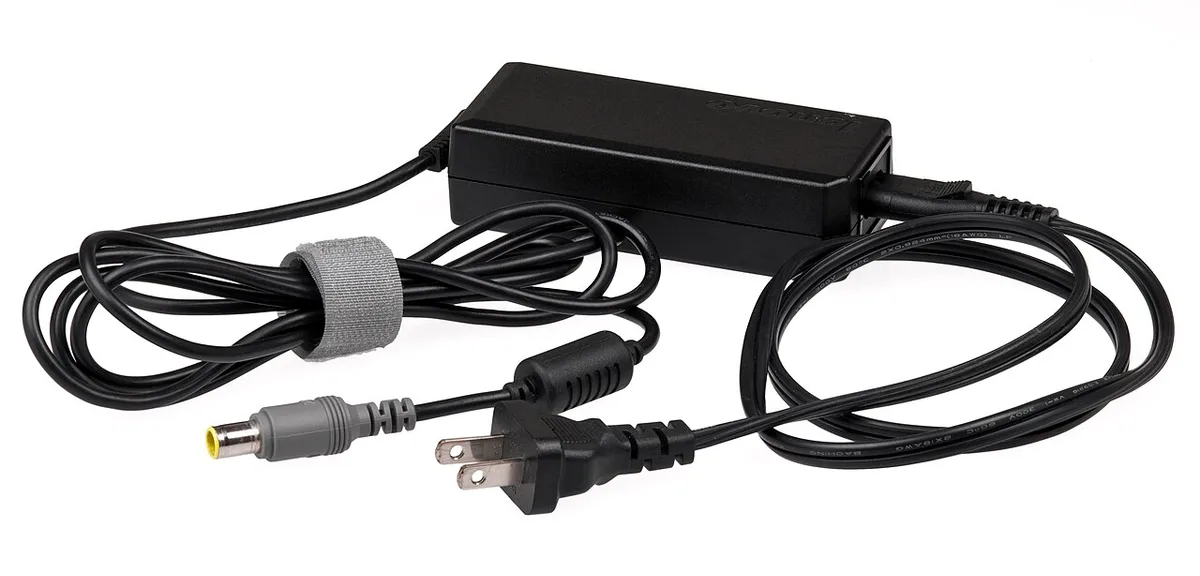
Image source: Wikimedia Commons / Evan-Amos
Test again. If FPS stabilizes, you found your fix. If not, move to diagnostics.
Diagnose CPU vs GPU Bottlenecks with Monitoring Tools
Guessing wastes time. Monitoring tools show you exactly what's limiting your frames.
Download MSI Afterburner with RivaTuner Statistics Server. It's free and shows FPS, CPU load, GPU load, temps, and clock speeds in real time. You can also use HWiNFO or the Xbox Game Bar overlay.
Play your game for 10 minutes. Watch the numbers. If GPU load sits at 99 percent and CPU load is low, you're GPU-bound.
If CPU load is maxed and GPU load is low, you're CPU-bound.
GPU-bound means your graphics settings are too high. Lower resolution, shadows, or textures. CPU-bound means background apps or a weak processor.
Close background tasks and reduce physics or draw distance.
Also check frame time, not just FPS. A steady 60 FPS with spikes looks smooth. A 60 FPS average with big frame time spikes feels stuttery.
RivaTuner shows this as a graph.
Check temps at the same time. If either component hits 95 degrees Celsius or above, thermal throttling is likely. You can read more about safe GPU temps and safe CPU temps in our guides.
Write down your findings. You'll need them for the next steps.
Fix Thermal Throttling: Cleaning, Cooling Pads, and Repasting
Thermal throttling is the number one cause of FPS drops on gaming laptops. Fixing it usually restores most of your lost performance.
Start with airflow. Never game on a bed, couch, or blanket. Soft surfaces block intake vents.
Use a hard, flat surface. Raising the laptop slightly helps too, and our guide on whether raising a laptop improves airflow covers this in detail.
Clean the vents. Dust buildup restricts airflow and raises temps. Use compressed air on the intake and exhaust vents.
Our guide on cleaning vents safely walks through the steps.
Try a cooling pad. Aggregate reviews report that good cooling pads drop temps by 3 to 8 degrees Celsius. They work best when they push air into the intake vents.
Our guide on whether cooling pads lower temps covers what to look for.
If temps stay high, the thermal paste may be dried out. Repasting the CPU and GPU can drop temps significantly. This is advanced work.
It may void your warranty depending on the brand. Check your manufacturer's service guidelines first. Our guide on whether liquid metal is safe covers the risks.
Also check fan curves. Some laptops run fans too quietly. Manufacturer software lets you set custom fan curves.
Higher fan speeds mean more noise but lower temps.
Update Drivers, BIOS, and Windows Power Plans
Outdated drivers cause more FPS drops than most people realize. They also cause crashes and stuttering.
Update your GPU driver first. Go to NVIDIA's official site or AMD's support page and download the latest driver for your card. Use a clean install option if available.
Avoid third-party driver updaters.
Update your chipset driver. Intel and AMD both release chipset updates that improve power management and stability. Get these from your laptop manufacturer's support page.
Check BIOS updates. BIOS updates can fix thermal and power management bugs. Only update from the manufacturer's official site.
Follow their instructions exactly. A failed BIOS update can brick your laptop.
Update Windows. Install pending updates, but schedule restarts for after gaming sessions. Windows updates running mid-game cause massive FPS drops.
Disable hardware-accelerated GPU scheduling if you see stuttering. It helps some systems but hurts others. Test both ways.
Enable Resizable BAR or Smart Access Memory if your laptop supports it. This can improve FPS in supported games. Check your BIOS and GPU driver settings.
Also check Windows Game Mode. It's on by default and usually helps. If you see issues, try turning it off.
Test both ways.
Tune Game Settings, Resolution, and Upscaling
Start with the biggest settings. Shadows, reflections, and anti-aliasing cost the most. Drop them first.
If you are GPU bound, lower resolution or use upscaling.
DLSS, FSR, and XeSS render at a lower resolution and upscale. They can recover large FPS gains with small image loss. Use Quality or Balanced modes first.
Performance mode is for very low frame rates.
Set refresh rate to your panel's max. Disable VSync if you use G Sync or FreeSync. If you get tearing, turn VSync back on.
Use a render scale below 100 percent only when needed. It softens image but helps a lot.
| Setting | Try First | Why |
|---|---|---|
| Shadows | Medium | Big GPU cost |
| Reflections | Low or off | Heavy in modern games |
| Anti-aliasing | TAA or DLSS | Smoother edges |
| Upscaling | Quality mode | Fast FPS gain |
| VSync | Off with G-Sync | Less input lag |
If drops happen only in one game, reset that game's config. Corrupt settings files can cause stutter. Our guide on game specific issues can help you spot game related causes.
Kill Background Processes and Startup Bloat
Open Task Manager with Ctrl Shift Esc. Sort by CPU and GPU. Close browsers, launchers, and capture tools you do not need.
Check Startup apps. Disable anything that is not essential. Cloud sync tools and updaters often run at bad times.
Turn off in game overlays. Discord, Steam overlay, and Xbox Game Bar can add stutter. Test with one at a time.
Pause cloud backups during play. OneDrive and Google Drive uploads spike disk usage. A full drive also slows loading and streaming.
Set the game to High priority only if needed. It helps CPU bound games. Do not set Realtime.
It can freeze the system.
Our guide on proven performance tips covers deeper Windows tweaks. Use it after these basics.
Mistakes That Make FPS Drops Worse
Do not max every setting because the laptop has a good GPU. Laptops run hot and loud at max load. Stable settings beat peak settings.
Do not game on battery. It caps power and lowers clocks. Plug in first.
Do not block vents with pillows or your lap. Heat builds fast and throttling follows. Our guide on keeping airflow clear shows how to avoid common vent mistakes.
Do not use a weak charger. A lower watt adapter cannot feed peak load. Match the original rating.
Do not ignore temps. If CPU or GPU sits above safe limits, fix cooling first. Changing settings will not help much.
Do not repaste without checking warranty. Some brands seal the chassis. Opening it can void coverage.
Do not run stress tests for long periods on a laptop. Short tests are enough. Long runs can overheat weak cooling.
Decision Guide: Which Fix to Try Based on Your Symptoms
Use this if you want a fast path. Match the symptom and follow the branch.
If FPS drops after 10 to 20 minutes, check temps first. If temps are high, clean vents, raise the laptop, and try extra airflow from a cooling pad. If temps stay high, repaste may be next.
If FPS drops only on battery, switch to AC power and High Performance mode. Check adapter wattage too.
If GPU load is 99 percent and temps are normal, lower settings or use DLSS or FSR. If CPU load is maxed, close background apps and reduce draw distance.
If one game stutters, update that game and its shader cache. Reinstall only after simpler fixes fail.
If all games drop, update GPU and chipset drivers. Check BIOS updates from the manufacturer.
If fans are loud but temps are fine, adjust fan curves. If fans are quiet and temps are high, clean dust first.
Our guide on spotting thermal throttling helps confirm heat issues before you open the laptop.
Frequently Asked Questions
Why does my gaming laptop FPS drop after a few minutes?
Heat is the usual cause. The CPU or GPU hits its thermal limit and lowers clock speed. Check temps first.
Clean vents and improve airflow before changing game settings.
Should I lower resolution or graphics settings first?
Lower settings first. Shadows and reflections give big gains. If that is not enough, drop resolution or use DLSS, FSR, or XeSS.
Does gaming on battery cause FPS drops?
Yes. Battery mode limits power to save energy. Plug in the AC adapter and set Windows to High Performance before gaming.
Can a cooling pad fix FPS drops?
It can help if heat is the cause. Aggregate reviews report small temp drops. It will not fix driver or power issues.
How do I know if my laptop is CPU or GPU bound?
Use MSI Afterburner. If GPU load stays near 100 percent, lower graphics settings. If CPU load maxes out, close background apps and reduce draw distance.
Is it safe to repaste a gaming laptop?
It can be safe if done carefully. It may void warranty. Check your brand's service policy before opening the chassis.