A gaming laptop that used to feel fast can become frustrating when frame rates drop, games stutter, or the GPU does not seem to perform as expected. The good news is that you often do not need a new laptop to get better gaming performance.
The fastest ways to increase FPS on a gaming laptop are to plug it into the correct charger, switch to Performance mode, make sure the game is using the dedicated GPU, remove unwanted FPS limits, optimize graphics settings, enable DLSS, FSR, or XeSS when available, close unnecessary background apps, and keep the laptop cool.
But there is an important point: not every low-FPS problem has the same cause.
If your GPU is already running at full load, lowering graphics settings may help. If the CPU is the bottleneck, lowering texture quality probably will not make much difference. And if the laptop is thermal throttling, changing in-game settings may only hide the real problem.
This guide will help you find what is limiting your gaming laptop and fix it in the right order.
Why Is My Gaming Laptop Getting Low FPS?
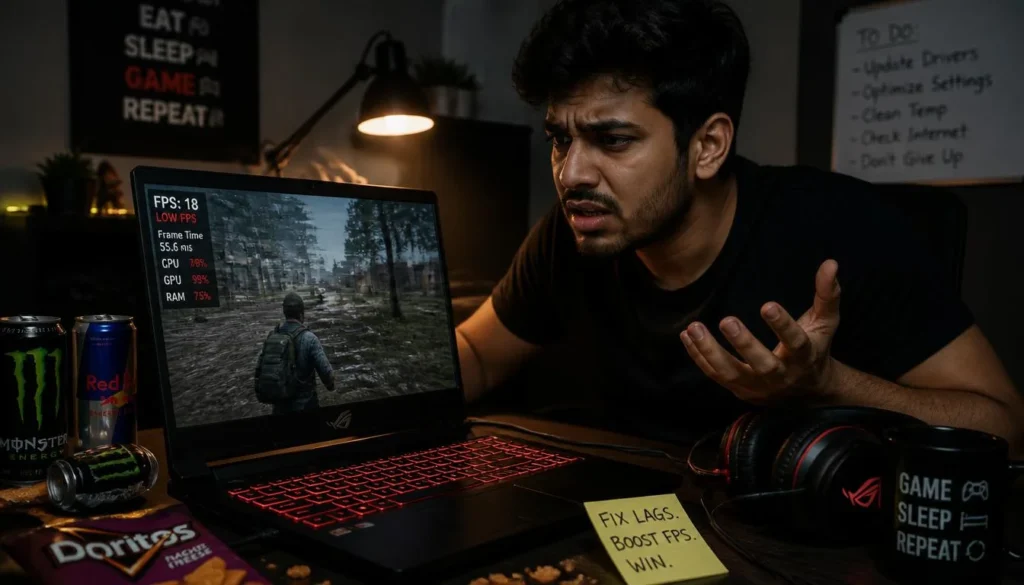
FPS, or frames per second, is the number of frames your laptop can render every second. Higher FPS usually makes motion look smoother and controls feel more responsive.
Low FPS can happen for several reasons:
- The laptop is running on battery power.
- Windows or the laptop software is using a power-saving mode.
- The game is running on integrated graphics instead of the dedicated GPU.
- The CPU or GPU is overheating.
- Graphics settings are too demanding.
- The GPU is running out of VRAM.
- System RAM is full or running in an inefficient configuration.
- A background program is using CPU, RAM, storage, or GPU resources.
- A frame-rate limiter is enabled.
- The graphics driver is outdated or causing problems.
- The CPU or GPU has become the performance bottleneck.
Intel describes a gaming bottleneck as a situation where one component limits the performance potential of other hardware. It also notes that demanding graphics settings are one of the most common reasons for reduced frame rates.
Before changing dozens of settings, check a few basics while the game is running:
- Current FPS
- GPU utilization
- CPU utilization
- CPU and GPU temperature
- RAM usage
- VRAM usage
- GPU clock speed
- Whether the charger is connected
- Which GPU the game is actually using
These checks can save you from spending an hour fixing the wrong problem.
How to Increase FPS on a Gaming Laptop
Start with the changes below. The first few fixes are quick, free, and often make the biggest difference on gaming laptops.
1. Plug Your Gaming Laptop Into the Charger
This sounds obvious, but it is one of the most important gaming-laptop fixes.
Gaming laptops normally cannot provide their CPU and dedicated GPU with full performance power while running only on battery. Manufacturers reduce power consumption to protect battery life, control heat, and prevent the battery from draining too quickly.
For serious gaming, connect the laptop to AC power.
Also make sure you are using the correct charger. A low-wattage USB-C charger or an incompatible replacement adapter may charge the laptop but still fail to provide enough power for maximum gaming performance.
If your FPS is good while plugged in but drops sharply on battery, that is usually expected behavior rather than a faulty GPU.
NVIDIA’s BatteryBoost technology, for example, is specifically designed to balance battery use, image quality, CPU/GPU power, and frame rate when gaming away from wall power.
2. Switch to Performance or Turbo Mode
Gaming laptops often include several operating profiles such as:
- Silent
- Eco
- Balanced
- Performance
- Turbo
Silent and Eco modes are useful when you are browsing or working, but they can restrict CPU/GPU power and fan speed.
For gaming, use Performance or Turbo mode when your laptop supports it.
You may find this setting inside software such as ASUS Armoury Crate, Lenovo Vantage, MSI Center, Acer NitroSense or PredatorSense, HP OMEN Gaming Hub, or Alienware Command Center.
You should also check Windows power settings.
In Windows, go to:
Settings > System > Power & battery > Power mode
Choose Best performance when maximum gaming performance matters. Microsoft describes Best performance mode as the option that maximizes performance.
Keep in mind that Performance and Turbo modes usually mean more fan noise, higher power use, and higher temperatures.
3. Make Sure the Game Is Using the Dedicated GPU
Many gaming laptops contain two graphics processors:
- An integrated GPU built into the processor
- A dedicated NVIDIA, AMD, or Intel gaming GPU
The integrated GPU is excellent for saving battery, but it is usually not the GPU you want for demanding games.
If a game accidentally launches on integrated graphics, FPS can be far lower than expected.
In Windows 11, you can check the graphics preference for individual apps:
Settings > System > Display > Graphics
Select the game and choose the high-performance GPU when that option is available.
You can also check Task Manager or your GPU monitoring software while the game is running to see which GPU is under load.
If you own a powerful gaming laptop but get strangely low GPU usage and poor FPS, confirming the active GPU should be one of your first troubleshooting steps.
4. Enable the MUX Switch or dGPU-Only Mode
Some gaming laptops use hybrid graphics technology to route frames from the dedicated GPU through the integrated GPU before they reach the internal display.
This helps with battery life, but on certain laptops and games it can reduce performance or add a little latency.
A MUX switch allows supported laptops to connect the display directly to the dedicated GPU.
Depending on your laptop, the option may be called:
- dGPU Only
- Discrete Graphics
- Ultimate Mode
- NVIDIA GPU Only
- MUX Switch
- Hybrid Mode Off
Use the dedicated-GPU mode when maximum gaming performance is more important than battery life.
Not every laptop has a MUX switch, and the size of the FPS improvement varies by game and hardware. CPU-limited competitive games may sometimes benefit more than heavily GPU-limited titles.
If your laptop supports NVIDIA Advanced Optimus, it may be able to switch display paths automatically without requiring a manual reboot on supported configurations.
5. Check for an FPS Cap, VSync, BatteryBoost, or WhisperMode
If your laptop is capable of more performance but every game seems stuck at 30, 60, or another exact FPS value, you may not have a performance problem at all.
You may have an FPS limit.
Check these settings:
- In-game frame-rate limit
- VSync
- NVIDIA Max Frame Rate
- NVIDIA BatteryBoost
- NVIDIA WhisperMode
- Laptop manufacturer gaming profiles
- Game launcher settings
WhisperMode is designed to make supported GeForce laptops quieter by controlling frame pacing and graphics settings for better power efficiency. That is useful when you want a quieter laptop, but it may not be the setting you want when chasing maximum FPS.
NVIDIA also documents interaction between Max Frame Rate, BatteryBoost, and WhisperMode on laptops.
If your gaming laptop is stuck at exactly 60 FPS, check for a limiter before changing graphics quality.
6. Update Your Graphics Driver
Graphics drivers affect how Windows and games communicate with your GPU.
If your driver is old, a newer game may not perform as well as it should. Driver updates can also contain game-specific fixes, compatibility changes, and bug fixes.
Use the official software for your GPU:
- NVIDIA App for GeForce GPUs
- AMD Software for Radeon GPUs
- Intel graphics software for Intel GPUs
However, do not assume that every new driver automatically increases FPS.
If performance became worse immediately after a driver update, the new driver may be part of the problem. In that situation, check known issues or consider rolling back to a previously stable driver.
Avoid downloading graphics drivers from random third-party driver websites.
7. Optimize In-Game Graphics Settings
You do not need to set every game to Low.
A better strategy is to lower the settings that cost the most performance while keeping the settings that have little FPS impact at a level that still looks good.
Try reducing these first:
- Ray tracing
- Shadows
- Volumetric fog
- Volumetric lighting
- Reflections
- Ambient occlusion
- View distance
- Crowd density
- Render resolution
Ray tracing can be especially demanding. If a game runs poorly with ray tracing enabled, turn it off before destroying the quality of every other graphics setting.
Texture quality is different.
High-resolution textures mainly increase VRAM usage. If you have enough VRAM, reducing textures from High to Low may produce little improvement. If the game is exceeding your available VRAM, however, lowering texture quality can reduce stuttering and improve consistency.
Change one or two settings at a time and test the same area of the game. That makes it easier to see what actually helps.
8. Use DLSS, FSR, or XeSS
Modern upscaling technologies can provide one of the biggest FPS improvements without forcing you to play at a visibly low display resolution.
Common options include:
- NVIDIA DLSS
- AMD FSR
- Intel XeSS
These technologies render the game using fewer internal pixels and reconstruct the image toward your selected output resolution.
If a supported game offers several quality modes, start with Quality.
If performance is still too low, try Balanced.
Use Performance when you need a larger FPS increase and can accept a bigger image-quality trade-off.
AMD describes FSR upscaling as reconstructing a higher-quality image from lower-resolution frames to improve gaming performance.
For many modern games, using a good upscaling mode is a better first step than immediately dropping the monitor resolution.
9. Use Frame Generation When It Makes Sense
Frame generation is different from traditional upscaling.
Instead of only reducing the cost of rendering a frame, frame-generation technologies create additional frames between normally rendered frames.
This can make motion appear considerably smoother and increase the displayed FPS number.
But there is an important limitation: generated frames do not replace the need for a healthy base frame rate.
If a game is running at a very low native FPS, enabling frame generation may increase the displayed number without making controls feel as responsive as a genuinely high base frame rate.
For single-player games, frame generation can be extremely useful.
For competitive games, prioritize stable native performance and low latency before chasing the highest possible displayed FPS.
AMD’s current FSR technology family includes both upscaling and frame-generation features.
10. Turn On Useful Windows Gaming Features
Windows includes several settings that can affect gaming behavior.
Start by checking Game Mode and your per-game graphics preference.
Windows 11 also includes Optimizations for windowed games for compatible DirectX 10 and DirectX 11 games running in windowed or borderless-windowed mode. Microsoft says this feature can improve performance and reduce frame latency by using a newer presentation model.
You may also see Hardware-Accelerated GPU Scheduling on supported systems.
Treat settings like this as something to test, not a guaranteed FPS boost. Hardware, drivers, and individual games can respond differently.
Make one change, benchmark the game, and keep the setting only if it helps.
11. Close Unnecessary Background Apps
A gaming laptop does not run your game in isolation.
Browsers, video calls, launchers, RGB software, cloud-sync apps, recording software, overlays, downloads, and antivirus scans can all use system resources.
Before launching a demanding game, close anything you do not need.
Pay particular attention to:
- Browsers with many open tabs
- Discord screen sharing
- OBS or other recording apps
- Steam, Xbox, Discord, or GPU overlays
- Active downloads
- Cloud backup and file-sync apps
- Unnecessary game launchers
You do not need to disable every Windows service or kill random system processes. That can create new problems for very little benefit.
Focus on applications that are clearly consuming CPU, GPU, RAM, network bandwidth, or storage activity.
12. Reduce Heat and Prevent Thermal Throttling
Gaming laptops pack powerful components into a small chassis. Heat is unavoidable.
The real problem begins when the CPU or GPU becomes hot enough that the system reduces clock speeds to protect itself.
That is thermal throttling.
To improve cooling:
- Place the laptop on a hard, flat surface.
- Do not block the bottom or side vents.
- Raise the rear of the laptop slightly if it improves airflow.
- Clean dust from vents and fans.
- Use the appropriate Performance or Turbo fan profile.
- Keep the room reasonably cool.
- Consider a good laptop cooling pad if your model benefits from one.
Do not assume that a high temperature automatically means throttling. The better sign is a combination of high temperature, falling clock speeds, and worsening performance during a sustained gaming session.
Why FPS Drops After 10 to 30 Minutes of Gaming
If a game starts at 100 FPS and slowly falls to 70 FPS after the laptop becomes hot, temperature or power limits should be high on your troubleshooting list.
Monitor FPS, CPU/GPU temperatures, clock speeds, and power during the first 20–30 minutes.
If performance consistently drops as temperatures rise, improve cooling before spending time on random Windows tweaks.
13. Check Your RAM Configuration
RAM can affect gaming performance, but the answer is more complicated than “more RAM equals more FPS.”
If your system already has enough memory for the game and background applications, increasing capacity alone may not dramatically raise average FPS.
Memory configuration can matter, though.
For example, some laptops perform better when memory is configured to provide more memory bandwidth rather than using a weaker single-module configuration.
This can be especially important in:
- CPU-limited games
- Esports titles
- Games with heavy simulation
- Systems using integrated graphics
For many modern gaming setups, 16GB is a practical baseline, while heavier multitasking or newer demanding titles may benefit from more.
Check your laptop manual before buying memory. Some thin gaming laptops use partially or fully soldered RAM.
14. Make Sure You Have Enough RAM and VRAM
System RAM and VRAM are not the same thing.
System RAM is used by Windows, games, browsers, Discord, launchers, and other applications.
If system RAM becomes full, Windows may need to move more data between memory and storage. That can cause pauses, hitching, or poor 1% lows.
VRAM belongs to the graphics system.
It stores assets such as:
- Textures
- Frame buffers
- Geometry data
- Rendering resources
High resolutions, high-resolution texture packs, and ray tracing can increase VRAM demand.
If VRAM usage is too high, try reducing texture quality, ray tracing, resolution, or other VRAM-heavy settings.
This is one reason a game can show a decent average FPS while still stuttering badly.
15. Lower Resolution or Render Scale
When a game is clearly GPU-limited, reducing the number of pixels the GPU must render can provide a large performance improvement.
For example, you might move from:
- 2560×1600 to 1920×1200
- 2560×1440 to 1920×1080
- 1080p to a lower render scale
Before reducing the actual display resolution, check whether the game supports DLSS, FSR, XeSS, or a built-in render-resolution slider.
These usually provide more control over the image-quality versus FPS trade-off.
If GPU usage is already close to maximum and lowering resolution significantly improves FPS, your GPU was probably the main bottleneck.
Best Settings to Increase FPS on a Gaming Laptop
There is no single perfect configuration for every laptop, but these settings are a good starting point.
| Setting | Recommended Starting Point | Typical Effect |
|---|---|---|
| Windows Power Mode | Best Performance | Can improve power-limited performance |
| Laptop Performance Profile | Performance/Turbo | Often useful |
| GPU Mode | dGPU Only, if appropriate | Can improve FPS on some laptops |
| Ray Tracing | Off or Low | Often a large FPS gain |
| Shadows | Medium | Moderate gain in many games |
| Upscaling | Quality or Balanced | Often a large gain |
| Frame Generation | On when suitable | Higher displayed FPS |
| Resolution | Lower only when needed | Large gain when GPU-limited |
| Texture Quality | Match available VRAM | Helps when VRAM-limited |
| Background Apps | Close unnecessary apps | Improves available resources |
| FPS Limit | Check for unwanted caps | Important if FPS is locked |
| VSync | Set based on display/tearing needs | Not a general FPS booster |
Do not copy a settings list blindly. The best settings depend on whether your game is limited by the CPU, GPU, memory, temperature, or power.
How to Find What Is Limiting Your FPS
The fastest way to improve performance is to identify the bottleneck.
Check GPU Usage
If your dedicated GPU sits around 95–100% usage during a demanding scene and FPS is lower than you want, the game is probably GPU-limited.
Try:
- Lowering resolution
- Enabling DLSS, FSR, or XeSS
- Reducing ray tracing
- Lowering shadows or volumetric effects
- Reducing other GPU-heavy graphics settings
If GPU usage is unexpectedly low, investigate CPU limitations, power mode, thermal throttling, frame-rate caps, or whether the game is using the wrong GPU.
Check CPU Usage Properly
Do not look only at total CPU usage.
A game can be CPU-limited even when Task Manager says the CPU is at 50%.
Many games rely heavily on one or a few CPU threads. One important core may be fully loaded while the rest are much less busy.
A useful clue is this:
If lowering resolution or graphics settings does not meaningfully increase FPS, the CPU may be limiting performance.
Check RAM and VRAM
If system RAM is nearly full, close unnecessary applications and test again.
If VRAM is overloaded, reduce textures, ray tracing, resolution, or other memory-heavy graphics settings.
Watch for stutters as well as average FPS.
Check Temperatures and Clock Speeds
Monitor CPU and GPU temperatures while gaming.
Then watch the clock speeds.
If the laptop becomes hot and the clocks drop at the same time as FPS, you may be seeing thermal throttling.
Check GPU Power and TGP Behavior
Laptop GPUs do not always run at the same power level.
The GPU’s available power depends on the laptop design, performance profile, temperatures, CPU power demand, charger, firmware, and workload.
If GPU utilization is high but clock speed and power are unexpectedly low, check:
- Charger connection
- OEM performance mode
- Temperature
- Battery state
- Silent/Eco modes
- GPU power limits
Do not use random software to force higher GPU wattage. Laptop cooling and power systems are designed around specific limits.
Check Average FPS, 1% Lows, and Frametime
Average FPS does not tell the whole story.
A game can average 120 FPS but still feel bad if it frequently drops far below that number.
That is why experienced testers also look at:
- 1% low FPS
- Frametime
- Frametime spikes
Consistent frame delivery often feels better than a high average FPS with constant stuttering.
If your average FPS looks good but the game does not feel smooth, investigate background apps, CPU spikes, RAM/VRAM pressure, shader compilation, storage streaming, and overheating.
What Gives the Biggest FPS Increase?
The best fix depends on what is limiting your laptop.
If You Are GPU-Limited
Try these first:
- Disable or reduce ray tracing.
- Enable DLSS, FSR, or XeSS.
- Lower resolution or render scale.
- Reduce shadows, reflections, and volumetric effects.
- Use the laptop’s full-performance GPU mode.
If You Are CPU-Limited
Try:
- Close CPU-heavy background applications.
- Use Performance or Turbo mode.
- Improve cooling.
- Check RAM configuration.
- Reduce CPU-heavy settings such as crowd density, simulation detail, or view distance.
If You Are Power-Limited
Try:
- Connect the correct charger.
- Select Best Performance in Windows.
- Enable the laptop’s Performance or Turbo profile.
- Disable unnecessary battery-saving gaming features.
- Check whether the system has accidentally entered Eco or Silent mode.
If You Are Thermal-Limited
Try:
- Improve airflow.
- Clean vents and fans.
- Raise the rear of the laptop.
- Use a stronger fan profile.
- Have the cooling system serviced if temperatures and throttling remain abnormal.
How to Increase FPS Without Upgrading Your Gaming Laptop
If you do not want to spend money on hardware, start with this order:
- Plug in the correct charger.
- Enable Performance or Turbo mode.
- Make sure the game uses the dedicated GPU.
- Enable dGPU-only mode if your laptop supports it and you need maximum performance.
- Check for unwanted FPS caps.
- Turn down ray tracing.
- Enable DLSS, FSR, or XeSS.
- Close heavy background programs.
- Improve laptop cooling.
- Lower resolution if the GPU remains the bottleneck.
These changes cost nothing and address the most common software, power, and thermal causes of poor gaming performance.
Can an External Monitor Increase FPS on a Gaming Laptop?
Sometimes.
An external monitor does not magically make your GPU faster.
However, laptop display wiring differs between models. On certain hybrid-graphics laptops, the internal screen may receive frames through the integrated GPU, while a specific HDMI, DisplayPort, or USB-C display output may connect directly to the dedicated GPU.
In that situation, using the correct external display port can sometimes bypass the hybrid graphics path and improve performance.
But this is completely model-dependent.
Before buying a monitor for this reason, check your laptop manual, manufacturer documentation, or GPU-routing diagram to see which GPU controls each display output.
If your laptop already uses a MUX switch or direct dGPU mode, an external monitor may provide little or no additional FPS benefit.
Why Is My Gaming Laptop Stuck at 60 FPS?
A gaming laptop stuck at exactly 60 FPS often has a frame-rate cap rather than a weak GPU.
Check:
- The game’s FPS limit
- VSync
- NVIDIA Max Frame Rate
- BatteryBoost
- WhisperMode
- Manufacturer gaming software
- Display refresh-rate settings
Also make sure your display is actually configured to use its intended refresh rate in Windows.
A 144Hz or 165Hz laptop screen can sometimes still be configured to run at 60Hz.
Keep in mind that refresh rate and FPS are different.
A 165Hz display can refresh up to 165 times per second, but it does not force the GPU to produce 165 FPS.
Likewise, changing a display from 60Hz to 144Hz does not automatically make a game render more frames.
Should You Turn Off VSync to Increase FPS?
VSync synchronizes frame delivery with the monitor’s refresh cycle to reduce visible screen tearing.
Depending on the game and configuration, VSync can also limit FPS around the display refresh rate.
If your main goal is the highest possible FPS and lowest latency, you may prefer VSync off.
If tearing bothers you, VSync or a variable-refresh-rate technology such as G-SYNC or FreeSync may give you a smoother experience.
Do not judge a gaming setup only by the FPS counter. Smooth frame pacing and low latency can matter just as much.
Why Did My Gaming Laptop FPS Suddenly Drop?
If performance was good yesterday and suddenly became bad today, do not immediately assume the hardware is failing.
Check recent changes first.
Common causes include:
- The charger became disconnected.
- The laptop switched to Silent or Eco mode.
- The game started using integrated graphics.
- A frame-rate limiter was enabled.
- VSync settings changed.
- BatteryBoost or WhisperMode became active.
- A driver update created a problem.
- A game update changed performance.
- A background download or application is running.
- The laptop is overheating.
- Fans or vents have collected dust.
- A Windows or manufacturer performance profile changed.
If the problem began immediately after an update, that timing is valuable information.
Try to isolate what changed instead of adjusting every setting at once.
What About Shader Compilation Stutter?
Some games may stutter while shaders are being compiled or cached, especially after a game update, driver change, or first launch.
This can feel like an FPS problem even when average frame rate appears normal.
If the stutter mainly occurs the first time you enter an area or encounter a new effect, shader compilation may be involved.
Do not immediately start deleting system files or installing “FPS booster” programs. Check whether the game has a shader-compilation step, let it complete when possible, and review game-specific known issues.
FPS Myths and Settings That Will Not Always Give You a Big Boost
There is plenty of bad gaming-optimization advice online. These are some of the most common misconceptions.
A Higher Refresh Rate Does Not Create More FPS
Moving from a 60Hz display to a 144Hz or 240Hz display can make high-frame-rate gaming look much smoother.
But it does not make the GPU render more frames.
FPS is created by the system. Refresh rate describes the display.
An SSD Does Not Automatically Give You Much Higher Average FPS
Moving a game from a hard drive to an SSD can dramatically improve loading times and may reduce asset-streaming pauses in some games.
But an SSD is not usually a direct cure for low average FPS.
Storage upgrades are still worthwhile, especially for modern games, but do not expect every title to jump from 50 FPS to 100 FPS just because it is installed on a faster SSD.
More RAM Does Not Automatically Increase FPS
If your laptop already has enough memory, adding more capacity may have little effect on average FPS.
RAM upgrades help most when the system is running out of memory or when the existing memory configuration is holding back performance.
Random Registry Tweaks Are Not a Real Optimization Strategy
Avoid changing Windows registry values simply because a video promises “300% more FPS.”
A tweak that works for one specific problem may do nothing—or create instability—on another system.
RAM Cleaner and “Game Booster” Apps Are Usually Unnecessary
Windows already manages memory and background processes.
Closing a few heavy applications yourself is normally safer than installing another program that claims to “unlock” your hardware.
Updating the BIOS Is Not a General FPS Trick
BIOS and firmware updates can fix hardware compatibility, stability, security, or manufacturer-specific issues.
But you should not update the BIOS just because you want five more FPS.
Use BIOS updates when the laptop manufacturer recommends them for a relevant issue, and follow the manufacturer’s instructions carefully.
When Should You Upgrade Your Gaming Laptop?
Software optimization has limits.
Consider a hardware upgrade or replacement if:
- The GPU remains at full usage even after lowering reasonable settings.
- Your desired resolution is too demanding for the GPU.
- The laptop consistently runs out of VRAM in the games you play.
- System RAM is insufficient.
- Your CPU is a major bottleneck in newer titles.
- The laptop cannot maintain your target FPS even after optimization.
RAM and storage are upgradeable on many gaming laptops.
The CPU and GPU usually are not.
If your laptop has an older GPU that cannot deliver the performance you need in modern games, replacing the entire laptop may make more sense than spending money trying to optimize around a hard hardware limit.
Frequently Asked Questions
How can I get more FPS on my gaming laptop?
Plug the laptop into the correct charger, enable Performance mode, make sure the dedicated GPU is being used, remove unwanted FPS caps, lower demanding graphics settings, enable DLSS, FSR, or XeSS, close unnecessary applications, and keep the laptop cool.
Why is my gaming laptop getting low FPS with a good GPU?
A good GPU can still perform poorly if the game is using integrated graphics, the CPU is bottlenecking it, the laptop is in a low-power mode, temperatures are causing throttling, an FPS limit is active, or the GPU is not receiving enough power.
Does plugging in a gaming laptop increase FPS?
It often does. Gaming laptops normally allow much higher CPU and GPU power when connected to the appropriate AC adapter. Battery operation is usually optimized for efficiency rather than maximum gaming performance.
Does a MUX switch increase FPS?
It can. On supported laptops, dGPU-only mode can bypass the integrated-GPU display path. The improvement varies by laptop, game, resolution, and whether the workload is CPU- or GPU-limited.
Does more RAM increase FPS on a gaming laptop?
Sometimes. More RAM helps when the system does not have enough memory or when changing the memory configuration improves bandwidth. If you already have enough well-configured RAM, adding more may have little impact on average FPS.
Does an SSD increase FPS?
Usually not by much in terms of average FPS. An SSD mainly improves loading times and can help with asset streaming or some forms of stutter.
Does lowering resolution increase FPS?
Yes, when the GPU is the bottleneck. Rendering fewer pixels reduces GPU workload. Try DLSS, FSR, XeSS, or render scaling first if the game supports them.
Can high temperatures lower FPS?
Yes. If the CPU or GPU reaches thermal limits, the laptop may reduce clock speed and power to stay within safe operating conditions. That can lower gaming performance.
Why do I have high FPS but the game still feels choppy?
Poor 1% lows, uneven frametimes, background CPU spikes, RAM or VRAM pressure, shader compilation, thermal throttling, or storage streaming can make a game feel stuttery even when average FPS looks high.
Is 60 FPS enough for gaming?
For many single-player games, a stable 60 FPS feels smooth. Competitive players often prefer 120 FPS, 144 FPS, or higher when their hardware and display support it. Stability and consistent frame delivery are usually more important than chasing a high number that constantly drops.
Final Thoughts
You do not need to change every setting on your laptop to get better gaming performance.
Start with the basics: plug in the correct charger, use Performance mode, confirm the dedicated GPU is active, and check whether your FPS is being capped.
Then identify the real bottleneck.
If the GPU is maxed out, reduce GPU-heavy settings or use upscaling. If the CPU is limiting performance, focus on background processes, cooling, RAM configuration, and CPU-heavy game settings. If FPS gets worse as the laptop heats up, investigate thermal throttling. And if you already have high average FPS but the game still feels rough, look at 1% lows and frametime instead of staring only at the FPS counter.
The goal is not simply to make the number in the corner of the screen bigger. The goal is to get stable, smooth, responsive performance from the hardware you already own.