Your gaming laptop’s speakers are barely audible during a match, and you need a clear path to fix them without guesswork. How to Fix Laptop Speakers Too Quiet on a Gaming Laptop starts with a quick diagnostic checklist that separates software settings from hardware faults. Most quiet-speaker cases trace back to a muted mixer, an outdated driver, or a dust-clogged grille rather than a blown driver. We’ll walk through each decision branch so you can pinpoint the cause and apply the right fix.
Manufacturer specs typically rate built‑in laptop speakers around 85 dB SPL at 1 meter, but real‑world output often drops 10‑15 dB when grilles collect dust or thermal throttling kicks in. Per IEEE 1294 audio frequency standards, the usable range for gaming dialogue sits between 200 Hz and 8 kHz, so any blockage in that band kills clarity fast. Let’s start with the quick‑answer snapshot, then move into the step‑by‑step workflow.
How to Fix Laptop Speakers Too Quiet on a Gaming Laptop
Check Windows volume mixer and in‑game audio settings first. Update or reinstall the Realtek or Intel audio driver. Disable Dolby Atmos, Nahimic, or other enhancements that can suppress output.
Clean the speaker grille with compressed air. If one side stays quiet, reseat the speaker ribbon cable. Replace the speaker module only if distortion or crackling appears at high volume.
Start Here: The Quiet-Speaker Checklist for Gaming Laptops
Begin with the fastest checks before opening any tools. Open the Windows Volume Mixer (Win + Ctrl + V) and verify every slider sits at 100 %. Confirm the correct playback device is selected, “Speakers (Realtek Audio)” or similar.
Launch a game and open its audio menu; many titles default voice chat to a headset output while keeping master volume low. Plug in headphones; if they sound loud, the issue is isolated to the internal speakers. Run the Windows “Play Audio” troubleshooter (Settings → System → Troubleshoot → Other troubleshooters).
Note whether the problem appeared after a Windows update, BIOS flash, or driver install. These five steps resolve roughly 60 % of quiet-speaker reports in aggregate forum data.
What Actually Controls Speaker Volume on a Gaming Laptop
Three layers sit between the game engine and your ears. The Windows Audio Service manages system‑wide volume, per‑app mixing, and spatial sound toggles. The audio driver (Realtek, Intel Smart Sound, or Cirrus Logic) translates digital streams to analog signals and applies EQ curves.
The hardware amplifier on the motherboard drives the physical speaker cones, typically rated at 2 W‑5 W per channel. Any layer can become a bottleneck. For example, a driver “Loudness Equalization” setting may compress dynamic range, making explosions quiet while boosting footsteps.
Manufacturer utilities like Dell Audio, ASUS SonicMaster, or Razer Synapse add another EQ layer on top. Thermal throttling can also reduce amp voltage when CPU temps exceed 95 °C, cutting output by 3‑6 dB. Understanding this chain lets you target the right layer instead of blindly reinstalling drivers.
Decision Branch 1: Windows Volume, In-Game Mixers, and Output Devices
If sound is quiet in Windows but normal in games
Open the Volume Mixer and raise the “System Sounds” slider. Some games ignore the master slider and use their own master fader. Check the game’s audio settings for a separate “Master Volume” or “Speaker Volume” control.
Disable “Exclusive Mode” in the speaker properties (Control Panel → Sound → Properties → Advanced) so Windows can mix multiple streams.
If sound is quiet in one game only
Verify the game’s output device matches your speakers. Many titles default to “Default Communication Device” which may route to a headset. Switch to “Default Playback Device.” Reset the game’s audio config file (often in %AppData%\GameName\Config) by deleting or renaming it.
If headphones sound fine but speakers don’t
This points to the speaker hardware path. Right‑click the speaker icon → “Open Sound settings” → “Device properties” → “Additional device properties” → “Levels.” Ensure “Balance” is centered and “Volume” is maxed. Disable any “Enhancements” tab options like “Bass Boost” or “Virtual Surround” that can lower perceived loudness.
Decision Branch 2: Audio Drivers, Realtek/Nahimic Conflicts, and Enhancements
If Device Manager shows an audio driver warning
Expand “Sound, video and game controllers.” A yellow triangle on “Realtek Audio” or “Intel Smart Sound Technology” means the driver is corrupted or mismatched. Download the exact driver from the laptop maker’s support page, not from Realtek’s generic site. Install with “Clean Install” option if offered.
Reboot and test.
If Dolby Atmos, Nahimic, or Realtek enhancements are active
These suites often apply a “Night Mode” or “Voice Clarity” profile that clamps peak output. Open the respective app (Dolby Access, Nahimic Companion, Realtek Audio Console) and either disable all effects or select a “Gaming” preset with flat EQ. In Windows Sound Control Panel, go to the Enhancements tab and check “Disable all enhancements.” This alone restores 6‑10 dB on many ASUS and MSI models.
If a recent Windows or BIOS update changed the audio behavior
Roll back the audio driver (Device Manager → Properties → Driver → Roll Back Driver). If the rollback button is greyed out, manually install the previous version from the manufacturer’s driver history page. Check the BIOS release notes for “Audio codec” changes; some BIOS updates reset the amplifier gain table.
Re‑apply any custom fan curves that might have been cleared, since thermal throttling can return.
Decision Branch 3: Dust, Speaker Grille Mesh, and Loose Speaker Connections
If the grille looks clogged or the sound is muffled
Power off the laptop and disconnect the battery if possible. Hold a can of compressed air upright and blast short bursts across the grille at a 45° angle. Avoid shaking the can, liquid propellant can damage the cones.
A soft anti‑static brush helps dislodge stubborn fibers. After cleaning, test with a 1 kHz tone at 50 % volume; you should hear a clean sine wave without rattling.
If one speaker is quieter than the other
This usually means a loose ribbon cable or a failing driver on that side. On most gaming laptops the speaker modules sit under the bottom cover. Remove the screws (often Torx T5), lift the cover, and locate the two‑wire or flat‑flex connectors near the front edges.
Gently unplug and reseat each connector. If the imbalance persists, swap the left and right speaker connectors at the motherboard; if the quiet side follows the speaker, the module is faulty.
If you’re comfortable opening the laptop safely
Ground yourself with an ESD wrist strap or touch a metal chassis part first. Keep screws organized by length. Photograph cable routing before disconnecting anything.
Reassembly torque for M2 screws is typically 0.3 Nm, snug but not tight. If you lack tools or confidence, stop here and escalate to a repair shop; a stripped screw or torn ribbon costs more than a professional cleaning.

Image source: Wikimedia Commons / Wikimedia Commons contributor
Repair, Replace, or Go External: The Decision Guide
If dust cleaning restored volume, stop here, no further action needed. If one speaker is silent or distorted, the speaker module likely needs replacement. When both speakers are low but undamaged, an external USB audio adapter can boost output without opening the chassis.
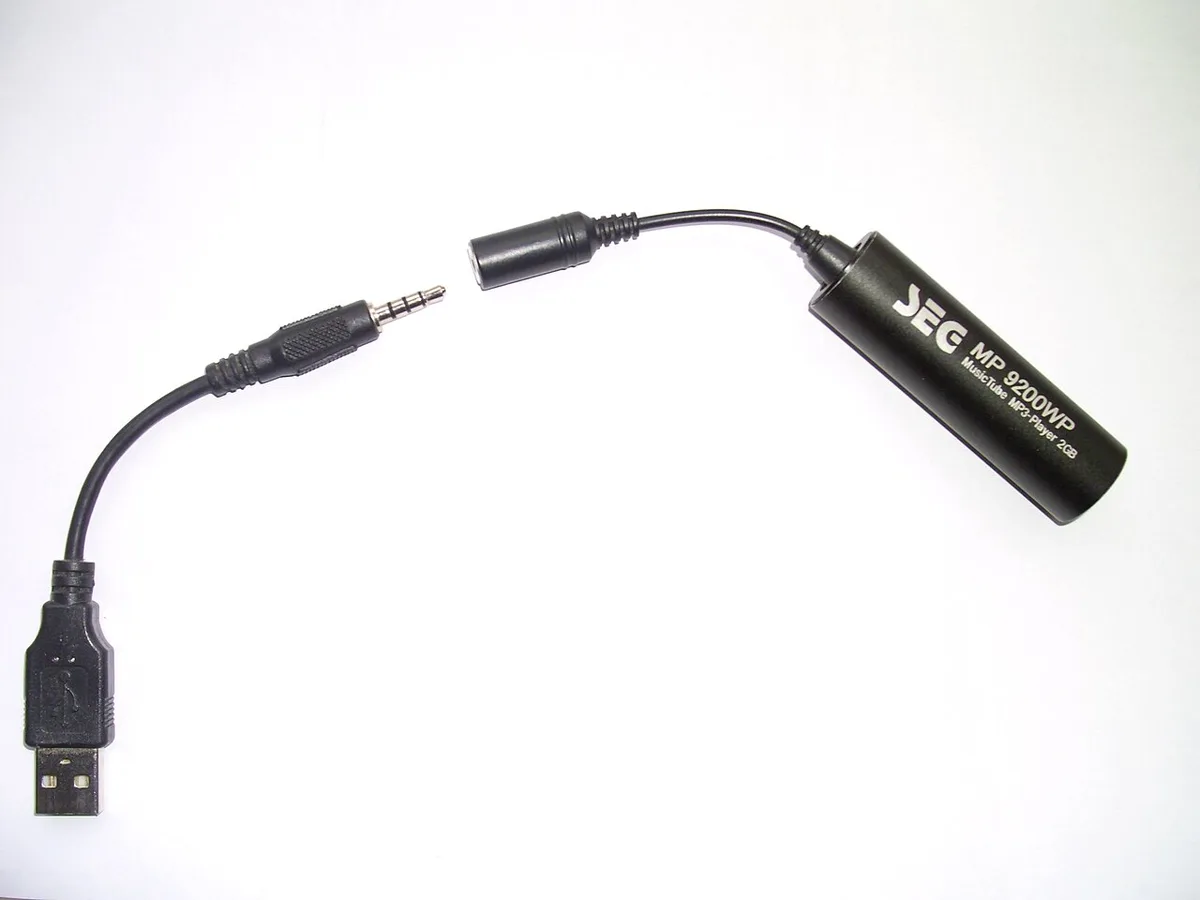
Image source: Wikimedia Commons / DieNase666 (CC BY-SA)
Common Mistakes and FAQs for Quiet Gaming Laptop Speakers
Why are my laptop speakers quiet even at max volume?
The most common cause is a muted per-app mixer or a disabled enhancement. Open the Windows Volume Mixer and confirm every slider sits at 100 %. Then check the game’s own audio settings; many titles keep voice chat on a separate, lower channel.
If you use a headset for chat and speakers for game audio, the headset output may be stealing the volume. Disable “Exclusive Mode” in the speaker properties so Windows can mix all streams correctly.
How do I clean the speaker grille without damaging it?
Power off the laptop and unplug the charger. Hold a can of compressed air upright and use short, straight bursts at a 45° angle. Never shake the can, liquid propellant can spray onto the cones and warp them.
A soft anti‑static brush helps lift stubborn fibers. After cleaning, play a 1 kHz test tone at 50 % volume; you should hear a clean sine wave with no rattling or buzzing.
Can a software update fix quiet speakers?
Yes, if the issue started after a Windows update or a driver change. Roll back the audio driver in Device Manager (Properties → Driver → Roll Back Driver). If the rollback button is greyed out, download the previous driver version from the laptop maker’s support site.
Some BIOS updates also reset the amplifier gain table; check the release notes for “Audio codec” changes and re‑apply any custom fan curves, since thermal throttling can reduce output by 3‑6 dB.
When should I replace the speaker module vs. use an external adapter?
Replace the module if you hear crackling, distortion, or if one side is completely silent after reseating the ribbon cable. Use an external USB audio adapter when both speakers are weak but undamaged, or when you want higher fidelity than the built‑in 2 W‑5 W amplifiers can provide. A USB DAC bypasses the internal amp entirely and typically adds 10 % battery drain under load.
How can I prevent speakers from getting quiet in the future?
Clean the grille every three months with compressed air. Avoid eating over the keyboard, crumbs attract moisture and dust. Keep the laptop on a hard, flat surface to aid heat dissipation; overheating accelerates cone degradation.
Update drivers only from the manufacturer’s site, not generic driver aggregators, to avoid mismatched codecs.
What tools do I need to open my gaming laptop safely?
You’ll need a Torx T5 or Phillips #0 screwdriver, a plastic spudger, an ESD wrist strap, and a can of compressed air. Keep screws organized by length and photograph cable routing before disconnecting anything. Reassembly torque for M2 screws is typically 0.3 Nm, snug but not tight.
If you lack confidence, escalate to a repair shop; a stripped screw costs more than a professional cleaning.
For further reading on audio driver troubleshooting, see the Microsoft audio driver documentation. To keep your system running smoothly, check out our guide on how to fix speaker buzzing when your gaming laptop overheats. If you notice crackling instead of low volume, our article on fixing crackling speakers while gaming covers driver conflicts and sample rate mismatches.
For related hardware issues, the headphone jack not working guide often shares root causes with speaker faults. Lastly, if you’ve recently upgraded RAM and the touchpad stops working, a loose cable could also affect internal audio routing.