how to troubleshoot gaming laptop Ethernet problems starts with one question: is the fault physical, software, or network-side? You can usually tell within five minutes by checking the link light, the cable, and the IP address. Do not guess.
Work from the simplest layer outward.
IEEE 802.3 Ethernet negotiates speed and duplex automatically, so a mismatch usually points to a bad cable, port, or driver. As of 2026, most gaming laptops ship with 1 Gbps or 2.5 Gbps RJ45 ports. Let's walk through the fastest path from symptom to fix.
how to troubleshoot gaming laptop Ethernet problems
Start with the cable and port. Check the link light. Restart the router.
Update the network driver. Test another device.
What's Actually Breaking Your Ethernet Connection
Most Ethernet failures on gaming laptops fall into five buckets. Knowing the bucket saves hours. It also keeps you from replacing parts that are fine.
- Physical damage: bent pins, loose jack, cracked cable tab.
- Cable mismatch: old Cat5, bad crimp, or too long a run.
- Driver trouble: corrupt install, bad update, or wrong vendor driver.
- Network settings: wrong IP, bad DNS, or a stuck DHCP lease.
- Power management: Windows turns the adapter off to save battery.
If you want a wider hardware check, spot hardware faults fast before you blame the network. A loose port can look like an ISP issue.
| Symptom | Likely layer | First check |
|---|---|---|
| No link light | Physical | Cable and port |
| Connected, no internet | Network | Gateway and DNS |
| Slow or stuttering | Speed or duplex | Link speed and cable |
| Random drops | Driver or power | Power management |
The 5-Minute Triage: Narrow Down the Problem Fast
Do these in order. Stop when you find the fault.
- Look at the Ethernet jack. The link light should glow steady.
- Swap the cable with a known good one.
- Plug into a different router or switch port.
- Check the network icon in Windows. Does it say "Connected"?
- Open Command Prompt and run
ipconfig. Look for a valid IPv4 address. - Ping the gateway with
ping 192.168.1.1. Use your real gateway. - Ping a public address with
ping 8.8.8.8. - Ping a name with
ping google.com.
If step 6 fails, the problem is local. If step 7 fails but step 6 works, check DNS. If step 8 fails but step 7 works, flush DNS.
For latency issues after basic connectivity works, tackle gaming laptop lag with the same layered mindset. Fix the link first. Then tune the stack.
Branch 1: No Link Light, Physical Layer Fixes
No link light means the two devices never agreed a connection exists. This is usually the easiest branch.
- Inspect the cable. Look for kinks, crushed spots, and broken tabs.
- Inspect the laptop jack. Shine a light inside. Bent pins are common after drops.
- Test a different cable. Use Cat5e or Cat6 from a trusted brand.
- Test a different port on the router.
- Try a USB-C or Thunderbolt Ethernet adapter.
- Power cycle the router and modem. Unplug both for 30 seconds.
Do not force a cable. If the tab is broken, replace the cable. If the jack is loose, stop opening the chassis unless you know the warranty terms.
Many gaming laptops cover accidental damage separately.
If the laptop has no native RJ45 port, an adapter is normal. Some thin gaming laptops dropped Ethernet to save space. That is a design choice, not a defect.
When the wired jack looks damaged but Wi-Fi still works, compare the two paths. Wi-Fi keeps dropping can help you decide if wired is worth the repair.
Branch 2: Connected but No Internet, Network Layer Fixes
Here the link light is on, but traffic does not flow. This is where commands matter.
Run these one at a time:
ipconfig /releaseipconfig /renewipconfig /flushdnsnetsh winsock resetnetsh int ip reset
Restart the laptop after the reset commands. Then test again.
Also check these settings:
- Open Network Connections and confirm DHCP is enabled.
- Check the default gateway. It should match your router.
- Set DNS to automatic, or use a trusted resolver if your ISP is slow.
- Disable VPN and third-party firewall temporarily for testing.
- Check for a captive portal in hotels, dorms, or offices.
If you are on a shared network, the admin may block gaming traffic. That is not a laptop fault. Ask for the allowed ports.
For ping and latency checks after connectivity returns, cut ping fast before your next match.
Branch 3: Slow or Stuttering, Speed and Duplex Fixes
A 1 Gbps link that runs at 100 Mbps feels wrong. Stuttering with a good ping is often a duplex mismatch.
- Open the adapter properties in Device Manager.
- Check the negotiated speed. It should match the port rating.
- Set speed and duplex to Auto Negotiation first.
- If Auto fails, try 1.0 Gbps Full Duplex manually.
- Update the NIC driver from the laptop maker or Intel, Realtek, or Qualcomm.
- Roll back the driver if the issue started after an update.
- Disable power saving on the adapter. Uncheck "Allow the computer to turn off this device."
- Replace long or damaged cables. Cat5e is fine for 1 Gbps, but Cat6 is safer.
- Test a different router port. Some ports fail silently.
A cable longer than 100 meters can drop speed. Most home runs are far shorter, but bad cable quality matters more than length. Manufacturer specs and IEEE 802.3 testing both point to cabling as a common cause of link degradation.
If you are deciding between wired and wireless, wired vs wireless gaming lays out the trade-offs. Ethernet is not magic, but it removes radio interference.
If your laptop has no Ethernet port and you rely on adapters, whether Ethernet is worth it helps you weigh the upgrade path.
Branch 4: USB-C and Thunderbolt Adapter Troubles
An adapter is often the weak link. It adds another cable, another driver, and another power path. If it fails, the laptop may look broken when it is not.
Start simple. Plug the adapter into a direct USB-C port on the laptop. Avoid hubs and docks for testing.
Watch the link light on the adapter, not just Windows.
Check Device Manager. The adapter should appear under Network adapters. If it shows a warning icon, reinstall the driver from the adapter maker.
Generic Windows drivers work, but vendor drivers are safer.
Thunderbolt docks add more layers. They may need Thunderbolt software, firmware, and dock drivers. A dock that works for charging may still fail for Ethernet.
USB speed matters too. A USB 2.0 adapter caps real throughput. For gaming, use a USB 3.0 or better adapter.
Some USB-C adapters support 2.5 Gbps, but only if the port and cable support it.
If the adapter works on another PC but not yours, test a different laptop port. Also check power settings. Windows can suspend USB devices.
For more on port capability, see what USB4 adds to a gaming laptop. Per IEEE 802.3 standards, Ethernet auto-negotiates speed and duplex, but adapter behavior depends on the USB host controller.
If you travel often, carry a spare adapter and a short Cat6 cable. That is cheap insurance against a bad hotel port.
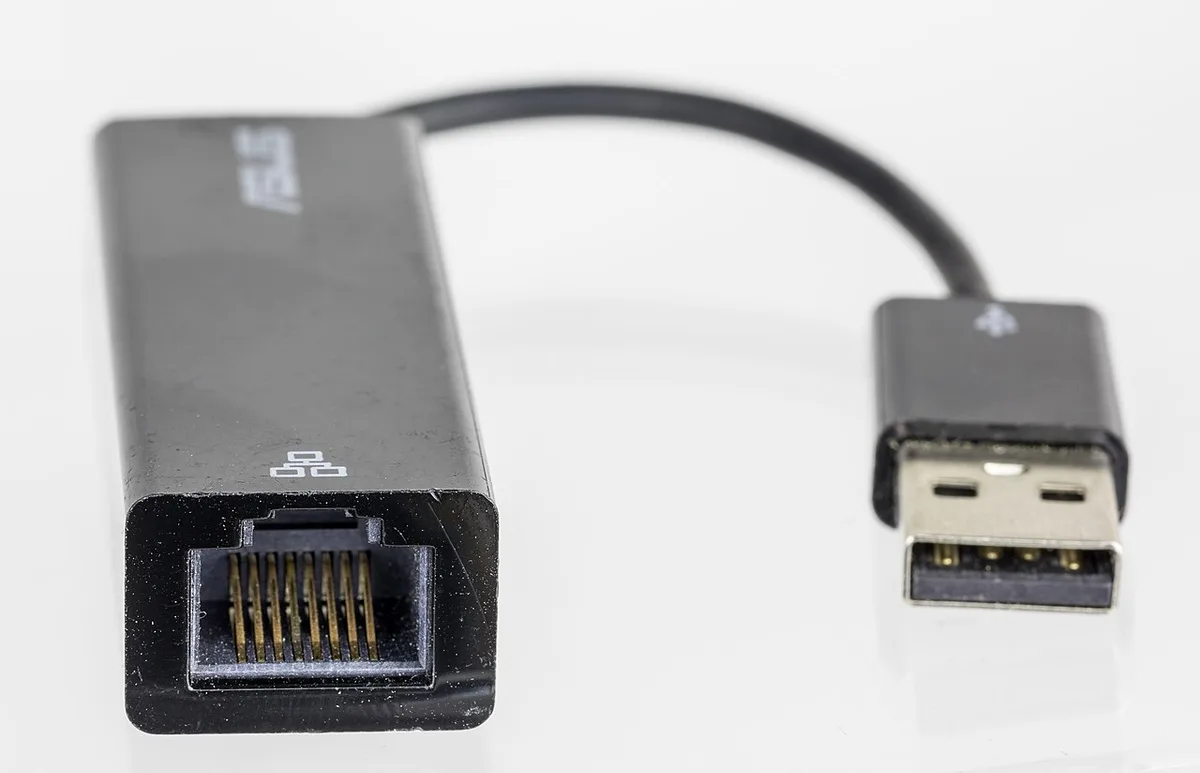
Image source: Wikimedia Commons / Raimond Spekking (CC BY-SA)
The Mistakes That Turn a 10-Minute Fix Into an All-Nighter
The biggest mistake is changing everything at once. Then you cannot tell what fixed it.
Do not reset Windows before you check the cable. Do not reinstall drivers before you ping the gateway. Do not blame the ISP before you test another device.
Another common error is using old Cat5 cable. It may link at 100 Mbps and feel fine until a large download starts. Replace suspect cable first.
It is cheap.
People also disable firewalls and leave them off. That is a security risk. Turn them back on after testing.
Opening the laptop can void warranty coverage. Check the maker's policy first. If the jack is loose, professional repair is often cheaper than a board replacement.
Do not use random driver updater tools. They can install the wrong NIC driver. Get it from the laptop maker or the chip maker.
If you must open the chassis, back up first. A failed repair plus no backup is the real all-nighter.
Finally, do not ignore heat and power. A dying adapter or overheated router can drop the link under load.
Pro-Level Commands and Deep Fixes
Once basics pass, use commands to isolate the fault.
Run ping to the gateway, then tracert to an external host. If the gateway responds but the route stalls, the issue is upstream.
Use arp -a to see if the gateway MAC address resolves. No ARP entry means local discovery failed.
Use route print to check for bad static routes. VPN clients often leave them behind.
getmac confirms the NIC is visible to Windows. If it is missing, suspect driver or hardware.
For driver cleanup, uninstall the NIC in Device Manager and check "Delete the driver software." Then reboot and install a fresh driver. This fixes corrupt installs.
If DHCP is unreliable, assign a static IP temporarily. Use an address outside the DHCP pool. Set the gateway and DNS manually.
Test. Then return to DHCP.
If packets drop under load, try disabling Large Send Offload or TCP/UDP Checksum Offload in adapter advanced settings. Change one setting at a time and retest.
Network Reset is the last software step. It removes adapters and resets settings. Use it only after backups.
For deeper OS issues, protect your data before any reset. A clean reinstall is easier with a backup.
When to Stop Troubleshooting and Call for Help
Stop when the fault is clearly hardware or policy.
If three known-good cables fail across two ports and two routers, the laptop port is likely damaged. If an adapter fails on multiple PCs, replace it.
If the network is managed by a school, office, or hotel, ask before changing settings. Some captive portals block gaming ports. That is not a laptop fault.
If the laptop is under warranty, use authorized service. Keep photos of the damage and the serial number. Do not open the chassis first.
If the repair cost nears the laptop value, compare repair and replacement. A simple USB adapter may be cheaper than a motherboard repair.
Before any service, back up your files. Repairs can wipe storage. Protect your data even if the issue seems network-only.
If you need a wider hardware check, diagnose gaming laptop hardware problems before paying for service.
Frequently Asked Questions
Why does my gaming laptop show Ethernet connected but no internet?
Windows can show connected when the local link works. Test the gateway with ping. If the gateway fails, renew the IP.
If the gateway works but websites fail, flush DNS or check VPN settings. Hotels and dorms may require a login page before internet access.
Can a bad cable cause lag even if the link light is on?
Yes. A damaged cable can pass link negotiation but drop packets under load. That causes stutter and rubber-banding.
Swap the cable first. Use Cat5e or Cat6 from a trusted brand. Keep runs under 100 meters and avoid tight bends.
Should I use the laptop maker's driver or Intel's driver?
Start with the laptop maker. OEM drivers are tested for that chassis and port. If Ethernet fails after an update, roll back.
If the OEM driver is old or missing, use the chip maker's driver. Change one driver at a time and reboot.
Why is my Ethernet stuck at 100 Mbps?
Check the cable first. Old Cat5 or damaged Cat5e can force 100 Mbps. Then check adapter settings and router port.
Set speed to Auto Negotiation. If Auto fails, try 1.0 Gbps Full Duplex. Also confirm the port supports gigabit.
Do USB-C Ethernet adapters work for gaming?
Yes, if they use USB 3.0 or better and have a stable driver. They add latency compared to a native port, but usually less than Wi-Fi. Test for packet loss under load.
Carry a spare adapter for travel.
1 thought on “Ethernet Not Working on Gaming Laptop? Fix It Now”
Comments are closed.