How to improve gaming laptop performance is rarely about one magic setting. Most laptops slow down because heat, power limits, or a mismatch between the CPU and GPU cap sustained speed. The good news is you can fix many problems without opening the chassis, as long as you match the fix to the bottleneck.
As of 2026, most modern gaming laptops use dynamic power sharing between the CPU and GPU. That means one hot part can steal wattage from the other, so the same game can feel different on two laptops with similar specs.
how to improve gaming laptop performance
Check temperatures and wattage first. Fix heat before changing game settings. Update drivers and clean dust.
Match graphics settings to your bottleneck. Upgrade RAM or storage only if needed.
Why Gaming Laptops Slow Down Under Load
Gaming laptops are small boxes trying to cool parts that can draw well over 100 watts. When the CPU or GPU gets too hot, the system lowers clocks to protect itself. That drop is called thermal throttling, and it often shows up as sudden frame drops rather than a smooth slowdown.
Power limits matter too. Many laptops use a shared power budget, so the CPU and GPU trade wattage during gameplay. If the CPU spikes, the GPU may lose power and frames can dip.
Background apps, full storage, and old drivers can add smaller losses that stack up.
Heat buildup is often the first warning sign. If the chassis feels hot and fans stay loud, the cooling system may be losing efficiency. Dust, poor airflow, and dried thermal paste can all reduce cooling over time.
The Variables That Decide Your Fix
Your fix depends on five variables: CPU power, GPU power, cooling capacity, RAM setup, and game type. A CPU-heavy game like a strategy title needs fast cores and good cooling. A GPU-heavy game like a modern open-world title needs GPU wattage and VRAM.
Cooling design matters more than many people expect. A laptop with a vapor chamber and strong vents can sustain higher clocks than a thin laptop with the same chip. Ambient room temperature also changes the result, especially in summer.
RAM channel matters too. Single-channel memory can bottleneck modern integrated and discrete GPUs, while dual-channel memory often raises minimum frame rates. Storage speed affects loading and shader stutter more than raw FPS.
Quick Checks Before You Change Anything
Before tuning, gather baseline numbers. Run the same game scene twice and record average FPS, 1% lows, CPU temperature, GPU temperature, and power draw. Change one thing at a time so you know what actually helped.
| Check | What to Look For | Why It Matters |
|---|---|---|
| CPU and GPU temps | Repeated spikes near throttle limits | Heat may be capping clocks |
| GPU power draw | Lower watts than the GPU's TGP | Power sharing may be limiting performance |
| RAM capacity and channels | 8GB single-channel or low free memory | Memory can bottleneck frame pacing |
| Storage free space | Under 15-20% free on the main drive | Low space can cause stutter and slowdowns |
| Vents and fans | Dust, blocked intakes, loud fan behavior | Airflow problems are common and easy to fix |
Start with simple cooling fixes before advanced changes. Also check whether the laptop is plugged into the correct charger, since many models drop performance on battery or with an underpowered adapter.
Decision Branch: CPU Bottleneck vs GPU Bottleneck
If CPU usage is near 90-100% while GPU usage stays lower, you likely have a CPU bottleneck. Lower CPU-heavy settings, reduce draw distance or physics, and close background apps. If GPU usage is near 100% and CPU usage is lower, you likely have a GPU bottleneck.
Lower resolution, shadows, ray tracing, or texture quality, and use upscaling carefully.
| Symptom | Likely Bottleneck | First Move |
|---|---|---|
| CPU near 100%, GPU under 90% | CPU | Lower CPU-heavy settings and background load |
| GPU near 100%, CPU under 80% | GPU | Lower GPU-heavy settings or resolution |
| Both near 100% | Balanced system | Tune both sides slightly |
| Both under 70% | Neither | Check power mode, drivers, or thermal limits |
Upscaling can help GPU bottlenecks, but it will not fix a CPU limit. Frame generation can smooth motion, yet it can add latency in fast competitive games. If you are unsure, test with the in-game performance overlay or a trusted benchmark tool.
Safe Software Tweaks That Usually Help
Software changes are the safest place to start. Set Windows to a high-performance or balanced plan that allows CPU boosting, then choose the OEM performance mode that fits your noise tolerance. Update the graphics driver and chipset driver from the manufacturer's official pages, and remove unused startup apps.
A few tweaks often give steady gains:
- Enable the laptop's performance or turbo mode when plugged in.
- Keep at least 15-20% free storage on the main drive.
- Turn off unnecessary overlays and background recorders.
- Use DLSS, FSR, or XeSS when image quality stays acceptable.
- Match the display refresh rate to the game's frame output.
- Enable VRR if the screen supports it and the game is stable.
If you want deeper control, fan control software can help, but keep temperatures within safe ranges. For many laptops, safe GPU temperature ranges are easier to maintain with conservative fan curves than with aggressive overclocking. Manufacturer specs and verified buyer feedback are better guides than random forum settings.
Hardware-Risky Changes and When They're Worth It
Some fixes require opening the laptop or changing firmware. These can help, but they carry warranty and stability risks. If the laptop is still under warranty, check the manufacturer's service manual before removing the bottom cover.
Repasting the CPU and GPU can lower temperatures if the old paste has dried out. Liquid metal can improve heat transfer, but it can damage nearby components if it spills. Use non-conductive thermal paste unless the manufacturer specifically supports liquid metal.
Undervolting lowers voltage at the same clock speed. It can reduce heat and power draw, but it can also cause crashes. Test stability with a long gaming session or benchmark after every small change.
Upgrading RAM or storage is often safer than opening the cooling system. Adding a second matching memory module can move the laptop from single-channel to dual-channel mode. A faster NVMe SSD can reduce loading and shader stutter.
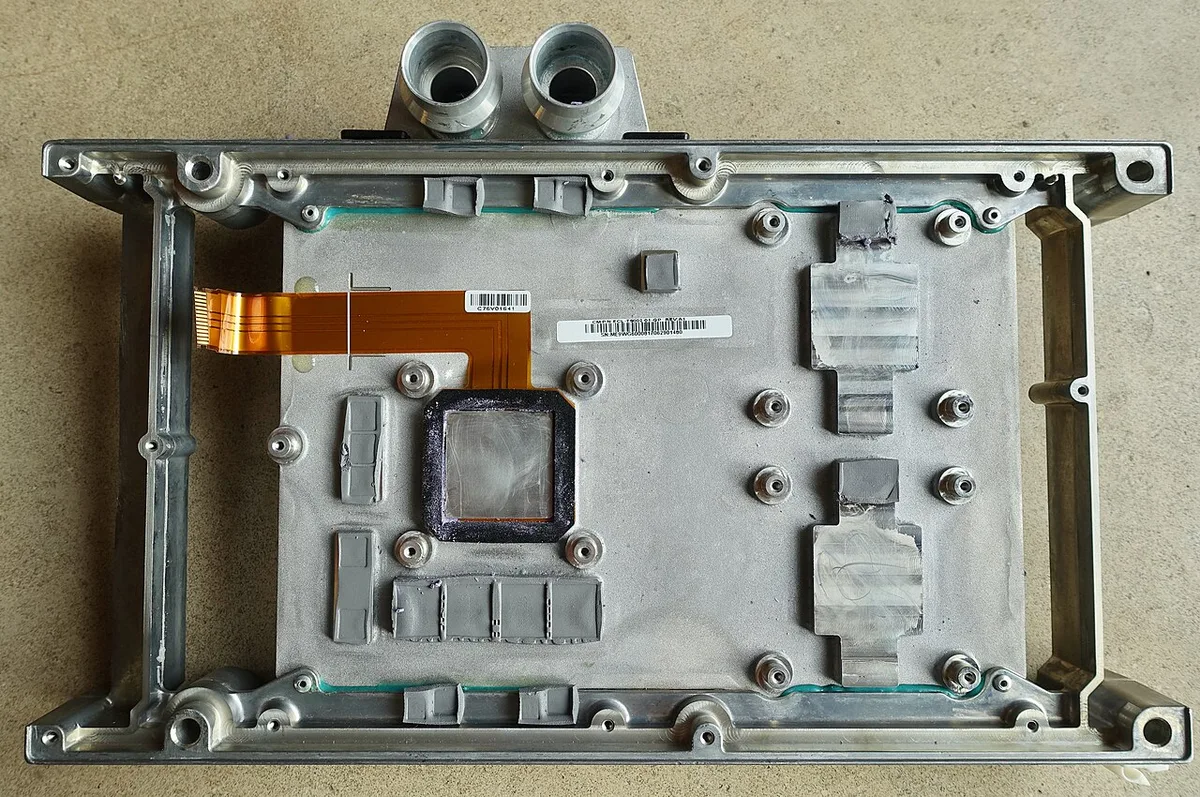
If you see sudden clock drops, review what thermal throttling means before blaming the game. If you plan to open the chassis, follow ESD precautions and back up your data first.
Cooling, Power, and Settings Branches
Use if/then logic instead of random tweaks. If the laptop is hot on a desk, raise it and clear the vents. If it is hot on a bed or couch, move it to a hard surface first.
If fans are loud but temperatures are safe, use a custom fan curve or a quieter OEM profile. If temperatures are high, prioritize cooling before chasing higher FPS. If the laptop runs cooler but still slow, check power limits and background load.
If you game on battery, expect lower performance. Many laptops cap GPU and CPU power away from the wall. Plug in the original charger and use the correct wattage adapter.
If the built-in screen stutters, try an external monitor with VRR support. This can reduce panel-related frame pacing issues. It can also help if the laptop panel has high response time.
A cooling pad can help on some models, but results vary by vent layout. Manual fan curves give more control, yet they can raise noise. Quick cooling wins often come from cleaning vents and fixing airflow.
Mistakes That Waste Performance or Damage Hardware
One common mistake is turning every setting to ultra without checking the bottleneck. Ultra shadows or ray tracing can crush a mid-range GPU. Another mistake is running a dozen browser tabs and chat apps in the background.
Do not chase high temperatures as a goal. If the CPU or GPU runs near its safe limit, the system may throttle and lose frames. Dust buildup can make a good laptop behave like a weak one.
Avoid random registry tweaks or "gaming booster" apps from unknown sources. They often add background services and can reduce stability. Keep driver updates tied to official manufacturer pages.
Do not use an underpowered charger to save space. The laptop may drop performance or charge slowly. Do not block exhaust vents with pillows, blankets, or tight desk gaps.
If the laptop gets very hot, check why gaming laptops get hot before assuming a hardware failure. If fan noise is excessive, review fan behavior and airflow before replacing parts.
Real-World Tuning Scenarios
Scenario one: a laptop has a strong GPU but 8GB of single-channel RAM. The fix is usually a RAM upgrade, not lower graphics settings. After moving to dual-channel memory, minimum FPS often improves more than average FPS.
Scenario two: a thin laptop runs a CPU-heavy game at high temperatures. Lowering CPU-heavy settings and cleaning the vents can help more than lowering resolution. If heat remains high, a conservative undervolt may help after stability testing.
Scenario three: a laptop has good temperatures but poor frame pacing. The issue may be storage, shader cache, or background apps. Freeing storage space and updating drivers can smooth gameplay even when average FPS looks fine.
Track the same game scene before and after each change. Use average FPS, 1% lows, and temperature as your main metrics. If a change does not help, roll it back before adding another.
Safe GPU temperature limits and safe CPU temperature ranges can guide your tuning. If temperatures stay high after basic fixes, the cooling hardware may need service.
Frequently Asked Questions
What is the fastest way to improve gaming laptop performance?
Start with cooling and power. Clean the vents, plug in the original charger, and set a performance mode. Then lower the settings tied to your bottleneck.
Does more RAM improve FPS?
More RAM helps when memory is full or single-channel. It can improve minimum FPS and reduce stutter. It rarely raises peak FPS if RAM was already sufficient.
Should I undervolt my gaming laptop?
Undervolting can reduce heat and power use, but it can cause crashes. Only try it if basic fixes fail. Test stability after each adjustment.
Is a cooling pad worth it?
A cooling pad can help on some laptops, especially with bottom intakes. It is not a fix for poor internal cooling. Results vary by model and vent layout.
Can updating drivers improve performance?
Yes, especially GPU and chipset drivers. Use official manufacturer or GPU vendor sources. Avoid third-party driver tools.
Should I use DLSS or FSR?
Use them when GPU-bound and image quality stays acceptable. They can raise FPS, but they may add artifacts. Frame generation can increase perceived smoothness but may add latency.