How to measure gaming laptop power consumption is not as simple as reading one number on screen. You can see a CPU or GPU wattage figure in software, a battery percentage drop over time, or a wall-meter reading, and each one tells a different story. The trick is knowing which number answers your actual question.
Most gaming laptops draw far more from the wall than their chips report. A 230 watt adapter, for example, can feed a system that shows 180 watts in monitoring tools, because conversion losses and charging overhead sit in between. Once you understand that gap, choosing a method gets much easier.
Why Measuring Gaming Laptop Power Is Trickier Than It Looks
Power on a gaming laptop is not one clean value. It is a chain. The wall supplies AC power.
The adapter converts it to DC. The laptop then splits that power among the CPU, GPU, screen, fans, storage, and battery charging circuit.
Software tools usually show component-level DC power. A wall meter shows total AC input. Battery drain math estimates average system load.
Those three can differ by 15 to 40 percent on the same machine.
Your measurement goal matters. If you are sizing a UPS, the wall number matters. If you are comparing two laptops, component numbers can help.
If you only want a rough battery-life estimate, battery drain math may be enough.
The biggest mistake is treating a software wattage reading as the whole machine. It is not. It is usually one slice of the load.
The Real Question: What Are You Actually Trying to Find Out?
Start with the decision, not the tool. Different questions need different methods, and using the wrong one wastes time.
If you want to know whether a dorm circuit can handle your setup, measure AC wall draw under your heaviest game. If you want to compare cooling profiles, software monitoring is usually enough. If you want to know how long the battery lasts in a game, run a controlled battery drain test.
Here is a simple decision guide.
- Need total wall load or UPS sizing: use a wall wattmeter.
- Need CPU or GPU load for tuning: use hardware monitoring software.
- Need battery runtime estimate: use a battery drain test.
- Need adapter health or charging behavior: measure wall draw while gaming and charging.
- Need a quick no-gear estimate: use battery math, but expect error.
If your answer changes based on travel, shared housing, or off-grid use, treat this as a workflow, not a single test. Run the method that matches the risk. A tripped breaker matters more than a perfect wattage figure.
How Gaming Laptop Power Actually Works (AC, DC, and the Adapter)
Your wall outlet sends AC power to the adapter. The adapter converts it to DC and sends it through the barrel jack or USB-C cable. The laptop's internal power circuit then routes that DC power to the CPU, GPU, memory, display, and battery.
The adapter rating is a maximum, not a constant. A 330 watt brick does not mean the laptop always pulls 330 watts. It means the adapter can safely supply up to that level.
Real draw depends on load, profile, and charging state.
Conversion losses are normal. Manufacturer specifications and adapter labels usually show output wattage, but wall draw includes heat lost inside the brick. Aggregate testing often shows 8 to 15 percent loss on many gaming adapters, though the exact figure varies by model and load.
Charging adds another layer. If the battery is low while gaming, the laptop may pull wall power for both the system and charging. That can make the number look much higher than gaming alone.
If the battery is already full, charging overhead drops.
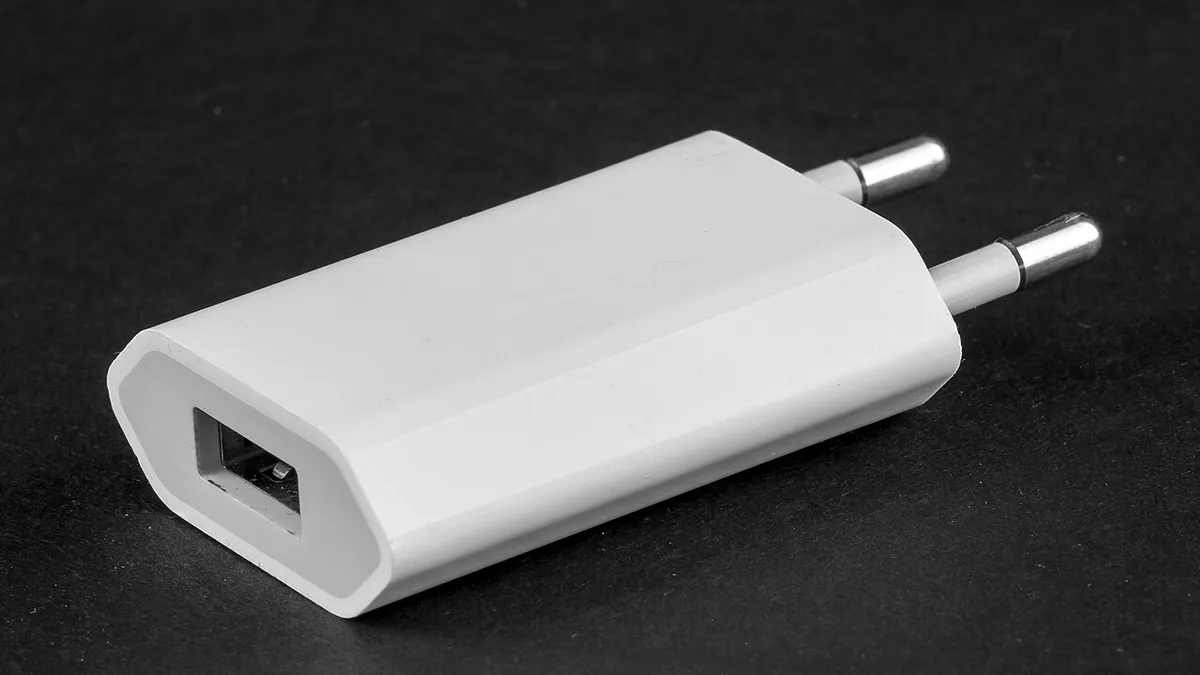
Image source: Wikimedia Commons / Raimond Spekking (CC BY-SA)
| Power point | What it measures | Best use |
|---|---|---|
| Wall outlet | Total AC input | Circuit safety, UPS sizing, adapter stress |
| Adapter output | DC supplied to laptop | Checking adapter limits |
| Software sensor | CPU, GPU, or package power | Tuning, thermals, profile comparison |
| Battery drain | Average system load over time | Runtime estimates |
Three Ways to Measure It — and When to Use Each
You have three practical methods. Pick one based on your goal and gear.
Wall Wattmeter Method
This is the most direct way to measure total gaming laptop power consumption. Plug the wattmeter into the wall, then plug the laptop adapter into the meter.
Steps:
- Let the laptop and adapter cool to room temperature.
- Set the laptop to your normal gaming profile.
- Launch the game and play for 10 minutes.
- Read average watts, not just the peak spike.
- Repeat the test at the same brightness and settings.
Use this for shared housing, travel, UPS sizing, and adapter checks. It is also the best method for finding peak spikes, which can trip a breaker even if average draw looks safe.
Software Monitoring Method (HWiNFO, nvidia-smi, and Friends)
Software monitoring is useful for tuning. It shows CPU package power, GPU power, and sometimes system power. It does not show wall draw.
Common tools include HWiNFO64, MSI Afterburner, NVIDIA System Management Interface, AMD Adrenalin, and vendor apps like ASUS Armoury Crate or Lenovo Vantage. For a CPU-only view, Intel Power Gadget is still referenced, but many users now rely on HWiNFO.
Steps:
- Open the monitoring tool before launching the game.
- Log CPU package power, GPU power, and temperature.
- Play for at least 10 minutes.
- Export or review the average values.
- Compare Silent, Balanced, and Performance profiles.
Use this when comparing thermal profiles or checking whether a game is CPU-bound or GPU-bound. Do not use it to size a power bank or UPS.
Battery Drain Method (No Extra Gear)
This method needs no meter. Fully charge the laptop, disable sleep, and play until it shuts down or hits a low threshold. Then calculate average watts from battery capacity and runtime.
Formula: average watts = battery capacity in watt-hours divided by runtime in hours.
Example: a 90 Wh battery lasting 1.5 hours suggests about 60 watts average. That is useful for runtime, but it hides spikes and charging behavior.
Steps:
- Fully charge the battery.
- Set brightness and volume to your normal level.
- Start a repeatable game session.
- Record start time and end time.
- Divide battery capacity by runtime.
This method is convenient, but it is the least precise of the three. Battery health, background updates, and screen brightness can skew the result.
Wall Draw vs. Software Numbers vs. Battery Math: What Each One Misses
Each method has blind spots. Knowing them keeps you from making bad decisions.
Wall meters capture everything, but they can miss very fast spikes depending on sampling rate. They also include adapter losses, so they are not the same as laptop DC consumption. Software numbers are fast and detailed, but they miss fans, storage, screen, and charging.
Battery math is easy, but it averages everything and can be thrown off by battery wear.
| Method | What it gets right | What it misses |
|---|---|---|
| Wall wattmeter | Total AC load and spikes | Internal component split |
| Software monitoring | CPU and GPU behavior | Adapter loss, screen, charging |
| Battery drain | Real runtime estimate | Spikes, battery health, background load |
A common error is comparing a 180 watt GPU reading to a 230 watt adapter rating and assuming the laptop is broken. It is not. The adapter rating includes headroom, and the GPU number does not include the rest of the system.
Another error is using battery percentage math on a worn battery. If capacity has dropped from 90 Wh to 70 Wh, your runtime math will overstate power draw. Check battery health first if the number looks strange.
If you are tracking performance too, pair power data with frame-rate monitoring. Tools that show FPS drops or stuttering can help you see whether a power limit is actually hurting gameplay. For that, see frame-rate monitoring on a gaming laptop.
Mistakes That Skew Your Numbers (and How to Avoid Them)
The most common mistake is treating a peak reading as the average. A game can spike to 280 watts for a few seconds, then settle near 190 watts. If you only glance at the meter, you may overestimate the load and buy the wrong UPS.
Another big error is changing variables between tests. Brightness, volume, RGB lighting, external monitors, and USB devices all pull power. If you test Silent mode at 50 percent brightness and Performance mode at 100 percent brightness, the comparison is useless.
Software readings also get misread. A GPU showing 150 watts is not the whole machine. The CPU, screen, fans, storage, and charging circuit add more.
Comparing that number to a 230 watt adapter rating creates false alarm.
Battery health is another hidden trap. If a 90 Wh battery has degraded to 70 Wh, your runtime math will make the laptop look hungrier than it is. Check battery health before trusting drain-test results.
Short tests are risky too. Thermal throttling can change power draw after several minutes. A 30-second run may miss the real sustained load.
Aim for at least 10 minutes of steady gameplay, then average the reading.
| Mistake | Why it misleads | Better approach |
|---|---|---|
| Reading peak only | Spikes look like normal load | Average over 10 minutes |
| Changing brightness | Hides profile differences | Lock brightness and settings |
| Using software as total | Misses system power | Add wall measurement |
| Testing on worn battery | Skews runtime math | Check battery health first |
| Short sample | Misses throttling | Run sustained load |
If your numbers look strange, retest with the same game scene and same settings. Consistency matters more than chasing one perfect reading. For deeper tuning, daily optimization habits can help reduce unnecessary background load.
Real-World Scenarios: Which Method Fits Your Situation
If you live in a dorm, start with a wall wattmeter. Shared circuits can trip when a laptop, monitor, mini fridge, and phone charger all run together. Measure your full setup during your heaviest game, not just the laptop alone.
If you travel often, measure wall draw before buying a travel adapter or power bank. Many power banks cannot sustain 180 to 230 watts. A wall reading tells you whether your gear is realistic for hotel rooms or airport lounges.
If you are buying a UPS, measure peak and average wall draw. Size the UPS above the peak, not just the average. A 300 watt spike can shut down a 250 watt UPS even if the average is lower.
If you are comparing Silent, Balanced, and Turbo profiles, use software monitoring. That method shows how CPU and GPU power change between modes. It is the fastest way to see whether a profile is actually reducing load.
If you only want battery runtime, use the battery drain method. It is good enough for travel planning. It is not good enough for circuit safety or adapter sizing.
If you are checking an older machine, combine methods. Software shows component behavior, while wall draw shows total load. That pairing can reveal whether aging fans, storage, or charging circuits are adding extra draw.
It also helps when thermal limits during long sessions start changing performance.
| Situation | Best method | Why |
|---|---|---|
| Dorm or shared housing | Wall wattmeter | Prevents tripped breakers |
| Travel power planning | Wall wattmeter | Shows real adapter load |
| UPS sizing | Wall wattmeter | Captures spikes |
| Profile comparison | Software monitoring | Shows CPU and GPU changes |
| Battery runtime estimate | Battery drain test | Uses real gameplay |
| Older laptop diagnosis | Both methods | Separates component and system load |
Safety, Circuit Limits, and Adapter Rules
Safety comes first. A standard US household circuit is often 15 amps at 120 volts, which is about 1,800 watts. Continuous loads should stay well below that.
Most gaming laptops draw far less, but shared circuits can still trip when other devices run at the same time.
As of 2026, many gaming laptop adapters still fall between 180 and 330 watts. That is usually safe on a normal circuit. The risk rises when you add a monitor, speakers, RGB lighting, and chargers to the same outlet.
Use a certified meter. Look for UL or equivalent safety certification. Do not use damaged cords, loose adapters, or uncertified smart plugs for high-load testing.
Never open the adapter or laptop chassis to measure DC power. That can expose you to shock and void warranty coverage. If you need DC-side data, use a proper inline meter or manufacturer documentation instead.
Keep the adapter ventilated during testing. A hot brick is less efficient and can become a fire risk. Do not bury it under blankets, on a bed, or inside a closed bag.
Third-party adapters are another risk. Match voltage exactly and match or exceed the original amperage rating. A cheaper adapter with weak safety protections can overheat under sustained gaming load.
For general electrical safety guidance, see OSHA electrical safety resources. If your breaker trips repeatedly, stop testing and have the circuit checked by a qualified electrician.
Frequently Asked Questions
How accurate is software wattage on a gaming laptop?
Software wattage is useful for CPU and GPU behavior, but it is not total system power. It usually misses the screen, fans, storage, and charging losses. Use it for tuning, not for sizing a UPS or checking a circuit.
Can I measure power without buying a wattmeter?
Yes. Use the battery drain method. Fully charge the laptop, play a repeatable game session, and divide battery capacity by runtime.
It is less precise, but it gives a workable runtime estimate.
Why is my wall draw higher than my GPU wattage?
Wall draw includes the whole system. The CPU, screen, fans, storage, and adapter conversion losses all add to the total. GPU wattage is only one part of the load.
Is it safe to game on a shared dorm circuit?
Usually yes, if the total load stays reasonable. Problems start when several high-draw devices share one circuit. Measure your full setup and avoid stacking chargers, heaters, and mini fridges on the same outlet.
How long should a power test last?
Run at least 10 minutes of steady gameplay. Short tests miss thermal throttling and settling behavior. Average the reading instead of using one momentary spike.