A gaming laptop can run games on its own, but the right accessories decide how comfortable, cool, and responsive it feels. If you are asking what accessories does a gaming laptop need, start with the basics that fix real pain points: control, audio, heat, and ergonomics. Skip flashy extras until your core setup feels solid.
Most thin gaming laptops have fewer ports and tighter cooling than desktops. A typical gaming laptop may drop from 100 degrees Celsius under load if airflow is blocked, and many models ship with only one or two USB-A ports. As of 2026, a sensible starter kit usually costs less than one premium accessory bought on impulse.
What a Gaming Laptop Actually Needs (and What You Can Skip)
A gaming laptop needs accessories that solve problems the laptop itself cannot fix well. The screen is small for many players. The built-in keyboard and trackpad are fine for work, but they rarely match a dedicated mouse and keyboard for aim, comfort, or speed.
You do not need everything at once. Start with the items that change how you play every day, then add upgrades based on your games and space.
| Priority | Accessory | Why It Matters |
|---|---|---|
| Must-have | Gaming mouse | Better aim and tracking |
| Must-have | Headset | Clear game audio and chat |
| Must-have | Mouse pad | Smooth, consistent movement |
| Should-have | Cooling stand | Helps manage heat |
| Nice-to-have | External monitor | Bigger, smoother view |
| Nice-to-have | Mechanical keyboard | Better feel and durability |
For most people, a mouse, headset, and mouse pad are the real essentials. A cooling stand becomes important if your laptop runs hot on a desk or bed. An external monitor is a luxury until you play long sessions or want a larger display.
The Must-Have Accessories to Start With
Your first purchases should improve control, sound, and comfort. These three areas affect almost every game, whether you play shooters, RPGs, or racing titles.
- A gaming mouse with adjustable DPI, often 800 to 3200 DPI for most players, plus a reliable sensor.
- A headset with a clear microphone, wired or 2.4GHz wireless for lower latency.
- A large cloth mouse pad, at least 320 by 270 millimeters, for stable arm movement.
- A basic laptop stand or riser that lifts the screen and improves airflow.
- A surge protector to protect the laptop and accessories from power spikes.
A good mouse is usually the biggest single upgrade. Manufacturer specifications often list polling rates of 1000Hz, which means the mouse reports position 1000 times per second. Aggregate reviews report that most players notice smoother tracking before they notice higher DPI numbers.
A headset matters just as much for multiplayer games. Look for a boom microphone that sits close to your mouth, plus closed-back ear cups if you play in a shared room. If you travel often, a lighter headset with a detachable cable is easier to pack.
Wired vs Wireless: How to Pick Each Peripheral
Wired gear is simple and dependable. Wireless gear is cleaner and more portable. The best choice depends on your tolerance for cables, charging, and latency.
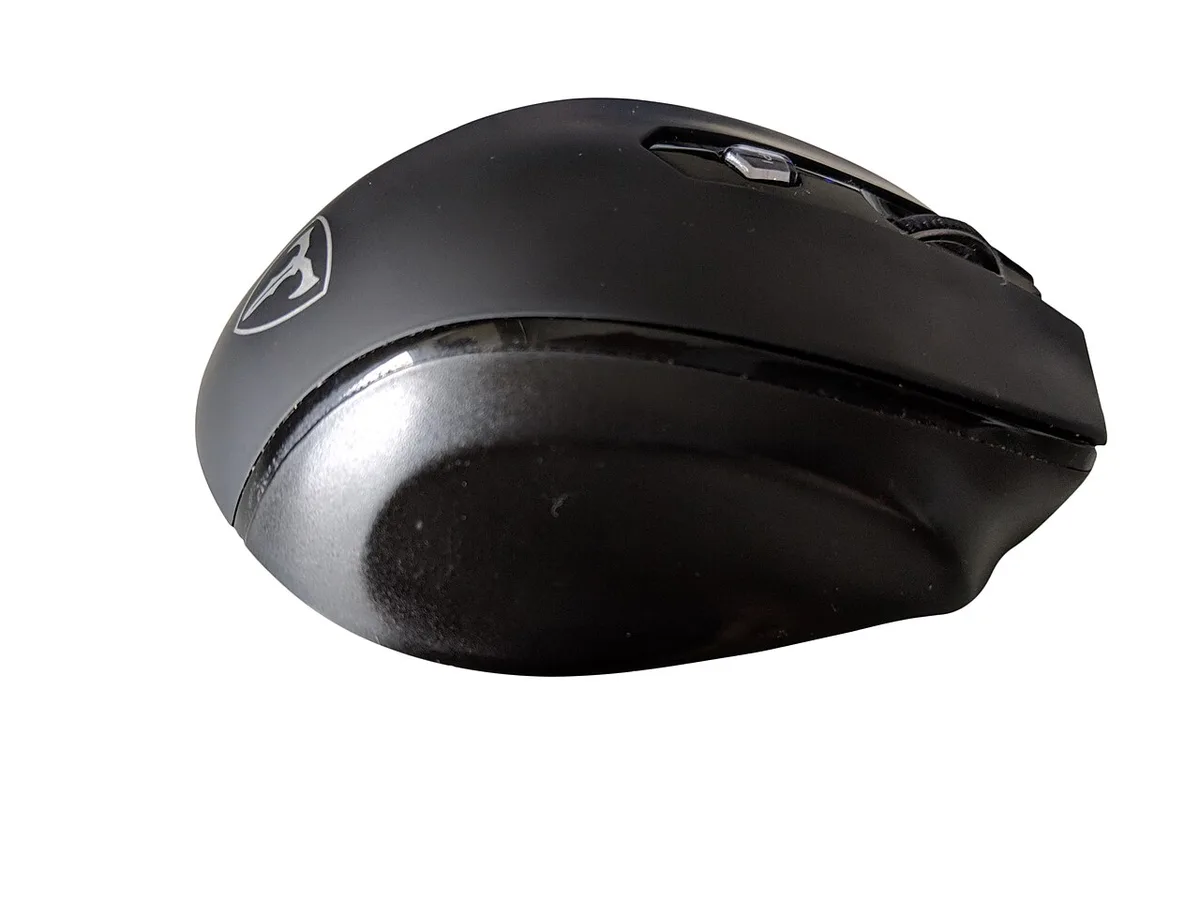
Image source: Wikimedia Commons / Pixloom (CC BY-SA)
| Option | Best For | Watch Out For |
|---|---|---|
| Wired mouse | Competitive play | Cable drag on the desk |
| Wireless 2.4GHz mouse | Clean setup with low latency | Dongle use and charging |
| Wired headset | Consistent chat audio | Cable tangle |
| Wireless 2.4GHz headset | Freedom to move | Battery life and dongle loss |
| Bluetooth headset | Casual play and travel | Higher latency in games |
For competitive games, a wired mouse or a 2.4GHz wireless mouse is usually the safer pick. Bluetooth is convenient for music or calls, but it can add delay that matters in fast shooters. A quality 2.4GHz dongle often performs close to wired in real-world play.
Keyboards follow the same logic. A wired mechanical keyboard gives consistent response and no charging. A wireless mechanical keyboard cleans up the desk but needs battery management.
If you buy wireless, check that it supports 2.4GHz, not only Bluetooth.
If you are deciding between a laptop and a console, our article on the console alternative can help you compare the full cost of each setup. For brand-specific durability questions, see repair support.
Cooling, Stands, and Ergonomics That Protect Your Hardware
Heat is the enemy of laptop performance. Gaming laptops can throttle when the CPU or GPU gets too hot, which means frame rates drop even if the hardware is capable. A stand or cooling pad will not turn a weak laptop into a strong one, but it can help the machine hold its performance longer.

Image source: Wikimedia Commons / Junyu-K (CC BY-SA)
A passive stand lifts the laptop and opens space underneath. An active cooling pad adds fans, often running from 1000 to 3000 RPM, and pushes air toward the intake vents. Use the type that matches your laptop's vent layout.
If vents are on the bottom, a pad can help. If vents are on the sides or rear, a simple riser may be enough.
Ergonomics matter too. OSHA guidance on workstation setup emphasizes keeping the screen near eye level and avoiding awkward wrist angles. A laptop screen is usually too low for long sessions, so a stand plus an external keyboard and mouse can reduce neck strain.
- Keep at least a few inches of open space around the laptop.
- Avoid soft surfaces like beds or couches that block vents.
- Use a stand that does not cover intake areas.
- Add an external keyboard if the laptop is raised.
- Take short breaks to reset posture.
If your laptop feels slower than expected, our guide on thermal limits explains why heat and power limits can reduce performance. You can also compare desktop-level power before spending heavily on accessories.
External Monitors, Docks, and Storage for Desktop Replacement
An external monitor changes the gaming laptop experience more than most accessories. A 24-inch or 27-inch 1080p or 1440p display gives more room than a 15-inch or 16-inch laptop screen. A 144Hz or 165Hz refresh rate also feels smoother than the common 60Hz panel.
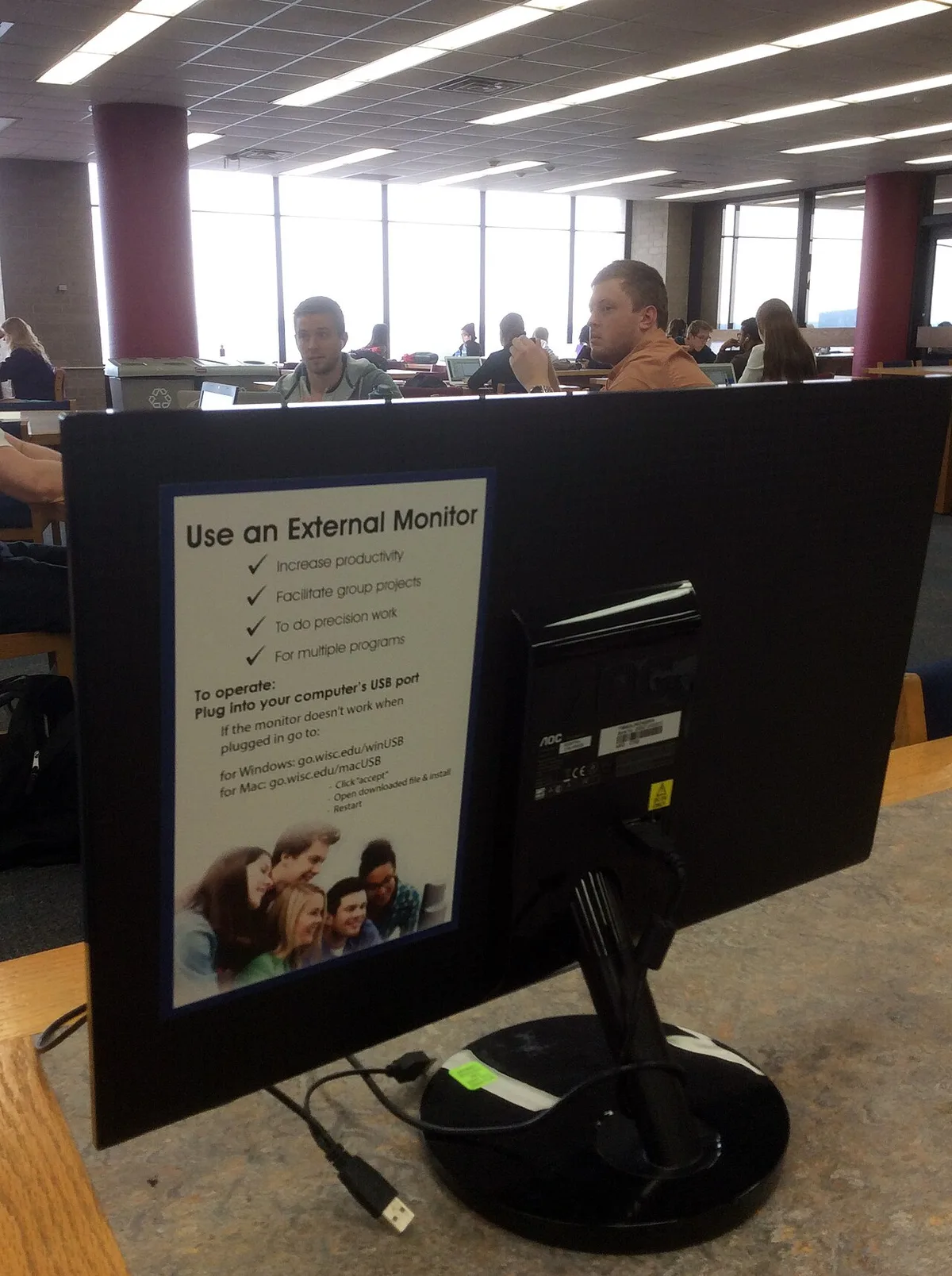
Image source: Wikimedia Commons / college.library (CC BY)
A USB-C hub or Thunderbolt dock helps when your laptop has limited ports. USB-C can carry video, data, and power in one cable, but wattage and bandwidth vary by model. Thunderbolt 4 offers higher bandwidth for docks, external SSDs, and monitors.
Check your laptop's port specifications before buying.
External storage is useful if your internal drive fills quickly. Modern games can take 50 to 150GB each. A portable NVMe SSD with speeds above 1000MB/s can reduce load times compared with a slower hard drive.
Use it for games you play often, not for every title.
| Upgrade | Best For | Main Tradeoff |
|---|---|---|
| 24-inch 1080p 144Hz monitor | Budget desk setup | Less sharp than 1440p |
| 27-inch 1440p 165Hz monitor | Balanced gaming | Needs stronger GPU |
| USB-C hub | Simple expansion | Limited bandwidth |
| Thunderbolt dock | Full desktop replacement | Higher cost |
| Portable NVMe SSD | Extra game storage | Needs fast port |
If you are comparing laptop classes, our article on built-in keyboard limits shows why gaming models differ from standard notebooks. You can also review warranty terms before adding expensive gear.
Per USB Implementers Forum standards, USB-C features are not identical across devices, so verify Power Delivery and DisplayPort support before buying a hub. That one check can prevent a frustrating return.
Side-by-Side: Building a Setup by Budget Tier
Start with the items that change your daily experience. Add premium gear only after the basics feel right.
| Budget Tier | Core Add-Ons | Typical Spend |
|---|---|---|
| Under $100 | Mouse, cloth pad, basic stand | $30 to $90 |
| $100 to $300 | Headset, better mouse, cooling pad | $100 to $300 |
| $300 to $700 | 1080p 144Hz monitor, USB-C hub, SSD | $300 to $700 |
| $700 and up | 1440p monitor, mechanical keyboard, chair | $700 and up |
If your budget is tight, spend first on a reliable mouse and headset. A monitor can wait if your laptop screen is bright and fast enough. If you already own a budget machine, prioritize cooling, a solid mouse, and surge protection before RGB extras.
Keep a simple compatibility note before buying. Write down your port types, wattage needs, and monitor resolution. That small habit prevents returns and duplicate purchases.
Best Accessory Combos by Gamer Type
Different players need different setups. Match the gear to your games, space, and travel habits.
- Competitive shooter player: wired or 2.4GHz mouse, hard pad, wired headset, 24-inch 240Hz monitor.
- Casual story player: wireless mouse, cloth pad, light headset, passive stand.
- Streamer: boom mic or headset, webcam, second monitor, Thunderbolt dock.
- College student: backpack, sleeve, compact mouse, portable SSD.
- Frequent traveler: low-profile mouse, lightweight headset, protective sleeve.
If your laptop also handles editing or rendering, accessory priorities may shift. Our guide to creator-focused models explains how those needs differ from pure gaming.
Common Mistakes When Buying Gaming Laptop Accessories
Small buying mistakes can waste money or limit performance. Most are easy to avoid with a quick check.
- Buying a hub before checking port support.
- Blocking bottom intake vents with a stand.
- Using Bluetooth gear for fast competitive games.
- Choosing a monitor the GPU cannot drive well.
- Skipping surge protection.
- Overspending on RGB before fixing comfort.
- Ignoring desk and chair fit.
A poor desk setup can cause wrist and neck strain during long sessions. OSHA workstation guidance is a useful reference for screen height, keyboard position, and posture.
Expert Tips for Getting the Most From Your Setup
Small adjustments often matter more than expensive upgrades. Test each change before buying the next item.
- Set the monitor to its highest supported refresh rate in Windows.
- Calibrate mouse DPI and in-game sensitivity together.
- Update mouse, headset, and dock firmware.
- Use a performance power profile while gaming.
- Route cables away from mouse movement.
- Clean vents and fans on a regular schedule.
- Repaste only if thermals stay high after cleaning.
If you mount a monitor on an arm, check VESA mount standards before buying. A mismatched mount can turn a simple upgrade into a frustrating return.
Frequently Asked Questions
What accessories does a gaming laptop need first?
Start with a gaming mouse, a large mouse pad, and a headset with a clear microphone. These three items improve control, aim, and communication in almost every game. Add a stand or cooling pad only if heat or posture is a problem.
Is a cooling pad worth it for a gaming laptop?
A cooling pad can help if your laptop pulls air from the bottom and runs hot. It will not fix poor internal cooling or a weak fan design. Choose a passive stand if your vents are on the sides or rear.
Should I buy a wireless gaming mouse for a laptop?
A wireless mouse is great for travel and clean desks. For competitive play, choose 2.4GHz wireless or wired. Bluetooth is better for casual use because it can add input delay in fast games.
Do I need an external monitor for laptop gaming?
You do not need one to play games. An external monitor helps if you want a larger view, higher refresh rate, or better desk posture. Many players are happy with the built-in screen for portable setups.
How much should I spend on gaming laptop accessories?
A solid starter kit often costs $50 to $150. Midrange comfort upgrades can reach $300. Premium monitors, docks, and chairs can push the total much higher, so buy in stages and test each upgrade.
Can a USB hub charge a gaming laptop?
Some USB-C hubs support Power Delivery, but wattage varies. Many gaming laptops need more power than a small hub can provide. Check your laptop's charging requirements before relying on a hub.
1 thought on “Must-Have Gaming Laptop Accessories You Actually Need”
Comments are closed.