If you're asking what GPU temperature is safe on a gaming laptop, the honest answer is a range, not one number. It changes with the GPU model, the cooling design, the room temperature, and whether the reading is a quick spike or a sustained load.
Manufacturer specs often list a maximum junction temperature near 100 to 105 degrees Celsius for many mobile GPUs. Sustained gaming should stay well below that, especially on the hotspot and memory sensors.
Why "Safe GPU Temp" Isn't One Number
A safe temperature is a condition, not a badge. The same 82 degrees Celsius can be fine on one laptop and a warning sign on another.
It depends on five things:
- The GPU model and its Tjmax, which is the maximum junction temperature
- The laptop cooling design, including heat pipes, vapor chamber, and fan size
- The power limit set by the OEM
- The ambient room temperature
- Whether the reading is a brief peak or a sustained load
If you game in a cool room on a well-cooled 140W GPU, sustained load in the low 80s may be normal. If you game on a thin laptop in a warm room, the same reading may come with throttling.
That is why the better question is not "what is safe?" It is "what is safe for this laptop, in this room, under this load?"
If you're already thinking about long-term heat, it also helps to understand how nearby components age. For example, an OLED panel can be affected by sustained heat and brightness habits, which we cover in our guide on OLED gaming laptop screens.
The Real Safe Ranges for a Gaming Laptop GPU
Use these ranges as a practical starting point, not a universal rule.
| Reading | Typical range | What it means |
|---|---|---|
| Idle | 35 to 50 C | Normal at desktop |
| Sustained gaming load | 75 to 85 C | Healthy for most laptops |
| Short peak bursts | 85 to 95 C | Acceptable if brief |
| Memory junction | 85 to 100 C | Watch closely on GDDR6X |
| Tjmax | 100 to 105 C | Limit, not a target |
If your core temp stays under 85 C during a 30-minute gaming session, you're usually in good shape. If it sits above 90 C for long stretches, the laptop is likely throttling or running too hot.
If your memory junction temp climbs near its limit, do not ignore it. VRAM heat can cause instability before the GPU core reaches its own maximum.
Manufacturer specifications indicate that mobile GPUs are designed to protect themselves. That protection is thermal throttling, not a free pass to run at the limit all day.
Core, Hotspot, and Memory Junction: Which Reading Matters
Not all GPU temperature readings mean the same thing. This is where many people get confused.
| Sensor | What it measures | Which one to trust |
|---|---|---|
| Core temp | Average die temperature | Good baseline |
| Hotspot temp | Hottest spot on the die | Best safety check |
| Memory junction temp | VRAM temperature | Critical on some GPUs |
| VRM temp | Power delivery heat | Secondary check |
The core temp is the number most people see first. It is useful, but it can hide the real problem.
The hotspot temp is the one to watch. If the hotspot is 10 C or more above the core, the cooler may not be making good contact, or the thermal paste may be aging.
The memory junction temp matters most on GPUs with fast VRAM. If that sensor is high, you can see crashes, artifacts, or performance drops even when the core looks fine.
If you only check one number, check the hotspot during a real game. A stress test is helpful, but it does not always match the heat pattern of your favorite game.
What Actually Drives Your GPU Temperature
GPU temperature is not just about the GPU. It is a system problem.
Common drivers include:
- High power limits set by the OEM performance mode
- Shared heat pipes between the CPU and GPU
- Dust buildup in vents and fans
- Poor airflow from a flat desk or soft surface
- High ambient room temperature
- Old or dried thermal paste
- Dense game settings that keep the GPU fully loaded
- Closed-lid docking that traps heat
If the CPU and GPU share a cooling loop, a hot CPU can drag the GPU up too. That is common in thin gaming laptops.
If you game on a bed or couch, the intake vents can choke. That one change can raise temperatures more than many software tweaks.
If you're already planning internal work, check whether your machine allows upgrades first. Our guide on soldered gaming laptop RAM can help you avoid opening the chassis for the wrong reason.
How to Check Your GPU Temp the Right Way
Do not rely on a single glance at an overlay. You want a clean, repeatable check.
- Install a trusted monitoring tool, such as HWiNFO64 or GPU-Z.
- Start the game or benchmark you actually play.
- Let the system warm up for 15 to 20 minutes.
- Log core, hotspot, memory junction, fan RPM, and GPU load.
- Compare the sustained numbers, not the first spike.
- Test again after changing one thing, such as a stand or fan mode.
If you are checking temps before an upgrade, it also helps to know your storage layout. Our guide on adding a second SSD is useful if you're already inside the chassis for cleaning.
A refresh-rate change can also alter load patterns. For example, moving from 144Hz to 165Hz may change how often the GPU is pushed hard. You can read more about that tradeoff in our comparison of 165Hz vs 144Hz gaming.
If you are upgrading storage while you're in there, follow a proper SSD upgrade process so you do not rush the job and create new heat or cable issues.
As of 2026, most modern monitoring tools can show hotspot and memory junction sensors. If your tool only shows one core number, update it before making decisions.
Your Decision Branch: What to Do Based on the Reading
Start with the hotspot temperature, not the core temperature. That one number tells you the most about safety.
If the hotspot stays between 75 and 85 degrees Celsius during a 20-minute gaming session, keep playing. Do not change anything yet.
If it sits between 86 and 92 degrees Celsius, treat it as a warning. Clean the vents, raise the laptop, and test again before assuming the hardware is failing.
If it stays above 92 degrees Celsius, stop gaming and fix the cooling path. That level can shorten component life and trigger throttling.
Use this simple decision table:
| What you see | What to do |
|---|---|
| Hotspot under 85 C | Normal use |
| Hotspot 86 to 92 C | Clean, elevate, retest |
| Hotspot above 92 C | Stop and repair cooling |
| Memory junction near 100 C | Check VRAM pads and airflow |
| Sudden spikes only | Watch for dust or power spikes |
Also check the pattern. A quick spike to 95 degrees Celsius is less concerning than a flat 91 degrees Celsius for 30 minutes.
If performance drops at the same time, the GPU is likely throttling. That is your signal to act.
Cooling Options Compared: OEM Modes, Undervolting, Repaste, and Pads
Not every cooling fix is worth the same effort. Some are free. Some are invasive.
Choose based on the laptop, warranty, and how hot it runs.
| Option | Best for | Effort | Risk | Expected gain |
|---|---|---|---|---|
| OEM performance mode | Most users | Low | Low | Small |
| Quiet or balanced mode | Heat-sensitive rooms | Low | Low | Small |
| Undervolting | Hot but stable laptops | Medium | Low to medium | Moderate |
| Cooling pad | Desk gamers | Low | Low | Small to moderate |
| Elevated stand | Thin laptops | Low | Low | Small |
| Repaste | Older laptops | High | Medium | Moderate to large |
| VRAM pad replacement | High memory temps | High | Medium | Moderate |
OEM modes are the safest first step. Turbo mode may raise clocks, but it can also raise heat. Balanced mode is often the better daily setting.
Undervolting can reduce heat without a big performance loss. It works best when the GPU is already stable. Do not chase the lowest voltage if the system crashes.
A cooling pad helps most when the bottom intake is blocked. It is less useful on laptops with side-only intake.
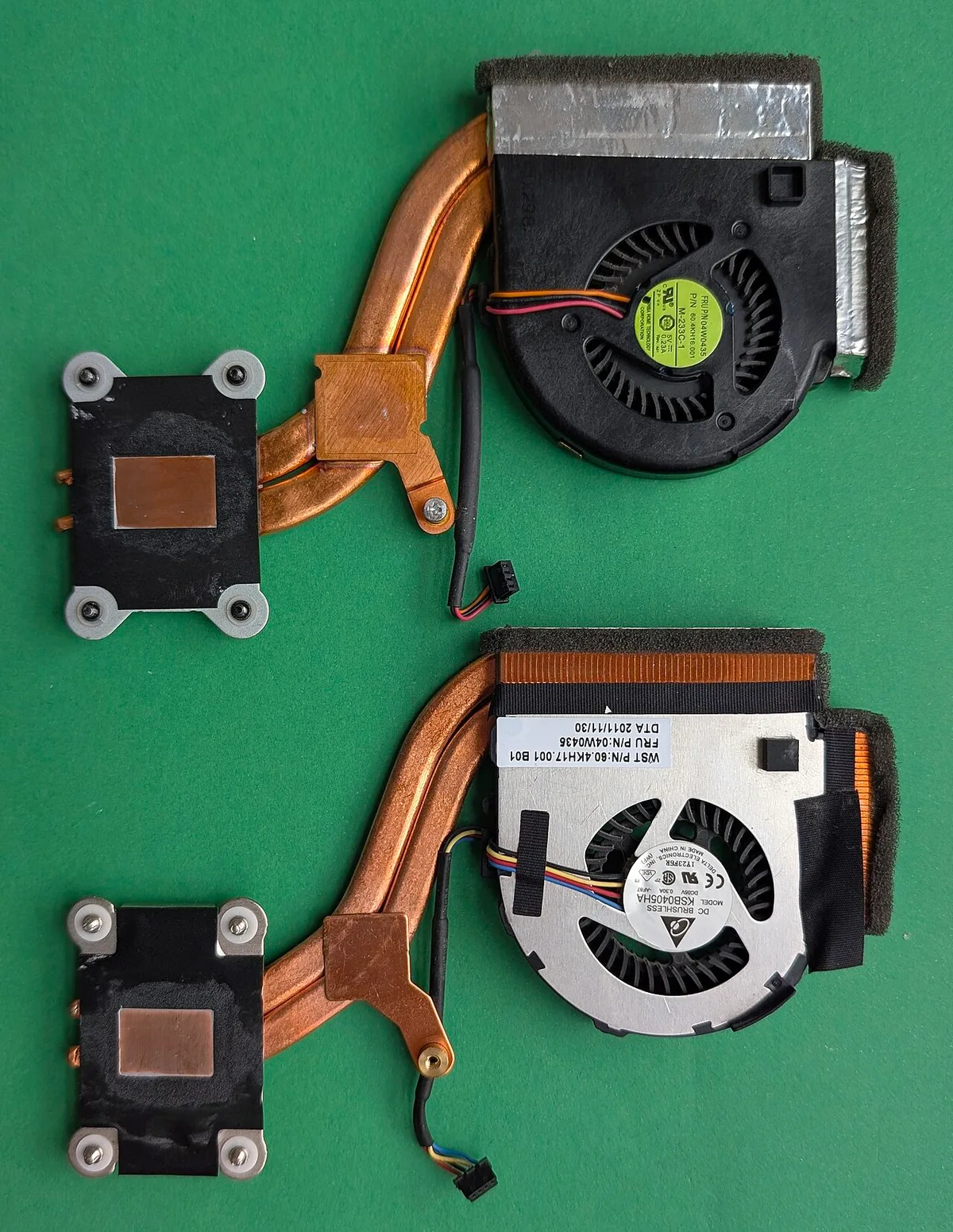
Image source: Wikimedia Commons / Junyu-K (CC BY-SA)
Repasting can help older machines. It is less useful on a new laptop with good factory paste. Opening the chassis may also affect warranty terms.
If you are already opening the machine, keep the job focused. Do not turn a cleaning session into a full upgrade project unless you have the time and skill.
Mistakes and Long-Term Care That Keep Temps in Check
Most GPU heat problems come from small habits, not broken hardware. Fixing them early is cheaper than repairing heat damage.
Common mistakes include:
- Gaming on a bed, blanket, or couch
- Blocking side or rear exhaust vents
- Ignoring hotspot and memory sensors
- Using turbo mode all day
- Skipping dust cleaning for years
- Repasting without checking warranty terms
- Judging temps from a 2-minute test
- Treating 100 C as a normal target
Long-term care is simple. Keep the intake clear. Clean vents every few months.
Use a hard surface. Keep the room cool when possible.
If you play in a hot climate, lower settings before blaming the laptop. Heat is harder to remove when the room is already warm.
If you dock the laptop with the lid closed, make sure airflow is not blocked. A closed lid can trap heat around the chassis.
If temps rise slowly over months, dust is likely. If they rise suddenly, check for a fan failure, dried paste, or a new background load.
For display-related heat and load patterns, a higher refresh rate can keep the GPU busier. Our breakdown of 240Hz gaming on laptops explains when that extra load is worth it.
Frequently Asked Questions
Is 85 degrees Celsius safe for a gaming laptop GPU?
Yes, 85 degrees Celsius is usually safe for short sustained gaming sessions. It becomes a concern if the hotspot stays above 90 degrees Celsius for long periods. Watch the trend, not just one peak.
What is the maximum safe GPU temp on a gaming laptop?
Most mobile GPUs have a maximum junction temperature near 100 to 105 degrees Celsius. That is a protection limit, not a daily target. Safe sustained gaming is usually much lower.
Why does my GPU hotspot run hotter than the core?
The hotspot sensor sits on the hottest part of the die. The core reading is an average. A gap of 10 degrees Celsius or more can point to poor cooler contact or aging thermal paste.
Can a cooling pad lower GPU temperature?
Yes, but the gain is usually modest. Cooling pads help most when the bottom intake is restricted. They are less effective on laptops with side-only airflow.
Should I repaste a new gaming laptop GPU?
Usually no. Factory paste is often good enough on a new machine. Repaste is more useful on older laptops or units with clearly high temps.
Does high GPU temperature damage a gaming laptop?
Sustained high heat can reduce lifespan and cause throttling. It can also stress nearby parts, including VRAM and the battery. Short peaks are less harmful than long hot sessions.
Final Verdict: The Safe-Temp Decision Guide for Your Laptop
The safest rule is simple. Keep sustained hotspot temperatures in the 75 to 85 degree range when possible. Treat 90 degrees as a warning.
Treat 95 degrees as action time.
Start with free fixes. Clean vents, elevate the laptop, and test OEM modes. Then move to undervolting or a cooling pad if needed.
Save repasting for laptops that stay hot after basic fixes. If temps remain high, the cooling system may need deeper service.
Manufacturer specifications from Nvidia, AMD, and Intel set the hardware limits. Your real safe range is lower than that limit, and it depends on your laptop, room, and load.
If you want smoother play without extra heat, display settings matter too. Our guide to response time on laptop displays can help you tune the screen without chasing unnecessary performance.
1 thought on “What GPU Temperature Is Safe on a Gaming Laptop?”
Comments are closed.