What is a safe gpu temperature while gaming? There is no single number that fits every card. The right answer depends on your GPU model, cooling, room temperature, and which sensor you read.
Most modern GPUs throttle or shut down only near their own thermal limits, not at one universal line. If you track core, hotspot, and VRAM temps, you can judge your setup with real data. Manufacturer specs show many desktop GPUs run safely into the 80s°C under load, while laptops often run hotter by design.
That is why "under 85°C" can be true for one card and useless for another. The better question is whether your card stays below its own limits with stable performance. As of 2026, the safest habit is to compare your readings against your GPU maker's published thermal specs.
Why "Safe GPU Temperature" Isn't One Number
A "safe" GPU temperature is not a fixed line. It is a range where the card runs stable, quiet enough, and below its thermal limits. Two cards can show very different numbers and both be healthy.
The first reason is sensor location. Core temperature is an average across the chip. Hotspot temperature is the hottest small area, often 10 to 15°C higher.
VRAM temperature tracks memory heat, which can climb even when the core looks fine.
The second reason is cooling design. A large air cooler, a 360 mm radiator, and a thin laptop heatsink all behave differently. Room heat, dust, and case airflow also change the baseline.
The third reason is manufacturer limits. NVIDIA and AMD publish different max and throttle points. A card that hits 88°C may still be safe if its limit is higher.
A card that hits 82°C may throttle if its limit is lower.
If you want a simple rule, use this. Safe means stable clocks, no thermal throttling, and all sensors below the maker's published max. The number alone is only a clue.
How to Read GPU Temperatures Correctly (Core, Hotspot, VRAM)
You need the right sensors before you judge anything. Core temp is the headline number, but it is not the whole story. Hotspot and VRAM temps often matter more for long sessions.
Use a trusted monitor such as MSI Afterburner with RivaTuner, or HWiNFO64. Look for three readings. GPU temperature is the core average.
GPU hotspot, sometimes called junction, is the hottest point. Memory junction, or VRAM temperature, tracks memory heat.
Here is how to read them during a real gaming session.
- Launch your usual game and play for 20 to 30 minutes.
- Watch the highest sustained values, not brief spikes.
- Compare core, hotspot, and VRAM together.
- Log temps if you want proof instead of memory.
- Check clocks and FPS at the same time.
Core temp tells you average heat. Hotspot temp tells you whether one area is too close to the limit. VRAM temp matters on cards with hot memory, especially during long high-resolution sessions.
A card can show a normal core temp and still be stressed. If hotspot or VRAM sits near the maker's max, treat it as a warning. Also watch for sudden FPS drops with rising temps, since that can signal thermal throttling.
Decision Branch: What Changes Your Safe Limit
Your safe limit changes based on conditions. Use if and then logic instead of one fixed number. This keeps you from overreacting to a normal reading or ignoring a real problem.
If you game on a desktop with a strong air cooler or liquid cooler, then a core temp in the low to mid 80s°C can be normal. If the hotspot stays far below its max, you usually have healthy headroom.
If you use a laptop, then temps in the high 80s or low 90s°C can happen by design. Check the maker's spec before calling it unsafe. Laptops have less cooling space and often allow higher sustained temps.
If your ambient room is hot, then your baseline rises. A card that runs 78°C in winter may run 86°C in summer. The fix may be room cooling, not card replacement.
If you are overclocking or raising power limits, then your safe margin shrinks. Keep hotspot and VRAM temps farther from the max. More power means more heat and less room for error.
If your card is vertically mounted, then heat can pool around the shroud. Watch hotspot temps closely. Better case airflow or a horizontal mount may help.
Our guide on vertical mount tradeoffs explains that setup in more detail.
Safe Temperature Ranges by GPU Type and Cooling Setup
These ranges are practical starting points, not universal laws. They help you spot a problem before you dig into specs. Always confirm against your exact GPU model.
| Setup | Typical core temp under load | Hotspot margin to watch | Notes |
|---|---|---|---|
| Desktop, strong air cooler | 65 to 78°C | Keep well below max | Usually quiet and stable |
| Desktop, 240 mm or 360 mm AIO | 60 to 75°C | VRAM may still run hot | Check memory temps too |
| Factory overclocked desktop card | 70 to 85°C | Smaller margin | Power limits are higher |
| Gaming laptop | 80 to 93°C | Often near maker max | Normal but less headroom |
| Small form factor PC | 75 to 88°C | Airflow is the limit | Case size matters a lot |
| Dusty or poor airflow case | 85°C or higher | Higher risk | Clean and improve airflow first |
For many desktop cards, a sustained core temp around 70 to 80°C is comfortable. A sustained core temp in the low to mid 80s°C can still be acceptable if clocks stay stable. Hotspot readings often run 10 to 15°C above core, so judge them separately.
If your VRAM temp climbs into the high 80s or 90s°C, do not ignore it. Memory heat can cause crashes or reduced performance. Some cards need better thermal pads or improved airflow even when the core looks fine.
If you are choosing cooling, compare options before buying. Our articles on air versus liquid cooling and AIO versus custom loops can help you match the cooler to your case and budget.
What To Do If Your GPU Is Running Hot
Start with the easiest fixes first. Many hot GPUs are caused by airflow, dust, or fan settings, not a dead card. Work through the list before you repaste or replace hardware.
- Clean dust from the heatsink and fans.
- Check case intake and exhaust fans.
- Set a custom fan curve.
- Lower the power limit slightly.
- Undervolt if you are comfortable doing so.
- Improve cable routing and airflow paths.
- Check room temperature and ventilation.
- Repaste or replace thermal pads only if needed.
Fan curves are often the fastest win. A more aggressive curve can drop temps several degrees, though it may add noise. If noise matters, try a small power limit reduction first.
Dropping power by 5 to 10 percent can reduce heat with little performance loss.
Undervolting can also help when done carefully. It lowers voltage at a given clock speed, which reduces heat. Test changes one at a time and watch stability, not just temps.
If temps stay high after cleaning and airflow fixes, inspect the cooler. Old thermal paste can dry out. Thermal pads can compress or shift.
Repasting may help, but check warranty terms first because some brands treat cooler removal differently.
Case layout also matters. A cramped case with poor intake can trap heat. Our guides on how case airflow is planned and how case size affects airflow can help you spot layout problems.
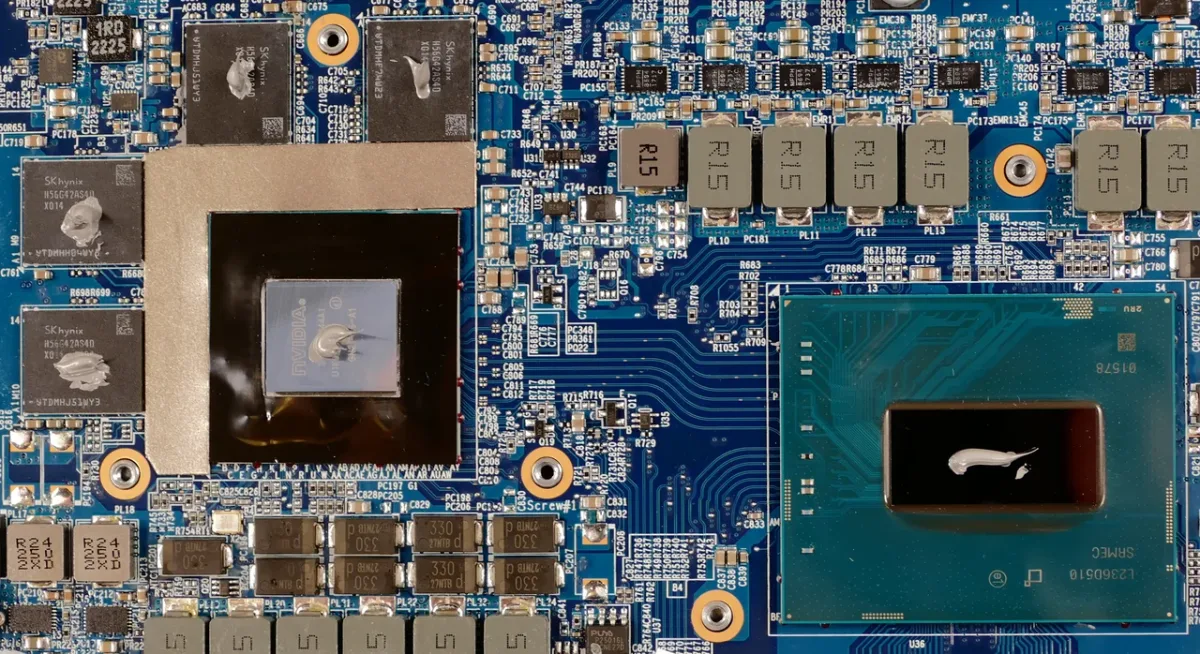
Image source: Wikimedia Commons / System76 (CC BY-SA)
For official thermal limits, check your GPU maker's support documentation. NVIDIA and AMD publish model-specific guidance, and brands such as ASUS, MSI, Gigabyte, Sapphire, and PowerColor may list their own cooler limits. If your card exceeds those limits after basic fixes, contact support or consider an RMA rather than forcing it to run hot.
Fan Curves, Undervolting, and Other Fixes That Actually Work
If your core temp is normal but noise is high, then start with a fan curve. A good curve keeps temps stable without running fans at 100 percent all the time. Start with 40 percent at 60°C, then rise to 70 percent near 75°C.
Test in your usual game for 30 minutes.
Undervolting works well when you want less heat without losing much performance. Lower voltage at the same clock reduces power draw. Use a tool like MSI Afterburner and change one setting at a time.
If the game crashes, raise voltage slightly.
Power limit is the safer first move. Dropping it by 5 to 10 percent often cuts heat with small FPS loss. This is useful on laptops and small cases where cooling is limited.
Case airflow fixes matter too. Add intake and exhaust fans in a balanced path. Remove cable clutter that blocks air.
Clean dust filters monthly. If you need help planning airflow, see our guide on balanced fan placement and how many case fans you really need.
Repasting is last. It can help old cards, but it carries risk. Check warranty terms first.
If you do it, use quality paste and avoid overapplying.
Common Mistakes That Make GPU Temps Worse
The biggest mistake is chasing one number. A card at 84°C can be fine. A card at 78°C with a maxed hotspot may not be.
Always check all three sensors.
Another mistake is ignoring VRAM. Memory heat can climb during long 4K sessions. If VRAM runs near its limit, you may see crashes even with a cool core.
Many people also run default fan curves. Defaults often favor silence over cooling. That can push temps higher than needed.
A custom curve gives better control.
Dust is another hidden problem. Dust blocks fins and raises temps slowly. Clean the heatsink and filters before buying new hardware.
Poor case airflow causes heat soak. Warm air has nowhere to go. Add intake fans, clear exhaust paths, and avoid blocking vents.
Finally, do not overclock while temps are already high. More power means more heat. Stabilize temps first, then tune carefully.
Real-World Scenarios and What They Mean
Scenario one: A desktop card shows 72°C core and 84°C hotspot during a two-hour session. Clocks stay stable and FPS does not drop. This is likely healthy.
The hotspot has margin and the card is not throttling.
Scenario two: A gaming laptop hits 91°C core in a 30 minute match. The maker lists a higher max temp. If clocks hold steady, this can be normal laptop behavior.
Still, use a cooling pad and keep vents clear.
Scenario three: Core temp is 76°C, but VRAM hits 94°C. This needs attention. Memory may be near its limit.
Check thermal pads, airflow, and whether the model has known VRAM cooling issues.
Scenario four: Temps rise 8°C after three months. Dust or dried paste may be the cause. Clean the card and case first.
If temps stay high, consider repasting.
Scenario five: A vertical mount shows higher hotspot temps than horizontal. Heat can pool around the shroud. Improve case airflow or test the card flat.
Our article on vertical mount tradeoffs covers this in detail.
FAQs
Is 85°C too hot for a GPU while gaming?
Not always. Many desktop GPUs handle the low to mid 80s°C under load. The key is whether clocks stay stable and the hotspot stays below its max.
Check your maker's spec before deciding.
Should I worry about GPU hotspot temperature?
Yes, if it runs close to the limit. Hotspot is often 10 to 15°C above core temp. A high hotspot can signal poor contact or weak cooling even when core temp looks normal.
Do laptop GPUs run hotter than desktop GPUs?
Usually yes. Laptops have smaller cooling systems and tighter space. Temps in the high 80s or low 90s°C can be normal.
Compare against the laptop maker's published limits.
Can high GPU temps damage the card?
Modern GPUs throttle and shut down before serious damage. Still, running near limits for long periods adds wear. Better cooling improves lifespan and stability.
Does undervolting lower GPU temperature?
Yes, when done correctly. Lower voltage reduces power draw and heat. Test for stability after each change.
If crashes appear, raise voltage slightly.
When should I repaste a GPU?
Repaste when temps rise after cleaning and airflow fixes. Dried paste can reduce cooling. Check warranty terms first, since some brands treat cooler removal differently.
Final Decision Guide: Is Your GPU Temperature Actually Safe?
Use this simple checklist after a real gaming session.
- Core temp stays below the maker's max.
- Hotspot temp has clear margin.
- VRAM temp is not near its limit.
- Clocks stay stable during play.
- No thermal throttling or stutter.
- Temps are consistent across sessions.
If all boxes pass, your GPU is likely safe. If one fails, work through fixes in order. Clean first, tune fans second, adjust power third, and repaste last.
For official limits, check NVIDIA support and AMD support. For cooling upgrades, compare air coolers and AIO liquid coolers. Safe temps are not about one number.
They are about stable performance with healthy margin.