If you're wondering how often should thermal paste be replaced, the honest answer is that there's no single schedule that fits every PC. The right timing depends on your hardware, paste type, cooler, and how hard the system runs.
Manufacturer specifications indicate that many quality pastes are designed to stay effective for years under normal desktop use. Your best clue is usually temperature behavior, not a calendar date, so let's walk through the decision process.
The "Every Two Years" Myth About Thermal Paste
The idea that you must repaste every two years is mostly habit, not science. Some systems need attention sooner, while others run fine for much longer.
Think of thermal paste like engine oil. It degrades, but the rate depends on heat, pressure, and chemistry. A cool office PC with a good non-conductive paste may need no repaste for years.
A hot laptop with heavy gaming may need it sooner.
If your temperatures are stable and your fan noise is normal, waiting is usually the smarter move. If your CPU is suddenly running hotter at the same workload, it's time to inspect the paste.
A good rule is simple. Repaste when performance or thermals change, not just because time passed.
What Actually Determines When You Should Repaste
The replacement timeline comes down to heat cycles, paste chemistry, mounting pressure, and dust buildup. Each one changes how fast the thermal interface material breaks down.
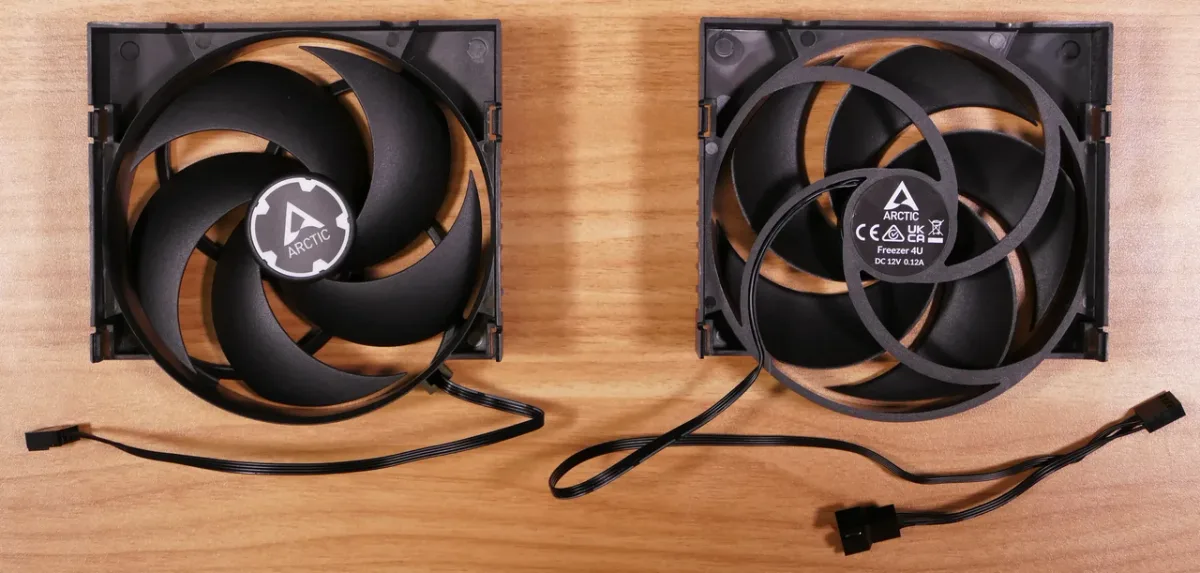
Image source: Wikimedia Commons / System76 (CC BY-SA)
Here are the main decision variables:
- CPU or GPU operating temperature
- Ambient room temperature
- Paste type and thermal conductivity
- Cooler mounting pressure
- Dust and airflow quality
- Workload intensity
- Laptop vs desktop design
- Direct-die vs heatspreader cooling
If you want a practical starting point, check your baseline temperatures first. Compare idle and load readings against what you saw when the system was new. A rise of 5 to 10 degrees Celsius can signal paste degradation, but it can also mean dust or a loose cooler.
Manufacturer documentation often lists expected service life for thermal interface materials. Intel and AMD both publish cooler and processor guidance that helps set realistic expectations. You can review Intel support resources and AMD support resources for hardware-specific advice.
Before repasting, confirm the cooler is tight and clean. A slightly loose mount can mimic old paste. Good airflow planning in a gaming PC case also helps you separate paste problems from case airflow problems.
How Thermal Paste Breaks Down Over Time
Thermal paste fills microscopic gaps between the CPU or GPU and the heatsink. Over time, heat and pressure can cause it to dry, pump out, or separate.
Dry-out happens when solvents evaporate and the paste becomes less effective. Pump-out happens when repeated heat cycles push paste away from the hottest center area. Separation can occur when ingredients settle or break down.
You may not see these problems immediately. A system can still run, but with higher temperatures and less boost headroom. That is why sudden thermal throttling is a stronger signal than age alone.
Common signs include:
- Higher idle temperature
- Faster temperature spikes under load
- More fan noise at the same workload
- Lower sustained boost clocks
- Thermal throttling during gaming or rendering
- Visible dry or cracked paste after inspection
If you remove the cooler and see dry, crumbly, or uneven paste, replacement is justified. If the paste still looks smooth and temperatures are normal, leave it alone.
Condition Variables That Change Your Replacement Timeline
This is where the decision tree matters. Your hardware and environment set the real timeline.
| Condition | Typical Repaste Need | Why It Changes |
|---|---|---|
| Cool desktop with light use | Less frequent | Lower heat cycles reduce breakdown |
| Hot gaming PC with poor airflow | More frequent | Higher temps stress the paste |
| Laptop with compact cooling | More frequent | Heat concentrates in a small space |
| Direct-die CPU or GPU | More frequent | No heatspreader buffers the die |
| Liquid metal TIM | Inspect carefully | Different corrosion and compatibility risks |
| Dusty or humid environment | More frequent | Cooling efficiency drops faster |
If your system lives in a warm room, expect faster thermal degradation. If you use a high-quality cooler and keep dust under control, paste can last much longer. Best fan placement for a gaming PC can also reduce the heat stress that shortens paste life.
Laptops deserve special attention. Their compact heatsinks run hotter and often use thinner paste layers. A laptop that feels hot on the bottom or throttles during normal tasks may need inspection sooner than a desktop.
Direct-die setups are another special case. Without a metal heatspreader, the paste sits closer to the silicon. That can improve cooling, but it also means small application errors matter more.
Thermal Paste Types Compared: Lifespan and Trade-Offs
Not all thermal paste behaves the same. Some are easier to use, while others offer better conductivity but need more care.
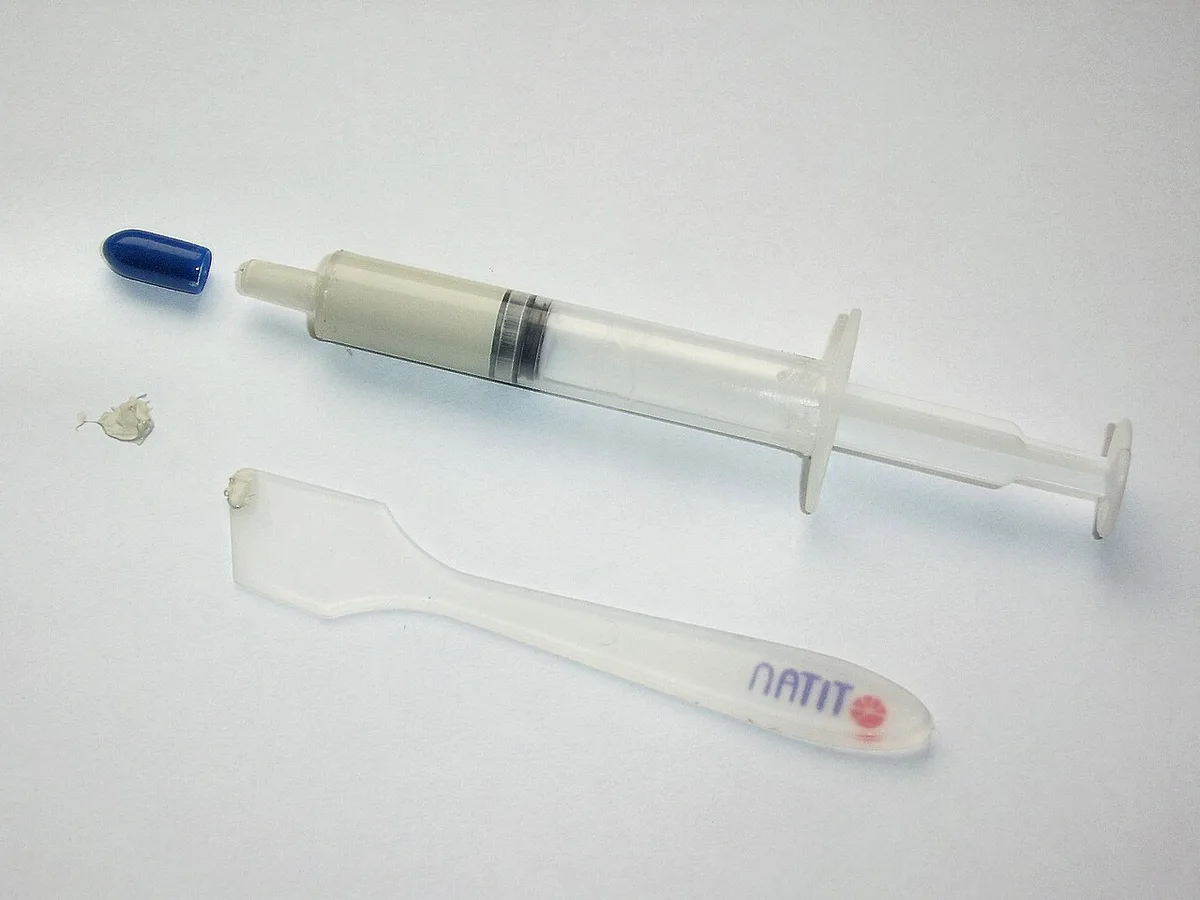
Image source: Wikimedia Commons / FxJ
| Paste Type | Typical Lifespan | Main Advantage | Main Drawback |
|---|---|---|---|
| Standard silicone-based | Long | Affordable and forgiving | Lower conductivity |
| Carbon or metal-oxide | Long | Good balance of cost and performance | Can be thicker |
| High-performance ceramic | Long | Non-conductive and stable | More expensive |
| Liquid metal | Varies | Very high conductivity | Electrical and corrosion risks |
| Phase-change pad | Long | Clean application | Needs heat to settle |
Standard paste is the safest default for most users. It is non-conductive, easy to clean, and forgiving during mounting. That makes it ideal for beginners and routine maintenance.
Liquid metal is different. It can deliver excellent thermal performance, but it is electrically conductive and can react with certain metals. That means it requires careful application and compatibility checks.
If you are comparing cooling methods, air cooling vs liquid cooling can help you think about the whole thermal system, not just the paste.
For most people, a good non-conductive paste plus correct mounting pressure beats chasing the highest conductivity number. The paste only needs to fill gaps well. It does not need to be the most exotic option on the shelf.
How to Check If Your Paste Actually Needs Replacing
Start with numbers, not guesses. Record idle and load temperatures after a clean boot. Compare them to your old baseline or to typical ranges for your CPU model.
If temperatures are stable and boost clocks hold, leave the paste alone. If load temps jumped several degrees under the same workload, look deeper. Dust, fan curves, and cooler mounting can all create the same symptom.
A quick inspection helps separate paste failure from airflow problems. Remove the cooler only if you are ready to clean and reapply. Look for dry edges, pump-out, cracking, or uneven coverage.
| Symptom | Likely Cause | Best Next Step |
|---|---|---|
| Higher load temps, same fan speed | Paste degradation or dust | Clean dust first, then inspect paste |
| Sudden spikes under short load | Pump-out or air gaps | Remove, clean, and repaste |
| Loud fans at light load | Poor airflow or loose mount | Check mounting pressure and filters |
| Stable temps but noisy cooler | Fan bearing or curve issue | Adjust curve before repasting |
| Visible dry or cracked paste | Normal aging | Replace and retest |
Before you open the case, check how dust filtration works in a gaming PC case. A clogged filter can mimic old paste and save you an unnecessary teardown.
Repaste Mistakes That Cause More Harm Than Good
Too much paste is the most common mistake. Extra paste can squeeze out, create a mess, and slow heat transfer if it forms a thick layer. Use a small amount and let mounting pressure spread it.
Too little paste is the opposite problem. It leaves gaps and raises temperatures quickly. A pea-sized or rice-grain amount is usually enough for most CPUs.
Cleaning errors matter too. Old residue blocks contact between the cooler and CPU. Use high-purity isopropyl alcohol and a lint-free cloth.
Let both surfaces dry fully before applying new paste.
Mounting pressure errors are just as serious. Uneven pressure can tilt the cooler and create air pockets. Tighten screws in a cross pattern and follow the manufacturer's torque guidance.
Other mistakes to avoid:
- Mixing liquid metal with incompatible metals
- Using conductive paste near exposed components
- Skipping ESD-safe handling
- Repasting on a schedule with no symptom
- Forgetting to check cooler clearance and mounting pressure before reassembly
If you are unsure, stop and recheck the mount. A careful remount often fixes more than a full repaste.
Real Scenarios: When to Repaste Now vs. When to Wait
Scenario one is a three-year-old desktop used for light work. Temperatures are normal and fan noise is unchanged. Wait, monitor, and only repaste if behavior changes.
Scenario two is a gaming PC that suddenly runs 8 degrees hotter during the same benchmark. Inspect the cooler first. If mounting pressure is correct and dust is clean, plan a repaste.
Scenario three is a laptop that throttles during video calls. Compact cooling and dust buildup are common culprits. Clean the fan, check vent clearance, then decide if paste replacement is needed.
Scenario four is a direct-die CPU with liquid metal. Inspect more carefully and follow the hardware maker's guidance. Compatibility and corrosion risk make this a higher-stakes job.
| Scenario | Action | Reason |
|---|---|---|
| Stable temps, normal noise | Wait | No evidence of paste failure |
| Rising load temps after dust cleaning | Repaste | Paste is likely degraded |
| Laptop throttling under light use | Inspect first | Cooling path may be restricted |
| Liquid metal on direct-die | Follow maker guidance | Compatibility risk is higher |
If your system also struggles with sustained gaming performance, review how PC cooling affects gaming performance. Paste is only one part of the thermal chain.
FAQs
How often should you replace thermal paste on a gaming PC?
Replace it when temperatures or performance change, not on a fixed calendar. Many gaming PCs run fine for years with stable temps. If load temperatures rise or boost clocks drop, inspect the paste and cooler mount.
Does thermal paste dry out if the PC is unused?
Yes, some pastes can slowly lose volatiles over time. Heat cycles usually speed that up. A stored PC may still need inspection before heavy use if it has been sitting for years.
Can old thermal paste cause CPU throttling?
Yes. Degraded paste can raise temperatures enough to trigger thermal limits. That lowers sustained boost clocks.
Check dust and mounting pressure before blaming the paste alone.
Is liquid metal better than regular paste?
Liquid metal can transfer heat very well, but it is electrically conductive and may react with certain metals. Regular non-conductive paste is safer for most builds. Choose liquid metal only if you understand the risks.
Should I repaste a new PC?
Usually no. Factory application is often adequate. Wait until you see temperature or performance changes.
If you upgrade the cooler, repaste at that time.
How do I know if thermal paste is bad without removing the cooler?
You cannot confirm it with certainty. Use temperature trends, fan behavior, and workload consistency as clues. A rising load temperature with clean dust and good mounting suggests paste inspection.
Final Decision Guide: Your Repaste Checklist
Use this checklist before you buy paste or open the case. It keeps the decision grounded in symptoms, not calendar dates.
- Record baseline idle and load temperatures
- Clean dust filters and heatsink fins
- Verify cooler mounting pressure
- Check fan curves and ambient temperature
- Compare current temps to your old baseline
- Inspect paste only if symptoms persist
- Choose a non-conductive paste for most builds
- Follow the manufacturer's application guidance
- Retest temperatures after any work
As of 2026, most quality thermal interface materials are stable enough that routine calendar replacement is unnecessary. Your best signal is still a real temperature change under the same workload.
If you are planning a larger cooling upgrade, compare how to choose an air cooler for a gaming PC before you spend money. Sometimes the cooler, not the paste, is the real bottleneck.