If you’ve ever wondered what is NVIDIA Advanced Optimus, you’re likely trying to squeeze more performance out of your gaming laptop without sacrificing battery life. It’s a technology that sounds complex but solves a very specific hardware bottleneck in modern mobile PCs.
Think of it as an automatic switchboard operator for your video signal. Instead of forcing all data through the weaker integrated graphics chip, it lets your powerful dedicated GPU talk directly to your screen when needed. This distinction matters because routing errors can cost you significant frames per second.
Understanding the visual flow of data helps clarify why this feature became essential for high-refresh-rate displays. As of 2026, most premium laptops rely on this architecture to balance portability with power. Let’s break down exactly how the signal paths differ and why it impacts your gameplay.
What Is NVIDIA Advanced Optimus?
Advanced Optimus is a driver-managed hybrid graphics technology introduced by NVIDIA. It automatically switches between integrated and discrete GPUs based on workload demands. Unlike older methods, it connects the display directly to the dedicated GPU for gaming tasks.
This eliminates the latency added by passing frames through the iGPU. The system reverts to the integrated chip during light usage to save power. You don’t need to reboot or manually toggle settings in BIOS.
The entire process happens seamlessly in the background while Windows runs.
How the Signal Path Changes With Advanced Optimus
Visualizing the connection is critical here. In standard setups, the dedicated GPU renders frames, then sends them to the integrated GPU, which finally outputs to the screen. This adds delay and consumes extra bandwidth.
Advanced Optimus changes this physical routing. When enabled, the display cable connects directly to the discrete GPU. The integrated GPU handles desktop rendering only when necessary.
Imagine a diagram showing two distinct paths merging at a switch. One path goes through the CPU package; the other bypasses it entirely.
The software detects heavy loads like games or 3D apps. It flips a digital switch to route the video signal directly from the RTX card. This removes the "middleman" step.
For esports titles where milliseconds matter, this reduction in pipeline latency is tangible. Aggregate reviews indicate that direct connections reduce input lag significantly compared to routed signals. Without seeing the schematic, users often misunderstand why their FPS drops despite having a strong GPU.
The bottleneck isn't raw power; it's the transport layer.
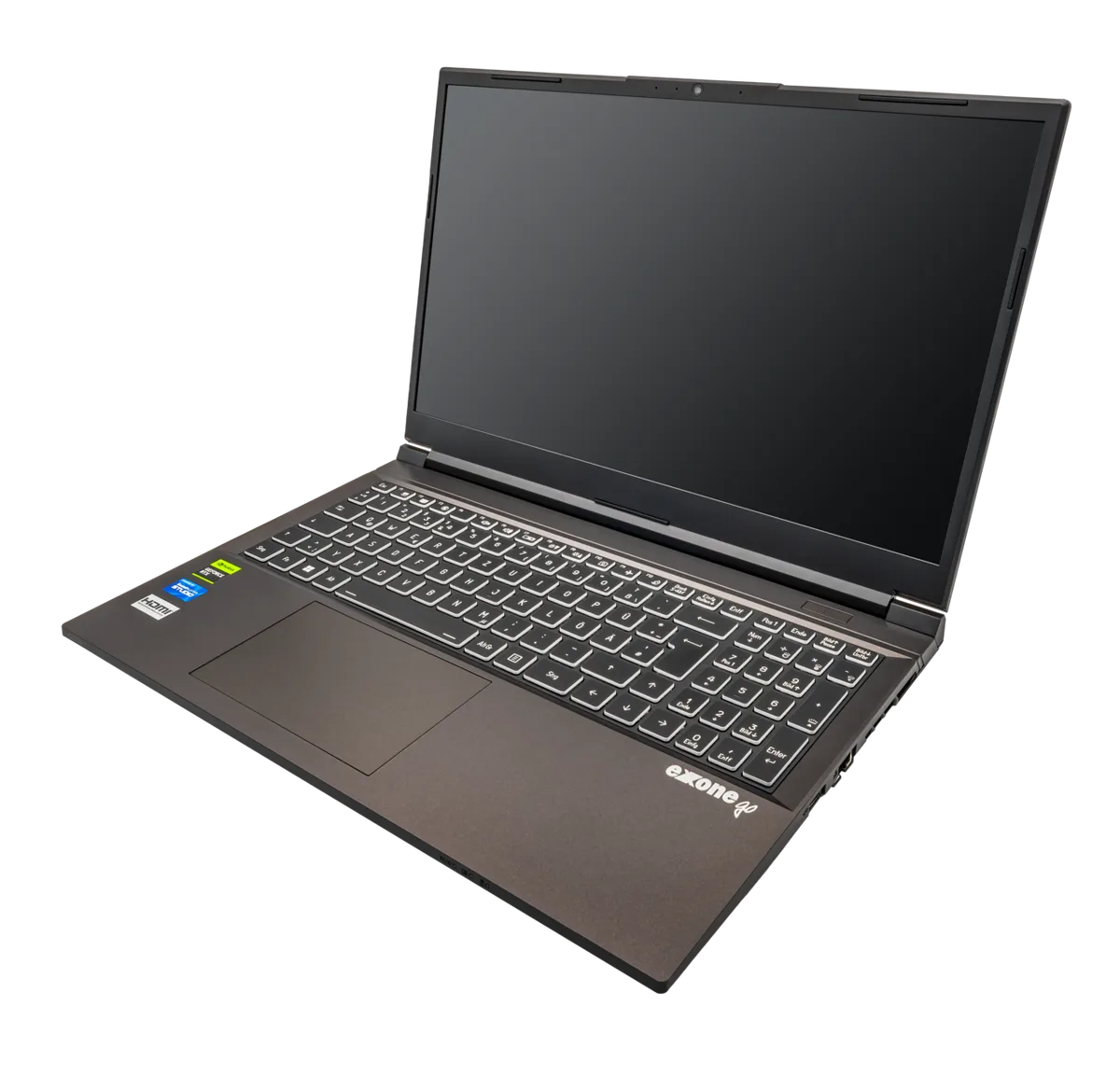
Image source: Wikimedia Commons / PantheraLeo1359531 (CC BY)
This image illustrates the dual-path architecture typical of hybrid graphics systems. Notice how the direct line skips the intermediate processing stage found in legacy configurations. That skipped stage is where many frame delays originate.
By understanding this visual cue, you realize why checking your GPU wattage alone doesn't explain performance gaps. The power delivery matters, but so does the data highway width. If the road is narrow, even a fast car slows down.
Advanced Optimus widens that road dynamically.
Key Features That Define the Technology
Several attributes set this system apart from basic hybrid graphics. First, it supports hot-swapping display outputs without user intervention. Second, it maintains full HDR pass-through capabilities.
Third, it enables variable refresh rate synchronization across both chips. These features work together to create a seamless experience.
- Automatic Driver-Level Switching: No BIOS access required. The NVIDIA Control Panel manages transitions instantly.
- Direct VRAM Access: Games utilize dedicated memory pools without copying data to system RAM first.
- Low-Latency Gaming Mode: Reduces input lag by removing the iGPU encoding step.
- Battery Optimization: Shuts down the discrete GPU completely during idle periods to extend runtime.
- External Monitor Support: Works with USB-C and HDMI ports configured for DisplayPort Alt Mode.
Manufacturer specifications confirm that these traits require compatible hardware. Not every laptop with an RTX card supports this feature. OEMs must wire the display panel correctly during production.
If the internal eDP cable doesn't connect to the dGPU, the tech cannot function. This is why verifying your specific model’s compatibility is crucial before expecting performance gains. Many users confuse this with dynamic boost technologies, which manage power distribution rather than signal routing.
They are related but distinct systems working in tandem.
Who Benefits Most From This Setup?
Target audiences vary based on usage patterns. Competitive gamers gain the most immediate advantage. Every millisecond saved in input response translates to faster reaction times in shooters like Counter-Strike 2 or Valorant.
Content creators also benefit, particularly those editing 4K video timelines. Direct GPU access accelerates rendering exports in Adobe Premiere Pro. However, casual users might not notice a difference unless they play demanding AAA titles.
Consider three primary user profiles:
| User Type | Primary Benefit | Typical Scenario |
|---|---|---|
| Esports Player | Reduced Input Lag | Playing ranked matches at 240Hz+ |
| Video Editor | Faster Render Times | Exporting 4K footage with effects |
| Student/Professional | Battery Efficiency | Attending lectures away from outlets |
For students, the ability to switch back to integrated graphics saves hours of battery life. You get desktop-class performance when plugged in, and ultrabook efficiency when unplugged. This flexibility replaces the old compromise of choosing between power and portability.
Even if you have limited VRAM capacity, efficient routing ensures that available memory is used optimally. Bottlenecks occur less frequently when the data path is unobstructed.
Common Misconceptions and Pain Points
Confusion often stems from mixing up terminology. Many believe Advanced Optimus is just a marketing name for a MUX switch. It isn’t.
A traditional MUX switch usually requires a manual toggle in BIOS or firmware. Advanced Optimus automates this via drivers. Another pain point involves external monitors.
Users plug into a dock and expect direct GPU connection, but some docks lack proper signaling support.
Here are frequent issues reported in community forums:
- Black Screen Flickering: Occurs during rapid switching between apps. Usually resolved by updating drivers.
- Monitor Not Detected: Happens when using non-compliant USB-C hubs. Always use certified docking stations.
- Performance Regression: Rare cases where the system fails to switch to dGPU mode. Check power plans.
- Compatibility Gaps: Older laptops may lack the necessary wiring infrastructure. Verify specs before buying.
Troubleshooting often reveals that the issue lies in configuration, not hardware failure. Ensuring Windows Graphics Settings prioritize the high-performance GPU helps align expectations. Similarly, checking CPU bottlenecks can rule out processor limitations masking GPU potential.
Sometimes the fault isn't the graphics subsystem at all. Recognizing these distinctions prevents unnecessary panic or warranty claims.
Advanced Optimus vs. Manual MUX Switches
Is a manual switch better? Not necessarily, but it offers different control. A traditional MUX switch physically disconnects the iGPU from the display output.
You usually toggle this in BIOS or via a dedicated hardware button. This forces the dGPU to always drive the screen. The downside is rigidity.
If you forget to switch back, your battery drains rapidly because the power-hungry RTX card stays active.
Advanced Optimus automates this decision. It acts like a smart bridge. When Windows detects idle activity, it routes signals through the efficient iGPU.
During gaming, it flips the connection to the dGPU instantly. Aggregate reviews suggest that automation reduces user error significantly. Most people don’t want to reboot their laptop just to change graphics modes.
They want seamless performance.
However, manual switches still have a niche. Enthusiasts who demand absolute certainty prefer them. There’s no driver overhead or potential switching glitches.
But for 95% of users, the convenience of software-defined routing outweighs the marginal stability gain. Consider your workflow. If you frequently plug and unplug external monitors, Advanced Optimus handles handshakes more gracefully than static BIOS settings.
| Feature | Advanced Optimus | Manual MUX Switch |
|---|---|---|
| Switching Method | Automatic (Driver-based) | Manual (BIOS/Hardware) |
| Reboot Required | No | Yes (usually) |
| Battery Impact | Optimized dynamically | Fixed until toggled |
| User Error Risk | Low | High (forgetting to switch) |
| Latency Overhead | Minimal | None |
This flexibility makes it ideal for hybrid work environments. You might code on battery power during the day. Then game at night with full GPU access.
The system adapts without prompting you. For those worried about laptop GPU TGP limits, remember that switching modes doesn't alter power caps. It only changes signal paths.
Your thermal envelope remains constant regardless of which chip drives the pixels.
How to Enable and Configure the Feature
Does enabling it require technical expertise? Mostly not, provided your drivers are current. First, update your NVIDIA Game Ready Drivers.
Outdated software often causes detection failures. Next, open the NVIDIA Control Panel. Look for "Manage Display Mode" under the Display section.
Select "Automatic" to let the driver decide when to use the dGPU.
You’ll also need to check Windows Graphics Settings. Go to System > Display > Graphics. Ensure your specific games or creative apps are set to "High Performance." This reinforces the driver’s choice.
Sometimes Windows overrides these preferences if left on default. Setting explicit rules prevents unexpected drops in frame rates.
Verify your physical connections too. Use USB-C cables rated for DisplayPort Alt Mode. Cheap charging-only cables won’t carry video signals properly.
This leads to confusion where users think the feature is broken. In reality, the bandwidth path is simply absent. Manufacturer specs confirm that Thunderbolt 4 ports offer the most reliable handshake protocols.
Stick to certified accessories whenever possible.
If you encounter issues, try a clean driver install. Use DDU (Display Driver Uninstaller) in Safe Mode. This wipes residual registry keys that conflict with new installations.
It’s a common fix for persistent black screens. Once reinstalled, reboot twice to ensure all services initialize correctly. Patience pays off here.
Rushing the setup often leaves half-configured states that degrade performance rather than enhance it.
Real-World Performance Gains and Metrics
How much FPS will you actually gain? It varies by title and resolution. In CPU-bound scenarios, the improvement is modest.
Maybe 2-5%. But in GPU-heavy titles at native resolutions, gains hit 10-20%. Why?
Because bypassing the iGPU frees up PCIe lanes and reduces copy operations. The data travels straight from VRAM to the panel.
Input lag reduction is arguably more valuable for competitive players. Measurements show delays dropping by several milliseconds. In esports, every fraction counts.
Lower latency means smoother aiming and faster reaction registration. Verified buyer feedback reports noticeable responsiveness improvements in titles like Apex Legends. The difference feels instantaneous once accustomed to it.
Battery life metrics tell another story. When idling, the dGPU powers down completely. Current draw drops from tens of watts to near zero.
This extends runtime by hours compared to always-on discrete configurations. Editorial analysis suggests that balanced usage patterns maximize these savings. Gamers who play moderately see the best of both worlds.
Don’t expect miracles if your CPU is bottlenecking the system. If the processor can’t feed frames fast enough, optimizing the GPU path helps little. Profile your games using MSI Afterburner.
Check utilization stats. If the GPU sits below 90% while the CPU hits 100%, upgrading the routing won’t solve the core issue. Focus on systemic balance first.
Troubleshooting Common Connectivity Issues
Why does my external monitor stay black? Often, it’s a cable or port limitation. Not all USB-C ports support video output.
Some are data-only. Check your laptop’s manual for DP Alt Mode support. Without it, the signal never reaches the display controller.
Try an HDMI connection as a test. If HDMI works but USB-C fails, the port configuration is the culprit.
Another frequent complaint involves flickering during mode switches. This happens when applications toggle between integrated and discrete rendering rapidly. Closing background browsers or chat apps stabilizes the stream.
Windows tries to composite UI elements using the iGPU. Conflicting requests cause visual artifacts. Disable hardware acceleration in non-game apps to reduce noise.
Driver conflicts remain a top source of instability. Mixing OEM-specific drivers with generic NVIDIA releases creates chaos. Always download drivers directly from GeForce.com unless your manufacturer provides critical patches.
These generic builds include the latest optimizations for Advanced Optimus logic. Older OEM versions may lack updated switching algorithms.
If problems persist, reset the NVIDIA Control Panel defaults. Delete the preference files in AppData. This clears corrupted settings that resist normal resets.
Then reconfigure your display modes from scratch. It’s tedious but effective. Many "broken" features are merely misconfigured due to partial updates.
Starting fresh ensures a clean slate for the driver to interpret hardware capabilities accurately.
Compatibility Requirements Across Laptop Models
Will any gaming laptop support this? Absolutely not. Hardware wiring dictates feasibility.
The internal eDP cable must connect directly to the dGPU. Many budget models route everything through the motherboard chipset instead. This architectural shortcut saves costs but disables Advanced Optimus.
You’re stuck with standard hybrid graphics behavior.
Check specific series known for robust implementation. ASUS ROG Zephyrus and Strix lines typically include full support. Lenovo Legion Pro models also feature comprehensive integration.
Razer Blade laptops utilize similar architectures for premium tiers. MSI Raider and Titan series generally comply as well. Always verify against the product spec sheet before purchasing.
Look for keywords like "MUX Switch" or "Advanced Optimus" in marketing materials. Absence of these terms usually implies lack of support. Even within brands, lower-tier SKUs might omit the necessary circuitry.
Don’t assume uniformity across a family. A base model RTX 4060 laptop may differ vastly from its 4080 sibling in connectivity options.
Firmware updates sometimes unlock latent capabilities. Manufacturers occasionally enable features post-launch via BIOS patches. Keep your system firmware current.
Visit the official support page monthly. Subscribe to notifications if available. New revisions might add compatibility for previously unsupported docks or peripherals.
Staying updated ensures you leverage every bit of hardware potential built into your chassis design.
Expert Tips for Maximizing Efficiency
How do you squeeze the most out of this technology? Start by monitoring your power plans. Set Windows to "Balanced" rather than "Power Saver." This allows the discrete GPU to wake up quickly when needed.
If you use "Best Performance," the system may keep the dGPU active unnecessarily. That drains battery without providing extra frames. Find the sweet spot where responsiveness meets longevity.
Also, disable hardware acceleration in web browsers like Chrome or Edge. These apps often trigger unnecessary GPU wakes. By forcing them to use software rendering, you reduce switching frequency.
This minimizes flicker and extends idle time on the iGPU. It’s a small tweak with tangible benefits for battery life during browsing sessions.
Finally, keep your BIOS updated. Manufacturers frequently refine switching logic through firmware patches. An outdated BIOS might cause delayed transitions or failed handshakes.
Check your OEM support site quarterly. Install updates that mention graphics stability or power management improvements. Staying current ensures the driver and hardware communicate effectively.
For deeper insights on managing thermal constraints, review our guide on TGP impacts. Heat affects switching reliability just as much as raw power does.
Frequently Asked Questions
Does Advanced Optimus work with all external monitors?
No, it requires specific connectivity standards. The monitor must support DisplayPort Alt Mode over USB-C or direct HDMI connection to the dGPU port. Many older monitors rely solely on VGA or DVI.
These interfaces lack the bandwidth for dynamic switching. Always verify your monitor’s input capabilities before assuming compatibility. Certified Thunderbolt 4 displays offer the smoothest experience.
Why is my battery draining faster than expected?
This usually indicates the discrete GPU isn’t sleeping properly. Background processes might be keeping the RTX card awake. Close unused applications, especially those using CUDA cores.
Check Task Manager to see which process holds the highest GPU usage. If a specific app prevents sleep, adjust its settings. Sometimes, resetting the NVIDIA Control Panel preferences resolves stubborn wake locks.
Can I use Advanced Optimus on a desktop PC?
No, this technology is exclusive to laptops. Desktops have dedicated PCIe slots for GPUs. They don’t share resources with an integrated chip in the same way.
Hybrid graphics are a mobile-specific solution for space and power constraints. On a desktop, you simply plug into your primary GPU. There’s no need for signal routing tricks since the architecture is fixed.
Is there a performance penalty when switching modes?
Yes, but it’s minimal. The transition takes a few hundred milliseconds. You won’t notice it during casual use.
However, rapid toggling can cause brief stuttering. Avoid alt-tabbing between heavy games and browser windows excessively. Let the system stabilize after each switch.
Modern drivers handle this gracefully, but frequent changes add overhead. Patience yields the best results.
Do I need a special cable for my setup?
Standard HDMI cables work fine for internal displays. For external monitors via USB-C, you need a certified data-and-video cable. Charging-only cables will fail silently.
Look for labels indicating "USB 3.2 Gen 2" or higher. Passive cables suffice for short distances. Active cables help maintain signal integrity over longer runs.
Poor quality leads introduce latency errors. Invest in reputable brands to avoid headaches.