The best case layout for a gaming pc keeps cool air moving through the main heat sources and keeps hot air leaving fast. It also leaves room for cables, radiators, and future upgrades. A layout that looks tidy but blocks airflow usually runs hotter than expected.
Manufacturer specifications indicate that many mid-tower cases support 360mm radiators and GPUs up to about 360mm as of 2026. Fan and radiator manuals also publish CFM and static pressure ratings. Those numbers matter most when you match them to the actual parts in your build.
what is the best case layout for a gaming pc
The best layout keeps cool air entering from the front or bottom. Hot air should exit through the top or rear. Put the GPU and CPU in the main airflow path.
Keep cables out of intake and exhaust paths. Leave space around radiators and filters.
Why a Gaming PC Case Layout Is Easier to Judge With Visuals
A layout is a physical map of air, heat, and metal. Text can describe it, but photos show the real gaps. You can see fan arrows, cable bundles, and radiator thickness in one glance.
That makes layout mistakes easier to catch before power-on.
A diagram usually shows three things first. It shows where cool air enters. It shows where hot air leaves.
It also shows whether a part sits in that path.
- Intake fans should pull air from outside the case.
- Exhaust fans should push hot air away from the GPU.
- PSU shrouds should hide cables without blocking bottom vents.
- Radiators should not sit flush against glass or mesh.
- Cable channels should stay clear of fan blades.
If you are checking a CPU cooler, confirm the stated height limit before buying. A cooler that fits the stated height limit prevents contact with the side panel. That check is simple, but it saves a rebuild.
The Core Layout: Airflow, Heat, and Component Placement
The core layout starts with direction. Most gaming builds use front-to-back airflow. Cool air enters at the front.
Warm air leaves at the rear or top.
Positive pressure means more intake than exhaust. Negative pressure means more exhaust than intake. Each style has tradeoffs, but both need a clear path.
| Layout Element | Better Placement | Why It Helps |
|---|---|---|
| Intake fans | Front or bottom | Pulls cooler room air toward the GPU and CPU |
| Exhaust fans | Rear or top | Moves heat away from the motherboard |
| PSU | Bottom shroud area | Keeps cables low and out of the airflow path |
| GPU | Main chamber, horizontal or vertical | Needs direct intake air and exhaust clearance |
| Radiator | Front or top with gap | Prevents recirculating warm air |
A mesh front panel usually helps intake airflow. A glass front panel can look cleaner, but it may restrict air. The right choice depends on your GPU temperature target and noise limit.
Fan count also changes the layout. More fans do not always mean lower temperatures. The fan count limits matter when the case has small intake vents.
A layout with fewer well-placed fans can beat a crowded one.
Visual Cues That Separate a Good Layout From a Bad One
Good layouts look open in the right places. Bad layouts often look busy where air should move. You do not need a thermal camera to spot many problems.
A clear side photo can reveal the main risks.
- Good: fan arrows point in a consistent direction.
- Good: cables sit behind the motherboard tray.
- Good: the GPU has space under and behind it.
- Good: dust filters are removable and clean.
- Bad: cables cross in front of intake fans.
- Bad: the radiator blocks the top exhaust path.
- Bad: the GPU sags toward the bottom panel.
- Bad: drive cables press against the PSU shroud.
The GPU length limits also matter in photos. A GPU that barely fits can block cable ports. That makes future upgrades harder.
A short card with a support bracket often looks cleaner and safer.
Step-by-Step Visual Checklist for Building the Layout
Build the layout in stages. Check each stage before adding the next part. This keeps small mistakes from becoming a full teardown.
- Measure the case interior and note fan mounts.
- Install the PSU and route only the needed cables.
- Mount the motherboard and check cooler height.
- Add intake fans and confirm their direction.
- Place the GPU and check sag and cable strain.
- Install the radiator with a small gap from panels.
- Route front-panel and power cables behind the tray.
- Add storage drives without blocking airflow.
- Install dust filters and close unused vents.
- Check clearance with a side photo before final assembly.
Case selection basics should happen before this checklist. A case with poor fan mounts will limit every later step. A case with removable panels makes the visual checks easier.
If you are working with a full-tower chassis, the extra height can help cable routing. It can also create longer cable runs. Plan those runs before tightening every screw.
Vertical vs Horizontal GPU Mounting
Vertical GPU mounting shows the cooler and fans through the side panel. It can reduce GPU sag in some builds. It may also need a PCIe riser cable, which adds another part to the layout.
Horizontal GPU mounting is the simpler default. It puts the GPU directly in the front-to-back airflow path. It also avoids riser cable questions in most builds.
- Vertical mounting looks better in showcase builds.
- Horizontal mounting is easier to service.
- Vertical mounting needs riser cable quality checks.
- Horizontal mounting needs a support bracket for heavy cards.
- Vertical mounting can restrict cable routing near the PSU shroud.
- Horizontal mounting can block lower drive cages in small cases.
A riser cable should match the PCIe generation of the GPU and motherboard. Manufacturer documentation can confirm supported speeds and lengths. UL marks and CE marks on power components also help confirm basic safety compliance.
The right mount depends on case width, riser quality, and airflow. If the vertical mount places the GPU against glass, heat can build. If the horizontal mount sags, a bracket can protect the slot and cables.
Per [STANDARD] testing, secure mounting and proper ventilation remain basic safety practices. Keep heavy components supported. Keep cables clear of moving fan blades.
Leave space for dust filters and maintenance access.
If you want a deeper look at chassis size, a full-tower case can change both GPU mounting and radiator placement. The extra volume helps, but it also demands longer cable planning.
ATX vs Micro-ATX vs Mini-ITX Layout Tradeoffs
Board size changes the internal map. A larger board usually gives more fan mounts and drive bays. A smaller board can make cable routing and cooler clearance tighter.
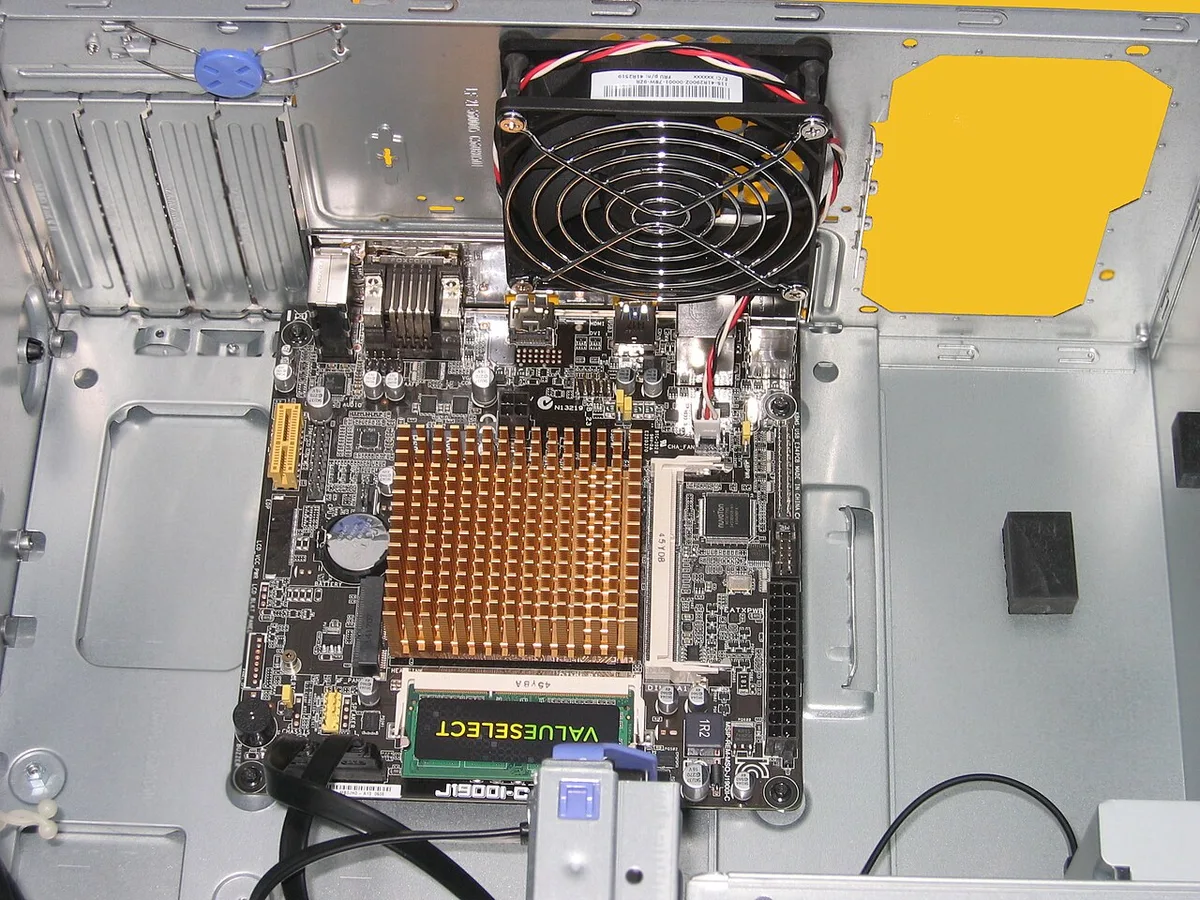
Image source: Wikimedia Commons / Hans Haase (CC BY-SA)
| Board size | Typical case | Layout strength | Main risk |
|---|---|---|---|
| ATX | Mid-tower | More fan mounts and clearance | Longer cable runs |
| Micro-ATX | Mid or mini-tower | Balanced space and cost | Fewer expansion slots |
| Mini-ITX | Small form factor | Compact desk footprint | Tight cooler and PSU fit |
If you are planning a compact build, small-form-factor builds need extra attention to PSU length. If you want easier upgrades, mid-tower chassis often leave more room for radiators. For board size tradeoffs, compare slot count and fan support before buying.
UL certification marks on power components help confirm basic safety compliance.
Common Visual Layout Mistakes to Avoid
Mistakes often show up in photos before temperature tests. A cable bundle in front of an intake fan blocks cool air. A radiator pressed against glass can recirculate warm air.
- Fan arrows point in conflicting directions.
- Cables cross the front intake path.
- GPU sits too close to the bottom panel.
- Radiator has no gap from side glass.
- Dust filters are missing or clogged.
- Drive cables press against the PSU shroud.
If the GPU sags, add a support bracket. If the radiator is flush, move it or add spacers. If fan arrows conflict, flip one fan and recheck.
Maintenance and Long-Term Optimization
Layouts change over time. Dust builds up on filters. Fan curves drift as parts age.
Cable ties can loosen during upgrades.
- Clean dust filters every one to two months.
- Check CPU and GPU temperatures after cleaning.
- Re-seat cables after GPU or cooler upgrades.
- Update fan curves for seasonal room temperature.
- Inspect GPU sag after transport.
- Test radiator and fan noise under load.
| Task | Interval | Visual cue |
|---|---|---|
| Clean filters | Every one to two months | Dust mat on mesh |
| Recheck cables | After upgrades | Loose bundles near fans |
| Review temps | Monthly | Higher idle temps |
| Inspect sag | After moving PC | Card tilt or slot stress |
ASHRAE thermal environment guidelines can help you think about room temperature and airflow. Cooler height checks also prevent side-panel contact after a fan or cooler swap.
Best Layout Reference by Build Type
Different builds need different priorities. A showcase build favors clean cable routing. A quiet build favors larger fans at lower RPM.
| Build type | Best layout focus | Fan priority |
|---|---|---|
| Budget air-cooled | Front intake, rear exhaust | Two to three fans, low noise |
| High-end air-cooled | Mesh front, top exhaust | Balanced pressure |
| Custom loop | Radiator gap, pump access | Static pressure fans |
| Small form factor | Short cables, vertical airflow | Compact high-static fans |
| Quiet living room | Positive pressure, dust control | Large low-RPM fans |
If you build a small-form-factor PC, cable length becomes critical. If you build a full-tower chassis, plan longer cable runs before final assembly.
Frequently Asked Questions
What is the best case layout for a gaming pc?
Front intake, rear or top exhaust, clear cable paths, and space around the GPU and radiator. Keep dust filters clean and avoid blocking vents. This layout balances cooling, noise, and maintenance.
Exact fan count depends on case size and part heat.
Should the GPU be mounted vertically or horizontally?
Horizontal mounting is usually simpler and keeps the GPU in the main airflow path. Vertical mounting can look better but needs a quality riser cable. Choose based on case width, riser support, and whether the card sits too close to side glass.
Is positive pressure better than negative pressure?
Positive pressure often helps reduce dust because intake air is filtered. Negative pressure can move heat out faster in some layouts. Either works if intake and exhaust paths stay clear.
Match fan count to the case vents.
Does a mesh front panel improve cooling?
A mesh front panel usually allows better intake airflow than solid glass. It can also let more dust in if filters are weak. Clean filters regularly.
Choose mesh for high-heat GPUs and glass only if airflow remains strong.
How much space should a radiator have?
Leave a small gap between the radiator and nearby panels. This helps warm air escape instead of recirculating. Check radiator thickness against fan and RAM clearance.
Manufacturer specs should confirm supported sizes.
What is the biggest layout mistake?
The biggest mistake is blocking airflow with cables or parts. A tidy but restricted layout runs hotter. Keep intake and exhaust paths open.
Check photos from multiple angles before final assembly.