How many fans can a gaming pc case support depends on more than the number printed on the box. It depends on fan size, mounting position, radiator placement, and how many headers or hub ports you have. Manufacturer specifications indicate that a single case model can list different fan totals for 120mm and 140mm fans.
As of 2026, many mid-tower cases still top out around six to eight fan positions, but the real usable count changes once a liquid cooler moves in. This guide walks through the conditions that decide your actual limit.
Why "Maximum Fan Count" Is Never Just One Number
A case's listed fan count is usually a maximum, not a promise. It tells you how many mounting points exist, not how many fans you can install at once.
The number shifts for three reasons:
- Fan size changes the count. A front panel might fit three 120mm fans or two 140mm fans.
- Radiators take slots. A 360mm AIO often uses three front 120mm positions.
- Thickness matters. Thick fans or tall RAM can block a mounting point.
So the better question is: how many fans fit in your specific layout. If you plan cooling around a fixed number, you may buy fans that never get installed. That is a common mistake with new builds.
How PC Case Fan Capacity Is Actually Counted
Fan capacity is counted by mounting position, not by how many fans are in the box. Most cases split positions into front, top, rear, bottom, and sometimes side mounts.
Here is a typical mid-tower example. Your case may differ, so check its manual.
| Position | Common 120mm Support | Common 140mm Support | Notes |
|---|---|---|---|
| Front | 3 | 2 | Often intake |
| Top | 2-3 | 2 | Radiator zone |
| Rear | 1 | 1 | Usually exhaust |
| Bottom | 1-2 | 1 | PSU shroud area |
| Side | 0-2 | 0-1 | Less common |
The total is not always the sum of every row. Some positions share holes, and some are blocked by the GPU or top panel.
Manufacturer case documentation from brands like Fractal Design, NZXT, and Corsair usually lists these limits by size. You can verify the exact layout on the manufacturer's case support page before buying fans.
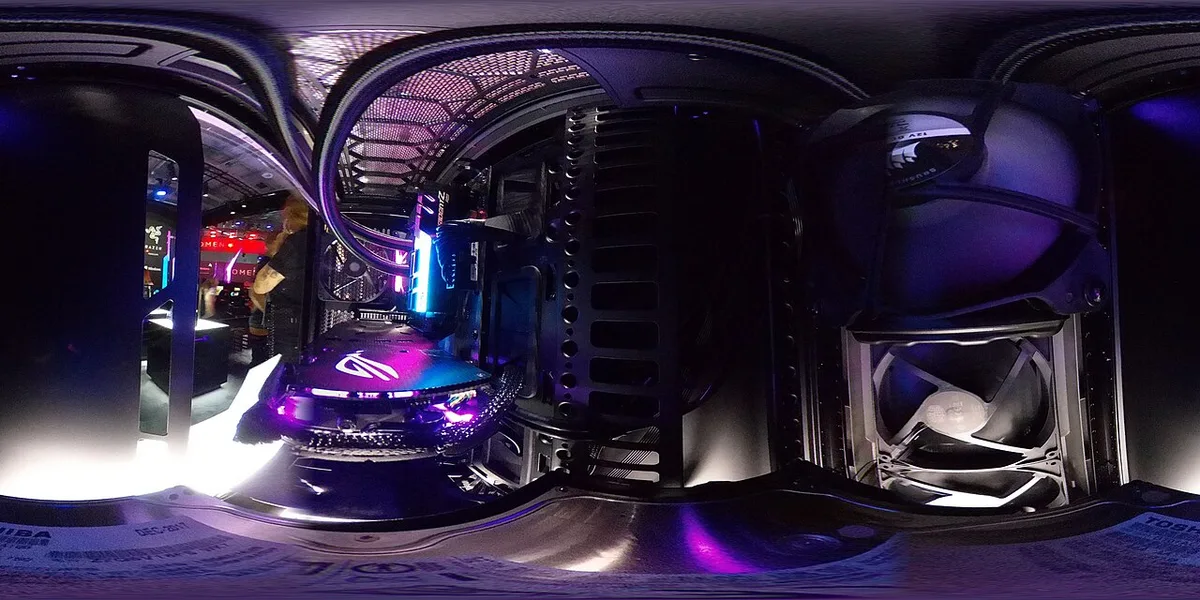
Image source: Wikimedia Commons / Maximilian Schönherr (CC BY-SA)
If your PC shuts down under load, poor cooling may be part of the problem. Reviewing why your gaming PC shuts down under load can help you separate fan issues from power issues.
Fan Sizes, Mounting Positions, and Radiator Conflicts
This is where most counting errors happen. A radiator does not just "use space." It occupies fan mounting holes and may require specific fan thickness.
Use this if/then logic:
- If you install a 240mm or 360mm AIO in front, then subtract two or three front fan slots.
- If you install a 280mm or 420mm radiator, then check whether the case supports 140mm mounting at that position.
- If a fan and radiator share the same holes, then you cannot count them separately.
- If the GPU is long, then bottom or front intake fans may not fit.
Shared holes are easy to miss. A top panel may have slots for three 120mm fans or two 140mm fans, but not both at once. That means "3 + 2" is not a real total.
Radiators also change airflow direction. A front radiator often works as intake, but it can restrict air compared with open fans. Static pressure matters more in that setup.
Look for fans with higher mmH2O ratings when pushing air through a radiator.
How to Find Your Case's Real Fan Limit Step by Step
Do not guess from photos. Use the spec sheet and a quick physical check.
- Find your exact case model name and revision.
- Open the manufacturer manual or product page.
- List every mounting position by size.
- Mark positions already used by a radiator.
- Check fan thickness against RAM, GPU, and PSU shroud clearance.
- Count remaining open positions.
- Compare that number with your motherboard fan headers or hub ports.
A simple table helps during planning:
| Step | What to Check | Common Mistake |
|---|---|---|
| 1 | Exact case model | Using a similar model's specs |
| 2 | Fan size per position | Mixing 120mm and 140mm totals |
| 3 | Radiator use | Counting radiator and fans twice |
| 4 | Clearance | Ignoring thick fans or tall RAM |
| 5 | Power connections | Running more fans than headers support |
If your build is still in the planning stage, it is also smart to decide how much PSU wattage you need for future upgrades before adding fans, controllers, and lighting.
120mm vs 140mm vs 200mm: Picking the Right Fans
Bigger fans usually move more air at lower RPM, but they do not fit everywhere. The right choice depends on your case and noise target.
- 120mm fans fit the most positions and are easiest to replace. They are a safe default for most builds.
- 140mm fans move more air per fan and can run quieter. Use them where the case supports them.
- 200mm fans are niche. They fit only in large cases and can be harder to source.
Here is a quick comparison:
| Fan Size | Best For | Tradeoff |
|---|---|---|
| 120mm | Tight cases, radiators, most mounts | Higher RPM for same airflow |
| 140mm | Quiet builds, large intakes | Fewer compatible positions |
| 200mm | Large cases, low-RPM airflow | Limited availability |
A good rule is to fill the largest supported size at intake positions first. Then add exhaust fans to balance pressure. Positive pressure, with more intake than exhaust, can help reduce dust.
If you are still choosing parts, how to choose the right PSU for a high-end graphics card is another useful planning step, because high-end GPUs often need both strong cooling and stable power.
Air Cooling vs AIO vs Custom Loop: How It Changes Your Fan Count
Cooling type is the biggest swing factor in fan count. An air-cooled build and a water-cooled build with the same case can have very different usable fan slots.
With air cooling, every fan position is free. You mount intake and exhaust fans where the case allows, and the CPU cooler does its own work. A typical air-cooled mid-tower might run three front intake, one rear exhaust, and two top exhaust fans.
An AIO changes the math. A 360mm AIO in front uses three 120mm slots for the radiator and its fans. Those fans still count as case fans, but they are now doing double duty as radiator fans.
You lose the ability to run separate intake fans in those slots.
Custom loops are even more variable. A front radiator plus a top radiator can consume five or six positions at once. Some builders run push-pull fan setups, which double the fan count on a single radiator.
If you are planning a high-fan-count build, checking power delivery under load can help you avoid pairing heavy cooling with a weak power supply.
Here is a quick comparison:
| Cooling Type | Typical Fan Slots Used | Flexibility |
|---|---|---|
| Air only | 4-6 | Highest |
| Single AIO | 3-5 | Medium |
| Custom loop | 6-10+ | Lowest, most complex |
The takeaway: choose your cooling type before counting fans. Otherwise the number on the box will not match your build.
How Many Fans You Actually Need by Build Type
More fans is not always better. The right count depends on your hardware, case size, and noise tolerance.
Here are practical ranges based on common build types:
- Budget or entry-level build: 2-3 fans. One front intake and one rear exhaust is often enough for stock-clocked parts.
- Mid-range gaming build: 3-5 fans. Two front intake and one to two top or rear exhaust fans handle most mid-tier GPUs.
- High-end or overclocked build: 5-7 fans. Three front intake, two top exhaust, and one rear exhaust is a common layout.
- Small form factor build: 1-2 fans. Space is tight, so every fan must earn its slot.
- Silent build: 3-4 large fans. Two 140mm intake and one or two 140mm exhaust at low RPM keeps noise down.
If your GPU runs hot, focus on front intake and bottom intake airflow. A single strong exhaust fan cannot pull enough air through a restricted case.
Aggregate reviews report that most gamers see diminishing returns beyond five or six well-placed fans. Beyond that, you are trading noise for minimal temperature gains.
Common Mistakes When Counting and Buying Case Fans
Most fan-count mistakes come from reading the spec sheet too fast. Here are the ones that trip people up:
- Counting radiator fans and case fans separately. They share the same slots.
- Assuming 120mm and 140mm totals add together. They often share mounting holes.
- Buying fans before checking thickness. A 30mm thick fan may hit tall RAM.
- Ignoring the GPU length. Long cards block bottom or front intake fans.
- Forgetting about the fan hub. Six fans need enough ports or a powered hub.
- Confusing "included fans" with "fan support." A case may ship with two fans but support eight.
- Running all fans at full speed. More airflow is not always quieter or cooler.
One more mistake: buying RGB fans without planning cable routes. Daisy-chained ARGB cables can become a tangled mess inside a small case.
If you are still finalizing your build's power budget, checking how much PSU wattage you need for future upgrades can prevent a situation where your fan and lighting load outgrows your supply.
Fan Headers, Hubs, and Power Limits You Need to Check
Every fan needs power and a control signal. Your motherboard and accessories determine how many fans you can actually run.
A typical ATX motherboard has one CPU_FAN header and two to four SYS_FAN or CHA_FAN headers. Each header has a current limit, commonly around 1A. A standard 120mm fan draws roughly 0.1 to 0.3A, so one header can usually handle two to three fans via a splitter.
If you need more fans than headers allow, a fan hub solves the problem. A powered hub draws from the PSU directly and sends PWM signals from one motherboard header. This lets you control many fans from a single header.
Watch these limits:
- Header amperage. Exceeding it can damage the motherboard.
- Hub total amperage. Check the hub's rating, not just its port count.
- PWM vs DC control. Mixing the two can cause fans to run at full speed.
- RGB vs ARGB. These use different connectors and controllers.
Here is a simple planning table:
| Connection Method | Best For | Limit to Watch |
|---|---|---|
| Motherboard header | 1-3 fans | ~1A per header |
| PWM splitter | 2-3 fans per header | Total amperage |
| Powered fan hub | 4-10 fans | Hub wattage rating |
| Dedicated controller | Full RGB + speed control | Software compatibility |
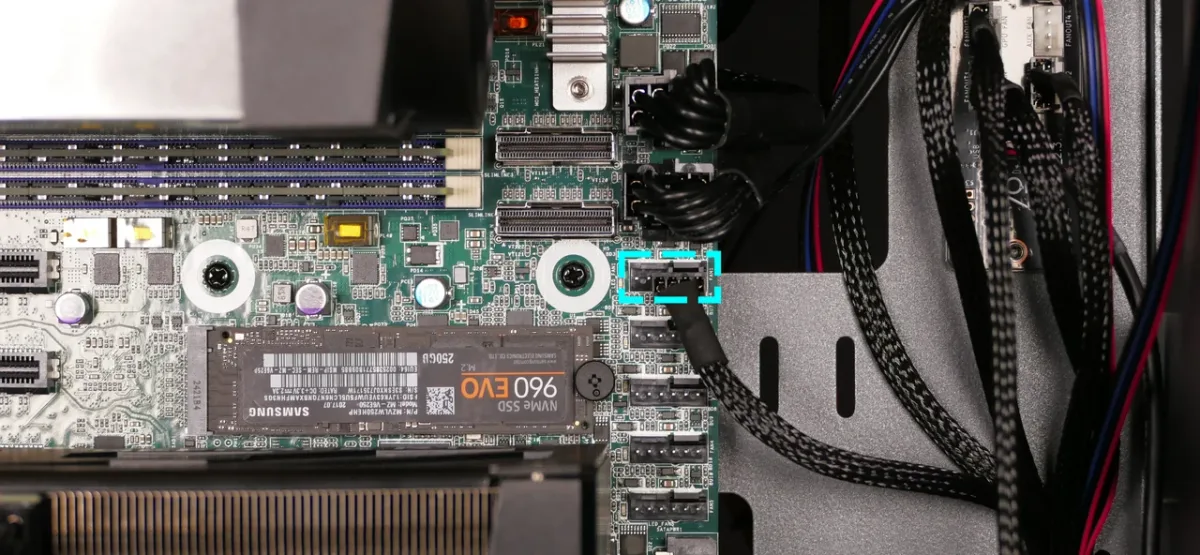
Image source: Wikimedia Commons / System76 (CC BY-SA)
If you notice instability under load, it may not be the fans. Learning how to spot a failing power supply before it dies can save you hours of troubleshooting.
Stable power matters for fan controllers too. Understanding why PSU voltage regulation matters helps you avoid erratic fan speeds and controller errors.
Frequently Asked Questions
How many fans does a gaming PC case usually support?
Most mid-tower cases support six to eight fan positions, but the exact number depends on fan size and radiator placement. Always check the manufacturer's spec sheet for your specific model.
Can I run more fans than my motherboard has headers?
Yes. Use a powered fan hub or PWM splitters. Make sure the total current draw stays within the header or hub's rated limit.
Do more case fans always mean lower temperatures?
No. Beyond five or six well-placed fans, temperature gains shrink while noise increases. Placement and intake-exhaust balance matter more than raw count.
Can a radiator and case fans share the same mounting holes?
Yes, and they often do. A 360mm radiator in front typically uses three 120mm positions, so you cannot count those slots separately.
Is it better to use 120mm or 140mm fans?
It depends on your case. 140mm fans move more air at lower RPM and can be quieter, but they fit fewer positions. Use the largest size your case supports at each mounting point.
How do I check if a fan will fit with my GPU?
Measure the GPU length and compare it to the case's front or bottom fan clearance. Manufacturer specs usually list maximum GPU length and fan clearance separately.