If you've ever wondered what is VRAM bandwidth and how does it affect gaming, you're not alone. Many gamers hear the term but aren't sure how it differs from simple VRAM capacity. Understanding the distinction can help you choose the right hardware and avoid bottlenecks.
For example, a GDDR6 module on a 256‑bit bus can deliver roughly 448 GB/s, which is a common figure in mid‑range cards. That number illustrates how memory speed is measured, and it sits beside the more visible gigabyte count. With that in mind, let's look at why capacity and bandwidth are often mixed up.
What Is VRAM Bandwidth and How Does It Affect Gaming
VRAM bandwidth measures how quickly data moves between the GPU and its memory. It is expressed in gigabytes per second (GB/s). Higher bandwidth lets the GPU fetch textures and frame data faster, reducing stutter.
In gaming, insufficient bandwidth can cause lower frame rates and frame‑time spikes.
Why VRAM Capacity and Memory Bandwidth Are Often Confused in Gaming
When shopping for a graphics card, it's easy to see the amount of VRAM listed and assume that more is always better. The number of gigabytes tells you how much data the card can store at once, but it doesn't say how fast that data can move. That speed is what memory bandwidth measures, and it's a separate specification.
Because both figures appear on spec sheets, many gamers treat them as interchangeable. In reality, a card with 8 GB of fast GDDR6X can outperform a 12 GB model with a slower bus in many titles. The confusion often leads to buying based on capacity alone, which can leave performance on the table.
Think of VRAM capacity as the size of a warehouse and bandwidth as the width of its loading dock. A larger warehouse doesn't help if the dock can only move a few boxes at a time. Both dimensions matter, but they affect different parts of the rendering pipeline.
- Capacity: total amount of data the GPU can hold, measured in GB.
- Bandwidth: rate at which data moves between GPU and memory, measured in GB/s.
- Capacity influences how many textures and assets can stay resident.
- Bandwidth determines how quickly those assets can be fetched when needed.
In practice, a game that streams large texture assets will feel the bandwidth limit first. When the GPU runs out of fast memory to pull from, it must wait for the next batch, causing frame‑time spikes. This is why a card with lower capacity but higher bandwidth can still deliver smooth gameplay in many modern titles.
If you are building a system for 1440p gaming, you will notice that bandwidth becomes more critical as resolution climbs. Higher resolution frames require more texture data each frame, so a narrow bus can quickly become a bottleneck.
For a deeper look at how VRAM usage affects gaming, see our article on how VRAM usage affects performance. You might also find our explanation of memory bus width useful.
How GDDR6, GDDR6X, and GDDR7 Change Memory Bandwidth
Memory type is one of the biggest levers for bandwidth, because each generation raises the data rate. GDDR6, the workhorse of mid‑range cards, typically runs at 14-16 Gbps on a 192- or 256‑bit bus. GDDR6X pushes that speed further with PAM4 signaling, reaching 21 Gbps on the same bus widths.
GDDR7, announced by JEDEC, is expected to hit 32 Gbps and beyond, effectively doubling bandwidth for a given bus width.
The combination of data rate and bus width determines the final bandwidth, which is calculated as (data rate × bus width) / 8. For example, a 256‑bit bus running at 16 Gbps yields about 512 GB/s. A 192‑bit bus at the same speed gives roughly 384 GB/s.
These numbers show why a small difference in bus width can have a large impact.
| Memory type | Typical data rate (Gbps) | Bus width (bits) | Approx. bandwidth (GB/s) |
|---|---|---|---|
| GDDR6 | 14-16 | 192-256 | 336-512 |
| GDDR6X | 21 | 192-256 | 504-672 |
| GDDR7 | 32+ | 256-384 | 1024-1536 |
As of 2026, GDDR7 is beginning to appear in high‑end cards, while GDDR6X remains common in upper‑midrange models. The jump to GDDR7 not only raises bandwidth but also improves power efficiency, which is important for laptop GPUs.
In titles that rely heavily on texture streaming, the extra bandwidth from GDDR6X or GDDR7 can reduce texture pop‑in and improve frame consistency. Gamers who enable ray tracing will also see a benefit, because ray tracing increases memory traffic.
For an official overview of the standards, you can consult the JEDEC GDDR specification page.
We also have a guide on what are shader cores that explains how they interact with memory.
Discrete GPU vs. Integrated Graphics: Bandwidth and Shared Memory Limits
Integrated GPUs, such as those found in most laptops, do not have their own dedicated VRAM. Instead, they share the system's main memory, which is typically DDR4 or DDR5. This shared architecture limits bandwidth because system memory runs at lower speeds and is shared with the CPU.
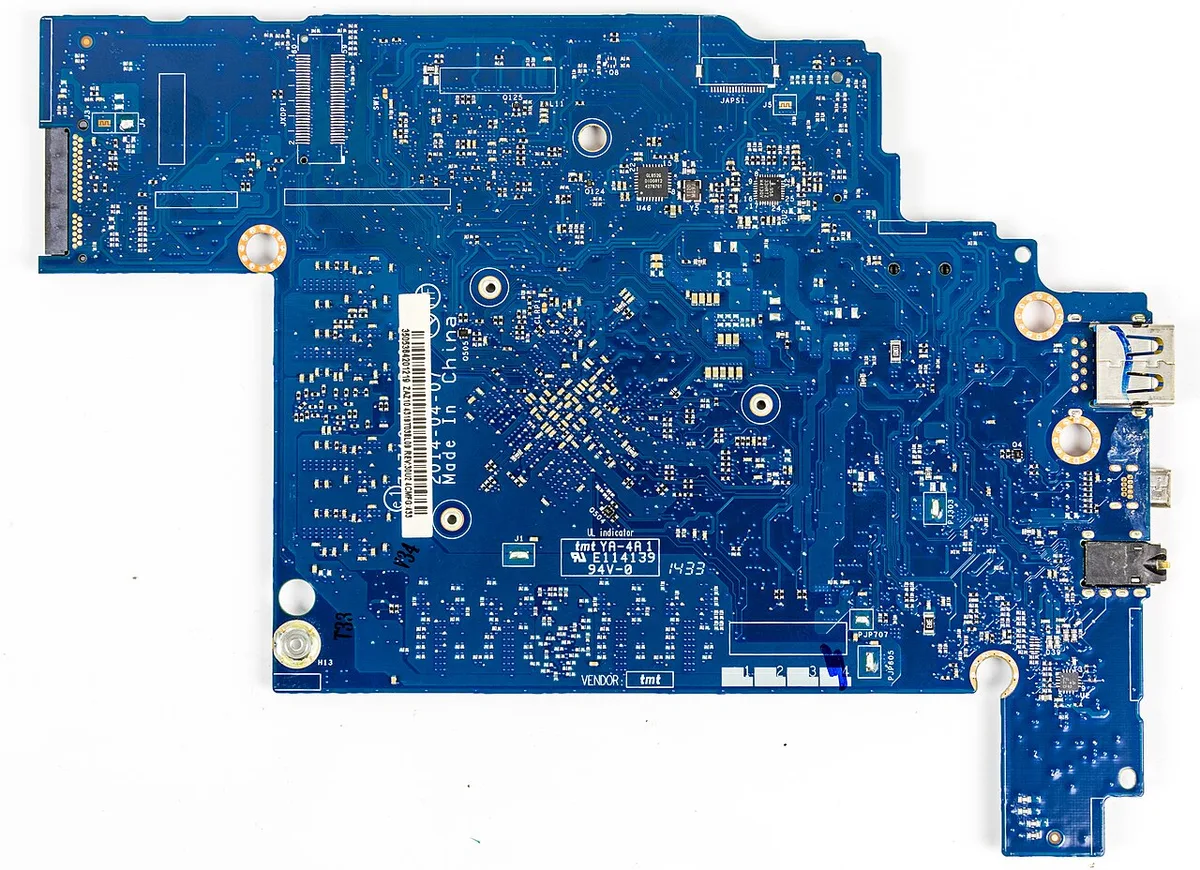
A typical discrete GPU might offer 200-600 GB/s of bandwidth, while an integrated solution often provides less than 50 GB/s. That difference explains why games on laptops with integrated graphics usually require lower texture settings or suffer from lower frame rates.
When a game needs to fetch a new texture, the integrated GPU must request it from system memory, which can introduce latency. In contrast, a discrete card keeps frequently used assets in its fast local VRAM, reducing the need for repeated transfers.
Because the CPU and GPU compete for the same memory, overall system performance can also be affected.
For users who game on the go, understanding this limit helps set realistic expectations. You can improve the experience by adjusting in‑game texture quality and enabling upscaling features, but the underlying bandwidth gap remains.
If you are building a desktop, opting for a dedicated GPU is the simplest way to secure high bandwidth. For laptop users, choosing a model with a powerful discrete GPU, such as an NVIDIA RTX or AMD RX series, is the best path to smooth performance.
We also recommend reading about what are tensor cores to see how they complement memory bandwidth.
Best VRAM Bandwidth for 1080p, 1440p, and 4K Gaming
At 1080p, most modern GPUs provide enough bandwidth to run games smoothly, but the margin narrows as resolution climbs. A good rule of thumb is to aim for at least 200 GB/s for 1080p, 300 GB/s for 1440p, and 500 GB/s for 4K. These targets assume high texture settings and moderate ray tracing.
| Resolution | Recommended bandwidth (GB/s) | Typical GPU example |
|---|---|---|
| 1080p | 200-300 | GTX 1660 Super |
| 1440p | 300-500 | RTX 3060 Ti |
| 4K | 500-700+ | RTX 3080 / RX 6800 |
Cards that meet these thresholds generally deliver stable frame times and fewer hitches. If you plan to enable heavy ray tracing or use high‑resolution texture packs, consider targeting the upper end of each range.
For example, an RTX 3070 with 448 GB/s is comfortable at 1440p, while an RX 6900 XT with 512 GB/s can handle 4K in many titles. Keep in mind that driver updates and game patches can change memory demands, so leaving a little headroom is wise.
When shopping, check the manufacturer's specification sheet for the exact bandwidth figure. For detailed specifications, see the NVIDIA GDDR6X page.
If you are deciding between two cards with similar specs, compare their bus width and memory type as much as their raw TFLOPS. A card with a wider bus and faster memory often performs better in real‑world scenarios.
Our article on 3D V‑cache explains how on‑die cache can reduce reliance on bandwidth, which may help in some titles.
How to Check and Optimize VRAM Bandwidth for Gaming
You can verify your actual memory bandwidth with a few free tools. GPU‑Z shows the current memory clock and bus width in the Graphics Card tab. Multiply the effective clock by the bus width and divide by eight to get the real‑time bandwidth in GB/s.
HWInfo64 logs the same values under the GPU section and can record them while you play.
Run a synthetic benchmark like 3DMark Time Spy to establish a baseline. Compare the reported memory bandwidth score with the manufacturer spec sheet. If your result is significantly lower, the memory may be downclocking due to power limits or thermal throttling.
In‑game, open the overlay in MSI Afterburner and enable the VRAM usage and memory clock graphs. Watch for the memory clock dropping during heavy scenes. A drop usually means the GPU is hitting a power or temperature limit.
To optimize, start with the latest driver from NVIDIA, AMD, or Intel. Drivers often adjust memory timings for new games. Next, ensure your power limit slider in the driver control panel is set to maximum.
On laptops, select the high‑performance power plan and plug in the charger.
If you are comfortable, a modest memory overclock of 50‑100 MHz can yield a few percent more bandwidth. Test stability with a tool like OCCT or by looping a demanding scene. Back off at the first sign of artifacts or crashes.
For a deeper dive on PCIe bandwidth limits, see our guide on how many PCIe lanes a gaming PC needs.
Common Mistakes and Practical Fixes for Bandwidth Bottlenecks
One frequent mistake is buying a card based only on VRAM capacity while ignoring the bus width. A 12 GB card on a 96‑bit bus will often trail an 8 GB card on a 128‑bit bus in memory‑bound scenes. Always check both numbers before you decide.
Another error is assuming system RAM speed does not matter for discrete GPUs. While the GPU uses its own VRAM, a slow PCIe link can stall data transfers from system memory to the card. Running DDR5 at its rated XMP or EXPO profile keeps the pipeline full.
Laptop users often overlook thermal throttling. When the GPU hits its temperature target, it reduces core and memory clocks, cutting bandwidth exactly when you need it most. Cleaning vents, repasting, or using a cooling pad can keep clocks stable.
Our article on fixing overheating after cleaning covers practical steps.
Enabling too many high‑resolution texture packs without enough bandwidth creates stutter. If you see frame‑time spikes, lower the texture quality setting first. It reduces the data the GPU must fetch each frame.
Finally, do not forget Resizable BAR or Smart Access Memory. When supported by your motherboard, CPU, and GPU, this feature lets the CPU access the full VRAM buffer, improving asset streaming efficiency. Enable it in BIOS and the driver control panel.
Final VRAM Bandwidth Recommendation for 1080p, 1440p, and 4K
For 1080p gaming at high refresh rates, target at least 256 GB/s. Cards like the RTX 3060 12 GB or RX 6600 XT sit comfortably in this range. They handle modern titles with high texture settings and light ray tracing.
At 1440p, aim for 400 GB/s or more. The RTX 3060 Ti, RTX 3070, and RX 6700 XT all exceed this threshold. They provide headroom for 1440p ultra textures and moderate ray tracing without constant bandwidth starvation.
For 4K gaming, 600 GB/s should be your floor. The RTX 3080 10 GB, RTX 4080, and RX 7900 XTX deliver 700‑1000 GB/s. This bandwidth supports 4K texture packs, heavy ray tracing, and high frame rates in demanding titles.
If you plan to keep a card for several years, buy one tier above your current resolution target. Bandwidth demands rise with each game generation, and extra headroom extends the useful life of the GPU.
Remember that bandwidth is only one piece of the puzzle. Core compute, RT cores, and tensor cores also shape the final experience. Balance your choice against the whole spec sheet, not a single number.
Frequently Asked Questions
Does VRAM bandwidth affect FPS directly?
Higher bandwidth reduces the time the GPU waits for data, which can raise average FPS and improve 1% lows in memory‑bound scenarios.
Can I increase VRAM bandwidth without new hardware?
You can squeeze a small gain by overclocking the memory clock, updating drivers, and enabling Resizable BAR, but the physical bus width and memory type are fixed.
Is more VRAM always better than faster VRAM?
Not necessarily. A smaller pool of fast memory often outperforms a larger pool of slow memory at the same resolution, especially when texture streaming is the bottleneck.
How do I know if my game is bandwidth limited?
Watch the memory clock in MSI Afterburner. If it stays at max while GPU utilization is low, the game may be waiting for data. Lowering texture quality and seeing a frame‑rate jump confirms it.
Does PCIe generation affect VRAM bandwidth?
PCIe bandwidth affects how fast assets move from system RAM to VRAM, not the VRAM bandwidth itself. Running a GPU in a PCIe 3.0 x8 slot instead of 4.0 x16 can add latency in asset‑heavy titles.
Should I prioritize bandwidth or capacity for future‑proofing?
Aim for a balance. At least 12 GB is sensible for 1440p and 16 GB for 4K, but ensure the bus width and memory type deliver bandwidth above the targets in this guide.