You’re staring at a black screen. The fans stopped spinning seconds ago. This is the most common panic moment for owners dealing with gaming laptop overheating and shutting down.
It feels like your expensive machine just died in the middle of a raid or render.
But here’s the truth: it likely didn’t die. It saved itself. Modern chips have hard thermal limits, usually around 100°C for CPUs and 95°C for GPUs.
If those temps spike, the system cuts power to prevent permanent silicon damage. Let’s figure out why yours hit that wall.
gaming laptop overheating and shutting down
Gaming laptops shut down when internal temperatures exceed safe hardware limits. This triggers an emergency thermal protection protocol. The system cuts power instantly to save components from melting.
Common causes include dust buildup, dried thermal paste, or blocked airflow vents.
Step 1: Isolate the Symptom (Hard Cut vs. Graceful Crash)
Before you buy new parts or open the chassis, you need to know what kind of failure occurred. Not all shutdowns are created equal. A "hard cut" looks different than a "graceful crash." Getting this wrong leads to wasted effort on the wrong fix.
A hard cut means the screen goes black instantly. No error message appears. The fans stop dead.
When you press the power button, it might take a few minutes before it turns back on. This is almost always a thermal trip or a power delivery failure. The motherboard detected a critical temperature spike or voltage irregularity and pulled the plug.
A graceful crash involves a Blue Screen of Death (BSOD) or a forced restart dialog. You might see errors like WHEA_UNCORRECTABLE_ERROR or KERNEL_POWER_41. While these can stem from heat, they often point to driver conflicts, RAM issues, or software corruption.
Heat-induced crashes happen because the CPU throttles so aggressively that the OS loses sync with hardware states.
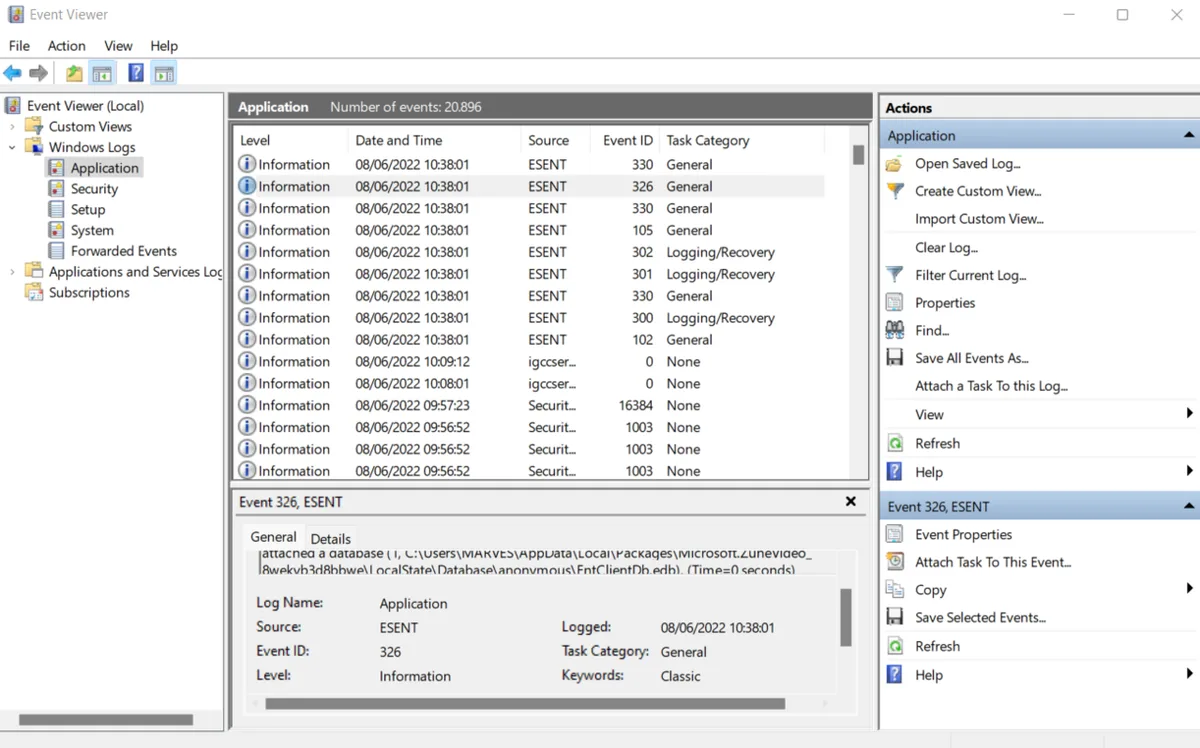
Image source: Wikimedia Commons / RedomeID (CC BY-SA)
Here is how to distinguish them quickly. Check your Windows Event Viewer. Look under "Windows Logs" then "System." Search for "Kernel-Power" with Event ID 41.
This confirms an unexpected shutdown. Now look at the timestamps. Did the event log capture any warnings right before the crash?
If you saw high-temperature warnings in the logs prior to the crash, it’s a gradual thermal throttle leading to instability. If there were no warnings and the log jumps straight to the crash, it was a hard thermal trip. This distinction matters because gradual throttling suggests cooling inefficiency.
Hard trips suggest sensor failure, extreme blockage, or component defect.
We’ve seen users spend hours reinstalling drivers for a problem caused by a single clump of dust blocking the intake vent. Diagnose first. Repair second.
If you suspect a power issue rather than heat, check our guide on why chargers fail intermittently to rule out loose connections.
Step 2: Pinpoint the Heat Source (CPU, GPU, or VRM?)
Once you know it’s a thermal event, you must identify which component is screaming for help. Gaming laptops are complex thermal ecosystems. The CPU, GPU, and Voltage Regulator Modules (VRMs) generate heat independently.
They share heatsinks but have distinct sensors.
Download HWiNFO64. It’s free and provides granular sensor data. Run it in "Sensors-only" mode while gaming.
Don’t just look at the peak temperature. Watch the trend over time. Does the CPU hit 95°C immediately upon launch?
Or does it creep up slowly after twenty minutes?
Immediate spikes often indicate bad thermal interface material (TIM) application from the factory. Slow creep-ups suggest dust accumulation or insufficient fan speed. We recommend monitoring three specific metrics during your next session.
| Component | Critical Temp Threshold | Common Cause of Overheat |
|---|---|---|
| CPU Package | 100°C – 105°C | Dried paste, clogged fins, background processes |
| GPU Hotspot | 105°C – 110°C | Poor case ventilation, heavy ray-tracing loads |
| VRM (Power) | 100°C+ | Sustained max TDP, aging capacitors |
The GPU hotspot is often hotter than the average GPU core temp. NVIDIA and AMD report both. Focus on the hotspot.
If the average is 80°C but the hotspot hits 105°C, you’re near the danger zone. This discrepancy highlights uneven cooling across the chip die.
VRM overheating is the silent killer. Many users ignore it because standard monitoring tools don’t highlight it prominently. However, if your VRMs get too hot, the motherboard reduces power to the CPU and GPU to protect itself.
This causes massive performance drops before a shutdown. You’ll notice frame rates plummeting even though temps seem "okay."
If you’re unsure which part is failing, try undervolting just the GPU. If stability improves, the GPU was the bottleneck. If nothing changes, look at the CPU or VRMs.
For deeper insights into managing power draw effectively, review our breakdown of choosing the right processor tier.
Branch A: The Software & Driver Fix Path
Sometimes the hardware is fine, but the software is lying to you. Or worse, it’s working against you. Outdated graphics drivers can cause inefficient shader compilation, spiking CPU usage unnecessarily.
Background malware miners can keep cores pinned at 100% load without your knowledge.
Start with a clean driver install. Use Display Driver Uninstaller (DDU) in Safe Mode. This wipes every trace of old drivers.
Reinstall the latest stable version from NVIDIA or AMD directly. Avoid OEM-specific drivers unless necessary for feature parity. Generic drivers are often more optimized for thermal management.
Next, check your Windows Power Plan. Set it to "Balanced" or "High Performance." Do not use "Ultimate Performance" unless you’re plugged in and cooling adequately. These plans dictate how aggressively the CPU boosts clocks.
Aggressive boosting generates exponential heat.
Adjust the "Maximum Processor State" in advanced power settings. Lower it from 100% to 95%. This small change prevents the CPU from hitting its absolute turbo ceiling.
You lose negligible performance (often less than 3%) but gain significant thermal headroom. This stops the immediate spike that triggers early throttling.
Scan for rogue processes. Open Task Manager. Sort by CPU usage.
Look for anything consuming resources when idle. Web browsers with excessive tabs, antivirus scans, or update services can mimic thermal issues by keeping the system busy. Close them and monitor temps again.
Finally, update your BIOS. Manufacturers frequently release firmware patches that optimize fan curves and thermal thresholds. An outdated BIOS might misinterpret sensor data, causing premature shutdowns.
Visit your laptop manufacturer’s support page. Download the latest version. Follow their instructions precisely.
Flashing incorrectly can brick your device.
If software tweaks don’t resolve the issue, the problem is physical. Move to Branch B. But before you do, ensure your game settings aren’t pushing hardware beyond its design limits.
Cap your FPS slightly below your monitor’s refresh rate. This reduces unnecessary rendering load and heat generation.
Branch B: The Physical Maintenance Path (Dust & TIM)
If software fixes failed, dust or degraded thermal paste is likely the culprit. Laptops act as vacuum cleaners. They pull air through tiny intakes.
Hair, pet dander, and lint accumulate rapidly. Within six months, this debris forms a felt-like mat over the heatsink fins.
This mat blocks airflow. Fans spin faster to compensate. Noise increases.
Efficiency drops. Eventually, the heat has nowhere to go. The system shuts down.
Cleaning this requires care. Never use a household vacuum cleaner. Static electricity can kill sensitive components.
Use compressed air cans. Hold the can upright. Short bursts only.
Long sprays release liquid propellant that damages electronics. Locate the exhaust vents. Blow air into the intake vents to push debris out the back.
Do this outside. You’ll see clouds of gray fuzz emerge.
For thorough cleaning, you may need to open the chassis. Check your warranty terms first. Some manufacturers void warranties if seals are broken.
Others allow user-serviceable upgrades. Refer to your service manual. Remove the bottom panel carefully.
Unscrew brackets holding the heatsink assembly.
Inspect the thermal paste. Factory-applied silicone paste dries out over time. It becomes chalky and brittle.
This creates air gaps between the chip and the cooler. Air is an insulator. Heat cannot transfer efficiently.
Replace it with high-quality non-conductive paste. Arctic MX-4 or Thermal Grizzly Kryonaut are industry standards.
Clean the old paste off the CPU/GPU dies using isopropyl alcohol (90%+) and a microfiber cloth. Apply a pea-sized amount of new paste. Spread it evenly or let the pressure of the cooler spread it.
Reassemble tightly. Ensure screws are torqued evenly to maintain contact.
Image source: Wikimedia Commons / Wikimedia Commons contributor
Also check the vapor chamber or heat pipes. If they feel cool at one end and hot at the other, they may have leaked gas internally. This is a hardware failure requiring replacement.
You cannot fix a leaky heat pipe. Contact support or a repair shop.
Regular maintenance extends lifespan. Clean vents every three months. Repaste annually if you game heavily.
This proactive approach prevents the crisis scenario entirely. If you’re looking for machines designed with better airflow from the start, consider reviewing models known for robust cooling solutions like the MSI Katana series.
Branch C: The Hardware Failure Path (When to Stop Trying)
Some problems cannot be fixed with cleaning or software updates. If your laptop still shuts down after proper maintenance, you’re facing hardware degradation. This includes failing fans, cracked solder joints, or dying batteries.
Recognizing this saves money and frustration.
Listen to your fans. Do they grind, click, or whine? Irregular noise indicates bearing wear.
A seized fan stops spinning entirely. The CPU will overheat within minutes. Replacement fans are cheap and easy to swap.
Order the specific part number for your model.
Check battery health. A swollen battery pushes against internal components. It can warp the chassis, breaking contact with heatsinks.
It also poses fire risks. Inspect the bottom casing for bulges. If present, replace the battery immediately.
Do not charge or use the laptop until resolved. See our warning signs for swollen batteries to confirm diagnosis.
Test the power adapter. A failing charger might supply inconsistent voltage. Under load, the voltage sags.
The motherboard interprets this as a fault and shuts down to protect circuits. Try a known-good charger of identical wattage. If the issue persists, the charging circuit on the motherboard may be defective.
Motherboard repairs are complex. Cracked BGA solder balls under the GPU or CPU cause intermittent connections. Heat expands metal.
Cold contracts it. Over years, this cycling breaks joints. Reflowing (heating to reconnect) is a temporary patch.
Full board replacement is costly. Compare repair quotes against the value of a new unit.
If your laptop is older than four years, investment in major repairs rarely makes sense. Technology advances quickly. Newer models offer better efficiency and cooling.
Consider upgrading instead. Evaluate cost-effective options in our guide to budget-friendly replacements. Sometimes cutting losses is the smartest technical decision.
Critical Safety Checks Before You Open the Chassis
Opening a gaming laptop isn’t like swapping a tire. It involves delicate electronics and high-capacity batteries. One mistake can fry your motherboard or cause a fire.
We’ve seen too many users skip these steps and end up with dead devices.
First, disconnect everything. Unplug the power adapter. Remove any connected peripherals like mice, keyboards, or external drives.
This prevents accidental short circuits from USB ports while you work.
Next, discharge residual power. Hold the power button for thirty seconds. This drains capacitors on the motherboard.
Even when unplugged, components can hold enough charge to damage sensitive chips if touched improperly.
Battery safety is paramount. Lithium-ion cells are volatile. If your battery looks swollen, do not open the chassis.
Swelling indicates internal gas buildup. Puncturing it releases toxic fumes and risks explosion. Dispose of it at an authorized e-waste facility immediately.
If the battery is flat but intact, disconnect it before touching other parts. Most modern laptops have internal connectors. Locate the battery cable.
Gently unclip it. Never pull by the wires themselves. Pull the plastic connector tab straight out.
Use proper tools. A magnetic screwdriver set prevents losing tiny screws into the keyboard deck. Anti-static wrist straps ground you to the case.
Without one, static discharge can silently kill RAM or SSD controllers. Touch a metal part of the chassis frequently if you lack a strap.
Work on a clean, well-lit surface. Avoid carpets or beds where static builds up easily. Keep track of screw locations.
Take photos during disassembly. Reassembly errors often cause more damage than the original overheating issue.
Respect warranty terms. Many manufacturers allow user access for memory upgrades but void coverage for thermal paste replacement. Check your specific policy first.
If unsure, contact support. Asking permission costs nothing. Breaking a seal without approval could cost hundreds in repairs.
Finally, know your limits. If you encounter glued-down components or complex ribbon cables, stop. Forcing them tears traces.
Professional repair shops have heat guns and specialized jigs. Save yourself the headache if the job feels beyond basic cleaning.
Pro Tips: Undervolting and Fan Curves That Actually Work
Hardware fixes solve blockages. Software tuning optimizes efficiency. Undervolting reduces voltage supplied to the CPU/GPU without lowering clock speeds.
Less voltage means less heat generation. It’s free performance gain.
Start with Intel CPUs using ThrottleStop. AMD Ryzen mobile chips respond well to Ryzen Controller. Both tools adjust voltage offsets.
Aim for -50mV initially. Test stability with Cinebench R23. If it crashes, reduce offset to -40mV.
Repeat until stable.
Most modern chips tolerate -80mV to -120mV safely. This drops temperatures by 5°C to 10°C under load. You keep full boost clocks.
The system runs cooler and quieter. Aggregate reviews show this extends component lifespan significantly.
GPU undervolting requires MSI Afterburner. Find your card’s stock voltage curve. Lower the voltage at peak frequencies by 10-20mV.
Stress test with FurMark or 3DMark. Watch for artifacts. Artifacts mean instability.
Raise voltage slightly if glitches appear.
Fan curves deserve customization too. Default profiles prioritize silence over cooling. This causes throttling during intense sessions.
Use manufacturer software (like Armoury Crate or Legion Toolkit) to create custom curves.
Set fans to spin up earlier. Trigger maximum RPM at 75°C instead of 85°C. Yes, it gets louder sooner.
But it prevents thermal throttling entirely. Consistent airflow beats reactive panic spinning.
Consider third-party tools like FanControl. They offer granular control over individual fan headers. Some laptops have separate CPU and GPU fans.
Syncing them poorly creates turbulence. Independent control allows targeted cooling.
Monitor results closely. Run HWiNFO64 alongside games. Verify temps stay below critical thresholds.
If undervolting causes blue screens, revert changes. Stability trumps marginal temperature gains. Always save profiles before applying new settings.
These tweaks complement physical maintenance. Clean vents plus optimized voltages yield the best results. Don’t rely on software alone if dust is clogging fins.
Fix the hardware first. Then tune the software.
Common Mistakes That Make Overheating Worse
Good intentions often lead to bad outcomes. Users try to help their laptops but accidentally sabotage cooling. Here are the traps we see most frequently in forums and support tickets.
Blocking intake vents is the top offender. Using a laptop on a bed, couch, or carpet suffocates it. Soft fabrics plug bottom intakes instantly.
Air cannot enter. Heat accumulates rapidly. Always use hard, flat surfaces.
Elevate the rear slightly if possible.
Cooling pads aren’t magic bullets. Cheap models just blow ambient air. If room temp is 30°C, blowing 30°C air helps minimally.
Look for pads with sealed foam gaskets that force air into intakes. Passive stands that lift the laptop often work better than active fans with poor design.
Over-cleaning with vacuums kills components. Household vacuums generate massive static electricity. A single zap can destroy a motherboard layer.
Stick to compressed air or electric dusters designed for electronics. Never suck dust out directly from inside the chassis with a standard vacuum hose.
Ignoring ambient temperature matters. Gaming in a hot summer room without AC pushes limits. Laptops dissipate heat into surrounding air.
If that air is already warm, efficiency drops. Keep rooms cool. Close windows during peak heat.
Consider external AC units for dedicated gaming spaces.
Forcing fan speeds to 100% constantly wears bearings. Fans aren’t infinite. Running at max RPM 24/7 shortens lifespan dramatically.
Bearings dry out. Noise increases. Eventually, they seize.
Let automatic profiles handle moderate loads. Reserve turbo modes for heavy rendering or competitive play.
Updating BIOS blindly carries risk. Incorrect flashes brick devices. Always verify the exact model number.
Download only from official manufacturer sites. Never interrupt a BIOS update. Connect to UPS backup if power is unstable.
One glitch during flash equals permanent death.
Neglecting software bloat hurts thermals. Background apps consume CPU cycles. Antivirus scans, cloud syncs, and telemetry services run invisibly.
These keep cores busy. Busy cores generate heat. Disable unnecessary startup programs via Task Manager.
Reduce idle load to lower baseline temps.
Avoid liquid metals unless experienced. Conductive TIM spills onto motherboards cause shorts. One drop can ruin VRMs permanently.
Silicone-based pastes are safer for beginners. Stick to proven non-conductive options. Risk isn’t worth the marginal degree improvement for most users.
Frequently Asked Questions
Why does my laptop shut down only during gaming?
Gaming pushes CPU and GPU to maximum TDP simultaneously. Idle tasks don’t trigger full thermal load. Games demand sustained power delivery.
This stresses cooling systems beyond typical browsing or video playback capacities.
Can I fix overheating without opening the laptop?
Yes, partially. Cleaning external vents with compressed air helps. Updating drivers and adjusting power plans reduces load.
However, internal dust mats and dried paste require chassis access for complete resolution.
How often should I repaste my gaming laptop?
Every 18 to 24 months for heavy users. Light gamers might stretch to three years. Signs include higher idle temps or rapid throttling.
Manufacturer specs suggest checking annually if used daily for hours.
Does a cooling pad really prevent shutdowns?
It assists but doesn’t replace internal maintenance. Good pads improve airflow by 5-10°C. Bad pads do nothing.
If heatsinks are clogged, external fans can’t penetrate deep blockages. Combine both strategies for best results.
Is thermal throttling dangerous for my hardware?
No. Throttling protects silicon by reducing speed. Shutdowns are the final safeguard against melting.
Frequent throttling degrades performance but not longevity. Immediate shutdowns indicate critical failure points needing urgent attention.
What if Event Viewer shows no errors before shutdown?
This confirms a hard thermal trip. The OS didn’t have time to log warnings. Power cut happened faster than Windows could react.
Focus entirely on physical cooling solutions rather than software debugging.