The question of what keyboard is best for a gaming laptop does not have one universal answer. Your play style, desk space, and laptop ports all shape the right choice. Some players are perfectly happy with the built-in board, while others need a dedicated external mechanical keyboard to compete.
Manufacturer specifications show that most gaming laptop keyboards use scissor-switch or membrane designs with roughly 1.5 mm of key travel. External mechanical boards typically offer 3.5 to 4.0 mm of travel with a defined actuation point. That gap in feedback and consistency is why many players upgrade.
Let's walk through the factors that actually matter.
what keyboard is best for a gaming laptop
The best keyboard for a gaming laptop depends on your play style. Competitive players gain the most from an external mechanical board with linear switches. Casual players often do fine with the built-in laptop keyboard.
A 2.4 GHz wireless or wired connection keeps input latency lowest. Compact layouts save desk space next to your laptop.
Built-In Laptop Keyboard vs External Mechanical: Which Actually Wins for Gaming
The built-in keyboard on a gaming laptop has one major advantage. It is always there. You do not need extra gear, extra cables, or extra desk space.
For casual gaming and travel, that convenience matters.
But built-in boards have limits. The scissor-switch or membrane designs used in most laptop chassis offer short travel and soft feedback. Key rollover is often limited to 6-key rollover or less.
Heavy typing can cause chassis flex, which affects accuracy during fast inputs.
An external mechanical keyboard solves most of these issues. You get defined actuation points, better key stability, and full N-key rollover. The trade-off is cost, desk space, and the need to carry an extra device.
For competitive play, the external board wins clearly. For casual sessions on the couch or in a dorm, the built-in board is often good enough.
If you want to fine-tune your laptop's performance profiles, adjusting built-in profiles can also affect keyboard backlighting and power draw during gaming.
Membrane, Mechanical, and Hall Effect Switches: How the Technology Shapes Your Play
Switch type is the single biggest factor in how a keyboard feels and performs.
Membrane keyboards use a rubber dome under each key. Pressing a key collapses the dome and registers the input. They are quiet and cheap, but the mushy feel makes rapid inputs harder to control.
Most built-in laptop keyboards use a variant of this design.
Mechanical keyboards use a physical switch under each key. Each switch contains a spring and metal contacts. This gives a consistent, tactile, or clicky feel with a defined actuation point.
Cherry MX switches are the most well-known standard, and manufacturer documentation from Cherry defines actuation force and travel for each variant.
Hall effect switches use magnetic sensors instead of metal contacts. They allow adjustable actuation points, often from 0.1 mm to 4.0 mm. Some support Rapid Trigger, which resets the key the moment you release pressure.
This is popular in competitive shooters.
Here is how the three types compare for gaming:
- Membrane: lowest cost, quiet, short travel, limited rollover
- Mechanical: consistent feel, customizable, long lifespan, moderate noise
- Hall effect: adjustable actuation, Rapid Trigger support, highest cost, niche availability
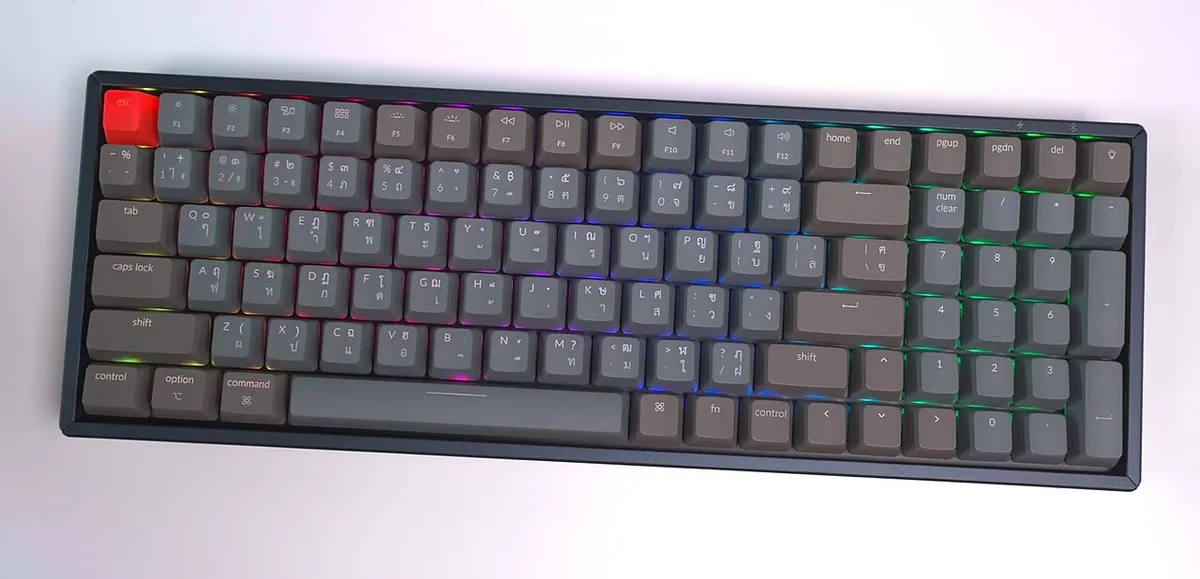
Image source: Wikimedia Commons / iMoD Official YouTube channel (CC BY)
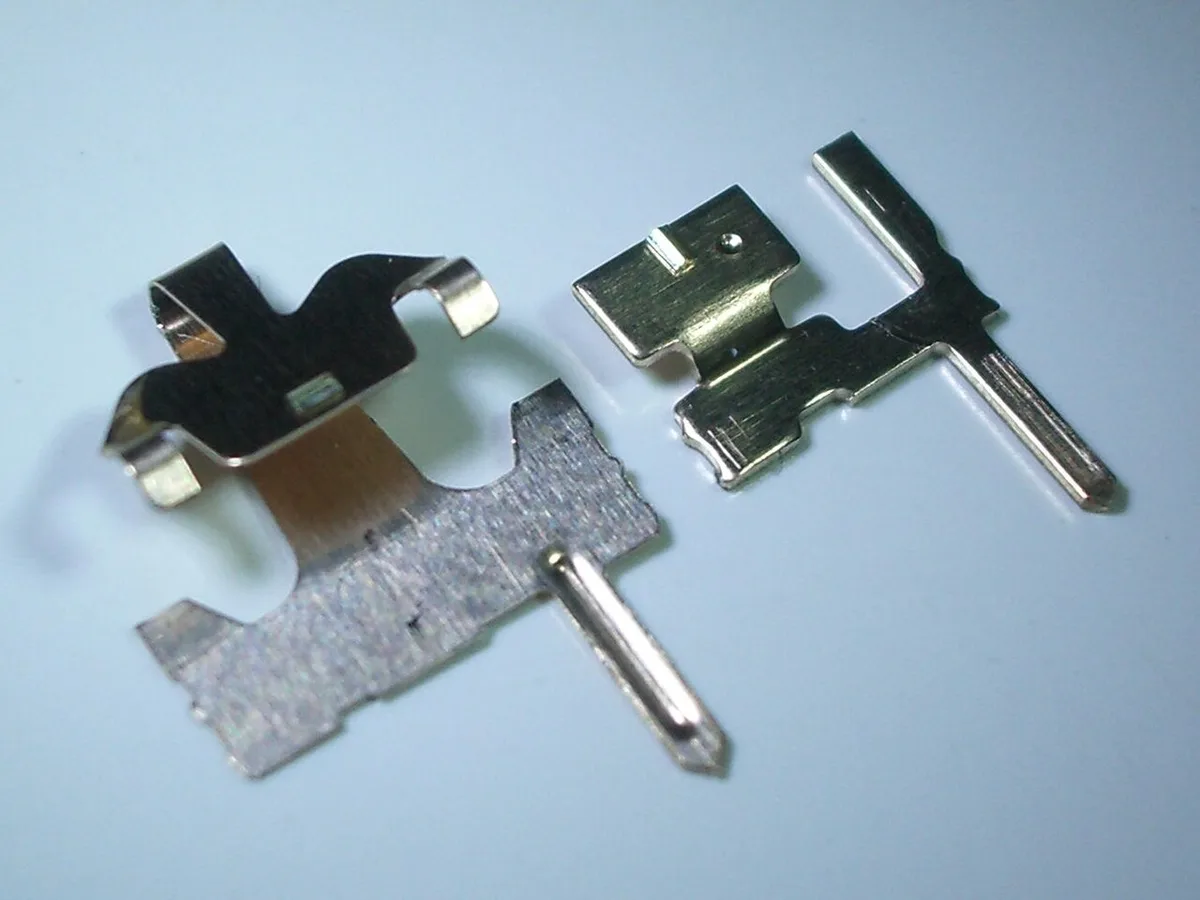
Image source: Wikimedia Commons / Daniel beardsmore
Layouts and Sizes: Full-Size, TKL, 75%, 65%, and 60% Boards for Laptop Setups
Layout choice affects desk space, mouse room, and which keys you can reach quickly.
Full-size boards include a number pad on the right. They are the widest option and eat the most desk space. For a gaming laptop setup with limited room, this can crowd your mouse.
Tenkeyless (TKL) boards drop the number pad. This frees up space for wider mouse movements. Many competitive players prefer this size.
75% layouts keep the function row and arrow keys in a tighter frame. They are a good middle ground for laptop users who want compact size without losing too many keys.
65% layouts drop the function row but keep arrow keys. They are very popular for small desks and travel.
60% layouts are the smallest. They remove function row, arrow keys, and number pad. Everything is accessed through layers.
They suit minimal setups but take time to learn.
For a gaming laptop setup, 75% or 65% layouts usually hit the sweet spot. You keep essential keys while saving space.
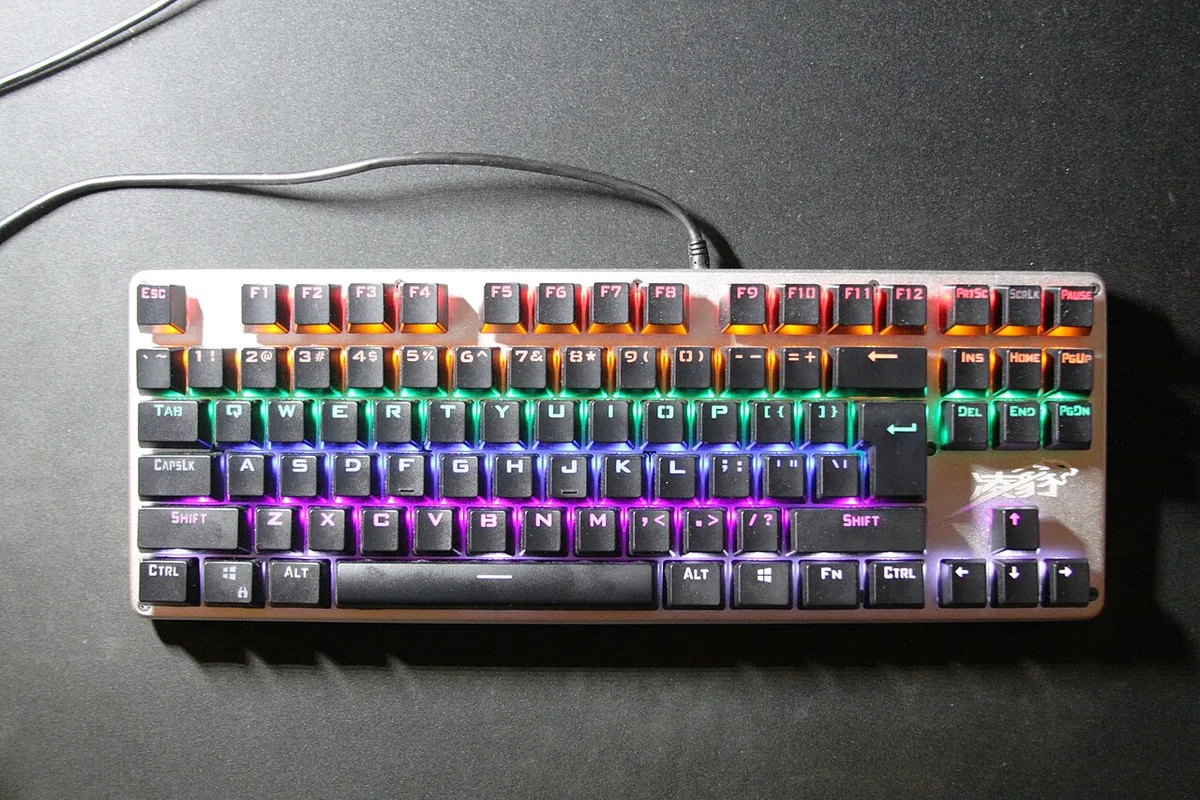
Image source: Wikimedia Commons / Morn (CC BY-SA)
Keeping fan noise low matters too, since a loud laptop fan can mask key sounds during intense sessions.
Wired USB vs Wireless 2.4 GHz vs Bluetooth: Latency, Battery, and Desk Clutter
Connection type affects input delay, battery life, and desk setup.
Wired USB keyboards have the lowest latency. Polling rates of 1000 Hz are standard, and some boards reach 8000 Hz. There is no battery to charge and no signal to drop.
The downside is a cable running across your desk.
Wireless 2.4 GHz keyboards use a USB dongle. Latency is nearly identical to wired, often within 1 ms. Battery life ranges from 40 to 200 hours depending on RGB usage.
The dongle takes a USB port, which can be limited on thin laptops.
Bluetooth keyboards have higher latency, often 7 to 15 ms. This is fine for casual gaming and typing. For competitive play, the delay is noticeable.
Bluetooth also shares bandwidth with other devices.
For competitive gaming, wired or 2.4 GHz wireless are the clear choices. Bluetooth works for casual play and travel.
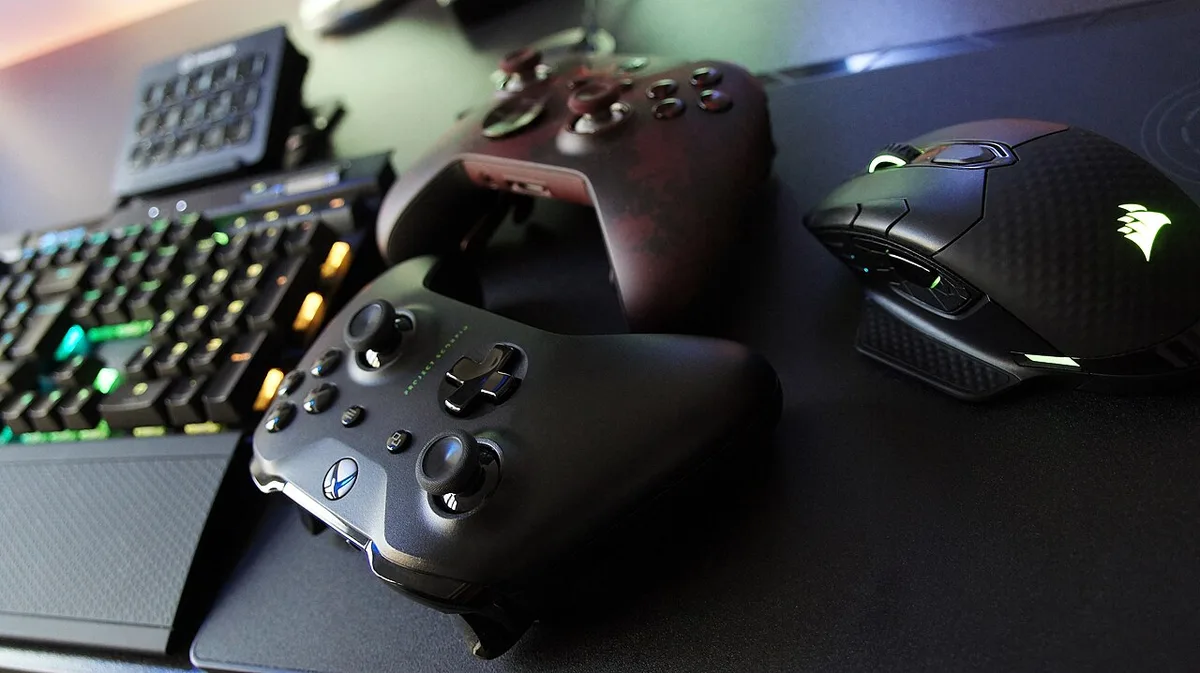
Image source: Wikimedia Commons / Jean-Marc Trappler (CC BY-SA)
High-speed port standards matter here, since a USB-C dongle or adapter can free up your limited USB-A ports.
Side-by-Side Specs: Actuation, Polling Rate, Lifespan, and Price
Numbers help cut through marketing claims. Here is what to expect across keyboard types.
| Spec | Built-In Laptop | Membrane External | Mechanical | Hall Effect |
|---|---|---|---|---|
| Actuation force | 45g–60g | 50g–70g | 45g–60g | Adjustable |
| Travel distance | 1–2 mm | 3–4 mm | 3.5–4.0 mm | Adjustable |
| Polling rate | 1000 Hz | 125–1000 Hz | 1000–8000 Hz | 1000–8000 Hz |
| Lifespan | 5–10M keystrokes | 5–10M keystrokes | 50–100M keystrokes | 100M+ keystrokes |
| Price range | Included | $20–$60 | $50–$250 | $100–$300 |
Actuation Force and Travel Distance
Actuation force is how hard you press before a key registers. Most gaming switches sit between 45g and 60g. Lighter switches feel faster but can cause accidental presses.
Heavier switches reduce typos but may tire your fingers.
Travel distance is how far the key moves. Standard mechanical switches travel 3.5 to 4.0 mm. Low-profile mechanical switches travel 1 to 2 mm, closer to laptop feel.
Hall effect switches let you set travel anywhere in between.
Polling Rate and Input Latency
Polling rate is how often the keyboard reports to your laptop. 1000 Hz means once per millisecond. Higher rates like 8000 Hz reduce latency further but require more CPU processing. For most players, 1000 Hz is plenty.
Durability and Total Cost
Mechanical switches last 50 to 100 million keystrokes. That is years of heavy gaming. Membrane boards wear out faster, often within 5 to 10 million keystrokes.
Price matters too. A solid mechanical board starts around $50. Premium Hall effect options can exceed $200.
Budget membrane boards start near $20 but lack the feel and longevity of mechanical options.
Freeing up system resources before gaming can also improve how your laptop handles high polling rates without dropping inputs.
The choice comes down to what you value most. Speed, feel, portability, and budget all pull in different directions. Freeing up system resources before gaming can also improve how your laptop handles high polling rates without dropping inputs.
Best Keyboard Choice by Play Style and Setup
Competitive FPS and Fast-Paced Shooters
Ranked shooters reward fast, repeatable inputs. A compact layout with linear switches and a wired or 2.4 GHz connection fits best. Hall effect boards with adjustable actuation can help, but only if you tune them carefully.
Keep the board close to your laptop and leave room for wide mouse swipes. If you also focus on lowering input delay through network tweaks, your keyboard inputs stay just as responsive.
MMO, MOBA, and Macro-Heavy Games
These games need more keys and often macros. A full-size or 75% board with tactile switches works well. Wireless is acceptable if it uses 2.4 GHz.
Keep macro keys within easy reach. Manufacturer control software can help set profiles and lighting.
Casual Play, Travel, and Small Desks
Built-in keyboards or compact wireless boards are enough for many players. Low-profile mechanical boards feel better without adding bulk. Bluetooth is fine for casual play.
A 60% or 65% board packs easily. For travel, check port compatibility and battery life. As of 2026, many compact boards offer 60 hours or more of battery life.
Mistakes to Avoid When Pairing a Keyboard with a Gaming Laptop
Buying the wrong board usually comes from skipping simple checks. Avoid these common errors.
- Buying a full-size board for a cramped desk
- Assuming every mechanical switch feels the same
- Using Bluetooth for ranked competitive play
- Ignoring your laptop's available USB ports
- Overspending on features you will not use
- Skipping stabilizer quality on large keys
- Forgetting ANSI versus ISO layout differences
- Installing bloated software you do not need
- Neglecting cleaning until keys feel sticky
If background apps stealing CPU time already hurt your frame rates, a new keyboard will not fix that problem.
Long-Term Care: Maintenance, Mods, and Keeping Your Board Feeling New
Routine Cleaning and Keycap Care
Unplug the keyboard first. Pull keycaps with a wire puller. Brush debris from the plate.
Wash keycaps with mild soap and water. Let them dry fully before reassembly. Avoid harsh cleaners on printed legends.
Switch Lubing, Foam Mods, and Sound Tuning
Lubing stabilizers reduces spacebar rattle. Foam mods change sound and feel. Hot-swap boards make switch swaps easier.
ESD precautions matter during mods. Manufacturer documentation can confirm warranty terms before you open anything.
| Task | Frequency | Notes |
|---|---|---|
| Dust removal | Weekly | Use compressed air |
| Keycap wash | Monthly | Dry 24 hours |
| Stabilizer check | Every 3 months | Listen for rattle |
Frequently Asked Questions
Can a gaming laptop use an external keyboard?
Yes. Plug in a USB keyboard or use a wireless dongle. The built-in keyboard still works.
You can switch between them based on where you play.
Do I need a mechanical keyboard for gaming?
No. Built-in boards work for casual play. Mechanical boards help with consistency, rollover, and durability.
Choose based on your budget and play style.
Is Bluetooth okay for competitive gaming?
No for ranked play. Use wired or 2.4 GHz wireless. Bluetooth latency is higher and can vary.
Save Bluetooth for casual sessions and travel.
What layout is best for a gaming laptop?
75% or 65% layouts usually work best. They save desk space while keeping essential keys. Full-size boards crowd small setups.
Are Hall effect keyboards worth it?
Only if you use adjustable actuation and Rapid Trigger. Otherwise, a standard mechanical board is enough. They also cost more and have fewer options.
How long do gaming keyboards last?
Mechanical switches often last 50 to 100 million keystrokes. Membrane boards often last 5 to 10 million. Build quality and cleaning habits affect lifespan.
Final Recommendation: The Right Keyboard for Your Gaming Laptop
Match the keyboard to your actual setup. Competitive shooters should choose a compact wired or 2.4 GHz board with linear switches. MMO and MOBA players should choose a full-size or 75% board with tactile switches and macro support.
Casual players and travelers can stay with the built-in board or a compact wireless option.
Check your ports, desk space, and game library before spending money. A good board should fit your routine, not force you to change it. If you plan to add accessories later, consider connecting two external monitors before choosing a keyboard footprint.
1 thought on “What Keyboard Is Best for a Gaming Laptop?”
Comments are closed.