If you're trying to figure out how to change RGB keyboard lighting on a gaming laptop, the hardest part is usually not the colors. It's finding the one control path your specific model actually uses. Brand apps, BIOS menus, and firmware all fight for control, and one wrong assumption can make the keyboard ignore you.
Most gaming laptops sold as of 2026 use either per-key, four-zone, or single-zone RGB. The lighting itself is simple. The control chain behind it is not.
Start with your model and work down the stack.
how to change RGB keyboard lighting on a gaming laptop
Check your exact model first. Open the maker's control app. If it fails, update BIOS and EC firmware.
Remove conflicting RGB apps. Then set a profile and save it.
Why Your Gaming Laptop RGB Keyboard Won't Cooperate
The keyboard may look like one device, but control is split across layers. Your app sends commands. The Embedded Controller (EC) firmware translates them.
The BIOS can block them. Windows drivers can delay them. When one layer is stale or locked, the lights freeze.
Common trouble spots include:
- The laptop has RGB keycaps but no actual LED layer.
- The wrong manufacturer app is installed for your model.
- BIOS lighting control is disabled or set to default.
- Two RGB apps are running at once.
- EC firmware or BIOS is outdated.
- A Windows update reset a service or driver.
Start by matching your model number to the maker's support page. Then use the app named for that exact series. A Razer Blade and an ASUS ROG machine can both have per-key RGB, but they do not share a control app.
If you're unsure which app your model needs, the guide on using manufacturer control software is a good first stop.
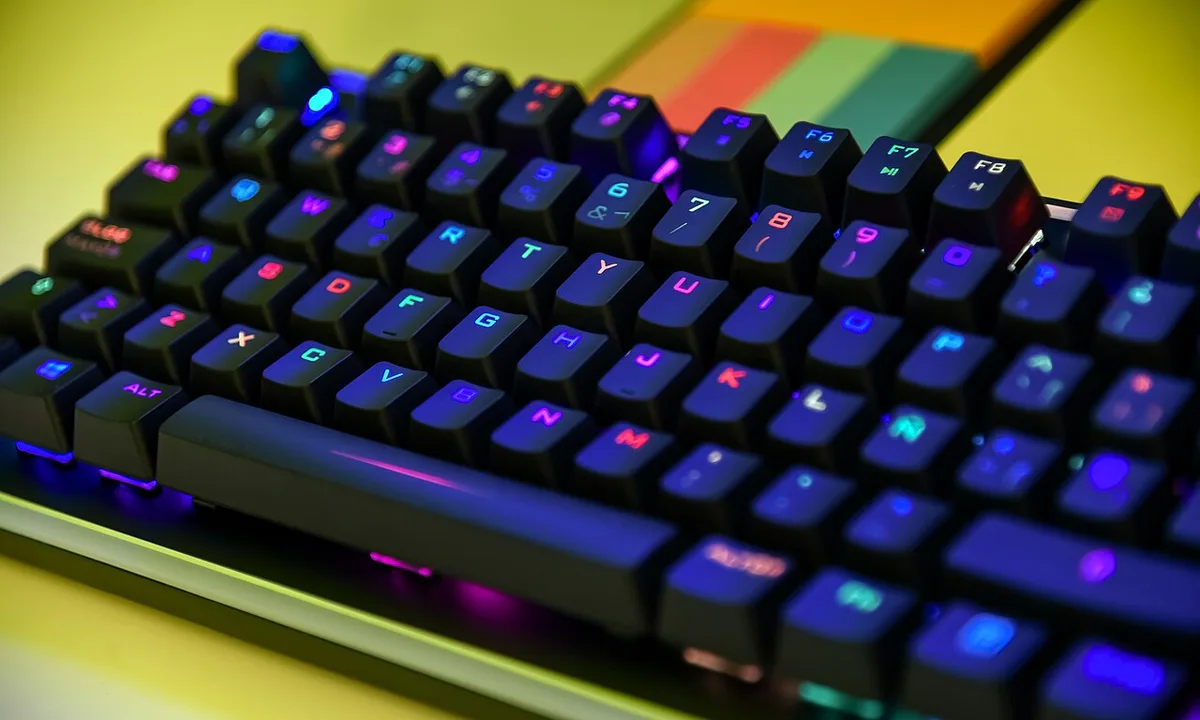
Image source: Wikimedia Commons / Jorge Franganillo (CC BY)
What Actually Controls RGB Lighting on a Gaming Laptop
Think of RGB control as four layers. Each one can help or block the change.
| Layer | What it does | Where it lives |
|---|---|---|
| LEDs | Produce the color and brightness | Under the keycaps |
| EC firmware | Translates lighting commands | Embedded Controller |
| BIOS/UEFI | Allows or blocks hardware control | Firmware menu |
| OS app | Lets you pick colors and effects | Windows software |
The EC is the middleman. If it is outdated, your app may show changes that never reach the keys. BIOS matters too, because some laptops hide lighting toggles there.
That's why checking what BIOS does before blaming the app can save hours.
Manufacturer specs usually list the LED type as RGB, but not the control depth. A "RGB keyboard" can mean one color for the whole deck, four zones, or per-key control. Microsoft's driver documentation is also useful when a device stops responding after updates.
You can review general Windows driver guidance at Microsoft Learn.
Per-Key vs Zone vs Single-Zone: Which Setup Do You Have?
Per-key RGB gives every key its own LED. Zone RGB groups keys into sections, often four zones. Single-zone RGB lights the whole keyboard one color at a time.
Per-key is best for detailed effects and game-specific highlights. Zone is cheaper and easier to manage. Single-zone is fine for basic backlighting but limits custom work.
A quick way to tell is to open the maker's app and count selectable areas. If you can click one key and change only that key, it's per-key. If clicking one key changes a block, it's zone-based.
If the whole board changes together, it's single-zone.
| Setup | Control depth | Best for | Common limit |
|---|---|---|---|
| Per-key RGB | Highest | Custom profiles, game highlights | More software overhead |
| 4-zone RGB | Medium | Balanced looks and battery life | Less precise effects |
| Single-zone RGB | Lowest | Simple backlighting | No per-key effects |
Battery life can take a hit with bright RGB. In aggregate user feedback, full-brightness per-key lighting can trim usable battery time compared with dim or off modes. If you travel often, save a low-brightness profile.
The Brand-by-Brand RGB Control Decision Tree
If you know the brand, start there. If not, use the model number on the sticker under the laptop or in Windows System Information.
ASUS ROG, MSI, and Razer Paths
ASUS ROG usually uses Armoury Crate with Aura Sync. MSI often uses MSI Center with Mystic Light. Razer uses Razer Synapse with Chroma RGB.
If the app opens but changes do not apply, check three things in order:
- Is the app updated to the latest version?
- Is BIOS lighting control enabled?
- Are older RGB apps still installed?
For ASUS, Aura Sync may need a device restart after first setup. For MSI, Mystic Light sometimes needs the keyboard module enabled inside MSI Center. For Razer, Synapse profiles can be cloud-synced, so a stale cloud profile may override local settings.
If firmware is the issue, follow a safe update process. The article on safely updating BIOS explains the risk and backup steps. Also keep firmware basics in mind before flashing anything.
Alienware, Dell, HP OMEN, Acer, and Lenovo Paths
Alienware and some Dell G-Series laptops use Alienware Command Center with AlienFX. HP OMEN uses OMEN Gaming Hub and OMEN Light Studio. Acer Predator models often use PredatorSense.
Lenovo Legion systems usually use Lenovo Vantage, with Legion Spectrum on supported models.
These apps can feel heavy, but they are the correct control layer for many machines. If the app is missing, download it from the manufacturer's support page, not a random mirror. For Dell systems, Alienware Command Center may need the correct AlienFX plugin.
For HP, Light Studio can create per-key effects on supported OMEN models. For Lenovo, Vantage may need a restart before lighting controls appear.
If lighting still fails after the right app is installed, update graphics and system drivers carefully. The guide on updating graphics drivers safely is relevant because driver changes can reset device services.
As of 2026, manufacturer support pages remain the safest source for model-specific RGB software. For general hardware guidance, ASUS support and MSI support are official starting points.
BIOS Settings, Drivers, and Conflicting RGB Apps
If your app changes colors but the keyboard ignores them, check the BIOS next. Restart and enter the firmware menu, then look for keyboard backlight, RGB, or lighting control options. Enable them if they are off.
Leave unrelated settings alone.
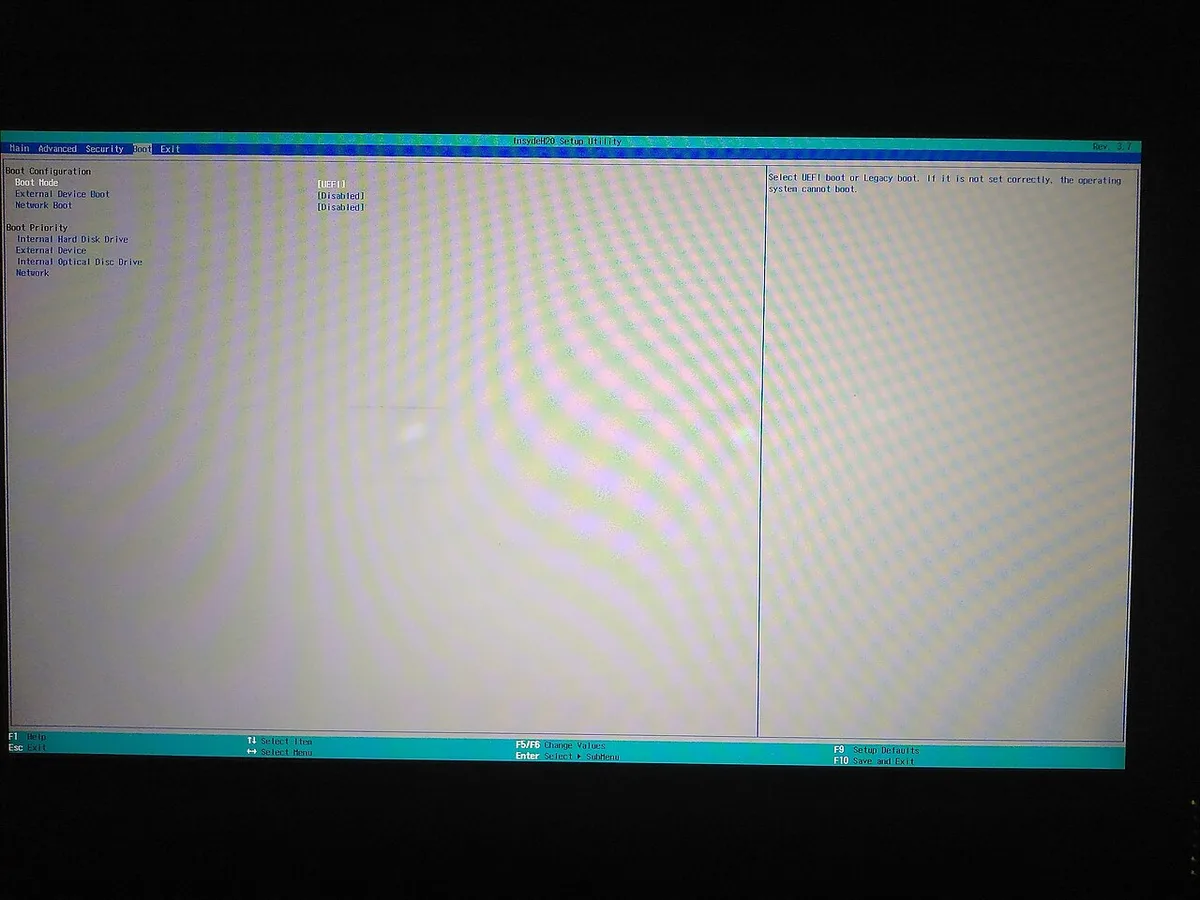
Image source: Wikimedia Commons / Rdrg109 (CC BY-SA)
Some laptops also need EC firmware updated before lighting commands work reliably. Use the manufacturer's support page for your exact model. Avoid random driver sites.
If Windows recently updated and the keyboard stopped responding, reinstall the OEM chipset and keyboard packages in this order: chipset first, then EC or system firmware, then the RGB app.
Conflicting apps are another common cause. Synapse, iCUE, SignalRGB, OpenRGB, and older OEM tools can all try to control the same device. Uninstall one app at a time, reboot, and test after each removal.
Check Task Manager for leftover lighting services before reinstalling the correct app.
| Symptom | Likely cause | First fix |
|---|---|---|
| Colors change in app but not on keys | BIOS or EC blocking control | Enable BIOS lighting option and update EC firmware |
| App cannot detect keyboard | Wrong app or missing driver | Install the exact OEM app for your model |
| Lighting freezes after updates | Conflicting services | Remove extra RGB apps and reinstall one |
| One zone stays one color | Firmware or hardware fault | Update EC firmware, then contact support |
Fixing the Most Common RGB Keyboard Failures
Start with the simplest fix and move down. If the keyboard is stuck on one color, reset the lighting profile to default inside the OEM app. Then restart the laptop.
If that fails, uninstall the app, reboot, and reinstall the latest version.
If only part of the keyboard works, the issue is often zone mapping or firmware, not the LEDs. Update BIOS and EC firmware, then reapply your profile. If one zone is dead after a drop or spill, treat it as a hardware fault.
The article on diagnosing hardware problems can help you decide whether to repair or escalate.
If the keyboard resets after every reboot, save the profile inside the app and set it as default. Also disable fast startup temporarily while testing. Some machines load lighting defaults before the control service starts.
If brightness hotkeys stop working, update the system control interface or hotkey driver from the manufacturer.
Keeping Your Lighting Stable Long-Term
Save your best profile and export it if the app allows. Keep a low-brightness profile for battery use and a brighter one for desk use. If you switch between games, assign profiles to apps instead of changing colors manually each time.
Update firmware only when the release notes mention lighting, keyboard, or stability fixes. Do not flash firmware during a low-battery session. Before major repairs or software changes, back up your system so profiles and settings are not lost.
Avoid stacking RGB ecosystems unless you need them. One control app per device family is usually cleaner. If you add external RGB gear, check whether it syncs with the laptop keyboard or creates another control layer.
Keep the laptop firmware and one RGB app updated on a monthly or quarterly schedule.
Frequently Asked Questions
Why won't my gaming laptop RGB keyboard change color?
The control app, BIOS, EC firmware, or drivers may be out of sync. Install the correct OEM app, enable lighting in BIOS, update EC firmware, and remove conflicting RGB programs. If the app shows changes but the keys do not, the firmware layer is usually blocking them.
Can I change RGB lighting without manufacturer software?
Some models allow basic brightness changes with Fn hotkeys. Full color and effects usually need the OEM app or a compatible third-party controller. Check your model's support page before installing third-party tools, because compatibility varies.
Does RGB keyboard lighting drain battery?
Yes, especially at high brightness or with animated effects. Aggregate user feedback shows bright per-key lighting can reduce battery life compared with dim or off modes. Use a low-brightness profile when traveling or unplugged.
Why did my RGB settings reset after a Windows update?
Windows updates can replace drivers or restart services that the RGB app depends on. Reinstall the OEM app or system interface package, then reapply and save your profile. Disabling conflicting services can also prevent repeats.
Is per-key RGB better than zone RGB?
Per-key RGB gives more control and sharper game-specific highlights. Zone RGB is simpler, often cheaper, and easier on battery. Choose per-key if you want detailed effects, and choose zone if you want a cleaner setup with less software overhead.
Final Verdict: Which RGB Control Method Should You Use?
Use the manufacturer app first. It is the safest and most complete control path for your model. If it works, build profiles and save them.
If it fails, check BIOS lighting settings, update EC firmware, and remove conflicting RGB apps before trying third-party tools.
Choose per-key RGB if you want detailed customization. Choose zone RGB if you want simpler control and better battery life. If the keyboard still will not respond after firmware and driver checks, move to hardware diagnosis or warranty support instead of forcing more software changes.