How to enable noise cancellation on a gaming laptop microphone depends on your laptop's brand, audio hardware, and installed software. You might use Windows settings, NVIDIA Broadcast, AMD Noise Suppression, or a manufacturer utility. The goal is clear voice audio without robotic distortion.
Most options take only a few minutes to set up.
As of 2026, many gaming laptops ship with microphone arrays and AI-based voice focus. Manufacturer specifications indicate that these features can reduce fan and keyboard noise while keeping speech natural. We'll walk through the decision path so you can choose the right method for your setup.
how to enable noise cancellation on a gaming laptop microphone
Check your laptop's audio stack first. Open Windows Sound settings and set the correct microphone as default. Enable Windows Studio Effects voice focus if it is available.
Use NVIDIA Broadcast or AMD Noise Suppression on supported GPUs. Test with Discord or a recording app before gaming.
Why Your Gaming Laptop Mic Picks Up So Much Background Noise
Gaming laptops put microphones close to loud hardware. Cooling fans, keyboard switches, and chassis vibration all sit inches from the input. The built-in mic often uses automatic gain, so quiet voices get amplified along with background noise.
Room acoustics matter too. Hard desks, walls, and monitor stands bounce sound back into the mic. That echo can sound like reverb or a hollow voice.
If you sit near a window, traffic and street noise can also leak in.
Fan curves can make the problem worse. Aggressive cooling profiles spin fans faster during gameplay, then the mic captures that whine in real time. You can often reduce this by using balanced fan profiles in your manufacturer control software.
A steady, moderate fan speed is usually less distracting than sudden speed spikes.
Microphone placement is another factor. Many gaming laptops place the mic near the hinge or keyboard deck. Your mouth may be far from the capsule, so the system boosts input gain.
Higher gain means more room noise, keyboard clatter, and echo. A headset mic solves this by moving the capsule closer to your mouth.
How Noise Cancellation Works on a Gaming Laptop Mic
Noise cancellation on a laptop mic can be hardware-based, software-based, or both. Hardware beamforming uses multiple microphone capsules to focus on your voice and reject sound from other directions. It works well for steady fan noise, but it cannot fully remove sharp keyboard clicks.
Software noise suppression analyzes the audio stream in real time. It learns what your voice sounds like, then reduces sounds that do not match that pattern. NVIDIA Broadcast uses GPU processing for this task.
AMD Noise Suppression uses compatible Radeon graphics hardware. Both can sound very clean when tuned correctly.
Windows Studio Effects voice focus is a simpler option. It runs on supported Windows 11 systems and focuses on the main speaker. It is easier on system resources, but it may not be as aggressive as GPU-based tools.
Acoustic echo cancellation is a separate feature. It prevents your speakers from feeding back into the mic during calls. If you use laptop speakers instead of a headset, enable echo cancellation to avoid a hollow loop.
For gaming, a headset still gives the most predictable result.
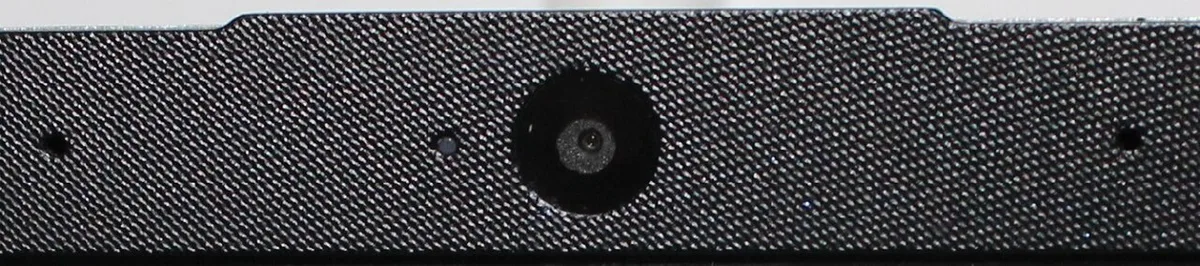
Image source: Wikimedia Commons / Zvsmedia (CC BY-SA)
Pick Your Path: The Decision Tree for Your Setup
Start with your hardware and software stack. If you have a recent NVIDIA RTX GPU, NVIDIA Broadcast is usually the strongest option. If you have a supported AMD Radeon GPU, use AMD Noise Suppression.
If neither applies, use Windows Studio Effects or your laptop's manufacturer utility.
| Your setup | Best first choice | Fallback |
|---|---|---|
| NVIDIA RTX 20 series or newer | NVIDIA Broadcast | Windows Studio Effects |
| Supported AMD Radeon GPU | AMD Noise Suppression | Windows Studio Effects |
| Intel or AMD integrated graphics only | Windows Studio Effects | Manufacturer audio utility |
| ASUS, Dell, MSI, Lenovo, or Razer utility installed | Manufacturer utility | Windows Sound settings |
Use this simple logic:
- If your GPU supports AI noise removal, install the GPU tool first.
- If your GPU does not support it, use Windows Studio Effects.
- If Windows settings are limited, check the manufacturer utility.
- If two tools are active at once, disable one to avoid double processing.
Double processing can make your voice sound thin or robotic. It also increases latency. Pick one primary tool and keep the others off unless you are testing.
Path A: Enabling Windows Built-In Noise Suppression
Path A is best when you want a simple setup with no extra installs. It also works well on laptops with integrated graphics.
Follow these steps:
- Open Windows Settings.
- Go to System, then Sound.
- Select your gaming laptop microphone under Input.
- Set it as the default input device.
- Open the microphone properties or advanced audio settings.
- Enable Windows Studio Effects voice focus if your system supports it.
- Adjust input volume until your normal speaking voice sits around two-thirds of the meter.
- Test the mic in Sound settings or Voice Recorder.
If Windows Studio Effects is missing, your hardware or Windows version may not support it. In that case, use the Realtek Audio Console if your laptop has it. Open the console, choose your microphone, and look for noise reduction or acoustic echo cancellation toggles.
Keep the input volume moderate. Too high causes clipping, which sounds harsh. Too low makes your voice disappear under background noise.
Speak at your normal gaming volume during testing, not a whisper.
Some apps override Windows settings. Discord, OBS, Zoom, and Teams each have their own input controls. Set the app to use the same default device and avoid stacking extra filters.
If Discord's Krisp suppression is enabled, compare it with Windows voice focus and keep the cleaner one.
Path B: NVIDIA Broadcast or AMD Noise Suppression
Path B is best when you have a supported GPU and want stronger AI-based removal. It is especially useful for mechanical keyboard noise, fan whine, and room echo.
For NVIDIA Broadcast:
- Confirm your laptop has an NVIDIA RTX 20 series or newer GPU.
- Download NVIDIA Broadcast from the official NVIDIA website.
- Install and open the app.
- Select your gaming laptop microphone as the input.
- Choose Noise Removal or Voice Isolation.
- Set removal strength to a moderate level first.
- Test your voice while typing and running a game.
- Adjust strength only if noise remains.
For AMD Noise Suppression:
- Confirm your Radeon GPU is supported.
- Open AMD Software: Adrenalin Edition.
- Go to the audio or streaming section.
- Enable Noise Suppression for the microphone.
- Select your default input device.
- Test with a voice app or recording tool.
- Lower the strength if your voice sounds muffled.
Both tools can use GPU resources. Aggregate reviews report that CPU usage often stays modest, but GPU load can rise during heavy gaming. If your frame rate drops, reduce the noise removal strength or switch to Windows Studio Effects.
Do not run NVIDIA Broadcast and AMD Noise Suppression together. They target the same audio stream and can create artifacts. Also avoid stacking them with Discord's built-in suppression unless you are comparing results.
A useful test is to record three short clips: no processing, moderate processing, and strong processing. Listen for keyboard clicks, fan noise, and voice clarity. The best setting is usually the lowest level that removes distracting noise without making your voice sound robotic.
Path C: Manufacturer Utilities Like Armoury Crate and Alienware Command Center
Path C is best when Windows settings feel limited or your laptop already has an OEM audio utility. Brands often tune the mic array differently, so their own tools can give better results than generic Windows controls.
Check these common utilities:
- ASUS laptops often use Armoury Crate and Realtek Audio Console.
- Dell and Alienware laptops often use Alienware Command Center and Dell Audio.
- MSI laptops often use MSI Center.
- Lenovo laptops often use Lenovo Vantage.
- Razer laptops often use Razer Synapse.
Follow this order:
- Open the manufacturer utility.
- Find the audio, microphone, or voice section.
- Select the built-in mic as the active input.
- Enable noise reduction, voice focus, or echo cancellation.
- Save the profile.
- Test the mic in Windows Sound settings.
- Open Discord, OBS, or Zoom and confirm the same device is selected.
If the utility has fan or performance profiles, use a quieter fan mode while recording or chatting. You can learn more about using your laptop's OEM control app if the menus are hard to find. Manufacturer updates also matter, so check the support page for audio driver updates before changing advanced settings.
Do not enable the same feature in two places. If Armoury Crate has noise reduction and Windows Studio Effects is also on, turn one off. The same rule applies to Alienware Command Center and Realtek Audio Console.
Mistakes That Make Your Voice Sound Robotic or Muffled
The biggest mistake is stacking multiple noise cancellation tools. Two processors can fight each other and create a thin, metallic voice. Pick one primary method and keep the rest off.
Other common mistakes include:
- Setting input gain too high, which causes clipping.
- Testing in a quiet room, then gaming with fans at full speed.
- Leaving keyboard noise software on while also using a noise gate.
- Selecting the wrong microphone, such as a headset mic instead of the laptop mic.
- Using strong removal strength for all situations.
- Ignoring app-level settings in Discord, OBS, Zoom, or Teams.
- Skipping driver updates after a Windows update.
- Expecting software to fully remove mechanical keyboard clicks.
A good test is to record a short clip while typing, talking, and running a game. Listen on speakers, not just headphones. If your voice sounds underwater, lower the strength.
If keyboard clicks remain, move the laptop slightly or use a headset mic.
System Impact, Latency, and Performance Numbers
Noise cancellation is not free. AI tools use CPU or GPU resources, and heavy processing can add small delays. For most voice chat, the delay is minor.
For competitive gaming, every millisecond matters.
| Method | Typical resource use | Best for | Watch out for |
|---|---|---|---|
| Windows Studio Effects | Low CPU | Simple setups | Limited strength |
| NVIDIA Broadcast | GPU processing | Strong AI removal | GPU load during games |
| AMD Noise Suppression | GPU processing | Radeon systems | Compatibility limits |
| Manufacturer utility | Low to moderate | OEM-tuned audio | Duplicate settings |
Manufacturer specifications indicate that NVIDIA Broadcast needs an RTX 20 series or newer GPU. AMD Noise Suppression needs a supported Radeon GPU. Windows Studio Effects needs compatible Windows 11 hardware.
If your frame rate drops, reduce the removal strength first. Then check whether the tool is running in the background during gameplay. You can also use quieter fan profiles to reduce the noise source instead of relying only on software.
For the cleanest baseline, set your microphone to 48 kHz and 16-bit or 24-bit where supported. Keep input volume near two-thirds of the meter. Avoid maxing out gain, because clipping cannot be fixed later.
Expert Tips for Cleaner, More Natural Mic Audio
Start with the noise source. Lower fan speed, move the laptop away from walls, and avoid placing the mic near the keyboard. A headset mic is still the easiest upgrade if the built-in mic remains too noisy.
Use these practical tips:
- Speak at your normal gaming distance during setup.
- Record test clips instead of trusting live meters.
- Use push-to-talk in noisy games.
- Add soft materials near your desk to reduce echo.
- Keep one noise cancellation tool active.
- Disable unused virtual audio devices.
- Re-test after driver or Windows updates.
- Lower strength until your voice sounds natural.
If fan noise is the main problem, try quieter fan profiles before buying anything. A stable moderate fan speed often sounds better than sudden speed changes. You can also close heavy background apps to reduce heat and fan spin-up.
For streaming, separate your monitoring and recording paths. Use one clean mic input for your audience and avoid monitoring the processed signal if it adds delay. This keeps your voice natural and reduces confusion during live play.
Frequently Asked Questions
Can I use noise cancellation with Discord?
Yes. Discord has its own suppression option, but you should avoid stacking it with Windows or GPU tools. Choose one method and test your voice in a private channel.
If Discord sounds cleaner, disable the other tool.
Does noise cancellation work with an external headset mic?
Yes, but the benefit is smaller. A headset mic sits closer to your mouth, so it already rejects room noise well. Software can still help with fan or keyboard noise, but you may not need strong settings.
Why does my voice sound robotic?
Robotic voice usually comes from over-processing or stacked tools. Lower the removal strength and disable duplicate features. Also check input gain, because clipping can make speech sound harsh and artificial.
Will noise cancellation increase latency?
It can add a small delay, especially with AI processing. For casual chat, the delay is usually not noticeable. For competitive play, use the lightest setting that still removes distracting noise.
Is cloud processing used for laptop mic noise removal?
Most gaming laptop tools process audio locally. That is better for privacy and lower latency. Check the official NVIDIA Broadcast page if you want to confirm how a specific tool handles audio.
1 thought on “How to Enable Noise Cancellation on Gaming Laptop Mic”
Comments are closed.