Figuring out how to use a gaming laptop with a docking station isn't as simple as plug and play. Your laptop's ports, the dock's power delivery, and your display requirements all shape whether the setup works on the first try. Many gamers buy a dock only to find it won't charge their laptop or push a high-refresh external monitor.
Manufacturer specifications indicate that USB-C Power Delivery can range from 45W to 240W depending on the standard version, and that gap alone determines whether a dock can keep a gaming laptop alive under load. As of 2026, Thunderbolt 4 and USB4 docks dominate the market, but not every gaming laptop supports them. Let's break down what matters before you connect anything.
how to use a gaming laptop with a docking station
Check your laptop's port type first. Match it to a compatible dock. Connect the dock to power.
Plug one cable into the laptop. Configure display and audio settings.
Why a Gaming Laptop and Dock Don't Always Just Work
You'd think one cable would solve everything. It rarely does. Gaming laptops pull far more power than ultrabooks, and their GPUs demand bandwidth that basic docks can't provide.
A dock that works fine for office work can choke a gaming setup.
The core issue is mismatched expectations. Many docks advertise "universal compatibility" but only deliver 60W of charging or support a single 1080p display. That's fine for spreadsheets.
It's not fine for a laptop running a AAA game at 1440p.
Aggregate user reviews report the same frustrations repeatedly. The laptop doesn't charge. The external monitor flickers.
The refresh rate drops to 60Hz. These aren't defective units. They're compatibility gaps that no amount of troubleshooting fixes.
Before you buy or connect anything, you need to know three things. What port does your laptop have? How much power does it need?
What display setup do you want? Those three answers filter out most bad options immediately.
If you've already dealt with setting up a new gaming laptop, you know port layouts vary wildly between models. That variation is the root of most dock problems.
The Variables That Decide Everything
Four variables control your entire docked experience. Get any one wrong and the setup fails or underperforms.
Port type on the laptop. This is the single biggest factor. USB-C with DisplayPort Alt Mode, Thunderbolt 3, Thunderbolt 4, USB4, or a proprietary connector. Each unlocks different dock capabilities.
A USB-C port without DisplayPort Alt Mode can't output video at all.
Power Delivery wattage. Gaming laptops often need 100W to 240W to charge while gaming. A 65W dock will charge slowly during light use and drain the battery during heavy gaming. Check your laptop's power brick rating.
That number is your minimum.
Display bandwidth. This determines resolution and refresh rate. One 4K display at 60Hz needs less bandwidth than two 1440p displays at 144Hz. Thunderbolt 4 offers 40 Gbps.
USB4 can match that. Basic USB-C docks often top out at 10 Gbps.
GPU behavior in docked mode. Many gaming laptops use a MUX switch or Optimus to toggle between integrated and discrete GPUs. Docked gaming sometimes forces the wrong GPU, tanking performance. This is a software issue, not a dock issue, but it shows up the same way.
| Variable | What to Check | Where to Find It |
|---|---|---|
| Port type | USB-C, Thunderbolt 3/4, USB4 | Laptop spec sheet or port icon |
| Power need | Wattage on power brick | Brick label or manufacturer site |
| Display target | Resolution + refresh rate | Your monitor's specs |
| GPU mode | MUX switch / Optimus setting | Laptop control software |
If you're still choosing the right external monitor, lock that in before picking a dock. The monitor's demands drive the dock's requirements.
How Docking Actually Works on a Gaming Laptop
A docking station is a port multiplier. It takes one cable from your laptop and splits it into power, video, data, and audio. The magic isn't in the dock.
It's in the port standard connecting them.
USB-C with DisplayPort Alt Mode sends video over the same connector as data. The dock receives that signal and routes it to an HDMI or DisplayPort output. Power Delivery travels over the same cable in reverse.
One cable, multiple functions.
Thunderbolt docks go further. Thunderbolt 3 and 4 use PCIe tunneling, which means they carry display data, USB data, and even external GPU traffic over one connection. That's why Thunderbolt docks cost more and perform better.
The 40 Gbps bandwidth is shared across everything.
USB4 docks sit between the two. They match Thunderbolt 4's bandwidth on paper but may lack PCIe tunneling for external GPUs. For most gamers, USB4 is more than enough.
The laptop's internal GPU does the actual rendering. The dock just transports the signal. This matters because a dock can't fix a weak GPU.
If your laptop struggles at 1440p natively, docking won't help.
Per VESA DisplayPort standards, Display Stream Compression allows higher resolutions over limited bandwidth. Some docks use DSC to push 4K at 120Hz over connections that would normally cap at 60Hz. Not all docks support this, and not all monitors handle it well.
If you've configured dual monitors with a gaming laptop before, you know display arrangement matters. A dock adds another layer to that configuration.
USB-C vs Thunderbolt vs Proprietary Docks
Three dock families cover almost every gaming laptop. Each has clear strengths and limits.
USB-C docks are the cheapest and most common. They work with any USB-C port that supports DisplayPort Alt Mode. Bandwidth tops out around 10 Gbps on basic models.
Charging maxes at 100W on most. Fine for 1080p gaming or productivity. Not ideal for high-refresh 1440p or 4K.
Thunderbolt docks cost more but deliver 40 Gbps, support multiple high-res displays, and handle 100W to 140W charging. They only work with Thunderbolt ports. If your laptop has one, this is the best option for serious gaming setups.
Proprietary docks come from laptop manufacturers. Think Lenovo's ThinkPad docks or Dell's WD-series. They often use a brand-specific connector alongside USB-C.
They guarantee compatibility but lock you into one ecosystem. Pricing varies wildly.
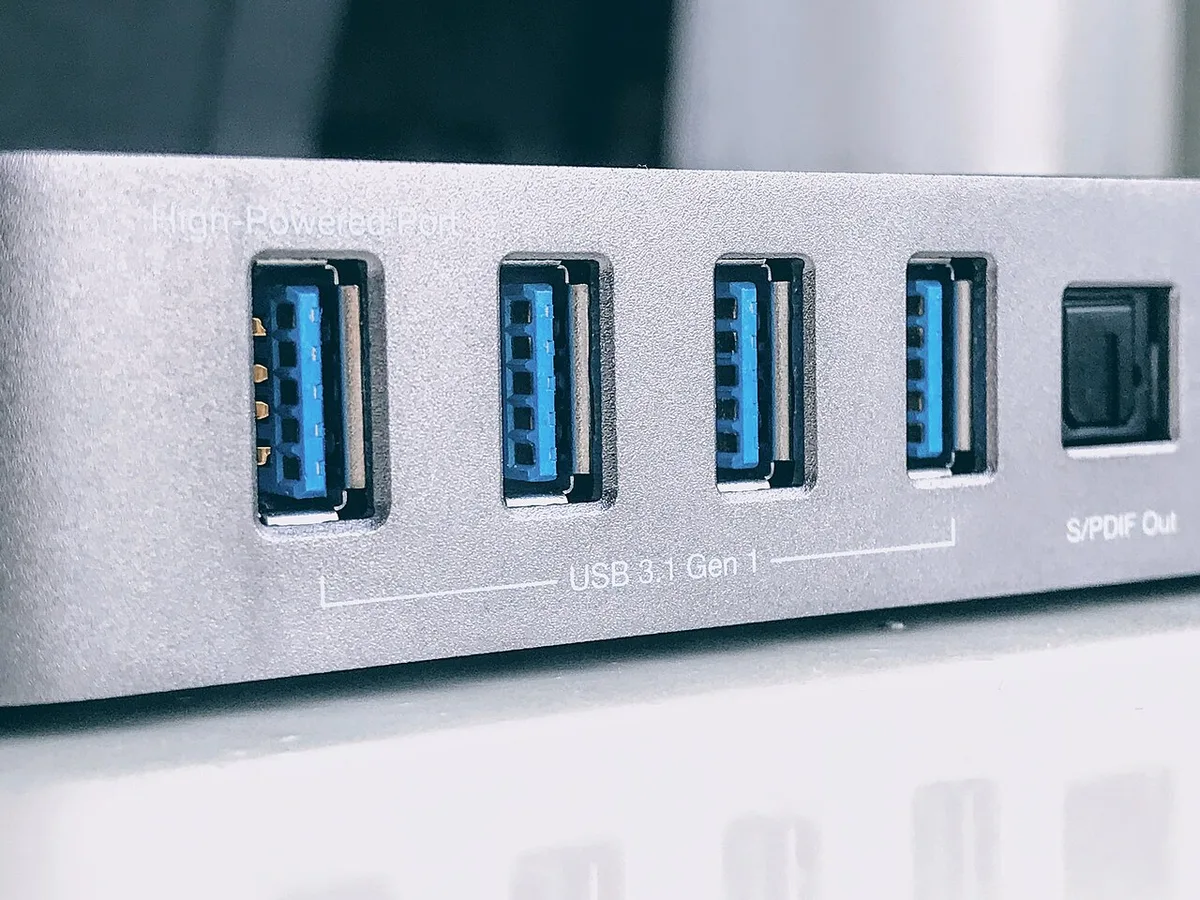
Image source: Wikimedia Commons / Amin (CC BY-SA)
| Dock Type | Bandwidth | Max Charging | Best For |
|---|---|---|---|
| USB-C | Up to 10 Gbps | 60W to 100W | 1080p, single monitor, budget setups |
| Thunderbolt 3/4 | 40 Gbps | 100W to 140W | 1440p/4K, dual monitors, high refresh |
| USB4 | 40 Gbps | 100W to 240W | Future-proof, mixed setups |
| Proprietary | Varies | Varies | Guaranteed brand compatibility |
The trap is buying a Thunderbolt dock for a laptop without a Thunderbolt port. It'll either not work or fall back to USB-C speeds with no video. Always verify the port first.
As of 2026, USB4 docks are closing the gap with Thunderbolt. Intel's Thunderbolt documentation confirms that USB4 incorporates much of Thunderbolt 4's protocol stack. The practical difference for gamers is shrinking.
If you're weighing whether a gaming laptop can replace a desktop, the dock type you choose heavily influences that answer.
The Setup Process That Works the First Time
Follow this sequence. Skipping steps causes most first-time failures.
Identify your port. Check the laptop's spec sheet or the port icon. Thunderbolt ports show a lightning bolt. USB4 ports may show "SS" or "40". USB-C with DisplayPort Alt Mode shows a "D" with a "P" or a DisplayPort logo.
Match the dock. Buy a dock that matches your port type and meets your power and display needs. Don't overspend on Thunderbolt if USB-C covers your setup.
Connect the dock to power first. Plug the dock's power brick into the wall before connecting the laptop. This ensures Power Delivery is ready.
Connect the laptop. Use the cable that came with the dock. Third-party cables may not carry full bandwidth or power.
Connect peripherals. Monitor, keyboard, mouse, headset, Ethernet. Do this while the laptop is on so you can test each one.
Configure displays. Open your OS display settings. Set resolution and refresh rate. Many docks default to 60Hz. You'll need to manually select 144Hz or 165Hz.
Set audio output. The dock may route audio through HDMI. Switch to your headset or speakers if needed.
Test under load. Launch a game. Watch for thermal throttling, frame drops, or charging issues. This is where bandwidth and power limits show up.
Update firmware. Check the dock manufacturer's site for firmware updates. Many docks ship with outdated firmware that causes sleep and wake bugs.
Save your profile. Some docks include software to save peripheral profiles. Use it so your setup is consistent every time.
If you're adding peripherals like a gaming headset or a gaming mouse, connect them through the dock during this step. Test each one individually.
Manufacturer specifications indicate that certified USB-C cables supporting 100W and 40 Gbps are available but often sold separately. The cable in the box may only support 60W. Check the cable's rating before blaming the dock.
One final note. If your laptop has a MUX switch, set it to discrete GPU mode before gaming docked. This prevents the integrated GPU from bottlenecking performance through the dock's video output.
Power and Display Limits That Actually Matter
A dock can charge your laptop and still fail at gaming. Charging wattage and display bandwidth are two separate limits, and both must fit your setup.
Charging is the first bottleneck. Many gaming laptops need 180W or more under load. A 100W dock may keep the battery level during light use, but it can still drain during gaming.
Check the wattage printed on your laptop's power brick. That number is your real minimum.
Display bandwidth is the second bottleneck. One 1080p monitor at 144Hz is easy. Two 1440p monitors at 165Hz is not.
Thunderbolt 4 and USB4 offer 40 Gbps, while basic USB-C docks may offer much less. If your dock runs out of bandwidth, the refresh rate drops before the resolution does.
DisplayPort 1.4 with Display Stream Compression can help. It allows higher refresh rates over limited bandwidth. Not every dock supports it, and not every monitor handles it cleanly.
Check both sides before you rely on it.
Thermals matter too. Docked gaming can push CPU and GPU temperatures higher because the laptop sits flat and airflow changes. If you notice throttling, raise the back of the laptop or use a cooling pad.
| Setup Target | Minimum Charging | Minimum Bandwidth |
|---|---|---|
| 1080p single monitor, 120Hz | 100W | 10 Gbps |
| 1440p single monitor, 165Hz | 140W | 20 Gbps |
| 1440p dual monitor, 144Hz | 180W | 40 Gbps |
| 4K single monitor, 60Hz | 100W | 20 Gbps |
If you're wondering whether an external monitor improves gaming laptop performance, the answer depends on GPU load and cooling, not just the dock.
Mistakes That Kill the Docked Experience
Most dock problems come from simple mistakes, not broken hardware.
- Buying the wrong dock type. A Thunderbolt dock will not deliver Thunderbolt features through a plain USB-C port.
- Using the wrong cable. The cable in the box may only support 60W or lower data rates. Check its rating before blaming the dock.
- Ignoring the default refresh rate. Many systems default to 60Hz. You must manually select 120Hz, 144Hz, or 165Hz.
- Charging with too little power. A 65W dock may charge during browsing but drain during gaming.
- Leaving the wrong GPU active. If your laptop uses a MUX switch, discrete GPU mode often gives better docked gaming performance.
- Skipping firmware updates. Dock firmware fixes sleep, wake, and display bugs.
- Blocking ventilation. A dock under the laptop can trap heat and cause throttling.
- Buying uncertified docks. Counterfeit docks can overheat or deliver unstable power.
If your laptop is new, optimizing it out of the box can prevent several of these issues before you add a dock.
Real Desk Setups That Work
Different setups need different dock choices. Match the dock to the use case, not the marketing label.
A single 1080p 144Hz monitor works well with a basic USB-C dock. This setup suits esports players who want fast response times without high cost. Charging needs stay moderate, and bandwidth demands stay low.
A single 1440p 165Hz monitor is the sweet spot for many gamers. It needs more bandwidth and more charging power. A Thunderbolt 4 or USB4 dock fits this setup best.
Dual 1440p monitors at 144Hz demand serious bandwidth. This setup works for streamers and creators who game and multitask. Only Thunderbolt 4 or USB4 docks handle it reliably.
A 4K 60Hz setup suits players who prefer visual quality over speed. It needs less refresh-rate bandwidth but still benefits from stable charging and a wired network.
| Setup | Dock Type | Charging Need | Best For |
|---|---|---|---|
| 1080p, 144Hz, one monitor | USB-C | 100W | Esports, budget desks |
| 1440p, 165Hz, one monitor | Thunderbolt or USB4 | 140W | Balanced gaming |
| 1440p, 144Hz, two monitors | Thunderbolt or USB4 | 180W | Streaming, multitasking |
| 4K, 60Hz, one monitor | USB-C or Thunderbolt | 100W | Visual quality, editing |
If your laptop runs hot, a cooling pad can help during long docked sessions.
Your Decision Guide: Which Dock Path to Take
Start with the port. If your laptop has Thunderbolt 4 or USB4, buy a matching dock. If it only has USB-C, check for DisplayPort Alt Mode before buying anything.
Then check power. If your laptop's brick says 180W or more, avoid docks rated below 140W. If it says 100W or less, a 100W dock may be enough.
Then check displays. If you want one 1080p or 4K 60Hz monitor, USB-C is usually enough. If you want 1440p at 144Hz or higher, or two monitors, choose Thunderbolt 4 or USB4.
Then check budget. A cheaper dock that matches your real needs beats an expensive dock with features you cannot use. Proprietary docks make sense if you want guaranteed brand compatibility and easy support.
Then check peripherals. If you use Ethernet, multiple USB devices, and audio, make sure the dock has enough ports. A dock with too few ports creates new cable clutter.
If you need help choosing monitors or peripherals, connecting an external monitor and choosing a gaming mouse are good next steps.
Frequently Asked Questions
Can a docking station charge a gaming laptop while gaming?
Yes, if the dock's Power Delivery wattage meets or exceeds the laptop's power draw. Many gaming laptops need 100W to 240W under load. A dock rated below that may charge slowly or drain the battery during gaming.
Does docking reduce gaming performance?
It can. A dock adds bandwidth and power limits between the laptop and your monitor. If the dock lacks enough bandwidth, refresh rate or resolution may drop.
GPU mode and cooling can also affect performance.
Why won't my external monitor run at 144Hz through a dock?
The dock may lack enough bandwidth, or the system may default to 60Hz. Check your OS display settings and select the higher refresh rate manually. Also verify that the dock and cable support the required bandwidth.
Is Thunderbolt better than USB-C for gaming docks?
Thunderbolt is better for high bandwidth and multiple displays. It offers 40 Gbps and supports demanding setups. USB-C is cheaper and works well for simpler 1080p or 4K 60Hz setups.
Can I use a dock with a laptop that has no Thunderbolt port?
Yes. Use a USB-C dock if the port supports DisplayPort Alt Mode. Without that feature, the dock cannot output video.
Check the port icons or manufacturer specs before buying.
Do I need a dock if I already use a USB-C hub?
Maybe not. A hub handles basic peripherals and one display. A dock adds charging, more ports, Ethernet, and better display support.
Choose based on how many devices and monitors you use.