Figuring out how much ram is needed for gaming and streaming trips up a lot of people. The honest answer is that it depends on your games, your stream settings, and whether everything runs on one PC or two. There's no single number that fits every setup.
Per JEDEC memory standards and current manufacturer specifications, 16GB is the practical floor for most single-PC streamers, while 32GB gives comfortable headroom. The sections below walk through the variables that change that answer and help you land on the right tier for your own rig.
how much ram is needed for gaming and streaming
For most single-PC gamers who also stream, 16GB of RAM is the minimum that keeps gameplay smooth and the stream stable. If you run heavier games, stream at 1080p60, or keep Discord, browser tabs, and overlays open, 32GB is the safer choice. Two-PC setups can often get away with 16GB on each machine. 8GB is no longer enough for this workload.
Why RAM Becomes the Bottleneck When You Game and Stream Together
Gaming and streaming on one machine means two heavy tasks fight for the same resources. The game needs RAM for textures, level data, and AI. Streaming software like OBS Studio needs RAM for buffering, scene collections, and browser sources.
Add Discord, a browser, and chat overlays, and memory fills fast.
When RAM runs short, Windows starts paging data to your SSD. That causes stutters, dropped frames, and FPS drops. The stream looks choppy even when your CPU and GPU are fine.
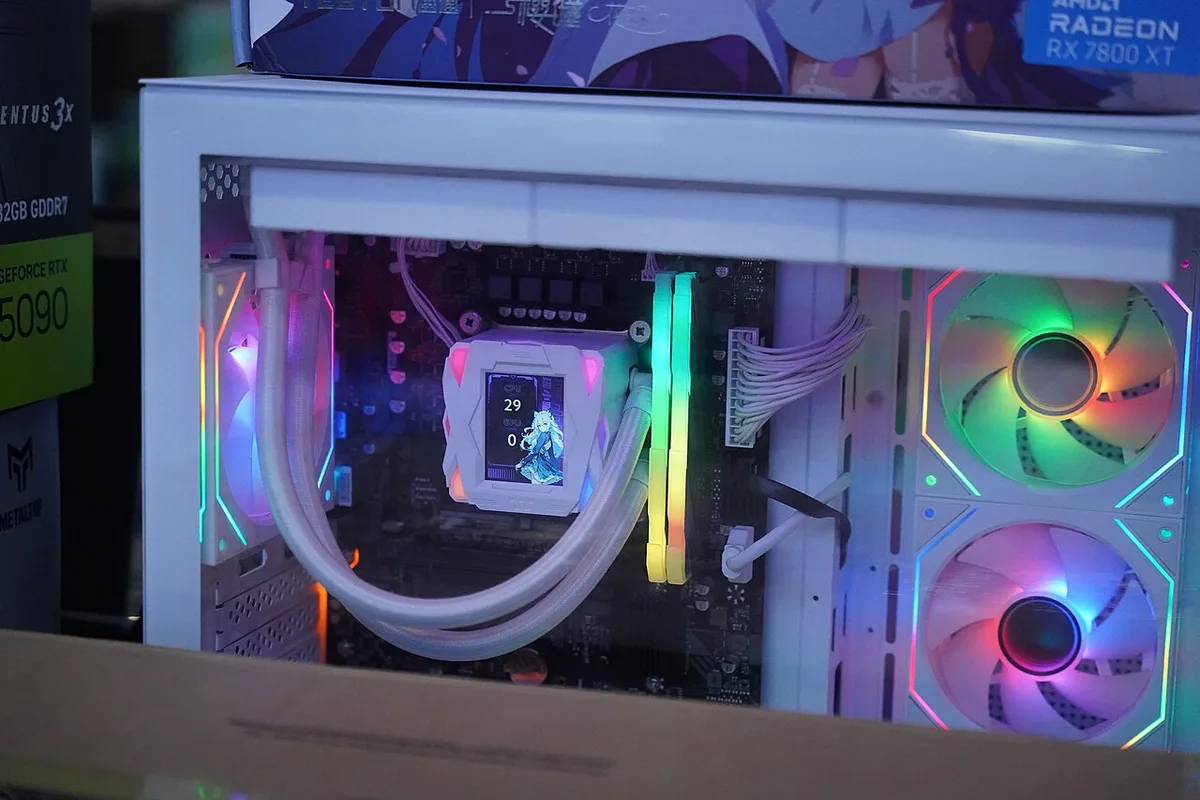
Image source: Wikimedia Commons / Benlisquare (CC BY-SA)
The fix isn't always more RAM. Sometimes the real problem is RAM speed or running in single-channel mode. Aggregate reviews of mid-range builds show that 2x8GB kits running at DDR4-3200 in dual-channel often outperform a single 16GB stick.
So capacity matters, but configuration matters too.
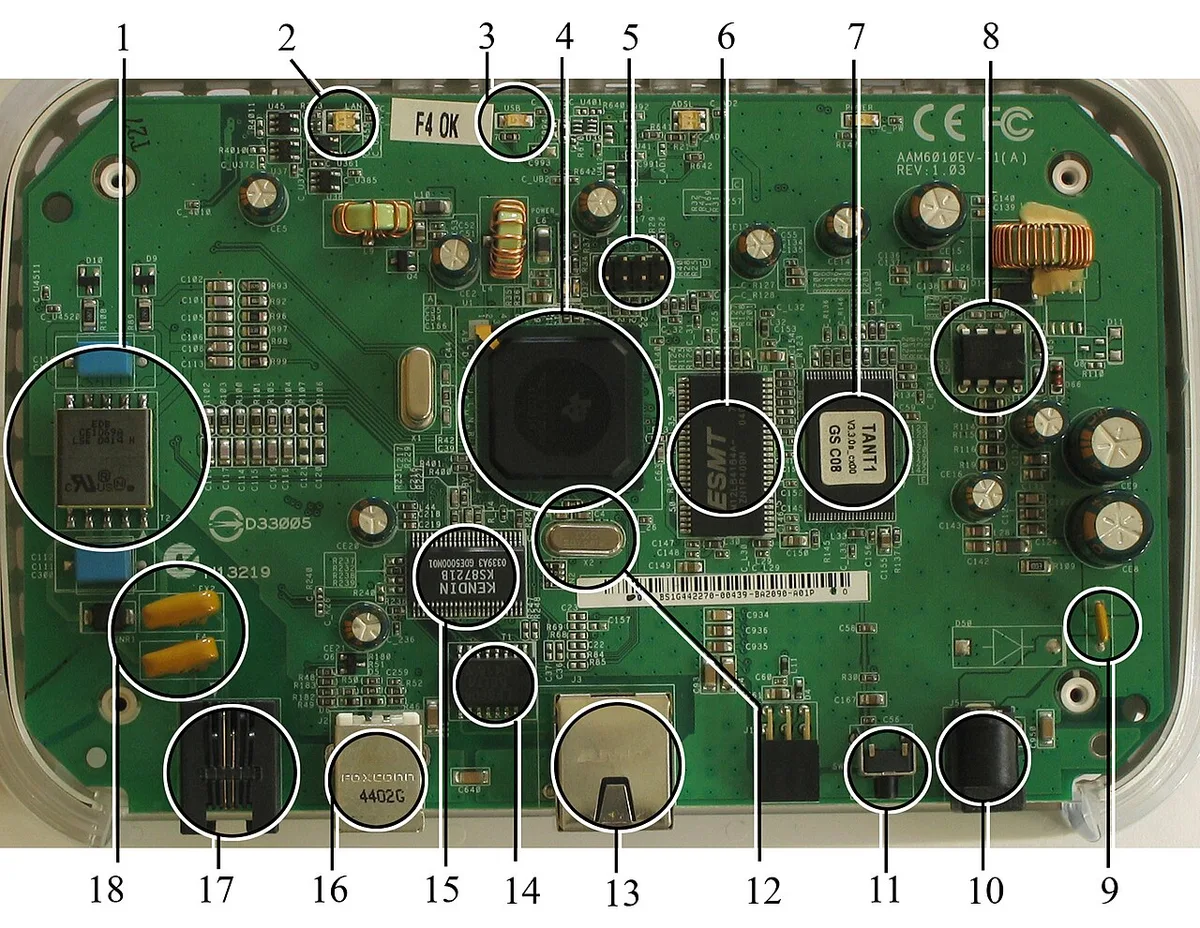
Image source: Wikimedia Commons / User Mike1024 on en.wikipedia
The Variables That Change Your RAM Answer
No single number works for everyone. Here's what shifts the answer.
Games You Play
Lighter esports titles like Valorant or CS2 sip RAM. Heavy AAA games with open worlds can chew through 10-12GB on their own. If your game already eats most of your memory, streaming on top pushes you over the edge.
Stream Resolution and Framerate
A 720p30 stream is light on resources. A 1080p60 stream with a higher bitrate demands more buffering. 4K streaming is a different beast entirely and usually needs a dedicated streaming PC.
Encoder Choice (x264 vs NVENC/AMF/QSV)
Software encoding with x264 leans hard on your CPU and uses less RAM. Hardware encoders like NVENC, AMF, or Intel QSV offload work to the GPU. That frees CPU cycles but can still use RAM for frame buffering.
If you're curious about the speed side of this, our piece on whether RAM speed really affects gaming performance breaks it down.
Background Apps and Multitasking
This one catches people off guard. Chrome with a dozen tabs can eat 2-4GB. Discord, Spotify, and overlay tools add more.
Our research shows that streamers who keep a browser open during streams routinely use 4-6GB more RAM than they expected.
Decision Branches: Pick Your RAM by Setup Type
Here's where the decision tree kicks in. Match your situation to a branch.
Solo Streamer on One PC
If you play esports titles and stream at 1080p60 with NVENC, 16GB in dual-channel handles it. If you play AAA games at high settings, step up to 32GB. The extra headroom prevents stutters when the game spikes memory usage.
Competitive Gamer Who Also Streams
Competitive players care about FPS first. 16GB at a fast speed (DDR4-3600 or DDR5-6000) in dual-channel is the sweet spot. Don't overspend on 32GB unless your games demand it. You can always learn more about how RAM latency affects gaming performance before deciding.
High-End 4K / Variety Streamer
Streaming at 1440p or 4K with high bitrates needs 32GB minimum. Variety streamers juggle games, browser sources, and heavy overlays. 64GB is overkill for most but makes sense for creators who also edit VODs on the same machine.
Two PC Streaming Setup
With a dedicated streaming PC, each machine has a lighter job. The gaming PC can run 16GB comfortably. The streaming PC can also run 16GB since it only handles encoding and chat.
This is where the cost tradeoff flips. Two 16GB kits cost more than one 32GB kit, but you get better stability and no stream drops.
8GB vs 16GB vs 32GB vs 64GB: Side-by-Side Comparison
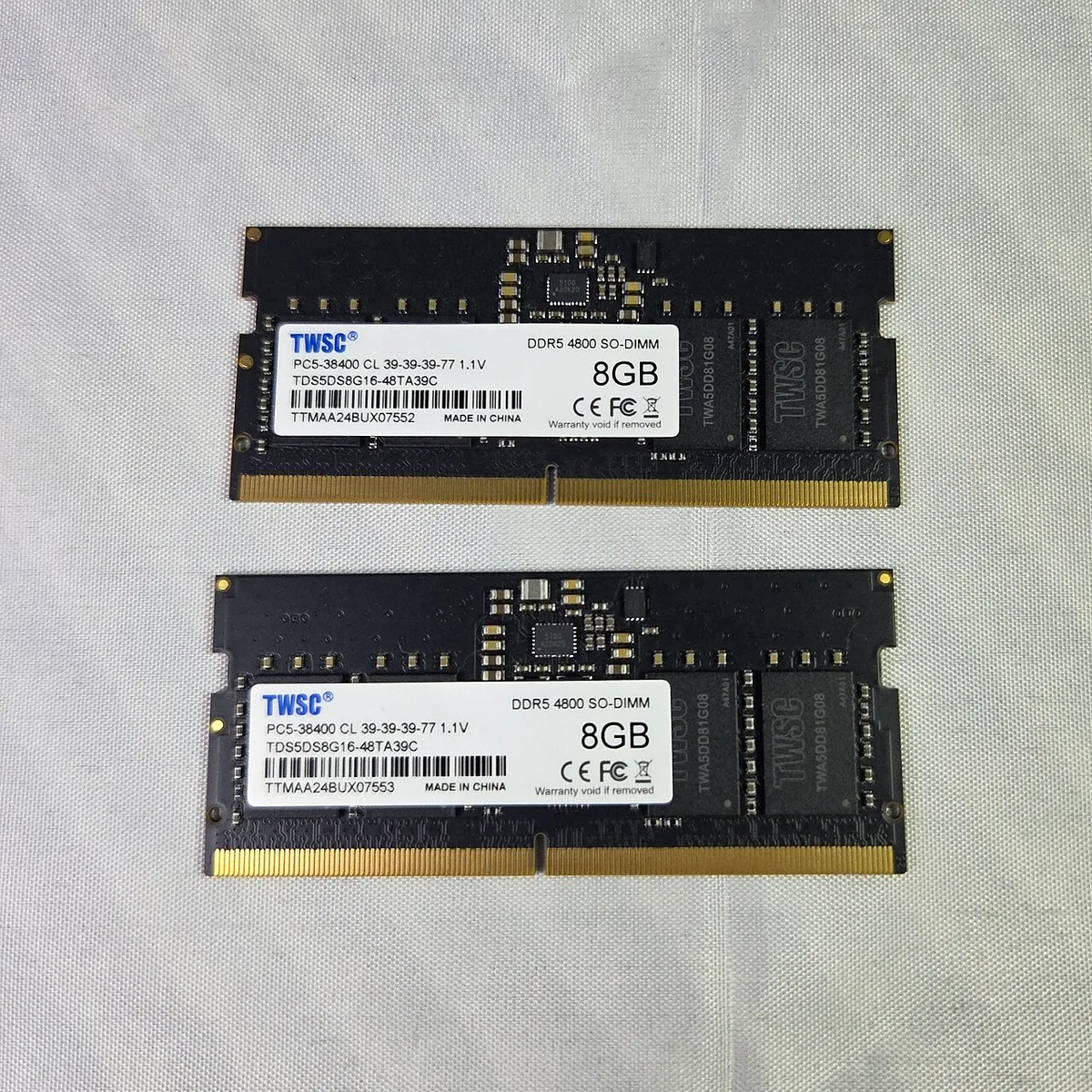
Image source: Wikimedia Commons / ITEagle Europe, Sebastiaan Broekhoven (CC BY-SA)
| Capacity | Best For | Typical RAM Usage | Verdict |
|---|---|---|---|
| 8GB | Old games, light streaming | Game 6-8GB + OBS 1GB | Not recommended in 2026 |
| 16GB | Esports + 1080p60 stream | Game 8-10GB + OBS 1-2GB + apps 2-4GB | Minimum viable, sweet spot for most |
| 32GB | AAA games + heavy multitasking | Game 10-12GB + OBS 2-3GB + apps 4-6GB | Best balance of headroom and value |
| 64GB | 4K streaming, VOD editing | Heavy multitasking + creative work | Overkill unless you edit on the same PC |
8GB runs out the moment you alt-tab. 16GB works for most people. 32GB is where you stop worrying. 64GB is for creators who do more than stream.
If you're still weighing capacity for gaming alone, our guide on how much RAM is enough for modern PC games digs deeper into the gaming-only side.
DDR4 vs DDR5, and Single PC vs Two PC Streaming
DDR4 and DDR5 are both fine for streaming. The real difference is platform support and bandwidth. DDR4 kits cost less and run well at DDR4-3200 or DDR4-3600.
DDR5 offers more bandwidth and higher capacities, but it needs a newer motherboard and CPU. If your board supports DDR5, it is the better long-term buy. If you already own a solid DDR4 board, do not upgrade RAM alone.
Single PC setups save money and space. They also create resource contention between the game and the encoder. Two PC setups separate gaming and streaming, which reduces dropped frames but adds cost and complexity.
If your stream drops frames after you tune OBS, splitting the load is the next step. If your budget is tight, stay on one PC and add RAM first.
Before buying a faster kit, check your board's memory support list. That prevents buying RAM your motherboard cannot run at its rated speed.
How to Tell If RAM Is Actually Your Bottleneck
If your RAM stays near 100 percent while CPU and GPU usage stay moderate, RAM is likely your bottleneck. Dropped frames with low CPU usage point the same way.
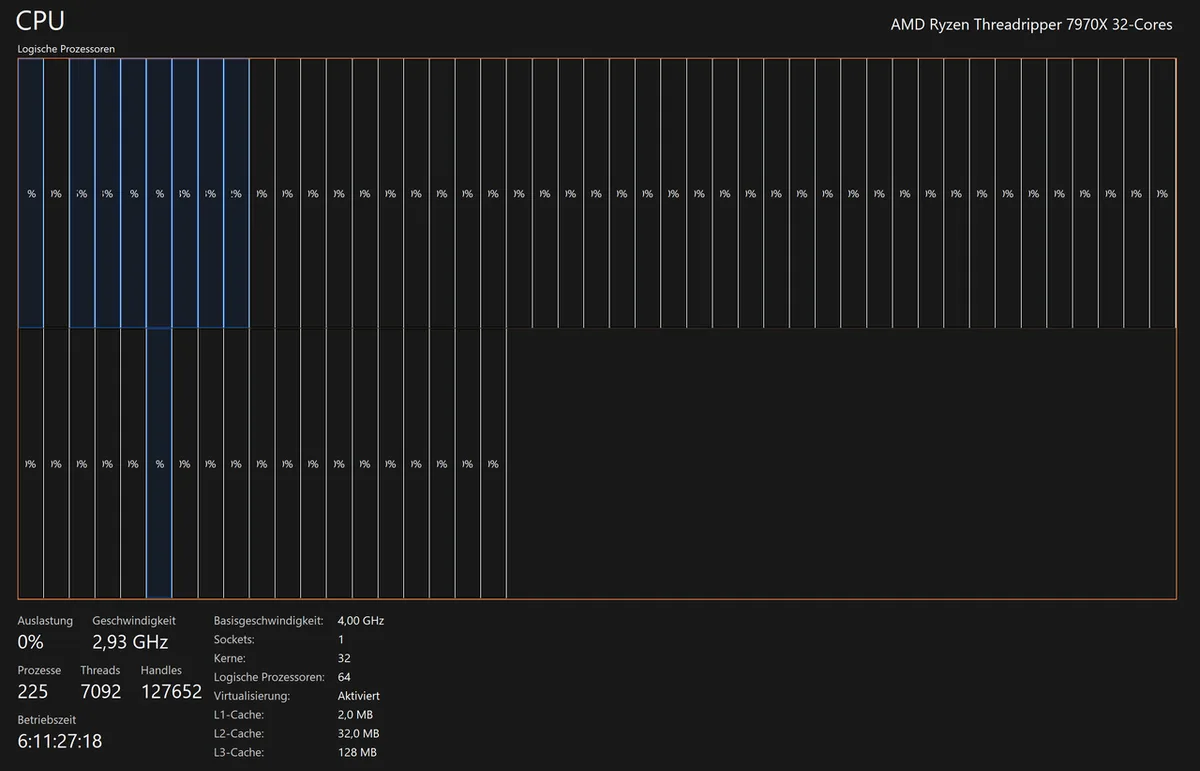
Image source: Wikimedia Commons / Software: Microsoft Corporation Screenshot: PantheraLeo1359531 😺 (talk)
Use this quick check:
- Open Task Manager during a stream and watch Memory usage.
- If it sits above 90 percent for long stretches, you need more capacity.
- If OBS shows dropped frames but CPU usage is low, RAM or disk paging may be the cause.
- If CPU usage hits 100 percent while using x264, the encoder is the bottleneck, not RAM.
- If GPU usage hits 100 percent, the graphics card is the limit.
Also confirm your RAM runs in dual-channel. Two matched sticks in the right slots usually beat one larger stick. If you want to push speeds beyond stock, check what memory overclocking support your motherboard offers.
Common RAM Mistakes Streamers Make (and How to Fix Them)
Most RAM problems come from setup, not capacity alone.
- Running 8GB for gaming and streaming. Fix it by moving to 16GB at minimum.
- Leaving XMP or EXPO disabled. Fix it in the BIOS so your RAM runs at its rated speed.
- Using a single stick instead of a matched kit. Fix it with a dual-channel kit.
- Mixing RAM brands, speeds, or sizes. Fix it by buying one matched kit.
- Keeping dozens of browser tabs open. Fix it by closing tabs and using a lightweight browser profile.
- Ignoring memory leaks during long streams. Fix it by restarting OBS or the PC between long sessions.
If you're unsure about baseline capacity, our guide on how much RAM a gaming PC actually needs helps set expectations before you upgrade.
Costs, Specs, and Smart Buying Tips
Prices shift by region and season, but as of 2026, expect these rough ranges:
| Kit | Typical Price (USD) | Best Use |
|---|---|---|
| 16GB DDR4 (2x8GB) | $35 to $55 | Esports streaming on a budget |
| 32GB DDR4 (2x16GB) | $60 to $90 | AAA games with multitasking |
| 16GB DDR5 (2x8GB) | $55 to $80 | Newer platforms, lighter workloads |
| 32GB DDR5 (2x16GB) | $90 to $140 | High-end single PC streaming |
Specs that matter most:
- Capacity: 16GB minimum, 32GB for heavier setups.
- Speed: DDR4-3200 or DDR4-3600, DDR5-5200 or DDR5-6000.
- Timings: lower CAS latency helps, but capacity comes first.
- Configuration: dual-channel matched kits only.
- Platform support: check your CPU and motherboard memory limits.
JEDEC publishes the standards that define DDR4 and DDR5 behavior, so manufacturer specs and QVL lists are worth checking before you buy. Memory profiles like XMP and EXPO only work if your board supports them, so verify your board's memory profile support first.
Frequently Asked Questions
Is 16GB RAM enough for gaming and streaming in 2026?
Yes for most single PC streamers. It handles esports games, 1080p60 streams, and normal multitasking. If you play heavy AAA games or keep many apps open, 32GB is safer.
Should I get 32GB if I stream AAA games?
Yes. AAA games can use 10 to 12GB on their own. Add OBS, browser tabs, and Discord, and 16GB gets tight. 32GB gives you headroom and fewer stutters.
Does RAM speed matter more than capacity for streaming?
No. Capacity matters first. Once you have enough RAM, faster dual-channel memory can improve 1 percent lows and scene switching.
Do not buy slow RAM, but do not chase extreme speeds before fixing capacity.
Can I mix RAM brands or sizes?
You can, but it is risky. Mixed kits often run at the slowest speed or fail to enable XMP. A matched kit is more stable and easier to troubleshoot.
If you upgrade, replace the whole kit when possible.
Is DDR5 worth it for streaming?
It depends on your platform. If you already need a new CPU and motherboard, DDR5 is the better long-term choice. If your current DDR4 system streams fine, spend the money on capacity or a better encoder first.