When should you upgrade gaming pc memory? The honest answer is simple: only when memory is the thing holding your games back. More RAM helps, but only if your current setup is actually running short during play.
As of 2026, many modern games run well with 16 GB, while heavier multitasking or modded titles can push past 32 GB. The trick is to check real usage first, then match capacity, speed, and motherboard support before spending money.
Is Your Gaming PC Actually Memory-Limited?
A memory limit shows up as stutter, not just low average FPS. If your GPU or CPU is the bottleneck, extra RAM will not fix it.
Watch for these signs:
- Memory usage stays above 85% during gameplay
- Frame pacing feels uneven, even with good average FPS
- Disk activity spikes while you play
- Games stutter when you alt-tab or run Discord, browsers, or streams
- Mods or large open worlds take a long time to load
If those signs are missing, pause. Check your baseline RAM needs before buying anything. A game that uses 12 GB on a 16 GB system is usually fine.
A game that pushes 15 GB on the same system may start leaning on virtual memory.
Virtual memory is Windows using storage as backup RAM. It works, but it is slower than real RAM. That is where stutter comes from.
| Symptom | Likely cause |
|---|---|
| Low average FPS | GPU or CPU |
| Uneven 1% lows | Memory pressure or CPU |
| High disk activity during play | Page file usage |
| Clean usage under 70% | RAM is not the limit |
The Conditions That Decide When to Upgrade
The right upgrade depends on your current setup, not a single "best" number. Four conditions matter most.
- Capacity: Are you running out of RAM?
- Speed: Is your RAM slower than your platform supports?
- Workload: Are you gaming only, or streaming and multitasking too?
- Platform: Does your motherboard and CPU support the upgrade you want?
Use this simple rule: fix capacity first, then speed. A 32 GB kit at a modest speed usually feels better than a 16 GB kit at a high speed for modern games.
Platform limits matter. DDR4 and DDR5 use different slots and different voltage rules. Check your motherboard manual before shopping.
A quick motherboard compatibility check can save a return.
Also think about your CPU. Some processors handle high memory speeds better than others. If you plan to use XMP or EXPO, confirm your board supports it.
That is where XMP profiles on Intel boards or EXPO profiles on AMD boards become useful.
| Condition | Upgrade likely worth it? |
|---|---|
| 8 GB and modern gaming | Yes, capacity is too low |
| 16 GB and high usage | Maybe, check real usage first |
| 32 GB and smooth play | No, save the money |
| Slow RAM on a fast platform | Yes, if price is fair |
Decision Tree: Upgrade Now, Wait, or Fix Something Else
This is the practical part. Start with what you see, not what you want to buy.
- If memory usage stays under 70% during gaming, do not upgrade RAM. Look at GPU, CPU, or game settings.
- If memory usage hits 85% or more, upgrade capacity first.
- If capacity is fine but frame times are rough, compare RAM speed and latency.
- If your board limits speed or capacity, decide whether a platform upgrade makes more sense.
- If you stream, record, or run heavy mods, move to 32 GB sooner.
- If you are on a laptop with soldered memory, check upgrade options before buying parts.
A memory upgrade is usually cheap compared with a GPU or CPU. That makes it tempting. But it only helps when RAM is the bottleneck.
If your PC also struggles outside games, look at the bigger picture. High memory use plus slow storage plus old CPU can mean a broader upgrade. In that case, check GPU upgrade timing before spending on memory alone.
How to Check Memory Usage While Gaming
Do not trust idle desktop numbers. Games change everything. Test the actual games you play.
- Close heavy apps you do not need.
- Launch your game and play for 10 to 15 minutes.
- Open Task Manager and check the Performance tab.
- Note total memory, used memory, and available memory.
- Repeat with your normal apps running.
- Watch for disk activity while memory is high.
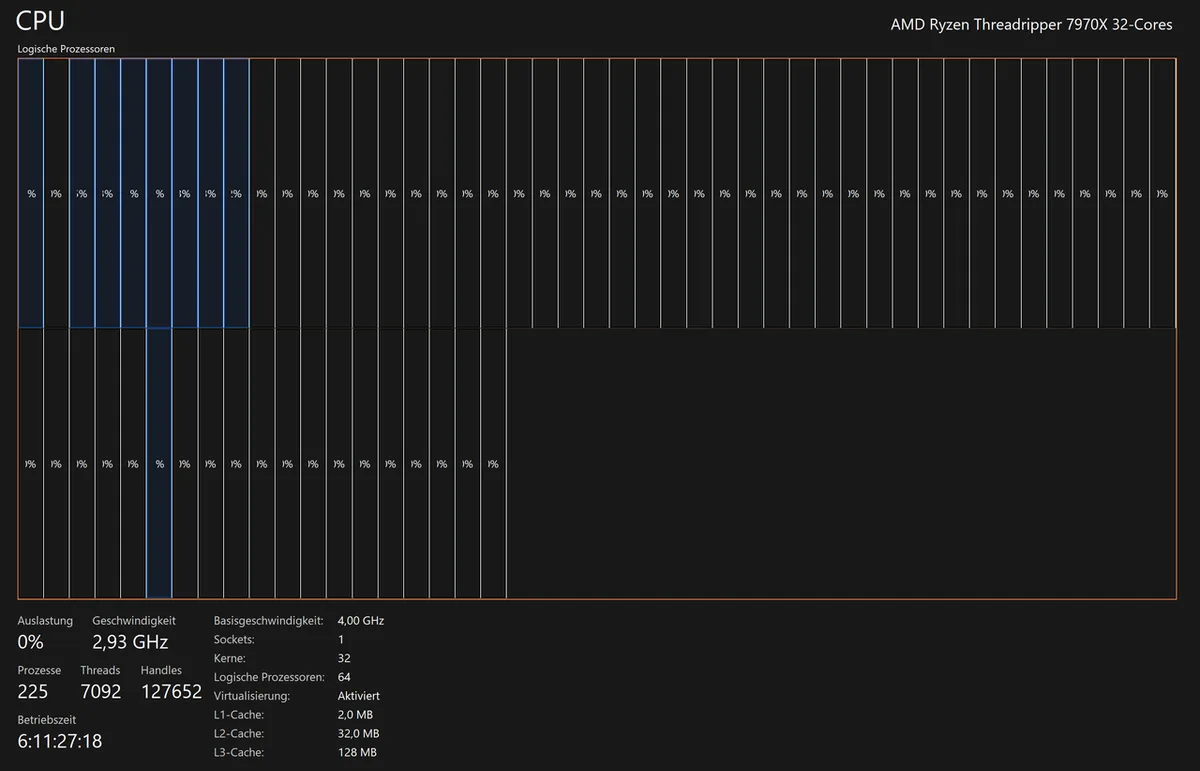
Image source: Wikimedia Commons / Software: Microsoft Corporation Screenshot: PantheraLeo1359531 😺 (talk)
Task Manager is built into Windows, and Microsoft documents its performance tools well. You can also use Resource Monitor for deeper detail. Focus on memory usage, not just FPS.
What to look for:
- 8 GB systems often feel tight in modern games
- 16 GB is the common baseline for gaming
- 32 GB helps with streaming, mods, and heavy multitasking
- 64 GB is usually for workstations, not gaming
Also check your memory speed. A kit running at stock JEDEC speed may be slower than expected. JEDEC is the standards body behind memory specifications.
If your kit supports XMP or EXPO, test it after a backup. Stability comes before speed.
Capacity vs Speed: Which Upgrade Matters More
Capacity fixes running out of space. Speed fixes how fast data moves. Most gamers should fix capacity first.
If you have 8 GB, move to 16 GB before chasing speed. If you already have 16 GB and usage is comfortable, a speed upgrade may help 1% lows. The gain depends on the game, CPU, and memory controller.
| Upgrade type | Best for | Watch out for |
|---|---|---|
| More capacity | Stutter, multitasking, mods | Buying too much |
| Faster speed | Smooth frame times | Platform limits |
| Lower latency | Competitive games | Small real-world gains |
| New platform | Old DDR4 systems | Higher total cost |
For most players, 16 GB to 32 GB is the sweet spot as of 2026. If you want to understand the difference between memory generations, read about DDR4 and DDR5 differences. If you want the performance side, compare RAM speed in real games and how latency affects gaming.
Do not mix old and new modules. Buy a matched kit when possible. Matched kits are tested together and usually run more cleanly.
If you add one new stick to old memory, you may get slower speeds or instability.
A final check: make sure your upgrade is not just a speed bump your CPU cannot use. Some platforms have sweet spots. Others support high speeds only with certain layouts.
Buy for your actual board, not the box art.
Desktop vs Laptop Memory Upgrade Paths
Desktop upgrades are usually straightforward. Most desktops use standard DIMM modules, and many boards have two or four slots.
Laptop upgrades are more restricted. Many laptops use SO-DIMM modules, and some have memory soldered to the board. That means no upgrade at all on some models.
Check these before buying:
- Number of memory slots
- Maximum supported capacity
- Supported DDR generation
- Maximum supported speed
- Whether memory is soldered or removable
Desktops give you more room to grow. A 2×16 GB kit today can often become 4×16 GB later. Laptops rarely offer that kind of headroom.
| Factor | Desktop | Laptop |
|---|---|---|
| Module type | DIMM | SO-DIMM |
| Slots | 2 to 4 | 0 to 2 |
| Upgrade ease | Easier | More limited |
| Speed options | Wider | Narrower |
| Soldered memory | Rare | Common |
If your desktop board supports memory overclocking features, high-speed kits may be worth it. If not, buy a reliable kit at a supported speed.
Laptop owners should check the exact model manual. Verified buyer feedback often confirms whether both slots are usable. Do not assume two slots means two upgradeable slots.
Common Memory Upgrade Mistakes to Avoid
The biggest mistake is upgrading RAM before checking the real bottleneck. More memory will not fix a weak GPU or CPU.
Other common mistakes:
- Buying DDR5 for a DDR4 board
- Mixing different kits and speeds
- Ignoring dual-channel layout
- Enabling XMP without testing stability
- Buying capacity you will never use
- Forgetting BIOS updates
- Assuming laptop memory is always replaceable
Mixing modules can work, but it often forces slower speeds. That turns a planned upgrade into a weaker one. A matched kit avoids most of that.
Another mistake is chasing extreme speed on a platform that cannot use it. Manufacturer specifications list supported speeds for a reason. JEDEC standards define baseline memory behavior, and board vendors set the practical limits.
Stability testing matters too. After installing new memory, run a memory diagnostic and play your usual games. If the system crashes, lower the profile or adjust voltage within safe limits.
Do not skip backups before major changes. BIOS updates and memory profile changes are usually safe, but a failed update can leave a system unusable. Check your board's BIOS Flashback support if recovery matters to you.
What to Buy: Capacity, Speed, and Compatibility Checklist
Buy for your platform first. Then choose capacity. Then choose speed.
Use this checklist:
- Confirm DDR4 or DDR5 support
- Confirm maximum capacity per slot
- Confirm supported speed tiers
- Check the motherboard QVL
- Choose a matched kit
- Pick capacity based on real usage
- Leave room for future needs
- Compare price per GB
| Buying priority | Good starting point |
|---|---|
| 1080p gaming only | 16 GB |
| 1440p or heavy multitasking | 32 GB |
| Streaming while gaming | 32 GB |
| Modded or open-world games | 32 GB |
| Workstation-style use | 64 GB |
Speed targets should match the platform. Many DDR4 gaming systems feel strong at 3200 to 3600 MT/s. Many DDR5 systems target 5200 to 6000 MT/s.
Latency matters, but capacity matters more for most players.
A kit with CL30 at 6000 MT/s is not automatically better than a stable CL32 kit. Stability wins. Aggregate reviews often show that real-world gaming differences are small once capacity is sufficient.
Before checkout, verify the kit appears on the board's QVL. That is the manufacturer's tested memory list. It is not a guarantee, but it reduces risk.
Frequently Asked Questions
How much RAM do most gaming PCs need in 2026?
Most gaming PCs do well with 16 GB for standard play. Heavy multitasking, streaming, and modded games push 32 GB. 64 GB is usually unnecessary for gaming alone. Check real usage before buying more.
Is 16 GB still enough for gaming?
Yes, 16 GB is still enough for many games. It becomes tight when you run browsers, Discord, launchers, and streams at the same time. If usage stays high, 32 GB is the safer upgrade.
Does faster RAM improve FPS?
Faster RAM can improve minimum frame rates and smoothness. It rarely transforms average FPS on its own. The gain depends on the CPU, game engine, and memory controller.
Should I add RAM or replace it?
Replace the whole kit when possible. Mixed modules can run slower or become unstable. If you add sticks, match speed, capacity, and timing as closely as possible.
Can wrong RAM damage a motherboard?
Wrong RAM usually will not power on or will fail to train. It is unlikely to cause damage if installed correctly. Always handle modules with ESD care and follow voltage limits.
When is a platform upgrade better than more RAM?
A platform upgrade makes sense when your board limits capacity, speed, or CPU support. If memory is only one of several limits, a broader upgrade may be smarter. Compare total cost before deciding.
1 thought on “When Should You Upgrade Gaming PC Memory for Better FPS?”
Comments are closed.