How much storage does a gaming pc need is one of those questions where the honest answer is "it depends." A casual player with three games installed needs far less than someone hoarding 200GB AAA titles plus capture footage. The number that works for your friend may waste money or run out in a month for you.
The better approach is to size storage around your habits, not a guess. Modern game installs range from 10GB indie titles to 150GB+ flagship releases, and updates stack on top. As of 2026, most builders benefit from separating a fast boot drive from a roomy game drive.
The sections below walk you through that decision step by step.
how much storage does a gaming pc need
Most gaming PCs need 1TB to 2TB total. Put the OS and a few active games on a 500GB to 1TB NVMe SSD. Add a second 1TB to 2TB drive for the rest of your library.
Heavy modders and streamers should budget 3TB or more.
Why "How Much Storage" Is the Wrong First Question
The question sounds simple but skips the real decision. Storage isn't one number. It's a mix of speed, capacity, and cost.
Two PCs with the same total capacity can perform very differently depending on which drive holds the OS and active games.
The first thing to decide is what you're optimizing for. Load speed? Capacity per dollar?
Silence and durability? Each points to a different drive mix. A 2TB hard drive holds more games than a 1TB SSD but loads them far slower.
Capacity alone also hides a common trap. SSDs slow down when they fill past roughly 80-90%. So a "1TB" drive really gives you about 800GB of comfortable working space.
Plan headroom, not just totals.
Then there's the split-drive question. One large drive is simpler. Two drives, fast boot plus roomy game storage, perform better and cost less per GB where it counts.
Most builders in 2026 land on a hybrid setup.
Your motherboard's M.2 slots matter too. Many boards offer one or two M.2 connectors, which caps how many fast drives you can add without adapters. Checking slot count early saves buying a drive you can't install.
You can read more about how many M.2 slots a gaming PC actually needs before finalizing your parts list.
So before picking a number, answer three things: how many games you keep installed, whether you record or stream, and your budget. Those answers shape everything that follows.
The Four Variables That Actually Decide Your Storage Needs
Storage needs come down to four variables. Get these right and the number almost picks itself.
Image source: Wikimedia Commons / Multicherry (CC BY-SA)
1. How many games stay installed. Most players rotate a handful of titles. If you keep 5-8 games installed at once, 1TB covers you.
If you hoard your whole library, plan 2TB or more.
2. Game install sizes. Indie titles run 5-20GB. Mid-size games land around 30-60GB.
Flagship AAA releases now hit 100-150GB each. Add day-one patches and seasonal updates on top.
3. Mods and capture footage. Texture mods can add tens of GB per game. Recording or streaming piles up raw footage fast.
An hour of 1080p capture can exceed 10GB depending on bitrate.
4. Budget and price per GB. NVMe SSDs cost more per GB than SATA SSDs, which cost more than HDDs. Spending everything on the fastest drive leaves little capacity.
Balance speed where it matters with capacity where it doesn't.
A useful rule: estimate your installed-game total, add 30% for updates and mods, add 20% headroom, then round up to the next standard capacity. That gives a realistic target instead of an optimistic one.
Your memory budget interacts with this too. If you're already spending heavily on RAM, you may want to trim storage spend and upgrade later. See how much RAM a gaming PC actually needs before locking your budget.
How Game Storage Works: SSD, HDD, NVMe, and SATA Explained
Drive type matters as much as capacity. Here's the short version of each.
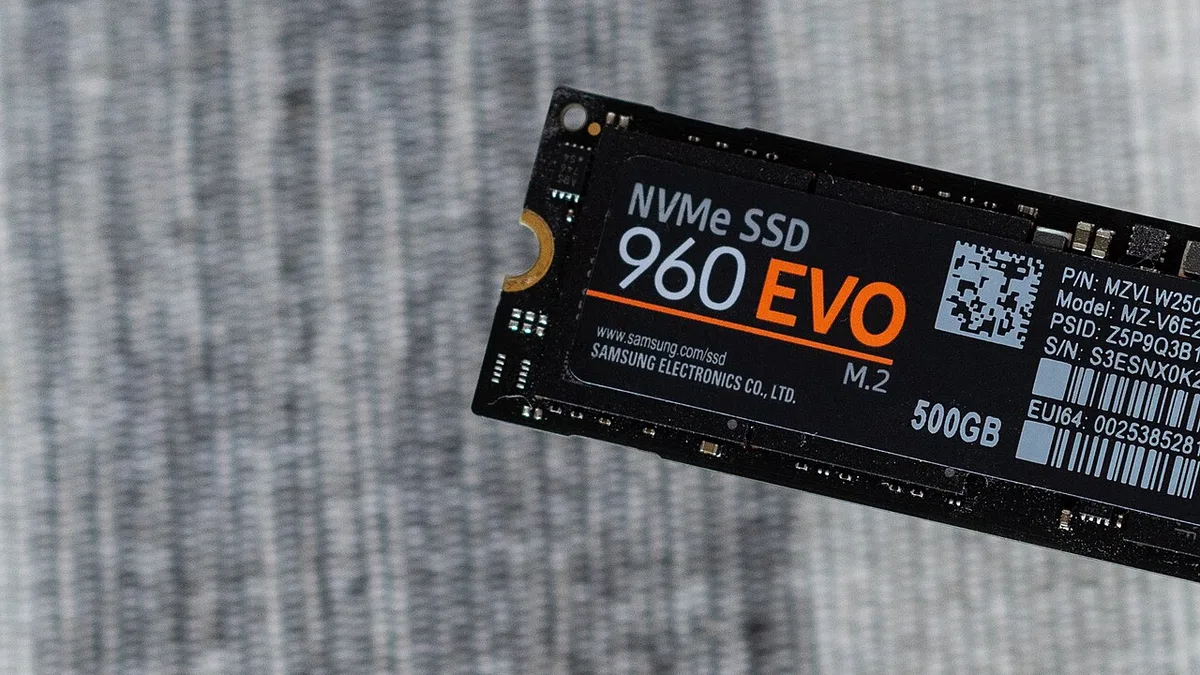
Image source: Wikimedia Commons / Daniel Aleksandersen (CC BY-SA)
HDD (hard disk drive). Spinning platters. Cheap per GB, large capacities, but slow random access. Fine for archives, backups, and old games.
Poor for modern AAA titles that stream assets constantly.
SATA SSD. Flash memory over the SATA interface. Around 500-550MB/s sequential. A huge leap over HDDs for load times.
Good budget option for game storage.
NVMe SSD (M.2). Flash memory over PCIe. Gen3 hits ~3,500MB/s, Gen4 ~7,000MB/s, Gen5 ~12,000MB/s+. The fastest option and the standard for boot drives and active games.
Standards like PCIe are defined by PCI-SIG.
NAND types. TLC lasts longer and costs more. QLC is cheaper but wears faster and can slow when full. For a game drive, TLC is the safer long-term pick.
One more term: DirectStorage. Microsoft's API lets games load assets directly from NVMe SSDs, bypassing CPU bottlenecks. It's still rolling out, but it favors fast NVMe drives.
Check Microsoft's DirectStorage documentation for supported titles.
For most builds: NVMe boot drive, optional SATA or NVMe game drive, HDD only if you need cheap bulk storage. If your board has PCIe x16 slots to spare, that's where the GPU lives, not storage. Learn what PCIe x16 means for GPUs before planning add-in cards.
How to Calculate Your Real Storage Number Step by Step
Don't guess. Work through these steps once and you'll have a number you can trust.
Image source: Wikimedia Commons / U.S. Army Corps of Engineers Savannah District
Step 1: List your installed games. Open Steam, Epic, or your launcher and note each game's installed size. Add them up. This is your baseline.
Step 2: Add DLC and mods. Check each game's DLC folder and mod directory. Heavy modders can double a game's footprint. Add a realistic estimate.
Step 3: Add capture and recording. Check your OBS or ShadowPlay output folder. Note how much space a week of recording consumes. Multiply by your retention habit.
Step 4: Add OS and apps. Windows 11 needs roughly 30-40GB. Add browsers, launchers, and creative tools. Budget 60-100GB for the system drive.
Step 5: Add headroom. Keep 15-20% of any SSD free for performance. Add that buffer to your total.
Step 6: Round up. Round to the next standard size: 500GB, 1TB, 2TB, or 4TB. If your total is 780GB, buy 1TB. If it's 1.1TB, buy 2TB.
Step 7: Split across drives. Put OS plus 2-3 active games on the NVMe boot drive. Put the rest on a secondary drive. This keeps the fast drive responsive and the bulk drive cheap.
Run this calculation every year. Game sizes creep up, and so does your library. Rechecking prevents surprise "disk full" warnings mid-install.
Storage Recommendations by Gamer Type
Different players need different setups. Match yours below.
| Gamer type | Boot drive | Game/archive drive | Total |
|---|---|---|---|
| Casual, 3-5 games | 500GB NVMe | None needed | 500GB |
| Mainstream, 8-15 games | 1TB NVMe | 1TB SATA SSD | 2TB |
| AAA hoarder, 20+ games | 1TB NVMe | 2TB NVMe or HDD | 3TB |
| Modder | 1TB NVMe | 2TB NVMe | 3TB |
| Streamer/creator | 1TB NVMe | 2-4TB HDD + 1TB SSD | 4TB+ |
| Laptop gamer | 1-2TB single M.2 | External USB SSD | 1-2TB |
Casual gamers do fine with a single 500GB to 1TB NVMe. No second drive needed.
Mainstream players benefit most from the classic split: fast boot drive plus roomy game drive. This is the sweet spot for price and performance.
AAA hoarders need capacity first. A 2TB game drive plus 1TB boot covers most libraries. Consider QLC only if budget is tight.
Modders should prioritize NVMe for both drives. Mod load times and texture streaming suffer on slower storage.
Streamers and creators need the most space. Raw capture eats drives fast. Offload archives to an external drive or NAS.
Laptop gamers are limited by slot count. Buy the largest single M.2 that fits, then add external storage as needed.
Whichever group you fall into, leave that 15-20% headroom. A drive running at 95% full is a slow drive, no matter how fast it was on day one.
SSD vs HDD vs NVMe: Which to Buy and When
Buy NVMe for anything you play often. Buy SATA SSD when budget matters most. Buy HDD only for cheap bulk storage.
| Drive type | Best for | Skip if |
|---|---|---|
| NVMe SSD | OS, active games, load times | You only need archive space |
| SATA SSD | Budget game storage | You want top-tier load speeds |
| HDD | Backups, old games, media | You expect fast texture streaming |
If your board has free M.2 slots, use them. If not, a SATA SSD still beats an HDD for game installs. If you only play two or three titles, a single NVMe handles everything.
Check your board's M.2 slot count before buying extra drives. Some boards share lanes with SATA ports, so adding one drive can disable another. Review how many M.2 slots a gaming PC actually needs before finalizing parts.
NVMe generations matter less than capacity for most players. Gen3 is fast enough for nearly every game. Gen4 helps with DirectStorage titles.
Gen5 is overkill unless you already own a matching platform.
For endurance, manufacturer specs list TBW ratings. Higher capacity drives usually carry higher ratings. A 2TB TLC drive outlasts a 1TB QLC drive under heavy use.
Standards like PCIe are defined by PCI-SIG.
Common Storage Mistakes Gamers Make
Most storage problems come from planning, not hardware. Avoid these common errors.
- Buying one giant drive for everything. The OS and games compete for space and speed.
- Filling an SSD past 90%. Performance drops and writes slow down.
- Choosing SMR HDDs for game installs. They choke on large file writes.
- Ignoring capture folder growth. Recording fills drives quietly.
- Forgetting mod sizes. A modded game can double or triple its base install.
- Skipping headroom. A "full" drive means reinstalling or juggling files.
- Cloning without checking alignment. Migrated drives can perform poorly.
- Buying QLC for a write-heavy capture drive. Endurance suffers.
- Not checking motherboard compatibility. Some drives need heatsinks or adapters.
- Treating cloud gaming as free storage. It depends on bandwidth and latency.
If your memory budget is tight, don't overspend on storage. Balance both. See how much RAM modern PC games really need before locking your cart.
What Gaming Storage Actually Costs Right Now
Prices shift by region and season. The ranges below reflect typical US retail as of 2026.
| Capacity | NVMe (Gen4 TLC) | SATA SSD | HDD |
|---|---|---|---|
| 500GB | $40-$60 | $30-$45 | $25-$35 |
| 1TB | $70-$110 | $50-$75 | $35-$50 |
| 2TB | $120-$180 | $90-$130 | $50-$70 |
| 4TB | $250-$400 | $180-$260 | $80-$120 |
Sales can drop NVMe prices by 20-30% during major events. HDDs offer the lowest cost per GB but the slowest access. SATA SSDs sit in the middle on both price and speed.
External drives cost more per GB but add flexibility. USB 3.2 Gen2 enclosures reach around 1,000MB/s. Thunderbolt enclosures go faster but cost more.
Check your board's port layout before buying external storage. A slow USB port limits even a fast drive. Review what motherboard ports a gaming PC should have.
Valve's Steam Hardware Survey tracks storage trends across PC gamers. It shows SSD adoption climbing steadily. Use it as a sanity check, not a shopping list.
Frequently Asked Questions
Is 1TB enough for a gaming PC?
Yes for most players. 1TB covers Windows, launchers, and 8-12 modern games with headroom. Heavy modders and hoarders should budget 2TB or more.
Should games go on an SSD or HDD?
Install active games on an SSD. Archive older titles on an HDD if needed. Modern games stream assets constantly, and HDDs cause stutter and long loads.
Do I need both an SSD and HDD?
No. A single large SSD works fine. A split setup just balances speed and cost.
Use HDD only when you need cheap bulk capacity.
How full should an SSD get?
Keep it under 80-85% full. Performance drops as free space shrinks. Plan headroom into your capacity choice.
Can I add storage later?
Yes. Most boards support multiple M.2 or SATA drives. Cloning tools make migration straightforward.
Check motherboard compatibility before buying.
Does DirectStorage require a specific SSD?
It favors fast NVMe drives. Gen3 works, but Gen4 gives better results. Check Microsoft's documentation for supported titles.
Final Storage Decision Guide
Start with your installed-game total. Add mods, captures, OS, and headroom. Round up to the next standard size.
If you play a few titles, buy 500GB to 1TB NVMe. If you keep a large library, add a secondary drive. If you stream or create, prioritize capacity and offload archives.
If budget is tight, buy smaller NVMe now and upgrade later. If your board is limited, choose one larger drive over two small ones. If you mod heavily, favor TLC NVMe over QLC.
Match storage to your habits, not trends. Recheck yearly as game sizes grow. A good motherboard choice makes future upgrades easier, so plan slots and ports before buying drives.
4 thoughts on “How Much Storage Does a Gaming PC Really Need?”
Comments are closed.