An M.2 slot is the small, flat connector on a gaming motherboard that holds a stick-shaped SSD. When someone asks what is an m.2 slot in a gaming pc, the short answer is this: it is a compact storage interface that can run SATA or faster PCIe NVMe drives. It removes SATA cables, saves case space, and can make game loads feel snappier.
Manufacturer specs and platform docs show that support depends on the slot's keying, length, and PCIe generation.
The details matter more than the label. Two slots can look almost identical yet support different speeds, lengths, and drive types. As of 2026, most gaming boards use 2280 M.2 drives, but you still need to match the slot to the drive before buying.
What an M.2 Slot Actually Looks Like on a Gaming Motherboard
An M.2 slot looks like a thin horizontal connector, often near the chipset heatsink or between the PCIe slots. It is not a bulky drive bay. A drive slides in at an angle, then lies flat against the board.
You will usually see a small standoff, a screw, and sometimes a heatsink. The heatsink may be a metal cover with thermal pads. On many boards, one slot sits under the GPU area, while another sits lower near the bottom edge.
Check the motherboard manual before installing anything. Slot labels often say M2_1, M2_2, or similar. Some slots share bandwidth with SATA ports, so adding a drive can disable a few SATA connectors.
- Look for the small M.2 logo or a printed slot label.
- Check whether a heatsink needs removal first.
- Confirm which PCIe generation the slot supports.
- Note if the slot disables any SATA ports.
If you are planning storage size, our guide on storage capacity planning can help you decide how much space games really need.
How to Read the Keying: B, M, and B+M Slots
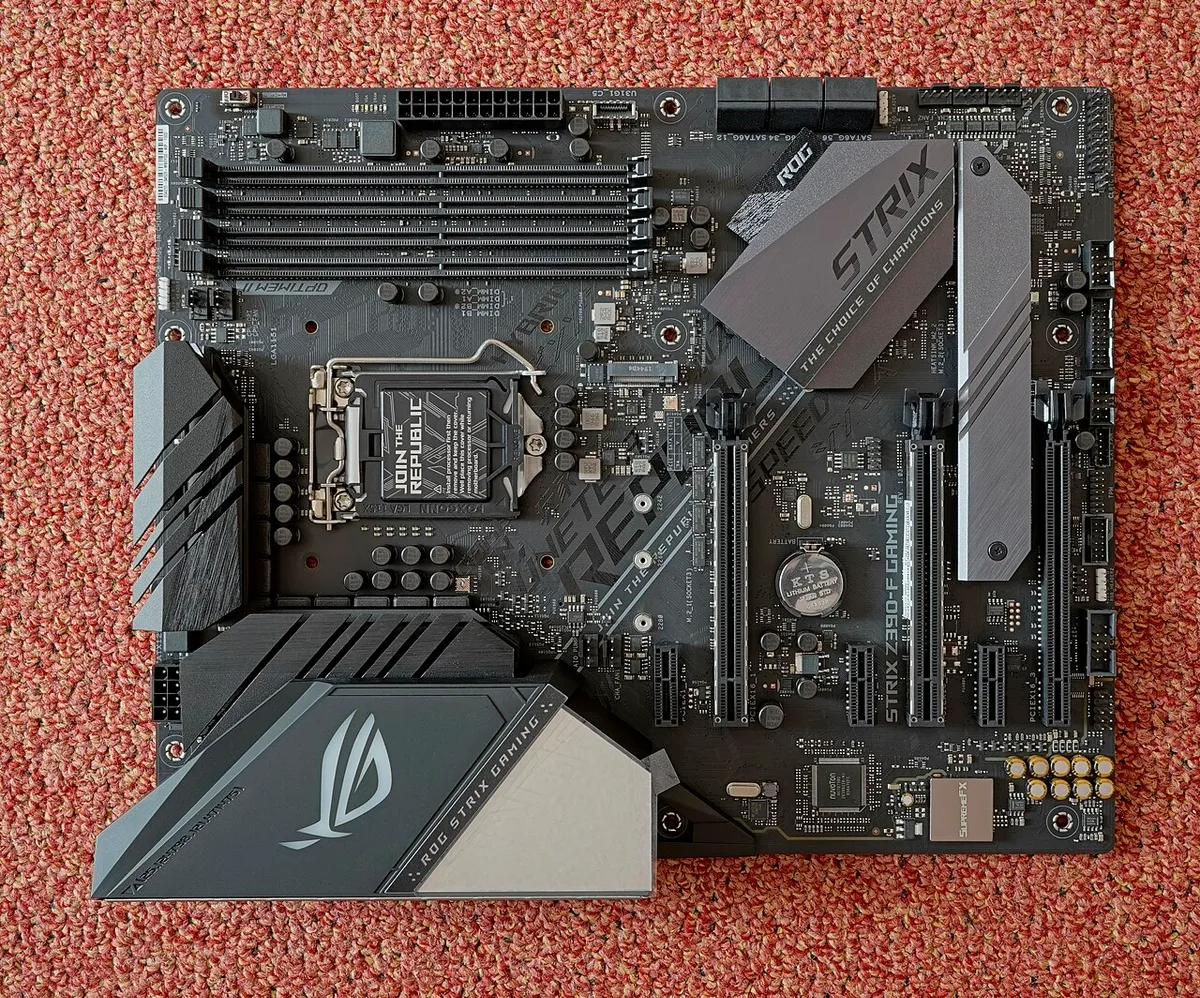
Image source: Wikimedia Commons / PantheraLeo1359531 (CC BY)
Keying refers to the notches on the drive and slot. Those notches decide physical fit. A B-key slot, M-key slot, or B+M slot each accepts different drive types.
An M-key slot usually supports PCIe NVMe drives. A B-key slot often supports SATA M.2 drives. B+M drives have two notches, so they can fit more slot types, but they may not use the fastest PCIe lanes.
Do not force a drive into a slot. If the notch does not line up, stop. Forcing it can bend pins or crack the connector.
- M key: common for NVMe SSDs.
- B key: often used for SATA M.2 drives.
- B+M: wider compatibility, but check speed limits.
- PCIe x4 NVMe drives usually need an M-key slot.
If you want to compare drive protocols, see our breakdown of SSD versus HDD tradeoffs before choosing a boot drive.
Form Factors and Lengths: 2230, 2242, 2280, and 22110
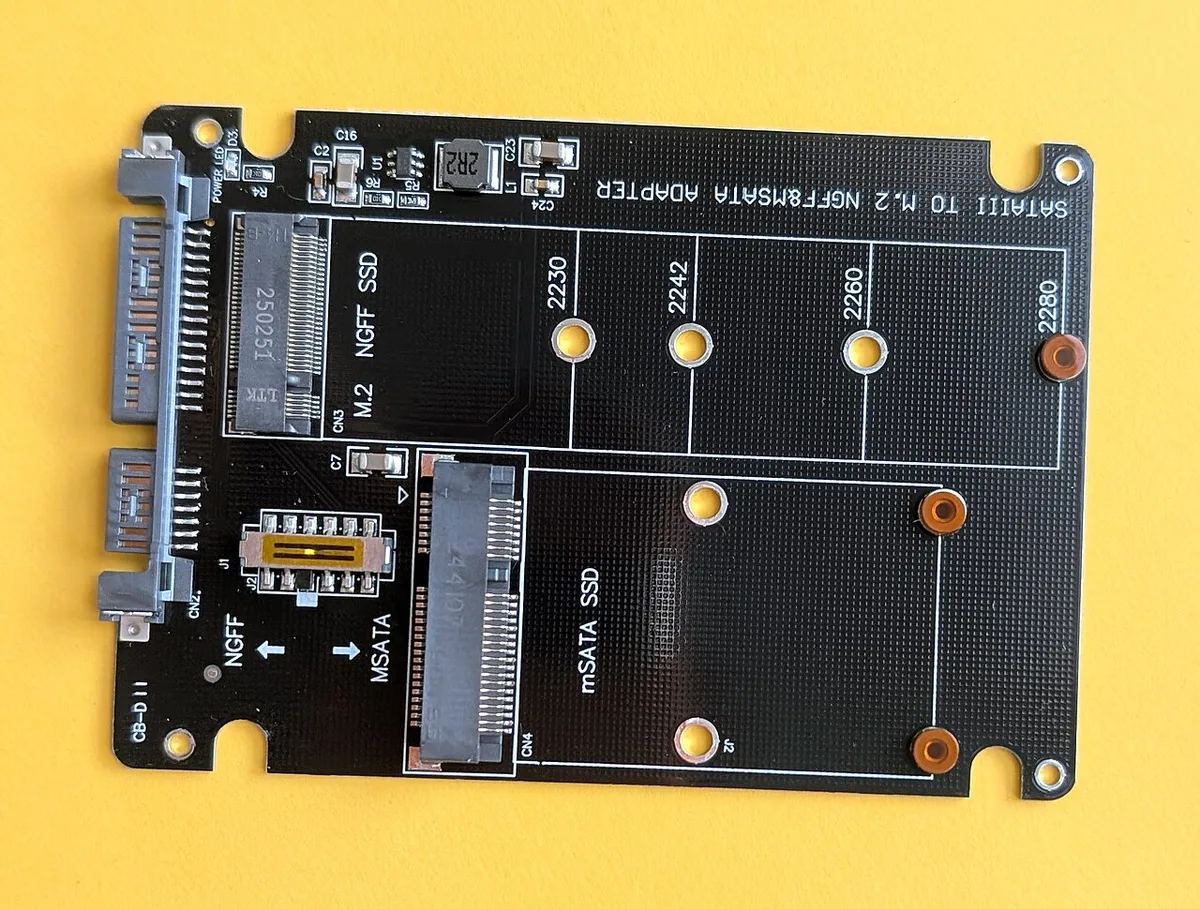
Image source: Wikimedia Commons / Siarhei Besarab (CC BY-SA)
The numbers describe width and length in millimeters. A 2280 drive is 22 mm wide and 80 mm long. That is the most common size for gaming PCs.
A 2230 drive is much shorter and often appears in handhelds or compact devices.
Motherboards include standoffs at specific positions. Your drive must match one of those positions. If the standoff is in the wrong place, the drive will not mount securely.
Most gaming boards support 2280. Some also support 2242 or 2260. Fewer support 22110, which is 110 mm long.
Always check the manual's supported lengths.
- 2230: 22 x 30 mm, common in compact systems.
- 2242: 22 x 42 mm, less common on desktop boards.
- 2280: 22 x 80 mm, the standard gaming PC size.
- 22110: 22 x 110 mm, more common in workstations.
A good fit matters as much as capacity. For capacity planning, review our storage capacity planning guide before buying a large drive.
PCIe Generations and Lane Widths That Actually Matter
PCIe generation affects maximum speed. Gen 3, Gen 4, and Gen 5 each double bandwidth roughly. A Gen 4 x4 drive can reach about 7,000 MB/s sequential reads.
A Gen 3 x4 drive is closer to 3,500 MB/s.
Lane width also matters. Many M.2 NVMe slots use PCIe x4. Some budget boards use x2 on secondary slots.
A drive in an x2 slot will not reach its rated speed.
For gaming, Gen 4 is a strong sweet spot as of 2026. Gen 5 is faster on paper, but many games do not use that extra speed yet. DirectStorage can benefit from fast NVMe drives, but real gains depend on the game and asset pipeline.
- Gen 3 x4: about 3,500 MB/s reads.
- Gen 4 x4: about 7,000 MB/s reads.
- Gen 5 x4: about 12,000 MB/s or more on top drives.
- x2 slots cut peak speed roughly in half.
If you want to know whether faster storage changes gameplay, read our guide on how NVMe speed affects loading.
Step-by-Step: Installing an M.2 Drive Without Breaking It
Power down the PC and unplug it. Press the power button once to discharge residual power. Ground yourself before touching the board.
Remove the M.2 heatsink if one covers the slot. Line up the drive notch with the slot keying. Insert the drive at about a 30-degree angle, then press it down gently.
Secure it with the correct screw. Do not overtighten. If the board uses a toolless latch, close it firmly without forcing.
- Shut down and unplug the system.
- Remove the side panel and locate the M.2 slot.
- Remove the heatsink or cover if needed.
- Match the drive notch to the slot keying.
- Insert at a slight angle, then press flat.
- Secure with the standoff screw or latch.
- Reinstall the heatsink with proper pad contact.
- Boot into BIOS and confirm detection.
Common mistakes include using the wrong standoff, skipping the thermal pad, and mounting a 2280 drive on a 2242 standoff. Also check boot priority after installation. If the system does not see the drive, reseat it and verify slot support in the manual.
For broader platform checks, see our note on motherboard upgrade signs before replacing a board just for storage.
Common Visual Mistakes That Kill Builds
A drive can look installed and still fail. The most common mistake is using the wrong standoff for the drive length. A 2280 drive needs support at 80 mm, not at 42 mm or 60 mm.
Without full support, the PCB can flex when you tighten the screw.
Another mistake is poor heatsink contact. Thermal pads must touch the controller and NAND, not just the metal cover. If the pad is too thick, it can lift the heatsink.
If it is too thin, it will not transfer heat well.
Overtightening is also a risk. M.2 screws need only light pressure. A stripped screw or cracked PCB can turn a simple upgrade into a board replacement.
If your board has no suitable slot at all, review the signs your board needs replacing before buying adapters.
Use this quick checklist before closing the case:
- The drive sits flat with no flex.
- The screw is snug, not forced.
- The thermal pad covers the main chips.
- The heatsink is fully seated.
- No cables press against the drive.
- The BIOS detects the drive after boot.
M.2 NVMe vs M.2 SATA vs 2.5" SSD: Which Storage Wins
Each option has a different job. M.2 NVMe is fastest and best for a boot drive or active game library. M.2 SATA is slower but still tidy.
A 2.5" SATA SSD is often cheaper per gigabyte and works well for bulk storage.
| Option | Typical Speed | Cables Needed | Best For |
|---|---|---|---|
| M.2 NVMe | Up to about 7,000 MB/s on Gen 4 | None | OS, heavy games, fast loading |
| M.2 SATA | Up to about 550 MB/s | None | Budget builds, older boards |
| 2.5" SATA SSD | Up to about 550 MB/s | SATA data and power | Bulk game storage |
For pure speed, NVMe wins. For price per terabyte, a 2.5" SATA drive often wins. M.2 SATA is mostly a compatibility option today.
If your board supports NVMe, choose NVMe for the main drive.
If you want to compare mechanical and solid-state storage, read our guide on mechanical drives versus solid-state storage. If you wonder whether faster storage changes gameplay, see whether faster storage changes load times.
Thermal Throttling and Heatsink Fitment on Gaming Boards
Heat is the main enemy of sustained M.2 performance. A Gen 4 drive can throttle when it gets too hot. Many drives start to reduce speed around 70°C.
Under a hot GPU, that can happen during long sessions.
A heatsink helps, but fitment matters. Remove any protective film from the thermal pad. Make sure the pad touches the controller and memory.
Do not stack extra pads. Extra thickness can prevent the heatsink from seating.
Some motherboards include a metal heatsink with a screw or latch. Others use a simple clip. Aftermarket heatsinks can be too tall under a graphics card.
Check clearance before buying one.
- Monitor drive temperature in SMART data.
- Keep case airflow moving across the board.
- Use the included thermal pad correctly.
- Avoid blocking the M.2 area with cables.
- Consider a lower-power drive if space is tight.
Form factor details come from JEDEC standards, while PCIe behavior follows PCI-SIG specifications. Manufacturer specs also list safe operating ranges, so check the drive manual before pushing sustained workloads.
Frequently Asked Questions
Can any M.2 slot run an NVMe drive?
No. The slot must support PCIe NVMe, not just M.2 SATA. Check the manual for keying and protocol support.
An M-key slot usually supports NVMe, while B-key slots often do not.
Does an M.2 drive use a SATA port?
Sometimes. Some M.2 SATA drives share bandwidth with SATA ports. Adding one can disable one or more ports.
NVMe drives usually do not use SATA ports, but slot sharing can still apply.
Is Gen 5 worth it for gaming?
Usually not yet. Gen 4 is fast enough for most games in 2026. Gen 5 helps heavy file work and future DirectStorage use.
It also runs hotter and costs more.
Why is my M.2 drive not detected?
The drive may be loose, unsupported, or in a slot with disabled lanes. Reseat it and check BIOS settings. Also confirm the slot supports the drive's keying and length.
Do all M.2 drives need a heatsink?
No. Many run fine without one in normal gaming use. A heatsink helps under sustained loads or in hot cases.
Gen 5 drives benefit most from proper cooling.
Final Verdict: Is an M.2 Slot Worth It for Your Gaming PC
Yes, for most gamers it is worth it. An M.2 NVMe drive gives fast boots, quick level loads, and a cleaner build. It also removes SATA cables from the case.
For a main gaming PC, that is a strong upgrade.
Choose a 2280 Gen 4 NVMe drive for the best balance of speed, heat, and price. Use M.2 SATA only when the board lacks NVMe support. Keep a 2.5" SATA SSD for cheap bulk storage.
Before buying, check the manual for keying, supported lengths, and PCIe lanes. Also check whether the slot disables SATA ports. If you are unsure about capacity, review how much space games really need before choosing a drive size.