How to manage cables in a gaming pc case starts before you plug anything in. You need a plan for routing, clearance, and airflow. A clean build looks good, but it also runs cooler and is easier to upgrade.
Manufacturer specifications indicate cable lengths and connector limits matter as much as zip ties. The 24-pin ATX cable is often about 600 mm, while EPS cables can run 650 to 750 mm. That extra length changes where slack should hide.
Let's walk through the process step by step.
how to manage cables in a gaming pc case
Cables should follow the case's intended channels. Route power first, then fans, then front panel wires. Keep bundles away from intake and exhaust.
Tie slack behind the motherboard tray. Test before final tidying.
Why Visual Planning Matters Before You Route a Single Cable
A gaming PC case is a three-dimensional puzzle. You cannot fix bad routing after every cable is locked in place. Start by looking through the side panel and from the back.
Map the path from the power supply to each connector. Check where the motherboard tray has cutouts. Look for tie-down loops and grommets.
If you are still picking a case with good routing, do that before buying parts.
Visual planning also protects airflow. A cable bundle near the front intake can block air before it reaches the GPU. A loose EPS cable near a top exhaust fan can rub and fray.
Plan each cable like a road, not a knot.
Use these planning cues before assembly:
- Place the power supply with its fan facing the vented shroud opening.
- Leave room for the CPU cooler and front radiator.
- Route the 24-pin ATX cable along the motherboard edge.
- Keep PCIe cables off the GPU fans.
- Check GPU clearance before final cable placement.
| Case factor | What to check visually |
|---|---|
| Motherboard tray depth | Space for bundled cables behind the tray |
| Grommet holes | Clean pass-throughs to the main chamber |
| PSU shroud | Hidden space for excess power cables |
| Fan positions | Paths that do not block blades |
Step-by-Step Cable Routing From PSU Shroud to Motherboard Tray
Route cables in a fixed order. Power first, then data, then front panel and lighting. This keeps the build logical and reduces rework.
- Install the power supply with cables facing the shroud.
- Feed the 24-pin ATX cable through the largest grommet.
- Route the EPS cable behind the motherboard tray.
- Connect SATA or NVMe power only after drives are seated.
- Route GPU power last, after the graphics card is installed.
- Bundle fan and RGB cables near their headers.
- Tie excess length behind the tray.
- Power on and test before trimming ties.
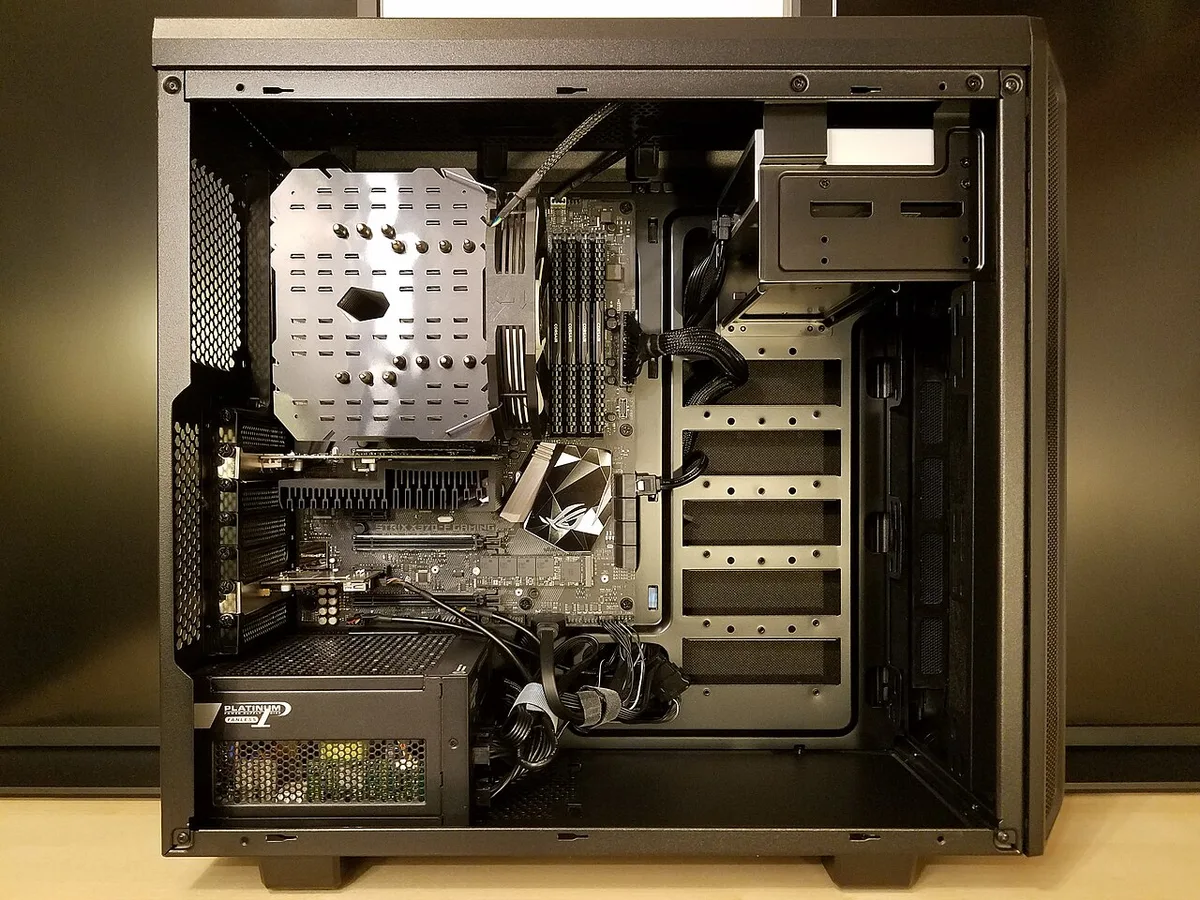
Image source: Wikimedia Commons / Bretwa (CC BY-SA)
Use velcro straps first. They let you adjust routes without cutting. Add zip ties only after testing.
If you are checking cooler clearance, do it before locking the CPU power cable in place.
A modular power supply helps here. You connect only the cables you need. A non-modular unit still works, but excess cables must be bundled and hidden in the shroud.
Do not force the side panel closed.
Key Identifiers: Grommets, Routing Channels, and Tie-Down Points
Grommets are the rubber-lined holes in the motherboard tray. They protect cables from sharp metal edges. Routing channels are the grooves behind the tray.
Tie-down points are where straps anchor.
Look for these features before routing:
- Grommets near the 24-pin and PCIe cable paths.
- Channels wide enough for two or three cables.
- Tie-down loops near the power supply.
- A PSU shroud with side cutouts.
- Space behind the tray for a bulky 24-pin connector.
If a case lacks grommets, use rubber edging or route through smooth openings. Sharp edges can cut sleeving over time. Tie-down points should hold a strap without bending the cable at a tight angle.
Motherboard tray depth matters. Many mid-tower cases offer 15 to 30 mm behind the tray. That is enough for a 24-pin bundle if you fold it neatly.
A small form factor build has less room, so route thinner cables first.
GPU Power Cables and the 12VHPWR Bend Problem
GPU power cables need the most care. Modern high-end cards may use a 12VHPWR or 12V-2×6 connector. These connectors can overheat if bent too sharply or seated poorly.
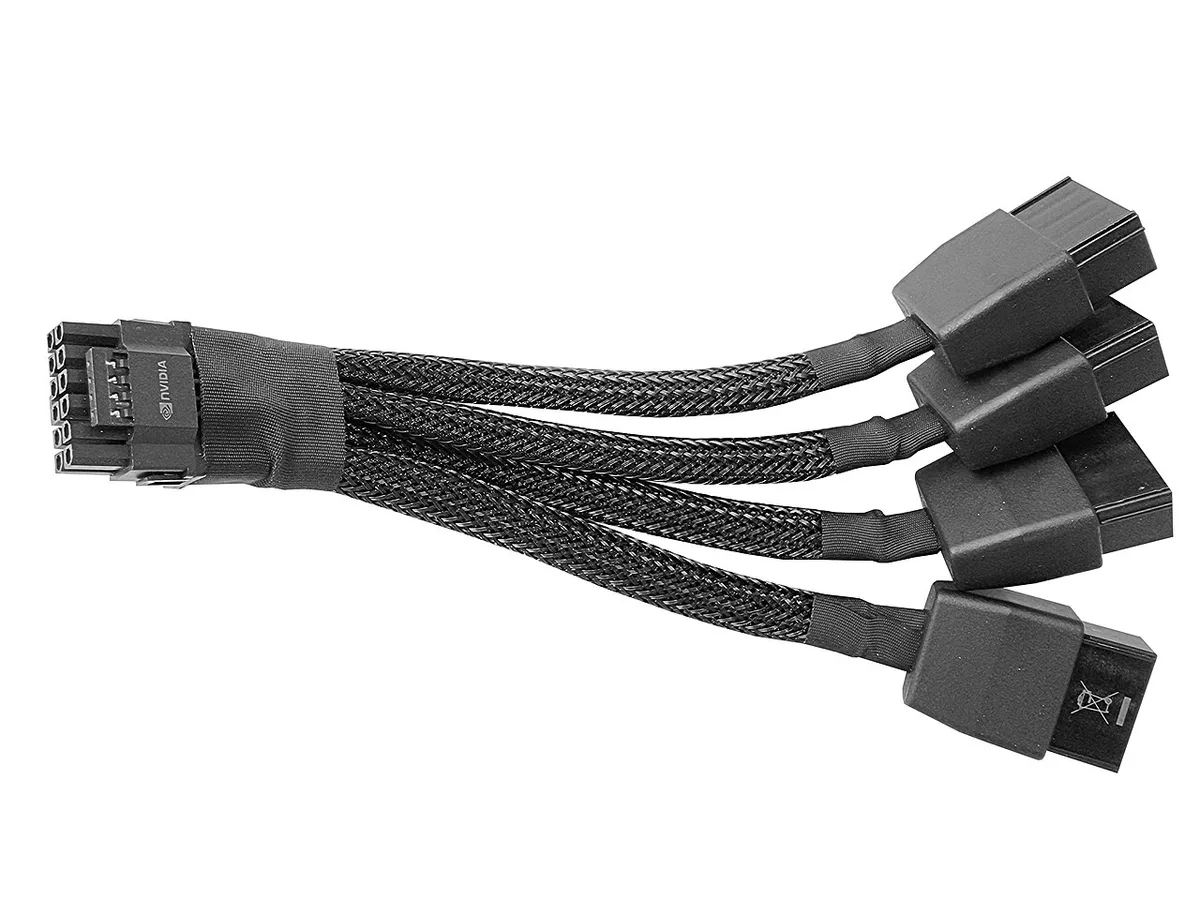
Image source: Wikimedia Commons / Benlisquare (CC BY-SA)
Follow manufacturer bend guidance. Avoid sharp 90-degree bends close to the connector. Give the cable enough slack to sit flat.
Do not pull the connector sideways to make it look neat.
If you are comparing 12VHPWR connector differences, focus on seating depth and cable strain. A fully seated connector with gentle strain relief is safer than a perfectly straight cable under tension.
Use these GPU cable rules:
- Seat the connector until it clicks.
- Support heavy cables with a bracket or tie.
- Keep the cable off the GPU fans.
- Avoid tight bends within about 35 mm of the connector.
- Do not mix cables from another power supply.
If the cable is too short, use the manufacturer's extension or reroute the GPU. Do not stretch the connector. If the card is large, check GPU length clearance before adding cable management.
Fan, RGB, and Front Panel Cable Routing Without the Clutter
Small cables cause most messy builds. They are thin, numerous, and easy to ignore. They also sit near moving parts.
Route fan cables along the case frame. Use fan hubs when the board has too few headers. Daisy-chain only when the manufacturer allows it.
Keep RGB cables away from PCIe slots and pump headers.
Front panel wires are short. Route them along the bottom edge or behind the motherboard tray. Do not stretch them across the board.
If they are too short, use extensions from the case or accessory kit.
Use this routing order for small cables:
- Connect CPU fan and pump cables first.
- Route case fans to a hub.
- Run RGB cables behind the tray.
- Connect front panel headers last.
- Tidy with velcro near the hub.
A clean fan layout improves airflow. If you are planning fan layout, route cables before installing all fans. This prevents trapped bundles behind fan frames.
Keep cables at least a few millimeters from blades.
External guidance from PCI-SIG connector specifications and NVIDIA 12VHPWR advisories supports gentle bends and full seating. Manufacturer documentation from Corsair, Seasonic, Fractal Design, and Phanteks also confirms case-specific routing paths.
Modular vs Non-Modular PSU: What Changes in Your Routing
A modular power supply lets you connect only the cables you need. That reduces clutter and makes routing easier. Semi-modular units keep the main 24-pin and EPS cables fixed.
Non-modular units include every cable, so you must hide the extras.
If you are choosing between modular vs semi-modular vs non-modular PSU options, think about cable count first. A high-end build with multiple drives and a big GPU benefits most from full modularity. A budget build can still look clean with a non-modular unit and good bundling.
Here is how routing changes by type:
| PSU type | Cables included | Routing effort | Best for |
|---|---|---|---|
| Full modular | Only what you plug in | Low | Showcase builds, SFF cases |
| Semi-modular | Fixed 24-pin and EPS | Medium | Mid-range builds |
| Non-modular | All cables attached | High | Budget builds, large cases |
Modular cables are not all the same length. Check the manufacturer's cable kit before buying. Some kits include longer PCIe cables for full-tower layouts.
Shorter cables work better in compact cases.
Never mix cables from different power supplies. Pinouts vary by brand and model. Using the wrong cable can damage components.
If you are unsure, check whether your PSU has the right GPU cables before routing.
Common Visual Mistakes That Block Airflow and Strain Connectors
Most messy builds fail in the same few ways. The cables look fine from the front, but the back is packed tight. Airflow suffers, and connectors take stress.
Watch for these mistakes:
- A 24-pin bundle pressed against the motherboard tray with no slack.
- EPS cables routed through a sharp grommet edge.
- PCIe cables draped across GPU intake fans.
- SATA power cables blocking drive bays.
- Fan cables left dangling near spinning blades.
- RGB cables crossing over the CPU cooler.
- Excess cable length wadded behind the tray.
A common error is tying cables too tight. Zip ties can crush sleeving and cut into wires over time. Use velcro first, then trim zip ties lightly.
Leave a small loop of slack at each connector.
Another mistake is ignoring the PSU shroud. Many builders stuff every spare cable into the shroud with no order. That makes future upgrades harder.
Lay cables flat and group them by type instead.
If a side panel bulges, something is too thick behind the tray. Rebundle and reroute before forcing it closed. Check how many fans your case supports and keep their cables clear of blades.
Reference Guide: Cable Lengths, Clearances, and Connector Specs
Use this table as a quick reference while routing. Lengths vary by manufacturer, but these values are typical for stock cables.
| Cable or clearance | Typical value | Notes |
|---|---|---|
| 24-pin ATX | ~600 mm | Route along motherboard edge |
| EPS / CPU power | 650-750 mm | Watch top exhaust fan clearance |
| PCIe power | 600-700 mm | Keep off GPU fans |
| Motherboard tray depth | 15-30 mm | Space for bundled cables |
| 12VHPWR bend radius | Avoid sharp bends within 35 mm | Follow manufacturer guidance |
| Zip tie tensile strength | 18-50 lb | Do not overtighten |
| Velcro strap length | 100-300 mm | Reusable and adjustable |
Clearance matters as much as length. A cable that is too long creates slack. A cable that is too short pulls on the connector.
Measure before final ties.
As of 2026, many new GPUs ship with 12V-2×6 connectors instead of 12VHPWR. The routing rules are similar. Seat fully, avoid sharp bends, and support the cable weight.
If you are comparing 12VHPWR and 12V-2×6, focus on seating depth and strain relief. A fully seated connector with gentle routing is the goal either way.
Safety Checks Before You Power On
Power off and unplug before touching cables. This is non-negotiable. Even with the switch off, some PSUs hold charge.
Run through this checklist:
- All connectors are fully seated and clicked.
- No cables touch fan blades or pump impellers.
- No wires rest against heatsinks or VRM components.
- The 12VHPWR connector has no sharp bend at the plug.
- Zip ties are trimmed and not cutting sleeving.
- Side panels close without force.
- The power supply switch is off before plugging in.
Use ESD precautions when handling components. Ground yourself before touching the motherboard. Keep cables away from sharp case edges to prevent abrasion.
Do not power on with the side panel off if you have exposed fan cables. A spinning fan can grab a loose wire. Once tested, reinstall the panel before final use.
If the system shuts down under load, check cable seating and PSU capacity. A loose PCIe or EPS connector can cause intermittent power. Verify your PSU has enough wattage for future upgrades if you added a new GPU.
Frequently Asked Questions
How do I start cable management in a new build?
Start by planning routes before installing parts. Install the power supply first. Feed the 24-pin and EPS cables through grommets.
Connect power before data. Test before final tidying.
Should I use zip ties or velcro straps?
Use velcro straps first. They allow adjustments without cutting. Add zip ties only after testing.
Trim zip ties carefully to avoid sharp edges.
Can poor cable management affect temperatures?
Yes. Cables blocking intake or exhaust reduce airflow. Aggregate builder reports show temperature improvements of 2 to 5 degrees Celsius with cleaner routing.
Keep bundles away from fans.
Is modular PSU worth it for cable management?
Yes for most builders. A full modular PSU reduces cable count and clutter. Semi-modular works well for mid-range builds.
Non-modular units require more effort but can still look clean.
How tight should zip ties be?
Snug, not crushing. Overtightening can cut sleeving and damage wires. Leave small slack loops at connectors.
Trim flush after testing.
What is the biggest cable management mistake?
Forcing the side panel closed over bulky bundles. This pinches cables and damages connectors. Rebundle behind the tray until the panel fits smoothly.
3 thoughts on “How to Manage Cables in a Gaming PC Case”
Comments are closed.