Your gaming laptop shows a live Ethernet connection and still refuses to load a single page. Knowing how to fix Ethernet says connected but no internet on a gaming laptop starts with separating three things: the physical link, the IP address, and the route out to the web. The taskbar icon only confirms that a cable is plugged in and something answered on the other end.
It says nothing about whether traffic can actually leave your network.
Under IEEE 802.3, a 1000BASE-T port can negotiate a rock-solid 1 Gbps link while the DHCP lease behind it has expired or the DNS server is unreachable. That's the whole trick to this fault. Link status and internet access are different layers, so test them in the right order.
How to Fix Ethernet Says Connected But No Internet on a Gaming Laptop
Restart the router first. Unplug it for 30 seconds, then reconnect. Check the adapter link light at both ends.
Release and renew your IP address. Flush the DNS cache. Update the network adapter driver.
Replace the cable if the lights stay dark.
Why It Looks Connected But Feels Empty
The word connected in Windows describes the link layer. Your network interface controller (NIC) senses voltage on the cable pair and reports carrier status. That check takes milliseconds and needs nothing from your provider.
It only proves a partner device answered.
Internet access lives three layers higher. Your laptop needs a DHCP lease, a working default gateway, and a DNS server that replies to queries. Break any one of those and the icon still says connected while every page times out.
The Gap Between Link Status and Actual Access
Picture a lit porch light. The bulb proves the wiring is live, not that anyone is home. A Cat6 run can negotiate 1 Gbps and carry zero routable traffic.
Windows draws its warning badge through the Network Connectivity Status Indicator (NCSI), which sends a small probe and reads the reply. A VPN, a strict antivirus firewall, or a hotel captive portal can block that probe. The badge then appears even when browsing actually works.
If wireless is your usual fallback, this is the same pattern behind a wireless version of the same warning.
What the Windows Icon Is Actually Telling You
Read the taskbar state before you change anything. Each label points at a different layer.
| Taskbar state | What it means | Where to look |
|---|---|---|
| Ethernet, no internet | Link up, probe failed | IP, DNS, gateway |
| Unidentified network | No DHCP lease | Router DHCP pool |
| Red X on the adapter | No carrier at all | Cable, port, driver |
An Unidentified Network label almost always means DHCP failed. A red X means no carrier. A clean icon with an exclamation mark points at DNS, the gateway, or the provider.
One command settles the layer question fast. Open Command Prompt and ping your default gateway by IP address. A reply means the cable and router are healthy and the fault sits upstream.
A timeout means stay local.
The 4-Point Triage Before You Open Settings
Work from the outside in. Four checks take under ten minutes and rule out the most common causes before you touch a driver.
Check the Route and ISP First
Load a site on your phone using mobile data. If that fails too, the problem is upstream. Log into the router's admin page and read the WAN status.
A blank IP there means the modem lost sync, so call your provider and skip everything else.
Use this order:
- Phone works, laptop fails: the fault is on your side.
- Phone fails as well: it's the line, the modem, or the router's WAN port.
- Only one device fails, wired and wireless: that adapter or its config.
Read the Link Lights at Both Ends
A live port shows a steady or blinking LED beside the connector. Blink means traffic. Dark means no electrical link.
If the laptop LED is dark, reseat the cable and try another port on the router. Swap in a known-good cable. Still dark?
The port or the NIC is the suspect. Lit LED with a no-internet label means the physical layer is fine and your problem is addressing.
Restart in the Right Order
Power cycling clears the DHCP table and re-runs the handshake, which fixes a surprising share of these faults.
- Shut the laptop down fully, not sleep.
- Unplug the router and modem from power for 30 seconds.
- Power the modem first and let its lights settle.
- Power the router, then start the laptop.
If the connection returns and dies again within minutes, heat or a failing power supply is likely. Our notes on heat-triggered disconnects cover that pattern well.
Following the Branch: Driver, IP, or DNS Failure
Each symptom below points at one layer. Match what you see, then jump straight to that branch.
| Symptom | Likely layer | First move |
|---|---|---|
| Unidentified network | DHCP | Renew the lease |
| Ping to 8.8.8.8 works, pages fail | DNS | Change resolver |
| Adapter missing or Code 10 | Driver | Reinstall the NIC |
| Everything dies after a VPN | Filter | Reset the stack |
Branch One: Corrupted Network Stack
If pinging 127.0.0.1 works but the gateway doesn't, the stack itself may be damaged. A winsock reset rebuilds it from scratch. Do this only after a basic lease renewal fails.
Branch Two: Bad IP or DHCP Lease
An address starting with 169.254 is a self-assigned fallback. That means the router never answered. Renew the lease.
If it still fails, the router's DHCP pool may be full, disabled, or exhausted by too many devices.
Branch Three: DNS Resolution Failure
Numeric IPs loading while names stall is a classic DNS problem. Flush the cache and test a public resolver. A failing DNS relay on older router firmware is a common cause.
Branch Four: IPv6 or Firewall Interference
If IPv4 works but IPv6 keeps timing out, disable IPv6 on the adapter and retest. Antivirus web shields and VPN kill switches also drop wired traffic. Turn them off for one test.
That same interference shows up as cutouts during matches on wireless gear.
Fixing It: Commands, Reset, and Adapter Settings
These are the repairs that match each branch. Run them in an elevated Command Prompt.
Run the Network Repair Commands
ipconfig /release
ipconfig /renew
ipconfig /flushdns
netsh winsock reset
netsh int ip reset
Restart after the winsock and IP resets, because those changes load at boot. Then test with ping 8.8.8.8 and ping google.com in that order. The first checks routing, the second checks name resolution.
Microsoft documents the full syntax for these tools on Microsoft Learn.
Use the Windows Network Reset Tool
As of 2026, Windows 11 keeps this under Settings, Network & internet, Advanced network settings, Network reset. It removes every adapter and reinstalls them cleanly. You'll lose saved Wi-Fi passwords, so note them down first.
Update or Reinstall the NIC Driver
Download the vendor driver on another machine and copy it across. Realtek, Intel, and Killer all publish standalone packages. Uninstall the current driver in Device Manager, tick the box to delete the driver software, then install fresh.
Reboot before you test.
Disable Energy Saving on the Adapter
Open Device Manager, find the adapter, and check the Power Management tab. Clear the box that lets Windows turn the device off to save power. Energy Efficient Ethernet and Green Ethernet options can also cause link drops with certain routers, so try disabling both in the advanced tab.
Gaming Laptop Settings That Block Your Wired Signal
Gaming laptops ship with power and priority tools that can quietly strangle a wired connection. Most of them are meant to help.
Power Management and Link Speed Negotiation
Aggressive battery profiles throttle the NIC during unplugged play. Set the power plan to Balanced or High Performance while testing. In the adapter's advanced tab, a Speed & Duplex value locked to 1.0 Gbps Full Duplex can flap when the router only agrees on 100 Mbps.
Set it to Auto Negotiation instead.
Why QoS and Priority Settings Backfire
Killer Priority and similar suites tag game packets for faster handling. On some builds, a wrong bandwidth figure in the control panel caps the whole adapter. If downloads crawl while pings look fine, reset the panel to default and retest.
Throughput that lags behind the phone usually traces back here.
VPNs, Proxies, and Antivirus Firewalls
A leftover VPN adapter can hold the default route long after it disconnects. Check Settings, Network & internet, Proxy, and confirm manual setup is off. Disable the antivirus web shield for one test run.
Killer Networking and Third-Party Control Panels
Uninstall the vendor suite if the adapter keeps misbehaving and let Windows manage the NIC. The generic driver tends to deliver a stable link with fewer moving parts. If the device vanishes from Device Manager entirely, the adapter vanishing after an update pattern is worth reading.
When to Swap Hardware vs. Just Restart
Some fixes need a new part, not more troubleshooting. Knowing the difference saves time and money.
Cable problems are the easiest to spot. A Cat5e cable handles gigabit speeds up to 328 feet, but a damaged sheath or a bent pin breaks the link instantly. If the laptop LED stays dark after you swap ports, try a different cable.
A cable that works on another machine but fails here points at the port.
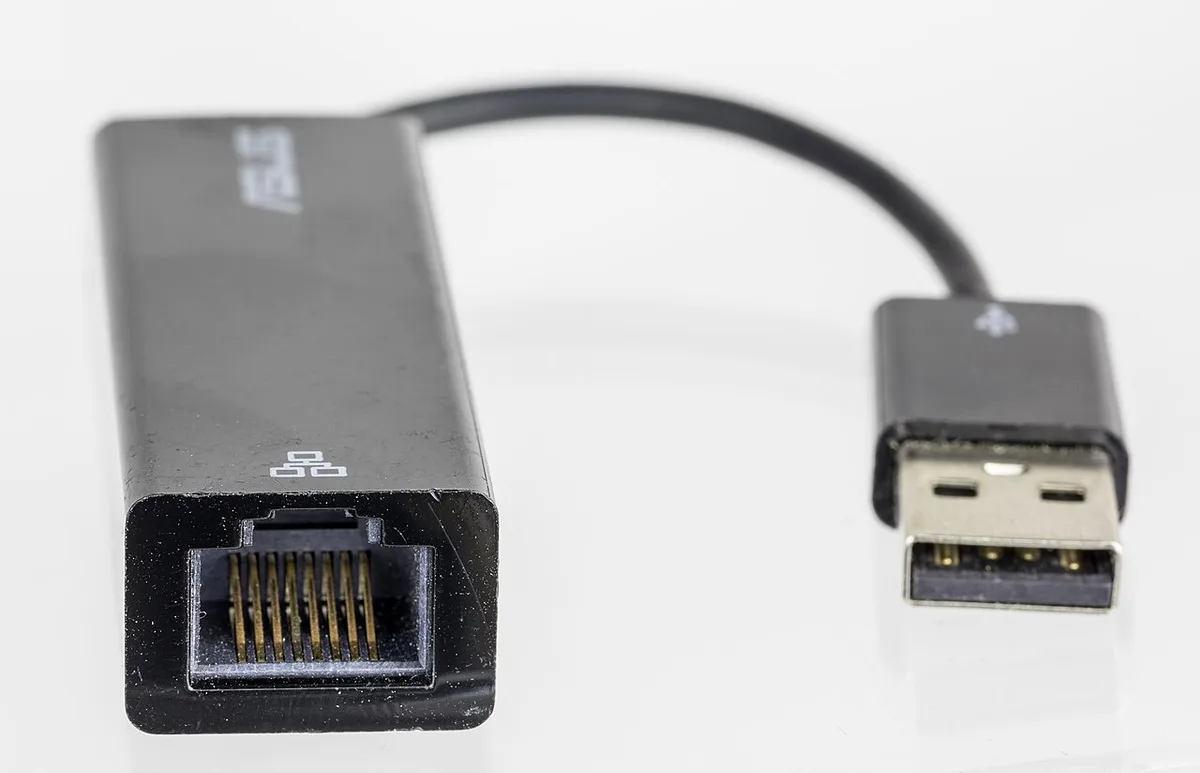
Image source: Wikimedia Commons / Raimond Spekking (CC BY-SA)
USB-C and Thunderbolt adapters add another layer. A cheap adapter may negotiate at 100 Mbps instead of 1 Gbps, which is fine for browsing but painful for downloads. Our guide on slow wired speeds covers that negotiation issue.
A quality adapter from a known vendor costs more but holds a stable link.
When the port itself is dead, no software fix will help. Look for physical damage, a loose jack, or a burnt smell. If the LED never lights even with a known-good cable, the NIC is likely failing.
In that case, a USB-C to Ethernet adapter is the quickest repair. It bypasses the internal port entirely.
A network switch or MoCA setup helps when one port isn't enough. A small unmanaged switch adds four or eight ports for under thirty dollars. MoCA uses your home's coaxial wiring for near-gigabit speeds with low latency.
Both are cheaper than a motherboard repair.
| Part | When to replace | Typical cost |
|---|---|---|
| Cat6 cable | Bent pin, broken link | $10-15 |
| USB-C adapter | Won't negotiate 1 Gbps | $20-40 |
| Internal NIC | No link on any cable | Repair or adapter |
If the router's WAN port shows no IP after a modem restart, the router itself may be failing. A replacement router is a last resort after you've ruled out the cable, the adapter, and the laptop.
FAQs About Wired Internet on Gaming Laptops
Can a router cause a connected-but-no-internet error?
Yes. A router can fail to renew its WAN IP, lose its DHCP lease, or run out of address space. Restarting it clears most of these states.
If the problem returns quickly, the router's firmware may be outdated or its power supply weak.
Should I switch to Wi-Fi if my port fails?
Only as a temporary fix. Wi-Fi adds latency and jitter, which hurts competitive gaming. A USB-C to Ethernet adapter restores a wired link for a small cost.
Use Wi-Fi to test the network while you sort the port.
How do I know if the driver is the problem?
If the adapter shows a yellow exclamation mark in Device Manager, or if pings to the gateway fail but the cable light is on, the driver is suspect. Reinstalling it from the vendor's site usually resolves the issue.
Can a VPN cause this error?
Yes. A VPN can hold the default route even after disconnecting, sending all traffic into a dead tunnel. Check your proxy settings and disable the VPN client temporarily to test.
Is it worth buying a USB-C to Ethernet adapter?
Yes, if your internal port is damaged or unreliable. A good adapter uses a Realtek or Intel chipset and supports 1 Gbps. It's cheaper than a repair and works on other machines.